
How to: Set Up Android Auto – Bluetooth Method
APPLICABILITY:
2023 Ascent
2023 Legacy
2023 Outback
1. Select the MANAGE DEVICES icon on your vehicle touch screen display
2. Select ADD
3. Go to SETTINGS on your Android Phone and select CONNECTIONS / BLUETOOTH
4. Select your VEHICLE from the device list
5. Confirm the PIN matches the numbers displayed on your vehicle touch screen display and select PAIR on your Android phone
6. Select ALLOW on the “Allow access to messages” pop up on your Android phone (optional)
7. Select YES on the “Start Android Auto” pop up on your vehicle touchscreen display
8. On the vehicle’s touchscreen display, Android Auto should auto launch for the first time. If not, select the HOME button and then select Android Auto icon on the vehicle infotainment screen.
Best practices for Android Auto
1. Ensure the Android Auto App is installed from the Play Store.
2. If connecting with a USB cable for the first time, ensure it’s a quality Android approved cable with no adapters or splitters in between your phone and the vehicle USB port.
3. Ensure the Android phone operating system is fully up to date.
4. Ensure all other apps that work on Android Auto are up to date. Ex. (Google Maps, Waze, Spotify). Android Auto might not function correctly if one of these apps is outdated or having an issue. Apps can be updated in the “Play Store” app.
5. If Android Auto wont launch for the first time…
6. Go to Settings>>Apps>>Android Auto on your Android Phone
7. Select STORAGE
8. Select CLEAR STORAGE and CLEAR CACHE
9. Select the MANAGE DEVICES icon on your vehicle touch screen display
10. Select DELETE
11. Select the Android phone to delete it from the system
12. Start the connection process over again or try connecting via USB cable to initiate the wireless Android Auto connection
13. If issues persist, uninstall the Android Auto app from the phone and re-install from the Play Store.
14. Visit the Android Auto website for the latest info, FAQs and device compatibility.
a. https://www.android.com/auto/
AA_BT_CP1-5

- Blazing-fast Qualcomm performance. Get the speed you need for great entertainment with a Snapdragon 680 processor and 4GB**** of RAM.
- Fluid display + immersive stereo sound. Bring your entertainment to life with an ultrawide 6.5" 90Hz* HD+ display plus stereo speakers, Dolby Atmos, and Hi-Res Audio**.
- 50MP*** Quad Pixel camera. Capture sharper, more vibrant photos day or night with 4x the light sensitivity.
- 64GB**** built-in storage. Get plenty of room for photos, movies, songs, and apps—and add up to 1TB more with a microSD card*****.
- Unbelievable battery life. Work and play nonstop with a long-lasting 5000mAh battery.*****


- Please note, this device does not support E-SIM; This 4G model is compatible with all GSM networks worldwide outside of the U.S. In the US, ONLY compatible with T-Mobile and their MVNO's (Metro and Standup). It will NOT work with other CDMA carriers, and it is also not compatible with their MVNO (Visible, Xfinity Mobile, US Mobile, Cricket Wireless, etc).
- Compatibility with certain third-party devices and accessibility accessories, including some hearing aids, may vary depending on manufacturer support, Bluetooth protocols, software compatibility, and regional firmware limitations. For additional hearing aid compatibility information, please refer to Samsung’s official support documentation.
- Camera: 50 MP, f/1.8, (wide), 1/2.76", 0.64µm, AF | 50 MP, f/1.8, (wide), 1/2.76", 0.64µm, AF | 2 MP, f/2.4, (macro). Battery: 5000 mAh, non-removable | A power adapter is NOT included.
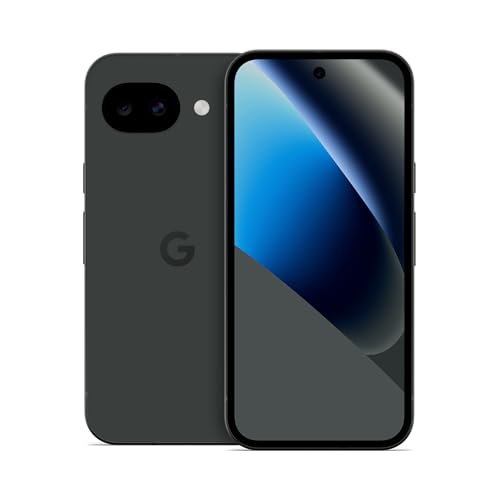
- Google Pixel 10a is a durable, everyday phone with more[1]; snap brilliant photography on a simple, powerful camera, get 30+ hours out of a full charge[2], and do more with helpful AI like Gemini[3]
- Unlocked Android phone gives you the flexibility to change carriers and choose your own data plan; it works with Google Fi, Verizon, T-Mobile, AT&T, and other major carriers
- Pixel 10a is sleek and durable, with a super smooth finish, scratch-resistant Corning Gorilla Glass 7i display, and IP68 water and dust protection[4]
- The Actua display with 3,000-nit peak brightness shows up clear as day, even in direct sunlight[5]
- Plan, create, and get more done with help from Gemini, your built-in AI assistant[3]; have it screen spam calls while you focus[6]; chat with Gemini to brainstorm your meal plan[7], or bring your ideas to life with Nano Banana[8]

- NEW built-in stylus. Jot notes, edit photos, sketch artwork, and navigate effortlessly with an improved stylus and updated software.
- 6.7" pOLED display and Dolby Atmos. Experience cinema-quality entertainment with over a billion shades of color and multidimensional sound*.
- 50MP Ultra Pixel camera + OIS. Capture sharper low-light photos and smoother videos with an unshakable camera system featuring Optical Image Stabilization.
- 30W TurboPower charging + over a day battery. Get hours of power in just minutes of charging, then work and play with unbelievable battery life**.
- Standout design. Make a statement with its stunning look, modern color, and soft, vegan leather finish.
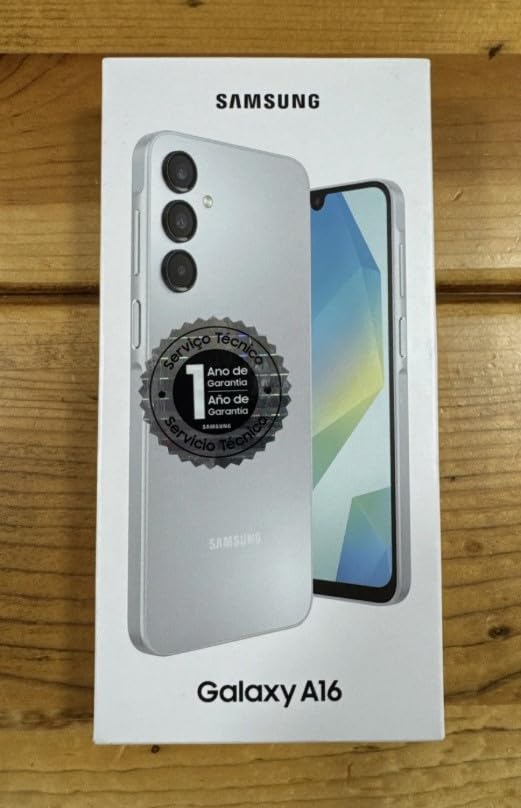
- Please note, this device does not support E-SIM; This 4G model is compatible with all GSM networks worldwide outside of the U.S. In the US, ONLY compatible with T-Mobile and their MVNO's (Metro and Standup). It will NOT work with Verizon, Spectrum, AT&T, Total Wireless, other CDMA carriers, it is also not compatible with their MVNO (Visible, Xfinity Mobile, US Mobile, Cricket Wireless, etc).
- Compatibility with certain third-party devices and accessibility accessories, including some hearing aids, may vary depending on manufacturer support, Bluetooth protocols, software compatibility, and regional firmware limitations. For additional hearing aid compatibility information, please refer to Samsung’s official support documentation.
- 4G LTE Bands: B1/B3/B5/B7/B8/B20/B28/B38/B40/B41
- Display: Super AMOLED, 90Hz, 800 nits (HBM) | 6.7 inches, 110.2 cm2 (~86.0% screen-to-body ratio) | 1080 x 2340 pixels, 19.5:9 ratio (~385 ppi density)
- Camera: 50 MP, f/1.8, (wide), 1/2.76", 0.64µm, AF | 50 MP, f/1.8, (wide), 1/2.76", 0.64µm, AF | 2 MP, f/2.4, (macro)
SEOCONTENT-START
How to Setup Wireless Android Auto (Using Bluetooth) 1 1. Select the MANAGE DEVICES icon on your vehicle touch screen display 2. Select ADD 3. Go to SETTINGS on your Android Phone and select CONNECTIONS / BLUETOOTH 4. Select your VEHICLE from the device list How to Setup Wireless Android Auto (Using Bluetooth) 2 5. Confirm the PIN matches the numbers displayed on your vehicle touch screen display and select PAIR on your Android phone 6. Select ALLOW on the “Allow access to messages” pop up on your Android phone (optional) How to Setup Wireless Android Auto (Using Bluetooth) 3 7. Select YES on the “Start Android Auto” pop up on your vehicle touchscreen display 8. On the vehicle’s touchscreen display, Android Auto should auto launch for the first time. If not, select the HOME button and then select Android Auto icon on the vehicle infotainment screen. How to Setup Wireless Android Auto (Using Bluetooth) 4 Best practices for Android Auto 1. Ensure the Android Auto App is installed from the Play Store. 2. If connecting with a USB cable for the first time, ensure it’s a quality Android approved cable with no adapters or splitters in between your phone and the vehicle USB port. 3. Ensure the Android phone operating system is fully up to date. 4. Ensure all other apps that work on Android Auto are up to date. Ex. (Google Maps, Waze, Spotify). Android Auto might not function correctly if one of these apps is outdated or having an issue. Apps can be updated in the “Play Store” app. 5. If Android Auto wont launch for the first time… 6. Go to Settings>>Apps>>Android Auto on your Android Phone 7. Select STORAGE 8. Select CLEAR STORAGE and CLEAR CACHE 9. Select the MANAGE DEVICES icon on your vehicle touch screen display 10. Select DELETE 11. Select the Android phone to delete it from the system 12. Start the connection process over again or try connecting via USB cable to initiate the wireless Android Auto connection 13. If issues persist, uninstall the Android Auto app from the phone and re-install from the Play Store. 14. Visit the Android Auto website for the latest info, FAQs and device compatibility. a. https://www.android.com/auto/
**************************************************************************************************************
SEOCONTENT-END
This product presentation was made with AAWP plugin.