
Quick Reference Guide
MSA5B2015A
SEOCONTENT-START
Love. It’s what makes a Subaru, a Subaru.
2020
Quick Guide
© 2019 Subaru of America, Inc. All rights reserved.
Contents may not be reproduced in whole or in part without prior written permission of
publisher. Specifications in this Guide are based on the latest product information available
at the time of publication. Some images shown are for illustration purposes only. Some
equipment shown in photography within this Guide is optional at extra cost. Specific
options may be available only in combination with other options. Specific combinations
of equipment or features may vary from time to time, and by geographic area. Subaru
of America, Inc. reserves the right to change or discontinue at any time, without notice:
Prices, colors, materials, equipment, accessories, specifications, models and packages,
without incurring any obligation to make the same or similar changes on vehicles
previously sold. Colors shown may vary due to reproduction and printing processes.
Subaru of America, Inc. is not responsible for typographical errors.
Aha™ is a trademark of Harman International Industries, Inc. Alcantara® is a registered
trademark of Alcantara S.p.A., and Alcantara is produced by the Toray Group. App
Store® is a registered trademark of Apple, Inc. Apple® is a registered trademark of Apple,
Inc. BBS® is a registered trademark of BBS Kraftahrzeugtechnik, AG. Bluetooth® is a
registered trademark of Bluetooth SIG, Inc. Brembo® is a registered trademark of Freni
Brembo, S.p.A. GreenEdge® is a registered trademark of Harman International Industries,
Inc. Harman Kardon® is a registered trademark of Harman International Industries,
Inc. HD Radio® is a registered trademark of iBiquity Digital Corporation. HomeLink® is
a registered trademark of Prince Corporation, a wholly owned subsidiary of Johnson
Controls. iHeart® Radio is a registered trademark of iHeartMedia, Inc. iPod® is a registered
trademark of Apple, Inc. iTunes® is a registered trademark of Apple, Inc. Metal-Matrix
Diaphragm (MMD®) is a registered trademark of Harman International Industries, Inc.
MirrorLink™ is a trademark of Car Connectivity Consortium, LLC. Pandora® is a registered
trademark of Pandora Media, Inc. Siri® is a registered trademark of Apple, Inc. Smart
Way® is a registered trademark of the U.S. Environmental Protection Agency. Stitcher™
is a trademark of Stitcher™, Inc. TORSEN LSD® is a registered trademark of JTEKT
TORSEN North America, Inc. SiriusXM® All Access Radio is a registered trademark of
SiriusXM Radio, Inc. SiriusXM Traffic® and SiriusXM Travel Link® are registered trademarks
of SiriusXM Radio, Inc. Added Security, Crosstrek, Forester and Outback are registered
trademarks of Subaru of America, Inc. Ascent, DriverFocus and StarTex are trademarks of
Subaru of America, Inc. BRZ, EyeSight, Impreza, Lineartronic, Legacy, Subaru, SUBARU
BOXER, Starlink, Subaru Starlink, WRX, STI and X-MODE are registered trademarks of
Subaru Corporation. Confidence in Motion is a trademark of Subaru Corporation.
2 PURPOSE OF THIS GUIDE
3 OVERVIEW
9 STARLINK® HOME
11 DRIVER PROFILE
13 MULTIMEDIA
15 PHONE
18 APPS
23 SUBARU STARLINK® SAFETY AND SECURITY
26 MAPS (if equipped)
32 SETTINGS AND UPDATES
39 APPENDIX: HOW TO
55 INDEX
TABLE OF CONTENTS
FORWARD
Congratulations on choosing a Subaru vehicle! This Quick Guide is designed to provide
information on the basic operation and key features of your Subaru vehicle. The Quick
Guide is not intended as a substitute for the Owner’s Manual. We strongly encourage you
to review the entire Owner’s Manual to ensure complete understanding.
ADDITIONAL RESOURCES
If you’re having difficulty using any of the functions outlined in this guide, you can get more
information from the following sources:
Your Subaru Owner’s Manual:
Located in the glovebox
Online Subaru Owner’s Resources:
www.subaru.com/owners
Subaru Customer Support:
www.subaru.com/customer-support
1-800-782-2783 (1-800-SUBARU3)
PURPOSE OF THIS GUIDE
2
OVERVIEW OF YOUR MULTIMEDIA SYSTEM
SUBARU STARLINK® Multimedia combines the radio along with the ability to connect your
phone* through Bluetooth® to the radio for making calls, sending text messages and
listening to your favorite songs that are on your phone.
* Compatible smartphone and application required. For applications to operate, latest version of each
application required. Data provided by smartphone is displayed on the Touchscreen. Some state laws
prohibit the operation of handheld electronic devices while operating a vehicle. Smartphone apps
should only be launched when vehicle is safely parked. Your wireless carrier’s rates may apply.
Various Systems
Depending on your model and trim level there are several types of SUBARU STARLINK®
Multimedia systems. Some of the functions described in this guide will vary by system.
• 6.5-inch Multimedia
• 6.5-inch Multimedia Plus
• 7.0-inch and 8.0-inch Multimedia Plus
• 7.0-inch and 8.0-inch Multimedia Navigation
BUTTONS
Radio Functions
1 Power/Volume Control
Press the power/volume control knob for
on or off; rotate the knob to control the
volume.
2 Radio
Press the “RADIO” button to display the
AM/FM/SXM screen. Touch the source
you want to hear.
3 Media
Press the “MEDIA” button to display the
media screen. The sources connected
will display in white. Touch the media source you want to hear.
4 Tune
Rotate the knob to change the channels.
5 Seek
Press to select the next or previous radio frequency or audio track.
OVERVIEW
3
CD Player Functions (if equipped)
6 Load
Insert disc into the slot. The CD will automatically be drawn in and will begin playing
at the first track.
7 Eject
Press to remove the CD.
Other Functions (if equipped)
8 Home
Displays the home screen.
9 Map
Displays the map/navigation screen.
10 App
Displays the installed apps.
Controlling the Volume
Adjusting the Volume: Turn the “VOLUME” knob to adjust the volume. The volume stays
at that level after an ignition cycle.
Muting the Volume: Press and release the knob once to mute or un-mute the audio. It will
un-mute automatically after an ignition cycle.
Turning the System Off: Press and hold the knob for about three seconds to turn the
system off. The system remains off after an ignition cycle. Press the knob to turn it back
on.
OVERVIEW
4
TOUCHSCREEN
Operations are performed by touching the screen directly with your finger.
MOTION ACTION USE
Touch
Quickly touch and release once.
Changing and
selecting various
settings
Double Touch with one finger*
Quickly touch and release twice with one
finger.
Enlarging the scale
of the map screen
Double Touch with two fingers*
Quickly touch and release twice with two
fingers.
Reducing the scale
of the map screen
Drag**
Touch and drag your finger on the screen
to move the screen to the desired
position.
• Scrolling the lists
• Scrolling the
map screen*
Swipe**
Quickly move the screen by swiping with
your finger.
• Scrolling the lists
• Scrolling the
map screen*
Pinch*
Move your two fingers further apart
(pinch-out) to zoom in on the map. Move
your two fingers closer together
(pinch-in) to zoom out on the map.
Changing the scale
of the map screen
* 8-inch with Navi system only
** The operations may not be performed on all screens.
OVERVIEW
5
STEERING WHEEL CONTROLS
1 Presets/Skip: Press to toggle through
your presets or change a track/media file.
Press and hold to fast-forward/rewind.
2 Volume: Push the switch up/down to
increase/decrease volume.
3 Source: Press to change audio between
radio sources and media modes.
4 Voice Recognition: Press to initiate the
built-in voice recognition system. If you
have an Android or Apple device paired,
this may also initiate Google Assistant or
Siri functionality.
5 Call: Press to receive/end a call without
taking your hands off the steering wheel.
1 Source: Press to change audio between
radio sources and media modes.
2 Volume +: Push the switch to increase
volume.
3 Volume –: Push the switch to decrease
volume.
4 Presets/Skip: Press to toggle through
your presets or change a track/media file.
Press and hold to fast-forward/rewind.
5 Call Start: Press to receive/start a call
without taking your hands off the steering
wheel.
6 Call End: Press to end a call without
taking your hands off the steering wheel.
Type 1
Type 2
OVERVIEW
6
VOICE RECOGNITION
With SUBARU STARLINK®, simple voice commands can control
features like navigation, entertainment, phone calls, and, on select
models, climate control. A microphone is located in the overhead
console. You do not need to speak directly into it.
Visit www.subaru.com/engineering/starlink/multimedia.html for
more information.
Press the talk switch to start the voice recognition system. Press
and hold the switch to cancel it.
For help with what you can say with voice recognition, press the
“Help” button on the screen or press the voice recognition button and say “Help”.
Tips
The system may not recognize the voice command if:
• You speak too quickly or at a low or high volume.
• You are driving with a window open, the climate control system set on high or have the
ventilator directed toward the microphone.
• Passengers are talking while you are saying a voice command.
In some cases, you may not be able to use voice commands if the system cannot properly
recognize the command. An example would be if the command is incorrect or unclear.
NOTE: Certain words, accents or speech patterns may be difficult for the system to
recognize.
Common Commands
Below is a list of some of the common commands that you can use with the voice
recognition system. Please refer to your SUBARU STARLINK® Owner’s Manual for a
complete list.
VOICE COMMAND FUNCTION EXAMPLE
Dial [Number]
Places a call to the phone
number
Dial 555-123-4567
Call [Name] [Phone Type]
Places a call to the contact
name and phone type of the
contact from the phonebook
Call John Doe mobile
Navigate to [House Number,
Street, City, State]1
Sets a destination to the
address
Navigate to 1234 Main
Street, Lincoln, Washington
Show Map1 Displays the map screen Show Map
OVERVIEW
7
VOICE COMMAND FUNCTION EXAMPLE
Where am I1 Displays current location on
map
Where am I
Tune to [Frequency] (AM /
FM)
Switches to AM/FM and
tunes to spoken frequency
Tune to 99.5 FM
Preset [Number]
Switches to the preset
channel
Preset 3
Satellite Channel [Name /
Channel Number]
Switches to satellite channel
number
Satellite Channel Prime
Country 55
Set Fan Speed to [1-7]2 Sets the fan speed to the
spoken fan speed
Set fan speed to 4
Set Temperature to
[Number]2,3
Sets the temperature to the
spoken temperature
Set temperature to 70
Help Changes to help screen Help
Phone Help
Displays a list of voice
commands related to
controlling your phone
Phone Help
Media Help
Displays a list of commands
related to the media
Media Help
Radio Help
Displays a list of commands
related to the radio
Radio Help
Navigation Help1
Displays a list of voice
commands related to
navigation
Navigation Help
1 7.0-inch and 8.0-inch Multimedia Navigation system only
2 7.0-inch and 8.0-inch Multimedia Plus and 7.0-inch and 8.0-inch Multimedia Navigation system only
3 When the A/C is off, the A/C setting will not change even if the voice command is accepted
Limitations
Google Assistant: May not work with all devices or may not be compatible with the audio
system.
Siri Eyes Free: Only applies to iPhone when Bluetooth® is paired. In this case, you may
experience both built-in voice recognition system and Siri, depending on the button
pressed.
OVERVIEW
8
The SUBARU STARLINK® allows you to control your phone, media, radio, apps and
navigation systems from a single screen. It also allows you to customize the vehicle
settings to your preference.
HOME SCREEN ICONS
Phone – Allows you to place and receive calls
and text messages.
Map – Allows you to enter a destination and
have route guidance to get you where you are
going.
Settings – Allows you to change the settings
to your personal choice for select systems
inside the vehicle.
Add Shortcut – Allows you to add icons for various functions to the home screen.
Apps – Entertainment and convenience applications that can be used to enhance your
driving experience. The apps included are: MySubaru, Pandora, Travel Link, Android Auto,
SUBARU STARLINK®, Aha and Apple Car Play.
Media – Allows you to play CDs, USB/iPod music or Bluetooth® audio by connecting to
the device.
Radio – Allows you to select a station to listen to as well as pause and playback live radio.
REARRANGING ICONS
You can rearrange the home screen icons when the Home Screen Shortcuts function is
turned on.
To rearrange icons:
1. Select and hold the shortcut icon you want to move.
2. Drag the icon to the desired position and release.
3. To delete an icon, drag the icon to the bottom of the screen and release.
STARLINK® HOME
9
ADDING SHORTCUTS
You can add shortcut icons for various functions to the Home screen when the Home
Screen Shortcut function is turned on.
To add icons, press the “Home” button.
1. Select “Add Shortcut”.
2. Select the desired function.
3. Select the desired shortcut function.
4. Check that the shortcut icon is displayed
on the Home screen.
STARLINK® HOME
10
Creating a Driver Profile provides many benefits beyond just “Pairing” a phone. The profile
records and remembers station presets, sound preferences, home and work address (if
equipped with navigation), phone favorites, screen icons and placement, and the
background wallpaper.
CREATING A DRIVER PROFILE
To create a driver profile:
1. From the Home screen, select “Settings”
then “Driver Profile”.
2. Select “Add New Profile”.
3. Touch name to display the keyboad screen
then type your name. Now touch “Next” on
this screen and the following screen.
DRIVER PROFILE
11
4. Select a paired phone or pair a new phone
(see step-by-step directions to pair a phone
in the How To Appendix). Then select
“Next”.
5. Enter a home and work address (if
equipped with navigation). Then select
“Next”.
6. Select a Wallpaper then select “Next”.
7. Select “Finish”.
Retrieving a Driver Profile
There are two ways to retrieve a driver profile. The system may automatically retrieve the
profile once you are in your Subaru with the radio on and your phone’s Bluetooth® active.
You can also manually retrieve or change the profile by following these steps:
1. Press the “Home” button and then select “Settings”.
2. Select “Driver Profile” and then select the profile you want to use and finally select
“Back”.
DRIVER PROFILE
12
RADIO
AM/FM Radio
Your Subaru is equipped standard with AM/FM
radio which includes HD Radio™. HD Radio™
technology is the digital evolution of analog
AM/FM radio. Your radio has a special receiver
which allows it to receive digital broadcasts
(where available) in addition to the analog
broadcasts it already receives. Digital
broadcasts have better sound quality than
analog broadcasts as digital broadcasts
provide free, crystal clear audio with no static or distortion. Visit
www.hdradio.com for more information and a guide to available
radio stations and programming.
Satellite Radio
A SiriusXM® Satellite Radio is a tuner
designed exclusively to receive broadcasts
provided under a separate subscription. After
a free trial period, a subscription is necessary
to continue service. For more information or to
subscribe, visit www.siriusxm.com.
MULTIMEDIA
13
Presets
You can preset 18 stations. Preset 1 can be a
SiriusXM® station while preset 2 can be an FM
station allowing you to switch from SXM to FM
with a single button press. To do this:
1. Tune to the desired channel.
2. Press and hold one of the desired preset
station buttons.
MEDIA
Bluetooth®
Your Subaru has Bluetooth® hands-free technology to manage your phone and audio
systems. Bluetooth-enabled mobile phones link directly through your Touchscreen
automatically, once connected. Receive and initiate calls or play music directly from your
device while keeping it stowed for safety.
To pair a Bluetooth® device to the Touchscreen, please see page 15 and for Android
devices page 39 or for Apple devices page 43.
CD (if equipped)
The CD player holds a single disc only. To access the CD menu, put a CD in the player or
touch the CD icon on the Touchscreen. Depending on the CD format, it may show the CD
album art work on the Touchscreen.
USB / iPod
The USB connection is just above the shifter or in the center console. You can plug in a
USB memory storage device or iPod. This will bring up the media screen with controls. If
using an iPod, make sure to use an Apple certified cable or MFi certified cable for proper
operation.
Aux Input
The Aux jack is a port that allows the input
from an audio device such as MP3 players,
portable music players and iPods. To access
the Aux menu, plug in the device to the Aux
jack and the menu will appear, or select the
Aux menu from the Touchscreen.
MULTIMEDIA
14
PAIRING A PHONE
Using a Bluetooth® connection with the Touchscreen allows you to
use the voice recognition system to make and receive calls. It
provides access to your phone book on your phone and can read
incoming text messages as well as reply via voice recognition. It
remembers your driver profile when your phone pairs via
Bluetooth®.
For instructions on how to pair your phone to the Touchscreen, see
page 39 for Android devices or page 43 for Apple devices.
Visit https://www.subaru.com/owners/index.html for complete
details on what is available by connecting a phone to the
Touchscreen.
MAKING A CALL
You can make a call through voice recognition
by touching the “Voice Recognition Switch” on
the steering wheel to start or stop the voice
recognition system. After pressing the “Voice
Recognition Switch”, wait for the “Voice
Guidance” screen to appear on the
Touchscreen and say “Call [name and phone
type]” or “Dial [number]”.
To make a call from the Touchscreen, start by pushing the “Home” button and then select
“Phone”. After the phone screen displays, select the method you would like to use to make
a call.
• Overview – Allows you to call the last number.
• Favorites – Allows you to place a call to one of your favorites on your phone.
• Recent – Allows you to call someone that has recently called you or that you called.
• Keypad – Allow you to dial any number you would like.
• Phonebook – Will display the phonebook that is on your phone.
PHONE
15
RECEIVING A CALL
To receive a call, press the “Talk Switch” on the steering wheel or the “Talk Button” on the
Touchscreen.
To reject a call, press the “End Switch” on the steering wheel or the “End Button” on the
Touchscreen.
PHONE
16
TEXT MESSAGES
Received messages can be forwarded from the connected Bluetooth® phone, enabling
checking and replying using the system.
Depending on the type of Bluetooth® phone connected, received messages may not be
transferred to the message inbox. If the phone does not support the message function,
this function cannot be used.
Depending on the Bluetooth® phone type, the
screen display may differ, and it may not be
possible to use certain functions.
To use this function, it is necessary to set the
phonebook download function to ON.
When a Short Message Service (SMS)/
Multimedia Messaging Service (MMS) is
received, the incoming message screen pops
up with sound and is ready to be retrieved using the Touchscreen. Select “Play” to listen to
the message or “View” to see the message on the screen. This button may not be
available if the vehicle is moving.
If there is more than one unread message, this
screen will appear to allow you to either view
your inbox or ignore the message.
PHONE
17
WHAT ARE SUBARU STARLINK® APPS?
SUBARU STARLINK® Multimedia offers advanced connectivity
through Apple CarPlay™, Android™ Auto, and Pandora® apps.
Wireless pairing and hands-free smartphone operation allow for
safe and easy connection to your favorite apps and content. You
can access news, navigation, music, podcasts, and more through
the available SUBARU STARLINK® app.
For a complete list of all the apps available, visit
www.subaru.com/engineering/starlink/multimedia.html.
aha™ by HARMAN
aha is a cloud-based application that connects to the system and
gives you access to your favorite web content safely and easily.
There are several tens of thousands of stations spanning internet
radio, personalized music, audiobooks, Facebook, Twitter,
restaurant and hotel searches, weather and more. For more about
aha, visit www.aharadio.com.
When connecting an iPhone or Android device with the aha
application installed, you can control, view, and hear aha content
through the system.
To use the aha application, connect your iPhone or Android device
via Bluetooth®.
With the 7.0-inch and 8.0-inch Multimedia Navigation function, you may also display
Points Of Interest (POI) information from the aha application on the map screen and route
to these POIs.
Pandora®
Pandora is free personalized radio that offers effortless and endless music enjoyment and
discovery.
To use the Pandora application, connect your iPhone or Android device via Bluetooth®.
Depending on differences between models and software version, some vehicles might be
incompatible with this app.
The Pandora application must be installed on your smartphone.
APPS
18
Android™ Auto
Android Auto can be used to view maps, play music,
and place calls by connecting your Android device to
the system. Supported applications can also be run.
For more information, please refer to page 48.
For details on the services or the operations, visit the
Android Auto sites www.android.com/auto/ or
www.support.google.com/androidauto/.
To use the Android Auto application, connect your
Android device to the USB port.
Apple CarPlay™
Apple CarPlay can be used to view maps, play music, and place
calls by connecting your iPhone to the system. Supported
applications can also be run. For more information, please refer to
page 50.
For details on the services or the operations, check the Apple
CarPlay site www.apple.com/ios/carplay/.
To use the Apple CarPlay application, connect your iPhone to the
USB port.
SiriusXM® Travel Link
SiriusXM® U.S. satellite and data services are
available only in the 48 states of the
contiguous USA and DC.
Data service information, which is comprised
of sports, weather, stock and fuel, can be
received via the SiriusXM® Radio.
To receive the data service information in the
vehicle, a subscription to the SiriusXM®
Satellite Radio Service is necessary following a free trial.
APPS
19
SUBARU STARLINK® MOBILE APP
There are several key applications that can be loaded to your phone and used while in your
Subaru to help you while you drive. You must also download and log in to the SUBARU
STARLINK® app on your phone to use these apps.
To download the SUBARU STARLINK® app, go to the Apple App Store or the Google Play
Store and search for SUBARU STARLINK® in the menu.
Below are a few apps that you may find helpful.
Quick Guide
Quick Guide is the digital version of the
original printed Quick Guides that are standard
in all new Subaru vehicles. The app features
In-Vehicle Help (IVH) that provides an
interactive, searchable, model-specific
concierge through the Touchscreen.
APPS
20
Yelp
Yelp is a local guide powered by a community
of reviewers that helps you find great local
businesses.
Chimani
Get the most comprehensive guide to all
417 national parks in the United States.
Quickly learn about each park’s history and
highlights.
eBird
Exclusive to Subaru vehicles, the eBird app
tells you what birds are being seen near you in
real time. Based on a database of millions of
bird sightings, eBird acts as a “digital coach”
to finding the birds that are there right now.
Use the app to decide where to go based on
the distance to a great birding location and the
number of species being seen there. The app
will tell you the nearest one is 8 miles away
and navigate you to the last place it was seen
– Full-screen photos help you confirm your
sightings.
APPS
21
MYSUBARU
Whether you’re on the road or planning adventures, the MySubaru app makes loving every
part of owning your Subaru easy. Although the mobile app is great when you are on the go,
you can also visit www.MySubaru.com from your computer to access the same functions
and to aid in planning your trip before you leave.
You can download the MySubaru app from the Google Play Store or
the Apple App Store on your phone by searching MySubaru.
By creating an account, you can:
• Schedule service with a Preferred Subaru Retailer
• Get vehicle service reminders, recall alerts, and exclusive
coupons
• Track and record your service history
• Access resources like your owner’s manuals, how to videos and
more
• Have access to SUBARU STARLINK® Safety and Security features (must have an active
SUBARU STARLINK® subscription)
• Get help from 24-hour roadside assistance (24-hour roadside is included in standard
3-year warranty, and after 3 years with a Concierge package)
Service Appointment Scheduler
The SUBARU STARLINK® Service
Appointment Scheduler can help you set an
appointment from the MySubaru website,
Mobile App or the vehicle’s Touchscreen.
Getting your Subaru vehicle to the Subaru
professionals for service is easy, no matter
where you are. If you are away from your
Preferred Subaru Retailer for service, you can
always use Service Appointment Scheduler to
locate any of our certified Subaru Retailers near your location.
STARLINK® Service Appointment Scheduler on your Touchscreen is a convenient way to
set a service appointment. Simply select the MySubaru icon on the home screen and
choose “Make an Appointment” to get started.
APPS
22
THE SUBARU STARLINK® EXPERIENCE
STARLINK® Safety and Security services* are designed to help in your time of need. These
include Advanced Automatic Collision Notification, Enhanced Roadside Assistance, Stolen
Vehicle Recovery, the added convenience of Remote Engine Start with Climate Control,
and so much more.
With the SUBARU STARLINK® system integrated into your vehicle, advanced safety and
security technology is just a button press away. The SUBARU STARLINK® experience
includes in-vehicle call center support, maintenance and diagnostic alerts as well as
remote services that keep you connected to your Subaru vehicle.
Located in the overhead console of most Subaru vehicles are the red SOS and blue
i-button . Both buttons link you to the SUBARU STARLINK® call centers that are
there to support you 24 hours a day, 7 days a week.
The SOS button is for SOS Emergency Assistance.
The i-button is for Enhanced Roadside Assistance or Concierge (if subscribed).
• Press the SOS button for SOS Emergency Assistance*
• Press the i-button for Enhanced Roadside Assistance* or Concierge* (if
subscribed).*
SUBARU STARLINK® SAFETY AND SECURITY
23
• To cancel a SOS Emergency Assistance, Enhanced Roadside Assistance or a Concierge
call, press and hold the same button for approximately two seconds or select the “End
Call” button displayed on the Touchscreen.
Head to www.Subaru.com/STARLINK to see all the SUBARU
STARLINK® subscription services and packages.
* Access to STARLINK® Safety and Security services requires an active
STARLINK® subscription. Remote Engine Start available on keyless access
with push-button start vehicles. Remote Engine Start with Climate Control
available on vehicles with keyless access with push-button start and
automatic climate control. Not available on vehicles with manual
transmission.
SUBARU STARLINK® ENROLLMENT
To enroll in SUBARU STARLINK® and access remote services, a MySubaru account is
required. MySubaru is the Subaru owner website that allows you to access vehicle remote
services, user preferences, diagnostic alerts and other useful features enabled by your
STARLINK® Safety Plus, STARLINK® Security Plus and STARLINK® Concierge
subscription.
Your Retailer may have created an account for you during the delivery process. However,
you can also create a MySubaru account on www.mysubaru.com.
Enrollment in SUBARU STARLINK® can be done online at MySubaru.com, through the
MySubaru Mobile App, at your Subaru Retailer or by calling a STARLINK® Customer Care
Representative at 1-855-753-2495 .
NOTE: Please have your Vehicle Identification Number (VIN) available, as you will need it
to complete this step. After the enrollment process, you will learn more about the features
in detail at MySubaru.com.
MYSUBARU, MAKING OWNERSHIP EASY
The connection between you and your Subaru has never been simpler and the MySubaru
website (MySubaru.com) and MySubaru Mobile Application are the best way to stay in
touch with your Subaru vehicle. From MySubaru you can access the following information
and STARLINK® Safety and Security services*:
• Remote Services
• Vehicle Health
• Usage Reports
• Service Appointment Scheduler
SUBARU STARLINK® SAFETY AND SECURITY
24
• Vehicle Maintenance Schedules
• Service History
• Support Resources
* Internet access is purchased separately through AT&T with monthly, per gigabyte, and unlimited data
options available. Existing AT&T customers have the option to add an additional line to their AT&T
Mobile Share plan. Available on select models.
SUBARU STARLINK® WI-FI HOTSPOT* – STAY
CONNECTED
SUBARU STARLINK’s in-vehicle Wi-Fi Hotspot keeps you and your
family connected using AT&T’s 4G LTE nationwide cellular network.
Whether watching movies, playing games or even listening to
music, your family won’t miss a beat with SUBARU STARLINK’s
in-vehicle Wi-Fi Hotspot. Set up is quick and easy and you don’t
need a SUBARU STARLINK® subscription to use it.
• Select “Settings” from the Home screen.
• Select “Wi-Fi Hotspot” to turn it on (if the Wi-Fi Hotpot is already
on then proceed to the next step).
• Select Wi-Fi Hotspot Settings to view or update the following
settings:
• Wi-Fi Network Name (SSID)
• SSID Broadcast (Network ON / OFF)
• Security Type (WPA / WPA2)
• Password
• Connected Devices (Maximum of 8 devices)
How to enroll:
• Connect your tablet, smartphone or laptop to the SUBARU STARLINK® Wi-Fi Hotspot
network listed in the settings menu and open your preferred web browser on the device
connected.
• Once the SUBARU STARLINK® Wi-Fi Hotspot homepage loads, follow the on-screen
instructions to create a new account or to add your vehicle to an already existing AT&T
Wireless account. You can also subscribe to the Wi-Fi Hotspot from the MySubaru
website or Mobile App.
* Internet access is purchased separately through AT&T with monthly, per gigabyte, and unlimited data
options available. Existing AT&T customers have the option to add an additional line to their AT&T
Mobile Share plan. Available on select models.
SUBARU STARLINK® SAFETY AND SECURITY
25
CREATING HOME/WORK
You can create a driver profile that includes your home address and work address through
the “Settings Menu”. A detailed process on how to do this can be found on page 11.
FINDING A DESTINATION
There are two primary ways to find a destination. You can search by address or Points Of
Interest (POI).
Finding a Destination By Address
To search by address:
1. Start by pushing the “Map” button to
display the map screen. Then touch
“Menu”. Next select “Search by Destination
Enter Address”.
2. The keypad screen displays. As you type
the address or name of the destination,
suggestions will display. Touch the desired
destination.
3. The route calculation screen displays three
recommended routes at the bottom left of
the screen. Select the desired route, then
touch “GO”.
MAPS (if equipped)
26
Finding a Destination By POI
To search by Points Of Interest (POI):
1. Pushing the “Map” button to display the
map screen. Then, touch “Menu”, followed
by “Nearby Places List of POI”.
2. Categories are listed alphabetically. Use the
scroll bar on the right, if needed, to display
more categories, then make your selection.
3. Select the desired item from the list, then
touch “GO”.
MAPS (if equipped)
27
4. The route calculation screen displays three
recommended routes at the bottom left of
the screen. Select the desired route, then
touch “GO”.
Route Options
You can set the navigation system to avoid
certain types of routes. To do this:
1. Select “Route Options” on the route
calculation screen.
2. Select the desired item to avoid.
3. Select the check mark in the upper right
corner.
NOTE: The avoidance criteria for the route calculation can also be set from the navigation
settings screen.
Shortest/Fastest/Economic
You can set the route preferences to search for
the shortest, fastest, or most economic route.
To do this:
1. Touch “Settings” from the Home screen.
2. Select “Naviation”.
3. Select “Route Settings”.
4. Select the preference you would like to use
the most, Shortest, Fastest, or Most
Economic.
MAPS (if equipped)
28
Saving Destination as a Favorite
The registered points can be set as a
destination. To save a location once you have
arrived:
1. Select the current street name.
2. Select “Save”.
3. Select to save as Home, Work, or Favorite.
Guidance Screen Icons
These are the common icons used for the navigation guidance.
ICON EXPLANATION ICON EXPLANATION
Turn left. Stay in the left lane.
Turn right. Stay in the right lane.
U-Turn Left.
Straight ahead at the
intersection.
U-Turn right. Turn left at the T junction.
Keep left at the fork in the
road.
Turn right at the T junction.
Keep right at the fork in the
road.
Go left at the roundabout.
Turn left & sharp curve.
You are half way to your
destination.
Turn right & sharp curve.
You have arrived at your
destination.
Map Zoom
Once on the map screen, you can zoom in or
out by touching the “+” or “-” buttons on the
screen. You can also use two fingers on the
screen and move them apart to zoom in or
together to zoom out.
MAPS (if equipped)
29
Map View/Perspectives
The orientation of the map can be changed
between 2D north-up, 2D heading-up, and 3D.
To change the view, select the icon at the
upper right part of the screen. Each time the
icon is touched, the view will change as well
as the icon to match the map orientation.
Traffic Information
Road sections affected by traffic conditions are displayed in a different color on the map,
and a small icon representing the type of traffic condition is displayed above the road.
To receive the data service information in the vehicle, a subscription to the SiriusXM®
Satellite Radio Service is necessary following a free trial.
Nearest Gas Station
To find the nearest gas station, select any
point on the map and then select the fuel icon
in the lower right corner.
When driving on the highway during route
guidance, information on gas stations,
restaurants, or rest areas near the next three
highway exits will be displayed.
MAPS (if equipped)
30
Select the desired item from the list, and then
select “GO” to navigate to the closest selected
place.
Arrival Time/Distance
Displays the distance to the destination, the
estimated travel time to the destination, or the
estimated arrival time at the destination. Select
the information box in the lower right corner to
change between modes.
Canceling Guidance
To cancel guidance, select “Menu” and then
select “Cancel”.
MAPS (if equipped)
31
GENERAL
There are some settings that can be customized for different systems in your Subaru. As
you work through this section, the guide will give some examples of the popular settings
that many people change to suit their personality.
You can update the 7.0-inch and 8.0-inch Multimedia Plus and the 7.0-inch and 8.0-inch
Multimedia Navigation systems only. The system software may also be updated by you via
a Wi-Fi network or using the aha application on your smartphone (depending on your
smartphone communication and transfer speed). The update process involves
downloading and installing the software update.
Performing Software Updates
Software updates make the system easier to use or to add a feature to aid in the operation
of the system. By updating the software, you get the new features and the added security
of the upgraded software.
To check for updates, you need to connect to a Wi-Fi network and then start checking for
updates.
1. To update the software, start by connecting to a Wi-Fi network or start the aha
application on your smartphone.
2. Next, display the general setting screen. Then select “Check for Updates”. If an update
is available, select “Download Now” to begin the download.
3. Once the download is finished, select the “Install Now” button to start the installation.
After the installation is complete, select “I Agree” on the confirmation message to
complete the update processing. The system will restart automatically.
SETTINGS AND UPDATES
32
Connect to Home Wi-Fi
You can connect your SUBARU STARLINK®
Multimedia system to your home Wi-Fi so you
can update the software and maps. To do this,
go to the “Setting” screen, select the
“General” tab and then select “Wi-Fi Settings”.
Next, select the desired network. If the
network is a secure network, a lock symbol
appears on the right side of the screen. Touch
the network name and then “Connect” on the
next screen. This will take you to a screen to
enter the password and then select “Join”.
You will get a notification on the screen when
the connection is complete. If an error
message appears, follow the guidance on the
screen to try again.
SOUND
To change the sound settings, press the “Home” button and select “Settings”, then
“Sound”. Choose the setting you want to change.
SETTING FUNCTION
EQ and Sound Position Select to set sound settings.
Surround Select to turn the surround on/off.
Entertainment Volume Select to set audio volume.
Aux Volume Gain Select to set AUX volume gain.
Microphone Volume Select to adjust the mic sensitivity. This adjusts the
speaker’s voice during hands-free communication.
Navigation Volume Select to set the navigation prompt volume.
(Navigation-equipped vehicles only).
SETTINGS AND UPDATES
33
SETTING FUNCTION
Phone Volume Select to adjust the default volume of the other party’s
voice.
Ringtone Volume Select to adjust the ringtone volume.
Speech/VR Volume Select to set the voice recognition prompts volume.
Alert Sounds Select to turn the Alert Sound on/off for traffic,
weather, or SXM game information updates.
Beep Sounds Select to turn the sound beeps on/off.
Speed Volume Select to set the speed volume. The system adjusts to
the optimum volume and tone quality according to
vehicle speed to compensate for increased vehicle
noise.
PHONE
The hands-free system lets you make and receive calls without taking your hands off the
steering wheel.
This system supports Bluetooth®, a wireless data system. In the settings menu, you will be
able to change the microphone volume, ringtone, and phone volume.
To access the phone screen, press the “Home” button, then select “Phone”. On the
Multimedia Plus and Multimedia Navigation systems only, you can simply press the
“Phone” button.
MAPS/NAVIGATION
There are many settings that can be customized to your preference. These settings are
under the “Setting” menu and then “Navigation”. Below are some of the common settings
you may want to change:
SETTING FUNCTION
Route Setting Allows you to select Fastest, Shortest or Economic.
Avoid Allows you to avoid things like highways, tolls, ferries,
carpool lanes and unpaved roads.
Map Display Allows you to change the brightness by selecting auto,
day or night.
Save as Home Allows you to input your home address.
Save as Work Allows you to input your work address.
POI Icons Allows you to turn the icons on/off.
SETTINGS AND UPDATES
34
SETTING FUNCTION
Arrival Time Allows you to select either 12 hour time or 24 hour
(military) time.
Auto Zoom Allows you to turn on/off.
Rest Stop Guidance Function Allows you to turn on/off.
Low Fuel Warning Allows you to turn on/off.
Checking for Updates
You can update the maps to the latest information. For the best possible navigation
experience, regularly update maps for all frequented regions, including nearby states.
The maps can be updated over the air or with a USB memory device. When updating over
the air, you are limited to updating eight regions (states) at a time. This allows you to
update your home state without having to download the entire map program for the United
States. This option is great if you normally stay in your home state and/or surrounding
states.
Updating Over-the-Air
To check for available updates over the air:
1. Connect to a Wi-Fi Network (see page 51).
2. Select “Map Update” on the navigation settings screen.
3. Select “Select Region (Max of eight)”.
4. Choose up to eight regions to update by selecting the box for the regions (States) you
want to update.
5. Select “Back”, then select “Check for Updates”.
You will get a screen if updates are available. From there, choose either “Yes”, “Select
Region(s)”, or “Cancel”.
Updating using your PC/MAC
Maps can also be updated using a USB memory device, which will
allow the entire map program to be updated at one time. This is a
great option if you are going to take a cross-country trip and your
maps have not been updated in a while.
To update the map using a USB memory device, start by going to
www.subaru.com. Click on the “For Owners” tab and select the
“Navigation” link, then follow the directions on the screen.
SETTINGS AND UPDATES
35
CLOCK
The clock can be updated in different ways depending on if it has navigation or not. It can
also be set manually or automatically through a Bluetooth-connected phone on vehicles
without navigation or through GPS for vehicles with navigation.
Manually
To set the clock:
1 Press the “Home” button.
2 Select “Settings”.
3 Select “Vehicle”.
4 Select “Time/Date”.
5 Select “Mode”.
6 Select “Manual”.
SETTINGS AND UPDATES
36
7 Now adjust the time and date using the
“+” and “-” buttons.
For black-and-white Multi-Function
Display (MFD), use the “+” and “-”
buttons next to the clock. For color LCD
Multi-Function Display (MFD), use the up
and down arrows above the touchscreen.
Automatically
To set the clock automatically, the “Auto” mode must be selected in the clock adjustment
setting. To set the clock:
1 Press the “Home” button.
2 Select “Settings”.
3 Select “Vehicle”.
4 Select “Date/Time”.
5 Select “Mode”.
SETTINGS AND UPDATES
37
6 Select “Auto”.
The clock automatically adjusts as follows:
• Systems with Navigation: Automatically
adjust the clock when a GPS signal is
available.
• Systems without Navigation: Automatically
adjust the clock when a phone is paired and
connected via Bluetooth®. “Phonebook
Download” must be enabled in the Phone Settings.
For step-by-step procedure to pair a phone to the SUBARU STARLINK® Touchscreen, see
page 39 for Android devices or page 43 for Apple devices.
SETTINGS AND UPDATES
38
This section gives you in-depth and step-by-step directions on how to do different things
on your SUBARU STARLINK® Touchscreen.
BLUETOOTH® PAIRING
Pairing an Android Device
1. To pair an Android device, start by touching
the “Settings” icon on the “Home” screen
and then the “Phone” icon to go to the
phone screen.
2. Select “Add Device”/”Add Phone”.
3. The screen to the right will be displayed
when pairing mode is in progress. The
device name will most likely be Subaru BT,
but be sure to make note of what name it is
so you can find it on your phone.
APPENDIX: HOW TO
39
4. On your Android device, go to “Settings”. (It
can be found under apps.) Then select
“Connected Devices” or “Connections”.
5. Now select “Bluetooth”. This will show a
screen to “Pair New Device” or it will be
showing the nearby devices to add. Select
“Subaru BT” if shown on the list or “Pair
New Device”.
APPENDIX: HOW TO
40
6. Now select “Pair”. Make sure to select
“Yes” to the “Message Access Request”
popup box to allow access to your contacts
and call history.
7. Next, on the Touchscreen, select “Confirm”
if the PIN matches the phone. Then select
“Download” to download the phonebook
contacts.
APPENDIX: HOW TO
41
8. If your phonebook or messages are not
appearing correctly on the vehicle display,
go to “Phone” from the Home screen and
select “Change Device”. Make sure that
“Phonebook Download” is enabled under
“Overview”.
9. If you still cannot access your phonebook
or messages, go back to your phone’s
Bluetooth® settings and select the gear
icon next to your vehicle’s device name and
to ensure all settings are enabled.
APPENDIX: HOW TO
42
Pairing an iOS/Apple Device
1. Start by touching “Settings” on the Home
screen.
2. Go to the “Phone” screen and select “Add
Device” / “Add Phone”.
3. When this screen is displayed, it is in
pairing mode. Note the “Device Name”; it
will most likely be “Subaru BT”.
4. On your iOS/Apple device, touch
“Settings”. The location on the Home
screen will vary.
APPENDIX: HOW TO
43
5. Select “Bluetooth”.
6. Now select “Subaru BT” or whatever the
device name is on the Touchscreen.
APPENDIX: HOW TO
44
7. Verify your iOS/Apple device PIN is correct
and select “Pair”. Then select “Allow” on
the “Allow Contacts and Favorites Sync?”
screen.
8. Verify the PIN on the vehicle screen and
select “Confirm”, then select “Download”.
APPENDIX: HOW TO
45
9. On your iOS/Apple device, SubaruBT
should now be listed under “Bluetooth
Settings”. Select the blue “i” next to the
device name. Then ensure “Show
Notifications” and “Sync Contacts” are
enabled.
10. Your iOS/Apple device is now paired. It is
recommended that you restart your
Subaru to complete the process and
ensure everything is fully synced.
APPENDIX: HOW TO
46
11. If your phonebook or messages are not
appearing, press the “Phone” icon on the
vehicle screen. Next, select “Change
Device” under “Overview” and ensure the
“Phonebook Download” is enabled.
ANDROID AUTO
Cables
Always use a high-quality OEM USB cable.
Ensure the Android phone is fully up to date. Also verify that the
Android Auto app, along with all other apps that work with Android
Auto, are up to date. Android Auto might not function properly if one
of them is outdated or having an issue. The apps can be
downloaded from the Play Store.
For more information, visit: www.android.com/auto/.
APPENDIX: HOW TO
47
Connecting an Android Phone
1. To set up Android Auto, first plug the
Android phone into the USB port of the
vehicle using a quality OEM cable. The first
time you plug in, this message will appear,
select “Accept”. After that, select “Accept”
to any other prompts that appear. Android
Auto might also need to download before
functioning on the vehicle; allow it to do so.
APPENDIX: HOW TO
48
2. On the vehicle display screen, Android Auto
should auto launch the first time. If not,
select the Android Auto Icon on the display.
Select “Show Me How” for a quick guide
on using Android Auto, or select “Skip” if
you want to start using the app right away.
3. You will then be taken to the Home screen
of the Android Auto app for your phone.
4. If Android Auto won’t launch, open the
Android Auto app on the phone, then select
the top left menu button. Select “Settings”,
then “Connected Cars”, and finally select
the top right menu icon and choose “Forget
all cars”.
If this does not work, uninstall the Android
Auto app from the phone and reinstall from
the Play Store.
APPENDIX: HOW TO
49
Compatible Models
Android Auto is available on Android phones. To see if your phone is
compatible, please refer to the Android Auto website:
https://www.android.com/phones/.
APPLE CARPLAY
Cables
Apple CarPlay requires compatible iPhones to be connected via
your Subaru’s USB port. Cables must be an 8-Pin Lightning MFi
Certified cable (made for iPod/iPhone). Look for the Works with
Apple CarPlay or Made for iPod, iPhone, iPad icons when selecting
a cable. For more information, visit: www.apple.com/ios/carplay/.
Connecting an iPhone
1. To set up Apple CarPlay, you will need to
plug the iOS/Apple phone into the USB port
of the vehicle. Make sure to use an MFi
certified cable.
2. Select “Allow” on the iOS/Apple phone
when prompted.
APPENDIX: HOW TO
50
3. Select Apple CarPlay on the vehicle screen.
This will bring you to the home screen of
your phone in Apple CarPlay.
Ensure the iOS/Apple phone is fully up to
date. Also ensure all apps that work on
Apple CarPlay are up to date. Apple
CarPlay might not function correctly if one
of the apps is outdated or having an issue.
Apps can be updated in the App Store.
Compatible Models
For a list of all the Apple phones that are compatible with Apple
CarPlay, visit: www.apple.com/ios/carplay/.
WI-FI
Connecting to a Wi-Fi Network
1. Display the General Settings screen by pressing the “Home” button, then select
“Settings” and finally “General”.
2. Select “Wi-Fi Settings”.
3. Select the desired network. When selecting
a network with the lock icon, a screen will
appear for you to enter the password.
APPENDIX: HOW TO
51
4. Select “Connect” to connect to the network
or “Disconnect” to disconnect from the
network. If you select “Forget This
Network”, the network will be deleted.
5. Check that a confirmation message appears when the connection is complete. If an
error message appears, follow the guidance on the screen to try again.
Wi-Fi Hotspot Subscription
Internet access is purchased separately through AT&T with monthly,
per gigabyte, and unlimited data options available. Existing AT&T
customers have the option to add an additional line to their AT&T
Mobile Share plan.
Shortly after you take delivery of your new Subaru, you will receive
an email from AT&T for a one month free trial and how to activate
your free trial. You can also visit an AT&T store or their website for
more information at:
https://www.att.com/plans/connected-car/subaru.html.
FIRMWARE SOFTWARE UPDATES
For 7.0-inch and 8.0-inch Multimedia Plus and the 7.0-inch and 8.0-inch Multimedia
Navigation systems only: The system software may also be updated by you via a Wi-Fi
connection or using the aha application on your smartphone (depending on your
smartphone communication and transfer speed). The update process involves
downloading and installing the software update. Note that system functionality will be
restricted during installation.
1. Connect to a Wi-Fi network or start the aha application on your smartphone.
2. Display the general setting screen by pressing the “Home” button, then select
“Settings” and finally “General”.
3. Select “Check for Updates”. If “Automatically Check for Updates” is turned on at the
general settings screen, an update check will be performed automatically before
proceeding to the next step. If “Automatically Download Updates” is turned on at the
general settings screen, the software update will be downloaded automatically before
proceeding to “Update Installation”.
APPENDIX: HOW TO
52
4. If the system is not set to “Automatically Check for Updates”, select “Download Now”
to begin the download. The download status progress is displayed in the upper right of
the screen. If you need to stop the download and restart at a later time, select “Later” to
stop the process.
5. Select “Install Now” to start the installation process. The installation process will take
several minutes to complete. If you need to stop the installation process, press
“Cancel”.
6. When the installation is complete, select “I Agree” on the confirmation message to
complete the update process. By selecting “I Agree”, the system will restart
automatically.
MAP UPDATES
Maps can be updated over a Wi-Fi network. To update your maps, follow this process:
1 Connect to a Wi-Fi Network. If you need help with this, see page 51.
2 From the Home screen, select “Settings” then “Navigation”. Next, select “Map
Update” on the navigation setting screen.
3 Select “Select Region (Max up to 8)” to
select the regions you would like to
update.
4 Select the regions for which maps are to
be updated.
APPENDIX: HOW TO
53
5 Select “Back”.
6 Select “Check for Updates.
7 Check the confirmation message, then
select “Yes”.
8 The following screen is displayed
simultaneously with the start of the
download and installation. To stop the
download and installation, select the “X”
in the upper right corner.
APPENDIX: HOW TO
54
A
ADDING SHORTCUTS . . . . . . . . . . 10
ADDITIONAL RESOURCES . . . . . . . . 2
ANDROID AUTO
Cables . . . . . . . . . . . . . . . . . . 47
Compatible Models . . . . . . . . . . . 50
Connecting an Android Phone . . . . 48
APPLE CARPLAY
Cables . . . . . . . . . . . . . . . . . . 50
Compatible Models . . . . . . . . . . . 51
Connecting an iPhone . . . . . . . . . 50
B
BLUETOOTH® PAIRING
Pairing an Android Device . . . . . . . 39
Pairing an iOS/Apple Device . . . . . 43
BUTTONS
CD Player Functions . . . . . . . . . . 3
Controlling the Volume . . . . . . . . . . 4
Other Functions . . . . . . . . . . . . . 4
Radio Functions . . . . . . . . . . . . . 3
C
CLOCK
Automatically . . . . . . . . . . . . . . 36
Manually . . . . . . . . . . . . . . . . . 36
CREATING A DRIVER PROFILE
Retrieving a Driver Profile . . . . . . . 11
CREATING HOME/WORK . . . . . . . . . 26
F
FINDING A DESTINATION
Arrival Time/Distance . . . . . . . . . . 26
Canceling Guidance . . . . . . . . . . 31
Finding a Destination By Address . . 26
Finding a Destination By POI . . . . . 27
Guidance Screen Icons . . . . . . . . 29
Map View/Perspectives . . . . . . . . 30
Map Zoom . . . . . . . . . . . . . . . . 29
Nearest Gas Station . . . . . . . . . . 30
Route Options . . . . . . . . . . . . . . 28
Saving Destination as a Favorite . . . 29
Shortest/Fastest/Economic . . . . . . 28
Traffic Information . . . . . . . . . . . . 30
FIRMWARE SOFTWARE UPDATES . . . 52
FORWARD . . . . . . . . . . . . . . . . . . 2
G
GENERAL
Connect to Home Wi-Fi . . . . . . . . 32
Performing Software Updates . . . . . 32
H
HOME SCREEN ICONS . . . . . . . . . . . 9
M
MAKING A CALL . . . . . . . . . . . . . . 15
MAPS/NAVIGATION
Checking for Updates . . . . . . . . . 34
Updating Over-the-Air . . . . . . . . . 35
Updating using your PC/MAC . . . . . 35
MAP UPDATES . . . . . . . . . . . . . . . 53
MEDIA
Aux Input . . . . . . . . . . . . . . . . . 14
Bluetooth® . . . . . . . . . . . . . . . . 14
CD . . . . . . . . . . . . . . . . . . . . 14
USB / iPod . . . . . . . . . . . . . . . . 14
MYSUBARU
Service Appointment Scheduler . . . 22
MYSUBARU, MAKING OWNERSHIP
EASY . . . . . . . . . . . . . . . . . . . 24
O
OVERVIEW OF YOUR MULTIMEDIA
SYSTEM
Various Systems . . . . . . . . . . . . . 3
INDEX
55
P
PAIRING A PHONE . . . . . . . . . . . . . 15
PHONE . . . . . . . . . . . . . . . . . . . 34
R
RADIO
AM/FM Radio . . . . . . . . . . . . . . 13
Presets . . . . . . . . . . . . . . . . . . 14
Satellite Radio . . . . . . . . . . . . . . 13
REARRANGING ICONS . . . . . . . . . . . 9
RECEIVING A CALL . . . . . . . . . . . . 16
S
SOUND . . . . . . . . . . . . . . . . . . . 33
STEERING WHEEL CONTROLS . . . . . . 6
SUBARU STARLINK® ENROLLMENT . . 24
SUBARU STARLINK® MOBILE APP
Chimani . . . . . . . . . . . . . . . . . 20
eBird . . . . . . . . . . . . . . . . . . . 21
Quick Guide . . . . . . . . . . . . . . . 20
Yelp . . . . . . . . . . . . . . . . . . . . 21
SUBARU STARLINK® WI-FI HOTSPOT* –
STAY CONNECTED . . . . . . . . . . . 25
T
TEXT MESSAGES . . . . . . . . . . . . . 17
THE SUBARU STARLINK®
EXPERIENCE . . . . . . . . . . . . . . 23
TOUCHSCREEN . . . . . . . . . . . . . . . 5
V
VOICE RECOGNITION
Common Commands . . . . . . . . . . 7
Limitations . . . . . . . . . . . . . . . . . 8
Tips . . . . . . . . . . . . . . . . . . . . . 7
W
WHAT ARE SUBARU STARLINK® APPS?
aha™ by HARMAN . . . . . . . . . . . 18
Android™ Auto . . . . . . . . . . . . . 19
Apple CarPlay™ . . . . . . . . . . . . 19
Pandora® . . . . . . . . . . . . . . . . 18
SiriusXM® Travel Link . . . . . . . . . . 19
WI-FI
Connecting to a Wi-Fi Network . . . . 51
Wi-Fi Hotspot Subscription . . . . . . 52
INDEX
56
About the Map Software
When driving using guidance from the navigation system, be sure to follow the actual
road signs and traffi c regulations. If road signs and traffi c regulations are changed, the
data on the map software may be out of date. Also, the data on the map software does
not take into account factors such as weather, time zones, and occurrences such as
differences in congestion situations and temporary road closures due to construction
work. Always give precedence to road signs and traffi c rules over instructions from the
navigation system. Not following the road signs and traffi c rules could lead to injury or
traffi c violations.
All information contained within this guide was accurate at the time of publication.
We reserve the right to change features, operation and/or functionality of any vehicle
specifi cation at any time without incurring any obligation to make the same or similar
changes to products previously sold. Your Subaru Retailer is the best source for the
most current information.
For detailed operating and safety information, please consult your Owner’s Manual.
MSA5B2015A
Issued July 2019
Printed in USA 07/19
SEOCONTENT-END

- 【Android 13 System Car Radio】Car Radio Compatible with Subaru Forester WRX Impreza 2013 2014 2015. With 2GB RAM and 64GB ROM, ensures smooth operation and multitasking capabilities. Built-in Bluetooth for answering, making phone calls, streaming music by hands-free. The 1280x720 high-resolution display video clear and vivid pictures and videos. You can enjoy your favourite music, movies and short videos from the car stereo.
- 【Car Stereo with Wireless Carplay & Android Auto】This car radio supports wireless Carplay/Android auto /Mirrorlink. Wirelessly connect your phone to the car's stereo infotainment system, providing a seamless experience. You can make phone calls, send messages, listen to music, and get directions using voice control, allowing you to focus on driving without worrying about using your phone, making your driving safely.
- 【Car Radio with GPS Navigation & WIFI】The built-in GPS module and external GPS antenna supports both online and offline map navigation. With Wi-Fi or hotspot connectivity, you can easily download and access to online navigation app and other video or music apps on Play Store. With the split-screen function, you can view two apps on the same screen simultaneously. For example, you can display navigation and music apps side by side, ensuring a more pleasant journey.
- 【FM/Steering Wheel Control】 With built-in FM radio that allows you to listen to radio programs and stay up-to-date with the latest news and weather information during driving. The car head unit also supports steering wheel controls, allowing you to effortlessly switch songs, change channels, and adjust the volume without taking your hands off the wheel, helping you stay focused on the road while enjoying a smooth and convenient driving experience
- 【SWC &AHD Rear Camera】The car head unit supports original car steering wheel control, such as switching songs, adjusting volume, answering calls, etc. The waterproof night vision camera offers 1080P resolution, reversing image is clearer no matter the weather conditions. Automatically switch the reversing image when reversing. Note: Professional installation is required. Incorrect wiring may cause a short circuit.

- Replaces the original part number: Compatible with Subaru Legacy Outback 8-inch touchscreen radio screen. The TsuperU uses upgraded materials, offering superior sensitivity, high definition, high temperature resistance, and is non-bubbling and non-whitening. With this part, you won't need to go to the dealer for a replacement, as they often recommend replacing the entire radio, which could cost thousands of dollars, but is completely unnecessary. Please watch the replacement video on YT's
- EASY PROBLEM SOLVED: If your display touch screen is cracked, delaminating, bubbles, White, fogging, air holes, unresponsive, has garbled, phantom, ghosted, ghosting, dead pixels, unresponsive, or looks bad, simply replace the TsuperU 8-inch screen navigation touchscreen and it will return to its original functionality without the need for a trip to the dealership for costly repairs. One replacement is all it takes to fix the problem
- COMPATIBLE WITH SUBARU MODELS: Navigation screen fits Subaru Outback 2.5i Limited Premium Sport Touring Premier 3.6R Limited Premier Touring radio digitizer screen 2019 2018. please check the OEM number and size carefully before purchasing, There are two versions of MAP & PHONE, compare with your original parts to make sure that this touch screen fits your car. The digitizer screen for the 8-inch touchscreen radio works with both GPS-equipped radios and non-GPS radios
- EASY TO INSTALL: The product comes with adhesive, you only need to tear off the protective film to use it, easy to install. for Subaru radio screen is an exact fit for the original vehicle. For display only 86471-AL65A 86471-AL65B 86471-AL66A 86471-AL68A 86431-AL66A 86431-AL62A 86431-AL65A 86471 AL65A 86471 AL65B 86471 AL66A 86471 AL68A 86431 AL66A 86431 AL62A 86431 AL65A 86471AL65A 86471AL65B 86471AL66A 86471AL68A 86431AL66A 86431AL62A 86431AL65A, 864734-AL66A, 86471AL76A, 86471-AL76A
- TOUCH RESPONSIVE: Touch screen meets OEM navigation system, high light transmission, high visibility, responsive, high touch accuracy. touch screen monitor is made of new upgraded material with high resolution, high clarity, more stable performance, faster response time, and has been rigorously tested to ensure a long service life, touch screen replacement
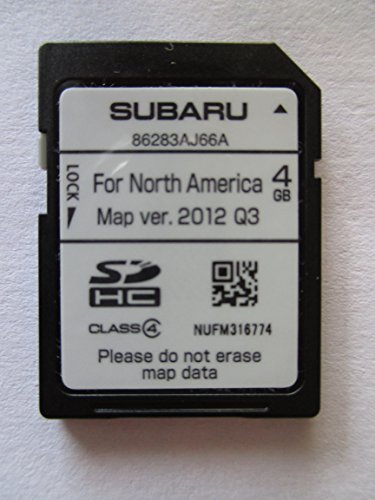

- 8 Core 64GB Android Radio:Our Android car radio is equipped with the latest version of Android and an 8-core CPU processor, delivering exceptional performance and a perfect user experience. With 4G RAM and 64G ROM, our radio ensures smooth operation and provides ample storage for downloading popular apps like YouTube. It is designed to be compatible with Subaru Forester Impreza WRX 2008-2012 models. If you’re unsure whether it’s a good fit for your vehicle, please ask us first
- Wireless and Wired Carplay Android Auto:The Subaru Forester Impreza WRX car stereo offers seamless connectivity with your smartphone’s apps and features like WhatsApp, Google Maps, and Telegram, whether through Bluetooth or a USB data cable. It also supports voice control through Siri or Google Assistant, allowing you to keep your hands free while operating the stereo
- GPS Navigation and WiFi and Split Screen:With WiFi or hotspot connectivity, you can browse the internet, watch videos, and download apps on the 9 inch Subaru Forester Impreza WRX car radio. It also supports online and offline maps, providing real-time road conditions to help you avoid traffic jams. The split-screen feature enables you to simultaneously enjoy GPS navigation and watch videos on the 9 -inch screen with a resolution of 1280x720
- 32EQ DSP/BLUETOOTH 5.0/ FM/RDS:The car stereo comes pre-installed with DSP tuning software, allowing you to adjust the frequency, audio effects, and 32 EQ equalization settings, resulting in crystal-clear sound. Bluetooth 5.0 ensures a faster transmission speed and enables hands-free calling, phonebook downloads, and music streaming. The FM/RDS radio with 30 preset stations allows you to stay updated with new broadcasts, real-time traffic information, weather forecasts, and more
- Multi Function:The Android car stereo supports mirror link functionality, allowing you to mirror your smartphone’s content onto the large screen. It also supports steering wheel controls, provides 59 UI themes to suit your preferences, and allows you to move frequently used software to the home screen for easy access. As a gift, the car stereo comes with an external microphone and an AHD rearview camera with night vision and a 170 degree viewing angle
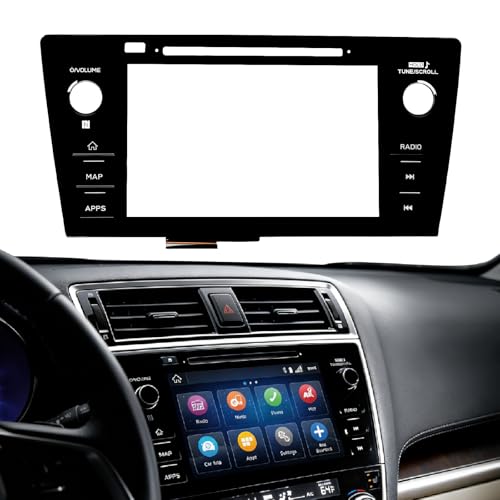
- Fitment:Our Touch Screen Digitizer(MAP) Compatible with 2018 2019 Subaru Outback,2018 2019 Subaru Legacy
- Replace Part Number:86471-AL62A,86471-AL65A,86471-AL65B,86471-AL66A,86471-AL67A,86471-AL68A,86431-AL62A,86431-AL65A,86431-AL66A
- Direct-Fit Replacement:Our 8-inch touchscreen is designed to address common display issues, such as physical cracks, unresponsiveness, or dead pixels, to help return your system to working condition.
- Function:This universal-style LCD touchscreen features integrated MAP functions.
- Support: For any questions or concerns regarding the product, please inform us so we can resolve the issue
This product presentation was made with AAWP plugin.