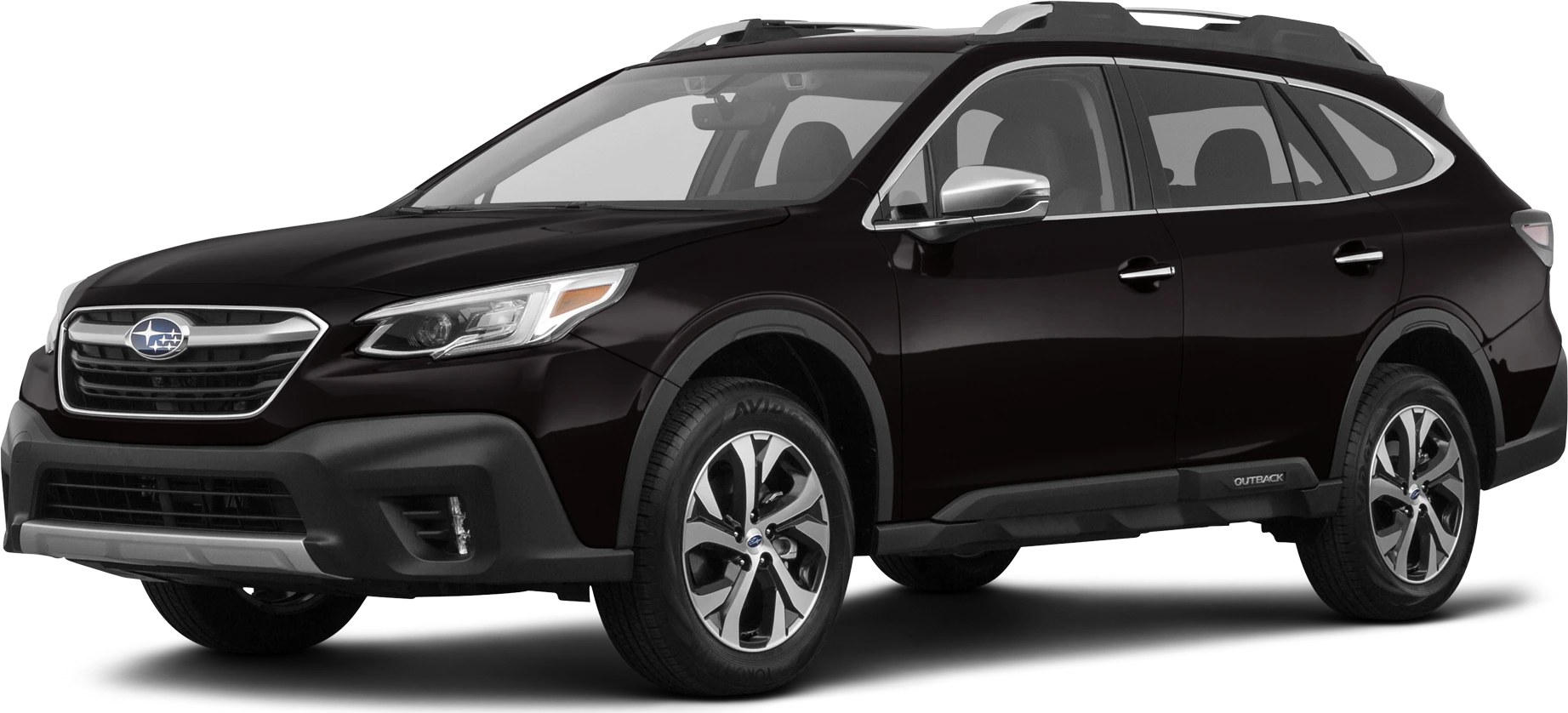
NHTSA ID Number: 10168621
Manufacturer Communication Number: Subaru technical
Summary
The all-new 2020 Outback/Legacy line has adopted a new Gen4 infotainment system to support the audio/navigation features. Also referred to as Cockpit Gen1 (CP1), it is manufactured by Denso and consists of two modules: a Cockpit Control Unit (CCU) and a dual 7″ display Audio unit or a 11.6″ Audio/Navigation display system also known as the Center Information Display (CID). We have already received some great feedback from the field reflecting the technological advancements and ease of operation. In addition, we have noted some operational differences compared to the Gen 3 / 3.1 Harman systems.
2 Affected Products
Vehicles
SEOCONTENT-START
Subaru Service and Technical Support Line Newsletter
The Subaru TechTIPS newsletter is intended for use by professional Technicians ONLY. Articles
are written to inform those Technicians of conditions that may occur in some vehicles, or to
provide information that could assist in the proper servicing of the vehicle. Properly trained
Technicians have the equipment, tools, safety instructions, and know-how to do the job correctly
and safely. If a condition is described, DO NOT assume that your vehicle has or will have that
condition. Impreza, Legacy, Justy, Loyale, Outback, Forester, Subaru SVX, WRX, WRX STI,
Baja, Tribeca, BRZ, XV Crosstrek and “Quality Driven” are Registered Trademarks.
ISO 14001 is the international standard for
excellence in Environmental Management
Systems. Please recycle or dispose of
automotive products in a manner that is
friendly to our environment and in accordance
with all local, state and federal laws and
regulations.
CAUTION: VEHICLE SERVICING PERFORMED BY UNTRAINED PERSONS
COULD RESULT IN SERIOUS INJURY TO THOSE PERSONS OR TO OTHERS.
SUBARU OF AMERICA, INC. IS
ISO 14001 COMPLIANT
10 2020 OUTBACK/LEGACY COCKPIT GEN1 INFOTAINMENT SYSTEM: HELPFUL OPERATING TIPS
The all-new 2020 Outback/Legacy line has adopted a new Gen4 infotainment system to support
the audio/navigation features. Also referred to as Cockpit Gen1 (CP1), it is manufactured by
Denso and consists of two modules: a Cockpit Control Unit (CCU) and a dual 7” display Audio
unit or a 11.6” Audio/Navigation display system also known as the Center Information Display
(CID). We have already received some great feedback from the field reflecting the technological
advancements and ease of operation. In addition, we have noted some operational differences
compared to the Gen 3 / 3.1 Harman systems. Some of the topics reported so far include:
Map Orientation:
During Navigation operation, the map orientation can be changed between 2D north-up, 2D
heading-up and 3D.
2D north-up 2D heading-up 3D heading-up
It should be noted the map orientation defaults to 2D north-up, 2 mile scale whenever the ignition
key is cycled off-on. This is a normal operating characteristic.
©2019 Subaru of America, Inc. All rights reserved.
CONTINUED ON THE NEXT PAGE
home
SPECIAL EDITION
Special Edition TechTIPS Page 1 of 8
NAVI Does Not Show Correct Location:
It is possible during Delivery Mode for the NAVI GPS display to show Manhattan, NY location all the
time. This is a default setting for GPS in this mode. Other indicators of Delivery Mode are the arrow
is gray color and clock is off. If a customer presents with this concern, confirm the PDI fuse is in the
delivery position and not open.
Following Delivery Mode or Memory Initialization
(map icon is gray)
Normal Operation
(map icon is blue/green)
After the PDI Fuse is moved, the GPS starts receiving a signal to update the map to the current
location. As soon as the GPS receives the current location, the map icon will turn cyan (blue/green)
and the clock resets.
Please note, the syncing process time varies depending on the available GPS signal strength.
Driving the vehicle (while avoiding frequent direction changes) for a few miles will expedite the
process.
Artwork Appearance on the Center Information Display:
It is a normal characteristic for the SXM station artwork to disappear from the Cockpit Gen1 (CP1)
Gen4 infotainment system CID when the vehicle is in motion.
Artwork is displayed when stopped or parked Artwork is NOT displayed when moving
Special Edition TechTIPS Page 2 of 8
This behavior occurs when using all audio sources including Bluetooth streaming and Media.
Please explain to customers this is a normal operating characteristic intended to reduce distraction.
Replacing the head unit will not change this characteristic.
Engine Auto Start-Stop Operation:
The Auto Start-Stop feature operates automatically to save gasoline and reduce emissions when
the vehicle is stopped. However, there may be times when this feature needs to be deactivated.
Follow the sequence provided below to deactivate Auto Start-Stop:
1. Touch the Vehicle Icon on the Home screen
2. Touch the Others tab on top
3. Move the Auto Start-Stop slider to OFF.
1
2
3
NOTE: Auto Start-Stop always defaults to ON whenever the ignition key is cycled off-on.
Sound Output Delay Following the Cockpit Gen1 (CP1) Reboot
During the reboot function of the Cockpit Gen1 (CP1) Gen4 infotainment system (following ignition
Off/On), multiple functions are being configured: Telematics system, Audio system, HVAC system,
Combination Meter Display, Center Information Display, mobile application functions and the
Navigation system (where applicable). NOTE: Tasks and operations dedicated to safety are given
the highest priority. This is the reason why operation of some controls like turning of the volume
knob or touch display might appear out of sync and have small amount of lag. The same applies
to the sound output having a slight delay following the system reboot. This is a normal operating
characteristic.
Special Edition TechTIPS Page 3 of 8
Voice Recognition (VR) Operation When Using the CarPlay or Android Auto Application
When using the CarPlay / Android Auto application, it is important to note a short press (quick
press/ release) of the Talk switch on the steering wheel to start the VR system invokes the native
on-board VR application, not Siri or Google. This is different behavior from the Harman Gen
3 Head Unit. This is done to allow the use of VR for HVAC or media options control, while the
CarPlay/ Android Auto application is launched on CP1. This detail is important to keep in mind
when using the VR feature for functions like voice to call or voice to text.
For example, due to the CarPlay protocols, placing a call using the native on-board VR by calling a
contact name isn’t possible. When CarPlay is active, a long press of the Talk button will activate
Siri and allow calls to be made using the phone’s contact list. Alternatively, calls can be made using
the native on-board VR when prompted, by speaking the desired phone number.
To recap, when CarPlay or Android Auto are in use, placing handsfree phone calls using contact
names is not possible using the native VR system. When CarPlay or Android Auto are active, a
short press of the Talk button activates only the native VR system which can be used for HVAC and
other settings.
When using CarPlay or Android Auto, a long press of the Talk button will activate Siri / Google
Assistant to allow their use in making handsfree calls using the phone’s contacts.
The native VR can only be used to call contacts, when CarPlay or Android are NOT in use unless
the customer chooses to dial by phone number rather than by contact..
REMINDER: To start Siri / Google Assistant, while using CarPlay / Android Auto press and HOLD
(long press) the Talk switch on the steering wheel.
On-board Voice Recognition Activated Siri Activated
The same is true when using the voice to text function. To start Siri/ Google Assistant, press and
HOLD the Talk switch on the steering wheel. This will initiate change-over from the native on-board
VR system to Siri / Google.
Special Edition TechTIPS Page 4 of 8
Android Auto Volume Adjustment:
There are instances while using Android Auto when the audio volume intermittently cannot be
adjusted. Instead, the notification volume is being adjusted when the volume control knob is used
as shown below.
This condition can occur because Android Auto operation is being prioritized over the Cockpit Gen1
(CP1) Gen 4 infotainment system. This condition is temporary and will clear eventually. To expedite
clearing and regain faster volume control for the audio source, there are some work arounds. One
option is to relaunch Android Auto by disconnecting and reconnecting the phone to the CP1 system
or short press the Talk button to start the native VR and say “cancel” after the beep is heard. The
procedure from the Owner’s Manual regarding sound output shown below can also be used.
Replacement of the head unit will not prevent this condition from occurring. Always confirm the
customer has the latest Android Auto and Google application updates installed on their device as
regular enhancements are released to ensure the best experience when using Android Auto.
Special Edition TechTIPS Page 5 of 8
Android Auto launch
NOTE: The vehicle has to be parked and the parking brake (EPB) has to be on, in order to complete
initial pairing process between the Cockpit Gen1 (CP1) Gen 4 infotainment system and a phone
running Android Auto application. When connecting a phone to the USB port, please follow the
messages displayed on CP1 CID and the phone. See below an example.
It is a good practice to confirm an undamaged genuine cable to connect the phone as well as the
phone is properly set up to accept connection with a new vehicle.
CP1 system Phone
Android Auto Connection Failure
Reports have been received regarding a communication error message
displayed on the phone as shown below.
When this message is displayed on the phone after connection to
the Cockpit Gen1 (CP1) Gen 4 infotainment system, the Android Auto
application fails to launch. Investigation has shown the source of
this error is on the phone side and could be resolved by re-syncing
communication disconnecting and reconnecting the phone. The
communication error number (12 shown in the example) is irrelevant.
Please explain this to the customer, when reviewing a similar issue.
Replacing the head unit will not resolve this condition as it is not the
cause of the error. It is a good practice to confirm an undamaged
genuine cable is being used to connect the phone as well as the phone
is properly set up to accept connection with a new vehicle.
Special Edition TechTIPS Page 6 of 8
Phonebook Contacts Download and Favorites:
There has been some confusion regarding the phone contact
transfer process. When assisting with questions about the
phonebook download process, start by verifying the option is
enabled in the Cockpit Gen1 (CP1) Gen 4 infotainment system
using the following screen shots as a guide.
Home -> Settings-> Phone-> Phonebook/Recent Calls
If the customer still cannot access the phonebook or messages,
check the phone’s Bluetooth settings to ensure all related sharing
settings are enabled.
Android Device
Select the gear icon next to your
vehicle device name. Ensure all
settings are enabled.
Apple Device
Select Bluetooth setting, then under “MY DEVICES”
click on the “i” symbol next to connected device to
confirm “Sync Contacts” and “Show Notifications”
options are enabled as shown below. It is strongly
recommended to restart the vehicle to finalize the
pairing process and ensure all devices are in sync.
The system can store up to 2000 phone numbers. The total number of phonebook contacts
transferred from the phone would be equal or less because it depends on the amount of data each
contact contains (multiple phone numbers, address, email, etc.).
As for Favorites, remember the CP1 system’s Favorites list and that of the paired phone are not
synchronized. The Bluetooth phone’s favorite list will not be downloaded automatically even after
the phonebook data has been downloaded from the Bluetooth phone. The customer must manually
register the contacts in the Favorite list. The maximum number of Favorite contacts is 15.
Special Edition TechTIPS Page 7 of 8
Playback of the Audio Files Using A USB Memory Device:
The USB Audio playback screen can be accessed by using the
Media icon on the home screen.
There are no restrictions for the brand or size of the USB Memory
device. All work with the CP1 system as long as they meet
following requirements:
• USB communication formats: USB 2.0 LS (1.5 Mbps)/FS (12
Mbps)/HS (480 Mbps)
• File formats: FAT 32
• Supported file extensions: m4a/aac, mp3, wma, wav, flac,
m4a (it is recommended to remove from the USB memory
device all files in the format not supported by the CP1
system).
NOTE: Either front USB port is able to playback audio files. In case two USB memory devices are
connected, the one connected first will be used by the system for playback operation.
QMR to Document Infotainment Concerns:
Please remember to enter QMRs to report infotainment concerns. This will help us to analyze the root
cause and prepare timely countermeasures when applicable. Of course, it is very important to provide
as much as detail as possible accurately when describing the concern. Start by selecting the correct
Fail Code. As a convenience, applicable codes and description are listed below.
Fail Part ID Fail Code Description
ZTF Base Level Center Information Display
ZTR Mid/High Level Center Information Display
ZTG Base Level Cockpit Control Module
ZTS Mid Level Cockpit Control Module
ZTH High Level Cockpit Control Module
This information is also available from the Labor Time Guide or from Warranty Administrator. Thank
you in advance for your cooperation.
Special Edition TechTIPS Page 8 of 8
SEOCONTENT-END
TIPS1119-SE-CP1 – 2020 OUTBACK/LEGACY COCKPIT GEN1 INFOTAINMENT SYSTEM: HELPFUL OPERATING TIPS

- 【Android 13 System Car Radio】Car Radio Compatible with Subaru Forester WRX Impreza 2013 2014 2015. With 2GB RAM and 64GB ROM, ensures smooth operation and multitasking capabilities. Built-in Bluetooth for answering, making phone calls, streaming music by hands-free. The 1280x720 high-resolution display video clear and vivid pictures and videos. You can enjoy your favourite music, movies and short videos from the car stereo.
- 【Car Stereo with Wireless Carplay & Android Auto】This car radio supports wireless Carplay/Android auto /Mirrorlink. Wirelessly connect your phone to the car's stereo infotainment system, providing a seamless experience. You can make phone calls, send messages, listen to music, and get directions using voice control, allowing you to focus on driving without worrying about using your phone, making your driving safely.
- 【Car Radio with GPS Navigation & WIFI】The built-in GPS module and external GPS antenna supports both online and offline map navigation. With Wi-Fi or hotspot connectivity, you can easily download and access to online navigation app and other video or music apps on Play Store. With the split-screen function, you can view two apps on the same screen simultaneously. For example, you can display navigation and music apps side by side, ensuring a more pleasant journey.
- 【FM/Steering Wheel Control】 With built-in FM radio that allows you to listen to radio programs and stay up-to-date with the latest news and weather information during driving. The car head unit also supports steering wheel controls, allowing you to effortlessly switch songs, change channels, and adjust the volume without taking your hands off the wheel, helping you stay focused on the road while enjoying a smooth and convenient driving experience
- 【SWC &AHD Rear Camera】The car head unit supports original car steering wheel control, such as switching songs, adjusting volume, answering calls, etc. The waterproof night vision camera offers 1080P resolution, reversing image is clearer no matter the weather conditions. Automatically switch the reversing image when reversing. Note: Professional installation is required. Incorrect wiring may cause a short circuit.

- Replaces the original part number: Compatible with Subaru Legacy Outback 8-inch touchscreen radio screen. The TsuperU uses upgraded materials, offering superior sensitivity, high definition, high temperature resistance, and is non-bubbling and non-whitening. With this part, you won't need to go to the dealer for a replacement, as they often recommend replacing the entire radio, which could cost thousands of dollars, but is completely unnecessary. Please watch the replacement video on YT's
- EASY PROBLEM SOLVED: If your display touch screen is cracked, delaminating, bubbles, White, fogging, air holes, unresponsive, has garbled, phantom, ghosted, ghosting, dead pixels, unresponsive, or looks bad, simply replace the TsuperU 8-inch screen navigation touchscreen and it will return to its original functionality without the need for a trip to the dealership for costly repairs. One replacement is all it takes to fix the problem
- COMPATIBLE WITH SUBARU MODELS: Navigation screen fits Subaru Outback 2.5i Limited Premium Sport Touring Premier 3.6R Limited Premier Touring radio digitizer screen 2019 2018. please check the OEM number and size carefully before purchasing, There are two versions of MAP & PHONE, compare with your original parts to make sure that this touch screen fits your car. The digitizer screen for the 8-inch touchscreen radio works with both GPS-equipped radios and non-GPS radios
- EASY TO INSTALL: The product comes with adhesive, you only need to tear off the protective film to use it, easy to install. for Subaru radio screen is an exact fit for the original vehicle. For display only 86471-AL65A 86471-AL65B 86471-AL66A 86471-AL68A 86431-AL66A 86431-AL62A 86431-AL65A 86471 AL65A 86471 AL65B 86471 AL66A 86471 AL68A 86431 AL66A 86431 AL62A 86431 AL65A 86471AL65A 86471AL65B 86471AL66A 86471AL68A 86431AL66A 86431AL62A 86431AL65A, 864734-AL66A, 86471AL76A, 86471-AL76A
- TOUCH RESPONSIVE: Touch screen meets OEM navigation system, high light transmission, high visibility, responsive, high touch accuracy. touch screen monitor is made of new upgraded material with high resolution, high clarity, more stable performance, faster response time, and has been rigorously tested to ensure a long service life, touch screen replacement
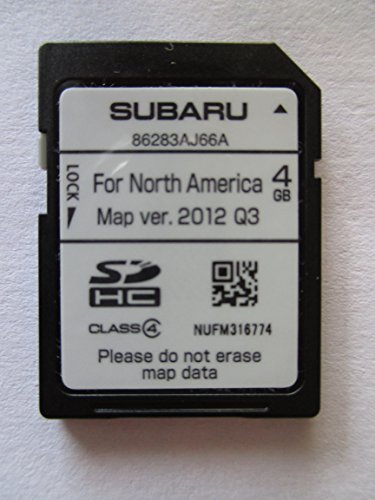

- 8 Core 64GB Android Radio:Our Android car radio is equipped with the latest version of Android and an 8-core CPU processor, delivering exceptional performance and a perfect user experience. With 4G RAM and 64G ROM, our radio ensures smooth operation and provides ample storage for downloading popular apps like YouTube. It is designed to be compatible with Subaru Forester Impreza WRX 2008-2012 models. If you’re unsure whether it’s a good fit for your vehicle, please ask us first
- Wireless and Wired Carplay Android Auto:The Subaru Forester Impreza WRX car stereo offers seamless connectivity with your smartphone’s apps and features like WhatsApp, Google Maps, and Telegram, whether through Bluetooth or a USB data cable. It also supports voice control through Siri or Google Assistant, allowing you to keep your hands free while operating the stereo
- GPS Navigation and WiFi and Split Screen:With WiFi or hotspot connectivity, you can browse the internet, watch videos, and download apps on the 9 inch Subaru Forester Impreza WRX car radio. It also supports online and offline maps, providing real-time road conditions to help you avoid traffic jams. The split-screen feature enables you to simultaneously enjoy GPS navigation and watch videos on the 9 -inch screen with a resolution of 1280x720
- 32EQ DSP/BLUETOOTH 5.0/ FM/RDS:The car stereo comes pre-installed with DSP tuning software, allowing you to adjust the frequency, audio effects, and 32 EQ equalization settings, resulting in crystal-clear sound. Bluetooth 5.0 ensures a faster transmission speed and enables hands-free calling, phonebook downloads, and music streaming. The FM/RDS radio with 30 preset stations allows you to stay updated with new broadcasts, real-time traffic information, weather forecasts, and more
- Multi Function:The Android car stereo supports mirror link functionality, allowing you to mirror your smartphone’s content onto the large screen. It also supports steering wheel controls, provides 59 UI themes to suit your preferences, and allows you to move frequently used software to the home screen for easy access. As a gift, the car stereo comes with an external microphone and an AHD rearview camera with night vision and a 170 degree viewing angle
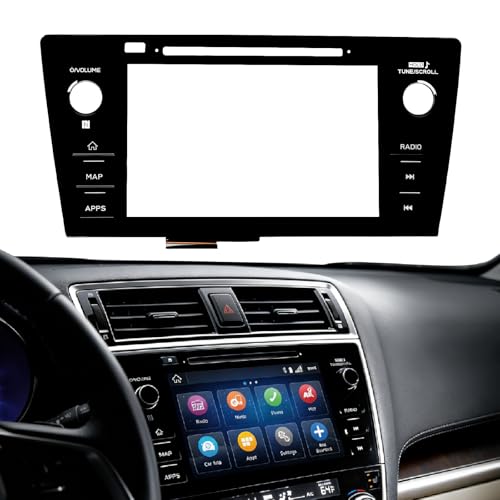
- Fitment:Our Touch Screen Digitizer(MAP) Compatible with 2018 2019 Subaru Outback,2018 2019 Subaru Legacy
- Replace Part Number:86471-AL62A,86471-AL65A,86471-AL65B,86471-AL66A,86471-AL67A,86471-AL68A,86431-AL62A,86431-AL65A,86431-AL66A
- Direct-Fit Replacement:Our 8-inch touchscreen is designed to address common display issues, such as physical cracks, unresponsiveness, or dead pixels, to help return your system to working condition.
- Function:This universal-style LCD touchscreen features integrated MAP functions.
- Support: For any questions or concerns regarding the product, please inform us so we can resolve the issue
This product presentation was made with AAWP plugin.