20MY Legacy & Outback Owner’s Manual Supplement Additional information for the Center Information Display
MSA5M2003S
20MY Legacy & Outback Owner’s Manual Supplement
Additional information for the Center Information Display
Please refer to the separate Owner’s Manual for information not covered in this supplement.
Please keep this supplement with your Owner’s Manual and leave it in the vehicle at the time of resale. The next owner will need the information it contains.
The function has been changed by the software update of the Center Information Display.
The list of the changes to the Owner’s Manual due to this update are below.
| Item Number | Description | Affected pages | Applicable | |
| Software update by dealer via USB*1 | Software update by user via Wi-Fi®*2*3 | |||
| 1 | Change the Bluetooth device default name from “SUBARU” to the car name. Allow user to change it. | 21, 34, 42, 59, 77, 78 | X | X |
| 2 | Allow new phone registration during driver profile registration | 23, 44 | X | X |
| 3 | Change the names of the transition buttons on the driver profile setting screen to “NEXT” and “BACK” to make them the same to others. | 23, 44 | X | X |
| 4 | Set the target Smart Favorite from first 10 presets automatically. Delete Smart Favorite registration screen of Setting. | 31, 53, 93, 149, 150 | X | X |
| 5 | Change description “STARLINK” to “SUBARU STARLINK” | 34, 59, 83, 84 | X | X |
| 6 | Enable clock setting by touching the clock display on the status bar | 35, 60, 71 | X | – |
| 7 | Supports vertical full screen of Apple CarPlay projection screen | 39, 57, 121, 122, 123 | X | X |
| 8 | Change the design of [Enlarge] and [Reduce] buttons on the call screen | 47, 104, 105 | X | X |
| 9 | Display POI pins for parking, gas stations, restaurants, etc. on the map | 59, 207, 208 | X | X |
| 10 | Change “Sync With DCM” in the clock setting menu to “AUTO” | 88 | X | X |
*1 Software version after updated: F11G*M02*-504
*2 Software version after updated: F11G*M02*-704
*3 11.6-inch display system/11.6-inch display with Navi system only
| Item Number | Description | Affected pages | Applicable | |
| Software update by dealer via USB*1 | Software update by user via Wi-Fi®*2*3 | |||
| 11 | Discontinue Auto Show during USB connection and display in last mode | 121, 122, 123 | X | X |
| 12 | Apple CarPlay projection screen is always displayed when “Yes” is pressed on the Apple CarPlay Disclaimer screen. | 121, 122, 123 | X | X |
| 13 | Device list specifications change for Apple CarPlay | 121, 122, 123 | X | X |
| 14 | Display the screen which showed at the last time when the screen is turned ON from OFF | 136 | X | X |
| 15 | Apple CarPlay and Android Auto tabs added to Media screen | 162, 163, 164, 170, 171, 172 | X | X |
| 16 | Directly touch the navigation screen Turn by Turn to display the turnlist screen | 203 | X | X |
*1 Software version after updated: F11G*M02*-504
*2 Software version after updated: F11G*M02*-704
*3 11.6-inch display system/11.6-inch display with Navi system only
MSA5M2003S

- CEL Doctor: The ANCEL AD310 is one of the best-selling OBD II scanners on the market and is recommended by Scotty Kilmer, a YouTuber and auto mechanic. It can easily determine the cause of the check engine light coming on. After repairing the vehicle's problems, it can quickly read and clear diagnostic trouble codes of emission system, read live data & hard memory data, view freeze frame, I/M monitor readiness and collect vehicle information
- Sturdy and Compact: Equipped with a 2.5 foot cable made of very thick, flexible insulation. It is important to have a sturdy scanner as it can easily fall to the ground when working in a car. The AD310 OBD2 scanner is a well-constructed mechanic tool with a sleek design. It weighs 12 ounces and measures 8.9 x 6.9 x 1.4 inches. Thanks to its compact design and light weight, transporting the device is not a problem. The buttons are clearly labelled and the screen is large and displays results clearly
- Accurate Fast and Easy to Use: The AD310 scanner can help you or your mechanic understand if your car is in good condition, provides exceptionally accurate and fast results, reads and clears engine trouble emission codes in seconds after you fixed the problem. This device will let you know immediately and fix the problem right away without any car knowledge. No need for batteries or a charger, get power directly from the OBDII Data Link Connector in your vehicle
- OBDII Protocols and Car Compatibility: Many cheap scan tools do not really support all OBD2 protocols. AD310 scanner as it can support all OBDII protocols such as KWP2000, J1850 VPW, ISO9141, J1850 PWM and CAN. This device also has extensive vehicle compatibility with 1996 US-based, 2000 EU-based and Asian cars, light trucks, SUVs, as well as newer OBD2 and CAN vehicles both domestic and foreign. Pls confirm with our customer service whether it is compatible with your vehicle before purchasing
- Home Necessity and Worthy to Own: This is an excellent code reader to travel or home with as it weighs less and it is compact in design. You can easily slide it in your backpack as you head to the garage, or put it on the dashboard, this will be a great fit for you. The AD310 is not only portable, but also accurate and fast in performance. Moreover, it covers various car brands and is suitable for people who just need a code reader to check their car

- 【Diagnose Check Engine Light in Seconds – No Mechanic Needed】The FOXWELL NT301 OBD2 scanner instantly reads & clears engine fault codes (DTCs) with one click. Simply plug into the 16-pin DLC port, turn ignition on, and get accurate results within seconds—No prior car knowledge required. Save hundreds on dealership fees by knowing exactly what’s wrong before you visit a shop. The #1 choice car scanner for DIYers and car owners who want to take control of their vehicle’s health
- 【Clear & Reset CEL with Confidence】Unlike cheap code readers that just erase codes temporarily, NT301 works like all professional vehicle code readers: It clears the check engine light only after you’ve fixed the underlying issue. If the problem isn’t fully repaired, the fault code will reappear. So you’ll never get a false pass. Use the foxwell scanner to verify your repair work and drive with peace of mind
- 【Sm-og Check Helper – Know Your Pass/Fail Status Before the Test】With dedicated one-click I/M readiness hotkeys and a simple Red-Yellow-Green LED indicator, you’ll instantly know if your vehicle is ready for annual testing. Built-in speaker provides clear audio feedback. No guesswork—just confidence before you head to the test center. One less thing to worry about when inspection day comes
- 【Advanced OBDII Modes – O- 2 Sensor & EVAP Testing】NT301 go beyond basic code reading with enhanced OBD2 modes. Run an EVAP system check to assess fuel tank condition, and use the O- 2 sensor test to optimize air-fuel ratio, boosting fuel economy, cutting em- issions, and saving you money at the pump. The code reader for cars and trucks is like having a mini em-issions lab in your glove box
- 【Live Data Graphing – Spot Engine Issues in Real Time】View and log live sensor data in easy-to-read graphs with this OBD2 scanner diagnostic tool. Monitor ox- ygen sensors, fuel trims, coolant temperature, RPM, and more to spot suspicious values instantly. This obd scanner gives you professional-grade insight without the pro price tag—a feature you won’t find on basic $20 car code readers

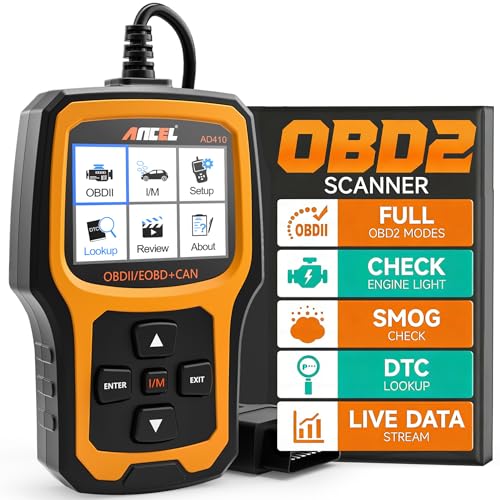
- Understand Your Check Engine Light – The ANCEL AD410 OBD2 scanner helps everyday drivers quickly read and clear engine-related fault codes, view code definitions, and understand why the check engine light is on before visiting a repair shop. With 42,000+ built-in DTC lookups, this car code reader helps reduce guesswork and makes basic vehicle diagnostics easier for beginners and DIY users
- Full OBD2 Diagnostics Made Simple – More than a basic engine code reader, this OBD2 scanner diagnostic tool supports key OBDII functions including reading/clearing codes, live data, freeze frame, I/M readiness, O2 sensor test, EVAP test, vehicle information, and MIL status. It helps you check your car’s condition, verify repairs after the issue is fixed, and communicate with mechanics more confidently
- Live Date & Real-time Vehicle Insights – View real-time engine data such as RPM, coolant temperature, fuel trim, oxygen sensor readings, and other available OBD2 parameters directly on the screen. These live data readings help you better understand how your vehicle is running, spot abnormal patterns, and make more informed repair decisions instead of relying only on a warning light
- Smog Check Readiness At A Glance – Use the I/M readiness function before a smog check or emissions inspection to see whether your vehicle’s monitors are ready. This OBD2 code scanner helps you confirm if recent repairs have brought the system back to a ready state, reducing the chance of failed inspections, retests, wasted trips, and unnecessary inspection fees
- Works With Most OBD2 Vehicles – Compatible with most 1996 and newer U.S.-based OBD2 cars, SUVs, and light trucks, as well as many 2000 and newer EU/Asian OBD2 vehicles. Supports major OBDII protocols including CAN, ISO9141, KWP2000, J1850 VPW, and J1850 PWM. This automotive diagnostic scanner is designed for wide vehicle coverage; please check compatibility with your vehicle before purchase

- Multi-Functions - Practical Multi-Functions OBD2 code reader features built-in OBD2 DTC lookup library, which help you to determine the cause of the engine light, read code, erase code, view freeze frame, I/M ready, vehicle information, data flow, real-time curve, get vehicle speed information, calculate load value, engine coolant temperature, get engine speed.
- Wide Capability - Supports 9 protocols compatible with most 1996 US-Based, 2000 EU-Based and Asian cars, and newer OBD II & CAN domestic or import vehicles. Supports 6 languages - English,German, Dutch, Spanish, French, Italian.
- 2.8" LCD Display - Designed with a clear display 2.8" Large LCD screen - white backlight and contrast adjustment. No need any battery or charger, OBD reader gets the power directly from your vehicle through the OBDII Data Link Connector.
- Compact Design - Car diagnostic scanner is equipped with a 2.5 feet long cable and made of a very thick flexible insulator.There are 6 buttons on OBD2 Scanner:scroll up/down,enter/exit and buttons that quick query VIN vehicle number& the DTC fault code.
- ABS / Airbag codes NOT Supported - It is able to read and clear check engine information which is part of OBDII system, but it cannot work with non-OBDII systems, including ABS / Airbag / Oil Service Light, etc.
- [Easy to Use—Work Out of the Box] + [FOXWELL 2026 New Version] FOXWELL NT604 Elite scan tool is the 2026 new version from FOXWELL, designed for car owners who want to figure out the cause of issues before fixing car problems by scanning common systems like ABS, SRS, engine, and transmission. The NT604 Elite obd2 scanner diagnostic tool comes with the latest software—no need to waste time downloading software first. Plug the scanner into the OBDII port with OBDII cable to start the diagnosis.
- [Affordable] + [Reliable Car Health Monitor] Will you be confused what happens when the warning light of ABS/SRS/transmission/check engine flashes? Instead of taking your cars to dealership, this FOXWELL scanner will help you do a thorough scanning and detection for your cars and pinpoint the root cause. Note:The device is a diagnostic tool, not a repair tool. To turn off a warning light, you must first physically repair the issue causing it. Only then can the scanner be used to clear the corresponding fault code.
- [5 in 1 Car Diagnostic Scanner] Compared with obd scanners (50-100), NT604 Elite code scanner not only includes their OBDII diagnosis but also serves as ABS/SRS scanner, transmission and check engine code reader. When it’s an odb2 scanner, you can use it to check if your car is ready for annual test through I/M readiness menu. In addition, live data stream, built-in DTC library, data play back and print, all these features are a big plus for it. Note: doesn't support maintenance functions like reset or relearn. For the SRS system, NT604 Elite can read and clear common fault codes not caused by a crash, but crash/collision data cannot be cleared.
- [Fantastic AUTOVIN] + [No extra software fee] Through the AUTOVIN menu, this NT604 Elite car scanner allows you to get your V-IN and vehicle info rapidly, no need to take time to find your V-IN and input one by one. What's more, the NT604 Elite ABS SRS scanner supports 60+ car brands from worldwide (America/Asia/Europe). You don’t need to pay extra software fee. AUTOVIN may not work on some older vehicles or certain vehicle brands. If AUTOVIN fails, please input the vin code manually or go to the Diagnostic Menu to select your vehicle model.
- [Solid protective case KO plastic carrying bag] + [Lifetime update] Almost all same price-level car scanner diagnostic tool only offers plastic bag to hold the scanner.However, NT604 Elite automotive scanner is equipped with solid protective case, preventing your obd2 scanner from damage. Then you don’t need to pay extra money to buy a solid toolbox.
SEOCONTENT-START
20MY Legacy & Outback Owner’s Manual Supplement Additional information for the Center Information Display Please refer to the separate Owner’s Manual for information not covered in this supplement. Please keep this supplement with your Owner’s Manual and leave it in the vehicle at the time of resale. The next owner will need the information it contains. The function has been changed by the software update of the Center Information Display. The list of the changes to the Owner’s Manual due to this update are below. SUBARU CORPORATION, TOKYO, JAPAN “SUBARU” and the six-star cluster design are registered trademarks of SUBARU CORPORATION. © Copyright 2020 SUBARU CORPORATION Item Number Description Affected pages Applicable Software update by dealer via USB*1 Software update by user via Wi-Fi®*2*3 1 Change the Bluetooth device default name from “SUBARU” to the car name. Allow user to change it. 21, 34, 42, 59, 77, 78 Î Î 2 Allow new phone registration during driver profile registration 23, 44 Î Î 3 Change the names of the transition buttons on the driver profile setting screen to “NEXT” and “BACK” to make them the same to others. 23, 44 Î Î 4 Set the target Smart Favorite from first 10 presets automatically. Delete Smart Favorite registration screen of Setting. 31, 53, 93, 149, 150 Î Î 5 Change description “STARLINK” to “SUBARU STARLINK” 34, 59, 83, 84 Î Î 6 Enable clock setting by touching the clock display on the status bar 35, 60, 71 Î – 7 Supports vertical full screen of Apple CarPlay projection screen 39, 57, 121, 122, 123 Î Î 8 Change the design of [Enlarge] and [Reduce] buttons on the call screen 47, 104, 105 Î Î 9 Display POI pins for parking, gas stations, restaurants, etc. on the map 59, 207, 208 Î Î 10 Change “Sync With DCM” in the clock setting menu to “AUTO” 88 Î Î *1 Software version after updated: F11G*M02*-504 *2 Software version after updated: F11G*M02*-704 *3 11.6-inch display system/11.6-inch display with Navi system only Item Number Description Affected pages Applicable Software update by dealer via USB*1 Software update by user via Wi-Fi®*2*3 11 Discontinue Auto Show during USB connection and display in last mode 121, 122, 123 Î Î 12 Apple CarPlay projection screen is always displayed when “Yes” is pressed on the Apple CarPlay Disclaimer screen. 121, 122, 123 Î Î 13 Device list specifications change for Apple CarPlay 121, 122, 123 Î Î 14 Display the screen which showed at the last time when the screen is turned ON from OFF 136 Î Î 15 Apple CarPlay and Android Auto tabs added to Media screen 162, 163, 164, 170, 171, 172 Î Î 16 Directly touch the navigation screen Turn by Turn to display the turnlist screen 203 Î Î *1 Software version after updated: F11G*M02*-504 *2 Software version after updated: F11G*M02*-704 *3 11.6-inch display system/11.6-inch display with Navi system only Item Number 1 PAIRING THE SYSTEM WITH A Bluetooth PHONE/DEVICE » Display the phone screen. ..1. l.:’ 02 ◄ ~ I oo I \,. \ – _./ – _./ – _./ °’ ‘ c.l ‘ – J – J Prepare the Bluetooth phone/ device to be paired. » Register the Bluetooth phone/device. If a confirmation message appears asking whether to transfer the phone’s contact data to the system, select the appropriate button. » Operate the Bluetooth phone/device . V ********01 onr<‘rt~r1 Turn the Bluetooth function of the Bluetooth phone/device ON and select the vehicle’s device name. If unable to pair, check whether your Bluetooth phone/device is compatible with the system. Item Number 1 II Settings SCREEN General P.83 Sound P.90 li! :i Phone P.77 Radio P.91 Item Number 1 PAIRING THE SYSTEM WITH A Bluetooth PHONE/DEVICE » Display the phone screen. Prepare the Bluetooth phone/ device to be paired. » Operate the Bluetooth phone/device. Turn the Bluetooth function of the Bluetooth phone/device ON and select the vehicle’s device name. » Register the Bluetooth phone/ device. If a confirmation message appears asking whether to transfer the phone’s contact data to the system, select the appropriate button. If unable to pair, check whether your Bluetooth phone/device is compatible with the system. When using an NFC compatible device, it is not necessary to perform the above procedure. Pairing can be performed by holding the device against the NFC logo of the audio system with the NFC setting on. Item Number 1 rl Settings SCREEN General P.83 Sound P.90 Phone P.77 ( , C M~ ~~”‘ n.,.v .,, ► P~, n, bP.18, 40) 2. Select ~i4iheHJ \Settings). 3. -> omml (Phone) 4. Select the items to be set. PHONE SETTINGS SCREEN I I Manage Devices ► Phonebook/Recent Calls ► Message ► Change Device Name Legacy/Outback ► ·——————-· DJ Apple CarPlay ► Android Auto ► [fil llil Registering a Bluetooth phone/device: –+ P.78 Connecting or disconnecting Bluetooth phones/ devices: ->P.79 Deleting Bluetooth phones/devices: ->P.81 Setting phonebook/recent calls download: –+P.82 rn Sorting the recent calls list and contacts list: –+ P.101 Deleting all favorites list: ->P.102 Setting the message: ->P. l 07 ChangJng the device name [fil Setting Apple CarPlay: ->P.122 Setting Android Auto: ->P.125 NOTE • “Manage Devices (Manage Devices)” screen can also be displayed by selecting (Manage Devices) or f$iji•j@j§ii (Add Device) on the phone screen (->P.96) or Bluetooth audio control screen (->P.166). Item Number 1 REGISTERING A Bluetooth PHONE/DEVICE Up to 5 Bluetooth phones/devices can be registered. Bluetooth compatible phones (HFP) and devices (AVP) can be registered simultaneously. This operation cannot be performed while driving. 1. Display the phone settings screen. (—>P.77) 2. Select Manage Devices (Manage Devices). 3. —>mmJ(Add) • If a message appears, follow the guidance on the screen. 4. When this screen is displayed, search for the device name displayed on this screen on the screen of your Bluetooth phone/device. Device Name: Legacy/Outback Begin Bluetooth pairing on device. Make sure Bluetooth is active. Cancel • l.!!’.lmml (Cancel): Select to cancel the registration. • For details on operating the Bluetooth phone/device, see the manual that comes with it. 5. Register using your Bluetooth phone/device. • A PIN-code is not required for SSP (Secure Simple Pairing) compatible Bluetooth phones/devices. Depending on the type of Bluetooth phone/device being connected, a message confirming registration may be displayed on the Bluetooth phone’s/device’s screen. Respond and operate the Bluetooth phone/device according to the confirmation message. Item Number 2 CREATE A DRIVER PROFILE » Add a new profile • .l. ~, 5 15 I @’ oo’ ‘- ‘ _ _; _ _; _ _; + ‘ □ ‘ cJ ‘ – ‘/~ – ,_J _” _J ~ , L J ~• X • Fran~a s Esp.,nol ” ) » Registering a Bluetooth phone ~• n ~ N ~ 1 I 1 < l!ll’IIDIIDDl!IDl!HI a 111!1 II IHI II a II DDIHIDIHI – Next Enter a name. P .i ‘ P + X ~ •ou .. •o.Q1 ,., , .. u .. 02 ………. 03 < .. ,_ .r c NJnc X Dr ~er ~ Name ► ( Procedure complete. Item Number 2 CREATE A DRIVER PROFILE » Add a new profile. , .. ~ □ G] –‘ –‘ –‘ @ I \. -~ · ■ __,/ __,/ __,/ +- oo ,,-.~ ·j –‘ –‘ _, ‘- 0 I .1 \ ([!An Driver ‘s Ni:!m!:’ 4/10 < Jotm IHIDIIDDl!IDEI ■ aa11a1111111a11 DDIIIIIHIII Enter a name. » Registering a Bluetooth phone Orivpr N;:imp X 3 Driver’s Name John ► ( BACK NEXT ) Procedure complete. Item Number 3 CREATE A DRIVER PROFILE » Add a new profile • .l. ~, 5 15 I @’ oo’ ‘- ‘ _ _; _ _; _ _; + ‘ □ ‘ cJ ‘ – ‘/~ – ,_J _” _J ~ , L J ~• X • Fran~a s Esp.,nol ~ » Registering a Bluetooth phone ~• n ~ N ~ 1 I 1 < l!ll’IIDIIDDl!IDl!HI a 111!1 II IHI II a II DDIHIDIHI – Next Enter a name. J ‘” ‘\I X ()rover ~ N.amc John ► E:J ~ Add Ph~ne •ou .. •o.Q1 ,., , .. u .. 02 P .i ‘ P + X ,_ .r c NJnc X Dr ~er ~ Name ► Procedure complete. Item Number 3 CREATE A DRIVER PROFILE » Add a new profile. , .. ~ □ G] –‘ –‘ –‘ @ I \. -~ · ■ __,/ __,/ __,/ +- oo ,,-.~ ·j –‘ –‘ _, ‘- 0 I .1 \ ([!An Driver’s Ni:!m!:’ 4/10 < Jotm IHIDIIDDl!IDEI ■ aa11a1111111a11 DDIIIIIHIII Enter a name. » Registering a Bluetooth phone Procedure complete. Item Number 4 – Operation Flow: Presetting a Radio Station – » Select the radio band and the » Register the radio station. radio station. .l. , 1141 .1. 1141 .. . -~11nl J,I -~1JTO ‘)I Mix preset function Multiple stations can be registered as presets. (AM, FM or SiriusXM” Radio) P.144,153 – 1 –~ :. \ ·-.;_, .:. ‘ < / V V ) < V ~ > A valid subscription to SiriusXM0 Radio is required to receive satellite radio service. Select and hold one of the preset buttons. USEFUL SiriusXM® Radio FUNCTIONS • Smart Favorites: The first 1 O channels which are registered to a P!eset button will automatically be registered to Smart Favorites. Channels registered to Smart Favorites can be cached and played back as desired within a certain amount of time. P.93 • Tune Scan: Channels registered to Smart Favorites can be scanned to find a desired channel. P.149 • Tune Start: When this function is on, channels registered as Smart Favorites will be cached, and when the channel is changed, the song on that channel can be listened to from the beginning. P.93 • Traffic & Weather Now: If a city is selected, traffic information and weather news for that city can be heard. P.149 • Favorite Teams: If you have registered your favorite sports teams, you can be informed of when games start and their progress. P.156 • TuneMix: If multiple channels for which TuneMix is possible have been registered as TuneMix channels, songs from these channels can be listened to randomly. P.157 Item Number 4 – Operation Flow: Presetting a Radio Station – » Select the radio band and the » Register the radio station. radio station. Mix preset function Multiple stations can be registered as presets. (AM, FM or SiriusXM” Radio) P.144,153 A valid subscription to SiriusXM” Radio is required to receive satellite radio service. Select and hold one of the preset buttons. USEFUL SiriusXM® Radio FUNCTIONS • Smart Favorites: The first 10 channels which are registered to a rreset button will automatically be registered to Smart Favorites. Channels registered to Smart Favorites can be cached and played back as desired within a certain amount of time. P.93 • Tune Scan: Channels registered to Smart Favorites can be scanned to find a desired channel. P.149 • Tune Start: When this function is on, channels registered as Smart Favorites will be cached, and when the channel is changed, the song on that channel can be listened to from the beginning. P.93 • Traffic & Weather Now: If a city is selected, traffic information and weather news for that city can be heard. P.149 • Favorite Teams: If you have registered your favorite sports teams, you can be informed of when games start and their progress. P.156 • TuneMix: If multiple channels for which TuneMix is possible have been registered as TuneMix channels, songs from these channels can be listened to randomly. P.157 Item Number 4 SETTING THE SiriusXM® Radio SETTING THE PARENTAL CONTROL PASSCODE 1. Display the radio settings screen. (—>P.91) 2. Select &-iill’foii’11 (SiriusXM). 3. Select the desired item to be set. I [I], 1. Display the SiriusXM settings screen. (—>P.93) 2. Select (Parental Control). 3. Select E3I (OK) when the confirmation message appears. 4. Enter the 4 digits passcode. —> E3I (OK) CD Tune Start ~ I CD Tune Scan £) w: I CD Sport Team Alert C. ~: I CD Parental Control ► @]: I CD Traffic & Weather Now ► [fil: ——————-~ When this function is on, channels registered as Smart OJ Favorites will be cached, and when the channel is changed, the song on that channel can be listened to from the beginning. [l] Select to enable/ disable the search function for channels registered to Smart Favorites. [J] Select to turn the “SportTeam Alert” on/ off. (->P.156) @] Select to set the parental control passcode and locked channels. (—+ P.93, 94) (fil Select to set the city for which you wish to get information. Item Number 4 SiriusXM® Radio OVERVIEW The SiriusXM” control screen can be accessed by selecting ifoh@J\111 (SiriusXM) on the radio control screen. (—>P.137) ► Control panel [l] Turn to adjust volume. Press to mute the audio system. Press and hold to turn the audio system off, and press and hold to turn it on again. Turn to step up/down channels. Press and hold to display the sound customization screen. (–>P.138) ► Control screen ► 11.6-inch display system/11.6-inch display with Navi system ► Dual 7.0-inch display system Item Number 4 [Il [1J [fil III [ID @] lilll [TI Select to change radio modes. Select to display the sound customization screen. (–>P.138) Select to display the channel information. (D: Select to listen to traffic and weather information for the set city. @: Select to set the city for which you wish to hear traffic and weather information. (–>P.93) Select to step up/down channels. ED (Scan): Select to search subscribed channels. IHll\$)@111 (Tune Scan): Select to search channels registered to Smart Favorites. This function can be enabled/disabled by the Tune Scan setting on the SiriusXM settings screen. (–>P.93) Select to search channels by entering the channel number. Select to display the cache radio operation buttons. (–>P.1 S3) Select to search channels. (->P.l 55) Select to scroll the list of preset buttons. Select to tune to preset stations/channels. The preset station list can be scrolled by swiping the list. @: Indicates a channel which has been registered as a_ Smart Favorite. Up to 10 channels can be registered as Smart Favorites, in the order they a re registered as a pfeset. NOTE • Tune Scan is not designed for short tracks. Item Number 5 II Settings SCREEN General P.83 Sound r.———–:, f’ ‘ ,ee e • ~f’ ‘ At n’ – · P.90 li! :i Phone P.77 Radio P.91 Item Number 5 rl Settings SCREEN General P.83 Sound Phone –~ -. ~ ~ • < ~ ., R- o e ► C~B ; 5-~~ ( ~u• u nP • • li———–il raclor~ ‘.lat,, Reoe ► S~s•f’n lnformJt ~r ► ,r~ uX ~xr c, t Jr 0 1 r~•, ► P.90 P.77 Navigation P.207 Car* Radio P.91 *: For settings related to EyeSight, refer to the Owner’s Manual supplement for the EyeSight system. For all other functions and settings, refer to the vehicle Owner’s Manual. Item Number 5 OTHER SETTINGS GENERAL SETTINGS 1. Display the home screen. (—->P.18, 40) 2. Select i-i4ihiM!J 1Settings). 3. —-> i§§ei§th (General) 4. Select the items to be set. GENERAL SETTINGS SCREEN For details about the following menu, refer to the vehicle Owner’s Manual. • mm!I (Clock) • Ml!fflffl (Display) • mlll’ll•’:!11111•• (Reminder Screen) • ji’!i§tfi.idi@,j (Meter Screen) • ifj1@fj 1Camera) • Climate Control (Climate Control) • i!\uMtiillfii (Language) • • • • Tire Pressure Units (Tire Pressure Units) (Welcome Screen) (Goodbye Screen) (Favorite Widgets) Welcome Screen Goodbye Screen Favorite Widgets • Mmffl@l!ffli (Birthday List) • Anniversary List (Anniversary List) Clock Display Wi-Fi Wi-Fi Hotspot Reminder Screen lm:il(Wi-Fi)*’ tnen:mi1m (Wi-Fi Hotspot)*’*’ Home Screen Shortcuts (Home Screen Shortcuts) Sound Phone I > ► ► I ► ► ► Select to set the Wi-Fi function settings. (–>P.85) Select to set the Wi-Fi Hotspot settings. Select to turn the home screen shortcuts function on/ off. (–>P.72) Periodic Rest Notification Select to turn the display for the periodic rest notification pop-up (Periodic Rest Notification)*’ screen on/off. (–>P.192) Item Number 5 Software Update (Software Uf>date)*’ SUBARU STARLINK Apps Recovery Select to update system software versions. (–+P.88) 1 Select to recover the SUBARU I (SUBARU STARLINKApps Recovery) 1 STARLINK. 1 Select to turn the SUBARU SUBARU STARLINK Auto Connect I STARLINK auto connect function (SUBARU STARLINK Auto Connect) I on/off. (–+P.11 S) ~—————- Factory Data Reset (Factory Data Reset) System Information (System Information) Select to reset all setup items. The audio system restarts automatically after resetting factory data. To complete the reset process, turn the ignition switch to the “LOCK”/”OFF” position after the audio system has restarted, and then turn to the “ACC” or “ON” position after approximately 3 minutes. Select to display the system information. Free/Open Source Software Information (Free/Open Source Software Information) Select to display the free/open source software information. *’: 11 .6-inch display system/11 .6-inch display with Navi system only *’· Refer to the Owner’s Manual supplement for”SUBARU STARLINK Safety and Security”for details. *3• 11.6-inch display with Navi system only Item Number 6 – Operation Flow: Setting the Clock Manually- Under normal conditions, when a Bluetooth phone is connected to the system, the clock will be adjusted automatically. If the clock is not adjusted automatically or a Bluetooth phone is not connected, it is necessary to adjust the clock manually. » Display the clock settings screen. .1. ‘( I •€?1’ ()0\ \. I – r …,/ – .,/ -~ .,/ + ‘ □ ‘ c’.~ ‘ [. ‘ -“-_; – _,I – J .1. a Q 54 ) [ 0 ► I) 11 1 ► ■ R I, ~ , , ► MP!,.. s,,p,.. ► . » Change the manual mode. » Adjust the clock. <….c, irnf S,tt “l X Cloc;k X T,mi> Sett,ng ► Clock Format 241 Item Number 6 – Operation Flow: Setting the Clock Manually – Under normal conditions, » Display the clock settings screen. the clock will be adjusted automatically. If the clock is not adjusted automatically, it is necessary to adjust the clock manually. » Select the manual mode. » Adjust the clock. Item Number 6 STATUS DISPLAY The status of the Bluetooth connection, etc. is displayed on the screen. [I] Display an outside temperature. [l] Display a current time. Select to dis_f!la_Y._ the clock settin.9_ screen. rn This icon is displayed when the audio system volume is mute. @] ., This icon is displayed when a disc has been inserted. [ID ■ ii Poor Excellent •2 Display the level ofWi-Fi” reception. When Wi-Fi” function is off, no item is displayed. lli] ■ IDI ., Poor — — Excellent Display the level ofWi-Fi Hotspot reception. When Wi-Fi Hotspot function is off, no item is displayed. [I] This icon is displayed when the Bluetooth connection is established. tit ffllll Poor — — Excellent [ID Display the level of phone reception. The level of reception does not always correspond with the level displayed on the cellular phone. The level of reception may not be displayed depending on the phone you have. ■ D [2J Low — Full Display the remaining of Bluetooth device battery charge. The amount displayed does not always correspond with the amount displayed on the Bluetooth device. *’: If equipped 11.6-inch display system/11.6-inch display with Navi system only Item Number 7 Expandable map screen* The map screen can be expanded to fill more of the display. Rough destination search function* P.195 Start a search with a variety of words such as addresses, facility names, intersection names, or latitude/longitude. IIDDDDIIIIDDlil l!IDDDIIDl!llllll’I DDDIIDDDIIII , aaaaoai::1 ■ • Displays search prediction • Search results are predicted and candidates displayed even if only partial words are known • Searches can even be performed with multiple keywords. *: If equipped Customized home screen layout P.72 Frequently used functions and operations can be added to the home screen. •• Example: For calling specific phone numbers, listening to specific radio stations, etc. The position of screen buttons can be changed by selecting and holding it, then dragging it to the desired position. System and Bluetooth phone/ device pairing Functions such as hands-free and applications can be used by connecting the system with Bluetooth phones/ devices wirelessly. Apple CarPlay / Android Auto Support for Apple CarPlay ~ – – – – – – – and Android Auto allows : access to functions such : , as maps, phone cal Is, and 1 music. 1 I Item Number 7 Apple CarPlay ■ Android Auto ■ MySubaru CarPlay can be used to view Apple Maps, play music, and place calls by connecting an Apple CarPlay device to the system. Supported applications can also be run. To use the Apple CarPlay application, connect an Apple CarPlay device to the USB port with undamaged genuine USB cable. P.121 For details on the services or the operations, check the Apple CarPlay site (https://www.apple.com/ ios/carplay /). Android Auto can be used to view Google Maps, play music, and place calls by connecting your Android device to the system. Supported applications can also be run. To use the Android Auto application, connect your Android device to the USB port with undamaged genuine USB cable. P. 124 For details on the services or the operations, check the Android Auto site (https://www.android.com/auto/) and (https://support.google.com/androidauto/ ). Access SUBARU STARLINK from “SUBARU STARLINK Safety and Security” for a variety of remote services. Refer to the Owner’s Manual supplement for”SUBARU STARLINK Safety and Security” for details. Item Number 7 Apple CarPlay Apple CarPlay CarPlay can be used to view Apple Maps, play music, and place calls by connecting an Apple CarPlay device to the system. Supported applications can also be run. • For details on the services or the operations, check the Apple CarPlay site (https://www.apple.com/ ios/carplay/ ). To use the Apple CarPlay application, connect an Apple CarPlay device to the USB port. When using the application, read the precautions indicated in “BEFORE USING APPLICATIONS”. (—->P.112) NOTE • Use an undamaged genuine USB cable when using this function. • Enable Apple Carplay in the Apple CarPlay device’s restriction settings before using this function. CONNECTING THE Apple CarPlay DEVICE 1. Connect an Apple CarPlay device to the USB port. —->P.66 2. Check the confirmation message, and then select rm (Yes). • The Apple CarPlay screen will be displayed. • If “Don’t show again:’ is selected, the confirmation message will not be displayed again. OVERVIEW Select tMfflrjRfflQtt@ /Apple CarPlay) on the home screen to display the Apple CarPlay screen. Item Number 7 ► Control screen ► 11.6-inch display system/11.6-inch display with Navi system __________________ _ ► Dual 7 .O-inch display system • · The displayed screen will diffe r de pending on the connected Apple Ca rPlay device. DJ Displays the application buttons. Select to start the application. Select to change the home screen of Apple CarPlay. ABOUT THE SUPPORTED DEVICES This system compatible with iOS 10.2 or later are supported. SELECTING DEVICE TO CONNECT TO Apple CarPlay Whether a registered device connects as an Apple CarPlay device or an iPod can be set. This setting can be changed only if “Don’t show again:’ was selected on the confirmation message displayed when an Apple CarPlay device was connected. 1, Display the phone settings screen. (–> P.77) 2. Select @rj@Qtth (Apple CarPlay). 3. –> M@i3jffl1 (Oevice List) 4. –> Dml (Edit) S. Select ■ for the desired Apple CarPlay device. Item Number 7 DELETING THE Apple CarPlay DEVICE This setting can be changed only if “Don’t show again’.’ was selected on the confirmation message displayed when an Apple CarPlay device was connected. 1. Display the phone settings screen. (–+P.77) 2. Select @rj!ffiijffl (Apple CarPlay). 3. –+ ■ •@i§j3ffi1 tDevice List) 4. –+ EDlJ (Edit) 5. Select ~ next to the desired device name. 6. –> rm (Yes) 7. –+ E3i(OK) Item Number 8 – Operation Flow: Receiving Calls and Using the Bluetooth Phone – » Incoming call screen is displayed. » In-call screen is displayed. Mute the connected smartphone’s voice Switch to call with other party Keypad Transfer call to Bluetooth phone End ca ll In-call screen display and operation may differ, or may not be possible depending on the Bluetooth phone used. – Operation Flow: Placing Calls from the Phonebook – » Select call recipient from phonebook. The notification setting on the Bluetooth phone may need to be activated In order to download the phonebook. If the phonebook download setting Is off and a phonebook has not been downloaded, a message will be displayed and the phonebook of the connected Bluetooth phone can be downloaded. P.82 » Select number for making call. Place call Item Number 8 TALKING ON THE Bluetooth PHONE While talking on the phone, this screen is displayed. The operations outlined below can be performed on this screen. ► 11.6-inch display system/11.6-inch display with Navi system \. ********01 ********** 00,00,54 D ***-***-**** D m Keypad Ecd ► Dual 7 .0-inch display system ~ -El Transfer [I] Select to mute your voice to the other party. [1] Select to enter the desired numbers/output tones. This operation cannot be performed while driving. Select to transfer the call. Select i•h•h@I (Transfer) [J] to change from a hands-free call to a cellular phone call. Select i ■ ti,fo@l:ffll (Transfer Back) to change from cellular phone call to hands-free call. @] Select to hang up the phone. NOTE • Changing between cellular phone call and hands-free call can be performed by operating the cellular phone directly. • Transferring methods and operations will be different depending on the type of cellular phone you have. • For the operation of the cellular phone, see the manual that comes with it. • Turn the “VOLUME” knob, or use the volume control switch on the steering wheel to adjust the volume of the other party’s voice. ► In the case of accepting an interrupt incoming call during a call The first call is put on hold. • IEl!!l!I (Swap): Select to change parties. • Each time IE1!!l!I (Swap) or name area is selected, or press the q:::::> switch on the steering wheel, the party who is on hold will be switched. Item Number 9 ml Settings SCREEN General P.83 Sound P.90 Phone P.77 Navigation P.207 Car* Radio P.91 *: For settings re lated to EyeSight, refer to the Owner’s Manual supplement for the EyeSight system. For all other functions and settin gs, refer to the vehicle Owner’s Manual. Item Number 9 SETUP NAVIGATION SETTINGS NAVIGATION SETTINGS SCREEN 1. Display the home screen. (—->P.40) General Sound ) 2. Select 1-i4/jj,M!J 1Settings). r.——————~ 3. ___. U@i-60Me• \1~avigation) I Show on Map ► D I 4. Select the desired item to be set. Show Along Route ► fJ Arrival Distance/Time ► i] Freeway Exit Preview • • El Automatic Zoom ~ (;) Auto-Hide Route Bar Fa m Route Preference ► fJ Avoid ► rn Traffic Warning Tone £:>E Map Update ► mJ Item Number 9 [I] [1] [fil [I] [1Q] POI icons can be disp)ayed on the mae screen when “Show POI Icons on Map:’ is turned on and up to 5 POI icon types have been selected. Select to turn the display for parking lots, gas stations and rest areas on/off for the route being travelled during route guidance. Select to set the displays for the estimated remaining distance and estimated remaining time to the destination. (->P.201) Select to turn the freeway exit preview on/off. Select to set whether to automatically enlarge the map when approaching intersections or turning points during route guidance. Select to turn the route bar auto-hide function on/ off. (->P.201) Select to change the preferred route type when searching for a new route. Select to set avoidance criteria for the route calculation. Select to turn the traffic alert sound on/off. Select to set the updating of map data. (->P.212) Item Number 10 UPDATING THE SYSTEM Please ask your dealer to update the system software*’ . 11 .6-inch display system/ 11 .6-inch display with Navi system only: You may also update the system software via Wi-Fi. The update process involves downloading and installing a software update*’. Note that system functionality will be restricted during installation. *1• Please check with your dealer for specific d etails on the update conte nt. *2• De pending on the softwa re update content, your radio station presets and volume settings may be reset by the update process. DOWNLOAD UPDATE 1. Display the home screen. (—> P.40) 2. Select 1-i\j\jj1j,(jj \.:>ettings). 3. -> @§,I§@ /General) 4. —> mm (Clock) —> Ouu§i-i\jjmm lTime Setting) 5. —> Fl!Im(AUTO) —– —— —– – 6. Connect to a Wi-Fi network (—>P.85). 7. Display the general settings screen. (—>P.83) 8. —> .,. .. ,_ (Software Update) 9, —> l!)ffifflfj /Update) 10. _. Check for Updates (Check for Updates) • If Automatically Check for Updates (Automatically Check for Updates) is enabled, an update check will be performed automatically before proceeding to the next step. • If (Automatically Download Updates) is enabled, software updates will be downloaded automatically when checked for. Item Number 11 Apple CarPlay Apple CarPlay CarPlay can be used to view Apple Maps, play music, and place calls by connecting an Apple CarPlay device to the system. Supported applications can also be run. • For details on the services or the operations, check the Apple CarPlay site (https://www.apple.com/ ios/carplay/ ). To use the Apple CarPlay application, connect an Apple CarPlay device to the USB port. When using the application, read the precautions indicated in “BEFORE USING APPLICATIONS”. (—->P.112) NOTE • Use an undamaged genuine USB cable when using this function. • Enable Apple Carplay in the Apple CarPlay device’s restriction settings before using this function. CONNECTING THE Apple CarPlay DEVICE 1. Connect an Apple CarPlay device to the USB port. —->P.66 2. Check the confirmation message, and then select rm (Yes). • The Apple CarPlay screen will be displayed. • If “Don’t show again:’ is selected, the confirmation message will not be displayed again. OVERVIEW Select tMfflrjRfflQtt@ /Apple CarPlay) on the home screen to display the Apple CarPlay screen. Item Number 11 ► Control screen ► 11.6-inch display system/11.6-inch display with Navi system ► Dual 7 .O-inch display system • · The displayed screen will diffe r de pending on the connected Apple Ca rPlay device. DJ Displays the application buttons. Select to start the application. Select to change the home screen of Apple CarPlay. ABOUT THE SUPPORTED DEVICES This system compatible with iOS 10.2 or later are supported. SELECTING DEVICE TO CONNECT TO Apple CarPlay Whether a registered device connects as an Apple CarPlay device or an iPod can be set. This setting can be changed only if “Don’t show again:’ was selected on the confirmation message displayed when an Apple CarPlay device was connected. 1, Display the phone settings screen. (–> P.77) 2. Select @rj@Qtth (Apple CarPlay). 3. –> M@i3jffl1 (Oevice List) 4. –> Dml (Edit) S. Select ■ for the desired Apple CarPlay device. Item Number 11 r——————————–~ I I I I I I I I I I :Automatic display of the Apple CarPlay screen when an Apple : 1 CarPlay device is connected to the system via USB, can be 1 : enabled/disabled. : I I 11, Display the phone settings screen. (—->P.77) 1 I:, 23.. Select-tf-flii-fil-W~H!M- (Apple CarPlay). r-_D_;_l;_t_-e-_ ·.: I:. Turn “Auto Show Connected Device” on. _ ~——————————–~ DELETING THE Apple CarPlay DEVICE This setting can be changed only if “Don’t show again:’ was selected on the confirmation message displayed when an Apple CarPlay device was connected. 1. Display the phone settings screen. (—->P.77) 2. Select tffliirjj9ffiijift1 (Apple CarPlay). 3. —-> 1 ■JMl3j,@1 (Device List) 4. —->l!Jll(Edit) 5. Select~ next to the desired device name. 6. —->11D(Yes) 7. —->EJ3l(OK) Item Number 12 Apple CarPlay Apple CarPlay CarPlay can be used to view Apple Maps, play music, and place calls by connecting an Apple CarPlay device to the system. Supported applications can also be run. • For details on the services or the operations, check the Apple CarPlay site (https://www.apple.com/ ios/carplay/ ). To use the Apple CarPlay application, connect an Apple CarPlay device to the USB port. When using the application, read the precautions indicated in “BEFORE USING APPLICATIONS”. (—->P.112) NOTE • Use an undamaged genuine USB cable when using this function. • Enable Apple Carplay in the Apple CarPlay device’s restriction settings before using this function. CONNECTING THE Apple CarPlay DEVICE 1. Connect an Apple CarPlay device to the USB port. —->P.66 2. Check _the confirmation message, and _then_ select rm rt~_s), • The Apple CarPlay screen will_be displayed. • If_ “Don’t __ show_ a_gain :’ _is_ selected,_ the _ confirmation message will not be displayed again. OVERVIEW Select tMfflrjRfflQtt@ /Apple CarPlay) on the home screen to display the Apple CarPlay screen. Item Number 12 ► Control screen ► 11.6-inch display system/11.6-inch display with Navi system ► Dual 7 .O-inch display system • · The displayed screen will diffe r de pending on the connected Apple Ca rPlay device. DJ Displays the application buttons. Select to start the application. Select to change the home screen of Apple CarPlay. ABOUT THE SUPPORTED DEVICES This system compatible with iOS 10.2 or later are supported. SELECTING DEVICE TO CONNECT TO Apple CarPlay Whether a registered device connects as an Apple CarPlay device or an iPod can be set. This setting can be changed only if “Don’t show again:’ was selected on the confirmation message displayed when an Apple CarPlay device was connected. 1, Display the phone settings screen. (–> P.77) 2. Select @rj@Qtth (Apple CarPlay). 3. –> M@i3jffl1 (Oevice List) 4. –> Dml (Edit) S. Select ■ for the desired Apple CarPlay device. Item Number 12 DELETING THE Apple CarPlay DEVICE This setting can be changed only if “Don’t show again’.’ was selected on the confirmation message displayed when an Apple CarPlay device was connected. 1. Display the phone settings screen. (–+P.77) 2. Select @rj!ffiijffl (Apple CarPlay). 3. –+ ■ •@i§j3ffi1 tDevice List) 4. –+ EDlJ (Edit) 5. Select ~ next to the desired device name. 6. –> rm (Yes) 7. –+ E3i(OK) Item Number 13 Apple CarPlay Apple CarPlay CarPlay can be used to view Apple Maps, play music, and place calls by connecting an Apple CarPlay device to the system. Supported applications can also be run. • For details on the services or the operations, check the Apple CarPlay site (https://www.apple.com/ ios/carplay/ ). To use the Apple CarPlay application, connect an Apple CarPlay device to the USB port. When using the application, read the precautions indicated in “BEFORE USING APPLICATIONS”. (—->P.112) NOTE • Use an undamaged genuine USB cable when using this function. • Enable Apple Carplay in the Apple CarPlay device’s restriction settings before using this function. CONNECTING THE Apple CarPlay DEVICE 1. Connect an Apple CarPlay device to the USB port. —->P.66 2. Check the confirmation message, and then select rm (Yes). • The Apple CarPlay screen will be displayed. • If “Don’t show again:’ is selected, the confirmation message will not be displayed again. OVERVIEW Select tMfflrjRfflQtt@ /Apple CarPlay) on the home screen to display the Apple CarPlay screen. Item Number 13 ► Control screen ► 11.6-inch display system/11.6-inch display with Navi system ► Dual 7 .O-inch display system • · The displayed screen will diffe r de pending on the connected Apple Ca rPlay device. DJ Displays the application buttons. Select to start the application. Select to change the home screen of Apple CarPlay. ABOUT THE SUPPORTED DEVICES This system compatible with iOS 10.2 or later are supported. SELECTING DEVICE TO CONNECT TO Apple CarPlay Whether a registered device connects as an Apple CarPlay device or an iPod can be set. This setting. can_ be_ chan.9.ed only if “Don’t _show ag<iin:’ was selected on the confirmation messa.9.e dis1,?layed when an Apple CarPlay device was connected. 1, Display the phone settings screen. (–> P.77) 2. Select @rj@Qtth (Apple CarPlay). 3. –> M@i3jffl1 (Oevice List) 4. –> Dml (Edit) S. Select ■ for the desired Apple CarPlay device. Item Number 13 DELETING THE Apple CarPlay DEVICE This setting_ can_ be_ chan51.ed only if “Don’t _show ag<iin’.’ was selected on the confirmation_messa51.e diselayed when an Apple CarPlay device was connected. 1. Display the phone settings screen. (–+P.77) 2. Select @rj!ffiijffl (Apple CarPlay). 3. –+ ■ •@i§j3ffi1 tDevice List) 4. –+ EDlJ (Edit) 5. Select ~ next to the desired device name. 6. –> rm (Yes) 7. –+ E3i(OK) Item Number 14 BASIC OPERATION SOME BASICS This section describes some of the basic features of the audio system. Some information may not pertain to your system. Your audio system works when the ignition switch is turned to the “ACC” or “ON” position. &CAUTION • To prevent the battery from being discharged, do not leave the audio system on longer than necessary when the engine is not running. TURNING THE SYSTEM ON AND OFF “VOLUME” knob: Press and hold until a message is displayed, and then select EJ3I (OK) or wait a few seconds for the audio system to turn off. Press and hold to turn the system on again. The ~stem will turn on with the_last audio source used. Turn this knob to adjust the volume. Press to mute the audio system. ► Dual 7.0-inch display system only [RADIO), [MEDIA): Press to display screen buttons for the audio system. NOTE • The audio system will remain off if you change the position of the ignition switch from “LOCK”/”OFF” to “ACC”/”ON” while the audio system is off. If you had set the volume to mute, the audio system will remain mute and the track will start playing from where it was last stopped. Item Number 15 iPod When an iPod is connected, you can play iPod music files. On this unit, you can perform operations such as selecting a file from a list or changing to the random playback mode. At devices which support Apple CarPlay, turn Apple CarPlay off in the device side restriction settings. CONNECTING THE iPod 1, Connect an iPod to the USB port. –>P.66 2. Check the confirmation message, and then select m (No). • If “Don’t show again:’ is selected, the confirmation message will not be displayed again. If the connected device is recognized as an Apple CarPlay device, select the device from the Apple CarPlay device list to remove the check mark. (–>P.122) OVERVIEW Select ij@@ijpj.j,iij (iPod/iPhone) on the media control screen. (–>P.137) ► Control panel DJ Turn to adjust the volume. Press to mute the audio system. Press and hold to turn the audio system off, and press and hold to turn it on again. Turn to change the track. Press and hold to display the sound customization screen. (–>P.138) Item Number 15 ► Control screen (When not connected as an Apple CarPlay device) ► 11.6-inch display system/11.6-inch display with Navi system – 11 10 ► Dual 7 .O-inch display system llllll___mi ~ ~ ► Control screen (When connected as an Apple CarPlay , device) ► 11.6-inch display system/11.6-inch display with Navi system ► Dual 7 .0-inch display system Item Number 15 [I] Select to switch between other media sources. r.n, Displays cover art. w Select to display the sound customization screen. (->P.138) ~ Shows progress. The playback location can be changed by dragging the sliders. rm Select to change a track. Select and hold to fast forward/rewind. ~ Select to pause/ play. [zJ Select to search for track. [ID Changes between repeat current album—> repeat current track-> cancel repeat each time this button is selected. @] Select to enable/disable random playback for the tracks currently playing on the iPod. ~., Select to fast forward the current content item in fixed intervals . [TI] Select to rewind the current content item in fixed intervals. ., *’: 11.6-inch display system/11.6-inch display with Navi system only *2: Display when playing Audio books or Podcasts • Do not operate the player’s controls or connect the iPod while driving . ffiCAUTION • Do not leave your portable player in the vehicle. In particular, high temperatures inside the vehicle may damage the portable player. • Do not push down on or apply unnecessary pressure to the portable player while it is connected as this may damage the portable player or its terminal. • Do not insert foreign objects into the port as this may damage the portable player or its terminal. NOTE • When an iPod is connected using an undamaged genuine iPod cable, battery of the iPod will be charged. • When playing music on an iPod, operate connect it to the system using an undamaged genuine iPod cable and operate the iPod from the system. Certain functions may not be available if connected using other methods. Furthermore, depending on the connected iPod, certain functions may not be available. • Depending on the iPod or music file being played, the cover art may not be displayed . • When an iPod is connected and the audio source is changed to iPod mode, the iPod will resume playing from the same point it was last used. • Tracks selected by operating a connected iPod may not be recognized or displayed properly. Item Number 15 A–n-d-r-o-id- -A-u-t-o-*- ————————O-V-E-R-V-IE-W– ———————–~: *: When connected as an Android Auto device Audio files on an Android Auto device can be played back. CONNECTING AN Android Auto DEVICE 1. Connect an Android Auto device to the USB port. —->P.66 2. Check the confirmation message, and then select 11D (Yes). • If “Don’t show again:’ is selected, the confirmation message will not be displayed again. If the connected Android device is not recognized as an Android Auto device, select the check box for the device on the Android Auto device list. (—->P.125) I Select l@tfMf;)tjf#I (Android Auto) on the media control 1 screen. (—->P.137) ► Control panel [I] rn+-5 1 \ · – Turn to adjust the volume. Press to mute the audio system. Press and hold to turn the audio system off, and press and hold to turn it on again. Turn to change the track. Press and hold to display the sound customization screen. (—>P.138) Item Number 15 r——————————- 1 ► Control screen : ► 11.6-inch display system/11.6-inch display with Navi I I I I I I I I I I I I I I I I I I I I I I I I I I ————————–J ► Dual 7 .0-inch display system ITH ___ ::::::::::::::: – J —————— ————– .. OJ Select to switch between other media sources. [1] Displays cover art. CT] Select to display the sound customization screen. (—-> P. 138) w Shows progress. ~ Select to change the track. Select and hold to fast forward/rewind. ~ Select to pause/play. I I I I I I I I I I I [ _____ ~ ————-: ________________________________________ _ Item Number 15 &CAUTION • Do not leave your Android Auto device in the vehicle. In particular, high temperatures inside the vehicle may damage it. • Do not push down on or apply unnecessary pressure to the connector area of the Android Auto device while it is connected as this may damage the device or its terminals. • Do not insert foreign objects into the port as this may damage the device or its terminals. NOTE 1 • Depending on the device or music file being played, the cover art 1 may not be displayed. ~——————————–~ Item Number 16 ROUTE GUIDANCE ROUTE GUIDANCE SCREEN During route guidance, various types of guidance screens can be displayed depending on conditions. [I] [l] rn ~ [fil ~ Route bar (—>P.201) Select to stopping route guidance. Guidance route Select to display the current route menu pop-up. (—> P. 196) Current position Next street name Distance to the next turn and an arrow indicating the turning direction. ?_el~~! _19_ ~is_Rl_ay_ !~~ _r5>.u!e_ ~y_e_nt ~~! ~~1ee11,
SEOCONTENT-END
This product presentation was made with AAWP plugin.