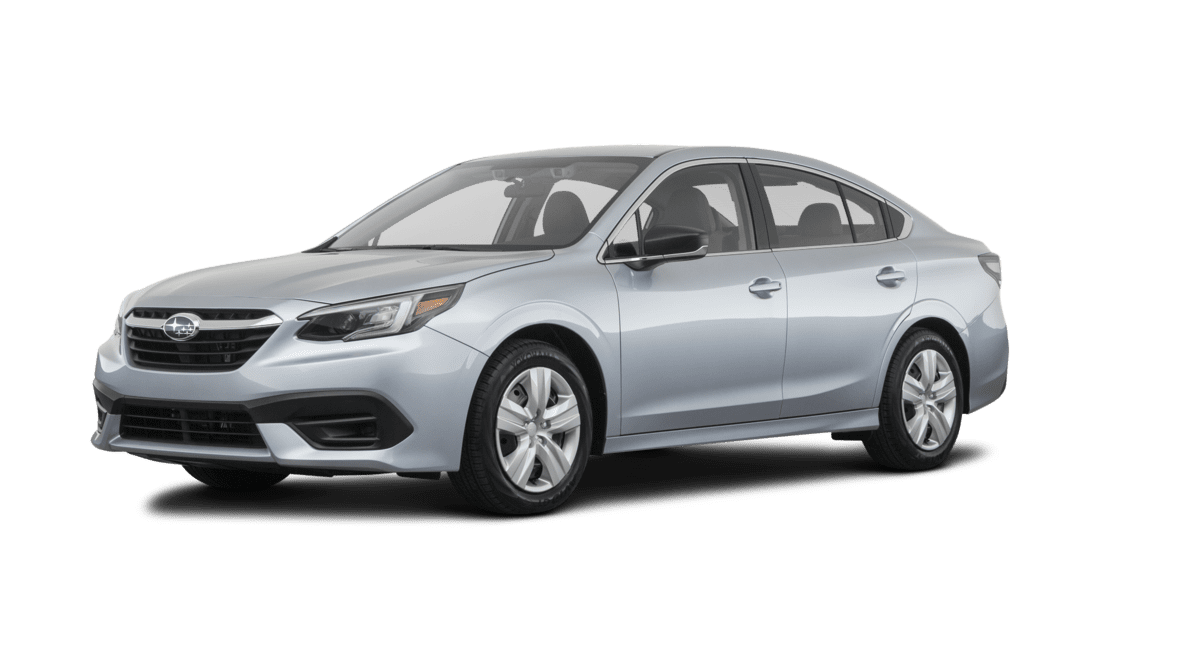
20MY Legacy/Outback Owner’s Manual Supplement Additional information for the Center Information Display
Please refer to the separate Owner’s Manual for information not covered in this supplement.
Please keep this supplement with your Owner’s Manual and leave it in the vehicle at the time of resale. The next owner will need the information it contains.
The function has been changed by the software update of the Center Information Display. The list of the changes to the Owner’s Manual due to this update are below.
| Item Number | Description | Applicable | |
| Software update by dealer via USB*1 | Software update by user via Wi-Fi® *2, *3 | ||
| 1 | Enable clock setting by touching the clock display on the status bar | × | – |
| 2 | “Auto Start Stop” and “Cruise Control Acceleration Characteristics” were moved to the “Vehicle
Control” section | × | – |
| 3 | Change description “Sync With DCM” to “Auto” Change description “STARLINK” to “SUBARU STARLINK” STARLINK” | × | × |
| 4 | Enable clock setting by touching the clock display on the status bar | × | – |
| 5 | Change description “STARLINK” to “SUBARU STARLINK” | × | – |
| 6 | “Cruise Control Acceleration Characteristics” was moved to the “Vehicle Control” section | × | – |
| 7 | Enable clock setting by touching the clock display on the status bar | × | – |
| 8 | Enable clock setting by touching the clock display on the status bar | × | – |
| 9 | The description of the 11.6-inch display models without navigation system of “Sync With DCM” was changed to “Auto” | × | × |
| 10 | The climate control screen button positions of dual 7.0-inch display models were changed | × | – |
| 11 | The gauge in the temperature control screen was centered | × | – |
| 12 | The climate control screen button positions of dual 7.0-inch display models were changed | × | – |
*1 Software version after updated: F11G*M02*-504
*2 Software version after updated: F11G*M02*-704
MSA5M2004S
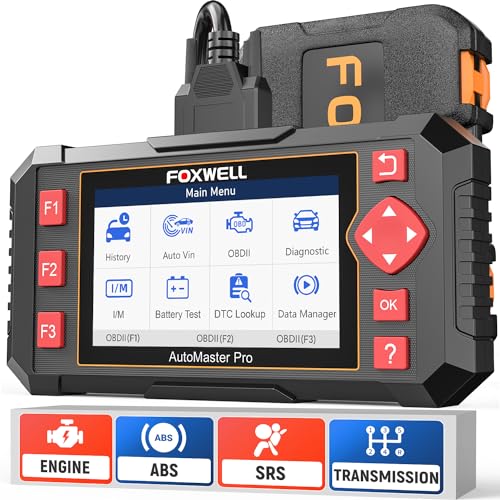
- [Easy to Use—Work Out of the Box] + [FOXWELL 2026 New Version] FOXWELL NT604 Elite scan tool is the 2026 new version from FOXWELL, designed for car owners who want to figure out the cause of issues before fixing car problems by scanning common systems like ABS, SRS, engine, and transmission. The NT604 Elite obd2 scanner diagnostic tool comes with the latest software—no need to waste time downloading software first. Plug the scanner into the OBDII port with OBDII cable to start the diagnosis.
- [Affordable] + [Reliable Car Health Monitor] Will you be confused what happens when the warning light of ABS/SRS/transmission/check engine flashes? Instead of taking your cars to dealership, this FOXWELL scanner will help you do a thorough scanning and detection for your cars and pinpoint the root cause. Note:The device is a diagnostic tool, not a repair tool. To turn off a warning light, you must first physically repair the issue causing it. Only then can the scanner be used to clear the corresponding fault code.
- [5 in 1 Car Diagnostic Scanner] Compared with obd scanners (50-100), NT604 Elite code scanner not only includes their OBDII diagnosis but also serves as ABS/SRS scanner, transmission and check engine code reader. When it’s an odb2 scanner, you can use it to check if your car is ready for annual test through I/M readiness menu. In addition, live data stream, built-in DTC library, data play back and print, all these features are a big plus for it. Note: doesn't support maintenance functions like reset or relearn. For the SRS system, NT604 Elite can read and clear common fault codes not caused by a crash, but crash/collision data cannot be cleared.
- [Fantastic AUTOVIN] + [No extra software fee] Through the AUTOVIN menu, this NT604 Elite car scanner allows you to get your V-IN and vehicle info rapidly, no need to take time to find your V-IN and input one by one. What's more, the NT604 Elite ABS SRS scanner supports 60+ car brands from worldwide (America/Asia/Europe). You don’t need to pay extra software fee. AUTOVIN may not work on some older vehicles or certain vehicle brands. If AUTOVIN fails, please input the vin code manually or go to the Diagnostic Menu to select your vehicle model.
- [Solid protective case KO plastic carrying bag] + [Lifetime update] Almost all same price-level car scanner diagnostic tool only offers plastic bag to hold the scanner.However, NT604 Elite automotive scanner is equipped with solid protective case, preventing your obd2 scanner from damage. Then you don’t need to pay extra money to buy a solid toolbox.
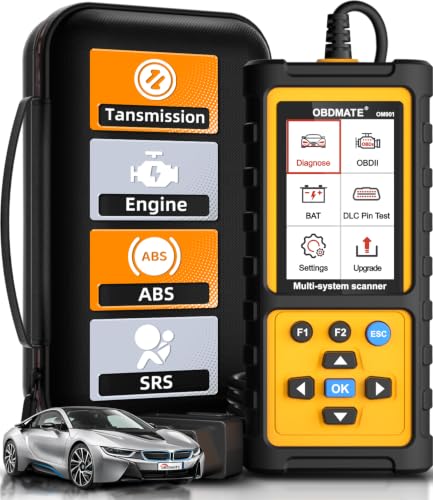
- 【Reset ABS/SRS/Transmission/Engine Lights】 More than an check engine code reader, OBDMATE OM901 obd2 scanner performs comprehensive diagnostics for the 4 most-used systems (ABS/SRS/Engine/Transmission). It quickly clears fault codes, turns off warning lights, read data stream and auto VIN.
- 【3.5" Handheld Scanner with 4 System Diagnose】 3.5" Super large TFT screen equipped displays an intuitive menu and clear readings of various sensors from ABS, SRS, ECM and TCM systems. It arrived with a silicone protective case and hard-shell carrying case, ensuring long-lived durability and drop resistance. The car diagnostic tool is plug-to-play designed, plug it and get diagnosis started without any batteries or updates required.
- 【One-Click I/M Readines&Full OBD2 Functions】 Press F1 to get an intuitive corloured form about whether various emissions-related systems on the vehicle are operating properly. Help you get smog-check ready quickly. OM901 car scanner supports all essential OBD2 functions you need: read & clear codes, view freeze frame, read I/M readiness, retrieve VIN, live data stream (with graphing display), O2 sensor test, onboard monitoring mode, and EVAP leak test.
- 【Battery Voltage Check&DLC Pin Test】 It allows you to monitor battery health by testing current battery voltage. Plus, this obd2 diagnostic tool features DLC 16-PIN test to check current voltage of every pin.
- 【Automotive Scanner Diagnostic Kit】 The package comes with 1 car scanner, 1 USB-type c cable, 1 hard storage bag and 1 user manual(en). Free to update without any hidden fees. 5 languanges available in setting including English, French, Italian, German and Espanish. Valuable and Portable, making it a great tool kit for car owners, DIY enthusiasts, and professional mechanics.

- [All System Diagnostics, Professional-Level Scanner] - BLCKTEC 460T is the ultimate OBD2 diagnostic tool for home mechanics and professionals. It supports all 10 OBD2 modes, reads and clears Engine/Transmission/ABS/SRS codes, performs All-System Diagnostics, offers workshop reset tools, and provides real-time live data. It helps you pinpoint issues, assess your car's condition, and prepare for SMOG checks with ease. NOTE: Function availability depends on your vehicle. Before you buy, be sure to use the Compatibility Checker on BLCKTEC website or contact our customer support to verify that the features you need are supported for your vehicle’s specific year, make, and model.
- [12+ Most Popular Reset Functions] - BLCKTEC 460T OBD2 scanner offers 12+ dealer-level service functions, including Oil Maintenance Reset, ABS Bleeding, EPB Reset, SAS(Steering Angle Sensor) Recalibration, DPF(Diesel Particulate Filter) Reset, Throttle Body Relearn, Battery Reset/Initialization, TPMS Relearn, Transmission Reset, Fluid Change Reset, Maintenance Reset and more, enabling you to perform workshop services like a pro. NOTE: Function availability depends on your vehicle. Be sure to use the Compatibility Checker on BLCKTEC website to verify that the features you need are supported for your vehicle.
- [Real-Time OBD2 and OEM Live Data, Freeze Frame Data] - BLCKTEC 460T helps diagnose vehicle issues when warning lights like Check Engine Light or ABS/SRS Light appear. It offers detailed DTC info, ECU Freeze Frame Data, and real-time OBD2 and advanced OEM live data, including Engine, Transmission, ABS, SRS, and more, making it easy to diagnose and resolve vehicle problems. You can view, graph, record, replay, and overlay up to four live data streams in a single graph for better analysis.
- [AutoVIN, AutoReLink, AutoScan, 3X Faster] - Equipped with AutoVIN technology, 460T automatically retrieves the VIN to save you time. Its AutoScan and AutoReLink features scan all of the vehicle's ECUs and detect any fault codes immediately after you plug the scanner into the vehicle's OBD2 port - no button presses required. Additionally, it regathers DTC and I/M readiness information every 30 seconds, simplifying monitor tests. 460T's advanced technology makes it 3X faster than other products.
- [Get RepairSolutions2, the #1 Auto Repair App for Free] - When paired with RepairSolutions2(RS2) App, 460T becomes even more powerful. RS2's Verified Fix Database built by master technicians, provides the parts needed for the repair. Additionally, RS2 gives you access to OEM warranty info, maintenance schedules, TSB, and dealership recall info, making car care easier than ever. RS2 is free with no subscription fees and it stores your car scan reports in the cloud, allowing you to access, share, or print them anytime and anywhere.
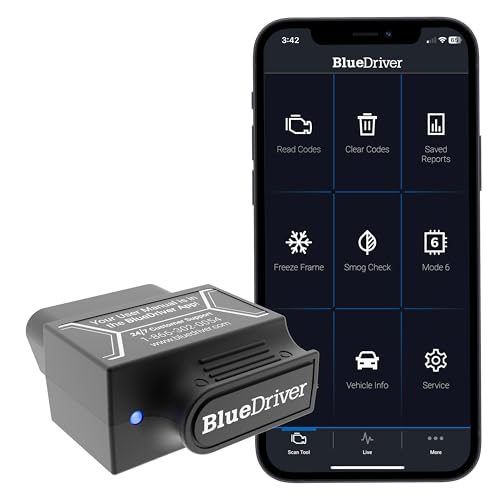
- [Diagnose Like a Pro] BlueDriver Pro is a professional OBD2 scanner and diagnostic tool that helps you scan, understand, and clear vehicle trouble codes with confidence. Turn your phone into a powerful car diagnostic scanner—no guesswork, no unnecessary repairs.
- [Read and Clear More Codes Than Ever] Read and clear more codes than basic car code readers. Access enhanced diagnostics for Check Engine, ABS, SRS, Airbag, TPMS, Transmission.
- [Verified Fixes and Real-Time Data] Get unlimited, technician-verified repair reports matched to your VIN, with definitions, causes, and confirmed fixes. Monitor live vehicle data as you drive, view freeze frames, check smog readiness, and analyze Mode 6 test results.
- [Wireless & Bluetooth Enabled] - Say goodbye to wires. BlueDriver connects with Bluetooth via your phone/tablet to a sensor that plugs into your car's OBDII port. Get all of the capabilities of an expensive code reader & scan tool without any annoying wires.
- [Broad Make & Model Coverage] Strong support for GM, Ford, Stellantis (RAM, Jeep, Chrysler), Toyota, Honda, Nissan, Mazda, Subaru, Hyundai, Mercedes-Benz, BMW, and VW.
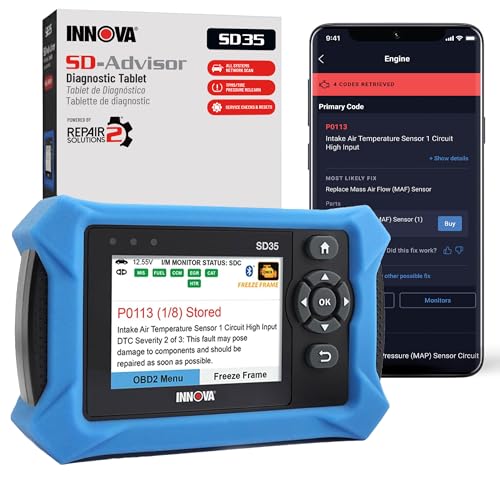
- OBD2 SCANNER FOR ALL SYSTEMS – The INNOVA SD35 is a tablet-based OBD2 scanner designed for advanced diagnostics. Read and clear check engine light, ABS, SRS, and TPMS codes, plus test your car battery and alternator to prevent unexpected failures. Vehicle coverage may vary. Please use Innova’s Coverage Checker to verify compatibility.
- ALL-SYSTEM DIAGNOSTICS & LIVE DATA – Unlike basic code readers, this OBD2 scanner for all vehicles scans engine, transmission, ABS, SRS, and more. Get real-time live data, including RPM, fuel trims, temperature readings, and oxygen sensor performance.
- OBD2 TABLET WITH USER-FRIENDLY INTERFACE – This automotive scan tool features a high-resolution display, making vehicle diagnostics faster and easier.
- ADVANCED TPMS, OIL RESET & SERVICE FUNCTIONS – Perform TPMS sensor checks, oil light reset, and other service resets with ease This professional diagnostic tool provides comprehensive vehicle maintenance capabilities in one device.
- WIDE VEHICLE COVERAGE (1996 & NEWER CARS & TRUCKS) – This OBD2 scanner Bluetooth tablet is compatible with Toyota, Ford, Honda, Chevrolet, Nissan, Dodge, and more. However, feature coverage may vary. Please use Innova's Coverage Checker to verify coverage.
SEOCONTENT-START
SUBARU CORPORATION, TOKYO, JAPAN “SUBARU” and the six-star cluster design are registered trademarks of SUBARU CORPORATION. © Copyright 2020 SUBARU CORPORATION 1 20MY Legacy/Outback Owner’s Manual Supplement Additional information for the Center Information Display Please refer to the separate Owner’s Manual for information not covered in this supplement. Please keep this supplement with your Owner’s Manual and leave it in the vehicle at the time of resale. The next owner will need the information it contains. The function has been changed by the software update of the Center Information Display. The list of the changes to the Owner’s Manual due to this update are below. Item Number Description Applicable Software update by dealer via USB*1 Software update by user via Wi-Fi® *2, *3 1 Enable clock setting by touching the clock display on the status bar × – 2 “Auto Start Stop” and “Cruise Control Acceleration Characteristics” were moved to the “Vehicle Control” section × – 3 Change description “Sync With DCM” to “Auto” Change description “STARLINK” to “SUBARU STARLINK” × × 4 Enable clock setting by touching the clock display on the status bar × – 5 Change description “STARLINK” to “SUBARU STARLINK” × – 6 “Cruise Control Acceleration Characteristics” was moved to the “Vehicle Control” section × – 7 Enable clock setting by touching the clock display on the status bar × – 8 Enable clock setting by touching the clock display on the status bar × – 9 The description of the 11.6-inch display models without navigation system of “Sync With DCM” was changed to “Auto” × × 10 The climate control screen button positions of dual 7.0-inch display models were changed × – 11 The gauge in the temperature control screen was centered × – 12 The climate control screen button positions of dual 7.0-inch display models were changed × – *1 Software version after updated: F11G*M02*-504 *2 Software version after updated: F11G*M02*-704 *3 11.6-inch display system/11.6-inch display with Navigation system only 2 Item Number 1 Chapter Chapter 3 Main Title 3-8. Center Information Display (CID) Sub Title 11.6-Inch Display Models (If Equipped) 北米Model “A2570BE-D” EDITED: 2020/ 5/ 19 ! Touch screen 1) HOME icon (Refer to “HOME icon” P211.) 2) Status bar (Refer to “Status bar” P207.) 3) Information bar (Refer to “Information bar” P207.) 4) Main screen (Refer to “Main screen” P211.) 5) Driver profiles icon (Refer to “Driver profiles icon” P211.) 6) Climate control screen (Refer to “Climate control screen” P211.) 7) Car settings icon (Refer to “Car settings icon” P209.) While the ignition switch is in the “ACC” or “ON” position, the touch panel will activate. ! Status bar The outside temperature and clock are displayed on the status bar. NOTE . The outside temperature indicator shows the temperature around the sensor. Therefore, the temperature indication may differ from the actual outside air temperature. . The temperature unit cannot be changed. . The clock can be displayed in either 12-hour display or 24-hour display. For details, refer to “Clock” P240. . Touch the clock on the status bar to display the clock setting screen. Refer to “Clock” P240. . For details about Bluetooth device information, refer to the navigation/ audio Owner’s Manual. ! Information bar Swipe the information bar or touch or on the information bar to switch the item displayed. Audio screen: The screen of the currently selected audio source is displayed. For details about how to use the audio set, refer to the separate navigation/audio Owner’s Manual. – CONTINUED – Center Information Display (CID) 207 3Instruments and Controls 3 Item Number 2 Chapter Chapter 3 Main Title 3-8. Center Information Display (CID) Sub Title 11.6-Inch Display Models (If Equipped) (212,1) Item Available settings Page reference for the vehicle system operation Page reference for the setting procedure 1st menu 2nd menu Vehicle Control Vehicle Dynamics Control ON/OFF 351 220 X-MODE*1 Models with 1 mode: ON/OFF Models with 2 modes: Normal, Deep Snow/Mud, Snow/ Dirt 353 220 Auto Vehicle Hold (AVH) ON/OFF 360 220 Steering Responsive Headlights (SRH)*1 ON/OFF 249 220 Cruise Control Acceleration Characteristics Lv.1 (Eco)/Lv.2 (Comfort)/Lv.3 (Standard)/Lv.4 (Dynamic) Refer to the Owner’s Manual supplement for the EyeSight system. — Auto Start Stop ON/OFF 367 220 Driving Assistance Pre-Collision Braking Setting ON/Setting OFF Refer to the Owner’s Manual supplement for the EyeSight system. Lane Departure Pre- — vention Function All Functions/Lane Departure Prevention Function Only/Warning Buzzer Only/OFF BSD/RCTA*1 ON/OFF 381 220 Others Warning Volume Min/Mid/Max 380, 394 and *2 — Units km, km/h, Liter/ Miles, MPH, Gallon 171 and 197 220 Driver Monitoring System*1 ON/OFF 396 220 *1: If equipped. *2: For details about the EyeSight system, refer to the Owner’s Manual supplement for the EyeSight system. 210 Center Information Display (CID) 4 Item Number 3-1 Chapter Chapter 3 Main Title 3-8. Center Information Display (CID) Sub Title 11.6-Inch Display Models (If Equipped) (214,1) The setting adjustments to the following items can be manually changed to meet your personal requirements. Item Available settings Page reference for the vehicle system operation Page reference for the setting proce- 1st menu 2nd menu 3rd menu dure General Clock Time Setting Auto/Manual 240 240 Time Zone*1 AUTO/Pacific/Mountain/Central/ Eastern/Atlantic/Newfoundland/ Hawaii/Alaska 220 Daylight Saving Time*1 AUTO/ON (+1 hour)/OFF 220 Clock Format 12H/24H 220 Display Display Off Turn the screen on or off. — 220 Brightness Dial ON/OFF 173 220 Brightness/Contrast Set and adjust the brightness and contrast of the display. 220 220 Wi-Fi Wi-Fi ON/OFF *4 — Connected to: Select the registered devise. Available Wi-Fi Networks Add Wi-Fi Protected Setup PIN Setup/Push Button Setup Registered Wi-Fi Networks — Wi-Fi Hotspot — ON/OFF *5 212 Center Information Display (CID) 5 Item Number 3-2 Chapter Chapter 3 Main Title 3-8. Center Information Display (CID) Sub Title 11.6-Inch Display Models (If Equipped) (216,1) Item Available settings Page reference for the vehicle system operation Page reference for the setting proce- 1st menu 2nd menu 3rd menu dure General Periodic Rest Notification*1 — ON/OFF *4 — Software Update Update Check if a new software update Automatically Check for Updates ON/OFF Automatically Download Updates ON/OFF SUBARU STARLINK Apps Recovery — OK/Cancel SUBARU STARLINK Auto Connect — ON/OFF Factory Data Reset — Reset/Cancel System Information — — Free/Open Source Software Information — — *1: Models with navigation system *2: Models without navigation system *3: If equipped *4: For details about the audio and navigation system, refer to the Owner’s Manual supplement for the audio and navigation system. *5: For details, refer to the Owner’s Manual supplement for SUBARU STARLINK Safety and Security. NOTE Touch to display the explanation of the items. 214 Center Information Display (CID) 6 Item Number 4 Chapter Chapter 3 Main Title 3-8. Center Information Display (CID) Sub Title Dual 7.0-Inch Display Models (If Equipped) 北米Model “A2570BE-D” EDITED: 2020/ 5/ 19 ! Main screens A) Upper display B) Lower display 1) HOME button (Refer to “HOME button” P228.) 2) Status bar (Refer to “Status bar” P228.) 3) Upper main screen (Refer to “Setting of the upper display” P229.) 4) Lower main screen (Refer to “Setting of the lower display” P232.) 5) Climate control screen (Refer to “Climate control screen” P229.) While the ignition switch is in the “ACC” or “ON” position, the touch panel will activate. ! HOME button Press (HOME) to display the top menu. ! Status bar The driver profiles icon, outside temperature and clock are shown on the display. NOTE . The outside temperature indicator shows the temperature around the sensor. Therefore, the temperature indication may differ from the actual outside air temperature. . The temperature unit cannot be changed. . The clock can be shown in either 12- hour display or 24-hour display. For details about the setting, refer to “Clock” P240. . Touch the clock on the status bar to display the clock setting screen. Refer to “Clock” P240. ! Upper display For details about items, refer to “Setting of the upper display” P229. For details about the following menu, refer to the separate navigation/audio Owner’s Manual. . Radio . Media . Phone . Apps . SUBARU STARLINK . Add to Shortcuts ! Lower display For details about the setting items, refer to “Setting of the lower display” P232. If this screen changes to the climate control screen, refer to “Dual 7.0-Inch Display Models” P273. 228 Center Information Display (CID) 7 Item Number 5 Chapter Chapter 3 Main Title 3-8. Center Information Display (CID) Sub Title Dual 7.0-Inch Display Models (If Equipped) (233,1) Item Available settings Page reference for the vehicle system operation Page reference for the setting 1st menu 2nd menu 3rd menu procedure General Climate Control Customize Climate Button A/C/MAX A/C/AUTO/Recirculation 281 237 Language — English/Français/Español 197 and 205 237 Tire Pressure Units*1 — kPa/PSi 201 237 Home Screen Shortcuts — ON/OFF *2 237 Welcome Screen — ON/OFF 198 237 Goodbye Screen — ON/OFF 198 237 Birthday List — Set a birthday. 206 238 Anniversary List — Set an anniversary day. 206 238 SUBARU STARLINK Apps Recovery — OK/Cancel *2 — SUBARU STARLINK Auto Connect — ON/OFF Factory Data Reset — Reset/Cancel System Information — — Free/Open Source Software Information — — *1: If equipped *2: For details about the audio and navigation system, refer to the Owner’s Manual supplement for the audio and navigation system. NOTE Touch to display the explanation of the items. CONTINUEDCenter Information Display (CID) 231 3Instruments and Controls 8 Item Number 6 Chapter Chapter 3 Main Title 3-8. Center Information Display (CID) Sub Title Dual 7.0-Inch Display Models (If Equipped) (235,1) Item Available settings Page reference for the vehicle system operation Page reference for the setting 1st menu 2nd menu 3rd menu procedure X-MODE*1 — — ON/OFF 353 237 Vehicle Control Vehicle Dynamics Control — ON/OFF 351 237 Auto Vehicle Hold (AVH) — ON/OFF 360 237 Cruise Control Acceleration Characteristics — Lv.1 (Eco)/Lv.2 (Comfort)/Lv.3 (Standard)/Lv.4 (Dynamic) *2 — Driving Assistance Pre-Collision Braking — Setting ON/Setting OFF * Lane Departure Prevention 2 — Function — All Functions/Lane Departure Prevention Function Only/ Warning Buzzer Only/OFF Others Warning Volume — Min/Mid/Max *2 237 Units — km, km/h, Liter/ Miles, MPH, Gallon 171 and 197 237 Auto Start Stop — ON/OFF 367 237 *1: For Outback *2: For details about EyeSight system, refer to the Owner’s Manual supplement for the EyeSight system. Center Information Display (CID) 233 3Instruments and Controls 9 Item Number 7 Chapter Chapter 3 Main Title 3-9. Clock Sub Title Setting the Clock Manually 北米Model”A2570BE-D”EDIT3-9. Clock For models with a genuine SUBARU navigation and/or audio system, the clock can be adjusted using either auto mode or manual mode. & Setting the Clock Manually ! Dual 7.0-inch display models 1. Turn the ignition switch to the “ON” position. 2. Press (HOME). 3. Touch (Settings). 4. ? “General” 5. ? “Clock” 6. ? “Time Setting” 7. ? “Manual” 8. ? or 9. ? “OK” NOTE The clock setting screen can also be displayed by touching the clock on the status bar. ! 11.6-inch display mode1. Turn the ignition switch position. 2. Touch (HOME). 3. ? (Settings) 4. ? “General” 5. ? “Clock” 6. ? “Time Setting” 240 Clock (242,1) 3-9. Clock For models with a genuine SUBARU navigation and/or audio system, the clock can be adjusted using either auto mode or manual mode. & Setting the Clock Manually ! Dual 7.0-inch display models 1. Turn the ignition switch to the “ON” position. 2. Press (HOME). 3. Touch (Settings). 4. ? “General” 5.?“Clock”7. ? “Manual” 8. ? or 9. ? “OK” NOTE The clock setting screen can also be displayed by touching the clock on the status bar. ! 11.6-inch display mode1. Turn the ignition switch position. 2. Touch (HOME). 3. ? (Settings) 4. ? “General” 5. ? “Clock” 6. ? “Time Setting” 240 Clock 10 Item Number 8 Chapter Chapter 3 Main Title 3-9. Clock Sub Title Setting the Clock Manually (242,1) al” etting screen can also be touching the clock on the ! 11.6-inch display models 1. Turn the ignition switch to the “ON” position. 2. Touch (HOME). 3. ? (Settings) 4. ? “General” 5. ? “Clock” 6. ? “Time Setting” 7. ? “Manual” 8. ? or 9. ? “OK” NOTE The clock setting screen can also be displayed by touching the clock on the status bar. & Setting the Clock Acally ! Dual 7.0-inch display m1. Turn the ignition switch position. 2. Press (HOME). 3. Touch (Settings). 4. ? “General” 5. ? “Clock” 6. ? “Time Setting” 11 Item Number 9 Chapter Chapter 3 Main Title 3-9. Clock Sub Title Setting the Clock Automatically smartphone may need to be changed. (ex: For iOS or other models, notification settings may need to be activated.) For details, check the instructions on connecting smartphones. ! 11.6-inch display models 1. Turn the ignition switch to the “ON” position. 2. Touch (HOME). 3. ? (Settings) 4. ? “General” 5. ? “Clock” 6. ? “Time Setting” 7. ? “Auto” ! Models with navigation system The clock will be set automatically where a GPS signal is available. ! Models without navigation system The clock will be set automatically where a DCM (Data Communication Module in vehicle cellular connection) signal is available. 3-10. U. BModpushThe lpushor “ORegacontrturneswitcModepushThe lkey is242 Light Control Switch 12 Item Number 10 Chapter Chapter 4 Main Title 4-2. Climate Control Panel Sub Title Dual 7.0-Inch Display Models (276,1) ! Climate control screen Climate control screen (lower display) : Touch the climate control mode indicator 1) Climate control mode indicator 2) Climate control ON/OFF button 3) Fan speed indicator 4) Customizable icon* 5) Airflow mode selection screen 6) Climate control mode select button 7) Fan speed control screen *: The customizable icon can be changed to the favorite icon. Refer to “General settings” P229. 274 Climate Control Panel 13 Item Number 11 Chapter Chapter 4 Main Title 4-2. Climate Control Panel Sub Title Dual 7.0-Inch Display Models (277,1) ! Temperature control screen Climate control screen (lower display) : Touch the set temperature indicator 1) Set temperature indicator 2) Climate control ON/OFF button 3) Fan speed indicator 4) Customizable icon* 5) Temperature control screen 6) Temperature control bar *: The customizable icon can be changed to the favorite icon. Refer to “General settings” P229. Climate Control Panel 275 4Climate Control 14 Item Number 12 Chapter Chapter 4 Main Title 4-3. Automatic Climate Control Operation Sub Title Climate control screen (dual 7.0-inch display models) 4-3. Automatic Climate Control Operation Climate control screen (dual 7.0-inch display models) Climate control screen (11.6-inch display models) 1) Airflow distribution 2) Air inlet selection 3) Air conditioner compressor 4) Fan speed When the full auto mode is selected, the following functions are automatically controlled. . Fan speed . Airflow distribution . Air inlet selection . Air conditioner compressor operation 3. S“TemNOT. Otrol s. Evthe autois seoutlecaseclima. Thmay spec. If contin fuwill tlight then desiscrefull aTo tuthAutom
SEOCONTENT-END
This product presentation was made with AAWP plugin.