
NHTSA ID Number: 10233880
Manufacturer Communication Number: 15-261-20R
Summary
The following information announces reprogramming file availability and provides a software update installation procedure to optimize the new Gen 4 Denso CP1 Audio and Navigation head units utilized in the models listed.
NUMBER: 15-261-20R
DATE: 03/10/20
REVISED: 03/13/23
| APPLICABILITY: | 2020-22MY Legacy and Outback Models |
| SUBJECT: | Reprogramming File Availability for Optimization of Gen 4 Denso CP1 Infotainment Systems |
INTRODUCTION:
The following information announces reprogramming file availability and provides a software update installation procedure to optimize the new Gen 4 Denso CP1 Audio and Navigation head units utilized in the models listed above. As in previous models, the procedure will involve either downloading the software update files from Subarunet or using those sent directly from Nuspire to the SDS Notebook and transferring them onto a USB flash drive for head unit installation.
It is VERY IMPORTANT to read and understand this information completely before proceeding.
CAUTION: VEHICLE SERVICE PERFORMED BY UNTRAINED PERSONAL COULD RESULT IN THE EQUIPMENT DAMAGE OR EVEN SERIOUS INJURY.
Service Bulletin is intended for use by trained technicians ONLY. It informs technicians of conditions, which may occur in some vehicles or provides information, which could assist with proper servicing of the vehicle. Properly trained technicians have the equipment, tools, safety instructions, and know-how to do the job correctly and safely.
A time line chart along with a complete list of all the conditions addressed and enhancements included in this and previous Denso software updates are provided in “Appendix D” and “Appendix E” located at the end of this bulletin.
IMPORTANT NOTE: For 2020-22MY the update contains four (4) files. When performing an update, the USB must contain the matching number of files and all files must be replaced.
ALWAYS use the latest files together as a set.
NEVER reuse or combine files from a prior update with a newer version.
NEW: Be aware that Wilderness Edition has a separate and unique update version. Never attempt to put a Wilderness edition update in an Outback or an Outback update in a Wilderness edition.
PART INFORMATION:
NOTE: High Level unit is equipped with Navigation option (Map icon on Home screen)
Materials Required:
An empty, USB 2.0 or 3.0 storage device (flash drive) will be needed to perform the update procedure. The device should be dedicated to storing and transferring these updating files only. It must be a minimum of 16GB or more in size and contain a NTFS file format before downloading the update files onto it. Be sure to locate and re-format any existing USB drives used for updating audio units. They must be fully cleared before adding these new update files to them.
IMPORTANT NOTES:
- NEVER change the update file names after downloading them.
- NEVER save any other files on the same flash drive.
There are various types of USB flash drive available from many suppliers. If the head unit does NOT recognize the USB drive during the reprogramming process due to Controller IC type of USB drive or Compatibility with the head unit, confirm the flash drive format is NTFS. The flash drive must be formatted for NTFS. If a recognition problem persists, use a USB flash drive from another manufacturer.
- Kingston®:
DataTraveler G3 Series DataTraveler 100 G3 DT100G3
DataTraveler SE9 Series DataTraveler SE9 G2 3.0 DTSE9G2
Digital Data Traveler 3.0 USB Flash Drive – Violet DTIG4
- SanDisk®:
Ultra Series SDCZ48-064G-J57
Cruzer Blade Series
Cruzer Glide Series CZ60 SDCZ60-064G-B35
- Transcend®:
JetFlash 790 Series TS64GJF790KBE
- PNY®:
Retract USB 3.0 Flash Drive, black (P-FD64GTRTC-GE)
- Silicon Power®:
2 Pack USB 3.0/3.1 Gen1 USB Flash Drive Blaze B02
IMPORTANT NOTE: For 2020-22MY the update contains four (4) files. When performing an update, the USB must contain the matching number of files and all files must be replaced. ALWAYS use the latest files together as a set.
NEVER reuse or combine files from a prior update with a newer version.
NEW: Be aware that Wilderness Edition has a separate and unique update version. Never attempt to put a Wilderness edition update in an Outback or an Outback update in a Wilderness edition.
6 Affected Products
Vehicles
1 Associated Document
Manufacturer Communications
NUMBER: 15-261-20R
DATE: 03/10/20
REVISED: 03/13/23
MC-10233880-0001.pdf 5634.743KB
NHTSA ID Number: 10232220
Manufacturer Communication Number: 15-261-20R
Summary
The following information announces reprogramming file availability and provides a software update installation procedure to optimize the new Gen 4 Denso CP1 Audio and Navigation head units utilized in the models listed.
1 Associated Document
Manufacturer Communications
NUMBER: 15-261-20R
DATE: 03/10/20
REVISED: 02/13/23
MC-10232220-0001.pdf 7753.974KB
NHTSA ID Number: 10231304
Manufacturer Communication Number: 15-261-20R
Summary
The following information announces reprogramming file availability and provides a software update installation procedure to optimize the new Gen 4 Denso CP1 Audio and Navigation head units utilized in the models listed.
1 Associated Document
Manufacturer Communications
NUMBER: 15-261-20R
DATE: 03/10/20
REVISED: 01/12/23
MC-10231304-0001.pdf 17637.399KB
NHTSA ID Number: 10225775
Manufacturer Communication Number: 15-261-20R
Summary
The following information announces reprogramming file availability and provides a software update installation procedure to optimize the new Gen 4 Denso CP1 Audio and Navigation head units utilized in the models listed.
1 Associated Document
Manufacturer Communications
NUMBER: 15-261-20R
DATE: 03/10/20
REVISED: 10/31/22
MC-10225775-0001.pdf 17640.362KB
NHTSA ID Number: 10213170
Manufacturer Communication Number: 15-261-20R
Summary
The following information announces reprogramming file availability and provides a software update installation procedure to optimize the new Gen 4 Denso CP1 Audio and Navigation head units.
1 Associated Document
Manufacturer Communications
NUMBER: 15-261-20R
DATE: 03/10/20
REVISED: 05/02/22
MC-10213170-0001.pdf 15543.298KB
NHTSA ID Number: 10210833
Manufacturer Communication Number: 15-261-20R
Summary
The following information announces reprogramming file availability and provides a software update installation procedure to optimize the new Gen 4 Denso CP1 Audio and Navigation head units.
1 Associated Document
Manufacturer Communications
NUMBER: 15-261-20R
DATE: 03/10/20
REVISED: 04/22/22
MC-10210833-0001.pdf 15543.141KB
NHTSA ID Number: 10210832
Manufacturer Communication Number: 15-261-20R
Summary
The following information announces reprogramming file availability and provides a software update installation procedure to optimize the new Gen 4 Denso CP1 Audio and Navigation head units.
1 Associated Document
Manufacturer Communications
NUMBER: 15-261-20R
DATE: 03/10/20
REVISED: 04/22/22
MC-10210832-0001.pdf 15543.141KB
NHTSA ID Number: 10207180
Manufacturer Communication Number: 15-261-20R
Summary
The following information announces reprogramming file availability and provides a software update installation procedure to optimize the new Gen 4 Denso CP1 Audio and Navigation head units.
1 Associated Document
Manufacturer Communications
NUMBER: 15-261-20R
DATE: 03/10/20
REVISED: 01/28/22
MC-10207180-0001.pdf 7631.651KB
NHTSA ID Number: 10199951
Manufacturer Communication Number: 15-261-20R
Summary
The following information announces reprogramming file availability and provides a software update installation procedure to optimize the new Gen 4 Denso CP1 Audio and Navigation head units.
1 Associated Document
Manufacturer Communications
NUMBER: 15-261-20R
DATE: 03/10/20
REVISED: 07/19/21
MC-10199951-0001.pdf 3594.057KB
NHTSA ID Number: 10185073
Manufacturer Communication Number: 15-261-20R
Summary
The following information announces reprogramming file availability and provides a software update installation procedure to optimize the new Gen 4 Denso CP1 Audio and Navigation head units utilized in the models listed.
1 Associated Document
Manufacturer Communications
NUMBER: 15-261-20R
DATE: 03/10/20
REVISED: 12/18/20
MC-10185073-0001.pdf 3590.539KB
NHTSA ID Number: 10183705
Manufacturer Communication Number: 15-261-20R
Summary
The following information announces reprogramming file availability and provides a software update installation procedure to optimize the Gen 4 Denso CP1 Audio and Navigation head units.
1 Associated Document
Manufacturer Communications
NUMBER: 15-261-20R
DATE: 03/10/20
REVISED: 11/20/20
MC-10183705-0001.pdf 4235.306KB
NHTSA ID Number: 10180686
Manufacturer Communication Number: 15-261-20R
Summary
The following information announces reprogramming file availability and provides a software update installation procedure to optimize the new Gen 4 Denso CP1 Audio and Navigation head units.
1 Associated Document
Manufacturer Communications
NUMBER: 15-261-20R
DATE: 03/10/20
REVISED: 09/09/20
MC-10180686-0001.pdf 4235.294KB
NHTSA ID Number: 10179384
Manufacturer Communication Number: 15-261-20R
Summary
The following information announces reprogramming file availability and provides a software update installation procedure to optimize the new Gen 4 Denso CP1 Audio and Navigation head units utilized in the models listed.
1 Associated Document
Manufacturer Communications
NUMBER: 15-261-20R
DATE: 03/10/20
REVISED: 08/13/20
MC-10179384-0001.pdf 4243.996KB
NHTSA ID Number: 10176026
Manufacturer Communication Number: 15-261-20R
Summary
The following information announces reprogramming file availability and provides a software update installation procedure to optimize the new Gen 4 Gen Denso CP1 Audio and Navigation head units utilized in the models listed.
1 Associated Document
Manufacturer Communications
NUMBER: 15-261-20R
DATE: 03/10/20
REVISED: 05/21/20
MC-10176026-0001.pdf 3701.42KB
NHTSA ID Number: 10173116
Manufacturer Communication Number: 15-261-20
Summary
The following information announces reprogramming file availability and provides a software update installation procedure to optimize the Gen 4 Denso CP1 Audio and Navigation head units.
1 Associated Document
Manufacturer Communications
NUMBER: 15-261-20
DATE: 03/10/20
MC-10173116-0001.pdf 3700.952KB

- 【Android 13 System Car Radio】Car Radio Compatible with Subaru Forester WRX Impreza 2013 2014 2015. With 2GB RAM and 64GB ROM, ensures smooth operation and multitasking capabilities. Built-in Bluetooth for answering, making phone calls, streaming music by hands-free. The 1280x720 high-resolution display video clear and vivid pictures and videos. You can enjoy your favourite music, movies and short videos from the car stereo.
- 【Car Stereo with Wireless Carplay & Android Auto】This car radio supports wireless Carplay/Android auto /Mirrorlink. Wirelessly connect your phone to the car's stereo infotainment system, providing a seamless experience. You can make phone calls, send messages, listen to music, and get directions using voice control, allowing you to focus on driving without worrying about using your phone, making your driving safely.
- 【Car Radio with GPS Navigation & WIFI】The built-in GPS module and external GPS antenna supports both online and offline map navigation. With Wi-Fi or hotspot connectivity, you can easily download and access to online navigation app and other video or music apps on Play Store. With the split-screen function, you can view two apps on the same screen simultaneously. For example, you can display navigation and music apps side by side, ensuring a more pleasant journey.
- 【FM/Steering Wheel Control】 With built-in FM radio that allows you to listen to radio programs and stay up-to-date with the latest news and weather information during driving. The car head unit also supports steering wheel controls, allowing you to effortlessly switch songs, change channels, and adjust the volume without taking your hands off the wheel, helping you stay focused on the road while enjoying a smooth and convenient driving experience
- 【SWC &AHD Rear Camera】The car head unit supports original car steering wheel control, such as switching songs, adjusting volume, answering calls, etc. The waterproof night vision camera offers 1080P resolution, reversing image is clearer no matter the weather conditions. Automatically switch the reversing image when reversing. Note: Professional installation is required. Incorrect wiring may cause a short circuit.

- Replaces the original part number: Compatible with Subaru Legacy Outback 8-inch touchscreen radio screen. The TsuperU uses upgraded materials, offering superior sensitivity, high definition, high temperature resistance, and is non-bubbling and non-whitening. With this part, you won't need to go to the dealer for a replacement, as they often recommend replacing the entire radio, which could cost thousands of dollars, but is completely unnecessary. Please watch the replacement video on YT's
- EASY PROBLEM SOLVED: If your display touch screen is cracked, delaminating, bubbles, White, fogging, air holes, unresponsive, has garbled, phantom, ghosted, ghosting, dead pixels, unresponsive, or looks bad, simply replace the TsuperU 8-inch screen navigation touchscreen and it will return to its original functionality without the need for a trip to the dealership for costly repairs. One replacement is all it takes to fix the problem
- COMPATIBLE WITH SUBARU MODELS: Navigation screen fits Subaru Outback 2.5i Limited Premium Sport Touring Premier 3.6R Limited Premier Touring radio digitizer screen 2019 2018. please check the OEM number and size carefully before purchasing, There are two versions of MAP & PHONE, compare with your original parts to make sure that this touch screen fits your car. The digitizer screen for the 8-inch touchscreen radio works with both GPS-equipped radios and non-GPS radios
- EASY TO INSTALL: The product comes with adhesive, you only need to tear off the protective film to use it, easy to install. for Subaru radio screen is an exact fit for the original vehicle. For display only 86471-AL65A 86471-AL65B 86471-AL66A 86471-AL68A 86431-AL66A 86431-AL62A 86431-AL65A 86471 AL65A 86471 AL65B 86471 AL66A 86471 AL68A 86431 AL66A 86431 AL62A 86431 AL65A 86471AL65A 86471AL65B 86471AL66A 86471AL68A 86431AL66A 86431AL62A 86431AL65A, 864734-AL66A, 86471AL76A, 86471-AL76A
- TOUCH RESPONSIVE: Touch screen meets OEM navigation system, high light transmission, high visibility, responsive, high touch accuracy. touch screen monitor is made of new upgraded material with high resolution, high clarity, more stable performance, faster response time, and has been rigorously tested to ensure a long service life, touch screen replacement

- 8 Core 64GB Android Radio:Our Android car radio is equipped with the latest version of Android and an 8-core CPU processor, delivering exceptional performance and a perfect user experience. With 4G RAM and 64G ROM, our radio ensures smooth operation and provides ample storage for downloading popular apps like YouTube. It is designed to be compatible with Subaru Forester Impreza WRX 2008-2012 models. If you’re unsure whether it’s a good fit for your vehicle, please ask us first
- Wireless and Wired Carplay Android Auto:The Subaru Forester Impreza WRX car stereo offers seamless connectivity with your smartphone’s apps and features like WhatsApp, Google Maps, and Telegram, whether through Bluetooth or a USB data cable. It also supports voice control through Siri or Google Assistant, allowing you to keep your hands free while operating the stereo
- GPS Navigation and WiFi and Split Screen:With WiFi or hotspot connectivity, you can browse the internet, watch videos, and download apps on the 9 inch Subaru Forester Impreza WRX car radio. It also supports online and offline maps, providing real-time road conditions to help you avoid traffic jams. The split-screen feature enables you to simultaneously enjoy GPS navigation and watch videos on the 9 -inch screen with a resolution of 1280x720
- 32EQ DSP/BLUETOOTH 5.0/ FM/RDS:The car stereo comes pre-installed with DSP tuning software, allowing you to adjust the frequency, audio effects, and 32 EQ equalization settings, resulting in crystal-clear sound. Bluetooth 5.0 ensures a faster transmission speed and enables hands-free calling, phonebook downloads, and music streaming. The FM/RDS radio with 30 preset stations allows you to stay updated with new broadcasts, real-time traffic information, weather forecasts, and more
- Multi Function:The Android car stereo supports mirror link functionality, allowing you to mirror your smartphone’s content onto the large screen. It also supports steering wheel controls, provides 59 UI themes to suit your preferences, and allows you to move frequently used software to the home screen for easy access. As a gift, the car stereo comes with an external microphone and an AHD rearview camera with night vision and a 170 degree viewing angle
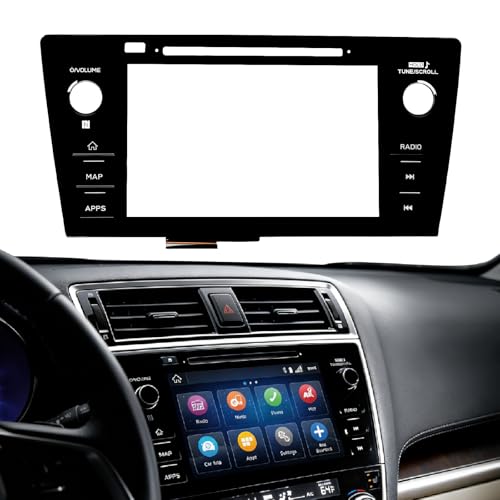
- Fitment:Our Touch Screen Digitizer(MAP) Compatible with 2018 2019 Subaru Outback,2018 2019 Subaru Legacy
- Replace Part Number:86471-AL62A,86471-AL65A,86471-AL65B,86471-AL66A,86471-AL67A,86471-AL68A,86431-AL62A,86431-AL65A,86431-AL66A
- Direct-Fit Replacement:Our 8-inch touchscreen is designed to address common display issues, such as physical cracks, unresponsiveness, or dead pixels, to help return your system to working condition.
- Function:This universal-style LCD touchscreen features integrated MAP functions.
- Support: For any questions or concerns regarding the product, please inform us so we can resolve the issue
SEOCONTENT-START
Bulletin Number: 15-261-20R; Revised: 03/13/23 Page 1 of 55 Continued… NUMBER: 15-261-20R DATE: 03/10/20 REVISED: 03/13/23 APPLICABILITY: 2020-22MY Legacy and Outback Models SUBJECT: Reprogramming File Availability for Optimization of Gen 4 Denso CP1 Infotainment Systems INTRODUCTION: The following information announces reprogramming file availability and provides a software update installation procedure to optimize the new Gen 4 Denso CP1 Audio and Navigation head units utilized in the models listed above. As in previous models, the procedure will involve either downloading the software update files from Subarunet or using those sent directly from Nuspire to the SDS Notebook and transferring them onto a USB flash drive for head unit installation. It is VERY IMPORTANT to read and understand this information completely before proceeding. CAUTION: VEHICLE SERVICE PERFORMED BY UNTRAINED PERSONAL COULD RESULT IN THE EQUIPMENT DAMAGE OR EVEN SERIOUS INJURY. Service Bulletin is intended for use by trained technicians ONLY. It informs technicians of conditions, which may occur in some vehicles or provides information, which could assist with proper servicing of the vehicle. Properly trained technicians have the equipment, tools, safety instructions, and know-how to do the job correctly and safely. A time line chart along with a complete list of all the conditions addressed and enhancements included in this and previous Denso software updates are provided in “Appendix D” and “Appendix E” located at the end of this bulletin. IMPORTANT NOTE: For 2020-22MY the update contains four (4) files. When performing an update, the USB must contain the matching number of files and all files must be replaced. ALWAYS use the latest files together as a set. NEVER reuse or combine files from a prior update with a newer version. NEW: Be aware that Wilderness Edition has a separate and unique update version. Never attempt to put a Wilderness edition update in an Outback or an Outback update in a Wilderness edition. SERVICE BULLETIN ATTENTION: GENERAL MANAGER q PARTS MANAGER q CLAIMS PERSONNEL q SERVICE MANAGER q IMPORTANT – All Service Personnel Should Read and Initial in the boxes provided, right. ©2020 Subaru of America, Inc. All rights reserved. Bulletin Number: 15-261-20R; Revised: 03/13/23 Page 2 of 55 Continued… PART INFORMATION: NOTE: High Level unit is equipped with Navigation option (Map icon on Home screen) Materials Required: An empty, USB 2.0 or 3.0 storage device (flash drive) will be needed to perform the update procedure. The device should be dedicated to storing and transferring these updating files only. It must be a minimum of 16GB or more in size and contain a NTFS file format before downloading the update files onto it. Be sure to locate and re-format any existing USB drives used for updating audio units. They must be fully cleared before adding these new update files to them. IMPORTANT NOTES: • NEVER change the update file names after downloading them. • NEVER save any other files on the same flash drive. There are various types of USB flash drive available from many suppliers. If the head unit does NOT recognize the USB drive during the reprogramming process due to Controller IC type of USB drive or Compatibility with the head unit, confirm the flash drive format is NTFS. The flash drive must be formatted for NTFS. If a recognition problem persists, use a USB flash drive from another manufacturer. • Kingston®: DataTraveler G3 Series DataTraveler 100 G3 DT100G3 DataTraveler SE9 Series DataTraveler SE9 G2 3.0 DTSE9G2 Digital Data Traveler 3.0 USB Flash Drive – Violet DTIG4 • SanDisk®: Ultra Series SDCZ48-064G-J57 Cruzer Blade Series Cruzer Glide Series CZ60 SDCZ60-064G-B35 11.6-Inch Display, Mid and High Level Units Dual 7.0-Inch Display, Base Level Unit ATTENTION The software in the STARLINK® Multimedia system on this vehicle has been recently updated. The current “STARLINK® Multimedia Owners Manual” and the “Getting Started Guide” in the vehicle, may not reflect the latest changes in features and functionality of the STARLINK® Multimedia system. Subaru of America will have an updated electronic supplement to your “STARLINK® Multimedia manual” and “Getting Started Guide” available on-line as of June 30th. You can download the electronic supplements by visiting us at: https://www.subaru.com/owners/index.html You can also request a printed copy of the supplements by writing us at: https://www.subaru.com/customer-support.html Also, you can contact us at 1-800-SUBARU3 (1-800-782-2783) MSA5M2001C Bulletin Number: 15-261-20R; Revised: 03/13/23 Page 3 of 55 Continued… • Transcend®: JetFlash 790 Series TS64GJF790KBE • PNY®: Retract USB 3.0 Flash Drive, black (P-FD64GTRTC-GE) • Silicon Power®: 2 Pack USB 3.0/3.1 Gen1 USB Flash Drive Blaze B02 IMPORTANT NOTE: For 2020-22MY the update contains four (4) files. When performing an update, the USB must contain the matching number of files and all files must be replaced. ALWAYS use the latest files together as a set. NEVER reuse or combine files from a prior update with a newer version. NEW: Be aware that Wilderness Edition has a separate and unique update version. Never attempt to put a Wilderness edition update in an Outback or an Outback update in a Wilderness edition. SERVICE PROCEDURE / INFORMATION: REMINDER: Customer satisfaction and retention starts with performing quality repairs. STEP 1- VERY IMPORTANT: Before proceeding with the software updating procedure, the currently installed software version ID MUST be confirmed by following the steps below: 1a) After starting the engine and system boot-up completes, from the HOME screen, touch the Settings button. Bulletin Number: 15-261-20R; Revised: 03/13/23 Page 4 of 55 Continued… 1b) Press the General button. Use the down arrow to scroll to System Information then press to display the System Information / Version information. The examples below identify the head unit model and the last 6 digits signify the software version number. Examples: • F11GHMxxx-xxx (High model software) • F11GMMxxx-xxx (Mid model software) • F11GBMxxx-xxx (Base model software) If on a Legacy and Outback, the software version number 20MY Model F11GHMxxx-xxx(High model software) F11GMMxxx-xxx(Mid model software) F11GBMxxx-xxx(Base model software) 21MY Model F31BHMxxx-xxx(High model software) F31BMMxxx-xxx(Mid model software) F31BBMxxx-xxx(Base model software) 22MY Model FB1SHMxxx-xxx(High model software) FB1SMMxxx-xxx(Mid model software) FB1SBMxxx-xxx(Base model software) WILDERNESS F51XHMxxx-xxx(High model software) WILDERNESS F51XMMxxx-xxx(Mid model software) Bulletin Number: 15-261-20R; Revised: 03/13/23 Page 5 of 55 Continued… MY Carline Trim/Grade Older Software Versions Latest Software Version 20MY Outback/ Legacy BASE 020-501 020-502 021-503 022-504 032-280 072-582 112-680 122-780 132-880 142-980 MID 020-501 020-502 021-503 022-504 032-280 072-582 112-680 122-780 122-370 122-570 122-670 132-880 142-980 HIGH 020-501 020-502 021-503 022-504 032-280 072-582 112-680 122-780 122-370 122-570 122-670 132-880 142-980 21MY Outback/ Legacy BASE 008-500 030-880 071-182 111-280 121-380 131-480 141-580 MID 008-500 030-880 071-182 111-280 121-380 120-970 121-170 121-270 131-480 141-580 HIGH 008-500 030-880 071-182 111-280 121-380 120-970 121-170 121-270 131-480 141-580 Bulletin Number: 15-261-20R; Revised: 03/13/23 Page 6 of 55 Continued… MY Carline Trim/Grade Older Software Versions Latest Software Version 22MY Outback/ Legacy BASE 060-781 070-882 110-980 121-380 131-180 141-280 MID 060-781 070-882 110-980 121-080 120-770 120-870 120-970 131-180 141-280 HIGH 060-781 070-882 110-980 121-080 120-770 120-870 120-970 131-180 141-280 22MY Wilderness Outback MID 060-981 071-082 111-180 121-280 120-970 121-070 121-170 131-380 141-480 HIGH 060-981 071-082 111-180 121-280 120-970 121-070 121-170 131-380 141-480 If the software version number matches “Older Software Versions” proceed to STEP 2 below. If the software version is “Latest Software Version” as the unit already has the latest software version installed. Proceed to the WARRANTY / CLAIM INFORMATION section of the TSB and process a claim for Version Check Only. STEP 2- Prepare the USB: CAUTION: Do not use any USB flash drive which utilizes file organizing software or an operating system. VERY IMPORTANT: Before attempting to download any data files, confirm the PC and flash drive being used is not infected with any virus. The flash drive MUST be formatted for NTFS. • Make sure the USB flash drive contains no other files. • Right click on the corresponding “Removable Disk”. • Select “Format”. • From the File System drop-down menu, select “NTFS” • Check the “Quick Format” box (if not already done). • Click on “Start” to format the USB flash drive. Bulletin Number: 15-261-20R; Revised: 03/13/23 Page 7 of 55 Continued… STEP 3- Download the Update Files to the USB: The files are available for download on Subarunet (see “A” below). The applicable reprogramming files have also been sent directly to retailers by Nuspire in the same way a Select Monitor Update would be pushed out. (see “B” below). Follow “A” when using files downloaded from Subarunet. Follow “B” when using the files sent directly to the SDS notebook from Nuspire. “A” When using update files downloaded from Subarunet: Click Here to Access the Downloads for Audio/Navigation Information on Subarunet A IMPORTANT: Files downloaded from Subarunet will be .zip files and must be unzipped before they can be used. Using the normal audio / navigation system file update download procedure: Go to Subarunet, select Service Operations and Technical>>Forms/Downloads>>Gen 4/Denso for Audio/ Navi then click on the applicable Hyperlink to download the file(s) to your SDS Notebook or PC: Updates for Gen 4.0 Denso Audio and Navigation Head Units – 2020MY Legacy / Outback: BASE-20-Legacy-Outback-Denso-CP1 AUDIO UPDATE-March 2023 MID-20-Legacy-Outback-Denso-CP1 AUDIO UPDATE-March 2023 HIGH-20-Legacy-Outback-Denso-CP1 AUDIO UPDATE-March 2023 Updates for Gen 4.0 Denso Audio and Navigation Head Units – 2021MY Legacy / Outback: BASE-21-Legacy-Outback-Denso-CP1 AUDIO UPDATE-March 2023 MID-21-Legacy-Outback-Denso-CP1 AUDIO UPDATE-March 2023 HIGH-21-Legacy-Outback-Denso-CP1 AUDIO UPDATE-March 2023 Updates for Gen 4.0 Denso Audio and Navigation Head Units – 2022MY Legacy / Outback: BASE-22-Legacy-Outback-Denso-CP1 AUDIO UPDATE-March 2023 MID-22-Legacy-Outback-Denso-CP1 AUDIO UPDATE-March 2023 HIGH-22-Legacy-Outback-Denso-CP1 AUDIO UPDATE-March 2023 Bulletin Number: 15-261-20R; Revised: 03/13/23 Page 8 of 55 Continued… Updates for Gen 4.0 Denso Audio and Navigation Head Units – 2022MY Outback Wilderness: MID-22-Outback Wilderness-Denso-CP1 AUDIO UPDATE-March 2023 HIGH-22-Outback Wilderness-Denso-CP1 AUDIO UPDATE-March 2023 • Go to Downloads. • CAUTION: After download is complete, NEVER change the file or folder names. • Open / display the contents of File folder, for example: “File name TBD”. • Click on “Extract All Files”. • The screen below will appear to set a destination for the extracted file. • Double-click on the required folder (for this example, used folder titled “Version7(RC2105)_ F11GHM072-582(High)”). Bulletin Number: 15-261-20R; Revised: 03/13/23 Page 9 of 55 Continued… • Copy all files then paste (or click / drag) it to the “clean” USB flash drive as listed (Removable Disk) in the directory. IMPORTANT NOTE: For 2020-22MY the update contains four (4) files. When performing an update, the USB must contain the matching number of files and all files must be replaced. ALWAYS use the latest files together as a set. NEVER reuse or combine files from a prior update with a newer version. NEW: Be aware that Wilderness Edition has a separate and unique update version. Never attempt to put a Wilderness edition update in an Outback or an Outback update in a Wilderness edition. • To avoid confusion, use a permanent marker to label the flash drive with the file contents (e.g. BASE Denso CP1 2020MY, MID Denso CP1 2020MY or HIGH Denso CP1 2020MY). • Go to Step 4. “B” When using update files sent directly from Nuspire: • Go to My Documents on the GUI screen click on the folder “Denso CP1 Audio-Navi Update Files” to display the list of available update files shown below. IMPORTANT: Always confirm there are four folders as shown below, “2020” ,“2021”, “2022”and “2022 Wilderness”. If not, the SDS notebook hasn’t been updated with the latest release. Please contact Nuspire to request they resend the update.” • CAUTION: After download is complete, NEVER change the file or folder names. • Double-click on the required folder (for this example, select the file entitled “BASE”) and the update file will display as shown. Bulletin Number: 15-261-20R; Revised: 03/13/23 Page 10 of 55 Continued… • Select all 4 files and either copy / paste or click / drag them to the USB flash drive. IMPORTANT NOTE: For 2020-22MY the update contains four (4) files. When performing an update, the USB must contain the matching number of files and all files must be replaced. ALWAYS use the latest files together as a set. NEVER reuse or combine files from a prior update with a newer version. NEW: Be aware that Wilderness Edition has a separate and unique update version. Never attempt to put a Wilderness edition update in an Outback or an Outback update in a Wilderness edition. • Once all files have been loaded onto the USB flash drive, right click on the drive and select “Eject”. CAUTION: NEVER change the file names. • Remove the USB flash drive after the prompt appears that says “Safe to Remove Hardware”. • Mark the USB to indicate the head unit it will update (BASE Denso CP1 in this example). • Repeat the above steps to create the BASE Denso CP1 or MID Denso CP1 or HIGH Denso CP1 USB flash drives as needed using a separate USB drive for each update folder. • Proceed to STEP 4 below. STEP 4- Perform the software update. CAUTIONS: • NEVER attempt to install the software immediately following an exchange module installation. Let the system restart first and operate for 20 minutes. • NEVER attempt to install the software a second time for 30 minutes following a previously unsuccessful software installation. • NEVER attempt to install the software for at least 30 minutes after completing a FOTA update. Best practice is to prevent USB software update conflicts with FOTA software update. Please confirm “Automatically Check for Update” setting is turned off following the steps below, prior to starting the software update via USB. Bulletin Number: 15-261-20R; Revised: 03/13/23 Page 11 of 55 Continued… 4a) Perform the update in a well ventilated location if updating with the engine running OR with the ignition ON and a battery charger connected. 4b) PRESS and HOLD the RIGHT-side temperature control buttons (both up and down) and press the Tune / Scroll knob 6 times then release all to display the Dealership Mode Menu. High/Mid Base 4c) Select Software Update from the Dealership Mode menu. High/Mid Base 4: IMPORTANT NOTE: On a RARE occasion, the message “Software update setup is initializing…” may be displayed. Should this occur, proceed to “Appendix A” starting on pg. 20 of this bulletin for further instruction. Bulletin Number: 15-261-20R; Revised: 03/13/23 Page 12 of 55 Continued… 4d) The screen below will be displayed. High/Mid Base 4e) Insert reprogramming USB into the USB port and press OK. NOTE: If after plugging in the USB, the screen displays a Software Loading Unsuccessful message, confirm the USB device has been properly formatted and the the software on the device matches the system being reprogrammed (example: Base software is being used to update a Base system) and retry. High/Mid NG OK Base OK NG Bulletin Number: 15-261-20R; Revised: 03/13/23 Page 13 of 55 Continued… If you get the message Software Update Incomplete as shown below, please don’t replace the hardware but retry updating the software according to the instructions in “Appendix B ” on pg. 21. High/Mid Base 4f) The screen below will be displayed. Press OK to start the software update. NOTE: The actual software version displayed will be different from the picture shown below. High/Mid Please refer to the following table. Base Please refer to the following table. Bulletin Number: 15-261-20R; Revised: 03/13/23 Page 14 of 55 Continued… Software Version Table Bulletin Number: 15-261-20R; Revised: 03/13/23 Page 15 of 55 Continued… Software Version Table Bulletin Number: 15-261-20R; Revised: 03/13/23 Page 16 of 55 Continued… 4g) Once the update begins, the screen below will be displayed with a progress bar. It takes about 15 to 20 minutes for the update to complete. VERY IMPORTANT: NEVER turn off the ignition while the software update is in process. High/Mid Base 4h) When the software update is complete, the following screen will be displayed (the actual software version will be different). High/Mid Press “OK” Base Press “OK” Bulletin Number: 15-261-20R; Revised: 03/13/23 Page 17 of 55 Continued… IMPORTANT NOTE: On a rare occasions a “Software Update Incomplete” message may appear in this step which occurs due to a bug in the software update procedure. Proceed to Step 4i below to confirm the software version has been updated to the latest version. 4i) Select OK in the screen above then remove the H/U reprogramming USB from the USB port. 4j) Turn the Ignition OFF, open the driver’s door then close the driver’s door. 4k) Wait for 3 minutes, then turn the ignition ON. 4l) Access Dealership Mode following steps provided item 4b and using the tables below, confirm the software update completed successfully. NOTE: The new Software Version number must be entered when prompted at claim entry. Bulletin Number: 15-261-20R; Revised: 03/13/23 Page 18 of 55 Continued… 4m) Enable the setting “Automatically Check for Updates” as shown in the steps below. 4n) Turn the ignition OFF, open the driver’s door then close the driver’s door to complete the procedure. WARRANTY / CLAIM INFORMATION: CAUTION: VEHICLE SERVICING PERFORMED BY UNTRAINED PERSONS COULD RESULT IN SERIOUS INJURY TO THOSE PERSONS OR TO OTHERS. Subaru Service Bulletins are intended for use by professional technicians ONLY. They are written to inform those technicians of conditions that may occur in some vehicles, or to provide information that could assist in the proper servicing of the vehicle. Properly trained technicians have the equipment, tools, safety instructions, and know-how to do the job correctly and safely. If a condition is described, DO NOT assume that this Service Bulletin applies to your vehicle, or that your vehicle will have that condition. Subaru of America, Inc. is ISO 14001 Compliant ISO 14001 is the international standard for excellence in Environmental Management Systems. Please recycle or dispose of automotive products in a manner that is friendly to our environment and in accordance with all local, state and federal laws and regulations. For customer vehicles with a complaint within the Basic New Car Limited Warranty period or covered by an active Subaru Added Security Gold plan, this repair may be submitted using the following claim information: Labor Description Labor Operation # Labor Time Fail Codes DENSO CP1 SOFTWARE UPDATE-INCLUDES VERSION CHECK A031-173 1.0H ZTZ-48 (BASE, MID, HIGH) For Used & CPO 2020-2022 Legacy or Outback within the Basic New Car Limited Warranty period, this repair may be submitted ONE-TIME using the following claim information to update the vehicle just prior to retail sale: (EXPIRES 3/24/2024) Labor Description Labor Operation # Labor Time Fail Codes DENSO CP1 INFOTAINMENT REPROGRAMMING; USED & CPO 2020-22 LEGACY / OUTBACK WITHIN BASIC 3 YEAR / 36,000 MILE COVERAGE A031-174 1.0H TZT-48 (BASE, MID, HIGH) Bulletin Number: 15-261-20R; Revised: 03/13/23 Page 19 of 55 Continued… REMINDER: The new Software Version number must be entered when prompted at claim entry. NOTE: Retailers are now permitted to claim up to $5.00 per claim in Sublet to help offset the cost of replacement USB drives. Repeated re-formatting of the USB drives used for reprogramming can compromise their ability to operate properly. Over time, hardware connections can loosen and stored data files can become corrupted. Retailers are responsible for replacing any worn or otherwise inoperable USB drives as needed. This compensation is intended to help defray those costs. IMPORTANT REMINDERS: • SOA strongly discourages the printing and/or local storage of service information as previously released information and electronic publications may be updated at any time. • Always check for any open recalls or campaigns anytime a vehicle is in for servicing. • Always refer to STIS for the latest service information before performing any repairs. Bulletin Number: 15-261-20R; Revised: 03/13/23 Page 20 of 55 Continued… “APPENDIX A” Follow this procedure in the RARE case of “Software update setup is initializing…” message is displayed: • If the screen shown below appears, WAIT for approximately 30 minutes or as long as necessary (waiting for longer than 60 minutes might indicate system malfunction). In that case please perform recovery according to the instructions in “Appendix B ” to allow the Software update setup initialization process to complete. High/Mid Base • The screens shown below will be displayed when the process completes. High/Mid Base 1. Turn the ignition OFF, open the driver’s door, close the driver’s door and WAIT for 3 or more minutes before proceeding further. 2. Open the driver’s door again and either turn the ignition ON (if a charger is connected) or start the engine. 3. Go to Dealership Mode menu again (PRESS and HOLD the RIGHT-side temperature control buttons (both up and down) and press the Tune / Scroll knob 6 times then release all to display the Dealership Mode) and select Software Update as in STEP 4c beginning on pg. 11. IMPORTANT NOTE: If this procedure is required, contact Techline as additional action may be necessary. Bulletin Number: 15-261-20R; Revised: 03/13/23 Page 21 of 55 Continued… “APPENDIX B” In case of retrying the software update after the first attempt of update fails. • If the first attempt of update fails with the message below, follow the steps described below 1-2 to 1-8 before retrying the software update. 1-1. Select OK in the screen below High/Mid Base 1-2. Turn the ignition switch or the engine OFF, and turn it ON again. Caution: Do not remove battery terminal and keep battery power supply. High/Mid Base Bulletin Number: 15-261-20R; Revised: 03/13/23 Page 22 of 55 Continued… 1-3. Select Software Update in the Dealership Mode diagnostics screen. High/Mid Base 1-4. When you see the screen below, wait for approx. 15 minutes until the initialization is complete High/Mid Base Bulletin Number: 15-261-20R; Revised: 03/13/23 Page 23 of 55 Continued… 1-5. You will see the screen below when the initialization is complete. High/Mid Base 1-6. Turn the ignition switch or the engine OFF, open the driver side door and close the door then wait for 3 minutes. 1-7. Open the driver side door then turn the ignition switch or the engine ON. 1-8. Go to Dealership Mode menu again (PRESS and HOLD the RIGHT-side temperature control buttons (both up and down) and press the Tune / Scroll knob 6 times then release all to display the Dealership Mode) and select Software Update as in STEP 4c beginning on pg. 11. Bulletin Number: 15-261-20R; Revised: 03/13/23 Page 24 of 55 Continued… “APPENDIX C” In case the Gracenote update popup screen appears or software initializing screen does not go away for more than 20 minutes, please perform steps 2-1 to 2-11. High/Mid Base 2-1. Select “Settings” in the Dealership Mode diagnostics screen. High/Mid Base Bulletin Number: 15-261-20R; Revised: 03/13/23 Page 25 of 55 Continued… 2-2. Select “Memory Initialization” High/Mid Base 2-3. Select “OK” After Memory Initialization, all settings are reset to factory default. High/Mid Base Bulletin Number: 15-261-20R; Revised: 03/13/23 Page 26 of 55 Continued… 2-4. You will see the following screen High/Mid Base 2-5. After a few seconds, system restarts itself. 2-6. Select “Software Update” in the Dealership Mode diagnostics screen. High/Mid Base Bulletin Number: 15-261-20R; Revised: 03/13/23 Page 27 of 55 Continued… 2-7. When you see the screen below, wait for about 15 minutes until the initialization is complete High/Mid Base 2-8. You will see the screen below when the initialization is complete. High/Mid Base 2-9. Turn the ignition switch or engine OFF, open the driver side door and close the door then wait for 3 minutes. 2-10. Open the driver side door then turn the ignition swatch or engine ON. 2-11. Go to Dealership Mode menu again (PRESS and HOLD the RIGHT-side temperature control buttons (both up and down) and press the Tune / Scroll knob 6 times then release all to display the Dealership Mode) and select Software Update as in STEP 4c beginning on pg. 11. Bulletin Number: 15-261-20R; Revised: 03/13/23 Page 28 of 55 Continued… “APPENDIX D” Denso Gen 4 Software Update Timeline (TSB Number: 15-261-20) Update # Model Year: Version Release Date: NEW Software Version ID #: Conditions Addressed: 0 2020 0 9/1/2019 F11GHM020-501/502 (High model software) F11GMM020-501/502 (Mid model software) F11GBM020-501/502 (Base model software) – Start of Production for 20MY Outback/Legacy 1 2020 RC1912 2/24/2020 F11GHM021-503 (High model software) F11GMM021-503 (Mid model software) F11GBM0021-503 (Base model software) – See “Conditions Addressed by Update #1” as outlined in “Appendix C” below. 2 2020 RC2003 6/24/2020 F11GHM022-504 (High model software) F11GMM022-504 (Mid model software) F11GBM022-504 (Base model software) See “Conditions Addressed by Update #2” as outlined in “Appendix C” below. 3 2020 RC2011 12/14/2020 F11GHM042-380 (High model software) F11GMM042-380 (Mid model software) F11GBM032-280 (Base model software) See “Conditions Addressed by Update #3” as outlined in “Appendix C” below 2021 F31BHM040-980 (High model software) F31BMM040-980 (Mid model software) F31BBM030-880 (Base model software) 4 2020 2021 2022 2022 Wilderness RC2105 10/15/2021 F11GHM072-582 (High model software) F11GMM072-582 (Mid model software) F11GBM072-582 (Base model software) F31BHM071-182 (High model software) F31BMM071-182 (Mid model software) F31BBM071-182 (Base model software) FB1SHM070-882 (High model software) FB1SMM070-882 (Mid model software) FB1SBM070-882 (Base model software) F51XHM071-082 (High model software) F51XMM071-082 (Mid model software) See “Conditions Addressed by Update #4” as outlined in “Appendix C” below 5 2020 2021 2022 2022 Wilderness RC2111 1/28/202 F11GHM112-680 (High model software) F11GMM112-680 (Mid model software) F11GBM112-680 (Base model software) F31BHM111-280 (High model software) F31BMM111-280 (Mid model software) F31BBM111-280 (Base model software) FB1SHM110-980 (High model software) FB1SMM110-980 (Mid model software) FB1SBM110-980 (Base model software) F51XHM111-180 (High model software) F51XMM111-180 (Mid model software) See “Conditions Addressed by Update #5” as outlined in “Appendix E” below Bulletin Number: 15-261-20R; Revised: 03/13/23 Page 29 of 55 Continued… 6 2020 2021 2022 2022 Wilderness RC2202 4/22/2022 F11GHM122-780 (High model software) F11GMM122-780 (Mid model software) F11GBM122-780 (Base model software) F11GMM122-370 (MID FOTA Software) F11GMM122-570 (MID FOTA Software) F11GMM122-670 (MID FOTA Software) F11GHM122-370 (HIGH FOTA Software) F11GHM122-570 (HIGH FOTA Software) F11GHM122-670 (HIGH FOTA Software) F31BHM121-380 (High model software) F31BMM121-380 (Mid model software) F31BBM121-380 (Base model software) F31BMM120-970 (MID FOTA SOFTWARE) F31BMM121-170 (MID FOTA SOFTWARE) F31BMM121-270 (MID FOTA SOFTWARE) F31BHM120-970 (HIGH FOTA SOFTWARE) F31BHM121-170 (HIGH FOTA SOFTWARE) F31BHM121-270 (HIGH FOTA SOFTWARE) FB1SHM121-080 (High model software) FB1SMM121-080 (Mid model software) FB1SBM121-080 (Base model software) FB1SMM120-770 (MID FOTA SOFTWARE) FB1SMM120-870 (MID FOTA SOFTWARE) FB1SMM120-970 (MID FOTA SOFTWARE) FB1SHM(120-770 (HIGH FOTA SOFTWARE) FB1SHM120-870 (HIGH FOTA SOFTWARE) FB1SHM120-970 (HIGH FOTA SOFTWARE) F51XHM121-280 (High model software) F51XMM121-280 (Mid model software) F51XMM120-970 (MID FOTA SOFTWARE) F51XMM121-070 (MID FOTA SOFTWARE) F51XMM121-170 (MID FOTA SOFTWARE) F51XHM120-970 (HIGH FOTA SOFTWARE) F51XHM121-070 (HIGH FOTA SOFTWARE) F51XHM121-170 (HIGH FOTA SOFTWARE) See “Conditions Addressed by Update #6” as outlined in “Appendix E” below 7 2020 2021 2022 2022 Wilderness RC2208 RC2208 RC2208 RC2208 10/28/2022 10/28/2022 10/28/2022 10/28/2022 F11GHM132-880 (High model software) F11GMM132-880 (Mid model software) F11GBM132-880 (Base model software) F31BHM131-480 (High model software) F31BMM131-480 (Mid model software) F31BBM131-480 (Base model software) FB1SHM131-180 (High model software) FB1SMM131-180 (Mid model software) FB1SBM131-180 (Base model software) F51XHM131-380 (High model software) F51XMM131-380 (Mid model software) See “Conditions Addressed by Update #7” as outlined in “Appendix E” below Bulletin Number: 15-261-20R; Revised: 03/13/23 Page 30 of 55 Continued… 8 2020 2021 2022 2022 Wilderness RC2212 RC2212 RC2212 RC2212 3/10/2023 3/10/2023 3/10/2023 3/10/2023 F11GHM142-980 (High model software) F11GHM142-980 (Mid model software) F11GHM142-980 (Base model software) F31BHM141-580 (High model software) F31BMM141-580 (Mid model software) F31BBM141-580 (Base model software) FB1SHM141-280 (High model software) FB1SMM141-280 (Mid model software) FB1SBM141-280 (Base model software) F51XHM141-480 (High model software) F51XMM141-480 (Mid model software) See “Conditions Addressed by Update #8” as outlined in “Appendix E” below ** NOTE: These Map Update Software I.D. numbers contain the same functional updates as the corresponding New Version I.D. numbers. Bulletin Number: 15-261-20R; Revised: 03/13/23 Page 31 of 55 Continued… “APPENDIX E” Symptoms Addressed By Update #8: Number Symptoms to be Improved: 1 Unexpected CP1 system reboot resulting from an inter reset to sync internal communication with Bluetooth module. 2 CID restarts itself right after engine is started. 3 CID resets and reboots. 4 Right after starting up, the CID is blank only displaying the background without icons. 5 Loss of audio output for AM/FM 6 Loss of audio output from all sources. Voice from telematics, meter buzzer or beep sound are not affected. 7 Sound is lost when playing Bluetooth audio even though the screen is displayed without problem. It can occur when the audio source is switched repeatedly between the Bluetooth and others. 8 SXM radio output is lost after terminating a handsfree phone call. 9 No audio played back when using CarPlay. 10 Sound volume control does not work while using Android Auto. 11 Cyclic short noise like a drilling or vibration is heard from speakers. 12 After the engine is started, a message of “Loading Navigation…” continues to be displayed, but the map is not displayed. 13 Vehicle position on navigation map erroneously moves to zero degrees latitude and zero degrees longitude (0°N 0°E or west of Africa in the Atlantic ocean). Bulletin Number: 15-261-20R; Revised: 03/13/23 Page 32 of 55 Continued… Number Symptoms to be Improved: 14 Navigation map scale is changed to the lowest setting (globe is displayed). 15 When “Call” button is pressed in “Confirm Destination” screen of Navigation system (to call the destination site,) the call can be made but the screen does not transit to phone call screen. 16 When selecting “Phone-”>”Message,” message received time is displayed incorrectly as “1/1/0.” It can occur with an Android phone with a specific Android OS (Pixel 6, Pixel4a, Pixel4XL, Xperia etc. ) in which time zone data is attached to the message receiving time. 17 Even when using the same mobile device that was paired previously, a message of “Are you sure you want to activate this profile?” is prompted and confirmation is needed to activate the device. 18 Cover art of previous music is displayed when playing music without cover art in USB audio. It can occur when music with and without cover art is mixed and stored together a single USB. Bulletin Number: 15-261-20R; Revised: 03/13/23 Page 33 of 55 Continued… Number Symptoms to be Improved: 19 Command “Play Artist ”” to play all music of particular artist in USB music mode, only the first item listed for the artist is played. 20 While playing music from USB, the music title displayed on the screen differs from what is being played. It can occur by the following sequence of operation: 1. Display a list of music on the USB audio screen. 2. Change the screen to other screen than the music list. 3. The music play is continued and moved on to a music in a different music list. 4. Change the screen back to the music list in the USB audio screen. 21 In USB music mode, some music is skipped and the music in the next folder is started. Under following condition 1. Play USB music in “Folder” mode with repeat mode setting “Repeat All.” 2. Turn Ignition Switch off then open/close door and keep it locked for more than 5 minutes. 3. Turn Ignition Switch on and operate “Track Up/Down” on the audio system. 22 The mode does not switch to Media, after “Media” icon is selected. 23 When selecting shortcut for SXM channel on “Home” screen, the screen is changed to SXM but no sound is coming or no channel name is displayed. 24 When using FOTA service to update the software by selecting “Setting” > “Software Update,” a message of “A new software update is available. Would you like to download it now?” is displayed but the downloading does not start after pressing “OK.” When this symptom occurs, it comes back to the “Software Update” screen. The downloading can be started by pressing the “Update” on the “Software Update” screen. (Temporary solution.) Bulletin Number: 15-261-20R; Revised: 03/13/23 Page 34 of 55 Continued… Number Symptoms to be Improved: 25 When Pre-Collision Braking System is activated, a message of “Obstacle Detected” is displayed on the information bar and does not go away. 26 Preset SXM channel cannot be selected by satellite switch on the steering wheel. 27 Even after setting the date of next scheduled maintenance in Reminder screen, the date is displayed as “–”. It can occur when only the date of schedule maintenance is set without entering distance. 28 When pop up screen (like suggestion of taking a rest) is displayed on CarPlay screen, the screen does not transit to proper screen (like destination search screen) and goes back to CarPlay screen even after pressing “Yes.” 29 When selecting a music by or <Album,> using voice recognition system, a wrong music that had been played at the end of previous time is played. It can occur by the following sequence of operation: 1. Play music in USB audio mode. 2. Change the source from USB to another one. 3. Turn Ignition Switch off then on. 4. Start to play music by pronouncing or though voice recognition system. 30 A wrong search location is used on TravelLink function. Example of the symptom. Bulletin Number: 15-261-20R; Revised: 03/13/23 Page 35 of 55 Continued… List of New Functions and Enhancements Included in Update #8: Number New Functions and Enhancements 1 New shortcut button(s) are added in button bar of “Home” screen. 1. AVH (Auto Vehicle Hold) ON/OFF Button. 2. Auto Start Stop ON/OFF Button. (If equipped) For vehicle equipped with AVH and Auto Start stop: For vehicle equipped with AVH (only): 2 Air conditioner control interface is changed to that of 23MY. Current ( -22MY) screen transition: 23MY screen transition: Bulletin Number: 15-261-20R; Revised: 03/13/23 Page 36 of 55 Symptoms Addressed By Update #7: Number Symptoms to be Improved: 1 The CID stays black following reboot. Reset doesn’t always recover this condition. 2 The CID stays black or very dark even after the ignition switch is turned on due to back light malfunction. 3 When using CarPlay, the screen goes to black and/or CID restarts. It occurs when the CID processor falls under irregularly high load conditions. 4 The CID restarts about 3 minutes after turning on the Ignition Switch. It occurs when the CID processor falls under irregularly high load conditions. 5 System reboot due to application failure. Software robustness has been imporved to prevent CID and CCU from resetting whenever its individual function fails. 6 When the vehicle comes to a place on a highway where there are multiple exits with combinations of alphabets and numbers (see example below) the CID cannot process the information correctly for turn-by-turn navigation and restarts. Example: 7 CID restarts when Navigation system is re-routing the route crossing the border of the states. When the customer veered off navigated route and the re-routed route includes the roads across the boarder of states, the calculation is not properly processed and the CID restarts. 8 CID restarts, while it is connected to Wi-Fi. It occurs when Wi-Fi signal includes illegible data. 9 CID restarts after the ignition switch is turned off and on again before the CID shuts off. 10 No functional response on touch screen in Radio mode even though the touch sound and visual reaction are confirmed. 11 Reprogramming process takes extensive time (40 minutes or more.) After the ignition switch is turned off and on again, the combination meter display mode changes itself and shows the ECO gauge (Current fuel consumption/Driving range on remaining fuel.) Both attribute to processing errors in CCU. Continued… Bulletin Number: 15-261-20R; Revised: 03/13/23 Page 37 of 55 Continued… Number Symptoms to be Improved: 12 When conducting USB reprogramming, the screen transition to error screen instead of confirmation screen. 13 When “Software Update” is selected in the Dealership Mode, the following initialization process does not end more than 20 minutes. * Note* In case this USB update failure occurs, retry updating according to the instructions in “Appendix A 14 When the FOTA pop-up (new software availability notification) is displayed while the CarPlay is being used, the display comes back to CarPlay screen even if the customer tries to get into the FOTA screen. Bulletin Number: 15-261-20R; Revised: 03/13/23 Page 38 of 55 Number Symptoms to be Improved: 15 Call function does not work in the Message List (after ignoring the incoming message notification.). However, the call function can still be used after getting into the Message Content screen by tapping the message list. 16 Message reading function of short mail does not resume and ends once it is interrupted by barge-in voices for other functions. 17 After the Ignition Switch is turned on, the SI-DRIVE indicator starts blinking and the derive mode cannot be changed. 18 CarPlay does not work when the ignition switch is turned on immediately after the driver’s door is opened with the iPhone (iPad) cable connected to the AUX TERMINAL (USB Hub.) 19 CarPlay drops off randomly after running without interruptions for an extended period of time. 20 Steering wheel control switches don’t always work with Android Auto for audio streaming contol. 21 The Turn By Turn information is not displayed on the MID, when changing meter display modes with Steering wheel control switch, while using route navigation of Google Map with Android Auto. 22 Android Auto stops working after calling to one of the STARTLINK support functions, while there is an active navigation route with Google Map via Android Auto. 23 Soon after the cable has been removed from the AUX TERMINAL (USB Hub), icons on Home Screen stop functioning. 24 Phone Book is displayed in the order of the First Name even though the display setting was made in the order of Family Name. Continued… Bulletin Number: 15-261-20R; Revised: 03/13/23 Page 39 of 55 Number Symptoms to be Improved: 25 No response when touching “Traffic & Weather Now (TWN)” on SMX screen. 26 SXM has blank screen and no sound when the SXM screen had been selected as audio source at the previous ignition off timing. 27 About 30 seconds after starting the SXM the operation is paused with loading screen and resume after another 30 seconds. This symptom occurs when the SXM screen had been selected as audio source at the previous ignition off timing. Continued… Bulletin Number: 15-261-20R; Revised: 03/13/23 Page 40 of 55 Continued… Number Symptoms to be Improved: 28 SXM has blank screen and no sound when the audio source is change to SXM. 29 “Fast forward” does not work in SXM replay function. (Fast Rewind works.) 30 The team logo is not displayed on Sports Flash screen when the SXM screen had been selected as audio source at the previous ignition off timing. 31 The team logo is not displayed on Sports Flash screen when the SXM screen had been selected as audio source at the previous ignition off timing. 32 No sound on Radio after changing to Radio screen. Bulletin Number: 15-261-20R; Revised: 03/13/23 Page 41 of 55 Continued… Number Symptoms to be Improved: 33 Sudden interruption of the audio playback from audio system and/or voice guidance of Navigation system. 34 The audio source change function and all icons become inoperative temporarily, after the ignition turned off and on again while playing audio source. 35 HD Radio sub channel cannot be played after selecting a HD Radio station from the preset stations and selecting the HD sub channel 2 even though the HD radio information is correctly displayed. List of New Functions and Enhancements Included in Update #7: Number New Functions and Enhancements 1 Icons of home screen change to those of the US specifications even though the original specification is not of the US. 2 Two ways of MOTA operations, i.e., by connect CCM to Wi-Fi or by transferring the downloaded map data to CCM via smart phone are executed simultaneously by error. 3 “One of the Pop-up Error Messages displayed during the FOTA operation in case of weak Wi-Fi signal is not intuitive. Even if the customer tap “OK,” it does not transit to another screen. As the improvement for this inconvenience, the message is changed so that the customer finds the reason why the FOTA operation has been paused. Also a “Resume” button is prepared so that the customer can do the rest of operations after necessary action (moving the vehicle to another place with better Wi-Fi connection**, or tethering the CP1 to a mobile phone, etc.) Note** The FOTA operation can be paused when the Wi-Fi indicator at the upper right corner of the CID is not in “Good” or “Excellent” as shown below.” 4 To prevent the overall CID system (CCU) from being reset whenever its individual function fails, the robustness of the software has been improved. 5 CD returns to CD deck too fast to pick it out after ejection button has been pressed. As the countermeasure, the pausing time is extended to ease the operation. 6 Past DTC stored in the CCM cannot be captured by SSM when new current DTC is detected. Both DTC’s can be captured by SSM after letting the system into sleep mode and turning the Ignition Switch on again. Bulletin Number: 15-261-20R; Revised: 03/13/23 Page 42 of 55 Number New Functions and Enhancements 7 Music in the different folder in a USB stick can be selected by Track-UP/Down operation. 8 Music in multiple folders in a USB stick can now be played continuously whereas they could not be played unles they were in the root area of the USB stick. 9 In conjunction with the specification improvement described in item 8, “Repeat All” is added to the play mode selection menu. Continued… Bulletin Number: 15-261-20R; Revised: 03/13/23 Page 43 of 55 Symptoms Addressed By Update #6: Number Symptoms to be Improved: 1 System restarts itself during FOTA (Firmware Over The Air) update. FOTA operation is conducted in two processes: downloading (from the server to the Cockpit Control Unit via Wi-Fi) and installation (inside the Cockpit Control Unit). During the FOTA operation, after the new software has been downloaded to the Cockpit Control Unit (CCU) customer is to push “Install Now” on the Center Information Display (CID) to start installation of the software. However, in rare case, the CCU restarts itself* during installation. Note* Even if this symptom occurs, after approximately 2 minutes, the system resumes, and the CID comes back to the below screen. Customer can then push the “Install Now” to proceed with the installation. Bulletin Number: 15-261-20R; Revised: 03/13/23 Page 44 of 55 Continued… Symptoms Addressed By Update #5: Number Symptoms to be Improved: 1 No image on CID (Center Information Display) or Black display condition followed by CP1 reboot resulting from CCU (Cockpit Control Unit) internal communication error or due to listed below actions: • CP1 forced reboot is performed by pressing the “Vol” button continuously or by performing factory reset operation • Loss of Bluetooth or Wi-Fi connection • Application crash during Bluetooth audio streaming • Launching CarPlay or Android Auto application, after the smart phone is connected • Removing USB connection between the iPhone’s and CP1 during active CarPlay session • STARLINK application crash • Performing USB map update using Bluetooth connection with a smart phone carrying STARLINK Companion App map update data • When ACC is turned OFF and ON, while STARLINK Companion App map update is being performed • Navigation application crash • “Service Appointment Scheduler” application crash due to a communication error between DCM and CCM • Re-inserting USB Flash drive within 2-3 seconds • Removing USB Flash drive while playing back the data from the USB Flash drive • CID display loses images (black screen) and reboots itself after ACC (or Ignition) is turned OFF and ON. 2 No image on CID (Center Information Display) or Black display condition and HVAC function becomes inoperative due to listed below actions: • Failure to complete CP1 software update via USB port * • After the failure, Ignition Switch is turned off and on then an initializing process is started with “Software update setup is initialing……” message on the display, which requires about 15minutes to complete. During this message is displayed, power supply of CCM is cut off like disconnecting battery terminals. • Performing CP1 software update via USB port using the same software version Note* In case this USB update failure occurs, retry updating according to the instructions in “Appendix B ” 3 Intermittent loss of Bluetooth connection Bulletin Number: 15-261-20R; Revised: 03/13/23 Page 45 of 55 Continued… Number Symptoms to be Improved: 4 “Software update setup is initializing …” message displayed for an extended period of time (over 30minutes), after a follow-up attempt for CP1 software update via USB port is performed to recover a failure ** Note** In case this USB update failure occurs, retry updating according to the instructions in “Appendix C” 5 Pop-up message ”Please go to your retailer to update the Gracenote Database” appears every time CP1 system is rebooted due to interruption of CP1 software update via USB port (ACC OFF or BATT power remove etc.) *** Note*** In case this USB update failure occurs, retry updating according to the instructions in “Appendix C” Symptoms Addressed By Update #4: Number Symptoms to be Improved: 1 Momentary Black Display; The CID (Center Information Display) and in rare case together with the LCD in the combination meters go blank (black) momentarily. This condition might be followed by CP1 reboot. NOTE: Rear View Camera function is not impacted by this condition. 2 Blank display when connecting CP1 to Wi-Fi network with long name (over 32 characters). 3 While using Apple CarPlay, “SUBARU” is displayed on the iPhone Setting menu instead of vehicle name <LEGACY/OUTBACK>. Bulletin Number: 15-261-20R; Revised: 03/13/23 Page 46 of 55 Continued… Number Symptoms to be Improved: 4 Vehicle Setting Icon in menu is grayed out. Menu list in the “Car” tab in the Setting Menu is not displayed. 5 CarPlay stopped working after hanging up a hands-free phone call. 6 CID shows multiple images simultaneously. 7 CID shows multiple images simultaneously. 8 CID freezes/locks after startup. NOTE: Rear View Camera function is not impacted by this condition. 9 Move (push ▲▼ repeatedly) and Select in Map list, then freeze and restart itself. 10 The CID (Center Information Display) freezes/locks during Wi-Fi configuration 11 Map freezes while Navigation guidance is being provided. 12 Navigation operation restarts while driving. 13 Reboot in Factory diag. mode, when removing USB drive or changing to other USB drive. 14 CP1 system and combination meter reboot again following a forced reboot, when smart phone connected via USB port. 15 CP1 system reboots following ignition OFF and ON 16 Switching to Navigation demo mode after CP1 reboots during Bluetooth pairing 17 CP1 system reboots, while selecting or using Map feature to configure the driving route Bulletin Number: 15-261-20R; Revised: 03/13/23 Page 47 of 55 Continued… Number Symptoms to be Improved: 18 Android Auto does not function. “Android Auto is Disconnected” is displayed with Launch Error message. 19 CarPlay does not function with USB connection. 20 Sound is muted after hanging up a hands-free phone call. 21 Ring tones and the voice from the other end on the hands-free phone call cannot be heard 22 No sound in SXM, following low or dead battery. 23 Navigation guidance directions are not spoken. 24 When iPhone phone book transfer fails, system repeats Bluetooth disconnection and connection. 25 button does not function in menu. 26 Vehicle location is not displayed correctly in Navigation screen. 27 Radio station moves unexpectedly due to momentary flick or brush of the touch screen. 28 Temperature setting cannot be controlled by Voice Recognition in Canadian (C*) specification. 29 Preset outline is not shown following station selection using steering switch 30 Others. Improvement in button design & location and Icon display pattern, etc. Symptoms Addressed By Update #3: Number Symptoms to be Improved: 1 Enable Firmware Over The Air (FOTA) functionality 2 Bulletin Number: 15-261-20R; Revised: 03/13/23 Page 48 of 55 Continued… Number Symptoms to be Improved: 3 Currently, the microphone level indication is incorrect. The indicator level has been corrected. More microphone level indication information is included in TSB 15-275-20. 4 A reduced (low) volume (-6db) concern during handsfree conversation when using CarPlay has been addressed to make the volume level consistent. 5 Voice recognition (VR) has been enhanced to improve recognition of short words (e.g. YES). 6 The program has been corrected to prevent repeated rebooting and system freeze-up immediately after activation of Android Auto. 7 Eliminate CP1 MOTA update error message “Something went wrong. The system is unable to install any map updates. Contact your dealer for more information.” 8 The Auto Stop-Start On/Off function button has been moved from the bottom to top layer of the system for easier use. A screenshot of how the button will appear is shown below. Symptoms Addressed By Update #2: Symptom # Description of Symptom: 1 Several minutes after Engine start, the Center Information Display (CID) reboots. 2 After an extended period of usage, some white blinking dots appear on the display. White Blinking Dots Bulletin Number: 15-261-20R; Revised: 03/13/23 Page 49 of 55 Continued… Symptom # Description of Symptom: 3 The display screen freezes or becomes blank (black screen) after a CD is inserted. This symptom occurs when a CD with over 99 characters of Artist Name Data is used. 4 CID reboots. In a case where the system was shut down with SXM selected as the audio source, the CID reboots after the next start up. 5 SXM does not resume playing instantly. In a case where the system was shut down with SXM selected as the audio source, SXM takes more than 20 seconds to resume play after the opening screen is displayed (when it normally only takes approximately 5 seconds.) 6 Radio station does not resume playing (no audio output). In a case where the system was shut down with Radio being selected as the audio source, audio output does not resume at the next start up. Once the audio source is changed to SXM, SXM plays normally but, if the source is changed back to the Radio, audio does not return and the radio display is also lost. 7 Customer-selected Equalizer settings are lost. Equalizer returns to the default settings after ignition switch is turned OFF and back ON. 8 The media source cannot be changed. Even if or is selected, the media source does not change. In addition, Voice Recognition stops functioning at the same time. This condition occurs when the volume setting is continuously changed while the CID is booting. 9 In a case where the system was shut down while the Navigation map screen was being displayed, the display goes blank (black screen) soon after the Disclaimer screen is displayed after restarting. 10 CID reboots repeatedly after setting a destination using the Navigation system. 11 CID reboots while using the Pandora application via CarPlay. 12 Bluetooth connection cannot be reestablished when using certain smart phones. When using Android Auto on certain smartphones, a Bluetooth connection cannot be reestablished automatically once it has been disconnected. Bulletin Number: 15-261-20R; Revised: 03/13/23 Page 50 of 55 Symptom # Description of Symptom: 13 CarPlay connection cannot be established. When connecting an iPhone via USB, ”CarPlay Unavailable” is displayed and CarPlay does work. 14 The HOME screen goes blank. When the screen is switched from Camera mode to HOME, no icons are displayed as shown below. List of New Functions and Enhancements Included in Update #2: Number New Functions and Improvements: 1 The previously selected customized map orientation setting is memorized even after ignition OFF / ON. If the customer changes the map orientation setting, the change is automatically retained. 2 Pin display of POI is now available. Continued… Bulletin Number: 15-261-20R; Revised: 03/13/23 Page 51 of 55 Continued… Number New Functions and Improvements: 3 In the 2D and 3D HU display mode, the vehicle position icon on the Navigation map is easier to identify: • Icon size increased from 7mm to 9mm. • Icon color has been changed to Dark Blue. • Icon position (when using route guidance) stays at the same position as when not using route guidance. • Icon has been re-positioned 9mm higher on the display. 4 The ISS (Auto Start Stop) button has been moved to the upper layer in the Car Setting menu. By touching the “Car Setting” icon, the Auto Start Stop and Cruise Control Acceleration Characteristics menus can be accessed immediately, whereas selecting “Others” in the Car Setting screen was required to access these menus. 5 HVAC control buttons of base grade are now larger and easier to see. 6 Time zone and Summertime are now automatically selected. Default setting of clock setting is Auto. The time zone is changed according to the vehicle location, and Summertime is automatically set according to the calendar. 7 Clock setting can be selected by touching the clock display in the status bar. 8 AlbumArt is displayed when music is played and now continues to be displayed when the vehicle is in motion. Bulletin Number: 15-261-20R; Revised: 03/13/23 Page 52 of 55 Continued… Number New Functions and Improvements: 9 CarPlay screen is now expanded from half size (horizontal) to full screen (vertical). 10 When using CarPlay or Android Auto, a “CarPlay” or “Android Auto” tab will now appear on the Media tab bar. By selecting this tab, music data and metadata can be browsed. 11 When using route guidance with CarPlay navigation, descriptions will be displayed both in the Information bar of CID and in the MID located in the center of the combination meter. 12 By touching the new CarPlay button located at the top of the CID, the CarPlay menu can be accessed easily. 13 In a case where the system is shut down while is CarPlay connected, the system automatically resumes the connection at the next start up. 14 Voice Recognition function is ready to use faster than with previous version. 15 Gracenote Media Database updated to November 2019. Bulletin Number: 15-261-20R; Revised: 03/13/23 Page 53 of 55 Continued… Number New Functions and Improvements: 16 1. Sirius XM Smart Favorites menu has been removed from SiriusXM Settings 2. Going forward first 10 set Sirius XM presets are now smart favorites by default 3. Smart favorite channel has “star” added to the preset button Indicator Added Conditions Addressed By Update #1: Symptom # Description of Symptom: 1 The CP1 display and/or center Combination Meter display freezes. No response from touch screen or voice guidance. After switching the ignition off and opening the driver’s door, the system does not recover**. Display Freezes Touch Buttons Unresponsive **NOTE: After switching the ignition off and leaving the driver’s door open more than 70 seconds, the system may recover after switching the ignition back on. Bulletin Number: 15-261-20R; Revised: 03/13/23 Page 54 of 55 Continued… Symptom # Description of Symptom: 2 Delayed response of rear view camera guide lines. When the rear view camera is activated and the steering wheel is turned, there is a delay before the steering-responsive guide lines respond to the steering wheel input. 3 Fuel consumption display has unnecessary ‘Φ’ mark when changing mileage unit to Km. 4 Diagnostics Recorder Data cannot be exported to the USB memory device. When the diagnostic log data is being downloaded (by selecting: Dealership Menu > Diagnostics Recorder > Export Data to USB), it fails after the progress bar reaches almost 90% with an error message of Export failed. Please try again. Export Failed. Please Try Again. Bulletin Number: 15-261-20R; Revised: 03/13/23 Page 55 of 55 Symptom # Description of Symptom: 5 When using Voice Recognition to search for a ‘Nearby POI’ (Point of Interest) in Canada with FRENCH language selected, the CP1 display turns black and displays a Caution / disclaimer message. Voice Recognition Black Screen Caution / Disclaimer Message
**************************************************************************************************************
SEOCONTENT-END
This product presentation was made with AAWP plugin.