NHTSA ID Number: 10233892
Manufacturer Communication Number: 15-270-20R
Summary
This bulletin provides instruction for use of a new reprogramming procedure to optimize the Denso Gen 4 Audio and Navigation system utilized in the models listed.
NUMBER: 15-270-20R
DATE: 8/19/2020
REVISED: 03/15/23
| APPLICABILITY: | 2020-2022MY Outback & Legacy 2022-2023MY BRZ 2022-2023MY WRX  |
| SUBJECT: | FOTA (Firmware Over-The-Air) Reprogramming for DENSO Gen 4 Audio / Navigation Infotainment Systems |
INTRODUCTION:
This bulletin provides instruction for use of a new reprogramming procedure to optimize the Denso Gen 4 Audio and Navigation system utilized in the models listed above. Firmware-over-the-air (FOTA) is a process where remote devices can receive updates to their operating firmware. This process has become second nature with smartphones, tablets and many other connected devices. FOTA for automotive infotainment systems was designed with an emphasis on customer convenience. FOTA updates provide regular enhancements along with software patches as needed to enhance the customer experience. The convenience factor comes not only with the supply of regular updates and the enhancements they provide, but through customer control of when these updates are downloaded and installed. The only requirement is a secure Wi-Fi connection through a home network or the use of a secure Wi-Fi hotspot to create a connection to the update server. Once connected, customers can easily obtain and install any available FOTA update to their infotainment system. FOTA operation is conducted in two steps: download (from the server to the vehicle via Wi-Fi) and installation (internal to CP1 system in the vehicle). This bulletin will focus on FOTA for Denso Gen 4 audio systems (MID) and audio-navigation systems (HIGH) which utilize the 11.6-inch touch-screen display. Models with 7-inch dual screen display (Base) are not FOTA capable.
This bulletin outlines the procedure for performing FOTA updates successfully. These procedures involve:
- Assisting customers with FOTA -related concerns if they have been unsuccessful in performing the FOTA by themselves. (Possible vehicle or system concern.) *
- Performing the FOTA update for customers who are not comfortable or need assistance with performing it themselves but have requested the Retailer install it*
- Updating the firmware using a USB flash drive by following the steps outlined in TSB 15-26120R “Reprogramming File Availability for Optimization of Gen 4 Denso CP1 Infotainment Systems” when FOTA cannot be performed due to the setup difficulties*.
* NOTE: If a customer is simply requesting help with how to perform FOTA, NEVER share a copy of this bulletin. Instead, provide a copy of the appropriate customer instructions for FOTA available on Subarunet: Service Operations & Technical > Forms/Downloads page. See Appendix A later in this bulletin for more information.
It is VERY IMPORTANT to read and understand this information completely before proceeding.
NOTES:
- REMINDER: FOTA is available for MID and HIGH (Navi) systems with 11.6-inch display only.
- The currently available FOTA firmware version is not the same version available to Retailers for USB updating use. However, a system updated using FOTA can be further updated by using the USB update procedure. For additional details clarifying the scope of FOTA updates, review the 20MY Legacy/Outback Owner’s Manual Supplement’s additional information for the Center Information Display. The information is also be downloadable from: https://www.subaru.com/ owners/index.html See Appendix B below for more information.
- FOTA updates are for the system firmware ONLY. Map updates are a separate function which the customer may update on their own by using either USB download or Map Over the Air Update (MOTA). Go to: subaru-maps.com for more information.
SERVICE PROCEDURE / INFORMATION:
In PDF Bellow…
10 Affected Products
Vehicles
1 Associated Document
Manufacturer Communications
NUMBER: 15-270-20R
DATE: 8/19/2020
REVISED: 03/15/23
MC-10233892-0001.pdf 2734.083KB
NHTSA ID Number: 10219470
Manufacturer Communication Number: 15-270-20R
Summary
This bulletin provides instruction for use of a new reprogramming procedure to optimize the Denso Gen 4 Audio and Navigation system utilized in the models listed. (Firmware Over-The Air) FOTA.
1 Associated Document
Manufacturer Communications
NUMBER: 15-270-20R
DATE: 8/19/2020
REVISED: 08/02/2022
MC-10219470-0001.pdf 8520.468KB
NHTSA ID Number: 10202822
Manufacturer Communication Number: 15-270-20R
Summary
FOTA update operation has been suspended. Until FOTA update is resumed, this bulletin has been replaced by TSB 15-261-20R revised in October 2021 and entitled “Reprogramming File Availability for Optimization of Gen 4 Denso CP1 Infotainment Systems”. Please refer to this bulletin for the latest information regarding this condition.
1 Associated Document
Manufacturer Communications
NUMBER: 15-270-20R
DATE: 8/19/2020
REVISED: 10/15/2021
MC-10202822-0001.pdf 937.678KB
NHTSA ID Number: 10202812
Manufacturer Communication Number: 15-270-20R
Summary
This bulletin provides instruction for use of a new reprogramming procedure to optimize the Denso Gen 4 Audio and Navigation system.
1 Associated Document
Manufacturer Communications
NUMBER: 15-270-20R
DATE: 8/19/2020
REVISED: 10/11/2021
MC-10202812-0001.pdf 2987.884KB
NHTSA ID Number: 10179410
Manufacturer Communication Number: 15-270-20
Summary
This bulletin provides instruction for use of a new reprogramming procedure to optimize the Denso Gen 4 Audio and Navigation system utilized in the models listed.
1 Associated Document
Manufacturer Communications
NUMBER: 15-270-20
DATE: 8/19/2020
MC-10179410-0001.pdf 2982.465KB
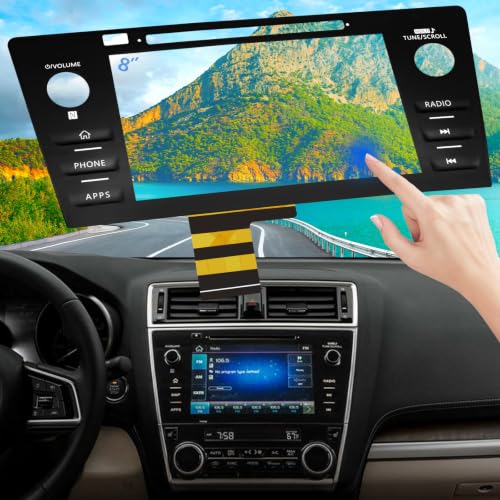
- Replaces the original part number: Compatible with Subaru Legacy Outback 8-inch touchscreen radio screen. The TsuperU uses upgraded materials, offering superior sensitivity, high definition, high temperature resistance, and is non-bubbling and non-whitening. With this part, you won't need to go to the dealer for a replacement, as they often recommend replacing the entire radio, which could cost thousands of dollars, but is completely unnecessary. Please watch the replacement video on YT's
- EASY PROBLEM SOLVED: If your display touch screen is cracked, delaminating, bubbles, White, fogging, air holes, unresponsive, has garbled, phantom, ghosted, ghosting, dead pixels, unresponsive, or looks bad, simply replace the TsuperU 8-inch screen navigation touchscreen and it will return to its original functionality without the need for a trip to the dealership for costly repairs. One replacement is all it takes to fix the problem
- COMPATIBLE WITH SUBARU MODELS: Navigation screen fits Subaru Outback 2.5i Limited Premium Sport Touring Premier 3.6R Limited Premier Touring radio digitizer screen 2019 2018. please check the OEM number and size carefully before purchasing, There are two versions of MAP & PHONE, compare with your original parts to make sure that this touch screen fits your car. The digitizer screen for the 8-inch touchscreen radio works with both GPS-equipped radios and non-GPS radios
- EASY TO INSTALL: The product comes with adhesive, you only need to tear off the protective film to use it, easy to install. for Subaru radio screen is an exact fit for the original vehicle. For display only 86471-AL65A 86471-AL65B 86471-AL66A 86471-AL68A 86431-AL66A 86431-AL62A 86431-AL65A 86471 AL65A 86471 AL65B 86471 AL66A 86471 AL68A 86431 AL66A 86431 AL62A 86431 AL65A 86471AL65A 86471AL65B 86471AL66A 86471AL68A 86431AL66A 86431AL62A 86431AL65A, 864734-AL66A, 86471AL76A, 86471-AL76A
- TOUCH RESPONSIVE: Touch screen meets OEM navigation system, high light transmission, high visibility, responsive, high touch accuracy. touch screen monitor is made of new upgraded material with high resolution, high clarity, more stable performance, faster response time, and has been rigorously tested to ensure a long service life, touch screen replacement

- 【Android 13 System Car Radio】Car Radio Compatible with Subaru Forester WRX Impreza 2013 2014 2015. With 2GB RAM and 64GB ROM, ensures smooth operation and multitasking capabilities. Built-in Bluetooth for answering, making phone calls, streaming music by hands-free. The 1280x720 high-resolution display video clear and vivid pictures and videos. You can enjoy your favourite music, movies and short videos from the car stereo.
- 【Car Stereo with Wireless Carplay & Android Auto】This car radio supports wireless Carplay/Android auto /Mirrorlink. Wirelessly connect your phone to the car's stereo infotainment system, providing a seamless experience. You can make phone calls, send messages, listen to music, and get directions using voice control, allowing you to focus on driving without worrying about using your phone, making your driving safely.
- 【Car Radio with GPS Navigation & WIFI】The built-in GPS module and external GPS antenna supports both online and offline map navigation. With Wi-Fi or hotspot connectivity, you can easily download and access to online navigation app and other video or music apps on Play Store. With the split-screen function, you can view two apps on the same screen simultaneously. For example, you can display navigation and music apps side by side, ensuring a more pleasant journey.
- 【FM/Steering Wheel Control】 With built-in FM radio that allows you to listen to radio programs and stay up-to-date with the latest news and weather information during driving. The car head unit also supports steering wheel controls, allowing you to effortlessly switch songs, change channels, and adjust the volume without taking your hands off the wheel, helping you stay focused on the road while enjoying a smooth and convenient driving experience
- 【SWC &AHD Rear Camera】The car head unit supports original car steering wheel control, such as switching songs, adjusting volume, answering calls, etc. The waterproof night vision camera offers 1080P resolution, reversing image is clearer no matter the weather conditions. Automatically switch the reversing image when reversing. Note: Professional installation is required. Incorrect wiring may cause a short circuit.
- 【Vehicle Compatibility】 The car stereo is compatible with Subaru Forester WRX Impreza 2016 2017 2018(With Silver Air Vent). Please check the car console and the year before buying. If you are not clear, please provide the following details: 1. Your car's model and year, 2. A picture of your car console
- 【 Android 13 Car Radio】The head unit runs on Android 13 as its main operating system, turning your car radio into a large tablet. Featuring 2GB + 64GB of storage, it ensures smooth performance for navigation, music, and more. The 9-inch touch screen with 1280x720 resolution provides a sharp and clear display. With the Play Store preinstalled, you can install many apps after connecting to Wi-Fi,
- 【Wireless CarPlay & Android Auto】 Wireless CarPlay and Android Auto work seamlessly, allowing for hands-free calls, navigation, music, and app use without cables. Simply connect to your smartphone via Bluetooth/Wi-Fi/USB to access the GPS navigation system, make phone calls, enjoy music while focusing on the road through the car's CarPlay screen, having a more convenient and safer driving experience
- 【GPS Navigation & WIFI &Bluetooth】Built-in GPS module supports both offline and online navigation. When connected to WiFi, you can get real - time traffic information. You can answer/make hands-free Bluetooth phone calls, listen to Bluetooth music without distractions
- 【Bluetooth & FM/RDS Radio】This car radio replacement features built-in Bluetooth, enabling hands-free calls, phone book syncing, and wireless music streaming for a convenient and safe driving experience. The FM/RDS radio offers stable reception and allows you to preset your favorite stations, keeping you informed with real-time news, sports updates, and weather forecasts while you're on the road
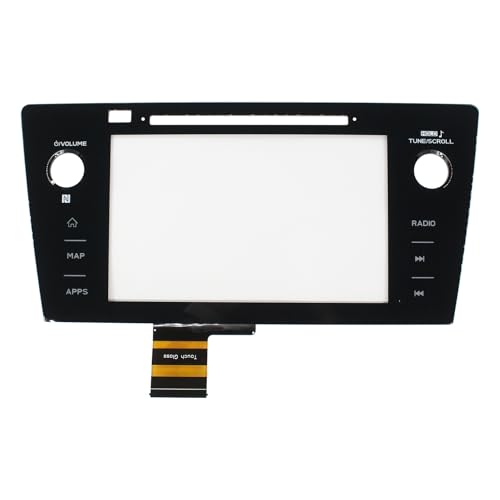
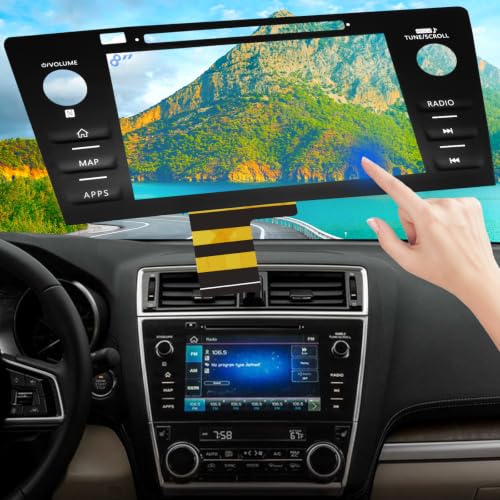
- Replaces the original part number: Compatible with Subaru Legacy Outback 8-inch touchscreen radio screen. The TsuperU uses upgraded materials, offering superior sensitivity, high definition, high temperature resistance, and is non-bubbling and non-whitening. With this part, you won't need to go to the dealer for a replacement, as they often recommend replacing the entire radio, which could cost thousands of dollars, but is completely unnecessary. Please watch the replacement video on YT's
- EASY PROBLEM SOLVED: If your display touch screen is cracked, delaminating, bubbles, White, fogging, air holes, unresponsive, has garbled, phantom, ghosted, ghosting, dead pixels, unresponsive, or looks bad, simply replace the TsuperU 8-inch screen navigation touchscreen and it will return to its original functionality without the need for a trip to the dealership for costly repairs. One replacement is all it takes to fix the problem
- COMPATIBLE WITH SUBARU MODELS: Navigation screen fits Subaru Outback 2.5i Limited Premium Sport Touring Premier 3.6R Limited Premier Touring radio digitizer screen 2019 2018. please check the OEM number and size carefully before purchasing, There are two versions of MAP & PHONE, compare with your original parts to make sure that this touch screen fits your car. The digitizer screen for the 8-inch touchscreen radio works with both GPS-equipped radios and non-GPS radios
- EASY TO INSTALL: The product comes with adhesive, you only need to tear off the protective film to use it, easy to install. for Subaru radio screen is an exact fit for the original vehicle. For display only 86471-AL65A 86471-AL65B 86471-AL66A 86471-AL68A 86431-AL66A 86431-AL62A 86431-AL65A 86471 AL65A 86471 AL65B 86471 AL66A 86471 AL68A 86431 AL66A 86431 AL62A 86431 AL65A 86471AL65A 86471AL65B 86471AL66A 86471AL68A 86431AL66A 86431AL62A 86431AL65A, 864734-AL66A, 86471AL76A, 86471-AL76A
- TOUCH RESPONSIVE: Touch screen meets OEM navigation system, high light transmission, high visibility, responsive, high touch accuracy. touch screen monitor is made of new upgraded material with high resolution, high clarity, more stable performance, faster response time, and has been rigorously tested to ensure a long service life, touch screen replacement
SEOCONTENT-START
Bulletin Number: 15-270-20R; Revised: 03/15/23 Page 1 of 26 Continued… CAUTION: VEHICLE SERVICING PERFORMED BY UNTRAINED PERSONS COULD RESULT IN SERIOUS INJURY TO THOSE PERSONS OR TO OTHERS. Subaru Service Bulletins are intended for use by professional technicians ONLY. They are written to inform those technicians of conditions that may occur in some vehicles, or to provide information that could assist in the proper servicing of the vehicle. Properly trained technicians have the equipment, tools, safety instructions, and know-how to do the job correctly and safely. If a condition is described, DO NOT assume that this Service Bulletin applies to your vehicle, or that your vehicle will have that condition. Subaru of America, Inc. is ISO 14001 Compliant ISO 14001 is the international standard for excellence in Environmental Management Systems. Please recycle or dispose of automotive products in a manner that is friendly to our environment and in accordance with all local, state and federal laws and regulations. NUMBER: 15-270-20R DATE: 8/19/2020 REVISED: 03/15/23 APPLICABILITY: 2020-2022MY Outback & Legacy 2022-2023MY BRZ 2022-2023MY WRX SUBJECT: FOTA (Firmware Over-The-Air) Reprogramming for DENSO Gen 4 Audio / Navigation Infotainment Systems INTRODUCTION: This bulletin provides instruction for use of a new reprogramming procedure to optimize the Denso Gen 4 Audio and Navigation system utilized in the models listed above. Firmware-overthe- air (FOTA) is a process where remote devices can receive updates to their operating firmware. This process has become second nature with smartphones, tablets and many other connected devices. FOTA for automotive infotainment systems was designed with an emphasis on customer convenience. FOTA updates provide regular enhancements along with software patches as needed to enhance the customer experience. The convenience factor comes not only with the supply of regular updates and the enhancements they provide, but through customer control of when these updates are downloaded and installed. The only requirement is a secure Wi-Fi connection through a home network or the use of a secure Wi-Fi hotspot to create a connection to the update server. Once connected, customers can easily obtain and install any available FOTA update to their infotainment system. FOTA operation is conducted in two steps: download (from the server to the vehicle via Wi-Fi) and installation (internal to CP1 system in the vehicle). This bulletin will focus on FOTA for Denso Gen 4 audio systems (MID) and audio-navigation systems (HIGH) which utilize the 11.6-inch touch-screen display. Models with 7-inch dual screen display (Base) are not FOTA capable. This bulletin outlines the procedure for performing FOTA updates successfully. These procedures involve: • Assisting customers with FOTA -related concerns if they have been unsuccessful in performing the FOTA by themselves. (Possible vehicle or system concern.) * • Performing the FOTA update for customers who are not comfortable or need assistance with performing it themselves but have requested the Retailer install it* • Updating the firmware using a USB flash drive by following the steps outlined in TSB 15-261- 20R “Reprogramming File Availability for Optimization of Gen 4 Denso CP1 Infotainment Systems” when FOTA cannot be performed due to the setup difficulties*. SERVICE BULLETIN ATTENTION: GENERAL MANAGER q PARTS MANAGER q CLAIMS PERSONNEL q SERVICE MANAGER q IMPORTANT – All Service Personnel Should Read and Initial in the boxes provided, right. ©2020 Subaru of America, Inc. All rights reserved. Bulletin Number: 15-270-20R; Revised: 03/15/23 Page 2 of 26 Continued… * NOTE: If a customer is simply requesting help with how to perform FOTA, NEVER share a copy of this bulletin. Instead, provide a copy of the appropriate customer instructions for FOTA available on Subarunet: Service Operations & Technical > Forms/Downloads page. See Appendix A later in this bulletin for more information. It is VERY IMPORTANT to read and understand this information completely before proceeding. NOTES: • REMINDER: FOTA is available for MID and HIGH (Navi) systems with 11.6-inch display only. • The currently available FOTA firmware version is not the same version available to Retailers for USB updating use. However, a system updated using FOTA can be further updated by using the USB update procedure. For additional details clarifying the scope of FOTA updates, review the 20MY Legacy/Outback Owner’s Manual Supplement’s additional information for the Center Information Display. The information is also be downloadable from: https://www.subaru.com/ owners/index.html See Appendix B below for more information. • FOTA updates are for the system firmware ONLY. Map updates are a separate function which the customer may update on their own by using either USB download or Map Over the Air Update (MOTA). Go to: subaru-maps.com for more information. Reference photos of each system faceplate are supplied below: Base Mid/ High SERVICE PROCEDURE / INFORMATION: REMINDER: Customer satisfaction and retention starts with performing quality repairs. The FOTA update process involves downloading and installing the update firmware therefore, time duration depends on signal strength and transfer rate performance. During installation, the infotainment system’s functionality will be restricted. Bulletin Number: 15-270-20R; Revised: 03/15/23 Page 3 of 26 Continued… Set-Up Instructions and CAUTIONS: • Move the vehicle to an outside location where the engine can be safely started and kept idling during the update process. • Never idle the vehicle in a closed space such as a garage, even if the garage door is kept open. • Once the vehicle is in a safe location, be sure the vehicle is in Park (CVT) or Neutral (MT) and the parking brake is fully engaged. • Open one or more windows to ensure fresh air is available. • Stay with the vehicle until the update is completed. • We suggest adjusting the climate controls to your desired settings in case they become unavailable during the update process. • Unplug any devices, chargers, cables or other USB drives from the vehicle’s USB and power ports. VERY IMPORTANT: Before proceeding with the updating procedure, the currently installed version ID MUST be confirmed (Firmware Version Check) by following the steps below: 1) After starting the engine and system boot-up completes, from the HOME screen, touch the Settings button. 2) Press the General button. Use the down arrow to scroll to System Information then press to display the System Information / Version information. Bulletin Number: 15-270-20R; Revised: 03/15/23 Page 4 of 26 Continued… The examples below identify the head unit model and the last 6 digits 9xxx-xxx) signify the software version number. Examples: • F11GHMxxx-xxx (High model software) • F11GMMxxx-xxx (Mid model software) • F11GBMxxx-xxx (Base model software) If on a Legacy and Outback, the software version number 20MY Model F11GHMxxx-xxx(High model software) F11GMMxxx-xxx(Mid model software) F11GBMxxx-xxx(Base model software) 21MY Model F31BHMxxx-xxx(High model software) F31BMMxxx-xxx(Mid model software) F31BBMxxx-xxx(Base model software) 22MY Model FB1SHMxxx-xxx(High model software) FB1SMMxxx-xxx(Mid model software) FB1SBMxxx-xxx(Base model software) WILDERNESS F51XHMxxx-xxx(High model software) WILDERNESS F51XMMxxx-xxx(Mid model software) Bulletin Number: 15-270-20R; Revised: 03/15/23 Page 5 of 26 Continued… Trim/Grade MY Older Software Versions Latest Software Version HIGH 2020 042-380 122-370 072-582 122-570 112-680 122-670 122-780 not eligible for FOTA 2021 040-980 120-970 071-182 121-170 111-280 121-270 121-380 not eligible for FOTA 2022 060-781 120-770 070-882 120-870 110-980 120-970 121-080 not eligible for FOTA MID 2020 042-380 122-370 072-582 122-570 112-680 122-670 122-780 not eligible for FOTA 2021 040-980 120-970 071-182 121-170 111-280 121-270 121-380 not eligible for FOTA 2022 060-781 120-770 070-882 120-870 110-980 120-970 121-080 not eligible for FOTA Outback Wilderness HIGH 2022 060-981 120-970 071-082 121-070 111-180 121-170 121-280 not eligible for FOTA Outback Wilderness MID 2022 060-981 120-970 071-082 121-070 111-180 121-170 121-280 not eligible for FOTA If the software version number matches “Older Software Versions” proceed to STEP 2 below. If the software version is “Latest Software Version” as the unit already has the latest software version installed. Proceed to the WARRANTY / CLAIM INFORMATION section of the TSB and process a claim for Version Check Only. FOTA REPROGRAMMING PROCEDURE Step 1- Connect the vehicle Subaru to an active, secure Wi-Fi connection: • You can use one of two Wi-Fi sources: 1. The retailer’s secure Wi-Fi (if it reaches the vehicle) Bulletin Number: 15-270-20R; Revised: 03/15/23 Page 6 of 26 Continued… 2. A cellphone’s Wi-Fi hotspot (if the phone and data plan are capable). NOTE: This update uses at least 100MB of data so, choose a Wi-Fi connection with no data restrictions. Wi-Fi connections requiring acceptance or login to a web page (such as a coffee shop or hotel) cannot be used. • To connect to the preferred Wi-Fi source, follow these steps: 1. Go to Settings on vehicle display screen. 2. Select General. 3. Select Wi-Fi. 4. Ensure Wi-Fi is turned on and then select Available Wi-Fi Networks. Bulletin Number: 15-270-20R; Revised: 03/15/23 Page 7 of 26 Continued… 5. Select the Wi-Fi network of choice (and enter the password if required). NOTE: Take note of the Wi-Fi signal strength in the top right corner of the screen. If only 1-2 bars are displayed with the selected network, download speeds will likely be slow. Choose a stronger network if possible or move the vehicle closer to the Wi-Fi source. NOTE: See Appendix C for troubleshooting tips in case an error is displayed. STEP 2– DOWNLOADING AND INSTALLING UPDATES 1. Next, update the STARLINK system. 2. Go back to the General screen under Settings, 3. Scroll down and select Software Update. Bulletin Number: 15-270-20R; Revised: 03/15/23 Page 8 of 26 Continued… 4. For this update procedure, select Update. 5. If an update is available, select Download Now. NOTE: At this point, the user can choose to enable “Automatically Check for Updates” and “Automatically Download Updates” so in the future, the vehicle will advise the customer when an update is available. Bulletin Number: 15-270-20R; Revised: 03/15/23 Page 9 of 26 Continued… Once the download is complete, it is recommended to adjust the climate controls to the desired settings in case they become unavailable during the update process. 6. When ready, select Install Now. 7. The install process can take up to 40 minutes. If the display screen goes blank during the installation process, leave the vehicle on, and allow the system to restart. After up to two minutes, you will receive the message: “The software update is ready. Would you like to install it now?”. Press OK to continue. Bulletin Number: 15-270-20R; Revised: 03/15/23 Page 10 of 26 Continued… IMPORTANT: Once complete, the below pop up will be displayed. Press OK then, switch the vehicle OFF, exit the vehicle, lock all doors including the rear gate (if equipped) and move the key fob away from the vehicle at least 10 feet to enable affected systems to go to sleep. WAIT AT LEAST 5 MINUTES before proceeding to 8. below. 8. After 5 minutes, restart the vehicle. A “software update complete” message should be displayed signifying the successful update is now complete. If this message is not displayed, try switch the car OFF again and waiting another 5 minutes before restarting. 9. Switch the engine OFF then open the driver’s door to turn the system off and complete the procedure. Bulletin Number: 15-270-20R; Revised: 03/15/23 Page 11 of 26 Continued… NOTE: See Appendix C below for troubleshooting tips if any errors are encountered. WARRANTY / CLAIM INFORMATION: For vehicles within the Basic New Car Limited Warranty period or covered by an active Subaru Added Security Gold plan, this repair may be submitted using the following claim information: Labor Description Labor Operation # Labor Time Fail Code DENSO CP1 VERSION CHECK ONLY A031-178 0.2 ZTZ-48 (MID) DENSO CP1 FOTA / USB UPDATE A031-173 0.6 ZTZ-48 (HIGH) IMPORTANT REMINDERS: • SOA strongly discourages the printing and/or local storage of service information as previously released information and electronic publications may be updated at any time. • Always check for any open recalls or campaigns anytime a vehicle is in for servicing. • Always refer to STIS for the latest service information before performing any repairs. Bulletin Number: 15-270-20R; Revised: 03/15/23 Page 12 of 26 Continued… Appendix A Links to Customer self-install instructions for FOTA Customer Instructions will be added to the Subarunet Service Operations & Technical > Forms/Downloads page when they become available. Once the links are available and to enhance customer satisfaction, consider providing customers with a copy of the appropriate instructions for their specific system along with access to the retailer’s secure customer Wi-Fi network. Doing so will enable customers to try performing the FOTA update on their own while at the retailer. REMINDER: Retailers performing these updates are to follow the Service Procedures outlined in this bulletin ONLY. Always follow the applicable service procedures as outlined in this and other Service Bulletins. The additional steps and requirements supplied in Service Bulletins support a Subaru Technician’s proper diagnosis and repair of any customer concern. Appendix B The currently available FOTA software version is not the same version available to Retailers for USB updating use. However, the system which has been updated via the FOTA can be further updated using USB update. To clarify the differences, both the USB contents and FOTA contents are described together in the list below. USB update is including all items and those items included only in the USB (but not in the FOTA) updates are described as “USB ONLY.” Bulletin Number: 15-270-20R; Revised: 03/15/23 Page 13 of 26 Continued… List of Conditions, Symptoms and improvements Addressed By this update USB ONLY update method: Please note any symptoms listed below would require USB update due to the limitations of FOTA update process. No. Conditions/Symptoms to be improved Update Method 1 No image on CID (Center Information Display) or Black display condition followed by CP1 reboot resulting from CCU (Cockpit Control Unit) internal communication error or due to listed below actions: • CP1 forced reboot by pressing the “Vol” button continuously or by performing factory reset operation • LCD in the combination meter goes blank (black) momentarily during driving • LCD in the combination meter goes blank (black) after battery repair NOTE: Rear View Camera function is not impacted by this condition. USB ONLY 2 CP1 system and combination meter reboot again following a forced reboot, when smart phone connected via USB port. USB ONLY 3 No sound after ignition-on or CP1 reboot USB ONLY 4 Vehicle location is not displayed correctly in Navigation screen. USB ONLY 5 Ring tones and the voice from the other end on the hands-free phone call cannot be heard USB ONLY 6 Android Auto does not function. “Android Auto is Disconnected” is displayed with Launch Error message. USB ONLY 7 Time setting is not possible in Manual mode USB ONLY 8 Vehicle Setting Icon in menu is grayed out. Menu list in the “Car” tab in the Setting Menu is not displayed. USB ONLY 9 Incorrect translation for X-Mode in Spanish language USB ONLY Bulletin Number: 15-270-20R; Revised: 03/15/23 Page 14 of 26 Continued… USB or FOTA update method: No. Conditions/Symptoms to be improved 1 System restarts itself during FOTA (Firmware Over The Air) update. FOTA operation is conducted in two processes: downloading (from the server to the Cockpit Control Unit via Wi-Fi) and installation (inside the Cockpit Control Unit). During the FOTA operation, after the new software has been downloaded to the Cockpit Control Unit (CCU) customer is to push “Install Now” on the Center Information Display (CID) to start installation of the software. However, in rare case, the CCU restarts itself* during installation. Note*) Even if this symptom occurs, after approximately 2 minutes, the system resumes, and the CID comes back to the below screen. Customer can then push the “Install Now” to proceed with the installation. Bulletin Number: 15-270-20R; Revised: 03/15/23 Page 15 of 26 Continued… No. Conditions/Symptoms to be improved 2 No image on CID (Center Information Display) or Black display condition followed by CP1 reboot resulting from CCU (Cockpit Control Unit) internal communication error or due to listed below actions: • Loss of Bluetooth or Wi-Fi connection • Application crash during Bluetooth audio streaming • Launching CarPlay or Android Auto application, after the smart phone is connected • Removing USB connection between the iPhone’s and CP1 during active CarPlay session • STARLINK application crash • Performing USB map update using Bluetooth connection with a smart phone carrying STARLINK Companion App map update data • When ACC is turned OFF and ON, while STARLINK Companion App map update is being performed • Navigation application crash • “Service Appointment Scheduler” application crash due to a communication error between DCM and CCM • Re-inserting USB Flash drive within 2-3 seconds • Removing USB Flash drive while playing back the data from the USB Flash drive • CID display loses images (black screen) and reboots itself after ACC (or Ignition) is turned OFF and ON. NOTE: Rear View Camera function is not impacted by this condition. 3 Cannot finish registration, DMS user registration 4 Cannot select Wi-Fi to ON, button is gray out 5 Intermittent loss of Bluetooth connection 6 Phone contacts transfer fails, when pairing iPhone with Bluetooth 7 Blank display when connecting CP1 to Wi-Fi network with long name (over 32 characters) 8 While using Apple CarPlay, “SUBARU” is displayed on the iPhone Setting menu instead of vehicle name <LEGACY/OUTBACK> 9 CarPlay stopped working after hanging up a hands-free phone call Bulletin Number: 15-270-20R; Revised: 03/15/23 Page 16 of 26 Continued… No. Conditions/Symptoms to be improved 10 Screen is no changed to Composer or Album screen, iPhone /iPod connected as iPod mode 11 CID shows multiple images simultaneously 12 Flickering screen on Climate control screen 13 CID freezes/locks after startup NOTE: Rear View Camera function is not impacted by this condition 14 The CID (Center Information Display) freezes/locks during Wi-Fi configuration 15 Move (push ▲▼ repeatedly) and Select in Map list, then freeze and restart itself 16 Map freezes while Navigation guidance is being provided 17 Navigation operation restarts while driving 18 Reboot in Factory diag. mode, when removing USB drive or changing to other USB drive 19 CP1 system and combination meter reboot again following a forced reboot, when smart phone connected via USB port 20 CP1 system reboots following ignition OFF and ON 21 Switching to Navigation demo mode after CP1 reboots during Bluetooth pairing 22 CP1 system reboots, while selecting or using Map feature to configure the driving route 23 CarPlay does not function with USB connection 24 Cannot select Mute ON/OFF, when paused music in CarPlay 25 Sound is muted after hanging up a hands-free phone call. 26 Android Auto has no sound, after phone call with Google voice recognition, while Android Auto music is playing. 27 No sound in SXM, following low or dead battery 28 SXM playing start delays (around 50 seconds), after starting the system 29 When playing AM/FM Radio station, try to change to SXM channel (registered by Parental Control) by using steering switch, No SMX cannel is displayed. 30 Replay function of SXM, right position of Slider bar cannot be moved 31 Audio has no sound, when select display off mode 32 Cannot change Audio volume or Audio source 33 Navigation guidance directions are not spoken 34 When iPhone phone book transfer fails, system repeats Bluetooth disconnection and connection 35 button does not function in menu 36 cannot be selected 37 Radio station moves unexpectedly due to momentary flick or brush of the touch screen Bulletin Number: 15-270-20R; Revised: 03/15/23 Page 17 of 26 No. Conditions/Symptoms to be improved 38 Temperature setting cannot be controlled by Voice Recognition in Canadian (C*) specification 39 Preset outline is not shown following station selection using steering switch 40 When restart Engine, while downloading map data through Wi-Fi, and/or button is not displayed 41 If destination set by voice recognition, after restart Engine, Navigation screen not displayed 42 Steering switch button doesn’t work to select preset station or control music playback 43 Preset station isn’t selected on the screen, when using steering switch button 44 USB replay following system reboot doesn’t start from the same file 45 Sorting criteria is changed in USB music. Folders, title change to file name. Albums, title change to trac number 46 Audio source will change to Android Auto, while music is playing in USB 47 Cannot display music list in USB audio 48 Songs list is not displayed in USB (around 5000 music and more) 49 Others. Improvement in button design & location and Icon display pattern, etc. List of Conditions, Symptoms and improvements Addressed By past updates No. Symptom to be improved FOTA 1 Several minutes after Engine start, Center Information Display (CID) reboots itself Yes 2 After extended usage, white blinking dots appear on the display. White blinking dots appear USB ONLY Continued… Bulletin Number: 15-270-20R; Revised: 03/15/23 Page 18 of 26 Continued… No. Symptom to be improved FOTA 3 The screen freezes or becomes blank (black screen,) after a CD is inserted. This symptom occurs when a CD with over 99 characters of Artist Name Data is used. Yes 4 CID is rebooted. In case the system was shut down with the SMX being selected as an audio source previously, the CID is rebooted after the next start up. Yes 5 SXM does not resume playing instantly. In case the system was shut down with the SMX being selected as an audio source previously, the SMX does not play instantly after the next start up. (It takes more than 20 seconds until the SMX resumes after the opening screen has appeared, whereas it takes approx. 5 seconds normally.) Yes 6 Radio station does not resume playing. In case the system was shut down with the Radio being selected as an audio source previously, the sound does not come back at the next start up. Once the audio source is changed to SXM, the SXM plays normally but, if it is changed back to the Radio, the sound does not still come back. Yes 7 Equalizer setting returns to default setting. After ignition switch is turned Off and ON, the equalizer returns to default setting. Yes 8 The media source cannot be changed. Even if the or the is selected, the media source does not change. Also, voice recognition stops functioning at the same time. It occurs when the volume setting is continuously changed during the specific process of booting the CID. USB ONLY 9 Navigation screen goes blank (black screen) after disclaimer display. In case the system was shut down with the Navigation map being displayed, the Navigation goes to blank (black screen) soon after the disclaimer has been displayed. Yes 10 CID repeats rebooting. After setting a destination on the Navigation system, the CID repeats rebooting. Yes 11 CID rebooting while using CarPlay. Using Pandora App via CarPlay, the CID is rebooted. Yes Bulletin Number: 15-270-20R; Revised: 03/15/23 Page 19 of 26 Continued… No. Symptom to be improved FOTA 12 Bluetooth cannot be reestablished (on certain smart phones.) With Android Auto the Bluetooth connection cannot be reestablished automatically once it is disconnected (depending on smartphone device.) Yes 13 CarPlay connection cannot be established. When connecting iPhone via USB, ”CarPlay Unavailable” is displayed and the CarPlay does work. Yes 14 HOME screen goes to blank When the screen is switched from Camera mode to HOME, no item is displayed (as shown in the photo.) USB ONLY List of New Functions and Improvements Included In past updates No. New Function / Improvement: FOTA 1 The last time customized map orientation setting is memorized even with ignition off/ on. Once the customer changes the orientation setting of the map, the system automatically resumes the setting even after the ignition has been turned off/on. Yes 2 Pin display of POI is available. Yes Bulletin Number: 15-270-20R; Revised: 03/15/23 Page 20 of 26 Continued… No. New Function / Improvement: FOTA 3 In the 2D and 3D HU display mode, the own vehicle position icon on the Navigation map is easier to be recognized. Icon size: 9mm(0.35in) Icon color: Dark blue Icon position (with route guidance): The icon stays at the same position as that without route guidance. The position is located 9mm(0.35in) higher than that of previous version. Icon position (without route guidance): The icon stays at the same position as that with route guidance whereas the previous version icon was displayed lower position than that with route guidance. Yes 4 ISS (Auto start stop) button is moved to upper layer in the Car Setting menu. By touching the “Car Setting” icon, Auto Start Stop setting menu and the Cruise Control Acceleration Characteristics selection menu can be accessed immediately, whereas the previous version needed to select “Others” in the Car Setting screen to access these menus. USB ONLY 5 HVAC control buttons of base grade are displayed larger and easy to see. USB ONLY 6 Time zone and Summertime are automatically selected. Default setting of clock setting is Auto (Time zone is changed according to the vehicle location, and the Summertime is automatically set according to the calendar) Yes Bulletin Number: 15-270-20R; Revised: 03/15/23 Page 21 of 26 Continued… No. New Function / Improvement: FOTA 7 Direct selection of clock setting. Clock setting can be selected by touching the clock display in the status bar. Yes 8 Hold displaying Album Art even with vehicle in motion. The Album Art that is displayed whenever music is played on the audio system keeps displaying even after the vehicle is in motion (the speed signal is inputted.) Yes 9 CarPlay screen is extended to full screen. CarPlay screen is expanded from half size (horizontal) to full screen (vertical.) Yes 10 Add new CarPlay or Android Auto tab to Music screen When using CarPlay or Android Auto, “CarPlay” or “Android Auto” tab will appear on the Media tab bar. By selecting this tab, music data and metadata can be browsed. Yes 11 is added to information and meter. When using route guidance with CarPlay navigation, descriptions will be displayed both in the Information bar of CID and in the MID located in the center of the combination meters. Yes Bulletin Number: 15-270-20R; Revised: 03/15/23 Page 22 of 26 Continued… No. New Function / Improvement: FOTA 12 Direct select CarPlay button is available in the Information bar. Buy touching the CarPlay button located in the upper part of CID, the CarPlay menu can be accessed easily. Yes 13 CarPlay connection status can be retained even after Ignition off/on. In case the system was shut down with the CarPlay being connected previously, the system automatically resumes the connection at the next start up. Yes 14 Improvement in the Voice Recognition The starting of Voice Recognition function can be ready faster. USB ONLY 15 Gracenote database update Up to Nov 2019 database USB ONLY 16 1. Sirius XM Smart Favorites menu has been removed from SiriusXM Settings 2. Going forward, the first 10 set Sirius XM presets are now smart favorites by default 3. Smart favorite channel has “star” added to the preset button USB ONLY Bulletin Number: 15-270-20R; Revised: 03/15/23 Page 23 of 26 Continued… Appendix C TROUBLESHOOTING: 1. What if a secure Wi-Fi connection cannot be established? Tips: a. Go back to Step 1 instructions in this document and confirm correct information is being used for the following items: i. Wi-Fi device name (SSID) ii. Wi-Fi password b. Confirm user has not reached the maximum allowance for the number of connected devices c. Confirm Wi-Fi signal is strong d. Confirm other devices can be connected to the Wi-Fi network being used. 2. If you receive one of the following two messages during the update process: Tips: a. Check the internet connection to ensure it is active and shows full signal strength. i. Select General tab under “Setting” screen and change the “Wi-Fi” to Off once then turn it back to On again. Bulletin Number: 15-270-20R; Revised: 03/15/23 Page 24 of 26 Continued… b. Try moving the vehicle closer to the WiFi source or if not possible, try a different WiFi connection such as a mobile hotspot. 3. If the system says I’m up to date when checking for updates: Tips: a. If current software version is the latest, you don’t need an update and no action is necessary. b. If the software version is not the latest, you are likely not eligible for FOTA update at this time. Please proceed with USB update following TSB 15-261-20. 4. If the “OK” button does not respond when I begin the update process: Bulletin Number: 15-270-20R; Revised: 03/15/23 Page 25 of 26 Tips: a. If CarPlay application is running at the time the pop-up screen comes up, the screen is being disabled for OK operation. Please press the home button on the display, go to Settings, Software Updates, Update, and begin again. b. If this version is not shown, ensure the clock time is correct. b) The same steps are followed for other cases. Please press the home button on the display, go to Settings, Software Updates, Update, and begin again. 5. If the “progress bar” does not progress after selecting “Download” or, if you receive a “Connect to Wi-Fi” popup while downloading: Tips: a. Check your internet connection to ensure its active and shows full bars of connectivity. Continued… Bulletin Number: 15-270-20R; Revised: 03/15/23 Page 26 of 26 b. Try moving the vehicle closer to the Wi-Fi source. If that is not possible, try a different Wi-Fi connection such as a phone hotspot. . 6. If you encounter a blank screen and the update restarts during the installation process: Tips: a. If the display screen goes blank during the installation process, leave the vehicle on and allow the system to restart. After up to two minutes, you will receive the message: “The software update is ready. Would you like to install it now?”. Press OK to continue. 7. If you receive the following message during the update: Tips: a. The above message will display if the vehicle is turned off during the software update process. Select “OK” to resume the process.
SEOCONTENT-END
This product presentation was made with AAWP plugin.