
NHTSA ID Number: 10171931
Manufacturer Communication Number: 15-186-15R
Summary
This bulletin announces reprogramming file availability and a corresponding installation procedure which will allow Bluetooth pairing to be completed successfully when using voice commands on the Clarion audio units listed.
NUMBER: 15-186-15R
DATE: 09/08/15
REVISED: 02/24/16
| APPLICABILITY: | 2014-15MY Forester Models with Clarion Audio |
| SUBJECT: | Reprogramming File Availability to Improve Bluetooth Pairing |
INTRODUCTION:
This bulletin announces reprogramming file availability and a corresponding installation procedure which will allow Bluetooth pairing to be completed successfully when using voice commands on the Clarion audio units listed below. Pairing of phones using voice recognition is the preferred method on these Clarion audio units. See bulletin 15-185-15 for additional details on using voice recognition to pair phones to Clarion audio units. The procedure will involve downloading the applicable update file from Subarunet then loading it onto a flash drive for installation.
APPLICABLE CLARION AUDIO UNITS:
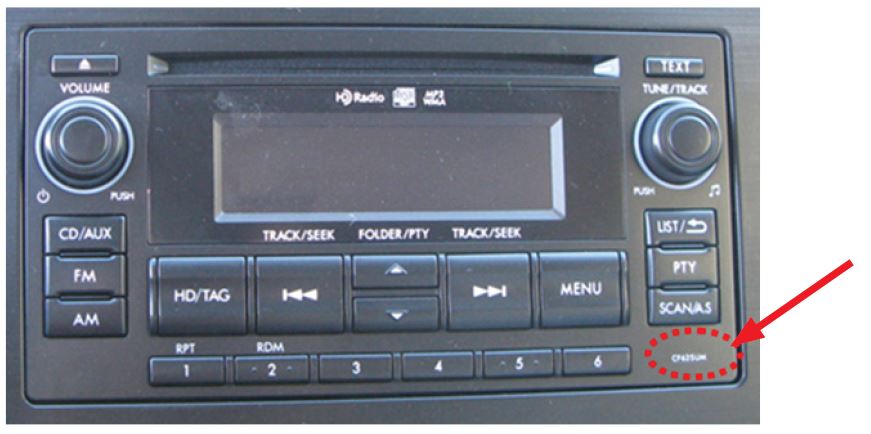
CF605UL, CF625UM, CF646UH, CF735CH and CF746CH
The audio unit model number is displayed on the lower right of the faceplate as shown below.
SERVICE PROCEDURE / INFORMATION:
There have been reports of the Bluetooth pairing procedure not starting after pressing the talk switch on the steering wheel.
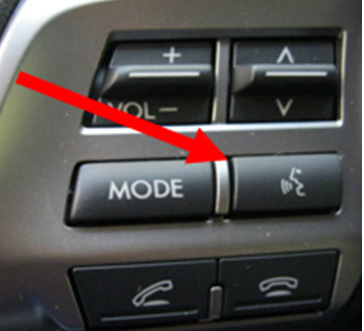
To confirm if this bulletin applies, press the “Talk” switch on the steering wheel and listen to the voice which will provide some basic information, instructions and a list of options to select from.
- In some cases, a “SELECT LANGUAGE” screen may be displayed. Turn the Tune / Track knob to scroll through available choices then press the Tune / Track knob again to select.
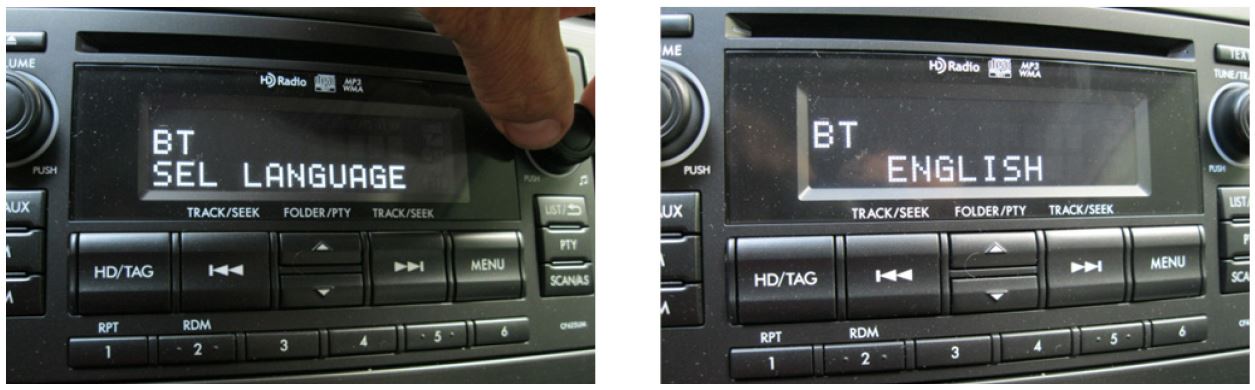
- After selecting the language, “Welcome!” is displayed. The unit should automatically display the Setup / Pair Phone screen next.
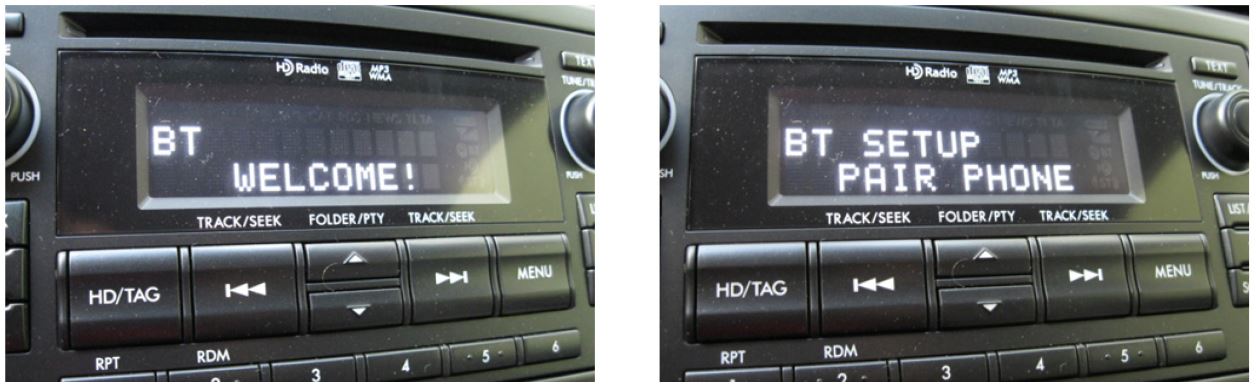
- If the system automatically displays the Setup / Pair Phone screen, the procedure is complete and reprogramming is not necessary.
- If the system does not automatically display the Setup / Pair Phone screen, the update files to reprogram the audio unit will likely need to be installed.
Software Version Check / Reprogramming Procedure:
- Cycle the ignition off then back on.
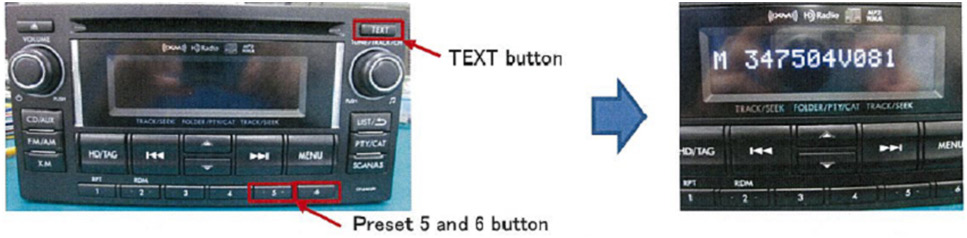
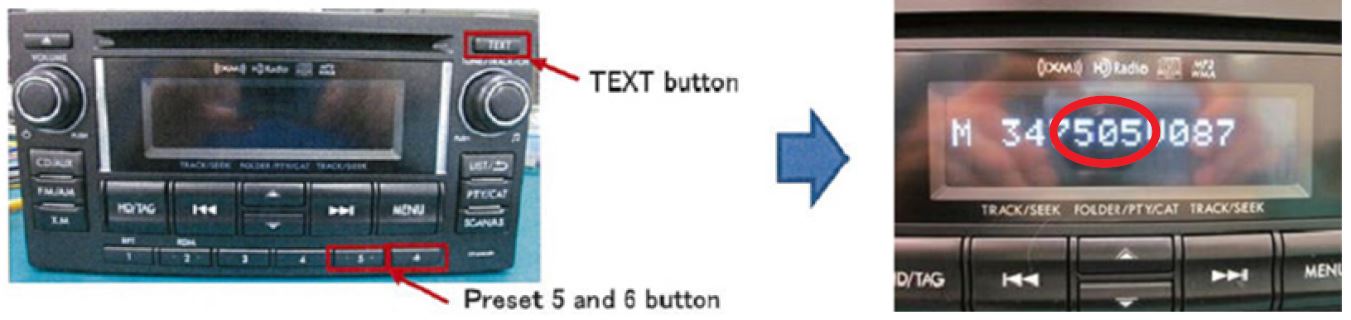
- Without turning on the audio unit (blank / black screen), press and HOLD the TEXT button while pressing the station preset buttons 5 & 6 simultaneously. The current software version will be displayed as shown below, right.
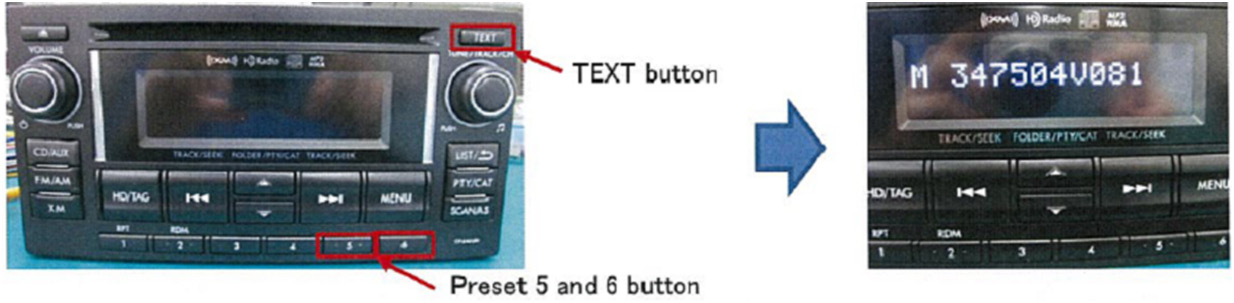
- If the 4th, 5th and 6th digits of the version ID number displayed are 504 as shown in the photo above, the unit must be updated. If they are 505 or higher and the system does not automatically display the Setup / Pair Phone screen, the audio unit will need to be replaced with an exchange unit from Clarion.
VERY IMPORTANT: If an exchange is determined to be necessary, a detailed description of the problem MUST be supplied in the space provided on the Exchange Form.
IF REPROGRAMMING IS REQUIRED:
Materials Required:
1 empty, USB 2.0 (do NOT use USB 3.0) storage device (flash drive) will be needed to perform the update procedure. The device should be dedicated to storing and transferring these updating files only. It must be a minimum of 2GB in size and contain a FAT32 file format before downloading the update files onto it. The following recommended and readily-available devices include: Verbatim® model# 97002, PQI® model# U273 and Kingston® model# DTSE9.
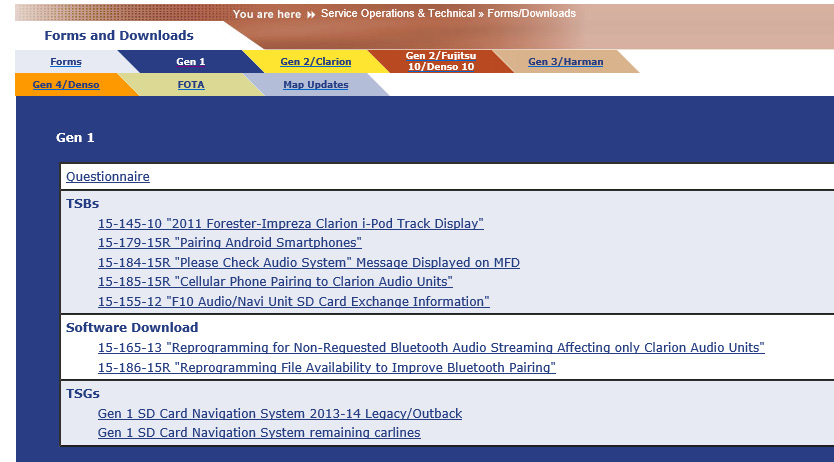
All the Clarion update files are accessible for downloading from Subarunet under: Service Operations
& Technical>>Forms /Downloads>>Gen 1 for Audio/Navi page then clicking on the following
hyperlink:
| FACE PLATE ID NUMBER | UPDATE SOFTWARE FILE NAME |
| CF605UL | 470347605v087_MainMicom-USA-ML.mot |
| CF625UM | |
| CF646UH | 470347505v087_MainMicom-USA-H.mot |
| CF735CH | |
| CF746CH |
Click Here to Access the Downloads for Audio/Navigation Information on Subarunet
The Subarunet page shown above will display and contain links to the Clarion update files.
Prepare the USB Memory (flash drive)
VERY IMPORTANT: Before attempting to download any data files, confirm the PC and flash drive you are using are not infected with any virus. The flash drive will need to be formatted for FAT32 following the steps below.
USB Flash Drive Formatting Procedure:
- Install a flash drive into an available USB port on your PC.
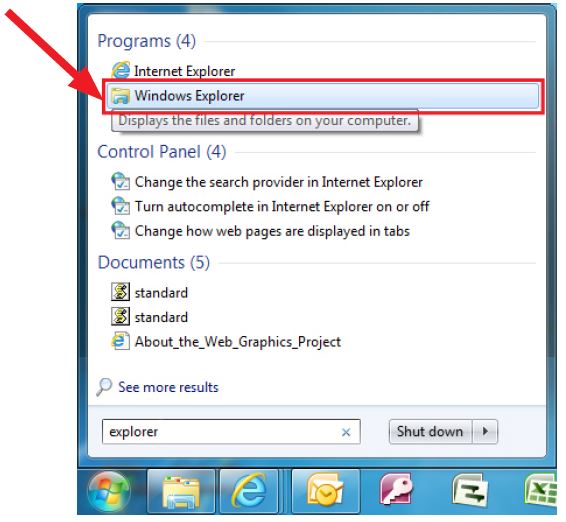
- Click Start (this is located in the lower left corner of the desktop screen) then, in the Search programs and files box, type “explorer”.
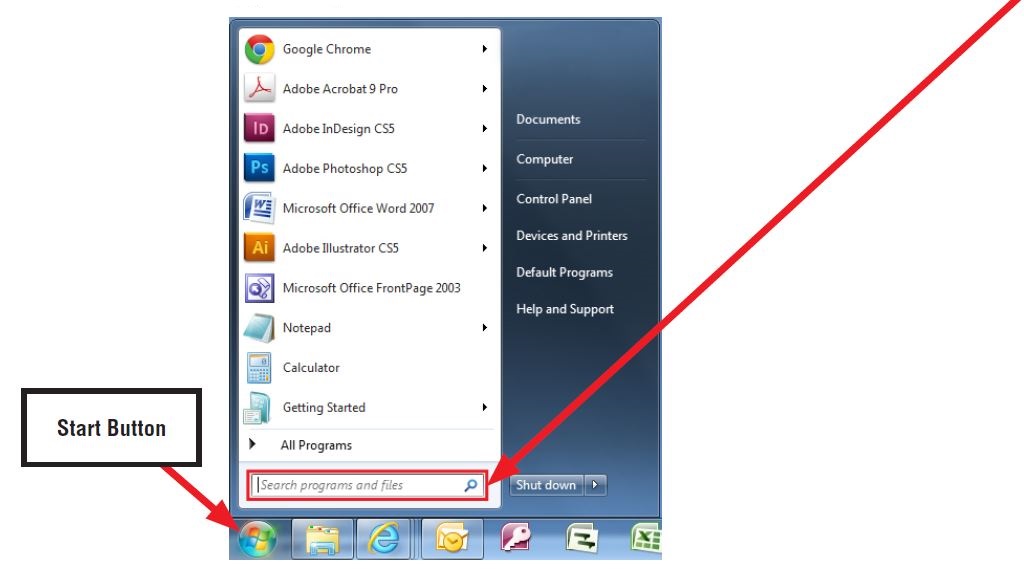
NOTE: On SDS Notebook you may also press the My Documents button on the GUI Home Screen.
- As you type the word “explorer”, search results will start to appear. In the results, click on the “Windows Explorer” option under the Programs section.
- In the next window, choose the Computer section on the left. Locate “Removable Disk”
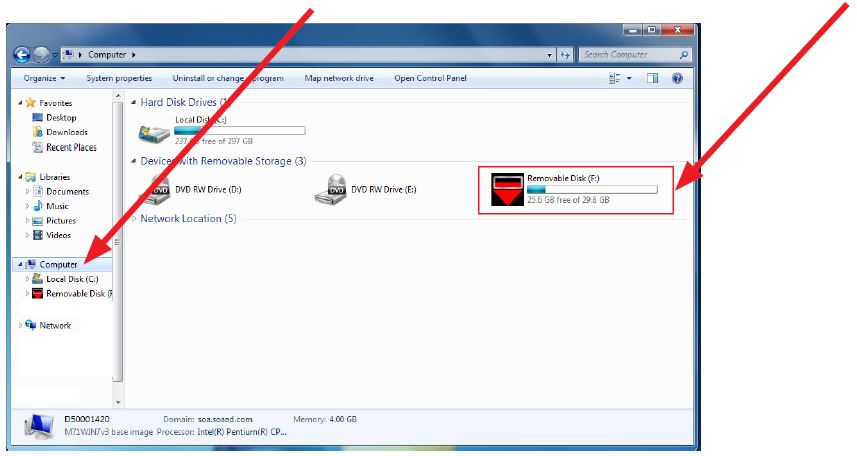
NOTE: Always confirm the device you are formatting is the USB Flash Drive. This drive may have various names assigned to it by the manufacturer of the device and may not reflect the drive name given in this example.
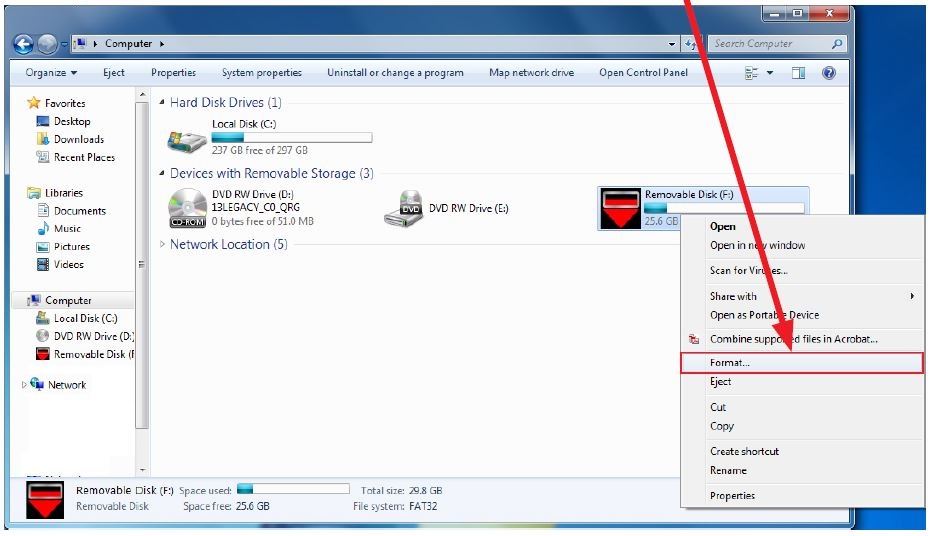
- Right click the picture for “Removable Disk” then select “Format”.
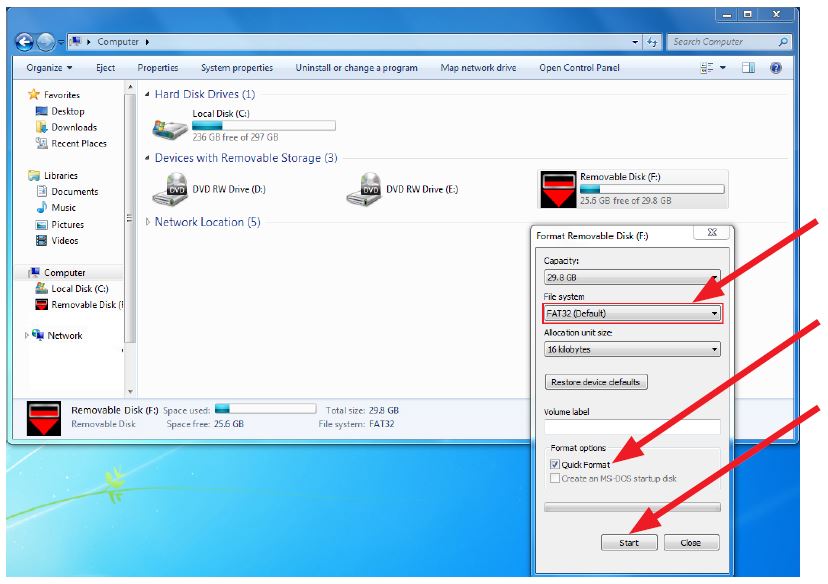
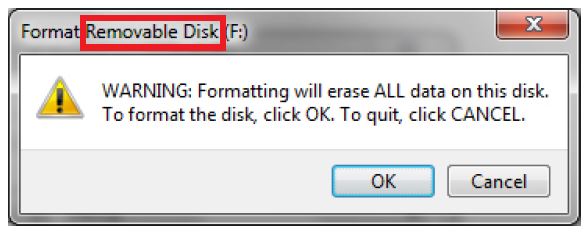
- When the “Format” dialog box appears, make sure the option labeled “File System” is set to FAT32 and the Quick Format box is checked as well. Then, click the “Start” button.
- Click “OK” when the following window appears.
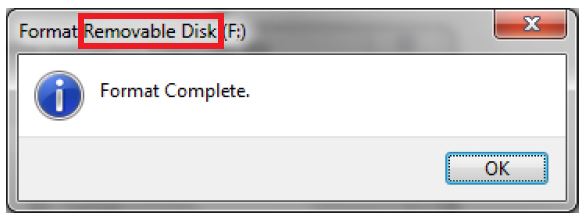
- The drive will start formatting and display this window when it is finished. Click “OK” to comcomplete the process.
File Download Procedure:
Now that the flash drive has been formatted, the update file must be downloaded. Download the update file to your PC from the Subarunet links. The screenshots below will take you through the steps required to get the selected update file onto your flash drive and ready to use.
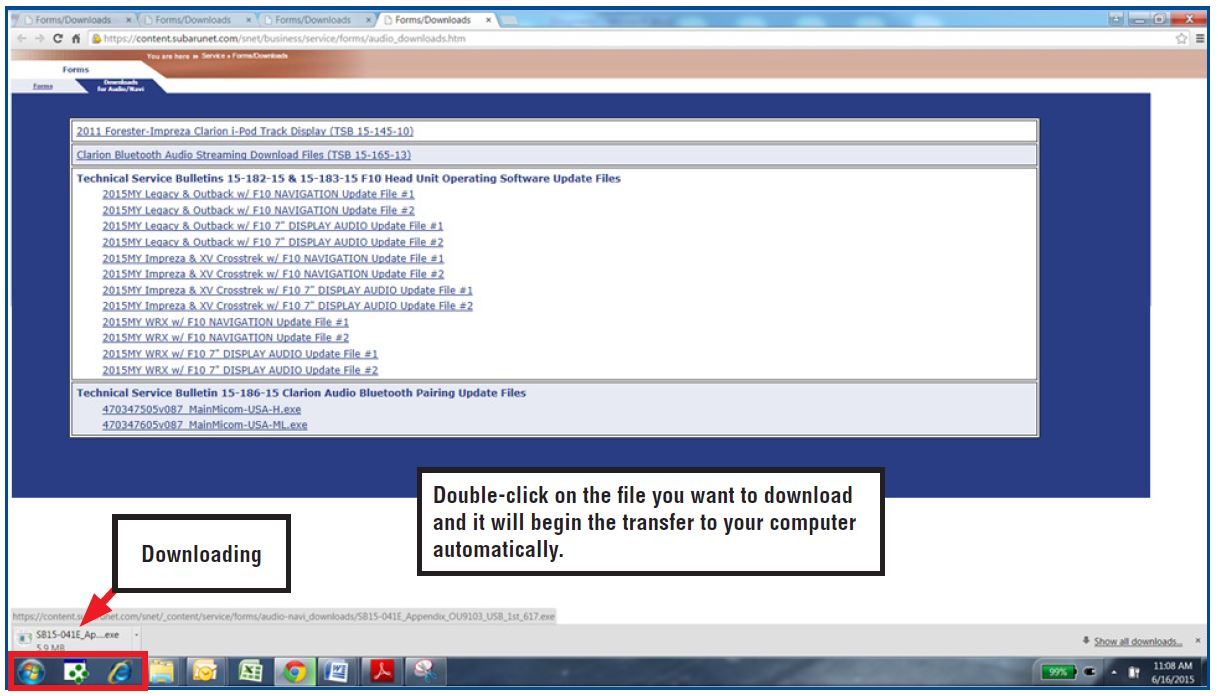
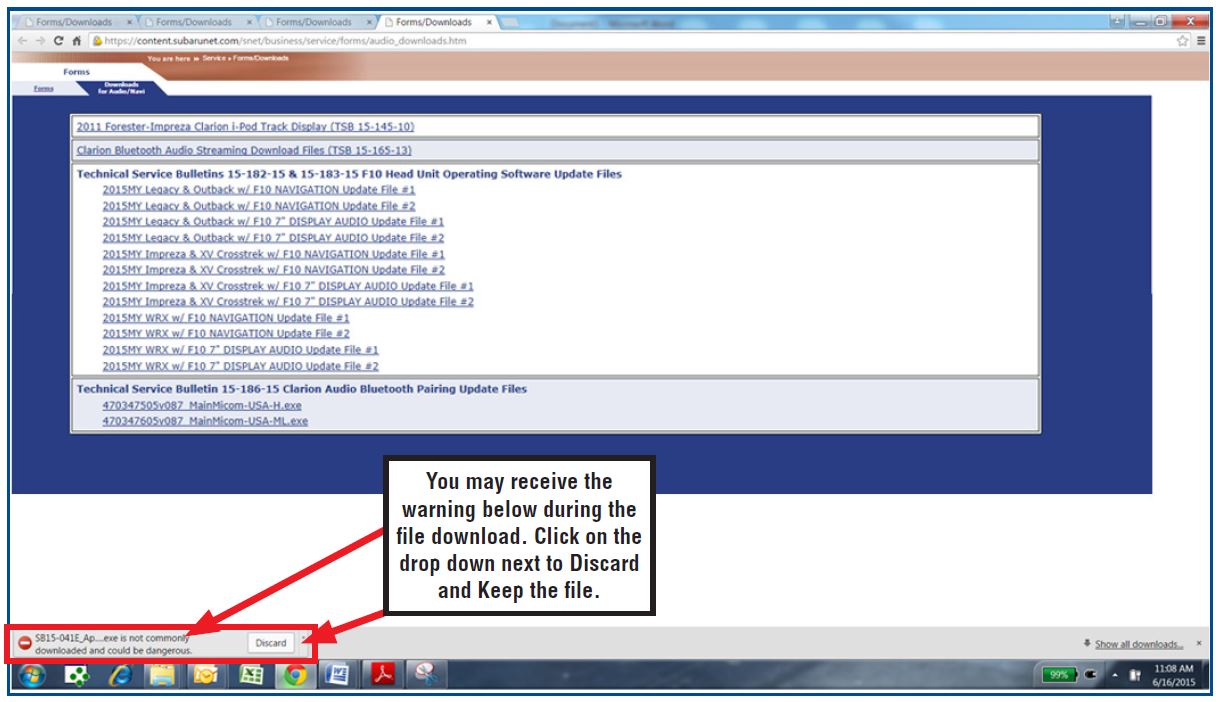
Once the download is complete, you will need to locate the update file, unzip it then save the unzipped version to the USB flash drive. NOTE: If you have not already done so, follow the procedure above for re-formatting (removing any existing files) your flash drive.
- Plug the freshly formatted USB flash drive into your computer.
- Go to your Windows Start screen, select “Computer” (or click on My Documents if you are using the SDS Toughbook) then click on “Downloads”.
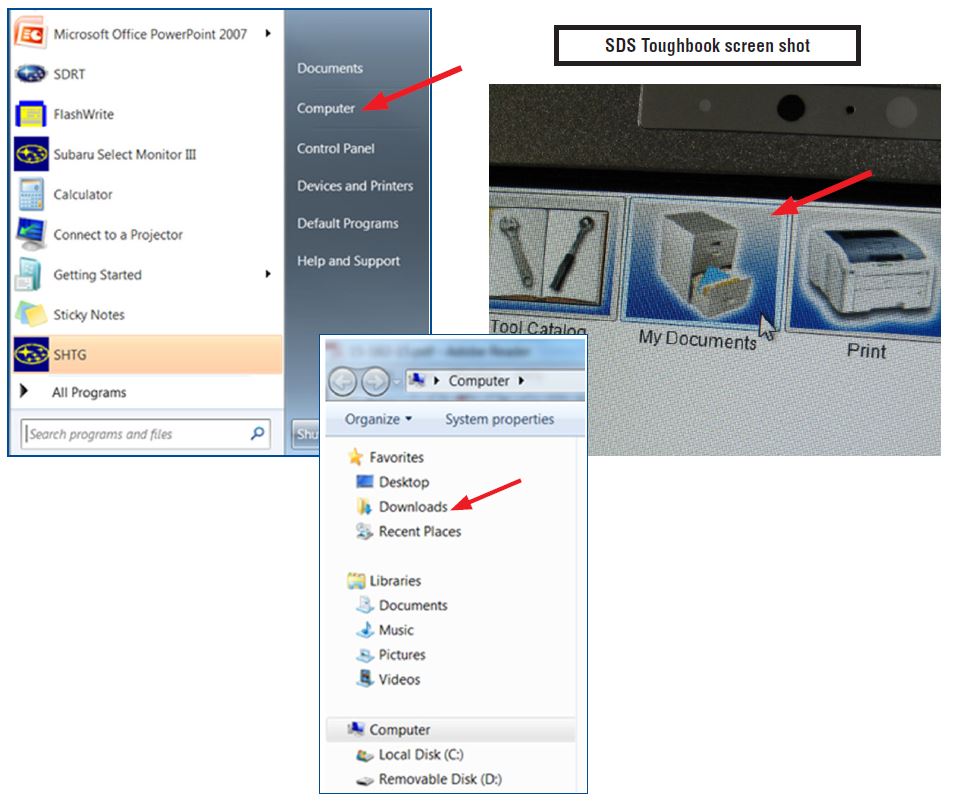
Once your list of downloaded files opens, locate and click on the downloaded update (in this example, “470347605v087_MainMicom-USA-H.mot”) you are looking for. TIP: Click on Date Modified and you can sort the downloaded files by the date they were added which will bring the newest file to the top.
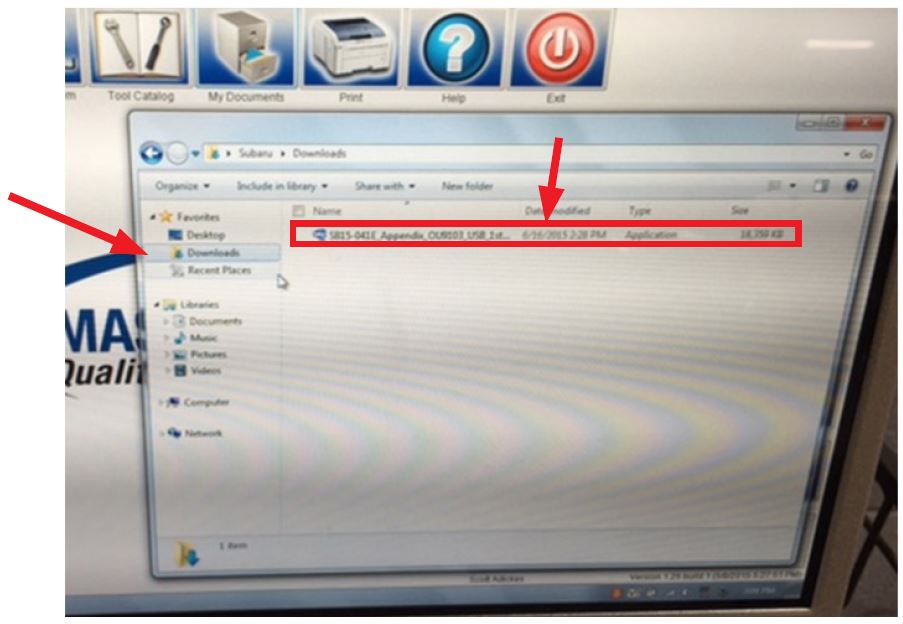
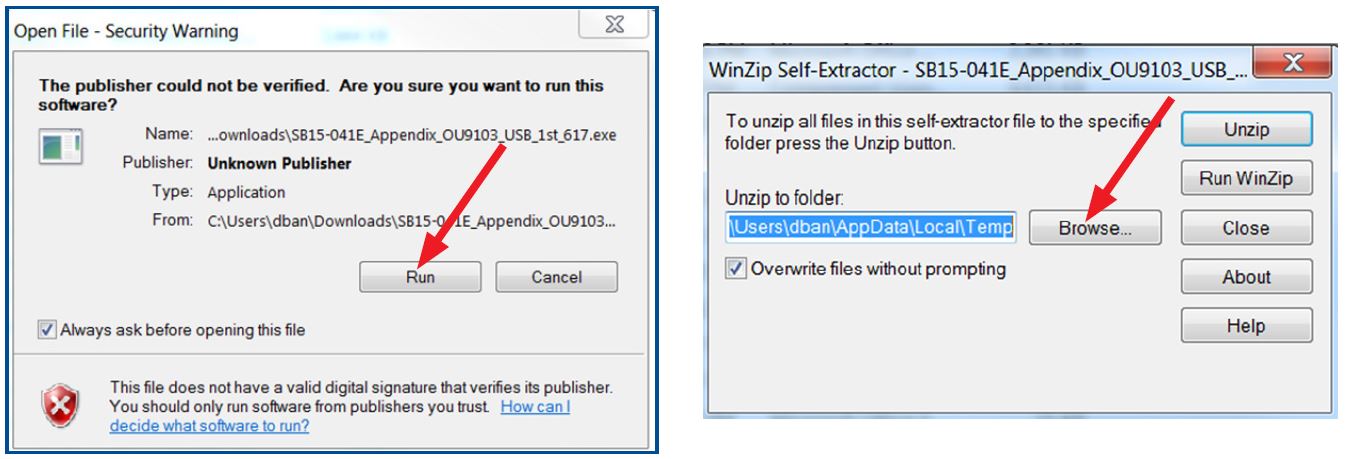
- Double clicking the update file will bring up a dialogue box with a Security Warning. Click on “Run” to continue.
- Click on “Browse”.
- As shown below, click on “Removable Disk” which is your USB flash drive where you want the unzipped update file(s) to be saved. Click “OK” then click on “Unzip”.
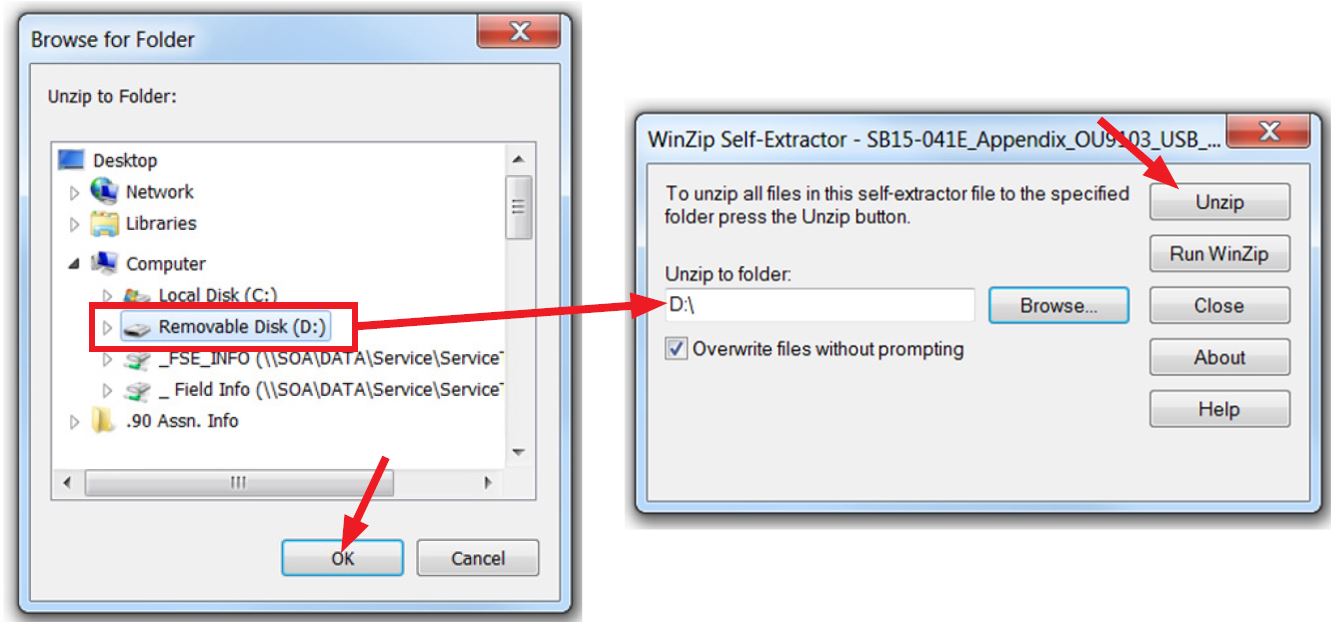
- The update file will unzip and be saved to your flash drive.
- Confirm the update file (and flash drive) is ready to use by going back to Start > Computer (or My Documents on the SDS Toughbook) and double clicking on “Removable Disk” to display the drive’s contents as shown in the examples below. If OK, proceed with the software installation procedure below.
IMPORTANT NOTES:
- Do not change the update file names after downloading them.
- Do not save any other version update files onto the same flash drive.
CAUTION: Confirm one last time the file on the USB flash drive and the head unit it will be installed in match per the table below before installing it.
| FACE PLATE ID NUMBER | UPDATE SOFTWARE FILE NAME |
| CF605UL | 470347605v087_MainMicom-USA-ML.mot |
| CF625UM | |
| CF646UH | 470347505v087_MainMicom-USA-H.mot |
| CF735CH | |
| CF746CH |
NOTE: Because of the time it takes to perform these updates, SOA recommends connecting the Midtronics GR8 Diagnostic Battery Charger to the vehicle and utilizing the Power Supply Mode feature when performing these updates. Once the GR8 is connected to the vehicle, as long as the battery is fully charged, it takes less than 3 minutes to boot-up the charger, select the Power Supply Mode, and have the vehicle’s battery voltage stabilized and ready for updating. VERY
IMPORTANT: This information is applicable to the Midtronics GR8 Diagnostic Battery Charger ONLY. It does not apply to any other brand / type of “generic” battery charger whatsoever. ONLY the GR8 and its Power Supply Mode feature has been tested and approved by Subaru of America, Inc. (SOA). If the GR8 indicates the vehicle’s battery must be charged, charge the battery using the GR8 before proceeding to update the audio unit while using the Power Supply Mode.
Reprogramming Procedure:
NOTE: If a GR8 is unavailable, this reprogramming procedure can also be done with the engine idling.
- Turn (or push) the ignition switch to “ACC ON” with the Radio switched OFF.
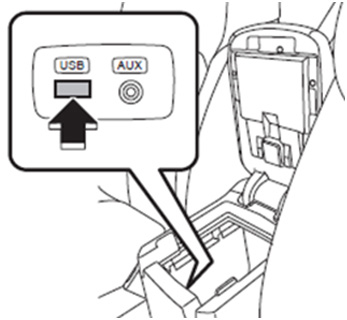
- Insert the USB drive into the USB port.
- Without turning on the audio unit (black screen), press the TEXT along with station preset buttons 5 & 6 (press all 3 buttons) simultaneously. The current software version will be displayed as shown below, right.
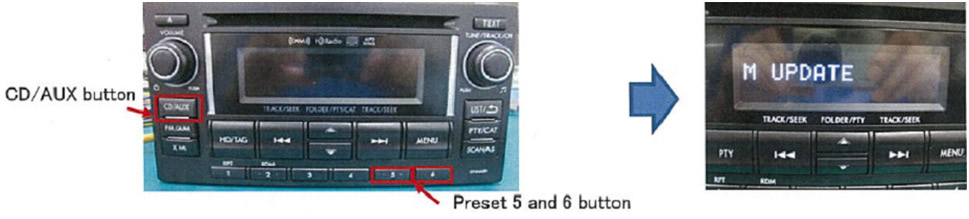
- With the version ID displayed, press the CD/AUX button along with station preset buttons 5 & 6 (press all 3 buttons) simultaneously. The updating will start automatically.
- IMPORTANT: Do not remove the USB or turn the ignition off while software is updating. The updating procedure will take approximately 8 minutes to complete.
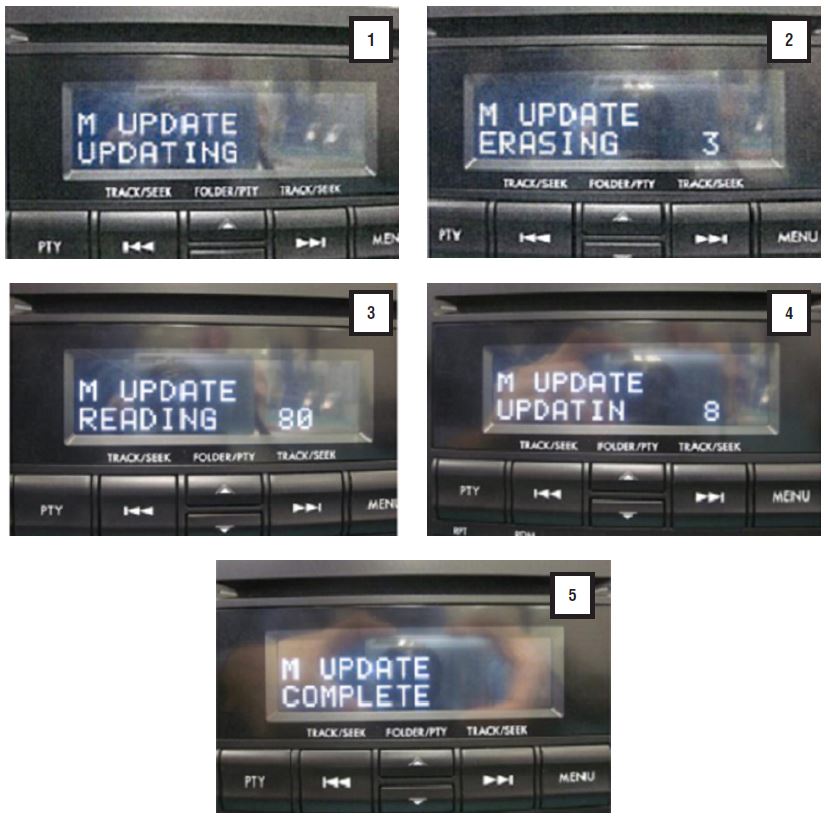
- When the update completes, the system will reboot automatically. The display will go to an Audio Off (black) screen.
- Once the screen goes black, switch the ignition OFF and remove the USB drive.
- Turn (or push) the ignition switch back to “ACC ON”.
- Press and HOLD the TEXT button while pressing the station preset buttons 5 & 6 Confirm the software version is now M 347505V087.
- If YES: the procedure is complete.
- If NO: perform the software Reprogramming Procedure again.
Always refer to STIS for the latest service information before performing any repairs.
2 Affected Products
Vehicle
| MAKE | MODEL | YEAR |
| SUBARU | FORESTER | 2014-2015 |
1 Associated Document
Manufacturer Communications
NUMBER: 15-186-15R
DATE: 09/08/15
REVISED: 02/19/20
MC-10171931-0001.pdf 3076.723KB

- USB-C 2-in-1 storage OTG: The Lexar JumpDrive Dual Drive D40E features USB Type-A and Type-C connectors in a slim, portable form factor for easy device compatibility
- Transfer speeds up to 100MB/s: Based on internal testing, performance may vary depending upon the host device, interface, and usage conditions. 1MB=1,000,000 bytes
- Plug and Play: Widely compatible with USB Type-C smartphones, tablets, laptops, Macs, and traditional Type-A devices, no software installation required. The 360° swivel design allows for easy switching between connectors without the hassle of losing a cap
- Durable & Compact: The Lexar D40E USB memory stick features a metal enclosure, withstands temperatures from 0° to 50° C (32°F to 122°F), and is lightweight at 26g with dimensions of 70.4 x 16.9 x 11.7mm
- Security & Warranty: Securely protects files using an advanced security software solution with 256-bit AES encryption. Backed by a Lexar 3-year limited warranty
- High-speed USB 3.0 performance of up to 150MB/s(1) [(1) Write to drive up to 15x faster than standard USB 2.0 drives (4MB/s); varies by drive capacity. Up to 150MB/s read speed. USB 3.0 port required. Based on internal testing; performance may be lower depending on host device, usage conditions, and other factors; 1MB=1,000,000 bytes]
- Transfer a full-length movie in less than 30 seconds(2) [(2) Based on 1.2GB MPEG-4 video transfer with USB 3.0 host device. Results may vary based on host device, file attributes and other factors]
- Transfer to drive up to 15 times faster than standard USB 2.0 drives(1)
- Sleek, durable metal casing
- Easy-to-use password protection for your private files(3) [(3)Password protection uses 128-bit AES encryption and is supported by Windows 7, Windows 8, Windows 10, and Mac OS X v10.9 plus; Software download required for Mac, visit the SanDisk SecureAccess support page]

- GOOD VALUE PACKAGE - 1 Pack 32GB Memory Stick USB 2.0 Flash Drives with great cost performance and high quality.
- BIG CAPACITY - The available capacity: 29.10GB-29.8GB, You can save the data of movies, music, photos, designs, programs, manuals, handouts in a high speed.Good performance in digital data storing, transferring and sharing with families, friends, workmates, clients and machines.
- EASY TO USE & PLUG AND WORK - Support windows 7 / 8 / 10 / Vista / XP / 2000 / ME / NT Linux and Mac OS, Compatible with USB2.0 and below.
- TWISTTURN DESIGN & EASY CARRY - The metal clip rotates 360° round the ABS plastic body which with rubber oil skin feeling finish. The capless design can avoid lossing of cap, and providing efficient protection to the USB port.
- WARRANTY & SUPPORT - SIMMAX logo is laser printed on the USB connector surface, our products are of good quality and we promise that any problem about the product within one year since you buy.

- The durable, light-weight design of the Turbo Attaché 3 USB 3.0 Flash Drive is the essential mobile storage solution
- Perfect for transferring large files such as movies, videos, photos, music & documents
- Transfer speeds up to 10 times faster than standard USB 2.0 flash drives
- Convenient sliding collar, and cap-less design protects your content when not in use
- Compatible with most PC and Mac laptop and desktop computers with USB 3.0 ports

- 【16GB Flash Drive】USB flash drives with 16GB capacity, meet your needs of daily use on work, school, home and travelling for photos, music, videos, files storage and transfer. IMEASON thumb drives can be used to store different files, easy to data backup.
- 【Metal Swivel Cap Design】USB thumb drive is metal swivel cover provides extra protection for the usb thumbdrive connector, no usb drive cap to lose; keychain design makes it easier to carry without worrying lose it.
- 【Wide Compatibility】USB drive supports Windows 7/8/10/11 / Vista / XP / Unix / 2000 / ME / NT Linux and Mac OS, also Supports USB 2.0 and 1.1 ports. USB Stick support TV, desktop, notebook computer, car, audio and other device. The USB Memory Stick is your great data storage and transfer companion with traveling and working.
- 【Easy to use】usb memory stick is plug and play without any software installation. Just simply plug the Flashdrive into the port of your USB-compatible devices such as computer, laptop to start data storage or transmission.
- 【What You Get】16 GB USB Flash Drive Thumb Drive, The default format of the usb storage flash drive is FAT32.
SEOCONTENT-START
Bulletin Number: 15-186-15R; Revised: 02/19/20 Page 1
INTRODUCTION: This bulletin announces reprogramming file availability and a corresponding installation procedure which will allow Bluetooth pairing to be completed successfully when using voice commands on the Clarion audio units listed below. Pairing of phones using voice recognition is the preferred method on these Clarion audio units. See bulletin 15-185-15 for additional details on using voice recognition to pair phones to Clarion audio units. The procedure will involve downloading the applicable update file from Subarunet then loading it onto a flash drive for installation.
APPLICABLE CLARION AUDIO UNITS:
CF605UL, CF625UM, CF646UH, CF735CH and CF746CH
The audio unit model number is displayed on the lower right of the faceplate as shown below.
SERVICE PROCEDURE / INFORMATION:
There have been reports of the Bluetooth pairing procedure not starting after pressing the talk switch on the steering wheel.
To confirm if this bulletin applies, press the “Talk” switch on the steering wheel and listen to the voice which will provide some basic information, instructions and a list of options to select from.
Continued…
CAUTION: VEHICLE SERVICING PERFORMED BY UNTRAINED PERSONS COULD RESULT IN SERIOUS INJURY TO THOSE PERSONS OR TO OTHERS.
Subaru Service Bulletins are intended for use by professional technicians ONLY. They are written to inform those technicians of conditions that may occur in some vehicles, or to provide information that could assist in the proper servicing of the vehicle. Properly trained technicians have the equipment, tools, safety instructions, and know-how to do the job correctly and safely. If a condition is described, DO NOT assume that this Service Bulletin applies to your vehicle, or that your vehicle will have that condition.
SUBARU OF AMERICA, INC. IS ISO 14001 COMPLIANT
ISO 14001 is the international standard for excellence in Environmental Management Systems. Please recycle or dispose of automotiveproductsinamannerthatisfriendly to our environment and in accordance with all local, state and federal laws and regulations.
NUMBER: 15-186-15R
DATE: 09/08/15
REVISED: 02/19/20
APPLICABILITY: 2014-15MY Forester Models with Clarion Audio
SUBJECT: Reprogramming File Availability to Improve Bluetooth Pairing
SERVICE BULLETIN
ATTENTION:
GENERAL MANAGER 0
PARTS MANAGER 0
CLAIMS PERSONNEL 0
SERVICE MANAGER 0
IMPORTANT – All
Service Personnel Should Read and Initial in the boxes provided, right.
© 2015 Subaru of America, Inc. All rights reserved. • In some cases, a “SELECT LANGUAGE” screen may be displayed. Turn the Tune / Track knob to scroll through available choices then press the Tune / Track knob again to select. • After selecting the language, “Welcome!” is displayed. The unit should automatically display the Setup / Pair Phone screen next. • If the system automatically displays the Setup / Pair Phone screen, the procedure is complete and reprogramming is not necessary.
• If the system does not automatically display the Setup / Pair Phone screen, the update files to reprogram the audio unit will likely need to be installed.
Software Version Check / Reprogramming Procedure:
• Cycle the ignition off then back on.
• Without turning on the audio unit (blank / black screen), press and HOLD the TEXT button while pressing the station preset buttons 5 & 6 simultaneously. The current software version will be displayed as shown below, right. Continued…
Bulletin Number: 15-186-15R; Revised: 02/19/20 Page 2 • If the 4th, 5th and 6th digits of the version ID number displayed are 504 as shown in the photo above, the unit must be updated. If they are 505 or higher and the system does not automatically display the BT SEL LANGUAGE screen, the audio unit will need to be replaced with an exchange unit from Clarion.
VERY IMPORTANT: If an exchange is determined to be necessary, a detailed description of the
problem MUST be supplied in the space provided on the Exchange Form.
IF REPROGRAMMING IS REQUIRED:
Materials Required:
1 empty, USB 2.0 (do NOT use USB 3.0) storage device (flash drive) will be needed to perform the update procedure. The device should be dedicated to storing and transferring these updating files only. It must be a minimum of 2GB in size and contain a FAT32 file format before downloading the update files onto it. The following recommended and readily-available devices include: Verbatim® model# 97002, PQI® model# U273 and Kingston® model# DTSE9.
All the Clarion update files are accessible for downloading from Subarunet under: Service Operations & Technical>>Forms /Downloads>>Gen 1 for Audio/Navi page then clicking on the following hyperlink: FACE PLATE ID NUMBER CF605UL CF625UM CF646UH CF735CH CF746CH UPDATE SOFTWARE FILE NAME 470347605v087_MainMicom-USA-ML.mot 470347505v087_MainMicom-USA-H.mot Click Here to Access the Downloads for Audio/Navigation Information on Subarunet
The Subarunet page shown above will display and contain links to the Clarion update files.
Prepare the USB Memory (flash drive)
VERY IMPORTANT: Before attempting to download any data files, confirm the PC and flash drive you are using are not infected with any virus. The flash drive MUST be formatted for FAT32 following the steps below. Continued…
Bulletin Number: 15-186-15R; Revised: 02/19/20 Page 3 USB Flash Drive Formatting Procedure:
• Install a flash drive into an available USB port on your PC.
• Click Start (this is located in the lower left corner of the desktop screen) then, in the Search
programs and files box, type “explorer”. Start Button NOTE: On SDS Notebook you may also press the My Documents button on the GUI Home Screen.
• As you type the word “explorer”, search results will start to appear. In the results, click on
the “Windows Explorer” option under the Programs section. • In the next window, choose the Computer section on the left. Locate “Removable Disk” Continued…
Bulletin Number: 15-186-15R; Revised: 02/19/20 Page 4 NOTE: Always confirm the device you are formatting is the USB Flash Drive. This drive may have various names assigned to it by the manufacturer of the device and may not reflect the drive name given in this example.
• Right click the picture for “Removable Disk” then select “Format”. • When the “Format” dialog box appears, make sure the option labeled “File System” is set to
FAT32 and the Quick Format box is checked as well. Then, click the “Start” button. • Click “OK” when the following window appears. • The drive will start formatting and display this window when it is finished. Click “OK” to comcomplete the process. Continued…
Bulletin Number: 15-186-15R; Revised: 02/19/20 Page 5 File Download Procedure:
Now that the flash drive has been formatted, the update file must be downloaded. Download the update file to your PC from the Subarunet links. The screenshots below will take you through the steps required to get the selected update file onto your flash drive and ready to use. Downloading Double-click on the file you want to download and it will begin the transfer to your computer automatically. You may receive the warning below during the file download. Click on the drop down next to Discard and Keep the file. Once the download is complete, you will need to locate the update file, unzip it then save the unzipped version to the USB flash drive. NOTE: If you have not already done so, follow the procedure above for re-formatting (removing any existing files) your flash drive.
• Plug the freshly formatted USB flash drive into your computer.
• Go to your Windows Start screen, select “Computer” (or click on My Documents if you are using the SDS Toughbook) then click on “Downloads”. Continued…
Bulletin Number: 15-186-15R; Revised: 02/19/20 Page 6 SDS Toughbook screen shot Once your list of downloaded files opens, locate and click on the downloaded update (in this example, “470347605v087_MainMicom-USA-H.mot”) you are looking for. TIP: Click on Date Modified and you can sort the downloaded files by the date they were added which will bring the newest file to the top. Continued…
Bulletin Number: 15-186-15R; Revised: 02/19/20 Page 7 • Double clicking the update file will bring up a dialogue box with a Security Warning. Click on “Run” to continue.
• Click on “Browse”. • As shown below, click on “Removable Disk” which is your USB flash drive where you want the unzipped update file(s) to be saved. Click “OK” then click on “Unzip”. • The update file will unzip and be saved to your flash drive.
• Confirm the update file (and flash drive) is ready to use by going back to Start > Computer (or My Documents on the SDS Toughbook) and double clicking on “Removable Disk”
to display the drive’s contents as shown in the examples below. If OK, proceed with the software installation procedure below.
IMPORTANT NOTES:
• Do not change the update file names after downloading them.
• Do not save any other version update files onto the same flash drive. Bulletin Number: 15-186-15R; Revised: 02/19/20 Page 8 CAUTION: Confirm one last time the file on the USB flash drive and the head unit it will be installed in match per the table below before installing it. FACE PLATE ID NUMBER
CF605UL CF625UM CF646UH
CF735CH CF746CH UPDATE SOFTWARE FILE NAME 470347605v087_MainMicom-USA-ML.mot 470347505v087_MainMicom-USA-H.mot NOTE: Because of the time it takes to perform these updates, SOA recommends connecting the Midtronics GR8 Diagnostic Battery Charger to the vehicle and utilizing the Power Supply Mode feature when performing these updates. Once the GR8 is connected to the vehicle, as long as the battery is fully charged, it takes less than 3 minutes to boot-up the charger, select the Power Supply Mode, and have the vehicle’s battery voltage stabilized and ready for updating. VERY
IMPORTANT: This information is applicable to the Midtronics GR8 Diagnostic Battery Charger ONLY. It does not apply to any other brand / type of “generic” battery charger whatsoever. ONLY the GR8 and its Power Supply Mode feature has been tested and approved by Subaru of America, Inc. (SOA). If the GR8 indicates the vehicle’s battery must be charged, charge the battery using the GR8 before proceeding to update the audio unit while using the Power Supply Mode.
Reprogramming Procedure:
NOTE: If a GR8 is unavailable, this reprogramming procedure can also be done with the engine idling.
• Turn (or push) the ignition switch to “ACC ON” with the Radio switched OFF.
• Insert the USB drive into the USB port. • Without turning on the audio unit (black screen), press the TEXT along with station preset buttons 5 & 6 (press all 3 buttons) simultaneously. The current software version will be displayed as shown below, right. Continued…
Bulletin Number: 15-186-15R; Revised: 02/19/20 Page 9 • With the version ID displayed, press the CD/AUX button along with station preset buttons
5 & 6 (press all 3 buttons) simultaneously. The updating will start automatically. • IMPORTANT: Do not remove the USB or turn the ignition off while software is updating. The updating procedure will take approximately 8 minutes to complete. 1 2 3 4 5 • When the update completes, the system will reboot automatically. The display will go to an Audio Off (black) screen.
• Once the screen goes black, switch the ignition OFF and remove the USB drive.
• Turn (or push) the ignition switch back to “ACC ON”. Continued…
Bulletin Number: 15-186-15R; Revised: 02/19/20 Page 10 Bulletin Number: 15-186-15R; Revised: 02/19/20 Page 11
• Press and HOLD the TEXT button while pressing the station preset buttons 5 & 6
simultaneously. Confirm the software version is now M 347505V087.
○ If YES: the procedure is complete.
○ If NO: perform the software Reprogramming Procedure again. WARRANTY / CLAIM INFORMATION:
For vehicles within the Basic New Car Limited Warranty period or covered by an active Subaru Added Security Gold plan, this repair may be submitted using the following claim information: LABOR DESCRIPTION CLARION AUDIO UNIT BLUETOOTH PAIRING UPDATE LABOR OPERATION #
A031-148 FAIL CODE
ZQT-48 LABOR TIME
0.6 REMINDER: SOA strongly discourages the printing and/or local storage of service information as previously released information and electronic publications may be updated at any time.
Always refer to STIS for the latest service information before performing any repairs.
**************************************************************************************************************
**************************************************************************************************************
SEOCONTENT-END
This product presentation was made with AAWP plugin.
I have a Subaru Impreza 2011 with the CZ424L1 head unit with software version «M 272608V071»
Would this firmware update work for me? Or do i need something else?
I don’t think so.
I have looked everywhere i can. But i cant seem to find an update for my HU. But i have the exact same bluetooth issue.
Hi
I have a 2011 Forester. HU number is CP 225K1, for which I find no info whatsoever. My BT connection keeps on dropping for no reason.
My firmware version is M 272608V071. The closest thing I could find is the 470-2725-11-V074_MainMicom-USA.mot, but it seems that version is a little different (M 272511V074).
Is it advisable to use this update? I scared I turn the thing into a brick.
So I did the update.
The good news is the BT issues seem to be sorted.
The bad news is, seeing that the firmware is for left-hand drive USA models, my right hand drive unit’s controls are now the other way round… Tuner is now On/Off, volume is tuner… >_<
Would it be possible to also post a link to a copy of 47034605v087_MainMicom-USA-ML.mot ? I have the CF625UM head unit.
I have 470347605v087_MainMicom-USA-ML.exe
470347605v087_MainMicom-USA-ML.exe
What would far more useful if Subaru puts out a firmware upgrade to support .OGG/Vorbis and .FLAC and WMA lossless that is found on Tesla, Honda, all Boeing passenger aircraft and Nissan, Opal and Mercedes. So do most of the Chinese car manufacturers. So does Apple and Android.
What is infuriating is that Clarion (who is Subaru’s OEM ) offers this out of the gate with the NX706. It as if Subaru deliberately crippled the entertainment system playing from USB. Even the manual refers to WMA, but skips over which of the three variants of WMA work.
Disfigures an otherwise excellent car and makes it third rate rather than a simple, royalty free couple of CODECS being added in (that Clarion already has in its libraries).
Why isn’t there a recall on this bluetooth pairing problem for 2014-2015 Subaru Foresters? It seems that it is a common problem for lots of peoplel.
Recalls are usually safety related.
I have a 2015 Subaru Forester, I purchased new. I have a CF605UL and I checked it to see what the software version was. It came back as 604. This means it needs an exchange unit from Clarion according to what I have read. I have taken car to Subaru dealer and they want 1500.00 to replace head unit. The blue tooth has not worked correctly since I bought vehicle, but I didn’t realize it at the time. Now, I am 3 months past my warranty so no one will make good on this. How do I rectify this situation? It seems like a similar problem with many 2015 Foresters.
I’m hoping someone can help here. I also have the CF225KM Forester 2014 radio with software version M347704V081, and I have the exact same issue with the display showing BT-A PLEASE WAIT. Bluetooth on this thing just won’t work. I’ve tried disconnecting my car battery to reset it (for up to an hour) but this doesn’t fix. Does anyone have a firmware update for this head unit that I could try to install? I’ve taken my car to two Subaru dealerships and they’ve been unable to assist. Could we get in touch via email, oemdtc? ?
I don’t have an update for that radio.
I have the same unit in my 2014 Forester (Singapore) – did you ever find a solution or a firmware update?
Hi,
got the CF425ML with M 347704V081, is there an upgrade for this, today got stuck in BT PLEASE WAIT…
I have bluetooth connection issue with my 2014 forester, it has a CF446LH base head unit. I could not find any info about this code. Can you find a software for it?
Thanks in advance.
Hello, trying to locate firmware update for CF625UM, the link in this article is no longer valid. Thank you in advance.
you have to sign up to subaru techinfo for the link to work.
Thank you. Was hoping not to go that route as I am sure there will be a significant charge for a unit that doesn’t work. The updated software won’t work? Again… Thank you.
My 4,5,6 digits are 605. The article mentioned an exchange. Did not see a form. How would an exchange work?
You will have to go to the dealer.
I have a Subaru Forester 2014 with a CF255KM head unit. Would the firmware work for me? if not, does anyone have access to the firmware that would?
Thanks, Shannon
I can probably get you the file in a couple of days.
Maybe you have a bad radio.
https://www.subaruforester.org/vbulletin/f77/2014-forester-upgrading-clarion-cf625um-firmware-653297/
i need the file too
I would also love access to the file since my bluetooth is no longer working with my car and driving me crazy. Thanks!
The site to download the file is no longer working. Is there a different way to get the 470347505v087_MainMicom-USA-H.mot file?
Thanks
470347505v087_MainMicom-USA-H
My Subaru dealer just tried installing this version today, but instead of “505” it came back “605” My Clarion unit is CF646UH in a 2015 Forester.