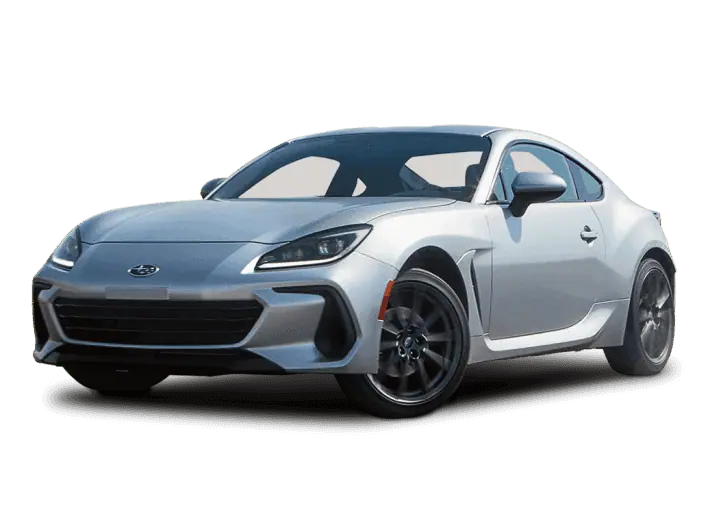
Owner Manual
2022MY BRZ Getting Started Guide
MSA5B2206A
OWNER’S RESOURCES
If you’re having difficulty using any of the functions outlined in this guide, or want to learn more, you can get additional information from the following sources:
Your Subaru Owner’s Manuals: Located in the glovebox
Online Subaru Owner’s Resources: www.subaru.com/owners
Subaru Customer Support: www.subaru.com/customer-support 1-800-782-2783 (1-800-SUBARU3 )
HOW TO OVERVIEW
This “How To” appendix provides detailed, step-by-step instructions to easily connect with features of your BRZ.
If you need some help with these features or want to learn more, we are here to assist you:
Your Subaru Owner’s Manuals: Located in the glovebox
Online Subaru Owner’s Resources: www.subaru.com/owners
Subaru Customer Support: www.subaru.com/customer-support
1-800-782-2783 (1-800-SUBARU3 )
SETTING THE CLOCK
Clock settings can be adjusted when the ignition is in the “ON” position. You can adjust the clock manually or set the clock to adjust automatically in the clock setting screen. To directly access the clock setting screen, you can select the clock on the status bar at the top of the Center Information Display. Full directions for accessing the clock settings and adjusting the clock manually or automatically are given below.
For more information, please refer to “Quick Guide” in your STARLINK® Owner’s Manual.
Manually
To set the clock manually:
1
Select the Clock Display in the Status Bar.
2
Select “Time Setting”.
3
Select “Manual”.
4
Adjust the time and date using the
“Arrow Up” and “Arrow Down” buttons.
5
Once you are finished, select “OK”.
Automatically
To set the clock automatically:
1
Select the Clock Display in the Status Bar.
2
Select “Time Setting”.
3
For vehicles with STARLINK® Safety and Security, select “Auto”. For vehicles without STARLINK® Safety and Security, select “Sync With Phone”.
4
Select “Back”.
The clock automatically adjusts as follows:
- Vehicles with STARLINK® Safety and Security: Automatically adjusts the clock when a STARLINK® Safety and Security signal is available.
- Vehicles without STARLINK® Safety and Security: Automatically adjusts the clock when a phone is paired and connected via Bluetooth®. “Phonebook Download” must be enabled in the Phone Settings.
For step-by-step procedure to pair a phone to the SUBARU STARLINK® Touchscreen, see page 87 for Android devices or page 90 for Apple devices in this Getting Started Guide.
BLUETOOTH® PAIRING
Pairing an Android Device
1
To pair an Android device, start by touching the “Phone” button on the Home screen.
2
If there is no phone connected, it will ask you, “Do you want to add a device?”. Select “Yes”. If a device has already been paired, select “Manage Devices”, then select “Add ”.
3
The screen to the right will be displayed when pairing mode is in progress. The device name will most likely be Subaru BRZ, but be sure to make note of what name it is so you can find it on your phone.
4
On your Android device, go to “Settings” (it can be found under apps).
5
Next select “Connected Devices” or “Connections”.
6
Now select “Bluetooth”. This will show a screen to “Pair New Device” or it will be showing the nearby devices to add. Select “Subaru BRZ”, if shown on the list, or “Pair New Device”.
7
Now select “OK” to pair the devices. Make sure to allow access to your messages and call history in the “Allow Access to Messages” popup box.
8
Select “Yes” to transfer your contacts.
9
If you cannot access your phonebook or messages, go back to your phone’s
Bluetooth® settings and select the gear icon next to your vehicle’s device name and ensure all settings are enabled.
Pairing an iOS/Apple Device
1
To pair an Apple device, start by touching the “Phone” button on the Home screen.
2
If there is no phone connected, it will ask you, “Do you want to add a device?”. Select “Yes”. If a device has already been paired, select “Manage Devices”, then select “Add”.
3
When this screen is displayed, it is in pairing mode. Note the “Device Name”; it will most likely be “Subaru BRZ”.
4
On your iOS/Apple device, select “Settings”.
The location on the Home screen will vary.
5
Select “Bluetooth”.
6
Now select “Subaru BRZ”, or the device name from step 3, if not “Subaru BRZ”.
7
Verify your iOS/Apple device PIN is correct and select “Pair”. Then select “Allow” on the “Allow Contacts and Favorites Sync?” screen.
8
Select “Yes” to transfer contacts.
9
On your iOS/Apple device, Subaru BRZ should now be listed under “Bluetooth Settings”. Select the blue “i” next to the device name. Then ensure “Show
Notifications” and “Sync Contacts” are enabled.
10
Your iOS/Apple device is now paired. It is recommended that you restart your Subaru to complete the process and ensure everything is fully synced.
ANDROID AUTO™
Cables
Always use a high-quality OEM USB cable.
Ensure the Android phone is fully up to date. Also verify that the
Android Auto app, along with all other apps that work with Android Auto, are up to date. Android Auto might not function properly if one of them is outdated or having an issue. The apps can be downloaded from the Play Store.
For more information, visit: www.android.com/auto/
Connecting an Android Phone
- To set up Android Auto™, first plug the Android phone into the USB port of the vehicle using a quality OEM cable. During initial setup, messages appear on your phone. Select “Next” or “Accept” as required for setup, following the prompts on your phone.
- Once setup is complete, select the Android
Auto™ icon in the Center Information
Display if the app has not already launched.
- You will then be taken to the Home screen of the Android Auto™ app for your phone.
- If Android Auto won’t launch, open the Android Auto app™ on the phone, then select the top left menu button. Select “Settings”, then “Connected Cars”, and finally select the top right menu icon and choose “Forget all cars”. If this does not work, uninstall the Android Auto app from the phone and reinstall from the Play Store.
Compatible Models
Android Auto is available on Android phones. To see if your phone is compatible, please refer to the Android Auto website:
APPLE CARPLAY®
Cables
Apple CarPlay requires compatible iPhones to be connected via your Subaru’s USB port. Cables must be an 8-Pin Lightning MFi Certified cable (made for iPod/iPhone). Look for the Works with Apple CarPlay or Made for iPod, iPhone, iPad icons when selecting a cable.
For more information, visit: www.apple.com/ios/carplay/
Connecting an iPhone
- To set up Apple CarPlay, you will need to plug the iOS/Apple phone into the USB port of the vehicle. Make sure to use an MFi certified cable.
- Select “Allow” on the iOS/Apple phone when prompted.
- Select Apple CarPlay on the vehicle screen. This will bring you to the home screen of your phone in Apple CarPlay.
Ensure the iOS/Apple phone is fully up to date. Also ensure all apps that work on Apple CarPlay are up to date. Apple CarPlay might not function correctly if one of the apps is outdated or having an issue.
Apps can be updated in the App Store.
Compatible Models
For a list of all the Apple phones that are compatible with Apple
CarPlay, visit: www.apple.com/ios/carplay/
WI-FI
Connecting to a Wi-Fi Network
On the Home Screen, select “Settings”.
In the “General” settings menu, select “Wi-Fi”.
Make sure that Wi-Fi is enabled, then select “Available Wi-Fi Networks”.
Select the desired network. When selecting a network with the lock icon, a screen will appear for you to enter the password, then select OK.
Wi-Fi Hotspot Subscription
Internet access is purchased separately through AT&T with monthly, per gigabyte, and unlimited data options available. Existing AT&T customers have the option to add an additional line to their AT&T Mobile Share plan. Available on select models.
Shortly after you take delivery of your new Subaru, you will receive an email from AT&T for a one month free trial and how to activate your free trial. To set up and enroll:
- Select “Settings” on the Home screen.
- Select “Wi-Fi Hotspot” to turn it on (if the Wi-Fi Hotpot is already on then proceed to the next step).
- Select Wi-Fi Hotspot Settings to view or update the following settings:
- Wi-Fi Network Name (SSID)
- SSID Broadcast (Network ON / OFF)
- Security Type (WPA / WPA2)
- Password
- Connected Devices (Maximum of 8 devices)
- Broadcast Frequency
How to enroll:
- Connect your tablet, smartphone or laptop to the SUBARU STARLINK® Wi-Fi Hotspot network listed in the settings menu and open your preferred web browser on the device connected.
- Once the SUBARU STARLINK® Wi-Fi Hotspot homepage loads, follow the on-screen instructions to create a new account or to add your vehicle to an already existing AT&T Wireless account. You can also subscribe to the Wi-Fi Hotspot from the MySubaru website or Mobile App.
You can also visit an AT&T store or their website for more information at:
FIRMWARE AND SOFTWARE UPDATES
Software updates provide enhancements to the system, such as new features, added security, and upgraded functions. You can ask your preferred Subaru retailer to check for and perform a full update to the system software. Please ask your preferred Subaru retailer for specific details on update content.
NOTE: System functionality will be restricted during installation, and you may need to reset radio station presets and volume settings after the update process. Set your clock to “Auto” (see page 86) before updating the software.
To update the software via Wi-Fi:
- Connect to a Wi-Fi network (see page 98).
- Display the general setting screen by pressing the “Home” button, then select“ Settings”, and finally “General”.
- Select “Software Update”, select “Update”, and then select “Check for Updates”
- If “Automatically Check for Updates” is enabled, an update check will be performed automatically before proceeding to the next step.
- If “Automatically Download Updates” is enabled, available software updates will be downloaded automatically.
- Select “Download Now” to begin the download. The download status progress is displayed in the upper right of the screen. If you need to stop the download and restart at a later time, select “Cancel” to stop the process.
- Select “Install Now” to start the installation process. The installation process will take several minutes to complete.
- When the installation is complete, select “OK” on the confirmation message to complete the update process.
- Turn the ignition to the “OFF” position and open and close the driver’s door. After about5 minutes, restart the engine, and the software installation will be applied.
MSA5B2206A
2022MY BRZ Getting Started Guide

- [Easy to Use—Work Out of the Box] + [FOXWELL 2026 New Version] FOXWELL NT604 Elite scan tool is the 2026 new version from FOXWELL, designed for car owners who want to figure out the cause of issues before fixing car problems by scanning common systems like ABS, SRS, engine, and transmission. The NT604 Elite obd2 scanner diagnostic tool comes with the latest software—no need to waste time downloading software first. Plug the scanner into the OBDII port with OBDII cable to start the diagnosis.
- [Affordable] + [Reliable Car Health Monitor] Will you be confused what happens when the warning light of ABS/SRS/transmission/check engine flashes? Instead of taking your cars to dealership, this FOXWELL scanner will help you do a thorough scanning and detection for your cars and pinpoint the root cause. Note:The device is a diagnostic tool, not a repair tool. To turn off a warning light, you must first physically repair the issue causing it. Only then can the scanner be used to clear the corresponding fault code.
- [5 in 1 Car Diagnostic Scanner] Compared with obd scanners (50-100), NT604 Elite code scanner not only includes their OBDII diagnosis but also serves as ABS/SRS scanner, transmission and check engine code reader. When it’s an odb2 scanner, you can use it to check if your car is ready for annual test through I/M readiness menu. In addition, live data stream, built-in DTC library, data play back and print, all these features are a big plus for it. Note: doesn't support maintenance functions like reset or relearn. For the SRS system, NT604 Elite can read and clear common fault codes not caused by a crash, but crash/collision data cannot be cleared.
- [Fantastic AUTOVIN] + [No extra software fee] Through the AUTOVIN menu, this NT604 Elite car scanner allows you to get your V-IN and vehicle info rapidly, no need to take time to find your V-IN and input one by one. What's more, the NT604 Elite ABS SRS scanner supports 60+ car brands from worldwide (America/Asia/Europe). You don’t need to pay extra software fee. AUTOVIN may not work on some older vehicles or certain vehicle brands. If AUTOVIN fails, please input the vin code manually or go to the Diagnostic Menu to select your vehicle model.
- [Solid protective case KO plastic carrying bag] + [Lifetime update] Almost all same price-level car scanner diagnostic tool only offers plastic bag to hold the scanner.However, NT604 Elite automotive scanner is equipped with solid protective case, preventing your obd2 scanner from damage. Then you don’t need to pay extra money to buy a solid toolbox.

- 【Reset ABS/SRS/Transmission/Engine Lights】 More than an check engine code reader, OBDMATE OM901 obd2 scanner performs comprehensive diagnostics for the 4 most-used systems (ABS/SRS/Engine/Transmission). It quickly clears fault codes, turns off warning lights, read data stream and auto VIN.
- 【3.5" Handheld Scanner with 4 System Diagnose】 3.5" Super large TFT screen equipped displays an intuitive menu and clear readings of various sensors from ABS, SRS, ECM and TCM
 systems. It arrived with a silicone protective case and hard-shell carrying case, ensuring long-lived durability and drop resistance. The car diagnostic tool is plug-to-play designed, plug it and get diagnosis started without any batteries or updates required.
 - 【One-Click I/M Readines&Full OBD2 Functions】 Press F1 to get an intuitive corloured form about whether various emissions-related systems on the vehicle are operating properly. Help you get smog-check ready quickly. OM901 car scanner supports all essential OBD2 functions you need: read & clear codes, view freeze frame, read I/M readiness, retrieve VIN, live data stream (with graphing display), O2 sensor test, onboard monitoring mode, and EVAP leak test.
- 【Battery Voltage Check&DLC Pin Test】 It allows you to monitor battery health by testing current battery voltage. Plus, this obd2 diagnostic tool features DLC 16-PIN test to check current voltage of every pin.
- 【Automotive Scanner Diagnostic Kit】 The package comes with 1 car scanner, 1 USB-type c cable, 1 hard storage bag and 1 user manual(en). Free to update without any hidden fees. 5 languanges available in setting including English, French, Italian, German and Espanish. Valuable and Portable, making it a great tool kit for car owners, DIY enthusiasts, and professional mechanics.
 systems. It arrived with a silicone protective case and hard-shell carrying case, ensuring long-lived durability and drop resistance. The car diagnostic tool is plug-to-play designed, plug it and get diagnosis started without any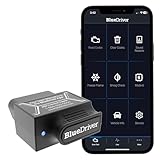
- [Diagnose Like a Pro] BlueDriver Pro is a professional OBD2 scanner and diagnostic tool that helps you scan, understand, and clear vehicle trouble codes with confidence. Turn your phone into a powerful car diagnostic scanner—no guesswork, no unnecessary repairs.
- [Read and Clear More Codes Than Ever] Read and clear more codes than basic car code readers. Access enhanced diagnostics for Check Engine, ABS, SRS, Airbag, TPMS, Transmission.
- [Verified Fixes and Real-Time Data] Get unlimited, technician-verified repair reports matched to your VIN, with definitions, causes, and confirmed fixes. Monitor live vehicle data as you drive, view freeze frames, check smog readiness, and analyze Mode 6 test results.
- [Wireless & Bluetooth Enabled] - Say goodbye to wires. BlueDriver connects with Bluetooth via your phone/tablet to a sensor that plugs into your car's OBDII port. Get all of the capabilities of an expensive code reader & scan tool without any annoying wires.
- [Broad Make & Model Coverage] Strong support for GM, Ford, Stellantis (RAM, Jeep, Chrysler), Toyota, Honda, Nissan, Mazda, Subaru, Hyundai, Mercedes-Benz, BMW, and VW.
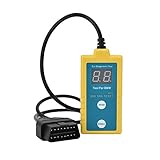
- ✔️【Professional SRS Reset for 1994-2003 BMW】 Designed specifically for classic BMW models (1994-2003). This B800 scanner reads & clears SRS airbag fault codes, turns off the warning light, and saves you a costly dealer visit. Confirmed compatible with: E36, E46 (EXCEPT 2001 330i), E34, E38, E39, Z3, and X5 (E53). NOT compatible with any BMW built before 1994 or after 2003.
- ✔️【Important: Two Different Connection Ports – Read Before Use】 To avoid “not working” issues, please note: For 1994–2000 BMWs (most E36, E34, Z3, early E39), the SRS diagnostic port is a round 20-pin connector under the hood. You MUST use the included 16-pin to 20-pin adapter cable. For 2000–2003 models (late E46, E39, X5), use the standard OBD-II port inside the cabin. Incorrect connection is the #1 reason for “incompatibility” reports.
- ✔️【Read & Clear Fault Codes in Minutes】 Quickly diagnose why your SRS light is on. The scanner accurately reads fault codes from airbag and seatbelt pretensioner systems. With one button press, clear the codes and reset the SRS warning light in seconds. No expensive dealer tools needed.
- ✔️【User-Friendly for DIYers – No Mechanic Required】 Easy operation with an intuitive button layout: ‘Enter’ to confirm, ‘Scroll’ to navigate. The clear LCD screen shows results instantly. Includes a step-by-step manual (revised for clarity) to guide you through the entire reset process.
- ✔️【Reliable Support with 1-Year Warranty】 We stand behind the quality of our B800 scanner. It comes with a 1-Year Hassle-Free Warranty. If you have any questions or need support, please contact us with your Order ID, and our dedicated team will assist you promptly.
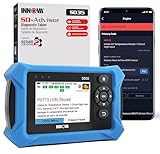
- OBD2 SCANNER FOR ALL SYSTEMS – The INNOVA SD35 is a tablet-based OBD2 scanner designed for advanced diagnostics. Read and clear check engine light, ABS, SRS, and TPMS codes, plus test your car battery and alternator to prevent unexpected failures. Vehicle coverage may vary. Please use Innova’s Coverage Checker to verify compatibility.
- ALL-SYSTEM DIAGNOSTICS & LIVE DATA – Unlike basic code readers, this OBD2 scanner for all vehicles scans engine, transmission, ABS, SRS, and more. Get real-time live data, including RPM, fuel trims, temperature readings, and oxygen sensor performance.
- OBD2 TABLET WITH USER-FRIENDLY INTERFACE – This automotive scan tool features a high-resolution display, making vehicle diagnostics faster and easier.
- ADVANCED TPMS, OIL RESET & SERVICE FUNCTIONS – Perform TPMS sensor checks, oil light reset, and other service resets with ease This professional diagnostic tool provides comprehensive vehicle maintenance capabilities in one device.
- WIDE VEHICLE COVERAGE (1996 & NEWER CARS & TRUCKS) – This OBD2 scanner Bluetooth tablet is compatible with Toyota, Ford, Honda, Chevrolet, Nissan, Dodge, and more. However, feature coverage may vary. Please use Innova's Coverage Checker to verify coverage.
SEOCONTENT-START
2022 Getting Started Guide BRZ Love. It’s what makes Subaru, Subaru. © 2021 Subaru of America, Inc. Printed in USA. All rights reserved. Contents may not be reproduced in whole or in part without prior written permission of publisher. Specifications in this Guide are based on the latest product information available at the time of publication. Some images shown are for illustration purposes only. Some equipment shown in photography within this Guide is optional at extra cost. Specific options may be available only in combination with other options. Specific combinations of equipment or features may vary from time to time, and by geographic area. Subaru of America, Inc. reserves the right to change or discontinue at any time, without notice: Prices, colors, materials, equipment, accessories, specifications, models and packages, without incurring any obligation to make the same or similar changes on vehicles previously sold. Colors shown may vary due to reproduction and printing processes. Subaru of America, Inc. is not responsible for typographical errors. Aha™ is a trademark of Harman International Industries, Incorporated. Alcantara® is a registered trademark of Alcantara S.p.A., and Alcantara is produced by the Toray Group. App Store® is a registered trademark of Apple, Inc. Apple® is a registered trademark of Apple, Inc. Apple CarPlay® is a registered trademark of Apple, Inc. Android Auto™ is a trademark of Google, LLC. BBS® is a registered trademark of BBS Kraftahrzeugtechnik, AG. Bluetooth® is a registered trademark of Bluetooth SIG, Inc. BRIN NAUB® is a registered trademark of TB Kawashima Co., Ltd. Brembo® is a registered trademark of Freni Brembo, S.p.A. GreenEdge® is a registered trademark of Harman International Industries, Incorporated. Glympse® is a registered trademark of Glympse, Inc. Grand Luxe® is a registered trademark of Seiren Co., Ltd. HARMAN® is a registered trademark of HARMAN International Industries, Incorporated. Harman Kardon® is a registered trademark of Harman International Industries, Incorporated. Quantum logic™ is a trademark of Harman International Industries, Incorporated. HD Radio® is a registered trademark of iBiquity Digital Corporation. HomeLink® and the HomeLink® house icon are registered trademarks of Gentex Corporation. iHeartRadio® is a registered trademark of iHeartMedia, Inc. iPod® is a registered trademark of Apple, Inc. iTunes® is a registered trademark of Apple, Inc. Magellan® is a registered trademark of MiTAC International Corporation. Michelin® is a registered trademark of Compagnie Générale des Etablissments Michelin. Metal-Matrix Diaphragm (MMD®) is a registered trademark of Harman International Industries, Incorporated. MirrorLink™ is a trademark of Car Connectivity Consortium, LLC. Pandora® is a registered trademark of Pandora Media, Inc. SACHS® is a registered trademark of ZF Friedrichshafen AG. Siri® is a registered trademark of Apple, Inc. Smart Way® is a registered trademark of the U.S. Environmental Protection Agency. Stitcher™ is a trademark of Stitcher™, Inc. TomTom® is a registered trademark of TomTom International BV. TORSEN LSD® is a registered trademark of JTEKT TORSEN North America, Inc. SiriusXM® All Access Radio is a registered trademark of Sirius XM Radio, Inc. SiriusXM Traffic® is a registered trademark of Sirius XM Radio, Inc. SiriusXM Travel Link® is a registered trademark of Sirius XM Radio, Inc. Ultrasuede® is a registered trademark of Toray Industries, Inc. Yelp® is a registered trademark of Yelp, Inc. Ascent is a trademark of Subaru of America, Inc. Added Security, DriverFocus, Crosstrek, Forester, Outback, StarTex and StarDrive are registered trademarks of Subaru of America, Inc. BRZ, EyeSight, Impreza, Lineartronic, Legacy, S209, Subaru, SUBARU STARLINK, Starlink, SUBARU BOXER, tS (Design), WRX, STI and X-MODE are registered trademarks of Subaru Corporation. PURPOSE OF THIS GUIDE WELCOME Congratulations on choosing a Subaru BRZ and welcome to the Subaru family! Subaru is more than a car company™. We are committed to making the world a better place, and the Subaru Love Promise is our vision to show love and respect to all people at every interaction with Subaru. We believe in building lifelong relationships with our customers, earning your trust and exceeding your expectations by providing customer service with integrity and compassion. This Getting Started Guide will introduce you to your new Subaru BRZ by providing information on the basic operation and key features of your Subaru as well as the STARLINK ® and EyeSight ® systems in your vehicle. IMPORTANT SAFETY INFORMATION The Getting Started Guide is not intended as a substitute for your Owner’s Manuals. We strongly encourage you to review your Vehicle, STARLINK®, and EyeSight® Owner’s Manuals to ensure complete understanding. OWNER’S RESOURCES If you’re having difficulty using any of the functions outlined in this guide, or want to learn more, you can get additional information from the following sources: Your Subaru Owner’s Manuals: Located in the glovebox Online Subaru Owner’s Resources: www.subaru.com/owners Subaru Customer Support: www.subaru.com/customer-support 1-800-782-2783 (1-800-SUBARU3 ) PURPOSE OF THIS GUIDE 4 IN CASE OF EMERGENCY SUBARU STARLINK® Safety and Security (subscription required) SOS Emergency: Press the red “SOS” button on the overhead console in the event of an emergency to speak with a SUBARU STARLINK® Customer Care Advisor. Enhanced Roadside Assistance: Press the blue “i” button on the overhead console or select the “Roadside Assistance” option in the “MySubaru” menu on the multimedia system. For more information, please refer to “Safety and Security Overview” on page 64 in this Getting Started Guide or “Introduction” in your SUBARU STARLINK® Safety and Security Owner’s Manual. Not available in all states. See retailer for details. Subaru Roadside Assistance Subaru Roadside Assistance: 1-800-261-2155 Subaru Roadside Assistance is free and standard on your Subaru; there are no forms to complete. This service is available anytime during the 3-year/36,000-mile Subaru Limited Warranty, whichever comes first. See your retailer for details and refer to the Roadside Assistance guide in the owner’s information kit for the details on this coverage. A Subaru Roadside Assistance decal has been affixed to the driver’s door window. Roadside assistance helps with: • Towing to the nearest authorized Subaru retailer if you cannot safely drive your Subaru • Jump-start if your battery is dead • Gasoline delivery if you run out of gas • Emergency lockout service • National Subaru retailer locator service, with phone numbers and location of the nearest retailer anywhere in the U.S. or Canada NOTE: Specifically excluded from Subaru Roadside Assistance coverage are service requests or claims resulting from: accidents, vandalism, acts of God, violation of any laws, or vehicle modifications not recommended by the manufacturer. SOS and Roadside Assistance Buttons PURPOSE OF THIS GUIDE 5 TOWING YOUR SUBARU Improper towing may damage your BRZ. The best way to tow your BRZ is with a flatbed truck by your Subaru retailer or a commercial towing service. For more information, please refer to “In Case of Emergency” in your Owner’s Manual. PURPOSE OF THIS GUIDE 6 KEYLESS ENTRY 1 Lock/Arm • Press the lock/arm button to lock the doors, trunk, and fuel filler lid and to activate the security alarm. A chirp sounds and the hazard warning lights flash once. • If either of the doors are not fully closed, a chirp sounds for 5 seconds to alert you. • Press the lock/arm button three times to activate the vehicle finder function. If you are within 30 feet of your Subaru, the horn sounds once, and the hazard warning lights flash three times. 2 Unlock/Disarm • Press the unlock/disarm button once to unlock the driver’s door. Two chirps sound and the hazard warning lights flash twice. To unlock all the doors and the trunk, briefly press the button twice. • The interior lights will illuminate when you press the unlock/disarm button if they are set to the “DOOR” position on the overhead console. 3 Trunk • Press and hold the trunk button to open the trunk. A chirp sounds once. 4 Panic Alarm • Press the panic alarm button to sound the horn and flash the hazard warning lights. • Press any button on the access key fob to deactivate the panic alarm. KEYLESS ACCESS WITH PUSH BUTTON START The Keyless Access with Push-Button Start system features the following touch-activated door locking or unlocking functions without the key ever leaving your pocket or purse. You can customize the touch-activated door locking or unlocking settings using the STARLINK® Touchscreen by selecting “Settings” then selecting the “Car” menu in the top bar. Access Key Fob ENTRY AND EXIT 7 Unlocking Using Door Handles Grip the driver’s door handle to unlock the driver’s door. Grip the passenger’s door handle to unlock both doors and the trunk. Two chirps sound and the hazard warning lights flash twice. Locking Using Door Handles Close both doors and touch the door lock sensor (two lines) on either door handle. Both doors and the fuel filler lid lock. One chirp sounds and the hazard warning lights flash once. Door Unlock Sensor Door Lock Sensor ENTRY AND EXIT 8 Unlocking the Trunk Press the trunk opener button to unlock and open the trunk. Trunk Opener Button ENTRY AND EXIT 9 1 Power Window Switches (p. 15) 2 Power Exterior Mirror Switch (p. 14) 3 Instrument Panel Switches (p. 20) 4 Audio Controls (p. 20) 5 Combination Meter (p. 26) 6 Light Controls (p. 22) INSTRUMENT PANEL 10 7 Combination Meter Display Control Switches (p. 22) 8 Cruise Control or Adaptive Cruise Control (p. 21) 9 Climate Control System (p. 16) 10 Windshield wipers (p. 24) 11 SUBARU STARLINK® Multimedia Touchscreen (p. 44) 12 Shifter (MT) or Select Lever (AT) (p. 29) 13 Parking Brake INSTRUMENT PANEL 11 SEATING Manual Seats 1 Forward/Backward: Pull the lever below the seat up and slide the seat forward or backward. Release the lever and make sure the seat is locked into place. 2 Seat Height (Driver’s Seat): Pulling up or pushing down on the lever will raise or lower the seat cushion. 3 Recline Seatback: Pull the lever up to adjust the seatback. Release the lever and make sure the seatback is locked into place. 4 Seatback Fold Lever: To get in and out of the back seats, pull the seatback fold lever to fold the desired seat. When finished, return the seatback to the upright position until it locks in place. Manual Seat Levers Seatback Fold Lever GETTING COMFORTABLE 12 Head Restraint Adjustment Pull the head restraint up to raise it. To lower the head restraint, push it down while pressing the release button on the top of the seatback. Each head restraint should be adjusted so that the center of the head restraint is closest to the top of the occupant’s ears. TILT AND TELESCOPIC STEERING COLUMN You can adjust both the height and lengthwise position of the steering wheel. Pull the lever on the side of the steering column down firmly to unlock, then adjust the position of the steering wheel. Push the lever firmly back up to lock the steering column in place. Steering Column Unlock GETTING COMFORTABLE 13 POWER EXTERIOR MIRRORS The power mirror knob works with the ignition in the “ON” or “ACC” position. Turn the knob to “L” (left side) or “R” (right side) to select a mirror. Push the knob in the direction you want to move the mirror. Turn the knob back to the center position when finished. REAR VIEW MIRROR Auto-dimming Mirror (if equipped) The auto-dimming function senses distracting glare during nighttime driving and automatically dims to eliminate the glare and preserve your vision. Press the switch to turn auto-dimming on or off. A green LED indicator on the switch illuminates when the function is on. Power Mirror Knob GETTING COMFORTABLE 14 HomeLink® 5 Accessory Mirror (if equipped) The HomeLink® 5 accessory mirror provides three buttons to replace devices such as garage door openers, gate openers, entry door locks, security systems, and home lighting. “Instruments and Controls” in your Owner’s Manual provides programming instructions, and www.subaru.com/homelink has a helpful “how to” video. NOTE: HomeLink® 5 may not be compatible with some older door openers or additional equipment may be required. POWER WINDOWS To open or close a window, partially press down or pull up and hold the corresponding switch. The windows also have a one-touch auto up/down function. Fully press down or pull up and release to automatically open or close a window. Power Window Switches GETTING COMFORTABLE 15 CLIMATE CONTROL Dual-zone Automatic Climate Control You can set separate temperatures for the driver and passenger seats. Set your desired temperature and let the system automatically make the adjustments for you. At any time, you can manually take control of the climate settings. 1 ON/OFF Button: Press this button to activate or deactivate the climate control system. Operation in Automatic Mode 2 Automatic Control Button: This system automatically controls all of the climate systems except defogging. Press “AUTO” to activate. 3 Temperature Control Dial: Turn the dial clockwise to increase the temperature or counterclockwise to decrease the temperature. The temperature will appear on the screen. You can adjust separate temperature settings for the driver’s side and passenger’s side. 4 SYNC Button: Press the button to synchronize the driver’s and front passenger’s temperatures to the driver’s temperature control dial. The SYNC button indicator illuminates. Press the SYNC button again or turn the passenger’s side temperature control dial to cancel SYNC mode and set separate driver and passenger side temperatures. When using automatic mode, the fan speed, airflow distribution, air-inlet control and air conditioning compressor are controlled automatically. To activate: 1. Press the “AUTO” button. The “FULL AUTO” indicator light illuminates on the indicator in the fan speed control dial. 2. Set the preferred temperature using the temperature control dial. If you operate any of the buttons other than “ON/OFF”, rear window defogger, “SYNC” or the temperature control dial, the “FULL” indicator light will turn off. The “AUTO” light will remain illuminated. You can then manually control the system as desired. Press the “AUTO” button to change back to “FULL AUTO” mode. GETTING COMFORTABLE 16 Operation in Manual Mode 5 Air Inlet Selection Button: Select this button to activate recirculation mode and recirculate the interior air inside the vehicle. Recirculation mode is helpful when driving on a dusty road or when you want cooling performance to increase. Select the button again to return to outside air circulation mode and allow outside air to be drawn into your Subaru. NOTE: To prevent windshield fogging, do not remain in the recirculated mode for an extended period of time. 6 Fan Speed Control Dial: Turn the fan speed control dial to increase or decrease fan speed. 7 Airflow Mode Selection Button: Press the button to select the desired airflow mode. The selected mode – ventilation, ventilation 2, bi-level, feet or feet-defrost – is shown by the indicator on the fan speed control dial. ICON MODE FUNCTION Ventilation Instrument panel outlets Ventilation 2 Instrument panel outlets and less foot outlets than bi-level Bi-Level Instrument panel outlets and foot outlets Feet Foot outlets, both side outlets of the instrument panel and some through windshield defroster outlets Feet-Defrost Windshield defroster outlets, foot outlets and both side outlets of the instrument panel Defrost Windshield defroster outlets and both side outlets of the instrument panel NOTE: The defroster button is used to activate the defrost airflow mode. 8 Air Conditioner Button: Press this button to activate or deactivate the air conditioning. GETTING COMFORTABLE 17 9 MAX A/C Button: Press this button for quickest cooling. 10 Defroster Button: Press this button to defrost or dehumidify the windshield and door windows. NOTE: When defrost or feet-defrost is selected, the air conditioning compressor operates automatically defrost the windshield more quickly. However, the indicator on the air conditioner button may not illuminate. 11 Rear Window Defogger Button: Press this button to turn on the rear window defogger. It will automatically turn off after about 15 minutes. If the window clears before then, press the button again to turn it off. If equipped, the outside mirror defogger will also activate. You can customize this function for continuous operation through the SUBARU STARLINK® Touchscreen by selecting “Settings” and then “Car.” Remote Engine Start with Climate Control (if equipped) You can remotely start your Subaru and adjust the temperature using the STARLINK® Safety and Security features through the MySubaru App (subscription required). Please refer to “SUBARU STARLINK Features” in your STARLINK® Safety and Security Owner’s Manual for a list of required vehicle conditions for this feature. Heated Seats (if equipped) The heated seat switches are located between the driver and passenger seats. There is a separate switch for the driver and passenger. Press the “HI” button for more rapid heating or press the “LO” button for normal heating. Return the switch to the center position to turn off the heated seat. Heated Seat Switches GETTING COMFORTABLE 18 ACCESSORY CONNECTIONS 1 Auxiliary Input Jack: The 3.5mm auxiliary input jack is located in the center console. You can connect a portable music player to the auxiliary jack and hear the music stored on it through your Subaru’s speakers. Press the “Source” button located on the steering wheel or the “Media” button on the STARLINK® Touchscreen to select the auxiliary mode. For more information, please refer to page 57 in this Getting Started Guide or “Audio” in your SUBARU STARLINK® Owner’s Manual. 2 Dual USB Ports: The USB ports are located in the center console. You can connect a variety of USB-equipped devices, such as portable music players or smartphones, to enjoy your favorite music or connect to Apple CarPlay® or Android Auto™. These ports also provide charging (5V, 2.1A) to devices. For more information on connecting to the USB ports, please refer to page 57 in this Getting Started Guide or “Audio” in your SUBARU STARLINK® Owner’s Manual. For more information and set up instructions, please refer to page 93 for Android Auto™ and page 96 for Apple CarPlay® in the How To Appendix in this Getting Started Guide. 3 Power Outlets: A power outlet (12V) is provided in the glove box. Electrical power is available for use with in-vehicle electrical appliances with a maximum power rating of 120W. This outlets cannot be used to connect to the SUBARU STARLINK® Multimedia System. For more information, please refer to “Interior Equipment” in your Owner’s Manual. GETTING COMFORTABLE 19 INSTRUMENT PANEL SWITCHES (LOWER LEFT) 1 Illumination brightness (see p. 23) 2 Trunk Release (see p. 37) For more information, please refer to “Instruments and Controls” and “Keys and Doors” in your Owner’s Manual. AUDIO CONTROLS 1 Source 2 Volume Up/Volume Down 3 Presets/Skip 4 Call 5 End 6 Voice Recognition For more information about your audio system and controls, please refer to page 47 in this Getting Started Guide or “Quick Guide” in your SUBARU STARLINK® Owner’s Manual. CONTROLS 20 CRUISE CONTROL 1 Cruise Control On/Off 2 Resume (RES)/Increase Speed 3 Set (SET)/Decrease Speed 4 CANCEL For more information, please refer to “Starting and Operating” in your Owner’s Manual. ADAPTIVE CRUISE CONTROL (if equipped) 1 Adaptive Cruise Control On/Off 2 CANCEL 3 Following Distance 4 Resume (RES)/Increase Speed and Set (SET)/Decrease Speed For more information on Adaptive Cruise Control, please refer to page 75 in this Getting Started Guide or “Adaptive Cruise Control” in your EyeSight® Owner’s Manual. CONTROLS 21 COMBINATION METER DISPLAY CONTROLS 1 Return 2 Scroll Up/Down 3 Scroll Left/Right 4 Enter For more information, please refer to “Instruments and Controls” in your Owner’s Manual. LIGHT CONTROLS 1 AUTO: Rotate the end of the lever to set your headlights to automatically turn on or off, depending on the level of light outside. When in the “AUTO” position, the headlights will automatically turn on when the windshield wipers operate several times. NOTE: The sensitivity of the automatic headlights can be adjusted through the STARLINK® multimedia display. 2 Parking Lights: Rotate the end of the lever to turn on the instrument panel illumination, parking lights, side marker lights, tail lights, and license plate lights. 3 Headlights: Rotate the end of the lever to turn on the headlights, instrument panel illumination, parking lights, side marker lights, tail lights, and license plate lights. To flash the headlights, pull the lever toward you, then release. The high beams will stay on as long as you hold the lever. The headlight flasher works even with the headlight control switch in the off position. 4 High Beams: Push the lever forward and release to change from low beam to high beam. Pull the lever rearward and release to return to low beam. When set to the “AUTO” position, pushing the lever forward also activates the High Beam Assist (HBA) system, if equipped. CONTROLS 22 Illumination Brightness When the light controls are on (in the , , or “AUTO” position), and ambient light is low, rotating the illumination brightness dial on the instrument panel upward will make the instrument panel illumination brighter. When the dial is fully rotated upward (dots aligned), the instrument panel illumination stays at full brightness. Rotating the dial downward dims the instrument panel illumination. When the ambient light is bright, the illumination brightness is set to the maximum regardless of the position of the control dial. Daytime Running Lights The daytime running lights automatically turn on when the engine is running, the parking brake is fully released, the select lever is out of the “P” position (AT models), and the light switch is set to Off, “AUTO”, or “ ”. Always turn on the headlights when it’s dark outside by rotating the dial to the “ ” or “AUTO” position. Illumination Brightness Dial CONTROLS 23 TURN SIGNALS Push fully up for the right turn signal and fully down for left turn signal. Your Subaru also has a one-touch lane changer feature: push slightly up and release to signal a right lane change or push slightly down and release to signal a left lane change. WINDSHIELD WIPERS 1 Intermittent: Push the wiper control lever down one position for intermittent operation. When the lever is in the intermittent position, you can rotate the dial to adjust the operating interval of the wipers. The speed sensing feature also automatically adjusts wiper interval speed based on vehicle speed in the intermittent position. 2 Low Speed: Push the wiper control lever down two positions for low speed wiper operation. 3 High Speed: Push the wiper control lever down three positions for high speed wiper operation. 4 Mist: Push the wiper up from the OFF position for a single wipe. 5 Windshield Washer: Pull the lever toward you to wash the windshield. The washer will spray and the wipers will operate while you pull the lever. CONTROLS 24 OVERHEAD CONSOLE 1 SOS Emergency Assistance: Press the red “SOS” button to connect with a SUBARU STARLINK® Customer Care Advisor (Subscription required). Press and hold the button for about two seconds to cancel the call. For more information, please refer to page 64 in this Getting Started Guide or “Introduction” in your SUBARU STARLINK® Safety and Security Owner’s Manual. 2 Enhanced Roadside Assistance: Press the blue “i” button to connect with a SUBARU STARLINK® Roadside Assistance Provider (Subscription required). Press and hold the button for about two seconds to cancel the call. For more information, please refer to page 64 in this Getting Started Guide or “Introduction” in your SUBARU STARLINK® Safety and Security Owner’s Manual. 3 Automatic Illumination: When the switch is in the “DOOR” position, the map lights illuminate when any door is opened, the doors are unlocked using the remote keyless entry system or keyless access function, or the ignition is turned from “ON” or “ACC” to “OFF”. 4 Map Lights: Press a map light to turn it on or off. CONTROLS 25 COMBINATION METER 1 Trip meter and odometer 2 Combination Meter Display 3 Tachometer 4 Speedometer 5 Select lever/gear position indicator 6 Engine coolant temperature gauge 7 Fuel gauge Normal Mode GAUGES AND WARNING LIGHTS 26 1 Trip meter and odometer 2 Combination Meter Display 3 Select lever/gear position indicator 4 Tachometer 5 Speedometer 6 TRACK Mode indicator light 7 Engine coolant temperature gauge 8 Fuel gauge TRACK Mode GAUGES AND WARNING LIGHTS 27 WARNING AND INDICATOR LIGHTS Red lights indicate immediate attention is required. Some examples are: Seatbelt warning Door open Brake system Yellow lights indicate caution. Some examples are: Low fuel Check engine warning light Tire pressure warning light Green and blue lights are for information. Some examples are: Headlight indicator light Cold coolant temperature High beam indicator light GAUGES AND WARNING LIGHTS 28 PUSH-BUTTON IGNITION SWITCH Each time you press the ignition switch without depressing the brake pedal (or clutch pedal for manual transmission vehicles), the ignition position will change as follows: ACC, ON, OFF. ACC (Accessory): Provides power to the audio system and accessory power outlets. ON: All electrical systems are available. OFF: Power is switched off. STARTING THE VEHICLE With Push-button Ignition To start the engine: 1. Sit in the driver’s seat with the access key fob. 2. Make sure the select lever is in the “P” position or neutral for manual transmission vehicles. 3. Depress the brake pedal (and clutch pedal for manual transmission vehicles). 4. While depressing the brake pedal (and clutch pedal for manual transmission vehicles), briefly press and release the push-button ignition switch. DRIVING THE VEHICLE 6-Speed Manual Transmission This manual transmission is a fully synchronised 6-forward and 1-reverse speed transmission. To shift into the “R” position, raise and hold the slider ring, move the lever into the “R” position, then release the slider ring. Only pull the slider ring up when shifting into reverse gear. OPERATING THE VEHICLE 29 Automatic Transmission Shift Mode (if equipped) The transmission is electronically controlled and provides two different driving modes: normal and manual. Normal Mode When the select lever is in the “D” (Drive) position, the transmission is in normal shift mode. The select lever position indicator in the Combination Meter shows “D” and the transmission automatically shifts into a suitable forward gear. Manual Mode In manual mode, you select the desired gear position to obtain necessary acceleration and engine braking. Move the select lever left from the “D” position into the “M” position to select manual mode. The gear position indicator in the Combination Meter shows the currently selected gear from “M1” to “M6”. Arrow-shaped indicators show when upshifting or downshifting is available. To shift gears, use the paddle shift control switches behind the steering wheel or shift the select lever toward the “+” or “-” side. Paddle Shift Control Switches (if equipped) You can shift gears using the paddle shift control switches. To upshift to the next higher gear, pull the “+” paddle on the right toward you. To downshift to the next lower gear, pull the “–” paddle on the left toward you. You can temporarily shift gears even when the select lever is in the “D” position by pulling either the “+” or “–” paddle toward you. In this case, “D” and the selected gear number will be displayed on the combination meter. OPERATING THE VEHICLE 30 REV Alarm System You can activate or deactivate the REV Alarm System and adjust the settings by navigating the Combination Meter Display to “Screen Settings”. The REV Alarm System has the following functions: When the engine speed reaches a set speed, the select lever/gear position indicator will illuminate in orange and a buzzer will sound. If the engine speed enters the red zone, the select lever/gear position indicator will illuminate in red and a buzzer will sound. For more information, please refer to “Instruments and Controls” in your Owner’s Manual. DRIVING SYSTEMS/MODES To help enhance driving safety and performance, you can operate the following systems in response to various driving situations or preferences: 1 Vehicle Dynamics Control OFF: Press the Vehicle Dynamics Control OFF switch to deactivate the Vehicle Dynamics Control (VDC) system. Deactivating VDC may help recover from the loss of traction in certain situations: • A standing start on a steeply sloping road with a snowy, gravel-covered, or otherwise slippery surface • Navigating a vehicle stuck in mud or deep snow 2 TRACK Mode: Your vehicle is equipped with two types of control modes to accommodate various driving preferences. The control modes can be selected with the TRACK button. Normal mode allows secure and smooth normal driving. When the TRACK button is pressed and held for one second, TRACK mode is activated. Control characteristics such as the VDC system and Traction Control are adjusted to afford more maneuverability, while a sense of security is retained. OPERATING THE VEHICLE 31 3 Driving Mode Select Switch (if equipped): The following modes can be selected with the Driving Mode selection switch to suit driving usage and conditions: • Sport Mode: Push the switch toward the “SPORT” mode for sporty driving or when driving in mountainous regions with lots of curves. If Sport mode is selected with the select lever in the “D” position, the selected gear, from “D1” to “D6” is displayed on the combination meter. To cancel sport mode, push the switch toward “SPORT” mode again. • Snow Mode: Push the switch toward the “SNOW” mode for accelerating and driving on slippery road surfaces, such as snow. To cancel snow mode, push the switch toward “SNOW” mode again. For more information and cautions using these driving systems/modes, please refer to “Starting and Operating” in your Owner’s Manual. TURNING OFF THE VEHICLE With Push-button Ignition To stop the engine: 1. Stop your Subaru completely. 2. Move the select lever to the “P” position or set the parking brake for manual transmission vehicles. 3. Press the ignition switch to stop the engine. For manual transmission vehicles, it is recommended to leave the vehicle in gear (1st gear for upgrade and reverse for a downgrade). NOTE: The front windows will remain active for about 40 seconds and the SUBARU STARLINK® Multimedia System will remain on for about three minutes or until a door is opened, whichever occurs first. OPERATING THE VEHICLE 32 FUEL FILLER LID The fuel filler lid is located toward the rear of the passenger side. To open the lid: 1. Make sure your Subaru is completely stopped and parked. Then, turn the ignition to the “OFF” position. 2. The fuel filler lid is unlocked by using the unlock switch in the door, access key fob, or door handles. 3. Push the rear side of the lid. 4. When the lid opens slightly, open it further by hand. While refueling, place the fuel filler cap on the cap holder inside the lid. After refueling, put the cap back on and turn it clockwise until you hear a clicking noise. Be certain not to catch the tether under the cap while tightening. To close the lid, press it until you hear it latch. NOTE: The Check Engine warning light may illuminate if the fuel filler cap is not tightened properly. FUEL SPECIFICATIONS AND CAPACITY 2.4L Engine Fuel Specifications and Capacity Fuel Octane Rating 93 AKI or higher Ethanol Content Limit No more than 15% Fuel Tank Capacity 13.2 US Gallons Low Fuel Warning Light 1.8 US Gallons Fuel Filler Lid and Cap REFUELING 33 FOLDING THE REAR SEATBACK To fold the rear seatback, push the right and left seat release buttons on the seatback until the red marker is visible and fold down the seatback. To return the seatback to its original position, raise the seatback until it locks into place. You will no longer be able to see the red marker on the seat release buttons when the seat is locked. To fold the rear seatback from the outside, open the trunk, pull both seat release straps, and push the seatback forward. The front seats may be need to be moved forward to clear the folding rear seatback. Seat Release Button Seat Release Straps PASSENGER/CARGO AREAS 34 Passenger Occupant Detection and Seatbelt Reminders To help keep your passengers safe, your Subaru has a passenger occupant detection and seatbelt reminder system for each seat, including the rear seats. If passengers in the rear seats do not fasten their seatbelts while the ignition is in the “ON” position, the seatbelt warning lights illuminate or blink for the specific seat, and a warning chime may sound. For more information, please refer to “Seatbelt Warning Light and Chime” in your Owner’s Manual. PASSENGER/CARGO AREAS 35 LATCH/ANCHOR Your Subaru is equipped with Lower Anchors and Tethers for Children (LATCH). For maximum safety, first carefully read the LATCH system instructions from the device manufacturer, as well as the installation instructions in your Owner’s Manual, to properly install the LATCH compatible restraint system. Use the appropriate seatbelts or anchorages provided in your Subaru. Children age 12 and under must properly occupy the rear seat at all times. For more information, please refer to “Seat, Seatbelt and SRS Airbag” in your Owner’s Manual. PASSENGER/CARGO AREAS 36 INTERNAL SAFETY TRUNK RELEASE WITH SELF-ILLUMINATING HANDLE In the event that children or adults become locked inside the trunk, this luminescent handle allows them to open the lid from inside the trunk. To open, simply pull the yellow handle as indicated by the arrow on the handle and then push up on the lid. TRUNK LID OPENER To open the trunk, press and hold the trunk lid opener switch in the lower left instrument panel. PASSENGER/CARGO AREAS 37 FLAT TIRE REPAIR KIT Your BRZ comes equipped with a flat tire repair kit and maintenance tools. Your vehicle is equipped with the following maintenance tools: • Flat tire repair kit • Jack (if equipped) • Jack handle (if equipped) • Screwdriver • Towing hook (eye bolt) • Wheel nut wrench For repair kit instructions and more information, please refer to “In Case of Emergency” in your Owner’s Manual. PASSENGER/CARGO AREAS 38 HOOD PROP The hood prop is located in the left front of the engine compartment. Unfold it and insert the end into the slot marked with an arrow. ENGINE COMPARTMENT 39 2.4L ENGINE 1 Clutch Fluid Reservoir (MT models) 2 Brake Fluid Reservoir 3 Windshield Washer Tank 4 Engine Oil Filler Cap 5 Engine Oil Filter 6 Air Cleaner Element 7 Engine Oil Dipstick 8 Engine Coolant Reservoir 9 Radiator Cap 10 Fuse Box 11 Battery Please refer to the Warranty and Maintenance Booklet for recommended replacement intervals. ENGINE COMPARTMENT 40 NEW VEHICLE BREAK-IN The performance and long life of your Subaru are dependent on how you handle and care for your Subaru while it is new. Follow these instructions during the first 1,000 miles: • Do not race the engine. • Do not allow the engine speed to exceed 4,000 rpm except in an emergency. • Do not drive at one consistent engine or vehicle speed for a long time, either fast or slow. • Avoid starting suddenly and rapid acceleration, except in an emergency. • Avoid hard braking, except in an emergency. ENGINE OIL Use 0W-20 synthetic, with one of the following specifications: • API classification SN with the words “RESOURCE CONSERVING”or SN PLUS with the words “RESOURCE CONSERVING”. • ILSAC GF-5, which can be identified with the ILSAC certification mark (Starburst mark). ENGINE OIL CAPACITY 5.3 US quarts (during oil and filter change). When the level is at the “low” mark, add approximately 1.1 quarts of engine oil in through the filler cap to bring the oil level to the “full” mark. For filler cap location see the engine compartment on page 40. 1 Full Level 2 Low Level ADDITIONAL SPECIFICATIONS 41 TRAILER TOWING CAPACITY Your Subaru is neither designed nor intended to be used for trailer towing. Therefore, never tow a trailer with your vehicle. For more information, please refer to “Driving Tips” in your Owner’s Manual. TIRE PRESSURE MONITORING SYSTEM (TPMS) Your Subaru has a Tire Pressure Monitoring System (TPMS) that tracks the pressure of each individual tire. You can learn more by scanning the QR code to see a video with tips and more information about your Subaru’s TPMS. The TPMS screen shows individual tire pressure in the Combination Meter Display. Use the Combination Meter Display controls to view the TPMS screen. TPMS Screen ADDITIONAL SPECIFICATIONS 42 The TPMS set switch, located in the glove box, can be used to initialize the TPMS setting: 1. Adjust the tire inflation pressure to the specified cold tire inflation pressure level, listed on the tire inflation pressure label on the driver’s side door pillar. 2. Press and hold the TPMS set switch with the ignition in the “ON” position until the tire pressure monitoring light blinks slowly 3 times in the Combination Meter. NOTE: Initialization cannot be performed while the vehicle is moving. Tire pressure specification is listed on the tire inflation pressure label located on the driver’s side door pillar. TPMS Set Switch Tire Inflation Pressure Label ADDITIONAL SPECIFICATIONS 43 OVERVIEW OF YOUR MULTIMEDIA SYSTEM SUBARU STARLINK® Multimedia combines the radio along with the ability to connect your phone* through Bluetooth® to the multimedia system for making calls, sending text messages and listening to your favorite songs on your phone. * Compatible smartphone and application required. For applications to operate, latest version of each application required. Data provided by smartphone is displayed on the Touchscreen. Some state laws prohibit the operation of handheld electronic devices while operating a vehicle. Smartphone apps should only be launched when vehicle is safely parked. Your wireless carrier’s rates may apply. Various Systems Depending on your model and trim level there are several types of SUBARU STARLINK® Multimedia systems. Some of the functions described in this guide will vary by system. Screen Layout 1 Car Settings: Allows you to adjust a number of vehicle settings, even while driving. 2 Status Bar: The very top of the screen, which shows the outside temperature and clock. Tap on the clock display to adjust the time and other clock settings. 3 Home Screen: The main part of the display where media, phone features, apps, and car information is accessed. STARLINK OVERVIEW 44 BUTTONS Radio Functions 1 Power/Volume Control Press the power/volume control knob to mute or un-mute the audio. Rotate the knob left to decrease or right to increase the volume. 2 Tune Rotate the knob to change the radio station or select the next or previous track/file. Press and hold the knob to display the sound customization screen. 3 Radio Press the RADIO button to display the AM/FM/SXM screen. The different tuner modes can be selected by touching the source you want to hear. 4 Seek Press the seek up or seek down button to seek the next or previous radio frequency. You can also use the seek up or down buttons to select different audio tracks from media sources. Press and hold to fast-forward or rewind. Other Functions 5 Home Displays the Home screen apps. The Home screen allows you to customize which apps appear and rearrange the icons in a personalized order. 6 Phone Displays the phone screen, allowing you to place and receive calls and text messages. 7 Apps Displays the installed apps that are available on your vehicle. STARLINK OVERVIEW 45 Controlling the Volume Adjusting the Volume: Turn the “VOLUME” knob to adjust the volume. The volume stays at your set level even after an ignition cycle. Muting the Volume: Press and release the knob once to turn on or mute the audio. Turning the System Off: Press and hold the knob for about three seconds and select “OK” when the message appears to turn the system off. The system remains off after an ignition cycle. Press and hold the knob to turn it back on. TOUCHSCREEN Operations are performed by touching the screen directly with your finger. MOTION ACTION USE Touch Quickly touch and release once. Changing and selecting various settings Drag Touch and drag your finger on the screen to move the screen to the desired position. • Scrolling lists • Scrolling screens Swipe Quickly move the screen by swiping with your finger. • Scrolling lists • Scrolling screens STARLINK OVERVIEW 46 STEERING WHEEL CONTROLS 1 Source: Press the source button to change the audio sources between radio modes and media modes. 2 Volume +/Volume –: Push the “+” side of the switch to increase the volume or the “–” side to decrease the volume. 3 Presets/Skip: Press to toggle through your presets or change a track or media file. Press and hold to fast-forward or rewind. 4 Call: Press to display the phone screen or receive a call without taking your hands off the steering wheel. 5 End: Press to end a call without taking your hands off the steering wheel. 6 Voice Recognition: Press to activate the built-in voice recognition function. Press and hold to activate the Apple CarPlay®/Android Auto™ voice recognition function. Starlink Audio Controls Starlink Audio Controls STARLINK OVERVIEW 47 VOICE RECOGNITION With SUBARU STARLINK®, simple voice commands can control features like phone calls, entertainment, and applications. A microphone is located in the overhead console; however, you do not need to speak directly into it to activate the voice command features. Press the Voice Recognition button on the steering wheel to start the voice recognition system. Press and hold the button to cancel the system. For help with what features are available with voice recognition, press the “Help” button on the screen or press the voice recognition button and say “Help”. Tips The system may not recognize the voice command due to various types of interference. Some causes for voice command interference are: • The command is spoken too quickly or at a low or high volume. • The command is incorrect or unclear. • The window is open, the climate control system is set on high, or the ventilation is directed toward the microphone. • Passengers are talking while the command is spoken. NOTE: The system is designed to recognize a variety of commands, but certain words, accents or speech patterns may be difficult for the system to recognize. STARLINK OVERVIEW 48 Common Commands Below are examples of common commands that can be used with the voice recognition system. Please refer to “Voice Recognition System” in your SUBARU STARLINK® Owner’s Manual for a complete list. VOICE COMMAND FUNCTION EXAMPLE Dial [Number] Places a call to the phone number Dial 555-123-4567 Call [Name] [Phone Type] Places a call to the contact name and phone type of the contact from the phonebook Call John Doe mobile Tune to [Frequency] (AM / FM) Switches to AM/FM and tunes to spoken frequency Tune to 99.5 FM Preset [Number] Switches to the preset channel Preset 3 Satellite Channel [Name / Channel Number] Switches to satellite channel number Satellite Channel Prime Country 58 Launch [Application] Activates the spoken application Launch SUBARU STARLINK® Help Changes to help screen Help Phone Help Displays a list of voice commands related to controlling your phone Phone Help Music Help Displays a list of commands related to media/music Music Help Apps Help Displays a list of commands related to applications Apps Help STARLINK OVERVIEW 49 HOME SCREEN ICONS MySubaru – Whether you’re on the road or planning adventures, the MySubaru app makes loving every part of owning your Subaru easy. Apps – Entertainment and convenience applications to enhance your driving experience. The apps included are: MySubaru, Travel Link®, Android Auto™, SUBARU STARLINK® and Apple CarPlay®. Radio – Select a station to listen to as well as pause and playback live radio. SUBARU STARLINK® – Wireless pairing and hands-free smartphone operation allow for safe and easy connection to your favorite apps and content. You can access news, navigation, music, podcasts, and more through the available SUBARU STARLINK® app. Maintenance – Allows you to set maintenance reminders. Media – Play CDs, USB/iPod music or Bluetooth® audio by connecting to the device. Phone – Place and receive calls and text messages. Settings – Change the settings to your personal choice for select systems inside the vehicle. Home Screen Icons STARLINK HOME 50 REARRANGING ICONS You can rearrange the home screen icons when in Edit Mode (first make sure “Home Screen Shortcuts” is enabled in “Settings”). To rearrange icons: 1 Select and hold the shortcut icon you want to move until “Edit Mode” is displayed at the top of the screen. 2 Drag the icon to the desired position and release. 3 To delete an icon, drag the icon to the bottom of the screen labeled “DRAG HERE TO DELETE” and release. 4 To exit “Edit Mode” push the “Home” button. ADDING SHORTCUTS You can add shortcut icons for various functions to the Home screen when the Home Screen Shortcut function is turned on. To turn on the Home Screen Shortcut function, go to “Settings”, then the “General” menu. To add icons, press the “Home” button. 1. Select “Add Shortcut”. 2. Select the desired function. STARLINK HOME 51 3. Select the desired shortcut function. 4. Check that the shortcut icon is displayed on the Home screen. STARLINK HOME 52 CREATING A DRIVER PROFILE Creating a Driver Profile provides many benefits beyond just pairing a phone. The profile records and remembers station presets, sound preferences, phone favorites, screen icons and placement. To create a driver profile: 1. On the Home screen, select “Settings”, then in the “General” menu, select “Driver Profiles”. 2. Select “Add”. 3. Select a language and then select “Next”. 4. Select “Driver’s Name”. DRIVER PROFILE 53 5. Type your name in using the keyboard screen, select “Next”. 6. Select “Next” on the following screen to go to phone pairing. 7. Select “Add Phone” to pair your phone to the system (see page 87 and 90 in the How To Appendix) or select your phone if it is already paired and select “Finish” when complete. To edit a driver profile: 1. On the Home screen, select “Settings” and in the “General” menu, select “Driver Profiles”. 2. Select “Edit”, then select a profile. You can then edit the profile according to same steps as creating a profile. DRIVER PROFILE 54 Retrieving a Driver Profile There are two ways to retrieve a driver profile. The system may automatically retrieve the profile once you are in your Subaru with the multimedia system on and your phone’s Bluetooth® active. You can also manually retrieve or change the profile by following these steps: 1. Select “Settings”, then select “Driver Profiles”. 2. Select the profile you want. You will receive a pop up screen asking “ Are you sure you want to activate this profile?” 3. Select “OK”. DRIVER PROFILE 55 RADIO AM/FM Radio Your Subaru is equipped standard with AM/FM radio, including HD Radio®. HD Radio® technology allows you to receive digital broadcasts (where available) in addition to analog broadcasts. Digital broadcasts provide free, crystal clear audio with no static or distortion. Visit www.hdradio.com for more information and a guide to available radio stations and programming. Satellite Radio A SiriusXM® Satellite Radio is a tuner designed exclusively to receive broadcasts provided under a separate subscription. After a free trial period, a subscription is necessary to continue service. For more information or to subscribe, visit www.siriusxm.com. MULTIMEDIA 56 Presets You can preset 18 stations. Presets can be set for SiriusXM®, FM, or AM stations, allowing you to switch among the three with the press of a single button. To preset a radio station: 1. Tune to the desired channel. 2. Press and hold the desired preset station button at the bottom of the screen. MEDIA Bluetooth® Your Subaru has Bluetooth® hands-free technology to manage your phone and audio systems. Bluetooth®-enabled mobile phones link directly through your Touchscreen automatically, once connected. Receive and initiate calls or play music directly from your device while keeping it stowed for safety. To pair a Bluetooth® device to the Touchscreen, see page 87 for Android devices or page 90 for Apple devices. USB / iPod You can plug in a USB memory storage device or iPod into the USB ports. This will bring up the media screen with controls. If using an iPod, make sure to use an Apple certified cable or MFi certified cable for proper operation. AUX Input The AUX jack is a port that allows input from an audio device such as MP3 players, portable music players, and iPods. To access the AUX menu, plug in the device to the AUX jack and the menu will appear, or select the AUX menu from the “Media” Screen. MULTIMEDIA 57 PAIRING A PHONE To begin using your Bluetooth® Hands-free device you must first pair your phone with the system. Phone pairing provides access to the contact list on your phone and allows you to use the voice recognition system to make and receive calls. The system can also read incoming text messages, as well as allowing you to reply to texts or send short messages. The system automatically reconnects to your Bluetooth® device and will remember your driver profile. Visit https://www.subaru.com/owners/index.html for complete details on what is available by connecting a phone to the Touchscreen. For instructions on how to pair your phone to the Touchscreen, see page 87 for Android devices or page 90 for Apple devices. MAKING A CALL With a paired phone, you can make a call through voice recognition by touching the “Voice Recognition Switch” on the steering wheel to start the voice recognition system. After pressing the “Voice Recognition Switch”, wait for the “Voice Guidance” screen to appear on the Touchscreen and say “Call [name and phone type]” or “Dial [number]”. To make a call from the Touchscreen, start by pushing the “Home” button and then select “Phone”. After the phone screen displays, select the method you would like to use to make a call. • Recents – Allows you to call someone that has recently called you or that you called. • Favorites – Allows you to place a call to one of your favorites on your phone. • Phonebook – Will display the phonebook that is on your phone. • Messages – Allows you to call someone that recently sent you a text message. • Keypad – Allow you to dial any number you would like. PHONE 58 RECEIVING A CALL To receive a call, press the “Call” switch on the steering wheel or the “Accept” button on the Touchscreen. To reject a call, press the “End” switch on the steering wheel or the “Decline” button on the Touchscreen. PHONE 59 TEXT MESSAGES Received messages can be forwarded from the connected Bluetooth® phone, enabling checking and replying using the system. To use this function, it is necessary to set the phonebook download function to ON. When a Short Message Service (SMS)/ Multimedia Messaging Service (MMS) is received, the incoming message screen pops up with sound and is ready to be retrieved using the Touchscreen. Select “Play” to listen to the message. If there is more than one unread message, a screen will appear allowing you to either view your inbox or ignore the message. Depending on the Bluetooth® phone type, messages may not be transferred to the inbox, the screen display may differ, and it may not be possible to use certain functions. PHONE 60 SUBARU STARLINK® IN-VEHICLE APPS SUBARU STARLINK® Multimedia offers advanced connectivity through Apple CarPlay® or Android Auto™ apps. Wireless pairing and hands-free smartphone operation allow for safe and easy connection to your favorite apps and content. You can access news, navigation, music, podcasts, and more through the available SUBARU STARLINK® app. For a complete list of all the apps available, visit www.subaru.com/owners/starlink/multimedia.html. Android Auto™ Android Auto can be used to view maps, play music, and place calls by connecting your Android device to the system. You can also run supported applications. To use the Android Auto application, connect your Android device to the USB port. For more information on connecting your phone, please refer to page 93 in this Getting Started Guide. For details on services or operations, visit the Android Auto sites: www.android.com/auto/ or www.support.google.com/androidauto/ Apple CarPlay® Apple CarPlay can be used to view maps, play music, and place calls by connecting your iPhone to the system. You can also run supported applications. To use the Apple CarPlay application, connect your iPhone to the USB port. For more information on connecting your iPhone, please refer to page 96 in this Getting Started Guide. For details on services or operations, check the Apple CarPlay site: www.apple.com/ios/carplay/ APPS 61 SiriusXM® Travel Link SiriusXM® U.S. satellite and data services are available in the 48 states of the contiguous USA and DC. Data service information, comprising fuel prices, sports, stocks, weather, weather alerts, and parking, can be received via the SiriusXM® Radio. To receive the data service information in the vehicle, a subscription to the SiriusXM® Satellite Radio Service is necessary following a free trial. SUBARU STARLINK® MOBILE APP The STARLINK® app gives you access to a suite of convenient cloud-based applications, such as iHeartRadio®, Yelp®, Magellan NAVI®, eBird, and more via your in-vehicle multimedia touchscreen, helping you and your family stay safe, entertained, and connected. App availability will vary by vehicle and trim level. To get started, first download and log in to the SUBARU STARLINK® app on your phone. To download the SUBARU STARLINK® app, go to the Apple App Store or the Google Play Store and search for SUBARU STARLINK® in the menu. For more information and a list of available apps for your vehicle, please visit: https://www.subaru.com/engineering/starlink/multimedia.html APPS 62 MYSUBARU Whether you’re on the road or planning adventures, the MySubaru app makes loving every part of owning your Subaru easy. Although the mobile app is great when you are on the go, you can also visit www.MySubaru.com from your computer to access the same functions and to aid in planning your trip before you leave. You can download the MySubaru app from the Google Play Store or the Apple App Store on your phone by searching MySubaru. By creating an account, you can: • Schedule service with a preferred Subaru retailer • Get vehicle service reminders, recall alerts, and exclusive coupons • Track and record your service history • Access resources like your owner’s manuals, how to videos and more • Access SUBARU STARLINK® Safety and Security features (must have an active SUBARU STARLINK® subscription) • Get help from 24-hour roadside assistance (24-hour roadside is included in standard 3-year warranty, and after 3 years with a Concierge package) Service Appointment Scheduler The SUBARU STARLINK® Service Appointment Scheduler can help you set an appointment from the MySubaru website, Mobile App or the vehicle’s Touchscreen. Getting your Subaru vehicle to the Subaru professionals for service is easy, no matter where you are. If you are away from your preferred Subaru retailer for service, you can always use Service Appointment Scheduler to locate any of our certified Subaru retailers near your location. STARLINK® Service Appointment Scheduler on your Touchscreen is a convenient way to set a service appointment. Simply select the MySubaru icon on the home screen and choose “Make an Appointment” to get started. APPS 63 SAFETY AND SECURITY OVERVIEW STARLINK® Safety and Security services* are designed to help in your time of need. These include Advanced Automatic Collision Notification, SOS Emergency Assistance, Enhanced Roadside Assistance, Stolen Vehicle Recovery, the added convenience of Remote Engine Start with Climate Control, and so much more. With the SUBARU STARLINK® system integrated into your vehicle, advanced safety and security technology is just a button press away. The SUBARU STARLINK® experience includes in-vehicle call center support, maintenance and diagnostic alerts as well as remote services that keep you connected to your Subaru vehicle. Located in the overhead console of most Subaru vehicles are the red SOS and blue i-button . Both buttons link you to the SUBARU STARLINK® call centers that are there to support you 24 hours a day, 7 days a week. The SOS button is for SOS Emergency Assistance. The i-button is for Enhanced Roadside Assistance or Concierge (if subscribed). • Press the SOS button for SOS Emergency Assistance.* • Press the i-button for Enhanced Roadside Assistance* or Concierge* (if subscribed).* • To cancel a SOS Emergency Assistance, Enhanced Roadside Assistance or a Concierge call, press and hold the same button for approximately two seconds or select the “End Call” button if displayed on the Touchscreen. STARLINK SAFETY AND SECURITY 64 Head to www.Subaru.com/STARLINK to see all the SUBARU STARLINK® subscription services and packages. * Access to STARLINK® Safety and Security services requires an active STARLINK® subscription. Not available in all States. See retailer for details. Remote Engine Start available on keyless access with push-button start vehicles. Remote Engine Start with Climate Control is available on select models only. Not available on vehicles with manual transmission. See Retailer for details or visit the STARLINK® page on Subaru.com to learn more. ENROLLMENT To enroll in SUBARU STARLINK® and access remote services, a MySubaru account is required. MySubaru is the Subaru owner website that allows you to access vehicle remote services, user preferences, diagnostic alerts and other useful features enabled by your STARLINK® Safety Plus, STARLINK® Security Plus and STARLINK® Concierge subscription. Your retailer may have created an account for you during the delivery process. However, you can also create a MySubaru account at www.mysubaru.com. Enrollment in SUBARU STARLINK® can be done online at MySubaru.com, through the MySubaru Mobile App, at your Subaru retailer or by calling a STARLINK® Customer Care Representative at: 1-855-753-2495 NOTE: Please have your Vehicle Identification Number (VIN) available, as you will need it to complete this step. After the enrollment process, you will learn more about the features in detail at MySubaru.com. STARLINK SAFETY AND SECURITY 65 MYSUBARU INTEGRATION The connection between you and your Subaru has never been simpler, and the MySubaru website (MySubaru.com) and MySubaru Mobile Application are the best ways to stay in touch with your Subaru vehicle. From MySubaru, you can access the following information and STARLINK® Safety and Security services*: • Remote Services • Vehicle Health • Usage Reports • Service Appointment Scheduler • Vehicle Maintenance Schedules • Service History • Support Resources * Activation with subscription required. Features and availability vary by vehicle and trim level. See your retailer for details. SUBARU STARLINK® WI-FI HOTSPOT SUBARU STARLINK® in-vehicle Wi-Fi Hotspot* keeps you and your family connected using AT&T’s 4G LTE nationwide cellular network. Whether watching movies, playing games or even listening to music, your family won’t miss a beat with SUBARU STARLINK® in-vehicle Wi-Fi Hotspot. Set up is quick and easy. For more information on a subscription and step by step enrollment instructions, please refer to page 99 in this Getting Started Guide or visit: https://www.att.com/plans/connected-car/subaru.html * Internet access is purchased separately through AT&T with monthly, per gigabyte, and unlimited data options available. Existing AT&T customers have the option to add an additional line to their AT&T Mobile Share plan. Available on select models. STARLINK SAFETY AND SECURITY 66 SETTINGS AND UPDATES OVERVIEW Many settings can be customized for different features in your Subaru. In this section you will find examples and instructions for some of the settings you can tailor to fit your preferences, as well as ways to keep your system updated. Connect to Home Wi-Fi Connecting to your Wi-Fi network can allow you to update the software. Wi-Fi can be found from the Home Screen by selecting “Settings”, then in the “General” menu, select “Wi-Fi”. For step by step instructions on connecting to Wi-Fi, please refer to page 98 in this Getting Started Guide or “Settings” in your STARLINK® Owner’s Manual. Performing Software Updates Software updates provide enhancements to the system, such as new features, added security, and upgraded functions. You can ask your preferred Subaru retailer to check for and perform a full update to the system software. Please ask your preferred Subaru retailer for specific details on update content. Some system software can be updated via a Wi-Fi network. The update process involves downloading and installing the software update. NOTE: System functionality will be restricted during installation, and you may need to reset radio station presets and volume settings after the update process. For step-by-step instructions and more information, please refer to page 100 in this Getting Started Guide or “Settings” in your STARLINK® Owner’s Manual. SETTINGS AND UPDATES 67 SOUND To change the sound settings, press the “Home” button and select “Settings”, then “Sound”. Choose the setting you want to change. SETTING FUNCTION Audio In the audio settings, you may have the following setting capabilities: • Sound Customization — This function allows you to set the Equalizer, Balance/Fader and Vocal Image Control. • Equalizer — How good an audio program sounds is largely determined by the mix of the treble, mid and bass levels. In fact, different kinds of music and vocal programs usually sound better with different mixes of treble, mid and bass. • Balance/Fader — A good balance of the left and right stereo channels and of the front and rear sound levels is also important. Keep in mind that when listening to a stereo recording or broadcast, changing the right/left balance will increase the volume of 1 group of sounds while decreasing the volume of another. • Vocal Image Control — Extracts only vocal sound from whole sound and adjusts volume balance off vocals only. • Sound Restorer — This function plays compressed audio with quality near original sound by adding the complement signal of high tone. • Virtual Bass — This function corrects the bass sound by adding harmonic sound. • Dynamic Beat Enhancer — This function expands the dynamic range lost in data compression and creates a sharp beat sound. • Speed Volume Control — The system adjusts to the optimum volume and tone quality according to vehicle speed to compensate for increased vehicle noise. • AUX Volume Gain — Sets the AUX volume gain. Notification Volume Sets the interrupt guidance volume. Beep Sound Setting Turns the tone sound on or off. Beep Sound Volume Sets the tone sound volume. Phone Ringtone Volume Sets the ringtone volume. Incoming Call Volume Sets the volume of the received call. SETTINGS AND UPDATES 68 SETTING FUNCTION Call Volume Sets the call volume. SMS/ MMS Ringtone Volume Sets the SMS/MMS ringtone volume. SMS/ MMS Read Out Volume Sets the SMS/MMS read out volume. Voice Volume Sets the voice recognition prompts volume. PHONE This system supports Bluetooth®, a wireless data system, allowing you to make and receive calls without taking your hands off the steering wheel. In the settings menu, you will be able to manage devices, adjust phone book and message settings, and adjust other phone/Bluetooth® settings. To access the phone settings screen, press the “Home” button, select “Settings”, then select the “Phone” menu. CLOCK Clock settings can be adjusted when the ignition is in the “ON” position. You can adjust the clock manually or set the clock to adjust automatically on the clock setting screen. To access the clock setting screen with a single step: 1 Select the clock on the status bar at the top of the Center Information Display. For more information on clock settings and full step-by-step instructions on adjusting the clock both manually and automatically, please refer to page 84 in this Getting Started Guide. SETTINGS AND UPDATES 69 EYESIGHT® OVERVIEW Your Subaru features a variety of safety systems that are the culmination of everything Subaru Engineers know about safety. These systems are referred to as “Driver Assist Technologies” and add confidence to every trip you and your passengers take. Working together, these systems provide enhanced awareness, safety, and convenience in front, to the sides, and behind your Subaru. Subaru Driver Assist Technologies include: • EyeSight® Driver Assist Technology • Rear-Vision Camera • Pre-Collision Braking • Blind-Spot Detection (BSD) • Rear Cross-Traffic Alert (RCTA) • Reverse Automatic Braking (RAB) • High Beam Assist (HBA) • Steering Responsive Headlights (SRH) OPERATION EyeSight® is a driver assist technology that uses dual color cameras to serve as an extra pair of eyes on the road ahead to identify vehicles in front, pedestrians, traffic lanes, or other objects. If need be, the EyeSight® system can apply the brakes and/or reduce engine power to help avoid or reduce the severity of a collision. During these events, the system will provide audible and visual alerts to assist you in making decisions. Since the characteristics and limitations of the EyeSight® color cameras are similar to human eyes, it is important that the cameras, windshield, and area in front of the cameras are treated with special care. Please refer to “Care and Limitations” on page 81 in this Getting Started Guide for more details. EyeSight Cameras (inside) EyeSight Cameras (outside) EYESIGHT 70 FUNCTIONS The EyeSight® system features several distinct functions designed to provide extra awareness, improve safety, reduce fatigue, and add peace of mind every time you drive your Subaru. EyeSight® functions include: • Pre-Collision Braking • Pre-Collision Brake Assist • Pre-Collision Throttle Management • Lane Departure Warning • Lane Sway Warning • Adaptive Cruise Control • Conventional Cruise Control • Lead Vehicle Start Alert Pre-Collision Braking This function helps prevent or minimize a frontal collision with another vehicle, pedestrian, or other objects by providing visual and audible warnings. Warnings are displayed in the Combination Meter Display (CMD) with audible beeps. If you take no corrective action, the system automatically reduces engine power and applies the brakes with increasing force to help prevent or minimize the collision. This system can be turned on or off in the Center Information Display (CID) (see page 76). Pre-Collision Brake Assist This function activates when the Pre-Collision Braking System is activated, the system determines that there is a high risk of collision with an obstacle in front, and you apply the brakes. The function assists by applying additional pressure to the braking system to decrease stopping distance. This system can be turned on or off by using the Pre-Collision Braking System OFF switch (see page 76). Obstacle Detected EYESIGHT 71 Pre-Collision Throttle Management This function is designed to help prevent you from unintentionally accelerating into a stopped vehicle or other obstacle by reducing engine power. Warnings are displayed in the Combination Meter Display (CMD) with audible beeps. Pre-Collision Throttle Management is helpful when: • You unintentionally place the select lever in the “D” position instead of the “R” position and start to accelerate toward a parked car, wall or parking structure. • While you are at a stop, the vehicle ahead of you accelerates, but then suddenly slows down or stops as you begin to accelerate. This system can be turned on or off by using the Pre-Collision Braking System OFF switch (see page 76). Lane Departure Warning This function provides audible and visual warnings if you are about to depart your lane of travel. Using the EyeSight® camera, the Lane Departure Warning function identifies lane markings when traveling at speeds of approximately 30 mph or greater. These warnings are displayed in the Combination Meter Display (CMD) with audible beeps. Lane Departure Warning does not provide any corrective actions. You can turn this system on or off in the Center Information Display (CID) (see page 76). Lane Departure EYESIGHT 72 Lane Sway Warning This function detects repetitive or unusual side-to-side vehicle movement within a lane of travel that may indicate a drowsy or inattentive driver. Using the EyeSight® camera, the Lane Sway Warning function activates to identify lane markings when traveling at speeds of approximately 37 mph or greater and deactivates when vehicle speed falls below 25 mph. Warnings are displayed in the Combination Meter Display (CMD) with audible beeps. Lane Sway Warning does not provide any corrective actions. You can turn this system on or off In the Center Information Display (CID) (see page 76). Adaptive Cruise Control (ACC) This system provides cruise control with the ability to keep a safe distance from the car in front of you. Using the EyeSight® camera, the Adaptive Cruise Control function identifies vehicles in front of you in the same lane, and your vehicle follows the vehicle in front (up to the maximum of your set speed). While following, your vehicle will automatically maintain a following distance that corresponds to the speed of the vehicle in front. The vehicle is capable of being controlled at a speed between 0 mph and approximately 90 mph. You can turn the Adaptive Cruise Control on or off using the Adaptive Cruise Control On/Off button on the side of the Adaptive Cruise Control lever (see page 75). Once the system is turned on, a white Adaptive Cruise Control icon will be displayed on the Combination Meter Display (CMD). When all the operational conditions are met, “READY” appears underneath the Adaptive Cruise Control icon. To set Adaptive Cruise Control, push down Adaptive Cruise Control lever to the “– SET” side. The “READY” indicator turns off, the Adaptive Cruise Control icon turns green, and the CMD indicates the set vehicle speed. This speed can be adjusted up or down using the “+ RES” or “– SET ” sides of the lever (see page 75). When a vehicle in front of you is identified, a Lead Vehicle indicator and icon will be displayed on the Combination Meter Display (CMD) . You can change the desired following distance from the lead vehicle by pressing the Following Distance Button (see page 75). Stay Alert 60 MPH EYESIGHT 73 Conventional Cruise Control Conventional Cruise Control maintains a constant traveling speed you set, but it does not adapt to the other vehicles in front of you. To activate Conventional Cruise Control, press the Adaptive Cruise Control On/Off button to set Adaptive Cruise Control into standby status. Then, with Adaptive Cruise Control in standby status, press and hold the Following Distance Button on the steering wheel for approximately two seconds. The Cruise Control indicator on the Combination Meter Display (CMD) will change from the Adaptive Cruise Control icon to the Conventional Cruise Control icon, and the “READY” indicator appears when all operational conditions are met. Use the accelerator to reach the desired speed, then push the Cruise Control lever to the “+ RES” or the “– SET” side to set the vehicle speed. Lead Vehicle Start Alert This function will provide a visual and audible alert when a stopped vehicle in front of you begins to move, and your vehicle remains stationary. Warnings are displayed in the Combination Meter Display (CMD) with audible beeps. Lead Vehicle Start Alert is helpful in situations where you may become temporarily distracted at a traffic light, and the vehicle ahead begins to move. Navigate the CID (select “Settings”, then the “Car” menu) to access the EyeSight® settings menu to turn this function on or off. 60 MPH Vehicle Ahead Has Moved EYESIGHT 74 STEERING WHEEL CONTROLS Adaptive Cruise Control 1 Adaptive Cruise Control On/Off: Press to turn Adaptive Cruise Control (ACC) on or off. 2 CANCEL: Pull the Adaptive Cruise Control lever toward you to cancel Adaptive Cruise Control. 3 Following Distance: Press to set the following distance in four stages while using Adaptive Cruise Control. Press and hold to change to Conventional Cruise Control. 4 Resume (RES)/Increase Speed and Set (SET)/Decrease Speed: Push the lever down to set an initial target speed. Once set, push up or down to adjust the target speed. • Adjust by 5 mph: • Briefly press the lever up to increase the target speed by 5 mph. • Briefly press the lever down to decrease the target speed by 5 mph. • Adjust by 1 mph: • Press and hold the lever up to increase the target speed in 1 mph increments. • Press and hold the lever down to decrease the target speed in 1 mph increments. Customizing EyeSight® Settings The EyeSight® system features customization of certain preferences and warnings. Select “Settings”, then “Car” or select the “Car Settings” icon to adjust a number of EyeSight® Settings in the Center Information Display, such as: • Warning Volume: Min/Mid/Max • Cruise Control Acceleration Characteristics: Eco/Comfort/Standard/Dynamic Car Settings Icon EYESIGHT 75 LANE DEPARTURE WARNING AND PRE-COLLISION BRAKING SYSTEM OFF Lane Departure Warning OFF Select the “Car Settings” icon, then in the “Driving Assistance” menu, select “Lane Departure Warning” to activate or deactivate the Lane Departure Warning and Lane Sway Warning functions. When these functions are off, a yellow Lane Departure Warning OFF indicator will be illuminated in the Combination Meter. It may be helpful to turn these functions off when lane markings on the road are inconsistent. Pre-Collision Braking System OFF Select the “Car Settings” icon, then in the “Driving Assistance” menu, select “Pre-Collision Braking” to activate or deactivate the Pre-Collision Braking, Pre-Collision Braking Assist, and Pre-Collision Throttle Management functions. When these functions are off, a yellow Pre-Collision Braking OFF indicator illuminates in the Combination Meter. It may be helpful to turn these functions off when using a drive-through carwash. EYESIGHT 76 REAR-VISION CAMERA This function provides a clear view of the area behind the vehicle to help avoid obstacles. Using a wide-angle camera mounted on the rear of the vehicle, an image is automatically displayed on the multimedia screen when you place the select lever/shift lever in the “R” position. The displayed image features a centerline indicator, colored distance markers, and dynamic guidelines that move as the steering wheel is turned. BLIND SPOT DETECTION (BSD) / REAR CROSS TRAFFIC ALERT (RCTA) (if equipped) This system uses radar sensors mounted behind the rear bumper on the left and right sides that warn you if another vehicle is sensed in your blind spots. These functions provide additional awareness when changing lanes or driving in reverse. Blind Spot Detection (BSD) Blind Spot Detection senses if a vehicle is traveling at the same relative speed in your blind spot and provides a visual warning. If the system detects a vehicle in your blind spot, the BSD/RCTA approach indicator light in the corresponding side mirror frame illuminates. If you operate the turn signal lever in the direction the BSD/RCTA approach indicator light is illuminated, the system provides an additional level of warning by rapidly flashing the BSD/RCTA approach indicator light. Lane Change Assist (LCA) Lane Change Assist (LCA) provides an additional level of protection by warning you of rapidly approaching vehicles in the neighboring lanes. If LCA detects a vehicle approaching at a high speed in the neighboring lanes, the BSD/RCTA approach indicator light in the corresponding side mirror frame illuminates. If you operate the turn signal lever in the direction the BSD/RCTA approach indicator light is illuminated, the system rapidly flashes the BSD/RCTA approach indicator light. DRIVER ASSIST TECHNOLOGIES 77 Rear Cross-Traffic Alert (RCTA) This function detects a vehicle approaching from either side as you reverse, helping you check the rear and side areas of the vehicle when moving backward. If RCTA detects a vehicle approaching from either side while moving backward, the system provides visual and audible warnings: The BSD/RCTA approach indicator light(s) on the side mirror(s) flash, the BSD/RCTA warning indicator appears in the upper corner of the Rear-Vision Camera display, and a warning buzzer sounds. Blind Spot Detection / Rear Cross Traffic Alert OFF BSD/RCTA can be turned on or off in the Center Information Display (CID): 1. Select the “Car Settings” Icon. 2. In the “Driving Assistance” menu, select “BSD/RCTA” to turn the function on or off. When this function is off, a yellow BSD/RCTA OFF indicator will be displayed in Combination Meter. DRIVER ASSIST TECHNOLOGIES 78 HIGH BEAM ASSIST (HBA) (if equipped) This function uses the EyeSight® cameras to automatically switch the headlights between high and low beam settings, enhancing safety for both you and other drivers on the road. To activate High Beam Assist, set the headlight control switch to the “AUTO” position and push the headlight lever forward to the high beam position and release. The green HBA indicator illuminates on the Combination Meter. HBA automatically activates the high beams when the forward area is dark, there are no preceding/oncoming vehicles or sharp curves in the road, and your speed is approximately 20 mph or greater. When an preceding/oncoming vehicle is detected, the forward area is bright, your speed decreases to 10 mph or less, or the EyeSight® system is malfunctioning or is temporarily stopped, HBA automatically switches to low beams. STEERING RESPONSIVE HEADLIGHTS (SRH) (if equipped) The Steering Responsive Headlights (SRH) system aims the headlight beams in the direction you are steering, improving visibility at corners and intersections when driving at night. You can turn the SRH system on or off in the Center Information Display by selecting “Settings”, then selecting “Car”. REVERSE AUTOMATIC BRAKING (RAB) (if equipped) This system uses four rear bumper mounted sonar sensors to detect objects when moving between 1 and 9 mph in reverse. RAB uses the Rear-Vision Camera image to display colored proximity alerts when an object is detected. As an object becomes closer to the rear of your vehicle, audible beeps provide additional awareness in progressive levels. If RAB determines that a collision with an object is possible, the system can automatically apply the brakes to help prevent or minimize the impact. DRIVER ASSIST TECHNOLOGIES 79 Reverse Automatic Braking (RAB) OFF In some cases, it may be helpful to temporarily turn the system off. RAB can be turned off using the touchscreen buttons on the lower corners when the select lever is in the “R” position. Select and hold the “RAB ON” button in the lower part of the touchscreen until it changes to “RAB OFF” to disable the automatic braking functions of the RAB system. Select and hold the “P))) ON” button in the lower part of the touchscreen until it changes to “P))) OFF” to disable the object detection warning function of the RAB system. DRIVER ASSIST TECHNOLOGIES 80 STEREO CAMERA PRECAUTIONS Your EyeSight® stereo cameras are precision components that must be kept free from obstruction and contamination, such as fingerprints or cleaning solutions. When the system detects that the stereo camera lenses are impaired, a malfunction indicator will be displayed and EyeSight® functions will not be available. When you are in the vicinity of the EyeSight® stereo cameras, always observe the following precautions: • Do not touch or attempt to clean the EyeSight® camera lenses inside the vehicle. Extra caution should be used when cleaning the inside of the windshield. Over-spray from cleaning solutions may impair or even damage the camera lenses. Please inform others who may attempt to clean the windshield, such as car wash staff, of this precaution. • Electronic Toll Collection devices, such as EZPassTM, must be installed in an area that does not obstruct the stereo cameras’ field of vision. See “Prohibited Area” on page 82 in this Getting Started Guide. • Adjust the rearview mirror so it does not obstruct the stereo cameras’ field of vision. • Do not install any interior rearview mirror accessories, such as a wide-type mirror or hanging objects. Only approved Genuine SUBARU accessories may be installed. For more detailed information, please refer to your EyeSight® Owner’s Manual. WINDSHIELD GLASS AND DASHBOARD Since the characteristics and limitations of the EyeSight® stereo cameras are similar to human eyes, it is important that the area in front of the cameras be kept free from dirt, scratches, cracks, fogging, or accessories mounted to the windshield, hood or dashboard. Visual impairments or reflections can affect EyeSight® system performance. Extra caution should be taken when cleaning the windshield to prevent over-spray from cleaning solutions. The image in the following section outlines those areas that must be kept clean and free from obstruction. Please refer to the Owner’s Manual for a complete listing of limitations. CARE AND LIMITATIONS 81 BRZ (A) 13.78 in (350 mm) (B) 11.02 in (280 mm) (C) Prohibited area (in gray) FRONT VIEW 82 EYESIGHT® DISCLAIMER EyeSight® is a driver assist technology which may not operate optimally under all driving conditions. The driver is always responsible for safe and attentive driving. System effectiveness depends on many factors such as vehicle maintenance, weather and road conditions. See Owner’s Manual for complete details on system operations and limitations. The Pre-Collision Braking system is designed to provide automatic braking that either prevents a collision or reduces the severity of a frontal impact. The Pre-Collision Throttle Management system is designed to reduce acceleration and minimize the severity of certain frontal impacts. Adaptive Cruise Control and Brake Light Recognition are designed to assist the driver and are not substitutes for safe and attentive driving. Blind-Spot Detection, Lane Change Assist and Rear Cross Traffic Alert are systems designed to assist the driver by monitoring the rear and side areas of the vehicle during a lane change or reversing and are not a substitute for safe and attentive driving. The Reverse Automatic Braking System is not a substitute for safe and attentive driving. System effectiveness depends on many factors, such as vehicle maintenance, weather and road conditions. Always exercise caution and use vehicle mirrors and the Rear-Vision Camera when backing up. See Owner’s Manual for complete details on system operation and limitations. EYESIGHT DISCLAIMER 83 HOW TO OVERVIEW This “How To” appendix provides detailed, step-by-step instructions to easily connect with features of your BRZ. If you need some help with these features or want to learn more, we are here to assist you: Your Subaru Owner’s Manuals: Located in the glovebox Online Subaru Owner’s Resources: www.subaru.com/owners Subaru Customer Support: www.subaru.com/customer-support 1-800-782-2783 (1-800-SUBARU3 ) SETTING THE CLOCK Clock settings can be adjusted when the ignition is in the “ON” position. You can adjust the clock manually or set the clock to adjust automatically in the clock setting screen. To directly access the clock setting screen, you can select the clock on the status bar at the top of the Center Information Display. Full directions for accessing the clock settings and adjusting the clock manually or automatically are given below. For more information, please refer to “Quick Guide” in your STARLINK® Owner’s Manual. Subaru of America, Inc. One Subaru Drive Camden, NJ 08103-9800 MSA5B2206A Issued August 2021 Printed in USA 08/21
**************************************************************************************************************
SEOCONTENT-END
This product presentation was made with AAWP plugin.