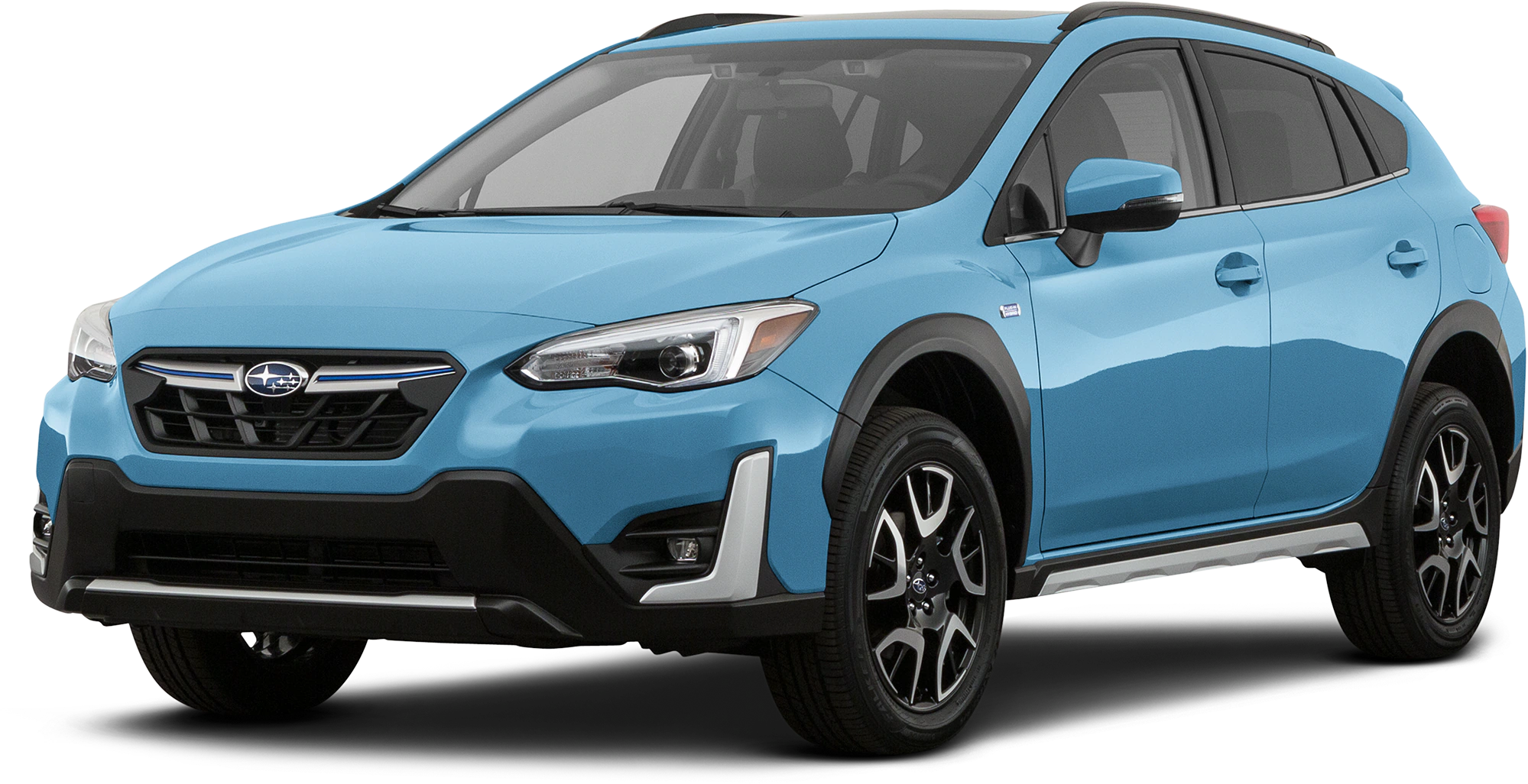
Owner Manual
2022MY Crosstrek Hybrid Getting Started Guide
MSA5B2208A
HOW TO OVERVIEW
This “How To” appendix provides detailed, step-by-step instructions to easily connect with features of your Crosstrek Hybrid.
If you need some help with these features or want to learn more, we are here to assist you:
Your Subaru Owner’s Manuals: Located in the glovebox
Online Subaru Owner’s Resources: www.subaru.com/owners
Subaru Customer Support: www.subaru.com/customer-support
1-800-782-2783 (1-800-SUBARU3 )
BLUETOOTH® PAIRING
Pairing an Android Device
1. Start by selecting “Settings” on the Home screen.
2. Select the Phone menu, then select “Add Device”.
3. This screen will be displayed when pairing mode is in progress. The device name will most likely be Subaru BT, but be sure to make note of what name it is, so you can find it on your phone.
4. On your Android device, go to “Settings”. (It can be found under apps.) Then select “Connected Devices” or “Connections”.
5. Now select “Bluetooth”. This will show a screen to “Pair New Device” or it will be showing the nearby devices to add. Select “Subaru BT” if shown on the list or “Pair New Device”.
6. Now select “OK” to pair with Subaru BT and select “Confirm” on the Touchscreen if the PIN matches the phone.
7. Make sure to allow access to your contacts and call history and select “Download” to download the phonebook contacts.
8. If your phonebook or messages are not appearing, press the “Phone” icon on the home screen and then select “Change Device” in the Overview menu.
9. Select your phone and ensure “Phonebook Download” is enabled.
10. If you still cannot access your phonebook or messages, go back to your phone’s Bluetooth® settings and select the gear icon next to your vehicle’s device name and ensure all settings are enabled.
Pairing an iOS/Apple Device
1. Start by selecting “Settings” on the Home screen.
2. In the “Phone” menu, select “Add Device”.
3. This screen will be displayed when pairing mode is in progress. The device name will most likely be Subaru BT, but be sure to make note of what name it is, so you can find it on your phone.
4. On your iOS/Apple device, select “Settings”. The location on the Home screen will vary.
5. Select “Bluetooth”.
6. Now select the device name (usually “Subaru BT”) on the Touchscreen.
7. Verify your iOS/Apple device PIN is correct and select “Pair” on your phone and “Confirm” on the Touchscreen.
8. Select “Allow” on the “Allow Contacts and Favorites Sync?” screen, then select “Download” to download the phonebook contacts.
9. On your iOS/Apple device, SubaruBT should now be listed under “Bluetooth Settings”. Select the blue “i” next to the device name. Then ensure “Show Notifications” and “Sync Contacts” are enabled.
10. Your iOS/Apple device is now paired. It is recommended that you restart your Subaru to complete the process and ensure everything is fully synced.
11. If your phonebook or messages are not appearing, press the “Phone” icon on the home screen and then select “Change Device” in the Overview menu.
12. Select your phone and ensure “Phonebook Download” is enabled.
ANDROID AUTO™
Cables
Always use a high-quality OEM USB cable.
Ensure the Android phone is fully up to date. Also verify that the
Android Auto app, along with all other apps that work with Android Auto, are up to date. Android Auto might not function properly if one of them is outdated or having an issue. The apps can be downloaded from the Play Store.
For more information, visit: www.android.com/auto/
Connecting an Android Phone
1. To set up Android Auto™, first plug the Android phone into the USB port of the vehicle using a quality OEM cable. During initial setup, messages appear on your phone. Select “Next” or “Accept” as required for setup, following the prompts on your phone.
2. Once setup is complete, select the Android Auto™ icon on the vehicle screen if the app has not already launched.
3. You will then be taken to the Home screen of the Android Auto™ app.
4. If Android Auto won’t launch, open the Android Auto app™ on the phone, then select the top left menu button. Select “Settings”, then “Connected Cars”, and finally select the top right menu icon and choose “Forget all cars”. If this does not work, uninstall the Android Auto app from the phone and reinstall from the Play Store.
Compatible Models
Android Auto is available on Android phones. To see if your phone is compatible, please refer to the Android Auto website:
APPLE CARPLAY®
Cables
Apple CarPlay requires compatible iPhones to be connected via your Subaru’s USB port. Cables must be an 8-Pin Lightning MFi Certified cable (made for iPod/iPhone). Look for the Works with Apple CarPlay or Made for iPod, iPhone, iPad icons when selecting a cable.
For more information, visit: www.apple.com/ios/carplay/
Connecting an iPhone
1. To set up Apple CarPlay, you will need to plug the iOS/Apple phone into the USB port of the vehicle. Make sure to use an MFi certified cable.
2. Select “Allow” on the iOS/Apple phone when prompted.
3. Select Apple CarPlay on the vehicle screen.
This will bring you to the home screen of Apple CarPlay.
Ensure the iOS/Apple phone is fully up to date. Also ensure all apps that work on Apple CarPlay are up to date. Apple CarPlay might not function correctly if one of the apps is outdated or having an issue.
Apps can be updated in the App Store.
Compatible Models
For a list of all the Apple phones that are compatible with Apple
CarPlay, visit: www.apple.com/ios/carplay/
WI-FI
Connecting to a Wi-Fi Network
1. Display the General Settings screen by pressing the “Home” button, then select “Settings”. Make sure Wi-Fi is on.
2. Under the “General” tab, select “Wi-Fi Settings”.
3. Select the desired network. If the network is a secure network, a lock symbol appears on the right side of the screen.
4. Select “Connect” to connect to the network. If you are connecting to a secure network, enter the password and select “Join”.
5. Check that a confirmation message appears when the connection is complete. If an error message appears, follow the guidance on the screen to try again.
Wi-Fi Hotspot Subscription
Internet access is purchased separately through AT&T with monthly, per gigabyte, and unlimited data options available. Existing AT&T customers have the option to add an additional line to their AT&T Mobile Share plan. Available on select models.
Shortly after you take delivery of your new Subaru, you will receive an email from AT&T for a one month free trial and how to activate your free trial. To set up and enroll:
1. Select “Settings” on the Home screen.
2. Select “Wi-Fi Hotspot” to turn it on (if the Wi-Fi Hotpot is already on then proceed to the next step).
3. Select Wi-Fi Hotspot Settings to view or update the following settings:
- Wi-Fi Network Name (SSID)
- SSID Broadcast (Network ON / OFF)
- Security Type (WPA / WPA2)
- Password
- Connected Devices (Maximum of 8 devices)
- Broadcast Frequency
How to enroll:
1. Connect your tablet, smartphone or laptop to the SUBARU STARLINK® Wi-Fi Hotspot network listed in the settings menu and open your preferred web browser on the device connected.
2. Once the SUBARU STARLINK® Wi-Fi Hotspot homepage loads, follow the on-screen instructions to create a new account or to add your vehicle to an already existing AT&T Wireless account. You can also subscribe to the Wi-Fi Hotspot from the MySubaru website or Mobile App.
You can also visit an AT&T store or their website for more information at:
MAPS (if equipped)
Finding a Destination by Address
Start by selecting the “Map” button to display the map screen. To search by address:
1. Select the “Menu” button, then select “Search for Destination Enter Address.”
2. The keypad screen displays. Enter the address or a keyword (e.g. pizza) and select “Search.” As you type the address or name of the destination, suggestions will display. The route calculation screen is displayed if a suggested is selected.
3. Select the desired item from the list, then select “GO” for the route calculation screen.
4. The route calculation screen displays three recommended routes at the bottom left of the screen. Select the desired route, then select “GO”.
Finding a Destination by POI
To search by Points Of Interest (POI):
1. Push the “Map” button to display the map screen. Then, select “Menu”, followed by “Nearby Places List of POI”.
2. Categories are listed alphabetically. Use the scroll bar on the right, if needed, to display more categories, then make your selection.
3. Select the desired item from the list, then select “GO” for the route calculation screen.
4. The route calculation screen displays three recommended routes at the bottom left of the screen. Select the desired route, then select “GO”.
Route Options
You can set the navigation system to avoid various types of routes:
1. Select “Route Options” on the route calculation screen.
2. Select the desired item to avoid.
3. Select the check mark in the upper right corner.
NOTE: The avoidance criteria for the route calculation can also be set from the navigation settings screen.
Shortest/Fastest/Economic
You can set the route preferences to search for the shortest, fastest, or most economic route.
To do this:
1. Select “Settings” on the home screen.
2. Select “Navigation”.
3. Select “Route Settings”.
4. Select the preference you would like to use:
Shortest, Fastest, or Most Economic.
Saving Destination as a Favorite
Registered points can be set as a destination. To save a location as a favorite once you have arrived:
1. Select the current street name.
2. Select “Save”.
3. Select to save as Home, Work, or Favorite.
Guidance Screen Icons
The Guidance Screen Icons are the common icons used for the navigation guidance:
| ICON | EXPLANATION | ICON | EXPLANATION |
| Turn left. | Stay in the left lane. | ||
| Turn right. | Stay in the right lane. | ||
| U-Turn Left. | Straight ahead at the intersection. | ||
| U-Turn right. | Turn left at the T junction. | ||
| Keep left at the fork in the road. | Turn right at the T junction. | ||
| Keep right at the fork in the road. | Go left at the roundabout. | ||
| Turn left & sharp curve. | You are half way to your destination. | ||
| Turn right & sharp curve. | You have arrived at your destination. |
Map Zoom
Once on the map screen, you can zoom in or out by touching the “+” or “-” buttons on the screen. You can also use two fingers on the screen and move them apart to zoom in or together to zoom out.
Map View/Perspective
The perspective of the map can be changed between 2D north-up, 2D heading-up, and 3D. To change the view, select the icon at the upper right of the screen. Each time the icon is selected, the view will change as well as the icon to match the map perspective.
Traffic Information
Road sections affected by traffic conditions are displayed in a different color on the map, and a small icon representing the type of traffic condition is displayed above the road.
A subscription to the SiriusXM® Satellite Radio Service is necessary to receive the data service in the vehicle (3 years included).
Nearest Gas Station
To find the nearest gas station, select any point on the map and then select the fuel icon in the lower right corner.
When driving on the highway during route guidance, information on gas stations, restaurants, or rest areas near the next three highway exits will be displayed.
Select the desired item from the list, and then select “GO” to navigate to the selected place.
Arrival Time/Distance
Displays the distance to the destination, the estimated travel time to the destination, or the estimated arrival time at the destination. Select the information box in the lower right corner to change between modes.
Canceling Guidance
To cancel guidance, select “Menu” and then select “Cancel”.
Map Updates
You can update the entire USA map at once via USB by going to: www.subaru-maps.com
Maps can also be updated over a Wi-Fi network. To update your maps via Wi-Fi, follow this process:
Connect to a Wi-Fi network. If you need help with this, see page 110.
On the Home screen, select “Settings” then “Navigation”. Next, select “Map Update” on the navigation setting screen.
Select “Select Region (Max up to 8)” to select the regions you would like to update.
Select the regions for which maps are to be updated.
Select “Back”.
Select “Check for Updates”.
Check the confirmation message, then select “Yes”.
This screen is displayed simultaneously with the start of the download and installation. Select the “X” in the upper right corner if you need to stop the download and installation.
FIRMWARE AND SOFTWARE UPDATES
You can update the system software via a Wi-Fi connection or the aha™ application on your smartphone (depending on your smartphone communication and transfer speed).
To accurately check for updates, make sure the clock is set to “Auto” with a GPS signal available (system with navigation) or a phone paired via Bluetooth® (system without navigation). See page 80 for step by step directions on setting the clock. System functionality will be restricted during installation.
1. Connect to a Wi-Fi network or start the aha application on your smartphone (see page 110).
2. Return to the general settings screen (if needed, press the “Home” button, select “Settings”, and then select “General”).
3. Select “Check for Updates”.
- If “Automatically Check for Updates” is turned on at the general settings screen, an update check will be performed automatically before proceeding to the next step.
- If “Automatically Download Updates” is turned on at the general settings screen, the software update will be downloaded automatically before proceeding to “Update Installation”.
4. If the “Software Update Ready to Download” pop-up is displayed, select “Download Now” to begin the download. The download status progress is displayed in the upper right of the screen.
5. Select “Install Now” to start the installation process. The installation process will take several minutes to complete. If you need to stop the installation process, press “Cancel”.
6. When the installation is complete, select “I Agree” on the confirmation message to complete the update process. By selecting “I Agree”, the system will restart automatically.
2022MY Crosstrek Hybrid Getting Started Guide
MSA5B2208A
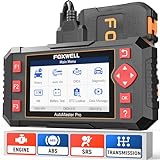
- [Easy to Use—Work Out of the Box] + [FOXWELL 2026 New Version] FOXWELL NT604 Elite scan tool is the 2026 new version from FOXWELL, designed for car owners who want to figure out the cause of issues before fixing car problems by scanning common systems like ABS, SRS, engine, and transmission. The NT604 Elite obd2 scanner diagnostic tool comes with the latest software—no need to waste time downloading software first. Plug the scanner into the OBDII port with OBDII cable to start the diagnosis.
- [Affordable] + [Reliable Car Health Monitor] Will you be confused what happens when the warning light of ABS/SRS/transmission/check engine flashes? Instead of taking your cars to dealership, this FOXWELL scanner will help you do a thorough scanning and detection for your cars and pinpoint the root cause. Note:The device is a diagnostic tool, not a repair tool. To turn off a warning light, you must first physically repair the issue causing it. Only then can the scanner be used to clear the corresponding fault code.
- [5 in 1 Car Diagnostic Scanner] Compared with obd scanners (50-100), NT604 Elite code scanner not only includes their OBDII diagnosis but also serves as ABS/SRS scanner, transmission and check engine code reader. When it’s an odb2 scanner, you can use it to check if your car is ready for annual test through I/M readiness menu. In addition, live data stream, built-in DTC library, data play back and print, all these features are a big plus for it. Note: doesn't support maintenance functions like reset or relearn. For the SRS system, NT604 Elite can read and clear common fault codes not caused by a crash, but crash/collision data cannot be cleared.
- [Fantastic AUTOVIN] + [No extra software fee] Through the AUTOVIN menu, this NT604 Elite car scanner allows you to get your V-IN and vehicle info rapidly, no need to take time to find your V-IN and input one by one. What's more, the NT604 Elite ABS SRS scanner supports 60+ car brands from worldwide (America/Asia/Europe). You don’t need to pay extra software fee. AUTOVIN may not work on some older vehicles or certain vehicle brands. If AUTOVIN fails, please input the vin code manually or go to the Diagnostic Menu to select your vehicle model.
- [Solid protective case KO plastic carrying bag] + [Lifetime update] Almost all same price-level car scanner diagnostic tool only offers plastic bag to hold the scanner.However, NT604 Elite automotive scanner is equipped with solid protective case, preventing your obd2 scanner from damage. Then you don’t need to pay extra money to buy a solid toolbox.

- 【Reset ABS/SRS/Transmission/Engine Lights】 More than an check engine code reader, OBDMATE OM901 obd2 scanner performs comprehensive diagnostics for the 4 most-used systems (ABS/SRS/Engine/Transmission). It quickly clears fault codes, turns off warning lights, read data stream and auto VIN.
- 【3.5" Handheld Scanner with 4 System Diagnose】 3.5" Super large TFT screen equipped displays an intuitive menu and clear readings of various sensors from ABS, SRS, ECM and TCM
 systems. It arrived with a silicone protective case and hard-shell carrying case, ensuring long-lived durability and drop resistance. The car diagnostic tool is plug-to-play designed, plug it and get diagnosis started without any batteries or updates required.
 - 【One-Click I/M Readines&Full OBD2 Functions】 Press F1 to get an intuitive corloured form about whether various emissions-related systems on the vehicle are operating properly. Help you get smog-check ready quickly. OM901 car scanner supports all essential OBD2 functions you need: read & clear codes, view freeze frame, read I/M readiness, retrieve VIN, live data stream (with graphing display), O2 sensor test, onboard monitoring mode, and EVAP leak test.
- 【Battery Voltage Check&DLC Pin Test】 It allows you to monitor battery health by testing current battery voltage. Plus, this obd2 diagnostic tool features DLC 16-PIN test to check current voltage of every pin.
- 【Automotive Scanner Diagnostic Kit】 The package comes with 1 car scanner, 1 USB-type c cable, 1 hard storage bag and 1 user manual(en). Free to update without any hidden fees. 5 languanges available in setting including English, French, Italian, German and Espanish. Valuable and Portable, making it a great tool kit for car owners, DIY enthusiasts, and professional mechanics.
 systems. It arrived with a silicone protective case and hard-shell carrying case, ensuring long-lived durability and drop resistance. The car diagnostic tool is plug-to-play designed, plug it and get diagnosis started without any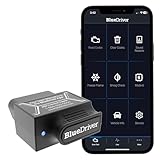
- [Diagnose Like a Pro] BlueDriver Pro is a professional OBD2 scanner and diagnostic tool that helps you scan, understand, and clear vehicle trouble codes with confidence. Turn your phone into a powerful car diagnostic scanner—no guesswork, no unnecessary repairs.
- [Read and Clear More Codes Than Ever] Read and clear more codes than basic car code readers. Access enhanced diagnostics for Check Engine, ABS, SRS, Airbag, TPMS, Transmission.
- [Verified Fixes and Real-Time Data] Get unlimited, technician-verified repair reports matched to your VIN, with definitions, causes, and confirmed fixes. Monitor live vehicle data as you drive, view freeze frames, check smog readiness, and analyze Mode 6 test results.
- [Wireless & Bluetooth Enabled] - Say goodbye to wires. BlueDriver connects with Bluetooth via your phone/tablet to a sensor that plugs into your car's OBDII port. Get all of the capabilities of an expensive code reader & scan tool without any annoying wires.
- [Broad Make & Model Coverage] Strong support for GM, Ford, Stellantis (RAM, Jeep, Chrysler), Toyota, Honda, Nissan, Mazda, Subaru, Hyundai, Mercedes-Benz, BMW, and VW.
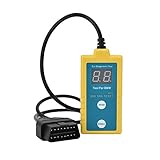
- ✔️【Professional SRS Reset for 1994-2003 BMW】 Designed specifically for classic BMW models (1994-2003). This B800 scanner reads & clears SRS airbag fault codes, turns off the warning light, and saves you a costly dealer visit. Confirmed compatible with: E36, E46 (EXCEPT 2001 330i), E34, E38, E39, Z3, and X5 (E53). NOT compatible with any BMW built before 1994 or after 2003.
- ✔️【Important: Two Different Connection Ports – Read Before Use】 To avoid “not working” issues, please note: For 1994–2000 BMWs (most E36, E34, Z3, early E39), the SRS diagnostic port is a round 20-pin connector under the hood. You MUST use the included 16-pin to 20-pin adapter cable. For 2000–2003 models (late E46, E39, X5), use the standard OBD-II port inside the cabin. Incorrect connection is the #1 reason for “incompatibility” reports.
- ✔️【Read & Clear Fault Codes in Minutes】 Quickly diagnose why your SRS light is on. The scanner accurately reads fault codes from airbag and seatbelt pretensioner systems. With one button press, clear the codes and reset the SRS warning light in seconds. No expensive dealer tools needed.
- ✔️【User-Friendly for DIYers – No Mechanic Required】 Easy operation with an intuitive button layout: ‘Enter’ to confirm, ‘Scroll’ to navigate. The clear LCD screen shows results instantly. Includes a step-by-step manual (revised for clarity) to guide you through the entire reset process.
- ✔️【Reliable Support with 1-Year Warranty】 We stand behind the quality of our B800 scanner. It comes with a 1-Year Hassle-Free Warranty. If you have any questions or need support, please contact us with your Order ID, and our dedicated team will assist you promptly.
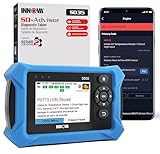
- OBD2 SCANNER FOR ALL SYSTEMS – The INNOVA SD35 is a tablet-based OBD2 scanner designed for advanced diagnostics. Read and clear check engine light, ABS, SRS, and TPMS codes, plus test your car battery and alternator to prevent unexpected failures. Vehicle coverage may vary. Please use Innova’s Coverage Checker to verify compatibility.
- ALL-SYSTEM DIAGNOSTICS & LIVE DATA – Unlike basic code readers, this OBD2 scanner for all vehicles scans engine, transmission, ABS, SRS, and more. Get real-time live data, including RPM, fuel trims, temperature readings, and oxygen sensor performance.
- OBD2 TABLET WITH USER-FRIENDLY INTERFACE – This automotive scan tool features a high-resolution display, making vehicle diagnostics faster and easier.
- ADVANCED TPMS, OIL RESET & SERVICE FUNCTIONS – Perform TPMS sensor checks, oil light reset, and other service resets with ease This professional diagnostic tool provides comprehensive vehicle maintenance capabilities in one device.
- WIDE VEHICLE COVERAGE (1996 & NEWER CARS & TRUCKS) – This OBD2 scanner Bluetooth tablet is compatible with Toyota, Ford, Honda, Chevrolet, Nissan, Dodge, and more. However, feature coverage may vary. Please use Innova's Coverage Checker to verify coverage.
SEOCONTENT-START
2022 Getting Started Guide Crosstrek Hybrid Love. It’s what makes Subaru, Subaru. © 2021 Subaru of America, Inc. Printed in USA. All rights reserved. Contents may not be reproduced in whole or in part without prior written permission of publisher. Specifications in this Guide are based on the latest product information available at the time of publication. Some images shown are for illustration purposes only. Some equipment shown in photography within this Guide is optional at extra cost. Specific options may be available only in combination with other options. Specific combinations of equipment or features may vary from time to time, and by geographic area. Subaru of America, Inc. reserves the right to change or discontinue at any time, without notice: Prices, colors, materials, equipment, accessories, specifications, models and packages, without incurring any obligation to make the same or similar changes on vehicles previously sold. Colors shown may vary due to reproduction and printing processes. Subaru of America, Inc. is not responsible for typographical errors. Aha™ is a trademark of Harman International Industries, Incorporated. Alcantara® is a registered trademark of Alcantara S.p.A., and Alcantara is produced by the Toray Group. App Store® is a registered trademark of Apple, Inc. Apple® is a registered trademark of Apple, Inc. Apple CarPlay® is a registered trademark of Apple, Inc. Android Auto™ is a trademark of Google, LLC. BBS® is a registered trademark of BBS Kraftahrzeugtechnik, AG. Bluetooth® is a registered trademark of Bluetooth SIG, Inc. BRIN NAUB® is a registered trademark of TB Kawashima Co., Ltd. Brembo® is a registered trademark of Freni Brembo, S.p.A. GreenEdge® is a registered trademark of Harman International Industries, Incorporated. Glympse® is a registered trademark of Glympse, Inc. Grand Luxe® is a registered trademark of Seiren Co., Ltd. HARMAN® is a registered trademark of HARMAN International Industries, Incorporated. Harman Kardon® is a registered trademark of Harman International Industries, Incorporated. Quantum logic™ is a trademark of Harman International Industries, Incorporated. HD Radio® is a registered trademark of iBiquity Digital Corporation. HomeLink® and the HomeLink® house icon are registered trademarks of Gentex Corporation. iHeartRadio® is a registered trademark of iHeartMedia, Inc. iPod® is a registered trademark of Apple, Inc. iTunes® is a registered trademark of Apple, Inc. Magellan® is a registered trademark of MiTAC International Corporation. Michelin® is a registered trademark of Compagnie Générale des Etablissments Michelin. Metal-Matrix Diaphragm (MMD®) is a registered trademark of Harman International Industries, Incorporated. MirrorLink™ is a trademark of Car Connectivity Consortium, LLC. Pandora® is a registered trademark of Pandora Media, Inc. SACHS® is a registered trademark of ZF Friedrichshafen AG. Siri® is a registered trademark of Apple, Inc. Smart Way® is a registered trademark of the U.S. Environmental Protection Agency. StitcherTM is a trademark of StitcherTM, Inc. TomTom® is a registered trademark of TomTom International BV. TORSEN LSD® is a registered trademark of JTEKT TORSEN North America, Inc. SiriusXM® All Access Radio is a registered trademark of Sirius XM Radio, Inc. SiriusXM Traffic® is a registered trademark of Sirius XM Radio, Inc. SiriusXM Travel Link® is a registered trademark of Sirius XM Radio, Inc. Ultrasuede® is a registered trademark of Toray Industries, Inc. Yelp® is a registered trademark of Yelp, Inc. Ascent is a trademark of Subaru of America, Inc. Added Security, DriverFocus, Crosstrek, Forester, Outback, StarTex and StarDrive are registered trademarks of Subaru of America, Inc. Forester Wilderness and Outback Wilderness are trademarks of Subaru of America, Inc. BRZ, EyeSight, Impreza, Lineartronic, Legacy, S209, Subaru, SUBARU STARLINK, Starlink, SUBARU BOXER, tS (Design), WRX, STI and X-MODE are registered trademarks of Subaru Corporation. PURPOSE OF THIS GUIDE WELCOME Congratulations on choosing a Subaru Crosstrek Hybrid and welcome to the Subaru family! Subaru is more than a car company™. We are committed to making the world a better place, and the Subaru Love Promise is our vision to show love and respect to all people at every interaction with Subaru. We believe in building lifelong relationships with our customers, earning your trust and exceeding your expectations by providing customer service with integrity and compassion. This Getting Started Guide will introduce you to your new Subaru Crosstrek Hybrid by providing information on the basic operation and key features of your Subaru as well as the STARLINK ® and EyeSight ® systems in your vehicle. IMPORTANT SAFETY INFORMATION The Getting Started Guide is not intended as a substitute for your Owner’s Manuals. We strongly encourage you to review your Vehicle, STARLINK®, and EyeSight® Owner’s Manuals to ensure complete understanding. OWNER’S RESOURCES If you’re having difficulty using any of the functions outlined in this guide, or want to learn more, you can get additional information from the following sources: Your Subaru Owner’s Manuals: Located in the glovebox Online Subaru Owner’s Resources: www.subaru.com/owners Subaru Customer Support: www.subaru.com/customer-support 1-800-782-2783 (1-800-SUBARU3 ) PURPOSE OF THIS GUIDE 4 IN CASE OF EMERGENCY SUBARU STARLINK® Safety and Security (subscription required) SOS Emergency: Press the red “SOS” button on the overhead console in the event of an emergency to speak with a SUBARU STARLINK® Customer Care Advisor. Enhanced Roadside Assistance: Press the blue “i” button on the overhead console or select the “Roadside Assistance” option in the “MySubaru” menu on the multimedia system. For more information, please refer to “Safety and Security Overview” on page 74 in this Getting Started Guide or “Introduction” in your SUBARU STARLINK® Safety and Security Owner’s Manual. Not available in all states. See retailer for details. Subaru Roadside Assistance Subaru Roadside Assistance: 1-800-261-2155 Subaru Roadside Assistance is free and standard on your Subaru; there are no forms to complete. This service is available anytime during the 3-year/36,000-mile Subaru Limited Warranty, whichever comes first. See your retailer for details and refer to the Roadside Assistance guide in the owner’s information kit for the details on this coverage. A Subaru Roadside Assistance decal has been affixed to the driver’s door window. Roadside assistance helps with: • Towing to the nearest authorized Subaru retailer if you cannot safely drive your Subaru • Jump-start if your battery is dead • Gasoline delivery if you run out of gas • Emergency lockout service • National Subaru retailer locator service, with phone numbers and location of the nearest retailer anywhere in the U.S. or Canada NOTE: Specifically excluded from Subaru Roadside Assistance coverage are service requests or claims resulting from: accidents, vandalism, acts of God, violation of any laws, or vehicle modifications not recommended by the manufacturer. SOS and Roadside Assistance Buttons PURPOSE OF THIS GUIDE 5 TOWING YOUR ALL-WHEEL DRIVE SUBARU Since Subaru Symmetrical All-Wheel Drive distributes power to all four wheels, improper towing may damage your AWD system. The best way to tow your Crosstrek Hybrid is with a flatbed truck by your Subaru retailer or a commercial towing service. For more information, please refer to “In Case of Emergency” in your Owner’s Manual. PURPOSE OF THIS GUIDE 6 KEYLESS ENTRY 1 Lock/Arm • Press the lock/arm button to lock the doors and rear gate and to activate the security alarm. A chirp sounds and the hazard warning lights flash once. • If any of the doors or the rear gate are not fully closed, five rapid chirps sound and the hazard warning lights flash to alert you. • Press the lock/arm button three times to activate the vehicle finder function. If you are within 30 feet of your Subaru, the horn sounds once, and the hazard warning lights flash three times. 2 Unlock/Disarm • Press the unlock/disarm button once to unlock the driver’s door. Two chirps sound and the hazard warning lights flash twice. To unlock all the doors and the rear gate, briefly press the button twice. • The interior lights will illuminate when you press the unlock/disarm button if they are set to the “DOOR” position on the overhead console. 3 A/C • Press and hold the A/C button to operate the remote climate control system at a predetermined temperature. To cancel operation, press the A/C button twice or unlock and open any door. 4 Panic Alarm • Press the panic alarm button to sound the horn and flash the hazard warning lights. • Press any button on the access key fob to deactivate the panic alarm. Automatic Door Locking/Unlocking This feature allows you to set when your Subaru automatically locks or unlocks the doors through the Combination Meter Display (use the i/Set Switch to navigate to “Vehicle Setting”) or through the STARLINK® Touchscreen (select “Settings” then “Vehicle”). The available settings are listed in the table below. AVAILABLE SETTINGS AUTO DOOR LOCK Vehicle Speed (12 mph) Shift into or out of PARK OFF AUTO DOOR UNLOCK Ignition OFF Driver’s Door Open Shift into or out of PARK OFF Access Key Fob ENTRY AND EXIT 7 KEYLESS ACCESS WITH PUSH BUTTON START The Keyless Access with Push-Button Start system features the following touch-activated door locking or unlocking functions without the key ever leaving your pocket or purse; simply carry the access key fob with you. You can customize the touch-activated door locking or unlocking settings using the Combination Meter Display or through the STARLINK® Touchscreen by selecting “Settings” then “Vehicle”. Unlocking Using Door Handles Grip the driver’s door handle to unlock the driver’s door (or all doors depending on the setting). Grip the front passenger’s door handle to unlock all doors and the rear gate. Two chirps sound and the hazard warning lights flash twice. Locking Using Door Handles Close all the doors and the rear gate and touch the door lock sensor (two lines) on either front door handle. All doors and the rear gate lock. One chirp sounds and the hazard warning lights flash once. Door Unlock Sensor Door Lock Sensor ENTRY AND EXIT 8 Unlocking Using the Rear Gate Press the rear gate opener button to unlock and open the rear gate (or also unlock all doors depending on the setting). Two chirps sound and the hazard warning lights flash twice. Locking Using the Rear Gate Close all the doors and the rear gate and press the rear lock button. All doors and the rear gate lock. One chirp sounds and the hazard warning lights flash once. Rear Gate Opener Button Rear Lock Button ENTRY AND EXIT 9 1 Power Windows (p. 24) 2 Power Exterior Mirrors (p. 22) 3 Instrument Panel Switches (p. 14) 4 i/Set Switch (p. 15) 5 Audio Controls (p. 14) 6 Light Controls (p. 16) 7 Combination Meter (p. 12) INSTRUMENT PANEL 10 8 Adaptive Cruise Control (p. 15) 9 Multi-Function Display (MFD) (p. 16) 10 Windshield Wipers (p. 18) 11 STARLINK® Multimedia Touchscreen (p. 54) 12 Climate Control System (p. 25) 13 CVT Select Lever (p. 31) INSTRUMENT PANEL 11 COMBINATION METER 1 Power Meter 2 Select Lever/Position Indicator 3 Combination Meter Display (CMD) 4 Driver Assist Indicator 5 Fuel Gauge 6 Trip Meter and Odometer 7 Speedometer GAUGES AND WARNING LIGHTS 12 WARNING AND INDICATOR LIGHTS Red lights indicate immediate attention is required. Some examples are: Seatbelt warning Door open Brake system Yellow lights indicate caution. Some examples are: Low fuel Engine low oil level warning light Tire pressure warning light Green and blue lights are for information. Some examples are: Headlight indicator light Cold coolant temperature High beam indicator light GAUGES AND WARNING LIGHTS 13 INSTRUMENT PANEL SWITCHES (LOWER LEFT) The switches in the lower left of the instrument panel allow you to control several convenient and important features. Knowing their location and function will improve your driving experience. 1 Steering Responsive Headlights OFF (p. 93) 2 Remote Battery Charging Timer (p. 41) 3 Fuel Filler Lid Release (p. 42) 4 Illumination Brightness (p. 17) 5 Vehicle Dynamics Control OFF (p. 35) 6 Blind Spot Detection/Rear Cross Traffic Alert OFF (p. 92) 7 Hill Holder For more information, please refer to your Owner’s Manual. AUDIO CONTROLS 1 Presets/Skip 2 Volume 3 Source 4 INFO 5 Call/Voice Recognition For more information about your audio system and controls, please refer to page 57 in this Getting Started Guide or “Quick Guide” in your STARLINK® Owner’s Manual. CONTROLS 14 ADAPTIVE CRUISE CONTROL 1 Adaptive Cruise Control On/Off 2 Lane Keep Assist 3 Increase Distance 4 Decrease Distance 5 Resume (RES)/Increase Speed and Set (SET)/Decrease Speed 6 SI-Drive For more information on SI-Drive, please refer to page 36 in this Getting Started Guide or “Starting and Operating” in your Owner’s Manual. For more information on Adaptive Cruise Control, please refer to page 89 in this Getting Started Guide or “Adaptive Cruise Control” in your EyeSight® Owner’s Manual. i/SET SWITCH The “i/Set” switch allows you to cycle through useful driving information in the Combination Meter Display such as fuel consumption, driving time, speed, and tire pressure. You can change the information displayed using the up and down arrows. When the Menu Entering Screen is displayed, pull and hold the “i/Set” switch to enter the Menu Screen for the ability to modify a number of settings. For more information about the Combination Meter Display, please refer to “Instruments and Controls” in your Owner’s Manual. CONTROLS 15 INFO SWITCH Press the INFO switch to cycle through useful information in the Multi-Function Display (MFD). Navigate to the guidance screen and hold the INFO switch to access the settings menu and adjust a number of settings. For more information about the Multi-Function Display, please refer to “Instruments and Controls” in your Owner’s Manual. LIGHT CONTROLS 1 AUTO: Rotate the end of the lever to set your headlights to automatically turn on or off, depending on the level of light outside. When in the “AUTO” position, the headlights will automatically turn on when the windshield wipers operate several times. NOTE: The sensitivity of the automatic headlights can be adjusted through the STARLINK® multimedia display. 2 Parking Lights: Rotate the end of the lever to turn on the instrument panel illumination, parking lights, side marker lights, tail lights, and license plate lights. 3 Headlights: Rotate the end of the lever to turn on the headlights, instrument panel illumination, parking lights, side marker lights, tail lights, and license plate lights. To flash the headlights, pull the lever toward you, then release. The high beams will stay on as long as you hold the lever. 4 High Beams: Push the lever forward to change from low beam to high beam. When set to the “AUTO” position, pushing the lever forward also activates the High Beam Assist (HBA) system. Pull the lever back to center to return to low beam. 5 Fog Lights: Rotate the dial to turn on the fog lights when the headlights are on low beams in the “ ” or “AUTO” position. CONTROLS 16 Illumination Brightness When the light controls are on (in the , , or “AUTO” position), and ambient light is low, rotating the illumination brightness dial on the instrument panel upward will make the instrument panel illumination brighter. When the dial is fully rotated upward (dots aligned), the instrument panel illumination stays at full brightness. Rotating the dial downward dims the instrument panel illumination. When the ambient light is bright, the illumination brightness is set to the maximum regardless of the position of the control dial. For more information, please refer to “Instruments and Controls” in your Owner’s Manual. Daytime Running Lights The daytime running lights automatically turn on when the hybrid system is running, the parking brake is fully released, the select lever is out of the “P” position, and the light switch is set to Off, “AUTO”, or “ ”. Always turn on the headlights when it’s dark outside by rotating the dial to the “ ” or “AUTO” position. TURN SIGNALS Push fully up for the right turn signal and fully down for the left turn signal. Your Subaru also has a one-touch lane changer feature: push slightly up and release to signal a right lane change or push slightly down and release to signal a left lane change. Illumination Brightness Dial CONTROLS 17 WINDSHIELD WIPERS 1 Intermittent: Push the wiper control lever down one position for intermittent operation. When the lever is in the intermittent position, you can rotate the dial to adjust the operating interval of the wipers. 2 Low Speed: Push the wiper control lever down two positions for low speed wiper operation. 3 High Speed: Push the wiper control lever down three positions for high speed wiper operation. 4 Mist: Push the wiper up from the OFF position for a single wipe. 5 Windshield Washer: Pull the lever toward you to wash the windshield. The washer will spray and the wipers will operate while you pull the lever. REAR WINDOW WIPER Rotate the end of the lever up one position for intermittent, or two positions for continuous operation. When the lever in is the intermittent position, the wiper operates at intervals corresponding with vehicle speed. When you move the select lever to the “R” position, the wiper will switch to continuous operation. It will return to intermittent operation when you move the select lever out of “R”. Rotate the dial up from the continuous operation position or down from the off position to spray washer fluid. The washer sprays and wiper operates until you release the dial, and then returns to the previous position. CONTROLS 18 OVERHEAD CONSOLE 1 SOS Emergency Assistance: Press the red “SOS” button to connect with a SUBARU STARLINK® Customer Care Advisor (subscription required). Press and hold the button for about two seconds to cancel the call. For more information, please refer to page 74 in this Getting Started Guide or “Introduction” in your SUBARU STARLINK® Safety and Security Owner’s Manual. 2 Enhanced Roadside Assistance: Press the blue “i” button to connect with a SUBARU STARLINK® Roadside Assistance Provider (subscription required). Press and hold the button for about two seconds to cancel the call. For more information, please refer to page 74 in this Getting Started Guide or “Introduction” in your SUBARU STARLINK® Safety and Security Owner’s Manual. 3 Automatic Illumination: When the switch is in the “DOOR” position, the map lights illuminate when any door is opened, the doors are unlocked using the remote keyless entry system or keyless access function, or the ignition is turned from “ON” or “ACC” to “LOCK”/“OFF”. 4 Lane Departure Warning OFF Switch: Press and hold this switch for two seconds to turn off Lane Departure Warning and Lane Sway Warning. Press and hold the switch again for two seconds to turn the systems back on. For more information, please refer to page 90 in this Getting Started Guide or “Lane Departure Warning” in your EyeSight® Owner’s Manual. 5 Pre-Collision Braking System OFF Switch: Press and hold this switch for two seconds to turn off the Pre-Collision Braking System (including Pre-Collision Brake Assist) and Pre-Collision Throttle Management. Press and hold the switch again for two seconds to turn the systems back on. For more information, please refer to page 90 in this Getting Started Guide or “Pre-Collision Braking System” in your EyeSight® Owner’s Manual. 6 Map Lights: Press a map light to turn it on or off. 7 Power Moonroof Switch: Operate these switches to tilt and slide the moonroof. For more information, please refer to page 24 in this Getting Started Guide or “Keys and Doors” in your Owner’s Manual. CONTROLS 19 SEATING Power Driver’s Seat 1 Seat Position: Moving the switch forward or backward will adjust the seat in that direction. Pulling up or pushing down on the back of the switch will adjust the seat height up or down. 2 Recline Seatback: Moving the top of the switch forward or backward will adjust the angle of the seatback. Manual Passenger’s Seat 1 Forward/Backward: Pull the lever below the seat up and slide the seat forward or backward. Release the lever and make sure the seat is locked into place. 2 Recline Seatback: Pull the reclining lever up to adjust the seatback to the desired position. Release the lever and make sure the seat is locked into place. Power Seat Controls Manual Seat Levers GETTING COMFORTABLE 20 Head Restraint Adjustment Pull the head restraint up to raise it. To lower the head restraint, push it down while pressing the release button on the top of the seatback. Each head restraint should be adjusted so that the center of the head restraint is closest to the top of the occupant’s ears. The angle of the front head restraints can be adjusted by tilting them forward. You will hear a click when the restraint locks in place. Pulling the head restraint as far forward as it will go allows it to return to the fully upright position. Seatbelt Adjuster To keep yourself comfortable and safe, always position the seatbelt adjuster so the shoulder belt passes over the middle of your shoulder without touching your neck. Pull the tab out and slide the adjuster up or down to set the position. Release the tab and make sure the adjuster is locked in place. Release Button and Head Restraint Adjustment Seatbelt Adjustment Tab GETTING COMFORTABLE 21 TILT AND TELESCOPIC STEERING COLUMN You can adjust both the height and lengthwise position of the steering wheel. Pull the lever on the steering column down firmly to unlock, and then adjust the position of the steering wheel. Push the lever firmly back up to lock the steering wheel in place. POWER EXTERIOR MIRRORS The power mirror knob works with the ignition in the “ON” or “ACC” position. Turn the knob to “L” (left side) or “R” (right side) to select a mirror. Push the knob in the direction you want to move the mirror. Turn the knob back to the center position when finished. Steering Column Unlock Power Mirror Knob GETTING COMFORTABLE 22 REAR VIEW MIRROR Auto-dimming Mirror (if equipped) The auto-dimming function senses distracting glare during nighttime driving and automatically dims to eliminate the glare and preserve your vision. Press the switch to turn auto-dimming on or off. A green LED indicator on the switch illuminates when the function is on. HomeLink® 5 Accessory Mirror (if equipped) The HomeLink® 5 accessory mirror provides three buttons to replace devices such as garage door openers, gate openers, entry door locks, security systems, and home lighting. The “Instruments and Controls” chapter in your Owner’s Manual provides programming instructions, and www.subaru.com/homelink has a helpful “how to” video. NOTE: HomeLink® 5 may not be compatible with some older door openers or additional equipment may be required. GETTING COMFORTABLE 23 POWER WINDOWS To open or close a window, partially press down or pull up and hold the corresponding switch. The front windows have a one-touch auto up/down function. Fully press down or pull up and release to automatically open or close a one-touch window. POWER MOONROOF (if equipped) With the ignition in the “ON” position, you can tilt and slide the moonroof. Tilting the Moonroof 1 Opening: Press, briefly hold, and release to automatically tilt the moonroof. 2 Closing: Press and hold the switch to lower the moonroof. Sliding the Moonroof 3 Opening: Press, briefly hold, and release the switch to open the moonroof. To pause the moonroof halfway, press either side of the switch. 4 Closing: Press, briefly hold, and release the switch to close the moonroof. To pause the moonroof halfway, press either side of the switch. Power Window Switches Power Moonroof Switches GETTING COMFORTABLE 24 CLIMATE CONTROL Automatic Climate Control Set your desired temperature and let the system automatically make the adjustments for you. At any time, you can manually take control of the climate settings. Operation in Automatic Mode 1 Automatic Control Button: This system automatically controls all of the climate system except defogging. Press “AUTO” to activate. Press the “ON/OFF” button to turn off the system. 2 Temperature Control Dial: Turn the dial clockwise to increase the temperature or counterclockwise to decrease the temperature. The temperature will appear on the Multi-Function Display (MFD). When using automatic mode, the fan speed, airflow distribution, air-inlet control and air conditioning compressor are controlled automatically. To activate: 1. Press the “AUTO” button. The “FULL AUTO” indicator light illuminates on the Multi-Function Display (MDF). 2. Set the preferred temperature using the temperature control dial. If you operate any of the buttons other than the “ON/OFF” button, rear window defogger button, or the temperature control dial, the “FULL” indicator light will turn off. The “AUTO” light will remain illuminated. You can then manually control the system as desired. Press the “AUTO” button to change back to “FULL AUTO” mode. Operation in Manual Mode 3 Air Conditioner Button: Press this button to activate or deactivate the air conditioning. GETTING COMFORTABLE 25 4 MAX A/C Button: Press this button for quickest cooling. 5 Airflow Mode Selection Dial: Turn the dial to select the desired airflow mode. The selected mode – ventilation, ventilation 2, bi-level, feet, or feet-defrost – is shown on the display. ICON MODE FUNCTION Ventilation Instrument panel outlets Ventilation 2 Instrument panel outlets and less foot outlets than bi-level Bi-Level Instrument panel outlets and foot outlets Feet Foot outlets, both side outlets of the instrument panel and some through windshield defroster outlets Feet-Defrost Windshield defroster outlets, foot outlets and both side outlets of the instrument panel Defrost Windshield defroster outlets and both side outlets of the instrument panel NOTE: The defroster button is used to activate the defrost airflow mode. 6 Fan Speed Control Dial: Turn the fan speed control dial to increase or decrease fan speed. 7 Recirculated/Outside Air Button: Press this button to prevent outside air from entering your Subaru. Press the button again to allow outside air into your Subaru. NOTE: To prevent windshield fogging, do not remain in the recirculated mode for an extended period of time. 8 Defroster Button: Press this button to defrost or dehumidify the windshield and front door windows. NOTE: When the defrost mode is selected, the air conditioning compressor operates to defrost the windshield more quickly. However, the indicator on the air conditioner button may not illuminate. GETTING COMFORTABLE 26 9 Rear Window Defogger Button: Press this button to turn on the rear window defogger. The outside mirror defogger and windshield wiper deicer will also activate. It will automatically turn off after about 15 minutes. If the window clears before then, press the button again to turn the defogger off. You can customize this function for continuous operation through the Combination Meter Display (CMD) or the STARLINK® Touchscreen by selecting “Settings” then “Vehicle”. Remote Climate Control System Pressing and holding the A/C button operates the remote climate control system at a predetermined temperature. The system automatically deactivates after about 10 minutes. The system operates when the ignition is off, the select lever is in the “P” position, and all doors and the engine hood are closed. To cancel operation, press the A/C button twice or unlock and open a door. Remote Climate Control Most features of the climate control system can be operated remotely through MySubaru.com or the MySubaru App (subscription required). Please refer to “SUBARU STARLINK Features” in your SUBARU STARLINK® Safety and Security Owner’s Manual for a list of required vehicle conditions for this feature. A/C Button GETTING COMFORTABLE 27 Heated Seats The heated seat switches are located between the driver and passenger seats. There is a separate switch for the driver and passenger. Press the “HI” button for more rapid heating or press the “LO” button for normal heating. Return the switch to the center position to turn off the heated seat. Heated Steering Wheel (if equipped) To activate, pull the heated steering wheel switch with the ignition in “ON” or “ACC”. The indicator light on the switch illuminates. To deactivate, pull the switch again. The heater will stay on for approximately 30 minutes. Heated Seat Switches GETTING COMFORTABLE 28 ACCESSORY CONNECTIONS 1 Auxiliary Input Jack: The 3.5mm auxiliary input jack is located below the climate control dials. You can connect a portable music player to the auxiliary jack and hear the music stored on it through your Subaru’s speakers. Press the “Source” button located on the steering wheel or the “Media” button on the STARLINK® Touchscreen to select the auxiliary mode. For more information, please refer to page 65 in this Getting Started Guide or “Audio” in your STARLINK® Owner’s Manual. 2 Dual USB Ports: The USB ports are located below the climate control dials and in the center console. You can connect a variety of USB-equipped devices to the front ports, such as portable music players or smartphones, to enjoy your favorite music through your multimedia system or connect to Apple CarPlay® or Android Auto™. All ports also provide charging (5V, 2.1A) to devices. The ports inside the center console are for charging only. For more information, please refer to page 65 in this Getting Started Guide or “Audio” in your STARLINK® Owner’s Manual. For more information and set up instructions, please refer to page 106 for Android Auto™ and page 109 for Apple CarPlay® in the How To Appendix in this Getting Started Guide. 3 Power Outlets: Power outlets (12V) are located below the climate control dials and in the center console. Electrical power is available for use with in-vehicle electrical appliances with a maximum power rating of 120W. These outlets cannot be used to connect to the SUBARU STARLINK® Multimedia System. For more information, please refer to “Interior Equipment” in your Owner’s Manual. Connection Ports GETTING COMFORTABLE 29 PUSH-BUTTON IGNITION SWITCH Each time you press the ignition switch without depressing the brake pedal, the ignition position will change as follows: ACC, ON, OFF. ACC (Accessory): Provides power to the audio system and accessory power outlets. Orange indicator illuminates. ON: All electrical systems are available. Orange indicator illuminates. OFF: Power off and indicator off. STARTING THE VEHICLE With Push-button Ignition To start the hybrid system: 1. Make sure the charge cable is disconnected. 2. Sit in the driver’s seat with the access key fob. 3. Make sure the select lever is in the “P” position. 4. Depress the brake pedal. 5. When the START/STOP button indicator turns green, briefly press and release the START/STOP button. 6. Check that the Hybrid “READY” indicator is illuminated in the Combination Meter. NOTE: Based on the high-voltage battery state of charge or other environmental conditions, the gasoline engine may not start. Hybrid READY Indicator The hybrid “READY” indicator light in the Combination Meter indicates the hybrid system has started and is ready for driving. You may not be able to hear any sound coming from the vehicle. Hybrid System Sounds You may hear a humming sound from the front of the vehicle when you move the select lever to the “R”, “D”, or “B” position, or the gasoline engine may start. OPERATING THE VEHICLE 30 DRIVING THE VEHICLE Select Lever Positions The Continuously Variable Transmission (CVT) is electronically controlled and provides two different driving modes: D Position and B Position. D Position (Drive) The “D” (Drive) position is for normal driving. The select lever position indicator in the Combination Meter Display shows “D” and the transmission automatically shifts into a suitable forward gear. The vehicle systems work together to provide a mix of performance, fuel efficiency, and high-voltage battery management. B Position (Brake) The “B” (Brake) position is designed for situations where additional engine or regenerative braking may be helpful, such as maintaining speeds when driving down slopes. It also assists in recharging the high-voltage battery by applying additional regenerative braking when the accelerator pedal has been released. Regenerative brakes slow the vehicle by using the kinetic energy from the moving wheels to generate electricity. This works together with the traditional mechanical brakes to slow the vehicle. Pedestrian Alert System When driving with the gasoline engine stopped, the vehicle makes a sound to warn nearby people of the vehicle’s movement. This sound changes in volume in accordance with the driving speed and stops when the speed is about 22 mph or more. The sound is continuous when the vehicle is reversing. CVT Select Lever OPERATING THE VEHICLE 31 Hybrid System Modes You can select the operating mode of the hybrid system using the Hybrid Mode switch on the center console. Each mode is designed to allow you to manage the high-voltage battery state of charge based on varying driving conditions. Normal Mode (Default) This is the default mode and is best for local driving. In Normal Mode, the vehicle automatically changes between EV (electric motor only) and HEV (electric motor and gasoline engine) driving, depending on conditions. As Normal Mode is used, high-voltage battery charge gradually depletes. Hybrid Battery Save Mode (Press) This mode is best used for highway driving. Save Mode maintains the charge level of the high-voltage battery. To activate Save Mode, press the Hybrid Mode switch (once from Normal Mode or twice from Charge Mode). The Save Mode indicator (SAVE) illuminates in the Combination Meter Display (CMD) and the Driver Assist indicator at the top of the combination meter illuminates in green for about 5 seconds. Press the switch again to return to Normal Mode. Hybrid Battery Charge Mode (Press and Hold) Charge Mode uses the gasoline engine to charge the high-voltage battery. Charge Mode is designed for situations where plug-in charging is not available for a long time and continued EV driving is desired. To activate Charge Mode, press and hold the Hybrid Mode switch until the Charge Mode indicator (CHG) starts to blink in the Combination Meter Display (CMD), and then release it. The indicator illuminates once the switch to Charge Mode is complete. The Driver Assist indicator at the top of the combination meter illuminates in blue for about 5 seconds. When the high-voltage battery is almost fully charged, Charge Mode is automatically switched to Save mode. To cancel Charge Mode manually, press the switch once to return to Normal Mode. Hybrid Mode Switch OPERATING THE VEHICLE 32 Energy Flow Display Press the “INFO” button on the steering wheel to select the energy flow screen in the Multi-Function Display (MFD). NOTE: There are many possible screens. Not all are shown. 1 Gasoline Engine 2 Electric Motor 3 High-Voltage Battery 4 Remaining High-Voltage Battery EV Driving Mode Displays when the vehicle is driving in electric vehicle mode and powered by the high-voltage battery. HEV Driving Mode Displays when the vehicle is driving in hybrid electric mode and powered by the gasoline engine and the high-voltage battery. Regenerative Charging Mode Displays when kinetic energy is converted to electric energy. This happens when braking, coasting, or when the select lever is in the “B” position. OPERATING THE VEHICLE 33 Power Meter The indication of the power meter will change depending on the operation of the accelerator pedal. It shows the energy output conditions during driving and the regeneration energy status. CHARGE Energy is being recovered by the high-voltage battery through regenerative charging. ECO Most range on the high-voltage battery; most environmentally friendly; gasoline engine may start with full throttle. POWER Extra power needed; gasoline engine may start. High-Voltage Battery Gauges These gauges show the remaining power in the high-voltage battery. NOTE: The remaining power of the high-voltage battery decreases, or increases, depending on the driving conditions or other power consumption of the vehicle. Combination Meter Display (CMD) Multi-Function Display (MFD) OPERATING THE VEHICLE 34 Vehicle Range Use the “i/SET” switch on the steering wheel to cycle the Combination Meter Display (CMD) to this screen. 1 EV driving range on remaining high-voltage battery 2 Gasoline engine driving range on remaining fuel X-MODE® X-MODE® is the integrated control system of the engine, All Wheel Drive, and Vehicle Dynamics Control (VDC) systems for driving with bad road conditions. Using X-MODE®, you can drive more comfortably even in slippery road conditions, such as mud or snow, including uphill and downhill. You can activate the system when the vehicle speed is less than 12 mph. If the vehicle speed reaches 25 mph, the X-MODE® system is canceled and can be reactivated once the once the vehicle speed is lower. To activate the X-MODE® system, press the X-MODE® switch. While the system is active, the X-MODE® indicator appears, and the Multi-Function Display shows vehicle posture and function operation status. To deactivate X-MODE® press the X-MODE® switch again. In certain situations, such as navigating a vehicle stuck in mud or snow, it may be helpful to allow more wheel spin by turning off the VDC system. To turn off the VDC system, push the Vehicle Dynamics Control OFF switch located in the lower left instrument panel. Push the Vehicle Dynamics Control OFF switch again to reactivate the VDC system. X-MODE® Multi-Function Display X-MODE® Switch X-Mode® Indicator OPERATING THE VEHICLE 35 Hill Descent Control (HDC) The Hill Descent Control function helps maintain a consistent vehicle speed when driving down steep hills or declines. HDC is automatically activated and set in standby mode when X-MODE® is activated. The Hill Descent Control Indicator appears when in standby mode, and the indicator will flash when HDC is operating. SI-DRIVE Subaru Intelligent Drive (SI-Drive) has 2 modes: Intelligent (I) and Sport (S). Each mode is designed for different types of driving: Intelligent: The Intelligent (I) mode provides well balanced performance with greater fuel efficiency and smooth driveability without stress. Power delivery is moderate during acceleration for maximum fuel efficiency. Sport: The Sport (S) mode provides the hybrid system power desired by those who want to make the driving experience their own personal adventure. Hill Descent Control Indicator SI-Drive Switches OPERATING THE VEHICLE 36 ELECTRONIC PARKING BRAKE (EPB) To apply the parking brake, depress the brake pedal and pull the parking brake switch up. The indicator light on the parking brake switch will illuminate and “PARK” will appear in the Combination Meter. To release the parking brake manually, depress the brake pedal and push the parking brake switch down with the ignition in the “ON” position. To automatically release the parking brake, gently press the accelerator pedal with the select lever in the “D” or “R” position. NOTE: Automatic parking brake release will not work unless all the doors are closed and your seatbelt is fastened. TURNING OFF THE VEHICLE With Push-button Ignition To stop the hybrid system: 1. Stop your Subaru completely. 2. Move the select lever to the “P” position. 3. Press the ignition switch. The hybrid system will stop, and the power will be turned off. Make sure the hybrid “READY” indicator light is off before you exit the vehicle. NOTE: The windows will remain active for about 40 seconds and the SUBARU STARLINK® Multimedia system will remain on for about three minutes or until a door is opened, whichever occurs first. OPERATING THE VEHICLE 37 Automatic Shut Down The Automatic Shut Down safety system provides visual and audible warnings if the vehicle has not been properly turned off. When the following conditions are met, the Automatic Shut Down safety system activates the standby state, alerting you audibly and with a message in the Combination Meter Display: • The hybrid “READY” indicator light is illuminated and the vehicle is stopped. • The select lever in the “P” position. • The driver’s seatbelt is not fastened. • Opening of the driver’s door was detected. When the engine is started from the standby state and the remaining charge of the high voltage battery is low, the system begins a 10 minute count. When approximately 10 minutes have passed, the Combination Meter Display shows a message, a buzzer sounds for five seconds, and the hybrid system automatically turns off. NOTE: If any of the operating conditions change during the standby state or 10 minute count state, the Automatic Shut Down system will be canceled. OPERATING THE VEHICLE 38 CHARGING THE HIGH-VOLTAGE BATTERY Opening the Charge Port Door The Charge Port Door is locked and unlocked with the keyless access system. Simply carry the Access Key Fob with you and push the Charge Port Door to automatically unlock and open. The buttons on the Access Key Fob can also be used to lock and unlock the Charge Port Door. Charging Port 1 Charge port 2 Charging indicator 3 Charge cable connector lock switch Charging Cable 1 Charging connector 2 Latch release button 3 Charging connector cap 4 Plug 5 Plug cord 6 Charging Circuit Interrupting Device 7 Power indicator 8 Charging indicator 9 Error warning indicator REFUELING AND RECHARGING 39 CHARGING Connecting the Charger To connect the charger: 1. Insert the charge cable into the outlet of the external power source. Check that the power indicator on the Charging Circuit Interrupting Device is illuminated. NOTE: To reduce the load on the outlet and plug, use a string or something similar to hang the Charging Circuit Interrupting Device on a hook or other object. 2. Open the charge port door. 3. Remove the charging connector cap and secure it to the cable. 4. Insert the charging connector into the charge port by aligning the guide position on the bottom of the charging connector and pushing straight in until you hear a click. 5. Make sure the charging indicator is illuminated. It will turn off when charging is complete. To lock the charging connector, press the charge cable connector lock switch while carrying the Access Key Fob. You can also set the connector to auto lock or auto lock/unlock through the Multi-Function Display (MFD). While Charging The Driver Assist indicator at the top of the combination meter will slowly blink (blue) while charging. Pressing the ignition switch to “ON” during charging will display the energy flow screen in the Multi-Function Display (MFD). The remaining charge time and current state of charge will display. Charging Connector and Lock Switch REFUELING AND RECHARGING 40 Disconnecting the Charger To disconnect the charger: 1. If you have locked the charging connector, press the charge cable connector lock switch while carrying the Access Key Fob. 2. Depress the latch release button while pulling the charging connector toward you. 3. Attach the charging connector cap. 4. Close the charge port door. 5. Remove the plug from the outlet. For more information, please refer to “Hybrid System” in your Owner’s Manual. Remote Battery Charging Timer Pressing the button on the instrument panel will let you adjust charging settings and schedules. You can schedule high-voltage battery charging using the Multi-Function Display (MFD). For example, you can set charging to be completed by a certain departure time or to be done at the same time on certain days. For more information, please refer to “Hybrid System” in your Owner’s Manual. REFUELING AND RECHARGING 41 REFUELING THE GASOLINE ENGINE To refuel the gasoline engine, stop the vehicle, make sure the ignition is in the “OFF” position, and turn off all other electrical components. To open the fuel filler lid, press the fuel filler lid release switch on the instrument panel. The fuel filler lid is located toward the rear of the passenger side. Once the release switch is pressed, a “Preparing to open” message appears in the Combination Meter Display (CMD). The fuel filler lid will open several seconds after the release switch is pressed. While refueling, place the fuel filler cap on the cap holder inside the lid. After refueling, put the cap back on and turn it clockwise until you hear a clicking noise. Be certain not to catch the tether under the cap while tightening. To close the lid, press it until you hear it latch. NOTE: • Do not charge the vehicle while refueling the gasoline engine. • If the fuel filler cap is not tightened until it clicks or if the tether is caught under the cap, the Check Engine warning light may illuminate. Fuel Filler Lid Release Fuel Filler Lid and Cap REFUELING AND RECHARGING 42 FUEL SPECIFICATIONS AND CAPACITY 2.0L Engine Fuel Specifications and Capacity Fuel Octane Rating 87 AKI or higher Ethanol Content Limit No more than 15% Fuel Tank Capacity 13.2 US Gallons Low Fuel Warning Light 2.0 US Gallons REFUELING AND RECHARGING 43 FOLDING THE REAR SEATS First, lower the headrests. Then, pull up on the release knob until you can see the red marker at the bottom of the knob and fold down the seats. To return the seatback to its original position, raise the seatback until it locks into place. You will no longer be able to see the red marker at the bottom of the knob when the seat is locked. NOTE: Make sure the high-voltage battery and battery charger cooling vents are not blocked. CHILD SAFETY LOCKS The child safety locks are located on the inside edges of the rear doors. In the locked position, the rear doors can only be opened from the outside. Seat Release Knob PASSENGER/CARGO AREAS 44 LATCH/ANCHOR Your Subaru is equipped with Lower Anchors and Tethers for Children (LATCH). For maximum safety, first carefully read the LATCH system instructions from the device manufacturer, as well as the installation instructions in your Owner’s Manual, to properly install the LATCH compatible restraint system. Use the appropriate seatbelts or anchorages provided in your Subaru. Children age 12 and under must properly occupy the rear seat at all times. For more information, please refer to “Seat, seatbelt and SRS airbags” in your Owner’s Manual. PASSENGER/CARGO AREAS 45 REAR SEAT REMINDER The Rear Seat Reminder system assists you in preventing a child or pet from being left in your Subaru, prompting you to confirm the presence of passengers and cargo in the rear seats. The system monitors the opening and closing of the rear doors. It does not physically sense the presence of a child or pet. The system activates when the rear doors are opened and closed. When the ignition switch is turned from the “ON” position to the “OFF” position, the system warns you with audible beeps and with a “Reminder, Look in Rear Seat” message in the Combination Meter Display (CMD). You can turn the Rear Seat Reminder off in the Combination Meter Display (CMD). CARGO COVER Use the detachable cargo cover to protect contents in the cargo area from direct sunlight. Insert both ends of the cover into the guides. Pull the cover out to remove it. Fold the cover and store it under the floor of the cargo area when not in use. Do not store anything other than the cargo cover in this area. Cargo Cover and Storage Area PASSENGER/CARGO AREAS 46 FLAT TIRE REPAIR KIT Your Crosstrek Hybrid comes equipped with a flat tire repair kit located under the floor of the rear cargo area: 1 Sealant bottle 2 Air compressor Maintenance tools are also stored under the driver’s seat and under the floor of the cargo area. Your vehicle is equipped with the following maintenance tools: • Jack (if equipped) • Jack handle • Wheel nut wrench • Towing hook (eye bolt) • Screwdriver If you require additional roadside assistance, contact SUBARU STARLINK® Enhanced Roadside Assistance or Subaru Roadside Assistance (see page 5 in this Getting Started Guide). For repair kit instructions and more information, please refer to the “In Case of Emergency” chapter in your Owner’s Manual. Flat Tire Repair Kit PASSENGER/CARGO AREAS 47 HOOD PROP The hood prop is located in the left front of the engine compartment. Unfold it and insert the end into the slot marked with an arrow. ENGINE COMPARTMENT 48 2.0L Engine WARNING: Do not touch orange colored or labeled items. 1 Brake Fluid Reservoir 2 Fuse Box 3 12V Battery 4 Windshield Washer Tank 5 Engine Oil Filler Cap 6 Engine Oil Filter 7 Engine Coolant Reservoir 8 Engine Oil Dipstick 9 Air Cleaner Element The table below lists recommended first service items. Your maintenance needs may vary depending on your driving conditions. Please consult with your retailer and refer to the Warranty and Maintenance Booklet for complete information and recommended replacement intervals. Maintenance Item Maintenance Interval 6 months or 6,000 Miles 12 months or 12,000 Miles Replace Engine Oil and Filter • • Rotate and Inspect Tires • • Replace HVAC System A/C filter • Inspect Brake System, Steering System, and Suspension Components • ENGINE COMPARTMENT 49 NEW VEHICLE BREAK-IN The performance and long life of your Subaru are dependent on how you handle and care for your Subaru while it is new. Follow these instructions during the first 1,000 miles: • Do not race the engine. • Do not drive at one consistent engine or vehicle speed for a long time, either fast or slow. • Avoid starting suddenly and rapid acceleration, except in an emergency. • Avoid hard braking, except in an emergency. ENGINE OIL Use 0W-20 synthetic, with one of the following specifications: • API classification SN with the words “RESOURCE CONSERVING”, SN PLUS with the words “RESOURCE CONSERVING”, or SP with the words “RESOURCE CONSERVING”. • ILSAC GF-5 or GF-6A, which can be identified with the ILSAC certification mark (Starburst mark). ENGINE OIL CAPACITY 4.4 US quarts (during oil and filter change). When the level is at the “low” mark, add approximately 1.1 quarts of engine oil in through the filler cap to bring the oil level to the “full” mark. For filler cap location, see the engine compartment on page 49. 1 Full Level 2 Low Level ADDITIONAL SPECIFICATIONS 50 ROOF RAIL CAPACITY CROSS BARS DYNAMIC ROOF RAILS DYNAMIC ROOF RAIL STATIC 150 Pounds 176 Pounds 700 Pounds For more information, please refer to “Driving Tips” in your Owner’s Manual. TRAILER TOWING CAPACITY Maximum total trailer weight* Maximum tongue weight* 1,000 pounds 100 pounds *Towing a trailer with brakes. NOTE: • For models equipped with the BSD (Blind Spot Detection) and RCTA (Rear Cross Traffic Alert) driving support systems, when towing a trailer, it may be necessary to press the BSD/RCTA OFF switch to deactivate the system. The system may not operate as expected due to obstruction of the radar waves. For details about the BSD/RCTA OFF switch, refer to page 92 and/or “Starting and Operating” in your Owner’s Manual. • For models equipped with the RAB (Reverse Automatic Braking) driving support system, when towing a trailer, it may be necessary to press the RAB button to deactivate the system. The system may not operate as expected due to obstruction of the sonar waves. For details about the RAB button, refer to page 94 and/or “Starting and Operating” in your Owner’s Manual. Please refer to “Driving Tips” in your Owner’s Manual for complete details, especially if you plan to use this vehicle for regular towing. ADDITIONAL SPECIFICATIONS 51 TIRE PRESSURE MONITORING SYSTEM (TPMS) Your Subaru has a Tire Pressure Monitoring System (TPMS) that tracks the pressure of each individual tire. You can learn more by scanning the QR code to see a video with tips and more information about your Subaru’s TPMS. The TPMS screen shows individual tire pressure in the Combination Meter Display. Use the “i/Set” switch to display the TPMS screen. Units for the TPMS can be customized to Psi or KPa in the Combination Meter Display. Pull and hold the “i/Set” switch on the Menu Entering Screen, select “Screen Settings,” and then select “Tire Pressure Units.” Scan the QR code for a helpful “how to” video on adjusting the settings. TPMS Screen ADDITIONAL SPECIFICATIONS 52 Tire pressure specification is listed on the tire inflation pressure label located on the driver’s side door pillar and in the table below. For complete tire pressure specifications and information, please refer to the tire specifications in your Owner’s Manual. Tire Inflation Pressure Front Wheel Rear Wheel 36 psi 35 psi Tire Inflation Pressure Label ADDITIONAL SPECIFICATIONS 53 OVERVIEW OF YOUR MULTIMEDIA SYSTEM SUBARU STARLINK® Multimedia combines the radio along with the ability to connect your phone* through Bluetooth® to the multimedia system for making calls, sending text messages and listening to your favorite songs on your phone. * Compatible smartphone and application required. For applications to operate, latest version of each application required. Data provided by smartphone is displayed on the Touchscreen. Some state laws prohibit the operation of handheld electronic devices while operating a vehicle. Smartphone apps should only be launched when vehicle is safely parked. Your wireless carrier’s rates may apply. Various Systems Depending on your model and trim level there are several types of SUBARU STARLINK® Multimedia systems. Some of the functions described in this guide will vary by system. • 8.0-inch Multimedia Plus • 8.0-inch Multimedia Navigation BUTTONS Radio Functions 1 Power/Volume Control Press the power/volume control knob to mute or un-mute the audio and pause playback of cache radio and other media devices. Rotate the knob to decrease or increase the volume. 2 Radio Press the RADIO button to display the AM/FM/SXM screen. The different tuner modes can be selected by touching the source you want to hear. 3 Media Press the MEDIA button to display the media screen. Select the media source you want to hear. Connected media will display in white. 4 Tune Rotate the knob to change the radio station or select the next track, media file, or list item. Press the knob to choose the list item selected with the cursor. Press and hold the knob to display the sound settings screen. STARLINK OVERVIEW 54 5 Seek Press the seek up or seek down button to seek the next or previous radio frequency. You can also use the seek up or down buttons to select different audio tracks from media sources. Press and hold to fast-forward or rewind. CD Player Functions 6 Load Insert the disc into the loading slot. The CD will automatically be drawn in and begin playing the first track. 7 Eject Press the Eject button on the left side of the loading slot to remove the CD from the player. Other Functions 8 Home Displays the Home screen apps. The Home screen allows you to customize which apps appear and rearrange the icons in a personalized order. 9 Map (if equipped) Displays the map and navigation features available on the screen. 10 Apps Displays the installed apps that are available on your vehicle. Controlling the Volume Adjusting the Volume: Turn the volume knob to adjust the volume. The volume stays at the level you set after an ignition cycle. Muting the Volume: You can mute the audio system by pressing the volume knob once, and un-mute the audio by pressing the knob again. It will un-mute automatically after an ignition cycle. Turning the System Off: To turn the system off, press and hold the volume knob for about three seconds. The system remains off after an ignition cycle. Press the volume knob again to turn the system back on. STARLINK OVERVIEW 55 TOUCHSCREEN Operations are performed by touching the screen directly with your finger. MOTION ACTION USE Touch Quickly touch and release once. Changing and selecting various settings Double Touch with one finger* Quickly touch and release twice with one finger. Enlarging the scale of the map screen Double Touch with two fingers* Quickly touch and release twice with two fingers. Reducing the scale of the map screen Drag** Touch and drag your finger on the screen to move the screen to the desired position. • Scrolling lists • Scrolling the map screen* Swipe** Quickly move the screen by swiping with your finger. • Scrolling lists • Scrolling the map screen* Pinch* Move your two fingers further apart (pinch-out) to zoom in on the map. Move your two fingers closer together (pinch-in) to zoom out on the map. Changing the scale of the map screen * 8-inch with Navi system only ** The operations may not be performed on all screens. STARLINK OVERVIEW 56 STEERING WHEEL CONTROLS 1 Presets/Skip: Press to toggle through your preset radio stations or change a track/media file. Press and hold to scan radio stations or fast-forward/rewind media files. 2 Volume: Push the switch up/down to increase/decrease volume. 3 Source: Press the source button to change the audio sources between radio modes and media modes. 4 INFO: Press to operate the Multi Function Display. 5 Call/Voice Recognition: Press to receive/end a call without taking your hands off the steering wheel. Press the talk button to activate the built-in voice recognition function. Press and hold to activate the Apple CarPlay®/Android Auto™ voice recognition function. Starlink Audio Controls STARLINK OVERVIEW 57 VOICE RECOGNITION With SUBARU STARLINK®, simple voice commands can control features like navigation, entertainment, phone calls, and, on select models, climate control. A microphone is located in the overhead console; however, you do not need to speak directly into it to activate the voice command features. Press the Voice Recognition button on the steering wheel to start the voice recognition system. Press and hold the button to cancel the system. For help with what features are available with voice recognition, press the “Help” button on the screen or press the voice recognition button and say “Help”. Tips The system may not recognize the voice command due to various types of interference. Some causes for voice command interference are: • The command is spoken too quickly or at a low or high volume. • The command is incorrect or unclear. • The window is open, the climate control system is set on high, or the ventilation is directed toward the microphone. • Passengers are talking while the command is spoken. NOTE: The system is designed to recognize a variety of commands, but certain words, accents or speech patterns may be difficult for the system to recognize. STARLINK OVERVIEW 58 Common Commands Below are examples of common commands that can be used with the voice recognition system. Please refer to “Siri/Voice Recognition System” in your STARLINK® Owner’s Manual for a complete list. VOICE COMMAND FUNCTION EXAMPLE Dial [Number] Places a call to the phone number Dial 555-123-4567 Call [Name] [Phone Type] Places a call to the contact name and phone type of the contact from the phonebook Call John Doe mobile Navigate to [House Number, Street, City, State]1 Sets a destination to the address Navigate to 1234 Main Street, Lincoln, Washington Show Map1 Displays the map screen Show Map Where am I1 Displays current location on map Where am I Tune to [Frequency] (AM / FM) Switches to AM/FM and tunes to spoken frequency Tune to 99.5 FM Preset [Number] Switches to the preset channel Preset 3 Satellite Channel [Name / Channel Number] Switches to satellite channel number Satellite Channel Prime Country 58 Set Fan Speed to [1-7] Sets the fan speed to the spoken fan speed Set fan speed to 4 Set Temperature to [Number] 2 Sets the temperature to the spoken temperature Set temperature to 70 Help Changes to help screen Help Phone Help Displays a list of voice commands related to controlling your phone Phone Help Media Help Displays a list of commands related to the media Media Help Radio Help Displays a list of commands related to the radio Radio Help Navigation Help1 Displays a list of voice commands related to navigation Navigation Help 1 8.0-inch Multimedia Navigation system only 2 When the A/C is off, the A/C setting will not change even if the voice command is accepted STARLINK OVERVIEW 59 HOME SCREEN ICONS Phone – Allows you to place and receive calls and text messages. Map – Allows you to enter a destination and have route guidance to get you where you are going. Settings – Allows you to change the settings to your personal choice for select systems inside the vehicle. Add Shortcut – Allows you to add icons for various functions to the home screen. Apps – Entertainment and convenience applications that can be used to enhance your driving experience. The apps included are: MySubaru, Pandora®, Travel Link®, Android Auto™, SUBARU STARLINK®, aha™, and Apple CarPlay®. Media – Allows you to play CDs, USB/iPod music, or Bluetooth® audio by connecting to the device. Radio – Allows you to select a station to listen to as well as pause and playback live radio. REARRANGING ICONS You can rearrange the icons on the Home Screen when the Home Screen Shortcuts function is turned on. You can turn on the Home Screen Shortcuts function by selecting “Settings”, then the “General” tab. To rearrange icons on the Home Screen: 1. Select and hold the icon you want to move. 2. Drag the icon to the desired position and release. 3. To delete an icon, drag the icon to the bottom of the screen and release. Home Screen Icons STARLINK HOME 60 ADDING SHORTCUTS You can add shortcut icons for various functions to the Home Screen when the Home Screen Shortcut function is turned on. You can turn on the Home Screen Shortcuts function by selecting “Settings”, then the “General” tab. To add shortcut icons to the Home Screen, press the “Home” button. 1. Select “Add Shortcut”. 2. Select the desired function. 3. Select the desired shortcut function. 4. Check that the shortcut icon is displayed on the Home screen. STARLINK HOME 61 CREATING A DRIVER PROFILE Creating a Driver Profile provides many benefits beyond just pairing a phone. The profile records and remembers station presets, sound preferences, home and work address (if equipped with navigation), phone favorites, screen icons and placement, and the background wallpaper. To create a driver profile: 1. On the Home screen, select “Settings”. Then, in the General menu, select “Driver Profile”. 2. Select “Add New Profile”. 3. Select “Enter Name” to display the keyboard screen, and then type your name. Now select “Next” on this screen and the following screen. DRIVER PROFILE 62 4. Select a paired phone or pair a new phone (see page 98 and page 102 in the How To Appendix). Then select “Next”. 5. Enter a Home Address and Work Address (if equipped with navigation). Then select “Next”. 6. Select a wallpaper, and then select “Next”. 7. Select “Finish”. Retrieving a Driver Profile The system automatically retrieves the profile once you are in your Subaru with the STARLINK® multimedia system on and your phone’s Bluetooth® active. You can also manually retrieve or change the profile by following these steps: 1. Press the “Home” button and then select “Settings”. 2. In the General menu, select “Driver Profile”. 3. Select the profile you want to use, and then select “Activate”. DRIVER PROFILE 63 RADIO AM/FM Radio Your Subaru is equipped standard with AM/FM radio, including HD Radio®. HD Radio® technology allows you to receive digital broadcasts (where available) in addition to analog broadcasts. Digital broadcasts provide free, crystal clear audio with no static or distortion. Visit www.hdradio.com for more information and a guide to available radio stations and programming. Satellite Radio A SiriusXM® Satellite Radio is a tuner designed exclusively to receive broadcasts provided under a separate subscription. After a free trial period, a subscription is necessary to continue service. For more information or to subscribe, visit www.siriusxm.com. MULTIMEDIA 64 Presets You can preset 18 stations. Presets can be set for SiriusXM®, FM, or AM stations, allowing you to switch among the three with the press of a single button. To preset a radio station: 1. Tune to the desired channel. 2. Press and hold the desired preset station button at the bottom of the screen. MEDIA Bluetooth® Your Subaru has Bluetooth® hands-free technology to manage your phone and audio systems. Bluetooth®-enabled mobile phones link directly through your audio system automatically once connected. Bluetooth® hands-free allows you to receive and initiate calls, or play music directly from your device while keeping it stowed for safety. For step-by-step instructions on how to pair a Bluetooth® device to the audio system, please see page 98 for Android devices or page 102 for Apple devices. A QR code and link to more information can also be found on page 66. CD The CD player holds a single disc. To access the CD menu, put a CD in the player or select the CD icon on the “Media” Screen. Depending on the CD format, the CD album art work may appear on the Touchscreen. USB / iPod You can plug in a USB memory storage device or iPod into the USB ports. This will bring up the media screen with controls. If using an iPod, make sure to use an Apple certified cable or MFi certified cable for proper operation. AUX Input The AUX jack is a port that allows input from an audio device such as MP3 players, portable music players, and iPods. To access the AUX menu, plug in the device to the AUX jack and the menu will appear, or select the AUX menu from the “Media” Screen. MULTIMEDIA 65 PAIRING A PHONE To begin using your Bluetooth® hands-free device you must first pair your phone with the system. Phone pairing provides access to the contact list on your phone and allows you to use the voice recognition system to make and receive calls. The system can also read incoming text messages, as well as allowing you to reply to texts or send short messages. The system automatically reconnects to your Bluetooth® device and will remember your driver profile. Visit www.subaru.com/engineering/starlink/multimedia.html for more information on what is available by connecting a phone to the Touchscreen. For instructions on how to pair your phone to the Touchscreen, see page 98 for Android devices or page 102 for Apple devices. MAKING A CALL Once your phone is paired, you can make a call through voice recognition by pressing the “Voice Recognition Switch” on the steering wheel. After pressing the “Voice Recognition Switch”, wait for the “Voice Guidance” screen to appear on the Touchscreen and say “Call [name and phone type]” or “Dial [number]”. To make a call from the Touchscreen, start by pushing the “Home” button and then select “Phone”. After the phone screen displays, select the method you would like to use to make a call. • Overview – Allows you to call the last number. • Favorites – Allows you to place a call to one of your registered favorites. • Recent – Allows you to call someone that has recently called you or that you called. • Keypad – Allows you to dial any number you would like. • Phonebook – Displays the phonebook from your phone. PHONE 66 RECEIVING A CALL To receive a call, press the “Call Switch” on the steering wheel or the “Call Button” on the Touchscreen. To reject a call, press the “End Switch” on the steering wheel or the “End Button” on the Touchscreen. PHONE 67 TEXT MESSAGES Received messages can be forwarded from the connected Bluetooth® phone, enabling checking and replying using the system. To use this function, it is necessary to set the phonebook download function to ON. When a Short Message Service (SMS)/ Multimedia Messaging Service (MMS) is received, the incoming message screen pops up with sound and is ready to be retrieved using the Touchscreen. Select “Play” to listen to the message. If there is more than one unread message, a screen will appear allowing you to either view your inbox or ignore the message. Depending on the Bluetooth® phone type, messages may not be transferred to the inbox, the screen display may differ, and it may not be possible to use certain functions. PHONE 68 SUBARU STARLINK® IN-VEHICLE APPS SUBARU STARLINK® Multimedia offers advanced connectivity through Apple CarPlay®, Android Auto™, aha™ and Pandora® apps. Wireless pairing and hands-free smartphone operation allow for safe and easy connection to your favorite apps and content. You can access news, navigation, music, podcasts, and more through the available SUBARU STARLINK® app. For a complete list of all the apps available, visit www.subaru.com/engineering/starlink/multimedia.html aha™ by HARMAN aha is a cloud-based application that connects to the system and gives you access to your favorite web content safely and easily. There are thousands of available stations spanning internet radio, personalized music, audiobooks, Facebook, Twitter, restaurant and hotel searches, weather and more. To use the aha application, connect your iPhone or Android device via Bluetooth®. When connecting an iPhone or Android device with the aha application installed, you can control, view, and hear aha content through the system. With the 8.0-inch Multimedia Navigation function, you may also display Points Of Interest (POI) information from the aha application on the map screen and route to these POIs. Pandora® Pandora is a free, personalized radio that offers effortless and endless music enjoyment. To use the Pandora application, first install the Pandora application on your smartphone. Then connect your iPhone or Android device via Bluetooth®. NOTE: Some vehicles might be incompatible with this app depending on difference between models and software version. APPS 69 Android Auto™ Android Auto can be used to view maps, play music, and place calls by connecting your Android device to the system. You can also run supported applications. To use the Android Auto application, connect your Android device to the USB port. For details on services or operations, visit the Android Auto sites: www.android.com/auto/ or www.support.google.com/androidauto/ For more information on connecting your phone, please refer to page 106 in this Getting Started Guide. Apple CarPlay® Apple CarPlay can be used to view maps, play music, and place calls by connecting your iPhone to the system. You can also run supported applications. To use the Apple CarPlay application, connect your iPhone to the USB port. For more information on connecting your iPhone, please refer to page 109 in this Getting Started Guide. For details on services or operations, check the Apple CarPlay site: www.apple.com/ios/carplay/ SiriusXM® Travel Link SiriusXM® U.S. satellite and data services are available only in the 48 states of the contiguous USA and DC. Data service information, which is comprised of sports, weather, stocks, and fuel information, can be received via the SiriusXM® Radio, with the option to turn on or off weather alerts. To receive the data service information in the vehicle, a subscription to the SiriusXM® Satellite Radio Service is necessary following a free trial. APPS 70 SUBARU STARLINK® MOBILE APP The STARLINK® app gives you access to a suite of convenient cloud-based applications, such as iHeartRadio®, Yelp®, Magellan NAVI®, eBird, and more via your in-vehicle multimedia touchscreen, helping you and your family stay safe, entertained, and connected. App availability will vary by vehicle and trim level. To get started, first download and log in to the SUBARU STARLINK® app on your phone. To download the SUBARU STARLINK® app, go to the Apple App Store or the Google Play Store and search for SUBARU STARLINK® in the menu. For more information and a list of available apps for your vehicle, please visit: https://www.subaru.com/engineering/starlink/multimedia.html APPS 71 MYSUBARU Whether you’re on the road or planning adventures, the MySubaru app makes loving every part of owning your Subaru easy. Although the mobile app is great when you are on the go, you can also visit www.MySubaru.com from your computer to access the same functions and to aid in planning your trip before you leave. You can download the MySubaru app from the Google Play Store or the Apple App Store on your phone by searching MySubaru. By creating an account, you can: • Schedule service with a preferred Subaru retailer • Get vehicle service reminders, recall alerts, and exclusive coupons • Track and record your service history • Access resources like your owner’s manuals, how to videos and more • Access SUBARU STARLINK® Safety and Security features (must have an active SUBARU STARLINK® subscription) • Get help from 24-hour roadside assistance (24-hour roadside is included in standard 3-year warranty, and after 3 years with a Concierge package) Service Appointment Scheduler The SUBARU STARLINK® Service Appointment Scheduler can help you set an appointment from the MySubaru website, Mobile App or the vehicle’s Touchscreen. Getting your Subaru vehicle to the Subaru professionals for service is easy, no matter where you are. If you are away from your preferred Subaru retailer for service, you can always use Service Appointment Scheduler to locate any of our certified Subaru retailers near your location. STARLINK® Service Appointment Scheduler on your Touchscreen is a convenient way to set a service appointment. Simply select the MySubaru icon on the home screen and choose “Make an Appointment” to get started. APPS 72 MAPS OVERVIEW Your new SUBARU STARLINK® comes equipped with an integrated navigation system, powered by TomTom. We hope you enjoy the state-of-the-art navigation technology and optimized mapping routes to guide you on safer, better, and more enjoyable journeys. With your integrated navigation system, you can find destinations by address or search by points of interest, as well as save destinations in the system as favorites. You can also customize route options and settings and find the nearest gas station along your route with the touch of a button. For more information and step by step directions on using your navigation system, please refer to page 113 in this Getting Started Guide or “Navigation System (8-inch with Navi system only)” in your STARLINK® Owner’s Manual. CREATING HOME AND WORK PROFILES Creating a driver profile allows you to save your home address and work address in the navigation system for ease of use. For step by step instructions on creating a driver profile, please refer to page 62. MAPS (if equipped) 73 SAFETY AND SECURITY OVERVIEW STARLINK® Safety and Security services* are designed to help in your time of need. These include Advanced Automatic Collision Notification, SOS Emergency Assistance, Enhanced Roadside Assistance, Stolen Vehicle Recovery, the added convenience of Remote Climate Control, and so much more. With the SUBARU STARLINK® system integrated into your vehicle, advanced safety and security technology is just a button press away. The SUBARU STARLINK® experience includes in-vehicle call center support, maintenance and diagnostic alerts as well as remote services that keep you connected to your Subaru vehicle. Located in the overhead console of most Subaru vehicles are the red SOS and blue i-button . Both buttons link you to the SUBARU STARLINK® call centers that are there to support you 24 hours a day, 7 days a week. The SOS button is for SOS Emergency Assistance. The i-button is for Enhanced Roadside Assistance or Concierge (if subscribed). • Press the SOS button for SOS Emergency Assistance.* • Press the i-button for Enhanced Roadside Assistance* or Concierge* (if subscribed).* • To cancel a SOS Emergency Assistance, Enhanced Roadside Assistance or a Concierge call, press and hold the same button for approximately two seconds or select the “End Call” button if displayed on the Touchscreen. Head to www.Subaru.com/STARLINK to see all the SUBARU STARLINK® subscription services and packages. * Access to STARLINK® Safety and Security services requires an active STARLINK® subscription. Not available in all States. See retailer for details. Remote Engine Start available on keyless access with push-button start vehicles. Remote Engine Start with Climate Control is available on select models only. Not available on vehicles with manual transmission. See Retailer for details or visit the STARLINK® page on Subaru.com to learn more. STARLINK SAFETY AND SECURITY 74 ENROLLMENT To enroll in SUBARU STARLINK® and access remote services, a MySubaru account is required. MySubaru is the Subaru owner website that allows you to access vehicle remote services, user preferences, diagnostic alerts and other useful features enabled by your STARLINK® Safety Plus, STARLINK® Security Plus and STARLINK® Concierge subscription. Your retailer may have created an account for you during the delivery process. However, you can also create a MySubaru account at www.mysubaru.com. Enrollment in SUBARU STARLINK® can be done online at MySubaru.com, through the MySubaru Mobile App, at your Subaru retailer or by calling a STARLINK® Customer Care Representative at: 1-855-753-2495 NOTE: Please have your Vehicle Identification Number (VIN) available, as you will need it to complete this step. After the enrollment process, you will learn more about the features in detail at MySubaru.com. MYSUBARU INTEGRATION The connection between you and your Subaru has never been simpler, and the MySubaru website (MySubaru.com) and MySubaru Mobile Application are the best ways to stay in touch with your Subaru vehicle. From MySubaru, you can access the following information and STARLINK® Safety and Security services*: • Remote Services • Vehicle Health • Usage Reports • Service Appointment Scheduler • Vehicle Maintenance Schedules • Destination to Vehicle • Service History • Support Resources * Activation with subscription required. Features and availability vary by vehicle and trim level. See your retailer for details. STARLINK SAFETY AND SECURITY 75 SUBARU STARLINK® WI-FI HOTSPOT SUBARU STARLINK® in-vehicle Wi-Fi Hotspot* keeps you and your family connected using AT&T’s 4G LTE nationwide cellular network. Whether watching movies, playing games or even listening to music, your family won’t miss a beat with SUBARU STARLINK® in-vehicle Wi-Fi Hotspot. Set up is quick and easy. For more information on a subscription and step by step enrollment instructions, please refer to page 112 in this Getting Started Guide or visit: https://www.att.com/plans/connected-car/subaru.html * Internet access is purchased separately through AT&T with monthly, per gigabyte, and unlimited data options available. Existing AT&T customers have the option to add an additional line to their AT&T Mobile Share plan. Available on select models. STARLINK SAFETY AND SECURITY 76 SETTINGS AND UPDATES OVERVIEW Many settings can be customized for different features in your Subaru. In this section you will find examples and instructions for some of the settings you can tailor to fit your preferences, as well as ways to keep your system updated. Connect to Home Wi-Fi Connecting to your Wi-Fi network can allow you to update the software and maps. To connect to Wi-Fi, first go to the “Settings” screen, select “General”, and then select “Wi-Fi Settings”. For step by step instructions on connecting to Wi-Fi, please refer to page 110 in this Getting Started Guide or “Settings” in your STARLINK® Owner’s Manual. Performing Software Updates Software updates provide enhancements to the system such as new features, added security, and upgraded functions. You can ask your preferred Subaru retailer to update the system software. The system software can also be updated via a Wi-Fi network or using the aha™ application on your smartphone (depending on your smartphone communication and transfer speed). The update process involves downloading and installing the software update. NOTE: System functionality will be restricted during installation. For step-by-step instructions and more information, please refer to page 122 in this Getting Started Guide or “Settings” in your STARLINK® Owner’s Manual. SETTINGS AND UPDATES 77 SOUND To change the sound settings, press the “Home” button, then select “Settings”, and then select “Sound”. Choose the setting you want to change. SETTING FUNCTION EQ and Sound Position Select to set sound settings. Entertainment Volume Select to set audio volume. Aux Volume Gain Select to set AUX volume gain. Microphone Volume Select to adjust the mic sensitivity. This adjusts the speaker’s voice during hands-free communication. Navigation Volume Select to set the navigation prompt volume. (Navigation-equipped vehicles only). Phone Volume Select to adjust the default volume of the other party’s voice. Ringtone Volume Select to adjust the ringtone volume. Speech/VR Volume Select to set the voice recognition prompts volume. Alert Sounds Select to turn the Alert Sound on/off for traffic, weather, or SXM game information updates. Beep Sounds Select to turn the sound beeps on/off. Speed Volume Select to set the speed volume. The system adjusts to the optimum volume and tone quality according to vehicle speed to compensate for increased vehicle noise. PHONE This system supports Bluetooth®, a wireless data system. The hands-free system lets you make and receive calls without taking your hands off the steering wheel. In the sound settings menu, you can adjust the microphone, ringtone, and phone volume. On the Home Screen, select “Settings”, then select the “Phone” menu to manage connected devices and access other phone settings. SETTINGS AND UPDATES 78 MAPS/NAVIGATION There are many programmable map/navigation features that can be customized. These settings are located under the “Settings” menu and then “Navigation”. Listed in the table below are some common settings you can customize for your convenience. SETTING FUNCTION Route Setting Allows you to select Fastest, Shortest or Economic. Avoid Allows you to avoid things like highways, tolls, ferries, carpool lanes and unpaved roads. Map Display Allows you to change the brightness by selecting auto, day or night. Save as Home Allows you to register or edit your home address. Save as Work Allows you to register or edit your work address. POI Icons Allows you to turn the icons on/off. Arrival Time Allows you to select arrival time to be displayed in 12 hour format or 24 hour format. Auto Zoom Allows you to turn on/off. Rest Stop Guidance Function Allows you to turn on/off. Low Fuel Warning Allows you to turn on/off. Checking for Map Updates You can update the maps to the latest information. The maps should be checked and updated regularly for the best possible navigation experience. At www.subaru-maps.com, you can update the entire USA map at once via USB. The maps can also be updated over the air. When updating over the air, you can update eight regions at a time. This allows you to update your home state without having to download the entire map program for the United States. This option is great if you normally stay in your home state and/or surrounding states. Updating Maps Over-the-Air To update your maps over the air, first Connect to a Wi-Fi network (see page 110). Map updates can be found by selecting “Settings”, then “Navigation” on the Touchscreen. For more step by step directions for updating your maps through Wi-Fi, please refer to page 120. SETTINGS AND UPDATES 79 Updating Maps Using Your PC/MAC Maps can also be updated using a USB memory device, which will allow the entire map program to be updated at one time. This is a great option if you are going to take a cross-country trip and your maps have not been updated in a while. To update the map using a USB memory device, start by going to www.subaru-maps.com. CLOCK You can adjust the clock manually or set the clock to update automatically. When set to “Auto,” the clock automatically adjusts when a Bluetooth® connected phone is paired (vehicles without navigation), or through the GPS signal (vehicles with navigation system). SETTINGS AND UPDATES 80 Manually Use the STARLINK® Touchscreen to set the clock: 1 Press the “Home” button. 2 Select “Settings”. 3 Select “Vehicle”. 4 Select “Time/Date”. 5 Select “Mode”. 6 Select “Manual”. 7 Now adjust the time and date using the “+” and “-” buttons. Select the check mark when finished. NOTE: The time/date cannot be set when the charging connector is inserted into the charge port. SETTINGS AND UPDATES 81 Automatically To set the clock automatically, the “Auto” mode must be selected in the clock adjustment setting. To set the clock: 1 Press the “Home” button. 2 Select “Settings”. 3 Select “Vehicle”. 4 Select “Time/Date”. 5 Select “Mode”. 6 Select “Auto”. Press the “Home” button when finished. The clock automatically adjusts as follows: • Systems with Navigation: Automatically adjusts the clock when a GPS signal is available. • Systems without Navigation: Automatically adjusts the clock when a phone is paired and connected via Bluetooth®. “Phonebook Download” must be enabled in the Phone Settings. For step-by-step procedures to pair a phone to the SUBARU STARLINK® Touchscreen, see page 98 for Android devices or page 102 for Apple devices. SETTINGS AND UPDATES 82 EYESIGHT® OVERVIEW Your Subaru features a variety of safety systems that are the culmination of everything Subaru Engineers know about safety. These systems are referred to as “Driver Assist Technologies” and add confidence to every trip you and your passengers take. Working together, these systems provide enhanced awareness, safety, and convenience in front, to the sides, and behind your Subaru. Subaru Driver Assist Technologies include: • EyeSight® Driver Assist Technology • Rear-Vision Camera • Pre-Collision Braking • Blind-Spot Detection (BSD) • Rear Cross-Traffic Alert (RCTA) • Reverse Automatic Braking (RAB) • High Beam Assist (HBA) • Lane Keep Assist (LKA) • Steering Responsive Headlights (SRH) OPERATION EyeSight® is a driver assist technology that uses dual color cameras to serve as an extra pair of eyes on the road ahead to identify vehicles in front, pedestrians, traffic lanes, or other objects. If need be, the EyeSight® system can apply the brakes and/or reduce engine power to help avoid or reduce the severity of a collision. During these events, the system will provide audible and visual alerts to assist you in making decisions. Since the characteristics and limitations of the EyeSight® color cameras are similar to human eyes, it is important that the cameras, windshield, and area in front of the cameras are treated with special care. Please refer to “Care and Limitations” on page 95 in this Getting Started Guide for more details. EyeSight Cameras (inside) EyeSight Cameras (outside) EYESIGHT 83 FUNCTIONS The EyeSight® system features several distinct functions designed to provide extra awareness, improve safety, reduce fatigue, and add peace of mind every time you drive your Subaru. EyeSight® functions include: • Pre-Collision Braking • Pre-Collision Brake Assist • Pre-Collision Throttle Management • Lane Departure Warning • Lane Sway Warning • Lane Keep Assist • Adaptive Cruise Control • Conventional Cruise Control • Lead Vehicle Start Alert Pre-Collision Braking This function helps prevent or minimize a frontal collision with another vehicle, pedestrian, or other objects by providing visual and audible warnings. Warnings are displayed in the Combination Meter Display (CMD) with audible beeps. If you take no corrective action, the system automatically reduces hybrid system output and applies the brakes with increasing force to help prevent or minimize the collision. This system can be turned on or off by using the Pre-Collision Braking System OFF switch (see page 90). Pre-Collision Brake Assist This function activates when the Pre-Collision Braking System is activated, the system determines that there is a high risk of collision with an obstacle in front, and you apply the brakes. The function assists by applying additional pressure to the braking system to decrease stopping distance. This system can be turned on or off by using the Pre-Collision Braking System OFF switch (see page 90). Obstacle Detected EYESIGHT 84 Pre-Collision Throttle Management This function is designed to help prevent you from unintentionally accelerating into a stopped vehicle or other obstacle by reducing hybrid system power. Warnings are displayed in the Combination Meter Display (CMD) with audible beeps. Pre-Collision Throttle Management is helpful when: • You unintentionally place the select lever in the “D” position instead of the “R” position and start to accelerate toward a parked car, wall or parking structure. • While you are at a stop, the vehicle ahead of you accelerates, but then suddenly slows down or stops as you begin to accelerate. This system can be turned on or off by using the Pre-Collision Braking System OFF switch (see page 90). Lane Departure Warning This function provides audible and visual warnings if you are about to depart your lane of travel. Using the EyeSight® camera, the Lane Departure Warning function identifies lane markings when traveling at speeds of approximately 30 mph or greater. These warnings are displayed in the Combination Meter Display (CMD) with audible beeps. Lane Departure Warning does not provide any corrective actions. You can turn this system on or off by using the Lane Departure Warning OFF switch (see page 90). Lane Departure EYESIGHT 85 Lane Sway Warning This function detects repetitive or unusual side-to-side vehicle movement within a lane of travel that may indicate a drowsy or inattentive driver. Using the EyeSight® camera, the Lane Sway Warning function activates to identify lane markings when traveling at speeds of approximately 37 mph or greater and deactivates when vehicle speed falls below 25 mph. Warnings are displayed in the Combination Meter Display (CMD) with audible beeps. Lane Sway Warning does not provide any corrective actions. You can turn this system on or off by using the Lane Departure Warning OFF switch (see page 90). Lane Keep Assist (LKA) This function provides steering assistance to keep you in the lane of travel when driving on expressways, freeways, and interstate highways at approximately 37 mph or greater. Lane Keep Assist uses the EyeSight® camera to identify lane markings and assists steering operation to help prevent lane departure. This function is turned on or off using the Lane Keep Assist button on the right side of the steering wheel. Once the system is turned on, a white Lane Keep Assist icon will be displayed on the Combination Meter Display (CMD). Lane marking graphics on the CMD change to white to indicate that the right and/or left lane markings have been successfully identified by the EyeSight® camera. If the vehicle is about to depart the driving lane, the system assists steering by gently guiding the vehicle back into your lane. When the system is actively providing assistance, the Lane Keep Assist icon in the CMD will change from white to green. Stay Alert EYESIGHT 86 Adaptive Cruise Control (ACC) This system provides cruise control with the ability to keep a safe distance from the car in front of you. Using the EyeSight® camera, the Adaptive Cruise Control function identifies vehicles in front of you in the same lane, and your vehicle follows the vehicle in front (up to the maximum of your set speed). While following, your vehicle will automatically maintain a following distance that corresponds to the speed of the vehicle in front. The vehicle is capable of being controlled at a speed between 0 mph and approximately 90 mph. You can turn the Adaptive Cruise Control on or off using the Adaptive Cruise Control On/Off button on the right side of the steering wheel (see page 89). Once the system is turned on, a white Adaptive Cruise Control icon will be displayed on the Combination Meter Display (CMD). When all the operational conditions are met, “READY” appears underneath the Adaptive Cruise Control icon. To set Adaptive Cruise Control, push down the “SET/-” switch on the right side of the steering wheel. The “READY” indicator turns off, the Adaptive Cruise Control icon turns green, and the CMD indicates the set vehicle speed. This speed can be adjusted up or down using the “RES +/SET -” switch (see page 89). When a vehicle in front of you is identified, a Lead Vehicle indicator is displayed on the Combination Meter Display (CMD) and/or Multi-Function Display (MFD). You can change the desired following distance from the lead vehicle by pressing the “Increase Distance” or “Decrease Distance” buttons (see page 89). EYESIGHT 87 Conventional Cruise Control Conventional Cruise Control maintains a constant traveling speed you set, but it does not adapt to the other vehicles in front of you. To activate Conventional Cruise Control, press the Adaptive Cruise Control On/Off button to set Adaptive Cruise Control into standby status. Then, with Adaptive Cruise Control in standby status, press and hold the “Increase Distance” or “Decrease Distance” button on the steering wheel for approximately two seconds. The Cruise Control indicator on the Combination Meter Display (CMD) will change from the Adaptive Cruise Control icon to the Conventional Cruise Control icon, and the “READY” indicator appears when all operational conditions are met. Use the accelerator to reach the desired speed, then use the RES +/SET – switch to set the vehicle speed. Lead Vehicle Start Alert This function will provide a visual and audible alert when a stopped vehicle in front of you begins to move, and your vehicle remains stationary. Warnings are displayed in the Combination Meter Display (CMD) with audible beeps. Lead Vehicle Start Alert is helpful in situations where you may become temporarily distracted at a traffic light, and the vehicle ahead begins to move. This function can be customized. To change this setting, use the steering wheel mounted “i/SET” switches to access the EyeSight® settings menu on the CMD. Vehicle Ahead Has Moved EYESIGHT 88 STEERING WHEEL CONTROLS Adaptive Cruise Control 1 Adaptive Cruise Control On/Off: Press to turn Adaptive Cruise Control (ACC) on or off. 2 Lane Keep Assist: Press to turn Lane Keep Assist on or off. 3 Increase Distance: Press to increase the following distance setting while using Adaptive Cruise Control. Press and hold to change to Conventional Cruise Control. 4 Decrease Distance: Press to decrease the following distance setting while using Adaptive Cruise Control. Press and hold to change to Conventional Cruise Control. 5 Resume (RES)/Increase Speed and Set (SET)/Decrease Speed: Press the switch down to set an initial target speed. Once set, press up or down to adjust the target speed. • Adjust by 5 mph: • Briefly press the switch up to increase the target speed by 5 mph. • Briefly press the switch down to decrease the target speed by 5 mph. • Adjust by 1 mph: • Press and hold the switch up to increase the target speed in 1 mph increments. • Press and hold the switch down to decrease the target speed in 1 mph increments. • The Cruise Control Acceleration Characteristics can be adjusted to four different levels depending on your preference. The four levels are: • Lv. 1 Eco • Lv. 2 Comfort • Lv. 3 Standard • Lv. 4 Dynamic To change this setting, use the steering wheel mounted “i/SET” switches to access the EyeSight® settings menu on the Combination Meter Display (CMD). Adaptive Cruise Control Switches EYESIGHT 89 Customizing EyeSight® Settings The EyeSight® system features customization of certain preferences and warnings. Use the steering wheel mounted “i/Set” and arrow switches to navigate through the Combination Meter Display (CMD) to adjust settings such as: • Warning Volume: Min/Mid/Max • Cruise Control Acceleration Characteristics: Eco/Comfort/Standard/Dynamic LANE DEPARTURE WARNING AND PRE-COLLISION BRAKING SYSTEM OFF SWITCHES Lane Departure Warning OFF Switch Press and hold this switch on the overhead console for approximately two seconds to turn off the Lane Departure Warning and Lane Sway Warning functions. Press and hold the switch again for approximately two seconds to turn the functions on. When these functions are off, a yellow Lane Departure Warning OFF indicator will be illuminated in the Combination Meter. It may be helpful to turn these functions off when lane markings on the road are inconsistent. Pre-Collision Braking System OFF Switch Press and hold this switch on the overhead console for approximately two seconds to turn off the Pre-Collision Braking, Pre-Collision Brake Assist, and Pre-Collision Throttle Management functions. Press and hold the switch again for approximately two seconds to turn the functions on. When these functions are off, a yellow Pre-Collision Braking OFF indicator illuminates in the Combination Meter. It may be helpful to turn these functions off when using a drive-through carwash. i/Set and Arrow Switches EYESIGHT 90 REAR-VISION CAMERA This function provides a clear view of the area behind the vehicle to help avoid obstacles. Using a wide-angle camera mounted on the rear of the vehicle, an image is automatically displayed on the multimedia screen when you place the select lever in the “R” position. The displayed image features a centerline indicator, colored distance markers, and dynamic guidelines that move as the steering wheel is turned. BLIND SPOT DETECTION (BSD) / REAR CROSS TRAFFIC ALERT (RCTA) This system uses radar sensors mounted behind the rear bumper on the left and right sides that warn you if another vehicle is sensed in your blind spots. These functions provide additional awareness when changing lanes or driving in reverse. Blind Spot Detection (BSD) Blind Spot Detection senses if a vehicle is traveling at the same relative speed in your blind spot and provides a visual warning. If the system detects a vehicle in your blind spot, the BSD/RCTA approach indicator light in the corresponding side mirror frame illuminates. If you operate the turn signal lever in the direction the BSD/RCTA approach indicator light is illuminated, the system provides an additional level of warning by rapidly flashing the BSD/RCTA approach indicator light. Lane Change Assist (LCA) Lane Change Assist (LCA) provides an additional level of protection by warning you of rapidly approaching vehicles in the neighboring lanes. If LCA detects a vehicle approaching at a high speed in the neighboring lanes, the BSD/RCTA approach indicator light in the corresponding side mirror frame illuminates. If you operate the turn signal lever in the direction the BSD/RCTA approach indicator light is illuminated, the system rapidly flashes the BSD/RCTA approach indicator light. DRIVER ASSIST TECHNOLOGIES 91 Rear Cross-Traffic Alert (RCTA) This function detects a vehicle approaching from either side as you reverse, helping you check the rear and side areas of the vehicle when moving backward. If RCTA detects a vehicle approaching from either side while moving backward, the system provides visual and audible warnings: The BSD/RCTA approach indicator light(s) on the side mirror(s) flash, the BSD/RCTA warning indicator appears in the upper corner of the Rear-Vision Camera display, and a warning buzzer sounds. Blind Spot Detection / Rear Cross Traffic Alert OFF BSD/RCTA can be deactivated by pressing the BSD/RCTA OFF switch in the instrument panel. Press the switch again to turn BSD/RCTA back on. When these functions are off, a yellow BSD/RCTA OFF indicator will be displayed in the Combination Meter. DRIVER ASSIST TECHNOLOGIES 92 HIGH BEAM ASSIST (HBA) This function uses the EyeSight® cameras to automatically switch the headlights between high and low beam settings, enhancing safety for both you and other drivers on the road. To activate High Beam Assist, set the headlight control switch to the “AUTO” position and push the headlight lever forward to the high beam position. The green HBA indicator illuminates on the Combination Meter. HBA automatically activates the high beams when the forward area is dark, there are no preceding/oncoming vehicles or sharp curves in the road, and your speed is approximately 20 mph or greater. When an preceding/oncoming vehicle is detected, the forward area is bright, your speed decreases to 10 mph or less, or the EyeSight® system is malfunctioning or is temporarily stopped, HBA automatically switches to low beams. STEERING RESPONSIVE HEADLIGHTS (SRH) The Steering Responsive Headlights (SRH) system aims the headlight beams in the direction you are steering, improving visibility at corners and intersections when driving at night. Although the system is normally on, you can turn the system off using the SRH OFF switch located on the lower left console. For more information, please refer to “Instruments and Controls” in your Owner’s Manual. REVERSE AUTOMATIC BRAKING (RAB) This system uses four rear bumper mounted sonar sensors to detect objects when moving between 1 and 9 mph in reverse. RAB uses the Rear-Vision Camera image to display colored proximity alerts when an object is detected. As an object becomes closer to the rear of your vehicle, audible beeps provide additional awareness in progressive levels. If RAB determines that a collision with an object is possible, the system can automatically apply the brakes to help prevent or minimize the impact. DRIVER ASSIST TECHNOLOGIES 93 Reverse Automatic Braking (RAB) OFF In some cases, such as connecting a trailer, it may be helpful to temporarily turn the system off. RAB can be turned off using the buttons in the lower corners of the touchscreen when the select lever is in the “R” position. Select and hold the “RAB ON” button in the lower part of the touchscreen until it changes to “RAB OFF” to disable the automatic braking functions of the RAB system. Select and hold the “P))) ON” button in the lower part of the touchscreen until it changes to “P))) OFF” to disable the audible beeping of the RAB system. DRIVER ASSIST TECHNOLOGIES 94 STEREO CAMERA PRECAUTIONS Your EyeSight® stereo cameras are precision components that must be kept free from obstruction and contamination, such as fingerprints or cleaning solutions. When the system detects that the stereo camera lenses are impaired, a malfunction indicator will be displayed and EyeSight® functions will not be available. When you are in the vicinity of the EyeSight® stereo cameras, always observe the following precautions: • Do not touch or attempt to clean the EyeSight® camera lenses inside the vehicle. Extra caution should be used when cleaning the inside of the windshield. Over-spray from cleaning solutions may impair or even damage the camera lenses. Please inform others who may attempt to clean the windshield, such as car wash staff, of this precaution. • Electronic Toll Collection devices, such as EZPassTM, must be installed in an area that does not obstruct the stereo cameras’ field of vision. See “Prohibited Area” on page 96. • Adjust the rearview mirror so it does not obstruct the stereo cameras’ field of vision. • Do not install any interior rearview mirror accessories, such as a wide-type mirror or hanging objects. Only approved Genuine SUBARU accessories may be installed. For more detailed information, please refer to your EyeSight® Owner’s Manual. WINDSHIELD GLASS AND DASHBOARD Since the characteristics and limitations of the EyeSight® stereo cameras are similar to human eyes, it is important that the area in front of the cameras be kept free from dirt, scratches, cracks, fogging, or accessories mounted to the windshield, hood or dashboard. Visual impairments or reflections can affect EyeSight® system performance. Extra caution should be taken when cleaning the windshield to prevent over-spray from cleaning solutions. The image in the following section outlines those areas that must be kept clean and free from obstruction. Please refer to the Owner’s Manual for a complete listing of limitations. CARE AND LIMITATIONS 95 CROSSTREK HYBRID Do not place stickers or objects in the prohibited area (in gray). FRONT VIEW 96 EYESIGHT® DISCLAIMER EyeSight® is a driver assist technology which may not operate optimally under all driving conditions. The driver is always responsible for safe and attentive driving. System effectiveness depends on many factors such as vehicle maintenance, weather and road conditions. See Owner’s Manual for complete details on system operations and limitations. The Pre-Collision Braking system is designed to provide automatic braking that either prevents a collision or reduces the severity of a frontal impact. The Pre-Collision Throttle Management system is designed to reduce acceleration and minimize the severity of certain frontal impacts. Adaptive Cruise Control and Brake Light Recognition are designed to assist the driver and are not substitutes for safe and attentive driving. Lane Keep Assist operates only when the lane markings are visible, and system effectiveness depends on many factors. Blind-Spot Detection, Lane Change Assist and Rear Cross Traffic Alert are systems designed to assist the driver by monitoring the rear and side areas of the vehicle during a lane change or reversing and are not a substitute for safe and attentive driving. The Reverse Automatic Braking System is not a substitute for safe and attentive driving. System effectiveness depends on many factors, such as vehicle maintenance, weather and road conditions. Always exercise caution and use vehicle mirrors and the Rear-Vision Camera when backing up. See Owner’s Manual for complete details on system operation and limitations. EYESIGHT DISCLAIMER 97 Subaru of America, Inc. One Subaru Drive Camden, NJ 08103-9800 MSA5B2208A Issued October 2021 Printed in USA 10/21
**************************************************************************************************************
SEOCONTENT-END
This product presentation was made with AAWP plugin.