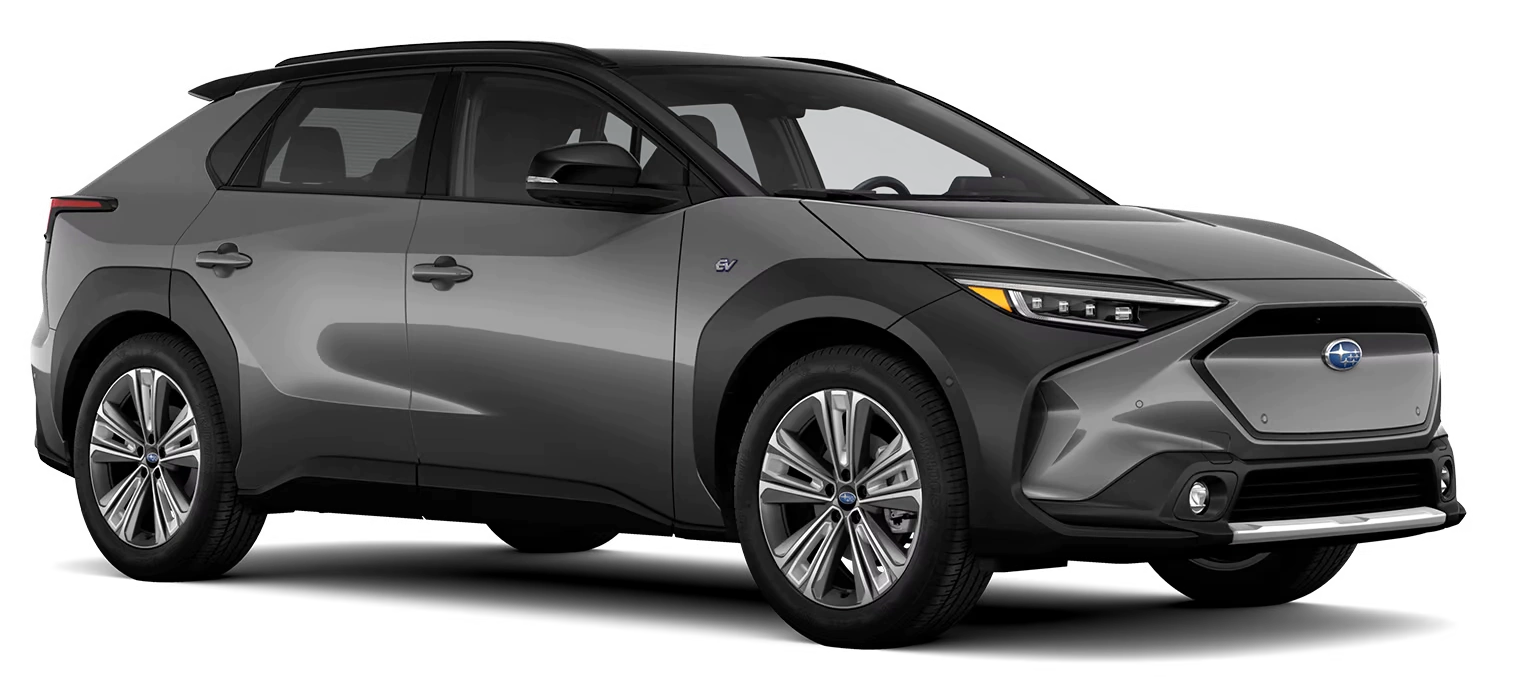
Owner Manual
2023 Solterra Quick Start Guide
MSA5B2310A
01999-42D95
F6710BE-A
1
EV system
2
Charging operation
3
Things you must know
The quick guide is not intended as a substitute for your “OWNER’S MANUAL”. We strongly encourage you to review the “OWNER’S MANUAL” and supplementary manuals so you will have a better understanding of your vehicle’s capabilities and limitations.
Depending on specifications, the vehicle shown in the illustration may differ from your vehicle in terms of equipment.
MSA5B2310A
01999-42D95
F6710BE-A
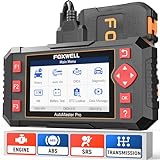
- [Easy to Use—Work Out of the Box] + [FOXWELL 2026 New Version] FOXWELL NT604 Elite scan tool is the 2026 new version from FOXWELL, designed for car owners who want to figure out the cause of issues before fixing car problems by scanning common systems like ABS, SRS, engine, and transmission. The NT604 Elite obd2 scanner diagnostic tool comes with the latest software—no need to waste time downloading software first. Plug the scanner into the OBDII port with OBDII cable to start the diagnosis.
- [Affordable] + [Reliable Car Health Monitor] Will you be confused what happens when the warning light of ABS/SRS/transmission/check engine flashes? Instead of taking your cars to dealership, this FOXWELL scanner will help you do a thorough scanning and detection for your cars and pinpoint the root cause. Note:The device is a diagnostic tool, not a repair tool. To turn off a warning light, you must first physically repair the issue causing it. Only then can the scanner be used to clear the corresponding fault code.
- [5 in 1 Car Diagnostic Scanner] Compared with obd scanners (50-100), NT604 Elite code scanner not only includes their OBDII diagnosis but also serves as ABS/SRS scanner, transmission and check engine code reader. When it’s an odb2 scanner, you can use it to check if your car is ready for annual test through I/M readiness menu. In addition, live data stream, built-in DTC library, data play back and print, all these features are a big plus for it. Note: doesn't support maintenance functions like reset or relearn. For the SRS system, NT604 Elite can read and clear common fault codes not caused by a crash, but crash/collision data cannot be cleared.
- [Fantastic AUTOVIN] + [No extra software fee] Through the AUTOVIN menu, this NT604 Elite car scanner allows you to get your V-IN and vehicle info rapidly, no need to take time to find your V-IN and input one by one. What's more, the NT604 Elite ABS SRS scanner supports 60+ car brands from worldwide (America/Asia/Europe). You don’t need to pay extra software fee. AUTOVIN may not work on some older vehicles or certain vehicle brands. If AUTOVIN fails, please input the vin code manually or go to the Diagnostic Menu to select your vehicle model.
- [Solid protective case KO plastic carrying bag] + [Lifetime update] Almost all same price-level car scanner diagnostic tool only offers plastic bag to hold the scanner.However, NT604 Elite automotive scanner is equipped with solid protective case, preventing your obd2 scanner from damage. Then you don’t need to pay extra money to buy a solid toolbox.

- 【Reset ABS/SRS/Transmission/Engine Lights】 More than an check engine code reader, OBDMATE OM901 obd2 scanner performs comprehensive diagnostics for the 4 most-used systems (ABS/SRS/Engine/Transmission). It quickly clears fault codes, turns off warning lights, read data stream and auto VIN.
- 【3.5" Handheld Scanner with 4 System Diagnose】 3.5" Super large TFT screen equipped displays an intuitive menu and clear readings of various sensors from ABS, SRS, ECM and TCM
 systems. It arrived with a silicone protective case and hard-shell carrying case, ensuring long-lived durability and drop resistance. The car diagnostic tool is plug-to-play designed, plug it and get diagnosis started without any batteries or updates required.
 - 【One-Click I/M Readines&Full OBD2 Functions】 Press F1 to get an intuitive corloured form about whether various emissions-related systems on the vehicle are operating properly. Help you get smog-check ready quickly. OM901 car scanner supports all essential OBD2 functions you need: read & clear codes, view freeze frame, read I/M readiness, retrieve VIN, live data stream (with graphing display), O2 sensor test, onboard monitoring mode, and EVAP leak test.
- 【Battery Voltage Check&DLC Pin Test】 It allows you to monitor battery health by testing current battery voltage. Plus, this obd2 diagnostic tool features DLC 16-PIN test to check current voltage of every pin.
- 【Automotive Scanner Diagnostic Kit】 The package comes with 1 car scanner, 1 USB-type c cable, 1 hard storage bag and 1 user manual(en). Free to update without any hidden fees. 5 languanges available in setting including English, French, Italian, German and Espanish. Valuable and Portable, making it a great tool kit for car owners, DIY enthusiasts, and professional mechanics.
 systems. It arrived with a silicone protective case and hard-shell carrying case, ensuring long-lived durability and drop resistance. The car diagnostic tool is plug-to-play designed, plug it and get diagnosis started without any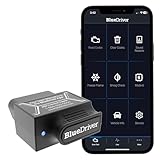
- [Diagnose Like a Pro] BlueDriver Pro is a professional OBD2 scanner and diagnostic tool that helps you scan, understand, and clear vehicle trouble codes with confidence. Turn your phone into a powerful car diagnostic scanner—no guesswork, no unnecessary repairs.
- [Read and Clear More Codes Than Ever] Read and clear more codes than basic car code readers. Access enhanced diagnostics for Check Engine, ABS, SRS, Airbag, TPMS, Transmission.
- [Verified Fixes and Real-Time Data] Get unlimited, technician-verified repair reports matched to your VIN, with definitions, causes, and confirmed fixes. Monitor live vehicle data as you drive, view freeze frames, check smog readiness, and analyze Mode 6 test results.
- [Wireless & Bluetooth Enabled] - Say goodbye to wires. BlueDriver connects with Bluetooth via your phone/tablet to a sensor that plugs into your car's OBDII port. Get all of the capabilities of an expensive code reader & scan tool without any annoying wires.
- [Broad Make & Model Coverage] Strong support for GM, Ford, Stellantis (RAM, Jeep, Chrysler), Toyota, Honda, Nissan, Mazda, Subaru, Hyundai, Mercedes-Benz, BMW, and VW.
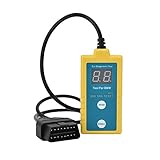
- ✔️【Professional SRS Reset for 1994-2003 BMW】 Designed specifically for classic BMW models (1994-2003). This B800 scanner reads & clears SRS airbag fault codes, turns off the warning light, and saves you a costly dealer visit. Confirmed compatible with: E36, E46 (EXCEPT 2001 330i), E34, E38, E39, Z3, and X5 (E53). NOT compatible with any BMW built before 1994 or after 2003.
- ✔️【Important: Two Different Connection Ports – Read Before Use】 To avoid “not working” issues, please note: For 1994–2000 BMWs (most E36, E34, Z3, early E39), the SRS diagnostic port is a round 20-pin connector under the hood. You MUST use the included 16-pin to 20-pin adapter cable. For 2000–2003 models (late E46, E39, X5), use the standard OBD-II port inside the cabin. Incorrect connection is the #1 reason for “incompatibility” reports.
- ✔️【Read & Clear Fault Codes in Minutes】 Quickly diagnose why your SRS light is on. The scanner accurately reads fault codes from airbag and seatbelt pretensioner systems. With one button press, clear the codes and reset the SRS warning light in seconds. No expensive dealer tools needed.
- ✔️【User-Friendly for DIYers – No Mechanic Required】 Easy operation with an intuitive button layout: ‘Enter’ to confirm, ‘Scroll’ to navigate. The clear LCD screen shows results instantly. Includes a step-by-step manual (revised for clarity) to guide you through the entire reset process.
- ✔️【Reliable Support with 1-Year Warranty】 We stand behind the quality of our B800 scanner. It comes with a 1-Year Hassle-Free Warranty. If you have any questions or need support, please contact us with your Order ID, and our dedicated team will assist you promptly.
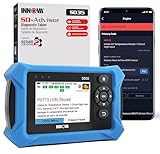
- OBD2 SCANNER FOR ALL SYSTEMS – The INNOVA SD35 is a tablet-based OBD2 scanner designed for advanced diagnostics. Read and clear check engine light, ABS, SRS, and TPMS codes, plus test your car battery and alternator to prevent unexpected failures. Vehicle coverage may vary. Please use Innova’s Coverage Checker to verify compatibility.
- ALL-SYSTEM DIAGNOSTICS & LIVE DATA – Unlike basic code readers, this OBD2 scanner for all vehicles scans engine, transmission, ABS, SRS, and more. Get real-time live data, including RPM, fuel trims, temperature readings, and oxygen sensor performance.
- OBD2 TABLET WITH USER-FRIENDLY INTERFACE – This automotive scan tool features a high-resolution display, making vehicle diagnostics faster and easier.
- ADVANCED TPMS, OIL RESET & SERVICE FUNCTIONS – Perform TPMS sensor checks, oil light reset, and other service resets with ease This professional diagnostic tool provides comprehensive vehicle maintenance capabilities in one device.
- WIDE VEHICLE COVERAGE (1996 & NEWER CARS & TRUCKS) – This OBD2 scanner Bluetooth tablet is compatible with Toyota, Ford, Honda, Chevrolet, Nissan, Dodge, and more. However, feature coverage may vary. Please use Innova's Coverage Checker to verify coverage.
SEOCONTENT-START
1 EV system 2 Charging operation 3 Things you must know The quick guide is not intended as a substitute for your “OWNER’S MANUAL”. We strongly encourage you to review the “OWNER’S MANUAL” and supplementary manuals so you will have a better understanding of your vehicle’s capabilities and limitations. Depending on specifications, the vehicle shown in the illustration may differ from your vehicle in terms of equipment. 2 1. EV system Electric Vehicle system features The illustration is an example for explanation and may differ from the actual item. ESU: Electricity Supply Unit (built in onboard traction battery charger/ DC-DC converter) Electric motor (traction motor)/Inverter (front/rear) Traction battery Provides electricity to the electric motor. Battery electric vehicles are considerably different from conventional vehicles. They use electricity charged in a traction battery, to drive the electric motor. Since battery electric vehicles are driven using electricity, they do not emit any emissions such as CO2 (Carbon Dioxide) and NOx (Nitrogen Oxides). Battery electric vehicles are environmentally friendly vehicles. System components A B C 1. EV system 3 1 EV system Charging port 12-volt battery Provides electricity to various vehicle systems such as the SRS airbags, headlights, wipers, etc. The following methods can be used to charge the traction battery. ■ AC charging This is a charging method used when charging from an AC outlet with the AC charging cable or charging that uses AC charger. By setting charging schedule, it is also possible to charge at the desired date and time. ■ DC charging This is a charging method that uses a DC charger that complies with SAE J 1772. The traction battery can be charged in a shorter time than AC charging. SAE is an abbreviation for an industrial standard issued by the Society of Automotive Engineers. A sound which changes in accordance with the driving speed, will be played in order to warn people nearby of the vehicle’s approach. This sound may be heard inside the vehicle. The sound will stop when the vehicle speed exceeds approximately 23 mph (37 km/h). Charging Acoustic Vehicle Alerting System D E 4 2. Charging operation Charging equipment AC charging inlet Charging indicator and Charging inlet light DC charging inlet Charging port lid AC charging cable Charging port Charging equipment and names A B C D E F 2. Charging operation 5 2 Charging operation ■ Open Slightly open the charging port lid by pressing the rear edge of it (the position shown in the illustration) Fully open the charging port lid by hand. ■ Close Move the charging port lid to the slightly open position and then press the rear edge (the position shown in the illustration) to close it. Opening/closing the charging port lid 6 2. Charging operation The illumination/flashing pattern changes to inform the user of the charging status in the following ways. *1: The indicator is dimmed when the charging is done *2: Flashes for a certain period of time, and then turns off. Charging indicator Illumination/flashing pattern Vehicle condition Illuminated • Charging is in progress*1 • Battery heater is operating Flashes normally*2 When charging schedule is registered and AC charging cable is connected to vehicle Flashes rapidly*2 When charging cannot be carried out due to malfunction in a power source or the vehicle, etc. 2. Charging operation 7 2 Charging operation ■ The names of each part of the AC charging cable Charging connector Latch release button Plug Plug-cord CCID (Charging Circuit Interrupting Device) Power indicator Charging indicator (CCID) Error warning indicator AC Charging cable A B C D E F G H 8 2. Charging operation ■ Safety functions The CCID (Charging Circuit Interrupting Device) has the following safety features. ● Electrical leakage detection function If an electrical leakage is detected during charging, the power source will be automatically interrupted, thus preventing fires or electrical shocks caused by electrical leakage. If the power source is interrupted, the error warning indicator flashes. ● Automatic check function This is an automatic system check that is run before charging begins to check for problems in the operation of the electrical leakage detection function. ● Temperature detection function A temperature detection function is equipped to the plug. While charging, if heat is generated due to looseness on the outlet side etc., this function suppresses heat by controlling the charging current. ● Conditions for supplying current to the vehicle The CCID (Charging Circuit Interrupting Device) is designed to prevent electrical current from being supplied to the charging connector when it is not connected to the vehicle, even if the plug is inserted into the outlet. ■Safety functions ●The EV system will not start while the AC charging cable is attached to the vehicle, even if the power switch is operated. ●If the AC charging cable is connected while the “READY” indicator is illuminated, the EV system will stop automatically and driving will not be possible. 2. Charging operation 9 2 Charging operation WARNING ■Power sources precautions Observe the following precautions. If you do not follow them, fire, electrical shock or damage may occur, possibly resulting in death or serious injury. ●Connect to an AC 120 V outlet (NEMA 5-15R) with a Ground-Fault Circuit- Interrupter (GFCI) and supplied by a circuit breaker per your local code. Use of a 15A individual circuit is strongly recommended. ●Use of a block heater for charging is prohibited. ●Make sure to connect the charging connector and AC charging inlet directly. Do not connect a converting adaptor or extension cord between the charging connector and AC charging inlet. ●Do not connect the AC charging cable to a multi-outlet adaptor, multi-plugs, or conversion plug. ●Connecting the AC charging cable to an extension cord is strictly prohibited. The extension cord may overheat and does not contain a Ground-Fault Circuit-Interrupter (GFCI). The leakage detection function of the CCID (Charging Circuit Interrupting Device) may not operate correctly. ●Do not connect to a power strip. 10 2. Charging operation Locking and unlocking AC charging connector ■ Locking the charging connector The AC charging connector will be automatically locked when inserting it into the AC charging inlet. ■ Unlocking the charging connector The AC charging connector will be unlocked when the doors are unlocked using the smart key system or wireless remote control. The AC charging connector locks when connected and unlocks when the door is unlocked, so locking/unlocking the AC charging connector does not necessarily correspond to locking/unlocking the door. If the door is unlocked and the AC charging connector is locked, you can unlock it by doing the following: • When using the smart key system, lock the door once and then unlock it again. • When using the wireless remote control, press the unlock button to unlock the door. The AC charging connector will be locked when it is connected to the AC charging inlet, preventing the AC charging cable from being disconnected while charging. Locking and unlocking the AC charging connector 11 2. Charging operation 2 Charging operation Things to know before charging ■When charging using a public charging facility ●When charging using a public charging facility, check the setting of the charging schedule function. • When the charging schedule is registered, temporarily turn off the function or turn “Charge Now” on. • When the charging schedule is set to on, charging will not start even if the AC charging cable is connected. Also, charging fee may occur due to connection of the AC charging cable. WARNING ■Charging precautions This vehicle has been designed to allow charging from an external power source using an AC charging cable for exclusive use with standard household AC outlets. However, the vehicle differs greatly from standard household electrical goods in the following ways, and incorrect usage could cause fire or electric shock, possibly leading to death or serious injury. ●When 240V charging, a large amount of current will flow for a long time. ●Charging can be conducted outdoors. NOTICE ■Charging precautions To charge properly, follow the procedure after reading the explanation below. Charging is intended to be carried out by licensed drivers only who properly understand the charging procedure. ●Do not allow people who is not used to charging, such as children, to perform charging without supervision. Also, keep the AC charging cable out of reach of infants. 12 2. Charging operation Before charging, always check the following items. ● The parking brake is applied. ● The power switch is turned to OFF. ● Lights such as the headlights, emergency flashers and interior lights, etc. are turned off. If these light switches are turned on, then these features will consume electricity, and charging time will increase. Confirm the following before charging 13 2. Charging operation 2 Charging operation How to use AC charging NOTICE ■When using the AC charging cable and related parts To prevent damage to the AC charging cable and related parts, observe the following precautions. ●When interrupting or canceling charging, remove the charging connector before removing the plug. ●When removing the AC charging cable, check that the charging connector is unlocked. ●Do not forcefully pull the charging connector cap and AC charging inlet cap. ●Do not apply a vibration to the charging connector while charging. Charging may be stopped. ●Do not insert anything but the charging connector into the AC charging inlet. ●When inserting the plug into or removing the plug from the outlet, make sure to hold the body of the plug. ●Do not damage the AC charging inlet cap with a sharp object. ●Do not forcefully pull the AC charging cable that is caught or entangled. If the cable is entangled, disentangle it before using. ■AC charging inlet Do not disassemble, repair or modify the AC charging inlet. When the AC charging inlet needs to be repaired, consult your SUBARU dealer. 14 2. Charging operation Prepare the AC charging cable. Insert the plug of the AC charging cable into the outlet of the external power source. Make sure to hold the body of the plug and insert it firmly into the outlet. If there is a switch that can switch the power supply to the outlet, turn it on. Check that the power indicator on the CCID (Charging Circuit Interrupting Device) is illuminated. In order to reduce the load on the outlet and plug, when inserting the plug, use a string, etc., to hang the CCID (Charging Circuit Interrupting Device) on a hook or equivalent. Open the charging port lid. The charging inlet light will illuminate. Open the AC charging inlet cap. When charging 1 2 3 A 4 2. Charging operation 15 2 Charging operation Remove the charging connector cap and secure it to the cable. Insert the charging connector into the AC charging inlet. Align the guide position on the bottom of the charging connector, and push the charging connector straight into the AC charging inlet as far as possible. Once a click sound is heard, check that the charging connector is securely locked. When the charging connector is inserted straight as far as possible, it will automatically lock. Confirm that the charging indicator of the charging port is illuminated. Charging will not start if the charging indicator does not illuminate when the charging connector is inserted. If the charging indicator is flashing, the charging schedule is registered. The charging indicator will turn off when charging is completed. 5 6 7 16 2. Charging operation ■During charging ●The charging starting time may differ depending on the state of the vehicle, but this does not indicate a malfunction. ●During charging, sounds may be heard from near the traction battery in accordance with the operation of the air conditioning system or “Battery Cooler”. ●During and after charging, the motor compartment and its surrounding area in which the onboard traction battery charger is installed may get warm. ●The surface of the CCID (Charging Circuit Interrupting Device) may become hot, but this does not indicate a malfunction. ●Depending on radio wave conditions, interference may be heard on the radio. ■Safety function If the latch release button is pressed, charging will not begin even if the AC charging cable is connected. Also, charging will be stopped if the latch release button is pressed and held for several seconds during charging. When restarting charging, reinsert the charging connector after pulling it out, and check that the charging indicator of the charging port illuminates. 2. Charging operation 17 2 Charging operation WARNING ■When charging Observe the following precautions. Failure to do so may cause an unexpected accident, resulting in death or serious injury. ●Connect to a power source suitable for charging. ●Check that the AC charging cable, plug and outlet are free of foreign matter. ●Before charging, check that the AC charging inlet is not deformed, damaged or corroded, and check that the inlet is free of foreign matter such as dirt, snow and ice. If there is dirt or dust in these areas, remove completely before inserting the charging connector. ●Do not get the terminals of the AC charging inlet wet. ●Only use outlets where the plug can be securely inserted. ●Do not bundle or wind the AC charging cable while charging, as doing so may result in overheating. ●Do not touch the terminals of the charging connector and AC charging inlet with a sharp metal objects (needles, etc.,) or hands, or short them with foreign objects. ●When charging outdoors, make sure to connect to a weatherproof outlet for outdoor use. Ensure the weatherproof outlet cover closes completely. If the weatherproof outlet cover cannot be closed, install a weatherproof outlet cover that will close. ●In order to stop charging at the charging station, follow the instructions of the charger. ●If any heat, smoke, odors, noise or other abnormalities are noticed during charging, stop charging immediately. ●Do not insert the plug if the outlet is submerged in water or snow. ●When charging while it is raining or snowing, do not connect or disconnect the plug if your hands are wet. Also, do not get the plug or outlet wet. ●Do not charge the vehicle during a lightning storm. ●Prevent the AC charging cable from being caught in the door or back door. 18 2. Charging operation WARNING ●Do not let the wheels on the AC charging cable, plug, charging connector and CCID (Charging Circuit Interrupting Device). ●Firmly insert the plug into the outlet. ●Do not use an extension cord and converting adaptor. ●Close the hood before using the charging system. The cooling fan may start operating suddenly. Touching or getting close to rotating parts such as the fan may cause your hands or clothes (especially a necktie or scarf) to become caught and result in a serious injury. ●After connecting the charging cable, confirm that it is not wound around anything. ●If the power indicator on the CCID (Charging Circuit Interrupting Device) does not illuminate after plugging the AC charging cable into the outlet, unplug it immediately. ■Onboard traction battery charger The onboard traction battery charger is located in the motor compartment. Make sure to observe the following precautions regarding the onboard traction battery charger. Failure to observe these precautions may result in death or serious injury such as burns and electric shocks. ●The onboard traction battery charger is hot during charging. Do not touch the onboard traction battery charger, as doing so may result in burns. ●Do not disassemble, repair or modify the onboard traction battery charger. When the onboard traction battery charger needs to be repaired, consult your SUBARU dealer. 2. Charging operation 19 2 Charging operation NOTICE ■When charging Do not insert the plug into the AC charging inlet. The AC charging inlet may be damaged. ■Using private power generator Do not use private power generators as a power source for charging. Doing so may make charging unstable, the voltage may be insufficient, and the charging operation may stop. ■Charging station Due to the environment in which the power equipment is located, charging may be unstable due to noise, the voltage may be insufficient, and the charging operation may stop. 20 2. Charging operation Unlock the doors to unlock the charging connector. The charging connector will be unlocked and the AC charging inlet light will illuminate when the doors are unlocked. Pull the charging connector towards you while pressing the latch release button. If the latch release button is pressed during charging (while the charging indicator is illuminated), charging will be interrupted. Attach the charging connector cap. Close the AC charging inlet cap and close the charging port lid. After charging 1 2 3 4 2. Charging operation 21 2 Charging operation Remove the plug from the outlet when the charging equipment will not be used for a prolonged period of time. Hold the body of the plug when removing. Make sure to put the cable away immediately after disconnecting. When leaving the plug inserted, inspect the plug and connector once a month to check if dirt or dust has accumulated. 5 WARNING ■After charging Remove the plug if it will not be used for a long time. Dirt and dust may accumulate plug or outlet, which could cause a malfunction or fire, possibly leading to death or serious injury. NOTICE ■After charging ●Store the AC charging cable out of reach from infants and children. ●After removing the plug from the outlet, keep it in a safe place free from moisture and dust. The AC charging cable or plug may be damaged if the cable is stepped on or ridden over by the vehicle. ●After disconnecting the charging connector from the AC charging inlet, make sure to close the AC charging inlet cap and close the charging port lid. If the AC charging inlet cap is left open, water or foreign objects may enter the AC charging inlet, which could lead to vehicle damage. 22 2. Charging operation How to use DC charging Open the charging port lid. The charging inlet light will illuminate. Open the AC charging inlet cap, and then open the DC charging inlet cap. WARNING ■When using a DC charger Observe the following precautions. Failure to do so may cause an unexpected accident, resulting in death or serious injury. ●Use a SAE J 1772 compliant DC charger. ●Do not use the charging cable longer than 30 meters. When charging 1 2 2. Charging operation 23 2 Charging operation Insert DC charging connector firmly and fully into the charging inlet. Insert the DC charging connector and it will lock automatically. The DC charging connector shape and treatment will differ depending on the type of DC charger. Perform the operations in accordance to handling procedures of the DC charger. Operate the DC charger and start the charging. Follow the handling procedures of the DC charger to start charging. Charging starts after a system check is done. Confirm that the charging indicator on the charging port lights up. When the charging indicator is not lit, charging has not started. Stop the charging in accordance to the handling procedures of the DC charger when it is desired to interrupt the DC charging. ■During DC charging ●The current charging condition can be checked on the multi-information display. ●The actual charging time may differ from that displayed on the DC charger during charging. ●There may be occasions the radio cannot be heard due to noise occurrence during DC charging ●As the battery approaches full charge, the charging speed will decrease and it will take longer to complete charging. ●The time to complete charging may change, or charging may stop before reaching the upper limit of the charge capacity, due to the remaining charge of the traction battery, the outside temperature, the specifications of the charger (stand), etc. ●It is recommended to avoid frequent DC charging to prevent a decline in the traction battery capacity. ●Quickly move from the DC charging space for other users after the DC charging is completed. 3 4 5 24 2. Charging operation WARNING ■Warnings for DC charging Be sure to observe the following when using DC charging. Failure to do so may cause an accident that could lead to death or serious injury. ●Check that the DC charger and DC charging inlet are not damaged. If there is any damage to the DC charging inlet, do not perform a DC charge and have it inspected immediately at your SUBARU dealer. ●Do not touch the terminals of the DC charging connector or inlet with metallic sharp tips (wires and needles), or allow a short circuit to occur with foreign objects. ●Do not insert anything other than the DC charging connector into the DC charging inlet. ●Check that the DC charging cable is not coiled up or pinned underneath heavy objects. ●Be sure the DC charging inlet makes direct contact with the DC charging connector. Do not connect conversion adapters, extension cords, etc., between the DC charging connector and DC charging inlet. ●When DC charging is interrupted, follow the handling procedures of the DC charger. Immediately stop the DC charging when there is an outbreak of heat, smoke, strange noises or smells, etc., during charging. ●Check that the DC charging connector and DC charging inlet do not have foreign objects or snow or ice attached to it. If anything is attached to the inlet, be sure to completely remove the material before connecting the DC charging connector. ●Do not charge the vehicle when there is a possibility of lightning. If you notice lightning while charging the vehicle, do not touch the vehicle and the DC charging cable. ●Do not get the DC charging inlet terminals wet. ●Close the hood when using DC charging. The cooling fan may suddenly start to run. Keep hands and clothing (especially a tie, a scarf or a muffler) away from the fan. Failure to do so may cause the hands or clothing to be caught, resulting in serious injury. 2. Charging operation 25 2 Charging operation WARNING ■When connecting the DC charging connector ●Follow the handling procedures of the DC charger to connect the DC charging connector. If the connector is not connected properly, the system cannot recognize the connection, and it may be possible to start the EV system. After charging is completed, make sure to remove the DC charging connector from the DC charging inlet before starting the EV system. If the vehicle is started off with the connector still connected, it could lead to an accident, possibly resulting in death or serious injury. ●Do not remove the DC charging connector from the DC charging inlet during DC charging. After operating the DC charger to stop charging, remove the DC charging connector from the DC charging inlet. NOTICE ■When using DC charging Make sure to follow the handling procedures of the DC charger. If the procedures are not followed properly, the vehicle and the DC charger may be damaged. 26 2. Charging operation Operate the DC charger to stop the charging. DC charging connector will be unlocked automatically when charging is completed. Remove the DC charging connector. The DC charging connector shape and treatment will differ depending on the type of DC charger. Perform the operations in accordance to handling procedures of the DC charger. Return the removed DC charging connector to its original position. Close the AC charging inlet cap and close the DC charging inlet cap, and then close the charging port lid. After charging 1 2 3 NOTICE ■Caution after DC charging Be sure to attach the DC charging inlet cap to the DC charging inlet and then close the charging port lid after removing the DC charging connector from the inlet. If the DC charging inlet cap is not closed, foreign materials may get into the inlet and the EV system may be malfunctioning. 27 2. Charging operation 2 Charging operation Using the charging schedule function When registering the charging schedule, the following settings can be changed. ■ Select the charging mode One of the two following charging modes can be selected. “Start” Starts charging at the set time* and finishes charging when fully charged. “Start-Stop” AC charging is performed according to the set start time and stop time.* *: There might be a slight error in the timing when charging starts due to the state of the traction battery. ■ Repeated setting The periodic charging schedule can be set by selecting your desired day of the week. Select one or more day of the week to do the charging schedule. ■ Turning “Charge Now” on and off To start charging without changing the charging schedule setting, turn “Charge Now” on to temporarily cancel the charging schedule and enable charging after connecting the AC charging connector.* *: If the charging connector is removed during charging while the charging schedule is registered and “Charge Now” is on, “Charge Now” turns off. ■ “Next Event” Of the registered charging schedules, the closest charging schedule after the current time is called the “Next Event”. For charging schedule, AC charging will be performed according to the Next Event. Settings of the charging schedule function 28 2. Charging operation When operating charging schedule, use the meter control switches. Meter control switches Multi-information display ■ Registering the charging schedule Press or of the meter control switches to select . Press or of the meter control switches to select “Vehicle Settings”, and then press and hold . Press or of the meter control switches to select “Charging Settings”, and then press . The “Charging Settings” screen will be displayed. Press or of the meter control switches to select “Charging Schedule”, and then press . The “Charging Schedule” screen will be displayed. Press or of the meter control switches to select “Scheduled Events”, and then press . The “Scheduled Events” screen will be displayed. Setting operations on multi-information display A B 1 2 3 4 5 2. Charging operation 29 2 Charging operation Press or of the meter control switches to select “+add”, and then press . The “Charging Mode” screen will be displayed. Press or of the meter control switches to select the item to change with the cursor, and then press or to change the setting. When the charging mode is “Start”, set the charging start time. When the charging mode is “Start-Stop”, set the charging start time and stop time. After changing the settings to the desired settings, press . Press or of the meter control switches to select the desired day to activate for the repeated setting, and then press . Each time is pressed, the repeated setting switches between on and off. When set to on, the charging schedule is repeated on that day. It is possible to set more than one day to on. After changing the settings to the desired settings, select “Done”, and then press . A screen where the settings can be saved will be displayed. Select “Save” and press to save the settings. The settings will be saved. If you wish to change the settings, press and perform the setting procedure again. After setting operations are complete, when the AC charging connector is connected to the vehicle, charging will be carried out according to the charging schedule settings. 6 7 8 9 30 2. Charging operation ■ Switching charging schedules between on and off The registered charging schedules can be turned on and off. Perform step to of the “Registering the charging schedule” procedure and display “Scheduled Events” screen. A list of the registered charging schedule will be displayed. Press or of the meter control switches to select the item to turn ON/OFF, and then press . Each time is pressed, the selected charging schedule switches between on and off. When set to off, a charging schedule is ignored and charging according to the charging schedule is not carried out. 1 1 5 2 2. Charging operation 31 2 Charging operation ■ Changing the registered charging schedules The registered charging schedules can be modified or deleted. Perform step to of the “Registering the charging schedule” procedure and display “Scheduled Events” screen. A list of the registered charging schedule will be displayed. Press or of the meter control switches to select the item to change, and then press and hold . The “Edit Event” screen will be displayed. Press or of the meter control switches to select the item to operate, press and perform the necessary operation. ● “Edit” Change the desired settings as described starting from step of the “Registering the charging schedule” procedure. Press to return to the previous screen. ● “Delete” A deletion confirmation screen will be displayed. Press or of the meter control switches to select “Yes”, and then press to delete the selected charging schedule. To cancel deletion, select “No” and then press . Press to return to the previous screen. 1 1 5 2 3 7 32 2. Charging operation ■ Setting “Charge Now” to on The “Charge Now” setting can be changed by performing one of the two following procedures. Operation on “Charging Schedule” screen Perform step to of the “Registering the charging schedule” procedure and display “Charging Schedule” screen. Press or of the meter control switches to select “Charge Now”, and then press . Each time is pressed, “Charge Now” switches between on and off. Operation on “Closing Display” screen* *: If “Closing Display” is not set to “Charging Schedule” on the screen of the multi-information display, the “Closing Display” is not displayed. In this case, check the settings on the multi-information display. Turn the power switch off. The “Closing Display” screen is displayed on the multi-information display. (If the door is opened while waiting for charging schedule, the same screen will be displayed.) Press to set “Charge Now” to on. After setting operations are complete, charging starts when the AC charging connector is connected. ■ Displaying “Next Event” Perform step to of the “Registering the charging schedule” procedure and display “Charging Schedule” screen. Press or of the meter control switches to select “Next Event”, and then press . The “Next Event” screen will be displayed. 1 1 4 2 1 2 1 1 4 2 2. Charging operation 33 2 Charging operation For details on how to operate the audio system screen, refer to “MULTIMEDIA OWNER’S MANUAL”. Setting operations related to the charging schedule are performed on the “Charging schedule” screen. ■ Displaying the “Charging schedule” screen Turn the power switch ON and display the menu screen. It is not possible to control the Charging Schedule settings in Accessory Mode. “POWER ON” Select and “Charging schedule”, in that order. The “Charging schedule” screen will be displayed. Setting operations on multimedia 1 A 2 34 2. Charging operation ■ How to read the “Charging schedule” screen Charging schedules Displays the week-long registered charging schedule in a list using icons. “Add” button Press to add a new item to the charging schedule. “Edit” button Press to change or delete registered items on the charging schedule. “Charge now” button Each time the button is pressed, “Charge now” switches between on and off. Return button Press to close the “Charging schedule” screen. A B C D E 2. Charging operation 35 2 Charging operation ■ Registering the charging schedule Display the “Charging schedule” screen. Press “Add”. The “Add event” screen will be displayed on the screen. Change the schedule to the desired time. ● Charging mode Press “Start at set time” or “Start and stop at set times” to set the desired charging mode. • When “Start at set time” is selected Set the charging start time, and press “OK”. • When “Start and stop at set times” is selected Set the charging start time and stop time, and press “OK”. 1 2 3 36 2. Charging operation ● Repeated settings Select the day of the week and press OK. When turned on, the charging schedule is repeated on that day. It is possible to turn more than one day on. After setting operations are complete, press “Save”. The charging schedule is registered and an icon is added to the schedule. To cancel registration of the charging schedule, press the return button. After setting operations are complete, when the power switch is turned off and the AC charging connector is connected to the vehicle, charging is carried out according to the charging schedule settings. Repeat 4 2. Charging operation 37 2 Charging operation ■ Switching charging schedules between on and off Display the “Charging schedule” screen. Press “Edit”. The “Events” screen will be displayed on the screen. From the items displayed on the screen, press on or off in the row of the charging schedule you wish to change. If the charging schedule you wish to change is not displayed on the screen, scroll the list up and down to display it. Each time the button is pressed, the charging schedule switches between on and off. ■ Changing the registered charging schedules Display the “Charging schedule” screen. Press “Edit”. The “Events” screen will be displayed on the screen. Press “Edit” on the “Events” screen. From the items displayed on the screen, press the charging schedule you wish to change. 1 2 3 1 2 3 4 38 2. Charging operation ● Changing registered items: Change the desired settings as described in step to step of the “Registering the charging schedule” procedure. When a setting is changed, its icon on the calendar also changes. ● Deleting registered items: Press “Delete”. A deletion confirmation message will be displayed. Press “Delete” to delete the selected charging schedule. To cancel deletion, press “Cancel” or the return button. When a charging schedule is deleted, its icon is also deleted from the calendar. ■ Turning “Charge now” on Display the “Charging schedule” screen. Press “Charge now”. Each time the button is pressed, “Charge now” switches between on and off. After setting operations are complete, charging starts when the AC charging connector is connected. 3 4 1 2 2. Charging operation 39 2 Charging operation ■ Changing Next Event If the multimedia customize content “ACC customize” is not set to OFF, the ending screen will not be displayed. If it is this case, check the settings of the multimedia. Turn the power switch off. Next event will be displayed according to the charging schedule settings. When press “OK”, close Next charging event screen. When press “Charge now”, charge now is turned on. ■When all charging schedules are turned off The icon is not displayed on the “Charging schedule” screen. The icon will be displayed by turning it ON on the “Events” screen. ■When charging schedule setting operations are canceled When the vehicle is in the following conditions, charging schedule setting operations are canceled. ●The power switch is turned off before the settings are confirmed ●The vehicle starts off ●A display with a higher priority than that of the charging schedule setting is shown 40 2. Charging operation Information related to charging is displayed and can be checked on the multi-information display. ■ While charging When any door is opened during charging with the power switch off, the current charging condition and approximate time remaining until charging is complete are displayed for a certain period of time. The actual charging time may differ depending on conditions such as the remaining capacity of the traction battery, outside temperature, and specifications of the AC/DC charger. The time until charging completed may not be displayed if the charging current to the traction battery becomes smaller and the charging time becomes longer. ■ After charging is complete When any door is opened with the power switch off after charging is complete, a message detailing the results of the charging is displayed for a while. Also, a message is displayed if an operation that stops charging is performed or a situation where charging cannot be performed occurs. Checking information related to charging 2. Charging operation 41 2 Charging operation For safety, inspect the AC charging cable on a routine basis. Inspecting the AC charging cable WARNING ■Routine inspection Check the following points regularly. Failure to do so may cause an unexpected accident, resulting in death or serious injury. ●The AC charging cable, plug, charging connector, CCID (Charging Circuit Interrupting Device), etc., have not been damaged ●The outlet has not been damaged. ●The plug can be securely inserted into the outlet. ●The plug does not get extremely hot during use ●The tip of the plug has not been deformed. ●The plug is not dirtied by dust etc. Remove the plug from the outlet before inspecting it. If any abnormalities are found in the AC charging cable as a result of the inspection, immediately stop use and consult your SUBARU dealer. ■Maintaining the AC charging cable When the AC charging cable is dirty, first remove the dirt with a hard, wringed cloth, and then wipe the cable with a dry cloth. However, never wash it with water. If the AC charging cable is washed with water, fire or electric shock may occur during charging, possibly resulting in death or serious injury. ■When not using the AC charging cable for a long time Remove the plug from the outlet. Dust could accumulate on the plug or in the outlet, possibly causing overheating which could lead to a fire. Also, keep the cable in a place free from moisture. 42 2. Charging operation Using My Room Mode Connect the charge cable to the vehicle to start charging. Turn the power switch to ON while charging. My Room Mode settings is automatically displayed on the multi-information display. Operate the meter control switches to select “Yes”, and then press “OK”. My Room Mode is started and it is possible to use the air conditioning system, audio system, etc. Select “No” and press “OK” when My Room Mode is not being used. To disable My Room Mode, turn the power switch off. My Room Mode will automatically be off when DC charging is completed. ■When using My Room Mode the following may occur ●When the remaining charge of the traction battery drops to the lower limit, the air conditioning system automatically stops. In that case, the air conditioning system can not operate until the remaining charge of the traction battery increases. Turn off the power switch once, then use My Room Mode after the remaining charge of the traction battery increases. ●The charging time of the traction battery gets longer. ●Noise may be heard from the radio depending on conditions of the radio wave. ●The surrounding area of the onboard traction battery charger in the motor compartment may become hot. ●The electric power steering system warning light (yellow) may turn on, but this is not a malfunction. When the charging cable is connected to the vehicle, electrical components such as the air conditioning system and audio system can be used by the power supply from an external power source. Starting My Room Mode 1 2 3 43 3. Things you must know 3 Things you must know Things you must know ■Regenerative braking In the following situations, kinetic energy is converted to electric energy and deceleration force can be obtained in conjunction with the recharging of the traction battery. ●The accelerator pedal is released while driving with the shift position in D. ●The brake pedal is depressed while driving with the shift position in D. WARNING ■When driving the vehicle The driver should pay extra attention to pedestrians. As there is no engine noise, the pedestrians may misjudge the vehicle’s movement. Even though the vehicle is equipped with the Acoustic Vehicle Alerting System, drive with care as pedestrians in the vicinity may still not notice the vehicle if the surrounding area is noisy. 44 3. Things you must know
SEOCONTENT-END
This product presentation was made with AAWP plugin.