
NHTSA ID Number: 10234924
Manufacturer Communication Number: 1516513
Summary
Reprogramming for Non-Requested Bluetooth Audio Streaming Affecting ONLY Clarion Audio Units
NUMBER: 15-165-13
DATE: 08/08/13
| APPLICABILITY: | 2011-2012MY Legacy, and Outback 2011-2012MY Impreza 2011-2012MY Impreza WRX 2011-2012MY Forester Models Equipped with Clarion Bluetooth Audio Units |
| SUBJECT: | Reprogramming for Non-Requested Bluetooth Audio Streaming Affecting ONLY Clarion Audio Units |
INTRODUCTION
This Bulletin announces the availability of reprogramming files to address customer concerns of the Bluetooth audio streaming feature operating without being selected. This causes the source’s (Smartphone, iPod®, iPhone®, MP3 player) battery to drain unexpectedly.
The update will initiate an “OFF” signal to the media device should Bluetooth audio streaming begin without a request from the vehicle’s audio unit. The reprogramming files are accessible via: Subarunet > Service > Clarion Downloads and will need to be downloaded onto a dedicated new or completely empty and formatted USB storage device (flash drive) for installation into the audio unit through the audio system’s USB port.
IMPORTANT: Read through and understand this service procedure completely before proceeding any further as damage to the audio unit may result if proper precautions outlined below are not followed.
COUNTERMEASURE IN PRODUCTION
| MODEL | MODEL YEAR | STARTING VIN |
| Legacy | 2012 | C*031045 |
| Outback | 2012 | C*268432 |
| Impreza 4-Door | 2012 | C*021407 |
| Impreza 5-Door | C*226563 | |
| WRX 4-Door | C*022373 | |
| WRX 5-Door | C*228090 | |
| Forester | 2012 | C*453576 |
PART INFORMATION
A new or completely empty and formatted USB mass storage device (flash drive), Format: FAT32 with a minimum capacity of 128MB which should be dedicated to storing these reprogramming files only is required to perform these updates. The device must not contain or require any software to operate. As a result, some flash drives larger than 4GB may not be acceptable to use for this procedure.
SERVICE PROCEDURE / INFORMATION
- Confirm the PC and USB device you are using is not infected with any virus.
- Use the procedure below to format your USB device for FAT32
- Click Start (this is located in the lower left corner of the desktop screen) then, in the Search programs and files box, type “explorer”
- As you type the word “explorer”, search results will start to appear. In the results, click on the “Windows Explorer” option under the Programs section.
- In the next window, choose the Computer section on the left. Locate “Removable Disk”
NOTE: You must make sure that the device you are formatting is the USB Flash Drive. This drive may have various names assigned to it by the manufacturer of the device and may not reflect the drive name given in this example.
- Right click the picture for “Removable Disk” then select “Format”.
- When the “Format” dialog box appears, make sure that the option labeled “File System” is set to FAT32 and the Quick Format box is checked as well. Then, click the “Start” button.
- Click “OK” when the following window appears.
- The drive will then start formatting and will display this window when it is finished. Click “OK” to complete the process.
IMPORTANT: When downloading the reprogramming files to your USB device, only download the file you need to reprogram the audio unit of the vehicle you are working on. Never store more than one file on the USB device at any time. Other files on the device can cause the reprogramming procedure to not complete properly and may also damage the audio head unit. The link below will take you to the download site:
* Click Here To Download The Clarion Bluetooth Audio Streaming Updating Files *
UPDATING FILE APPLICABILITY CHART
| MODEL | MODEL YEAR | HEAD UNIT PART NUMBER | UPDATING FILE NAME |
| Legacy & Outback | 2011-2012 | 86201AJ61A | 470-2983-02-V020_MainMicom-USA.mot |
| Impreza, WRX | 2011 | 86201FG620 | 470-2725-11-V074_MainMicom-USA.mot |
| 2012 | 86201FG620 | 470-2985-02-V011_MainMicom-USA.mot | |
| 86201FG630 (Display Radio) | 470-3030-03-V010_Audio__________.HEX | ||
| Forester | 2011 | 86201FG620 | 470-2725-11-V074_MainMicom-USA.mot |
| 86201FG630 (Display Radio)** | 470-2803-06-V406_Audio__________.HEX | ||
| 470-3178-02-V105_Audio__________.HEX |
After clicking the link above, follow the prompts provided by the browser your system utilizes to complete the download process.
Once the download completes, click Run in the Security Warning box.
Click on “Browse” in the WinZip Self Extractor box then select “My Documents” as the location to save the files. Once “My Documents” is selected, click on “Unzip”. When completed click “OK” and all 6 of the files will all be saved in a new file folder in My Documents called “clarion_files”.
Click on the “clarion_files” icon in “My Documents” and a window will open with all 6 of the downloaded files listed.
Right-click on the file you want to select and a pop-up window will appear. Left click on “Send to” then a second window will open with your destination choices. Select “Removable Disk”. NOTE: the letter designation (shown here as E:) will vary. The file you selected will be transferred to your USB device and be ready to use. Once you have selected the applicable Updating File and saved it onto your USB device, you are ready to proceed with the reprogramming procedure.
CAUTION: Ensure the vehicle’s battery is fully charged. Do not leave a charger or booster connected during this process. Fully review and become familiar with the procedure appropriate for the audio unit you are updating before proceeding further.
**Before reprogramming the 86201FG630 Display Radio in a 2011MY Forester, the currently installed software version must be verified using first 6 steps of the following procedure. Once the currently installed version is determined, select the corresponding Updating File from the chart above, download it to your USB device then proceed with the reprogramming procedure outlined below.
SOFTWARE VERSION VERIFICATION AND REPROGRAMMING INSTRUCTIONS FOR 2011 FORESTER AND 2012 IMPREZA WRX WITH THE 86201FG630 DISPLAY RADIO
- Turn the ignition key to the “ACC” position.
- Confirm all CDs have been ejected from the audio unit.
- Press the power button to switch the audio unit to “Audio Off” mode (“Audio Off” shown on the display screen).
- While pressing and holding down the station preset station key “6”, turn the TUNE / TRACK / CH button clockwise for 30 “clicks” until the first “Version” screen is displayed.
- Turn the TUNE / TRACK / CH button another click clockwise to display the second (2/3) ”Version” screen.
- Select the proper reprogramming file from the chart below.
| DISPLAYED SOFTWARE VERSION | USE UPDATING FILE |
| 2803-04-V403 or earlier | 470-2803-06-V406_Audio__________.HEX |
| 3178-01-V104 or earlier | 470-3178-02-V105_Audio__________.HEX |
- Push the TUNE / TRACK / CH button to display the following screen.
- Plug the USB device into the USB port.
- Turn the TUNE / TRACK / CH button clockwise to scroll through the following screens until the version number is highlighted in screen 3/3.
- Turn the TUNE / TRACK / CH button clockwise.
- Press the TUNE / TRACK / CH button to select the displayed version (2803-06-v406).
- Turn the TUNE / TRACK / CH button clockwise to move the highlight down to“OK” then Press the TUNE / TRACK / CH button again to select OK.
- Press the TUNE / TRACK / CH button again to select OK.
Next, the actual reprogramming file transfer from the USB device will begin. It will take about 10 minutes for the update procedure to complete.
IMPORTANT: DO NOT turn the key off or remove the USB device while the update is taking place!
- Once the above screen is displayed, remove the USB device and turn the key “OFF”.
- Turn the ignition key back to the “ACC” position again then press the power button to switch the audio unit to “Audio Off” mode (“Audio Off” shown on the display screen).
- While pressing and holding down the station preset station key “6”, turn the TUNE / TRACK / CH button clockwise for 30 “clicks” until the first “Version” screen is displayed. Confirm the updated software version is now installed to complete the reprogramming procedure.
POSSIBLE ERROR MESSAGES AND SOLUTIONS FOR THE 86201FG630 DISPLAY RADIO REPROGRAMMING PROCEDURE
If this message appears, erase the USB device then re-download the Updating File from Subarunet
If this message appears, restart the reprogramming procedure from the beginning.
REPROGRAMMING INSTRUCTIONS FOR 2012 LEGACY & OUTBACK WITH THE 86201AJ61A AUDIO UNIT
- Download the applicable Updating File to your USB device from Subarunet.
- Turn the Ignition key “ON”.
- Push the Power Key to turn the audio unit “ON”
- Push the CD/AUX button and be sure the unit is in CD Mode.
- Push the Power Key again to turn the audio unit “OFF”. Make sure the display screen is blank.
- Push and hold down station preset buttons 5, 6 and the TEXT buttons all at the same time.
The current software version will display on the screen and appear like the illustration shown below.
- Push and hold down station preset buttons 5, 6 and the CD/AUX buttons all at the same time until the next message in the illustration shown below displays on the screen:
- Plug the USB device into the USB port. Once connected, the updating process will begin automatically and take about 8 minutes to complete. The following illustrations show what the display screens will look like during the updating process.
Connecting the USB memory
Erasing MICOM data
Reading Update File
Update is Completed
Opening
Audio off mode
- Remove the USB device.
- Push and hold down station preset buttons 5, 6 and the TEXT buttons all at the same time.
- When the software version is displayed, confirm the correct Updating File name shown in the illustration below has been installed to complete the procedure.
POSSIBLE ERROR MESSAGES AND SOLUTIONS FOR THE 86201AJ61A AUDIO UNIT REPROGRAMMING PROCEDURE
ERROR MESSAGE DISPLAYED
SOLUTION
Re-connecting USB memory.
Re-connecting USB memory.
Recopy Updating File to USB memory.
Recopy Updating File to USB memory.
Recopy Updating File to USB memory.
Re-start Updating operation.
Re-start Updating operation.
Re-start Updating operation.
REPROGRAMMING INSTRUCTIONS FOR 2011-12 IMPREZA WITH THE 86201FJ620 AUDIO UNIT
- Download the applicable Updating File to your USB device from Subarunet.
- Turn the Ignition key “ON”.
- Push the Power Key to turn the audio unit “ON”
- Push the CD/AUX button and be sure the unit is in CD Mode.
- Push the Power Key again to turn the audio unit “OFF”. Make sure the display screen is blank.
- Push and hold down station preset buttons 5, 6 and the TEXT buttons all at the same time.
The current software version will display on the screen and appear like the illustrations shown below.
07 or 08 or 09 or 10
0 or 1 or 2 or 3
- Push and hold down station preset buttons 5, 6 and the CD/AUX buttons all at the same time until the next message in the illustration shown below displays on the screen:
- Plug the USB device into the USB port. Once connected, the updating process will begin automatically and take about 8 minutes to complete. The following illustrations show what the display screens will look like during the updating process.
Connecting the USB memory
Erasing MICOM data
Reading Update File
Update is Completed
Opening
Audio off mode
- When the software version is displayed, confirm the correct Updating File name shown in the illustration below has been installed to complete the procedure.
POSSIBLE ERROR MESSAGES AND SOLUTIONS FOR THE 86201FJ620 AUDIO UNIT REPROGRAMMING PROCEDURE
ERROR MESSAGE DISPLAYED
SOLUTION
Re-connecting USB memory.
Re-connecting USB memory.
Recopy Updating File to USB memory.
Recopy Updating File to USB memory.
Recopy Updating File to USB memory.
Re-start Updating operation.
Re-start Updating operation.
Re-start Updating operation.
8 Affected Products
Vehicles
| MAKE | MODEL | YEAR |
| SUBARU | FORESTER | 2011-2012 |
| SUBARU | IMPREZA | 2011-2012 |
| SUBARU | LEGACY | 2011-2012 |
| SUBARU | OUTBACK | 2011-2012 |
1 Associated Document
Manufacturer Communications
NUMBER: 15-165-13
DATE: 08/08/13
MC-10234924-9999.pdf 965.117KB

- 【Android 13 System Car Radio】Car Radio Compatible with Subaru Forester WRX Impreza 2013 2014 2015. With 2GB RAM and 64GB ROM, ensures smooth operation and multitasking capabilities. Built-in Bluetooth for answering, making phone calls, streaming music by hands-free. The 1280x720 high-resolution display video clear and vivid pictures and videos. You can enjoy your favourite music, movies and short videos from the car stereo.
- 【Car Stereo with Wireless Carplay & Android Auto】This car radio supports wireless Carplay/Android auto /Mirrorlink. Wirelessly connect your phone to the car's stereo infotainment system, providing a seamless experience. You can make phone calls, send messages, listen to music, and get directions using voice control, allowing you to focus on driving without worrying about using your phone, making your driving safely.
- 【Car Radio with GPS Navigation & WIFI】The built-in GPS module and external GPS antenna supports both online and offline map navigation. With Wi-Fi or hotspot connectivity, you can easily download and access to online navigation app and other video or music apps on Play Store. With the split-screen function, you can view two apps on the same screen simultaneously. For example, you can display navigation and music apps side by side, ensuring a more pleasant journey.
- 【FM/Steering Wheel Control】 With built-in FM radio that allows you to listen to radio programs and stay up-to-date with the latest news and weather information during driving. The car head unit also supports steering wheel controls, allowing you to effortlessly switch songs, change channels, and adjust the volume without taking your hands off the wheel, helping you stay focused on the road while enjoying a smooth and convenient driving experience
- 【SWC &AHD Rear Camera】The car head unit supports original car steering wheel control, such as switching songs, adjusting volume, answering calls, etc. The waterproof night vision camera offers 1080P resolution, reversing image is clearer no matter the weather conditions. Automatically switch the reversing image when reversing. Note: Professional installation is required. Incorrect wiring may cause a short circuit.

- 【List of Applicable Models】:Car Radio Stereo For Subaru Forester 2009-2015,Subaru Impreza 2008-2014,Subaru WRX 2008-2015,Subaru WRX STI 2008-2015,Subaru XV Crosstrek 2012-2015.(Important Note: This radio is not compatible with original car radios that have Map navigation or Harman Kardon audio systems).If you're unsure whether it's compatible, please contact us, and we'll be happy to advise you.
- 【Plug and Play Installation】Designed specifically for compatible Fiat models, this simple installation process allows you to easily replace the factory radio system without complicated wiring modifications.
- 【Wireless Apple Carplay & Android Auto& Mirror Link】:The radio supports Apple Carplay and Android Auto.Simply connect your phone to this Android unit via Wifi and Bluetooth and you'll have direct access to your phone's apps. You can focus on driving while wirelessly accessing features like map navigation, taking calls, playing music, and more. It also supports wireless MIrror Link to enrich your entertainment life!
- 【Bluetooth Hands Free Calling & Steering Wheel Controls】: When your phone is connected via Bluetooth 5.2, you can use hands-free calling to answer calls without using your hands, as well as listen to Bluetooth music and more! With steering wheel controls, you can operate the car radio using the buttons on the steering wheel.
- 【3 Control Modes&USB/SD Card】:This device supports three control modes: physical buttons,Knob, and multi-touch screens, making it easier for you to use.Supports USB input for wired CarPlay, Android Auto, and MirrorLink functionality,Supports a charging port, allowing for faster charging of your phone.With the USB playback feature, you can use a USB flash drive or SD card to play music and watch movies.
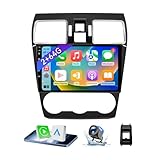
- 【Vehicle Compatibility】 The car stereo is compatible with Subaru Forester WRX Impreza 2016 2017 2018(With Silver Air Vent). Please check the car console and the year before buying. If you are not clear, please provide the following details: 1. Your car's model and year, 2. A picture of your car console
- 【 Android 13 Car Radio】The head unit runs on Android 13 as its main operating system, turning your car radio into a large tablet. Featuring 2GB + 64GB of storage, it ensures smooth performance for navigation, music, and more. The 9-inch touch screen with 1280x720 resolution provides a sharp and clear display. With the Play Store preinstalled, you can install many apps after connecting to Wi-Fi,
- 【Wireless CarPlay & Android Auto】 Wireless CarPlay and Android Auto work seamlessly, allowing for hands-free calls, navigation, music, and app use without cables. Simply connect to your smartphone via Bluetooth/Wi-Fi/USB to access the GPS navigation system, make phone calls, enjoy music while focusing on the road through the car's CarPlay screen, having a more convenient and safer driving experience
- 【GPS Navigation & WIFI &Bluetooth】Built-in GPS module supports both offline and online navigation. When connected to WiFi, you can get real - time traffic information. You can answer/make hands-free Bluetooth phone calls, listen to Bluetooth music without distractions
- 【Bluetooth & FM/RDS Radio】This car radio replacement features built-in Bluetooth, enabling hands-free calls, phone book syncing, and wireless music streaming for a convenient and safe driving experience. The FM/RDS radio offers stable reception and allows you to preset your favorite stations, keeping you informed with real-time news, sports updates, and weather forecasts while you're on the road

- Replaces the original part number: Compatible with Subaru Legacy Outback 8-inch touchscreen radio screen. The TsuperU uses upgraded materials, offering superior sensitivity, high definition, high temperature resistance, and is non-bubbling and non-whitening. With this part, you won't need to go to the dealer for a replacement, as they often recommend replacing the entire radio, which could cost thousands of dollars, but is completely unnecessary. Please watch the replacement video on YT's
- EASY PROBLEM SOLVED: If your display touch screen is cracked, delaminating, bubbles, White, fogging, air holes, unresponsive, has garbled, phantom, ghosted, ghosting, dead pixels, unresponsive, or looks bad, simply replace the TsuperU 8-inch screen navigation touchscreen and it will return to its original functionality without the need for a trip to the dealership for costly repairs. One replacement is all it takes to fix the problem
- COMPATIBLE WITH SUBARU MODELS: Navigation screen fits Subaru Outback 2.5i Limited Premium Sport Touring Premier 3.6R Limited Premier Touring radio digitizer screen 2019 2018. please check the OEM number and size carefully before purchasing, There are two versions of MAP & PHONE, compare with your original parts to make sure that this touch screen fits your car. The digitizer screen for the 8-inch touchscreen radio works with both GPS-equipped radios and non-GPS radios
- EASY TO INSTALL: The product comes with adhesive, you only need to tear off the protective film to use it, easy to install. for Subaru radio screen is an exact fit for the original vehicle. For display only 86471-AL65A 86471-AL65B 86471-AL66A 86471-AL68A 86431-AL66A 86431-AL62A 86431-AL65A 86471 AL65A 86471 AL65B 86471 AL66A 86471 AL68A 86431 AL66A 86431 AL62A 86431 AL65A 86471AL65A 86471AL65B 86471AL66A 86471AL68A 86431AL66A 86431AL62A 86431AL65A, 864734-AL66A, 86471AL76A, 86471-AL76A
- TOUCH RESPONSIVE: Touch screen meets OEM navigation system, high light transmission, high visibility, responsive, high touch accuracy. touch screen monitor is made of new upgraded material with high resolution, high clarity, more stable performance, faster response time, and has been rigorously tested to ensure a long service life, touch screen replacement

- 8 Core 64GB Android Radio:Our Android car radio is equipped with the latest version of Android and an 8-core CPU processor, delivering exceptional performance and a perfect user experience. With 4G RAM and 64G ROM, our radio ensures smooth operation and provides ample storage for downloading popular apps like YouTube. It is designed to be compatible with Subaru Forester Impreza WRX 2008-2012 models. If you’re unsure whether it’s a good fit for your vehicle, please ask us first
- Wireless and Wired Carplay Android Auto:The Subaru Forester Impreza WRX car stereo offers seamless connectivity with your smartphone’s apps and features like WhatsApp, Google Maps, and Telegram, whether through Bluetooth or a USB data cable. It also supports voice control through Siri or Google Assistant, allowing you to keep your hands free while operating the stereo
- GPS Navigation and WiFi and Split Screen:With WiFi or hotspot connectivity, you can browse the internet, watch videos, and download apps on the 9 inch Subaru Forester Impreza WRX car radio. It also supports online and offline maps, providing real-time road conditions to help you avoid traffic jams. The split-screen feature enables you to simultaneously enjoy GPS navigation and watch videos on the 9 -inch screen with a resolution of 1280x720
- 32EQ DSP/BLUETOOTH 5.0/ FM/RDS:The car stereo comes pre-installed with DSP tuning software, allowing you to adjust the frequency, audio effects, and 32 EQ equalization settings, resulting in crystal-clear sound. Bluetooth 5.0 ensures a faster transmission speed and enables hands-free calling, phonebook downloads, and music streaming. The FM/RDS radio with 30 preset stations allows you to stay updated with new broadcasts, real-time traffic information, weather forecasts, and more
- Multi Function:The Android car stereo supports mirror link functionality, allowing you to mirror your smartphone’s content onto the large screen. It also supports steering wheel controls, provides 59 UI themes to suit your preferences, and allows you to move frequently used software to the home screen for easy access. As a gift, the car stereo comes with an external microphone and an AHD rearview camera with night vision and a 170 degree viewing angle
SEOCONTENT-START
Bulletin Number: 15-165-13; Date: 08/08/13 Page 1 INTRODUCTION This Bulletin announces the availability of reprogramming files to address customer concerns of the Bluetooth audio streaming feature operating without being selected. This causes the source’s (Smartphone, iPod®, iPhone®, MP3 player) battery to drain unexpectedly. The update will initiate an “OFF” signal to the media device should Bluetooth audio streaming begin without a request from the vehicle’s audio unit. The reprogramming files are accessible via: Subarunet > Service > Clarion Downloads and will need to be downloaded onto a dedicated new or completely empty and formatted USB storage device (flash drive) for installation into the audio unit through the audio system’s USB port. IMPORTANT: Read through and understand this service procedure completely before proceeding any further as damage to the audio unit may result if proper precautions outlined below are not followed. COUNTERMEASURE IN PRODUCTION MODEL MODEL YEAR STARTING VIN Legacy 2012 C*031045 Outback 2012 C*268432 Impreza 4-Door 2012 C*021407 Impreza 5-Door C*226563 WRX 4-Door C*022373 WRX 5-Door C*228090 Forester 2012 C*453576 NUMBER: 15-165-13 DATE: 08/08/13 APPLICABILITY: 2011-2012MY Legacy, and Outback 2011-2012MY Impreza 2011-2012MY Impreza WRX 2011-2012MY Forester Models Equipped with Clarion Bluetooth Audio Units SUBJECT: Reprogramming for Non-Requested Bluetooth Audio Streaming Affecting ONLY Clarion Audio Units SERVICE BULLETIN ATTENTION: GENERAL MANAGER q PARTS MANAGER q CLAIMS PERSONNEL q SERVICE MANAGER q IMPORTANT – All Service Personnel Should Read and Initial in the boxes provided, right. Continued… CAUTION: VEHICLE SERVICING PERFORMED BY UNTRAINED PERSONS COULD RESULT IN SERIOUS INJURY TO THOSE PERSONS OR TO OTHERS. Subaru Service Bulletins are intended for use by professional technicians ONLY. They are written to inform those technicians of conditions that may occur in some vehicles, or to provide information that could assist in the proper servicing of the vehicle. Properly trained technicians have the equipment, tools, safety instructions, and know-how to do the job correctly and safely. If a condition is described, DO NOT assume that this Service Bulletin applies to your vehicle, or that your vehicle will have that condition. SUBARU OF AMERICA, INC. IS “ISO 14001 COMPLIANT” The international standard for excellence in Environmental Management Systems. Please recycle or dispose of automotive products in a manner that is friendly to our environment and in accordance with all local, state and federal laws and regulations. Bulletin Number: 15-165-13; Date: 08/08/13 Page 2 PART INFORMATION A new or completely empty and formatted USB mass storage device (flash drive), Format: FAT32 with a minimum capacity of 128MB which should be dedicated to storing these reprogramming files only is required to perform these updates. The device must not contain or require any software to operate. As a result, some flash drives larger than 4GB may not be acceptable to use for this procedure. SERVICE PROCEDURE / INFORMATION • Confirm the PC and USB device you are using is not infected with any virus. • Use the procedure below to format your USB device for FAT32 • Click Start (this is located in the lower left corner of the desktop screen) then, in the Search programs and files box, type “explorer” • As you type the word “explorer”, search results will start to appear. In the results, click on the “Windows Explorer” option under the Programs section. Continued… Start Button Bulletin Number: 15-165-13; Date: 08/08/13 Page 3 • In the next window, choose the Computer section on the left. Locate “Removable Disk” NOTE: You must make sure that the device you are formatting is the USB Flash Drive. This drive may have various names assigned to it by the manufacturer of the device and may not reflect the drive name given in this example. • Right click the picture for “Removable Disk” then select “Format”. Continued… Bulletin Number: 15-165-13; Date: 08/08/13 Page 4 • When the “Format” dialog box appears, make sure that the option labeled “File System” is set to FAT32 and the Quick Format box is checked as well. Then, click the “Start” button. • Click “OK” when the following window appears. • The drive will then start formatting and will display this window when it is finished. Click “OK” to complete the process. Continued… Bulletin Number: 15-165-13; Date: 08/08/13 Page 5 IMPORTANT: When downloading the reprogramming files to your USB device, only download the file you need to reprogram the audio unit of the vehicle you are working on. Never store more than one file on the USB device at any time. Other files on the device can cause the reprogramming procedure to not complete properly and may also damage the audio head unit. The link below will take you to the download site: * Click Here To Download The Clarion Bluetooth Audio Streaming Updating Files * UPDATING FILE APPLICABILITY CHART MODEL MODEL YEAR HEAD UNIT PART NUMBER UPDATING FILE NAME Legacy & Outback 2011-2012 86201AJ61A 470-2983-02-V020_MainMicom-USA.mot Impreza, WRX 2011 86201FG620 470-2725-11-V074_MainMicom-USA.mot 2012 86201FG620 470-2985-02-V011_MainMicom-USA.mot 86201FG630 (Display Radio) 470-3030-03-V010_Audio__________.HEX Forester 2011 86201FG620 470-2725-11-V074_MainMicom-USA.mot 86201FG630 (Display Radio)** 470-2803-06-V406_Audio__________.HEX 470-3178-02-V105_Audio__________.HEX After clicking the link above, follow the prompts provided by the browser your system utilizes to complete the download process. Continued… Bulletin Number: 15-165-13; Date: 08/08/13 Page 6 Once the download completes, click Run in the Security Warning box. Click on “Browse” in the WinZip Self Extractor box then select “My Documents” as the location to save the files. Once “My Documents” is selected, click on “Unzip”. When completed click “OK” and all 6 of the files will all be saved in a new file folder in My Documents called “clarion_files”. Continued… Bulletin Number: 15-165-13; Date: 08/08/13 Page 7 Click on the “clarion_files” icon in “My Documents” and a window will open with all 6 of the downloaded files listed. Right-click on the file you want to select and a pop-up window will appear. Left click on “Send to” then a second window will open with your destination choices. Select “Removable Disk”. NOTE: the letter designation (shown here as E:) will vary. The file you selected will be transferred to your USB device and be ready to use. Once you have selected the applicable Updating File and saved it onto your USB device, you are ready to proceed with the reprogramming procedure. Continued… Bulletin Number: 15-165-13; Date: 08/08/13 Page 8 CAUTION: Ensure the vehicle’s battery is fully charged. Do not leave a charger or booster connected during this process. Fully review and become familiar with the procedure appropriate for the audio unit you are updating before proceeding further. **Before reprogramming the 86201FG630 Display Radio in a 2011MY Forester, the currently installed software version must be verified using first 6 steps of the following procedure. Once the currently installed version is determined, select the corresponding Updating File from the chart above, download it to your USB device then proceed with the reprogramming procedure outlined below. SOFTWARE VERSION VERIFICATION AND REPROGRAMMING INSTRUCTIONS FOR 2011 FORESTER AND 2012 IMPREZA WRX WITH THE 86201FG630 DISPLAY RADIO • Turn the ignition key to the “ACC” position. • Confirm all CDs have been ejected from the audio unit. • Press the power button to switch the audio unit to “Audio Off” mode (“Audio Off” shown on the display screen). Continued… [EJECT] key [POWER] key [CD/AUX] key [TUNE/TRACK/CH] dial key [TUNE/TRACK/CH] dial key Bulletin Number: 15-165-13; Date: 08/08/13 Page 9 • While pressing and holding down the station preset station key “6”, turn the TUNE / TRACK / CH button clockwise for 30 “clicks” until the first “Version” screen is displayed. • Turn the TUNE / TRACK / CH button another click clockwise to display the second (2/3) ”Version” screen. • Select the proper reprogramming file from the chart below. DISPLAYED SOFTWARE VERSION USE UPDATING FILE 2803-04-V403 or earlier 470-2803-06-V406_Audio__________.HEX 3178-01-V104 or earlier 470-3178-02-V105_Audio__________.HEX • Push the TUNE / TRACK / CH button to display the following screen. • Plug the USB device into the USB port. Continued… Version Number (2803-04-v403) Bulletin Number: 15-165-13; Date: 08/08/13 Page 10 • Turn the TUNE / TRACK / CH button clockwise to scroll through the following screens until the version number is highlighted in screen 3/3. • Turn the TUNE / TRACK / CH button clockwise. • Press the TUNE / TRACK / CH button to select the displayed version (2803-06-v406). • Turn the TUNE / TRACK / CH button clockwise to move the highlight down to“OK” then Press the TUNE / TRACK / CH button again to select OK. • Press the TUNE / TRACK / CH button again to select OK. Next, the actual reprogramming file transfer from the USB device will begin. It will take about 10 minutes for the update procedure to complete. Continued… Screen 1 of 3 displayed Screen 2 of 3 is displayed Screen 3 of 3 and the version number are displayed “OK” is Highlighted Bulletin Number: 15-165-13; Date: 08/08/13 Page 11 IMPORTANT: DO NOT turn the key off or remove the USB device while the update is taking place! • Once the above screen is displayed, remove the USB device and turn the key “OFF”. • Turn the ignition key back to the “ACC” position again then press the power button to switch the audio unit to “Audio Off” mode (“Audio Off” shown on the display screen). • While pressing and holding down the station preset station key “6”, turn the TUNE / TRACK / CH button clockwise for 30 “clicks” until the first “Version” screen is displayed. Confirm the updated software version is now installed to complete the reprogramming procedure. POSSIBLE ERROR MESSAGES AND SOLUTIONS FOR THE 86201FG630 DISPLAY RADIO REPROGRAMMING PROCEDURE If this message appears, erase the USB device then re-download the Updating File from Subarunet If this message appears, restart the reprogramming procedure from the beginning. Continued… Bulletin Number: 15-165-13; Date: 08/08/13 Page 12 REPROGRAMMING INSTRUCTIONS FOR 2012 LEGACY & OUTBACK WITH THE 86201AJ61A AUDIO UNIT • Download the applicable Updating File to your USB device from Subarunet. • Turn the Ignition key “ON”. • Push the Power Key to turn the audio unit “ON” • Push the CD/AUX button and be sure the unit is in CD Mode. • Push the Power Key again to turn the audio unit “OFF”. Make sure the display screen is blank. • Push and hold down station preset buttons 5, 6 and the TEXT buttons all at the same time. The current software version will display on the screen and appear like the illustration shown below. • Push and hold down station preset buttons 5, 6 and the CD/AUX buttons all at the same time until the next message in the illustration shown below displays on the screen: • Plug the USB device into the USB port. Once connected, the updating process will begin automatically and take about 8 minutes to complete. The following illustrations show what the display screens will look like during the updating process. Continued… Power key Bulletin Number: 15-165-13; Date: 08/08/13 Page 13 • Remove the USB device. • Push and hold down station preset buttons 5, 6 and the TEXT buttons all at the same time. • When the software version is displayed, confirm the correct Updating File name shown in the illustration below has been installed to complete the procedure. Continued… Connecting the USB memory Erasing MICOM data Reading Update File Update is Completed Opening Audio off mode after a few seconds after a few seconds after a few seconds Bulletin Number: 15-165-13; Date: 08/08/13 Page 14 POSSIBLE ERROR MESSAGES AND SOLUTIONS FOR THE 86201AJ61A AUDIO UNIT REPROGRAMMING PROCEDURE Continued… ERROR MESSAGE DISPLAYED SOLUTION Re-connecting USB memory. Re-connecting USB memory. Recopy Updating File to USB memory. Recopy Updating File to USB memory. Recopy Updating File to USB memory. Re-start Updating operation. Re-start Updating operation. Re-start Updating operation. Bulletin Number: 15-165-13; Date: 08/08/13 Page 15 REPROGRAMMING INSTRUCTIONS FOR 2011-12 IMPREZA WITH THE 86201FJ620 AUDIO UNIT • Download the applicable Updating File to your USB device from Subarunet. • Turn the Ignition key “ON”. • Push the Power Key to turn the audio unit “ON” • Push the CD/AUX button and be sure the unit is in CD Mode. • Push the Power Key again to turn the audio unit “OFF”. Make sure the display screen is blank. • Push and hold down station preset buttons 5, 6 and the TEXT buttons all at the same time. The current software version will display on the screen and appear like the illustrations shown below. • Push and hold down station preset buttons 5, 6 and the CD/AUX buttons all at the same time until the next message in the illustration shown below displays on the screen: Continued… Power key 07 or 08 or 09 or 10 0 or 1 or 2 or 3 Bulletin Number: 15-165-13; Date: 08/08/13 Page 16 • Plug the USB device into the USB port. Once connected, the updating process will begin automatically and take about 8 minutes to complete. The following illustrations show what the display screens will look like during the updating process. • When the software version is displayed, confirm the correct Updating File name shown in the illustration below has been installed to complete the procedure. Continued… Connecting the USB memory Erasing MICOM data Reading Update File Update is Completed Opening Audio off mode after a few seconds after a few seconds after a few seconds Bulletin Number: 15-165-13; Date: 08/08/13 Page 17 POSSIBLE ERROR MESSAGES AND SOLUTIONS FOR THE 86201FJ620 AUDIO UNIT REPROGRAMMING PROCEDURE WARRANTY / CLAIM INFORMATION For vehicles within the Basic New Car Limited Warranty period, this repair may be claimed using the following information: LABOR DESCRIPTION LABOR OPERATION # FAIL CODE LABOR TIME Clarion Bluetooth Audio Update A031-118 ZCK-48 0.3 NOTE: Up to $6.00 may be claimed ONE TIME in sublet to cover the cost of the USB Flash Drive purchase. ERROR MESSAGE DISPLAYED SOLUTION Re-connecting USB memory. Re-connecting USB memory. Recopy Updating File to USB memory. Recopy Updating File to USB memory. Recopy Updating File to USB memory. Re-start Updating operation. Re-start Updating operation. Re-start Updating operation.
SEOCONTENT-END
This product presentation was made with AAWP plugin.