NHTSA ID Number: 10249594
Manufacturer Communication Number: 15-310-23R
Summary
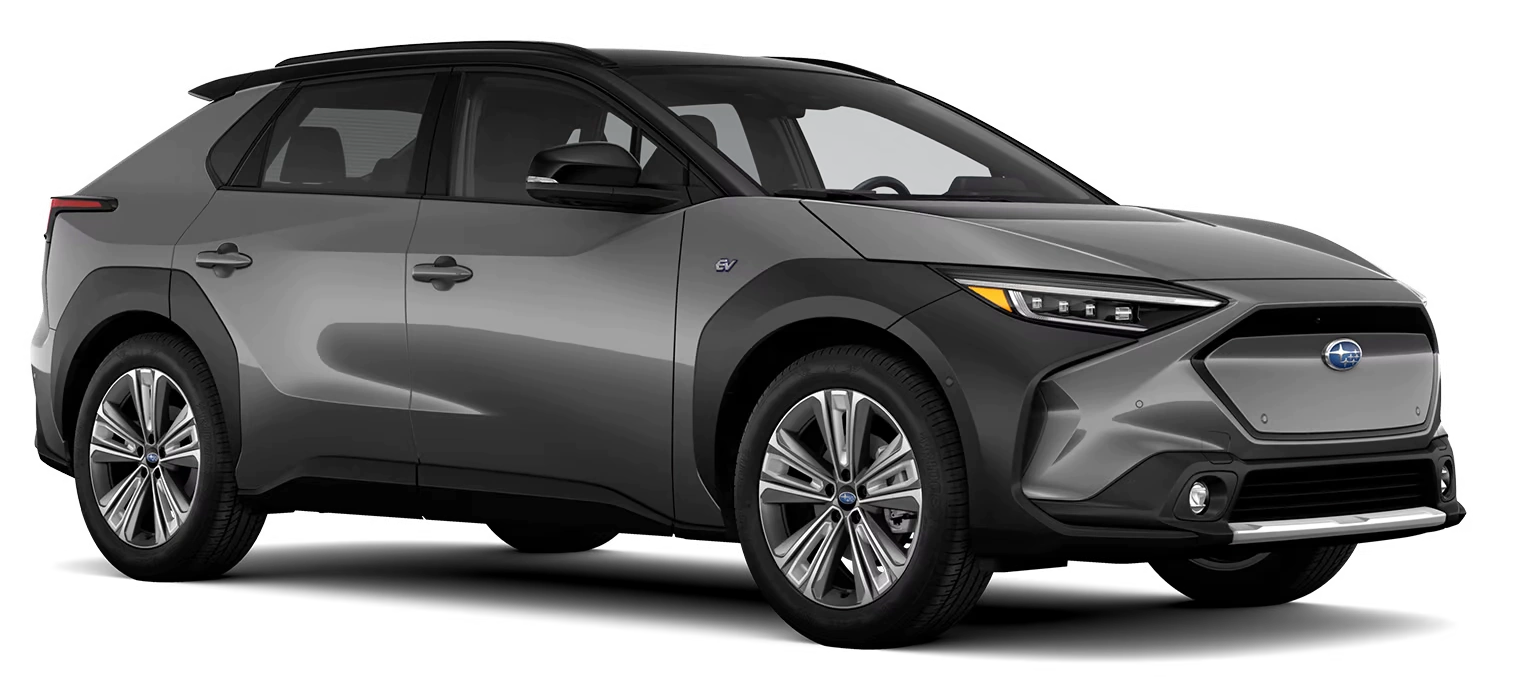
This Bulletin announces the best practices when troubleshooting Solterra connect concerns if the customer’s driver profile is not the primary driver profile and/or inability to activate Solterra Connect.
NUMBER: 15-310-23
DATE: 05/23/23
REVISED: 01/03/23
| APPLICABILITY: | 2023MY Solterra |
| SUBJECT: | Solterra Connect |
INTRODUCTION:
This Service Information Bulletin announces the best practices when troubleshooting Solterra connect concerns if the customer’s driver profile is not the primary driver profile and/or inability to activate Solterra Connect.
Solterra operation, diagnosis, and repairs differ significantly from previous Subaru models. Technicians are required to complete Solterra training prior to performing any Solterra service procedures. Solterra Service Manual, Owner’s Manual, Quick Start Guide, TechTIPs, and TSBs MUST be reviewed before attempting to rectify Solterra customer concerns. Refrain from using procedures and best practices designated for Subaru models other than Solterra on Solterra.
This document will outline a graduated escalation path of steps designed to reach a successful Solterra Connect enrollment with the customer profile as the primary driver profile. Being unprepared, not closely adhering to the procedure outlined here, or taking creative liberty with the steps will result in failed results and extended downtime of the customer’s vehicle.
Before starting, the Technician must have the Solterra Connect Application (App) loaded on their phone and registration completed. This registration does not incur any cost or obligation to any subscription but will allow the Technician to add themselves as a driver to any Solterra. Please refer to Appendix B on how to set up a Solterra Connect profile.
SERVICE PROCEDURE INFORMATION:
Refer to the Information In PDF below…
1 Affected Product
Vehicle
| MAKE | MODEL | YEAR |
| SUBARU | SOLTERRA | 2023 |
1 Associated Document
Manufacturer Communications
NUMBER: 15-310-23R
DATE: 05/23/23
REVISED: 01/03/23
MC-10249594-0001.pdf 2259.546KB
NHTSA ID Number: 10241844
Manufacturer Communication Number: 15-310-23R
Summary
This Bulletin announces the best practices when troubleshooting Solterra connect concerns if the customer’s driver profile is not the primary driver profile and/or inability to activate Solterra Connect.
1 Associated Document
Manufacturer Communications
NUMBER: 15-310-23R
DATE: 05/23/23
REVISED: 08/31/23
MC-10241844-0001.pdf 2259.499KB
NHTSA ID Number: 10238435
Manufacturer Communication Number: 15-310-23R
Summary
This Service Information Bulletin announces the best practices when troubleshooting Solterra connect concerns if the customer’s driver profile is not the primary driver profile and/or inability to activate Solterra Connect.
1 Associated Document
Manufacturer Communications
NUMBER: 15-310-23R
DATE: 05/23/23
REVISED: 06/05/23
MC-10238435-0001.pdf 2023.382KB
NHTSA ID Number: 10237294
Manufacturer Communication Number: 15-310-23
Summary
This Service Information Bulletin announces the best practices when troubleshooting Solterra connect concerns if the customer’s driver profile is not the primary driver profile and/or inability to activate Solterra Connect.
1 Associated Document
Manufacturer Communications
NUMBER: 15-310-23
DATE: 05/23/23
MC-10237294-0001.pdf 2022.08KB
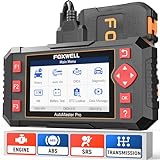
- [Easy to Use—Work Out of the Box] + [FOXWELL 2026 New Version] FOXWELL NT604 Elite scan tool is the 2026 new version from FOXWELL, designed for car owners who want to figure out the cause of issues before fixing car problems by scanning common systems like ABS, SRS, engine, and transmission. The NT604 Elite obd2 scanner diagnostic tool comes with the latest software—no need to waste time downloading software first. Plug the scanner into the OBDII port with OBDII cable to start the diagnosis.
- [Affordable] + [Reliable Car Health Monitor] Will you be confused what happens when the warning light of ABS/SRS/transmission/check engine flashes? Instead of taking your cars to dealership, this FOXWELL scanner will help you do a thorough scanning and detection for your cars and pinpoint the root cause. Note:The device is a diagnostic tool, not a repair tool. To turn off a warning light, you must first physically repair the issue causing it. Only then can the scanner be used to clear the corresponding fault code.
- [5 in 1 Car Diagnostic Scanner] Compared with obd scanners (50-100), NT604 Elite code scanner not only includes their OBDII diagnosis but also serves as ABS/SRS scanner, transmission and check engine code reader. When it’s an odb2 scanner, you can use it to check if your car is ready for annual test through I/M readiness menu. In addition, live data stream, built-in DTC library, data play back and print, all these features are a big plus for it. Note: doesn't support maintenance functions like reset or relearn. For the SRS system, NT604 Elite can read and clear common fault codes not caused by a crash, but crash/collision data cannot be cleared.
- [Fantastic AUTOVIN] + [No extra software fee] Through the AUTOVIN menu, this NT604 Elite car scanner allows you to get your V-IN and vehicle info rapidly, no need to take time to find your V-IN and input one by one. What's more, the NT604 Elite ABS SRS scanner supports 60+ car brands from worldwide (America/Asia/Europe). You don’t need to pay extra software fee. AUTOVIN may not work on some older vehicles or certain vehicle brands. If AUTOVIN fails, please input the vin code manually or go to the Diagnostic Menu to select your vehicle model.
- [Solid protective case KO plastic carrying bag] + [Lifetime update] Almost all same price-level car scanner diagnostic tool only offers plastic bag to hold the scanner.However, NT604 Elite automotive scanner is equipped with solid protective case, preventing your obd2 scanner from damage. Then you don’t need to pay extra money to buy a solid toolbox.

- 【Reset ABS/SRS/Transmission/Engine Lights】 More than an check engine code reader, OBDMATE OM901 obd2 scanner performs comprehensive diagnostics for the 4 most-used systems (ABS/SRS/Engine/Transmission). It quickly clears fault codes, turns off warning lights, read data stream and auto VIN.
- 【3.5" Handheld Scanner with 4 System Diagnose】 3.5" Super large TFT screen equipped displays an intuitive menu and clear readings of various sensors from ABS, SRS, ECM and TCM
 systems. It arrived with a silicone protective case and hard-shell carrying case, ensuring long-lived durability and drop resistance. The car diagnostic tool is plug-to-play designed, plug it and get diagnosis started without any batteries or updates required.
 - 【One-Click I/M Readines&Full OBD2 Functions】 Press F1 to get an intuitive corloured form about whether various emissions-related systems on the vehicle are operating properly. Help you get smog-check ready quickly. OM901 car scanner supports all essential OBD2 functions you need: read & clear codes, view freeze frame, read I/M readiness, retrieve VIN, live data stream (with graphing display), O2 sensor test, onboard monitoring mode, and EVAP leak test.
- 【Battery Voltage Check&DLC Pin Test】 It allows you to monitor battery health by testing current battery voltage. Plus, this obd2 diagnostic tool features DLC 16-PIN test to check current voltage of every pin.
- 【Automotive Scanner Diagnostic Kit】 The package comes with 1 car scanner, 1 USB-type c cable, 1 hard storage bag and 1 user manual(en). Free to update without any hidden fees. 5 languanges available in setting including English, French, Italian, German and Espanish. Valuable and Portable, making it a great tool kit for car owners, DIY enthusiasts, and professional mechanics.
 systems. It arrived with a silicone protective case and hard-shell carrying case, ensuring long-lived durability and drop resistance. The car diagnostic tool is plug-to-play designed, plug it and get diagnosis started without any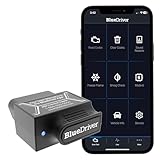
- [Diagnose Like a Pro] BlueDriver Pro is a professional OBD2 scanner and diagnostic tool that helps you scan, understand, and clear vehicle trouble codes with confidence. Turn your phone into a powerful car diagnostic scanner—no guesswork, no unnecessary repairs.
- [Read and Clear More Codes Than Ever] Read and clear more codes than basic car code readers. Access enhanced diagnostics for Check Engine, ABS, SRS, Airbag, TPMS, Transmission.
- [Verified Fixes and Real-Time Data] Get unlimited, technician-verified repair reports matched to your VIN, with definitions, causes, and confirmed fixes. Monitor live vehicle data as you drive, view freeze frames, check smog readiness, and analyze Mode 6 test results.
- [Wireless & Bluetooth Enabled] - Say goodbye to wires. BlueDriver connects with Bluetooth via your phone/tablet to a sensor that plugs into your car's OBDII port. Get all of the capabilities of an expensive code reader & scan tool without any annoying wires.
- [Broad Make & Model Coverage] Strong support for GM, Ford, Stellantis (RAM, Jeep, Chrysler), Toyota, Honda, Nissan, Mazda, Subaru, Hyundai, Mercedes-Benz, BMW, and VW.
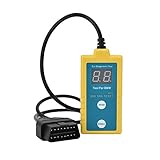
- ✔️【Professional SRS Reset for 1994-2003 BMW】 Designed specifically for classic BMW models (1994-2003). This B800 scanner reads & clears SRS airbag fault codes, turns off the warning light, and saves you a costly dealer visit. Confirmed compatible with: E36, E46 (EXCEPT 2001 330i), E34, E38, E39, Z3, and X5 (E53). NOT compatible with any BMW built before 1994 or after 2003.
- ✔️【Important: Two Different Connection Ports – Read Before Use】 To avoid “not working” issues, please note: For 1994–2000 BMWs (most E36, E34, Z3, early E39), the SRS diagnostic port is a round 20-pin connector under the hood. You MUST use the included 16-pin to 20-pin adapter cable. For 2000–2003 models (late E46, E39, X5), use the standard OBD-II port inside the cabin. Incorrect connection is the #1 reason for “incompatibility” reports.
- ✔️【Read & Clear Fault Codes in Minutes】 Quickly diagnose why your SRS light is on. The scanner accurately reads fault codes from airbag and seatbelt pretensioner systems. With one button press, clear the codes and reset the SRS warning light in seconds. No expensive dealer tools needed.
- ✔️【User-Friendly for DIYers – No Mechanic Required】 Easy operation with an intuitive button layout: ‘Enter’ to confirm, ‘Scroll’ to navigate. The clear LCD screen shows results instantly. Includes a step-by-step manual (revised for clarity) to guide you through the entire reset process.
- ✔️【Reliable Support with 1-Year Warranty】 We stand behind the quality of our B800 scanner. It comes with a 1-Year Hassle-Free Warranty. If you have any questions or need support, please contact us with your Order ID, and our dedicated team will assist you promptly.
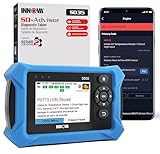
- OBD2 SCANNER FOR ALL SYSTEMS – The INNOVA SD35 is a tablet-based OBD2 scanner designed for advanced diagnostics. Read and clear check engine light, ABS, SRS, and TPMS codes, plus test your car battery and alternator to prevent unexpected failures. Vehicle coverage may vary. Please use Innova’s Coverage Checker to verify compatibility.
- ALL-SYSTEM DIAGNOSTICS & LIVE DATA – Unlike basic code readers, this OBD2 scanner for all vehicles scans engine, transmission, ABS, SRS, and more. Get real-time live data, including RPM, fuel trims, temperature readings, and oxygen sensor performance.
- OBD2 TABLET WITH USER-FRIENDLY INTERFACE – This automotive scan tool features a high-resolution display, making vehicle diagnostics faster and easier.
- ADVANCED TPMS, OIL RESET & SERVICE FUNCTIONS – Perform TPMS sensor checks, oil light reset, and other service resets with ease This professional diagnostic tool provides comprehensive vehicle maintenance capabilities in one device.
- WIDE VEHICLE COVERAGE (1996 & NEWER CARS & TRUCKS) – This OBD2 scanner Bluetooth tablet is compatible with Toyota, Ford, Honda, Chevrolet, Nissan, Dodge, and more. However, feature coverage may vary. Please use Innova's Coverage Checker to verify coverage.
SEOCONTENT-START
Bulletin Number: 15-310-23R; Revised: 01/03/23 Page 1 of 16
SERVICE INFORMATION BULLETIN
Continued…
CAUTION: VEHICLE SERVICING PERFORMED BY UNTRAINED PERSONS COULD
RESULT IN SERIOUS INJURY TO THOSE PERSONS OR TO OTHERS.
Subaru Service Bulletins are intended for use by professional technicians ONLY. They
are written to inform those technicians of conditions that may occur in some vehicles,
or to provide information that could assist in the proper servicing of the vehicle. Properly
trained technicians have the equipment, tools, safety instructions, and know-how to
do the job correctly and safely. If a condition is described, DO NOT assume that this
Service Bulletin applies to your vehicle, or that your vehicle will have that condition.
Subaru of America, Inc. is
ISO 14001 Compliant
ISO 14001 is the international standard for
excellence in Environmental Management
Systems. Please recycle or dispose of
automotive products in a manner that is friendly
to our environment and in accordance with all
local, state and federal laws and regulations.
NUMBER: 15-310-23R
DATE: 05/23/23
REVISED: 01/03/23
APPLICABILITY: 2023MY Solterra
SUBJECT: Solterra Connect
INTRODUCTION:
This Service Information Bulletin announces the best practices when troubleshooting Solterra
connect concerns if the customer’s driver profile is not the primary driver profile and/or inability to
activate Solterra Connect.
Solterra operation, diagnosis, and repairs differ significantly from previous Subaru models.
Technicians are required to complete Solterra training prior to performing any Solterra service
procedures. Solterra Service Manual, Owner’s Manual, Quick Start Guide, TechTIPs, and TSBs
MUST be reviewed before attempting to rectify Solterra customer concerns. Refrain from using
procedures and best practices designated for Subaru models other than Solterra on Solterra.
This document will outline a graduated escalation path of steps designed to reach a successful
Solterra Connect enrollment with the customer profile as the primary driver profile. Being
unprepared, not closely adhering to the procedure outlined here, or taking creative liberty with the
steps will result in failed results and extended downtime of the customer’s vehicle.
Before starting, the Technician must have the Solterra Connect Application (App) loaded on their
phone and registration completed. This registration does not incur any cost or obligation to any
subscription but will allow the Technician to add themselves as a driver to any Solterra. Please refer
to Appendix B on how to set up a Solterra Connect profile.
SERVICE PROCEDURE INFORMATION:
PREREQUISITES: Phones attempting to connect to Solterra MUST meet the following
prerequisites.
1. Bluetooth setting is turned on.
2. Wi-Fi is enabled.
3. GPS location data setting is turned on.
4. Acceptance of Solterra Connects request to use background data.
5. Once connected to the vehicle, the Service Communication Consent MUST be accepted.
6. Once connected to the vehicle, the Master Data Consent MUST be accepted.
ATTENTION:
GENERAL MANAGER q
PARTS MANAGER q
CLAIMS PERSONNEL q
SERVICE MANAGER q
IMPORTANT – All
Service Personnel
Should Read and
Initial in the boxes
provided, right.
©2023 Subaru of America, Inc. All rights reserved.
Bulletin Number: 15-310-23R; Revised: 01/03/23 Page 2 of 16
Continued…
NOTES:
• Declining the Solterra Connect requests for data access will not stop the installation of the
Solterra Connect App. It will not produce a warning message indicating that non-consent will
result in non-operation of the Solterra Connect App. When using the Solterra Connect App,
users must agree to all requests for data and location access, or the Solterra Connect App and
driver profile settings will NOT function as expected.
• The Solterra is always connected to the Telematics Call Center, and no subscription is required
to connect to an operator by pushing the Solterra Connect button. Unlike other Subaru’s,
Solterra Connect is an opt-out telematics system that is always on. Enrollment is required for
the on-demand use of enhanced telematics services. Test calls can be performed by pressing
the Solterra Connect Button, identify themselves a Subaru Technician making a test call, then
requesting VIN and location.
• When using Solterra Connect, ALWAYS use the most recent version of Android Play Store or
the Apple App Store available if your device does not accept automatic updates.
• Technicians and/or customers having a previously created Toyota or Lexus App may receive
notifications stating an active account already exists. If this is encountered, use the same
credentials for Solterra Connect.
• There are multiple ways to create a Solterra Connect account. There are Social Media shared
authentication options as well as creating a local account. Part of this process requires a
valid email and phone number. This information MUST BE VALID because connection will
require authentication Personal Identification Numbers (PINs) to be sent to the entered contact
information.
• If any components such as the head unit of the DCM has been replaced, the procedure below
must be completed before proceeding with the rest of the steps in this TSB.
IMPORTANT NOTE: After head unit or DCM replacement, it may be necessary to wait up to 24
hours to allow the backend portion of the system to realign before the operation of the newly replaced
components.
Bulletin Number: 15-310-23R; Revised: 01/03/23 Page 3 of 16
Continued…
PRECAUTIONS:
1. Verify state of charge for the 12v auxiliary battery located under the hood.
a. Test and charge the battery if required using the DCA-8000.
IMPORTANT: When a vehicle has the power switch in the “ON” position for an extended period,
excessive 12v battery drain can be resulted.
2. Set the Auto Power Off function to “OFF.”
a. When a vehicle has the power switch in the “ACC” position for more than 20 minutes (the
EV system is not operating) or “ON” for more than an hour with the shift position in P, the
power switch will automatically turn off. However, this function cannot entirely prevent
12v auxiliary battery discharge. Do not leave the vehicle with the power switch in “ACC”
or “ON” for long periods of time when the EV system is not operated.
OUTLINE OF STEPS:
1. Perform a Heath Check using GTS and save it as it will be necessary to send to Techline
should you be unable to complete any of the steps outlined in this bulletin. If DTCs are
present, do not continue with this document until the Solterra is DTC-free. Using the data
monitor function of SSM, monitor the Telematics Activation Status PID. If the status reads
“Shipping,” contact Techline.
2. Verify that the Solterra Connect LED is illuminated Green beside the Solterra Connect button.
If the LED is not green, contact the Solterra Connect Call Center (866 384 3574) for operator
assistance as to why the Solterra Connect LED is not illuminated.
3. Perform a test call by pushing the Solterra Connect Button, connect to an operator, and request
the VIN and Location. If you do not connect to an operator, contact the Solterra Connect Call
Center at (866 384 3574) for operator assistance as to why calls cannot be completed from
inside the vehicle. If no resolution from the operator’s assistance can be achieved, do not
continue using this document and refer to the applicable Service Manual.
NOTE: Speaking with a Solterra Connect Call Center Agent may only sometimes result in a repair.
In some cases, it may be necessary to continue diagnosis using the Solterra Service Manual as
indicated in Step 3 or contact Techline.
When contacting Techline, please be prepared to provide the test results of the procedures outlined
in this document and the Solterra Service Manual on STIS. Be ready to send Techline head unit logs,
GTS data for the head unit, and telematics, including an all-system scan and a video of the concern
you are attempting to repair.
4. Ensure the phone has the Solterra Connect App loaded and the profile registered.
5. Perform HU reboot. Verify the customer is the primary driver profile, then follow Appendix
A: Solterra Connect Enrollment Overview.
6. Perform a 10-minute 12V under-the-hood battery disconnect. After at least 10 minutes have
elapsed, reconnect the 12V battery, and verify the customer is the primary driver profile, then
follow Appendix A: Solterra Connect Enrollment Overview.
Bulletin Number: 15-310-23R; Revised: 01/03/23 Page 4 of 16
Continued…
7. Add the Technician driver profile and make it the Primary Driver Profile. If successful, the
Technician can repeat this process with the customer’s phone and re-evaluate the operation.
A. Bluetooth, GPS, and Wi-Fi are turned on in the customer’s phone.
B. That background data usage has been accepted.
C. The Service Communication Consent is accepted.
D. The Master Data Consent is accepted.
8. As the primary driver, you will perform a head unit reset.
9. Add the customer driver profile as the primary driver ensuring.
A. Bluetooth, GPS, and Wi-Fi are turned on in the customer’s phone.
B. That background data usage has been accepted.
C. The Service Communication Consent is accepted.
D. The Master Data Consent is accepted.
NOTE: If the customer is not enrolled in telematics services and the primary driver profile after
performing these procedures, it will be necessary to provide a video of the Technician performing
this process. Unlike other Subaru Models, there is no remote visibility into the telematics system
operation. All diagnoses and repairs of the Solterra Telematics and Infotainment Systems are highly
dependent on technicians following the Solterra service manual, Solterra owner’s manual, quick Start
guide, TSBs, and TechTIPs due to the need for more visibility of operational data. Technicians must
be prepared to provide test results and videos when contacting Techline.
DIAGNOSTIC STEPS:
Please ensure that you have reviewed all the information on pages 1 through 3 before
continuing. Failure to understand operational requirements will result in failed customer
concern resolution.
PROCEDURE 1: Start here when customer is reporting problems with infotainment or telematics
operation when the primary driver profile has already been set.
PROCEDURE 2: If conditions are still present after Procedure 1 complete the 12V Battery
disconnection and follow Procedure 2.
PROCEDURE 3: This will instruct the Technician how to add his personal phone as the primary
driver profile for diagnostic purposes.
PROCEDURE 4: Reset of infotainment and telematics Solterra Connect for diagnostic purposes
to ensure that everything has been setup correctly on the customer’s phone and Solterra Vehicle
Settings.
PROCEDURE 1: REBOOT THE 21MM HEAD UNIT BY HOLDING THE POWER
BUTTON.
1. If the customer driver profile is the primary profile on the head unit screen, reboot the 21mm
head unit MUST be completed. Once the reboot procedure is complete, ensure the customer
driver profile is on the screen and set as primary.
Bulletin Number: 15-310-23R; Revised: 01/03/23 Page 5 of 16
Continued…
2. Next, verify that the customer’s phone has the most recent version of the Solterra Connect
APP loaded on the phone. Have the customer uninstall and reinstall Solterra Connect from
the Android Play Store or the Apple APP Store if necessary.
3. Second, verify that the customer’s phone has enabled Bluetooth, WIFI, and GPS location.
4. Third, open the Solterra Connect APP and go to Account in the lower right corner. Select:
Account > Data Privacy Portal > scroll up to see Data Consent status.
Confirm the customer has accepted the following:
A. Accepted the Service Communication Consent
B. Accepted the Master Data Consent.
IMPORTANT: If the customer profile is not present on the 21mm head unit before beginning,
complete the reboot of the head unit and then proceed to Procedure 3 to add the customer driver
profile and complete enrollment. This procedure MUST be performed with the customer’s phone
instead of the Technician’s or retailer supplied phone.
PROCEDURE 2: DISCONNECT THE 12V AUXILARY BATTERY FOR A 10 MINUTE
PERIOD.
If the customer driver profile is the primary profile on the head unit screen, and the has Procedure 1:
Reboot the 21 MM Head Unit by holding the power button has been completed with no change in
enrollment status, proceed with 12v battery disconnection.
1. CAREFULLY disconnect the negative terminal of
the 12v auxiliary battery.
2. Wait for a period of at least 10 minutes.
3. CAREFULLY reconnect the negative terminal of the
12v auxiliary battery and torque to 5.4Nm (4 ft-lbs.).
4. Once 12v power is reconnected, confirm the customer driver profile is on the screen and is set
as the primary.
5. Confirm the customer’s phone has the most recent version of the Solterra Connect APP loaded
on the phone. Have the customer uninstall and reinstall Solterra Connect from the Android Play
Store or the Apple APP Store if necessary.
6. Verify that the customer’s phone has enabled Bluetooth, WIFI, and GPS location.
Bulletin Number: 15-310-23R; Revised: 01/03/23 Page 6 of 16
Continued…
7. Open the Solterra Connect APP and go to Account in the lower right
corner. Then select Account > Data Privacy Portal > scroll up to see Data
Consent status. Ensure that the customer has the following:
A. Accepted the Service Communication Consent
B. Accepted the Master Data Consent.
IMPORTANT: If the customer profile is not present on the 21mm head unit
before beginning, complete the reset of the head unit using the power button
then proceed to Procedure 3 to add the customer driver profile and complete
enrollment. This procedure MUST be performed with the customer’s phone
instead of a Technician’s or retailer supplied phone.
PROCEDURE 3: TECHNICIANS ADD THEMSELVES AS PRIMARY DRIVER:
CRITICAL: Prior to proceeding, it is required that the Solterra Connect App is loaded on the
Technician’s or retailer supplied test phone. The Technician must ensure that Bluetooth, WIFI, and
GPS location are active on their phone.
1. On the 21mm head unit, select the gear icon button on the lower left corner of the screen.
NOTE: If a driver profile is stored, it will be visible on the right two thirds section of the head
unit screen.
2. Select the refresh button illuminated in blue.
Bulletin Number: 15-310-23R; Revised: 01/03/23 Page 7 of 16
Continued…
3. If the Technician’s phone is correctly configured and Solterra Connect APP is loaded, the
Technician should now appear as a detected profile. See figure 4 Appendix C for view of a
detected profile.
4. Click on the empty dot to the right of the Technician profile.
5. You will be prompted to enter the Person Identification Number (PIN) created when setting up
the Solterra Connect App for the first time. See figure 6 Appendix C for example.
Bulletin Number: 15-310-23R; Revised: 01/03/23 Page 8 of 16
Continued…
6. The Save Profile pop-up will appear on the screen. You MUST check the empty box that
indicating to save the profile as the primary driver profile. At this point, the profile should
be indicated as the primary driver profile. The customer profile may also be shown as a
secondary or guest profile on the screen.
7. Select “Add vehicle” in the Solterra Connect App on the phone being used.
NOTE: In cases when there is already a vehicle associated with the Solterra Connect App being used,
you MUST select “My Garage” at the top center of the Solterra Connect user interface and add the
vehicle from there.
8. Continue to follow the prompts on the Solterra connect App until completed. Ensure you have
accepted Master Data and Service Communication Consents by going to: Account > Data
Privacy Portal > scroll up to see Data Consent status.
9. With the current tester now becoming recognized as the primary driver, there is no carside
trouble preventing the customer from becoming the primary driver and completing
enrollment.
10. This process can now be completed with the customer’s phone to make the customer profile
the primary driver and complete enrollment. If this cannot be achieved, it will be necessary
to perform a factory reset of the 21mm head unit. At the same time, the current tester is the
primary driver must then reattempt to add the customer profile and complete enrollment.
PROCEDURE 4: PERFORM A FACTORY RESET OF THE 21MM HEAD UNIT.
The current tester profile needs to be the primary driver profile to complete the 21mm head unit reset.
Procedure 3 MUST be previously completed before proceeding. In cases when the tester cannot be
added as the primary driver, if there is an existing driver profile, getting the PIN associated with the
profile may be necessary to complete the head unit factory reset.
IMPORTANT: Take note of any digital keys in use before performing a head unit factory reset.
Failure to remove any digital keys before activating the system reset will cause the vehicle to
become desynchronized and create new undesirable customer concerns.
DO NOT PERFORM the head unit factory reset until all digital keys have been removed from
the vehicle. If the removed digital key(s) is illuminated blue and the enable digital key button is
backlit blue this is an indication that digital keys are present.
Bulletin Number: 15-310-23R; Revised: 01/03/23 Page 9 of 16
Continued…
1. On the 21mm head unit, select the gear icon button on the lower left corner of the screen.
2. Scroll up until to find the Info and Security Menu then select it.
3. On the right, 2/3s of the screen, about halfway down the screen, will be where digital keys are
indicated.
4. If Remove Digital Keys is illuminated, keys are registered to the vehicle, and you must click
on Remove Digital Keys before clicking the System Reset in red at the bottom of the screen.
NOTE: There is no safety mechanism preventing skipping this step. The Technician must follow
directions before proceeding with the System Reset to avoid creating undesirable conditions with the
vehicle.
5. Once the digital keys have been removed, and the Remove Digital Keys are no longer on the
screen, click on the System Reset in red at the bottom. Confirm the reset by pressing the red
Reset button and the head unit will reboot at this time.
Bulletin Number: 15-310-23R; Revised: 01/03/23 Page 10 of 16
Continued…
6. Post reboot, the head unit should return to a state as if it was
first activated, presenting the language selection screen. Select
the appropriate language. This process aligns with STEP 1 of
Appendix A.
7. The next screen will ask for a phone number. This request is only
to text a link to download the Solterra Connect App and does not
perform any other function. You can enter a one and click Send to
move past this screen. This process aligns with STEP 1, continued
in Appendix A.
8. The customer’s phone should be available now, and the Solterra Connect App open.
9. If the customer still needs to complete registration with Solterra Connect, please click Register
and complete now. If the customer owns a Toyota and uses the Toyota Connect App, then they
will use the same credentials to login to the Solterra Connect APP.
10. Using the customer’s phone click ADD Vehicle. If the customer has multiple vehicles, you
must click My Garage to add the vehicle. This process aligns with STEP 2 of Appendix A.
11. Next, the QR code should appear on the screen. This process aligns with STEP 3 of
Appendix A.
12. Confirm the customer’s phone has the following:
A. Bluetooth, GPS, and Wi-Fi setting turned on.
B. That background data usage has been accepted.
C. The Service Communication Consent has been accepted.
D. The Master Data Consent has been accepted. This process aligns with STEP 4 of
Appendix A.
13. Complete linking of customers’ phones for Bluetooth, Carplay/Android Auto, Digital Keys,
etc. This process aligns with STEP 5 of Appendix A.
CRITICAL: It is imperative to link the vehicle key fob to the profile to ensure the customer has the
best in-car experience. Please refer to STEP 5 of Appendix A.
Bulletin Number: 15-310-23R; Revised: 01/03/23 Page 11 of 16
Continued…
Upon completing this procedure, the customer should be the primary driver profile and successfully
enrolled in the telematics trial subscription.
Suppose the customer is not the primary driver profile. Success can be confirmed by the satellite icon
on the upper right corner of the 21 mmm head unit being illuminated in blue. If the satellite icon
is not blue, or the Technician cannot follow and complete this procedure, be prepared with a video
of the failing steps and GTS health check when contacting Techline or your DQSM for additional
support.
Bulletin Number: 15-310-23R; Revised: 01/03/23 Page 12 of 16
Continued…
APPENDIX A: SOLTERRA CONNECT REGISTRATION:
All STEPS are to be performed inside the vehicle. Confirm the key is present the turn the
power switch to the “ON” position. Follow the guided interactions on the customer’s phone.
STEP 1:
STEP 2:
STEP 3:
STEP 4:
Bulletin Number: 15-310-23R; Revised: 01/03/23 Page 13 of 16
Continued…
STEP 5:
Bulletin Number: 15-310-23R; Revised: 01/03/23 Page 14 of 16
Continued…
APPENDIX B: SETTING UP A SOLTERRA CONNECT PROFILE.
The operation of Solterra Connect differs significantly from MySubaru. Understanding these
differences will allow you to successfully register a profile the first time connecting to a Solterra and
help customers ensure that Solterra Connect is set up correctly on their vehicle and device.
PRECAUTIONS:
1. CONFIRM the device has a data connection.
2. Wi-Fi MUST be turned on.
3. Bluetooth MUST be turned on.
4. GPS location services MUST be on.
5. Solterra Connect will require permission to use the device camera.
When using Solterra Connect, ALWAYS use the most recent version of Android Play Store or the
Apple App Store available if your device does not accept automatic updates.
IMPORTANT NOTE: Technicians or customers having a previously created Toyota or Lexus App
may receive notifications stating an active account already exists. If this is encountered use the same
credentials for Solterra Connect.
There are multiple ways to create a Solterra Connect account. There is social media shared
authentication options as well as creating a local account. Part of this process requires a valid
email and phone number. This information MUST BE VALID because connection will require
authentication Personal Identification Numbers (PINs) to be sent to the entered contact information.
STEP 1: Using the Solterra Connect application, select the desired
social media account you would prefer to use or fill out the request
information under the “Register for a new account” menu.
Bulletin Number: 15-310-23R; Revised: 01/03/23 Page 15 of 16
STEP 2: Solterra Connect will require access to location and background data. It is necessary
to accept these requests for maximum functionality. Declining these requests will not prevent
installation or cause any errors, it will only limit the operations of Solterra Connect.
STEP 3: Once you have successfully connected, it is recommended
that you confirm acceptance of the Connected Services Master Data
Consent and the Service Connect Communication policies. This
verification can only be done while a Solterra is active in My
Garage. The necessary menus is only visible once there is a Solterra
in the My Garage section of the application. This can be found by
navigating: Account > Data Privacy Portal > (scroll up) Data
Consent Status
Continued…
Bulletin Number: 15-310-23R; Revised: 01/03/23 Page 16 of 16
STEP 4: It will be necessary to create a PIN within the Solterra Connect Application. This PIN is
essential for a Technician to perform diagnosis and/or repair that will require Technician to be the
primary driving profile on Solterra. If not prompted to create a PIN, navigate to: Account Settings >
Security Settings > Account PIN
**************************************************************************************************************
**************************************************************************************************************
SEOCONTENT-END
This product presentation was made with AAWP plugin.