SPECIAL EDITION
Interactive and Retrievable Diagnostic Service Manuals (ISM)
Subaru of America, Inc. is pleased to introduce Interactive and Retrievable Diagnostic Service Manuals (ISM) as a new feature at upcoming model changeovers. The first such manual will be integrated with the 2024 Crosstrek and Impreza online manuals in the Subaru Technical Information System (STIS).
The new features in the manual look and flow the same as the current version but incorporate several helpful features such as:
- The ability to communicate with the vehicle to retrieve basic vehicle information such as VIN and mileage and requested parameter ID data (PID data) while working through the trouble tree.
- The ability to save and store all responses in fault tracing sessions along with the ability to search and recall those sessions for future reference if needed.
- The ability to transmit saved sessions directly to the Subaru Technical Helpline to assist in fault tracing.
These features are only visible for a Subarunet retailer job role of Service Technician (DEALER_SERVICE _TECHNICIAN) at an assigned retailer. Other job titles will only see the static trouble trees but will be able to view saved sessions. Those with interactive access can still see the static view by clicking the PRINT button in the service manual menu. The print function should be used if not actively fault tracing a vehicle to avoid storing inaccurate or unwanted sessions. The ISM functions work by connecting through SSM4, so accessing the ISM through an SDS laptop is required. Certain other requirements with SSM4 also need to be met to allow this communication.
First, some basics apply as with all SSM4 communication. Connection to the SDS network is also required. The vehicle and laptop must be ON and connected to each other. SSM4, when displaying certain menus, attempts to communicate continuously with the vehicle. Because of this, only particular menus can be open. That, along with other basic conditions being met, will allow the ISM to communicate. They are:
- SSM4 must have been running prior to attempting ISM communication. To clarify, a laptop restart will require SSM4 to have been opened at least once prior for this condition to be met. SSM4 does not need to be open during ISM communication but must have been running at least once prior to the ISM communication attempt. Opening SSM4 causes an applet subroutine called IIS to become active on the laptop. This applet is required for ISM communication.
- Only certain menus allow ISM communication while SSM4 is open. See figures 1-9 below for specific menu functionality. It is highly recommended to read DTCs from the Each System – DTC results menu. Then click on any linkable DTC retrieved to access the ISM trouble tree for that DTC after the data has been saved.
- Other than the specific menus indicated below, it can be assumed that the ISM will not be able to communicate when any other menu is open. This includes the Start, All DTC, Data Monitor, Cancel Code, Active Test, and Work Support function menus and other sub-menus.
- Figures 1 through 8 below show various SSM4 menus and their ability (or not) to allow ISM communication.
To retrieve saved sessions, use the Search Troubleshooting Sessions button found in the Service Diagnostics menu of STIS [Figure A]. Use the search menu [Figure B] to filter the search. Results will reappear in the ISM as they were entered and saved. Results cannot be edited once a resolution is found and saved, but partially completed/saved results can be resumed. Modifying any previously entered responses will delete any subsequent entries in the trouble tree.
The vehicle CAN communicate with the ISM from Start Diagnosis menu BEFORE clicking OK.
The vehicle CANNOT communicate with the ISM from the Vehicle – Main or any OBD System menu.
The vehicle CAN communicate with the ISM from the Target Each System menu BEFORE entering an individual system.
The vehicle CANNOT communicate with the ISM from any System [individual] (any, ECM, TCM , etc.) main menu.
The vehicle CAN communicate with the ISM from this menu after saving DTC/FFD info by clicking Save.
It is RECOMMENDED to communicate with the ISM from the DTC Results menu by clicking the hyperlinked DTC and following the ISM trouble tree for that fault. STIS will open to the proper trouble tree.
If unable to communicate with ISM as illustrated in Figure 6, click the Stop DTC button and try again.
If trying to return to the Each system menu from other functions (a Data Monitor function, for example) click on the Target Each System menu button and save data if requested, before attempting to communicate using the ISM. This returns to [Figure 3] status.
When the ISM is attempting to communicate, the screen will darken slightly and the communication circle will spin until the data is retrieved. If this is not visible for at least a short amount of time, the IIS function is not active. To correct this the laptop must be restarted and SSM4 must be opened and then closed, or opened to one of the acceptable menus listed above.
Also make note of the Print button to view a static version of the trouble tree.
NHTSA ID Number: 10237259
Manufacturer Communication Number: SubaruTech Tips
Summary
Subaru Service and Technical Support Line Newsletter. (Special Edition 2)
1 Affected Product
Vehicle
1 Associated Document
Manufacturer Communications
TIPS_SE_April2023_2 – Interactive and Retrievable Diagnostic Service Manuals (ISM) (Special Edition)
MC-10237259-0001.pdf 2052.761KB

- OE-Level diagnostics on your smart device
- FREE Software updates - No subscriptions, no fees – EVER
- Full bi-directional control, live actuation test
- Supports 23 vehicle reset/relearn functions, including throttle matching, ABS bleeding, TPMS reset, etc.
- Live data mapping and freeze frame capturing


- CEL Doctor: The ANCEL AD310 is one of the best-selling OBD II scanners on the market and is recommended by Scotty Kilmer, a YouTuber and auto mechanic. It can easily determine the cause of the check engine light coming on. After repairing the vehicle's problems, it can quickly read and clear diagnostic trouble codes of emission system, read live data & hard memory data, view freeze frame, I/M monitor readiness and collect vehicle information
- Sturdy and Compact: Equipped with a 2.5 foot cable made of very thick, flexible insulation. It is important to have a sturdy scanner as it can easily fall to the ground when working in a car. The AD310 OBD2 scanner is a well-constructed mechanic tool with a sleek design. It weighs 12 ounces and measures 8.9 x 6.9 x 1.4 inches. Thanks to its compact design and light weight, transporting the device is not a problem. The buttons are clearly labelled and the screen is large and displays results clearly
- Accurate Fast and Easy to Use: The AD310 scanner can help you or your mechanic understand if your car is in good condition, provides exceptionally accurate and fast results, reads and clears engine trouble emission codes in seconds after you fixed the problem. This device will let you know immediately and fix the problem right away without any car knowledge. No need for batteries or a charger, get power directly from the OBDII Data Link Connector in your vehicle
- OBDII Protocols and Car Compatibility: Many cheap scan tools do not really support all OBD2 protocols. AD310 scanner as it can support all OBDII protocols such as KWP2000, J1850 VPW, ISO9141, J1850 PWM and CAN. This device also has extensive vehicle compatibility with 1996 US-based, 2000 EU-based and Asian cars, light trucks, SUVs, as well as newer OBD2 and CAN vehicles both domestic and foreign. Pls confirm with our customer service whether it is compatible with your vehicle before purchasing
- Home Necessity and Worthy to Own: This is an excellent code reader to travel or home with as it weighs less and it is compact in design. You can easily slide it in your backpack as you head to the garage, or put it on the dashboard, this will be a great fit for you. The AD310 is not only portable, but also accurate and fast in performance. Moreover, it covers various car brands and is suitable for people who just need a code reader to check their car

- MAINTAIN PEAK PERFORMANCE AND SAFETY ON THE ROAD - Easily find and fix the problem with your vehicle using the INNOVA 5610 bidirectional scan tool. This OBD2 scanner diagnostic tool provides real-time solutions to troubleshoot issues. Access OBD2 and OEM live data with ease, making it an essential car scanner diagnostic tool. Perfect for those seeking reliable car diagnostic scanner and code readers & scan tools for vehicles.
- PRO-LEVEL FUNCTIONALITIES - Use the INNOVA 5610’s Enhanced Data Stream to view live data for advanced systems like ABS, SRS, transmission, and engine. The Special Reset Function lets you use dealership-level re-learn procedures. This car diagnostic scanner is ideal for those needing a bidirectional scan tool or mechanic tools automotive for professional repairs. Compatible with select vehicle makes and models; not universal.
- COMMAND WITH BIDIRECTIONAL CONTROLS - The INNOVA 5610 bidirectional scan tool sends commands to test functions such as fuel pump on/off or retracting the electronic parking brake. With this car scanner diagnostic for all cars, you can operate like a pro. Ideal for those seeking a car code reader and reset tool or advanced fixd car diagnostic tool capabilities. Compatible with select vehicle makes and models; not universal.
- EASY TO USE - The INNOVA 5610 OBD2 scanner diagnostic tool supports English, Spanish, and French. Easily use this scanner for car on most 1996 - 2023 (2024 coming soon) OBD2 vehicles to verify repairs. Designed for ease of operation, it’s a dependable code reader for cars and trucks and check engine code reader. To confirm vehicle coverage, please utilize Innova's Coverage Checker.
- BUY AND DRIVE WITH CONFIDENCE - Backed by ASE-Certified support, this car scanner pairs with the RepairSolutions2 app, trusted by 4M users, for wireless OBD scanner functionality. With free updates and no subscription fees, this durable car computer diagnostic reader ensures you’re prepared for any repair. A must-have diagnostic scanner for vehicles.

- 2026 Advanced ECU Coding Scan Tool: Maximize the capabilities of your vehicles with the ArtiDiag Pro. This scan tool, seamlessly compatible with renowned models such as VW, A-U-D-I, SKODA, SEAT, BENZ, and more, empowers you to uncover hidden features, deactivate annoying functions, and code retrofitted components for peak performance. Ensure a backup before coding and steer clear of problems on low battery levels.
- Efficient Diagnostics with Bidirectional Control: Say goodbye to uncertainty, streamline diagnostics, and reclaim valuable time with ArtiDiag Pro scan tool. This bidirectional scan tool exceeds expectations, enabling targeted tests on individual actuators to swiftly identify and resolve issues. Covering lights, door locks, fuel and coolant systems, windows, wipers, EVAP, and more in vehicle components.
- 35+ Services Resolve 90% of Repair Challenges: Unleash maximum productivity with the ArtiDiag Pro, a scan tool that tackles 90% of maintenance issues through its 35 special functions. Effortlessly clear oil maintenance indicators with oil reset. Engage the EPB Reset for brake system management and establish precise alignment with the Steering Angle Reset to define the straight-line reference position for your vehicle.
- FCA Autoauth : This diagnostic tool supports Autoauth for FCA SGW/Renault, Chrysler, Jeep, Dodge, Fiat etc. 2017 and later. NOTE: Due to Product Upgrade, there is no Chrysler 12+8 adapter, the BMW-20 Adapter in the package any more. We are sincerely sorry for the inconvenience. NOTE: Please confirm compatibility before purchase.(Topdon Website>Support>Vehicle Coverage)
- Professional Customer Support: At TOPDON, your satisfaction is our unwavering commitment. Experience hassle-free support and a lifetime of expert assistance. Should you encounter any challenges, reach out to us at 833-629-4832. For returns, please damage the packaging to prevent Amazon from reselling it. Please be advised that after two years, a subscription fee of 249 Bucks will apply.
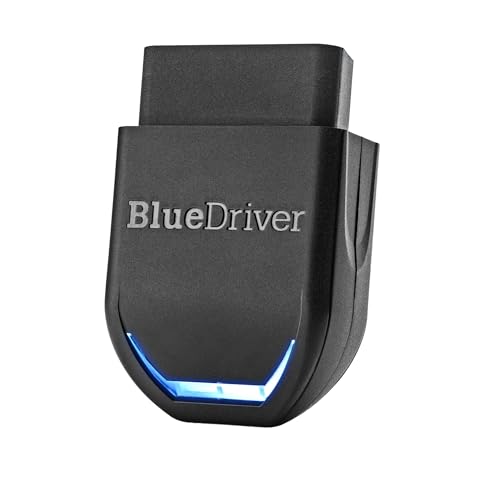
- [Diagnose Like a Pro] BlueDriver Pro Next-Gen is a professional OBD2 scanner and diagnostic tool that helps you scan, understand, and clear vehicle trouble codes with confidence. Turn your phone into a powerful car diagnostic scanner—no guesswork, no unnecessary repairs.
- [Read and Clear More Codes Than Ever] Read and clear more codes than basic car code readers. Access enhanced diagnostics for Check Engine, ABS, SRS, Airbag, TPMS, Transmission, and more on supported vehicles, including expanded coverage on newer model years.
- [Verified Fixes and Real-Time Data] Get unlimited, technician-verified repair reports matched to your VIN, with definitions, causes, and confirmed fixes. Monitor live vehicle data as you drive, view freeze frames, check smog readiness, and analyze Mode 6 test results.
- [Expanded Make & Model Coverage] Optimized for today’s vehicles with strong support for GM, Ford, Stellantis (RAM, Jeep, Chrysler), Toyota, Honda, Nissan, Mazda, Subaru, Hyundai, Mercedes-Benz, BMW, and VW. Enhanced communication on select 2024+ Nissan and Mazda models (see compatibility chart).
- [Gas Vehicles 1996+ & Select Light-Duty Trucks] Works with all gas-powered vehicles made in 1996 or newer, plus select light-duty trucks and diesels, including F-250, RAM 2500, Silverado, and Sierra. Built for daily drivers, family vehicles, and real-world truck use.
SEOCONTENT-START
Subaru Service and Technical Support Line Newsletter The Subaru TechTIPS newsletter is intended for use by professional Technicians ONLY. Articles are written to inform those Technicians of conditions that may occur in some vehicles, or to provide information that could assist in the proper servicing of the vehicle. Properly trained Technicians have the equipment, tools, safety instructions, and know-how to do the job correctly and safely. If a condition is described, DO NOT assume that your vehicle has or will have that condition. Impreza, Legacy, Justy, Loyale, Outback, Forester, Subaru SVX, WRX, WRX STI, Baja, Tribeca, BRZ, XV Crosstrek and “Quality Driven” are Registered Trademarks. ISO 14001 is the international standard for excellence in Environmental Management Systems. Please recycle or dispose of automotive products in a manner that is friendly to our environment and in accordance with all local, state and federal laws and regulations. CAUTION: VEHICLE SERVICING PERFORMED BY UNTRAINED PERSONS COULD RESULT IN SERIOUS INJURY TO THOSE PERSONS OR TO OTHERS. SUBARU OF AMERICA, INC. IS ISO 14001 COMPLIANT ©2023 Subaru of America, Inc. All rights reserved. CONTINUED ON THE NEXT PAGE home Subaru of America, Inc. is pleased to introduce Interactive and Retrievable Diagnostic Service Manuals (ISM) as a new feature at upcoming model changeovers. The first such manual will be integrated with the 2024 Crosstrek and Impreza online manuals in the Subaru Technical Information System (STIS). The new features in the manual look and flow the same as the current version but incorporate several helpful features such as: • The ability to communicate with the vehicle to retrieve basic vehicle information such as VIN and mileage and requested parameter ID data (PID data) while working through the trouble tree. • The ability to save and store all responses in fault tracing sessions along with the ability to search and recall those sessions for future reference if needed. • The ability to transmit saved sessions directly to the Subaru Technical Helpline to assist in fault tracing. These features are only visible for a Subarunet retailer job role of Service Technician (DEALER_SERVICE _TECHNICIAN) at an assigned retailer. Other job titles will only see the static trouble trees but will be able to view saved sessions. Those with interactive access can still see the static view by clicking the PRINT button in the service manual menu. The print function should be used if not actively fault tracing a vehicle to avoid storing inaccurate or unwanted sessions. The ISM functions work by connecting through SSM4, so accessing the ISM through an SDS laptop is required. Certain other requirements with SSM4 also need to be met to allow this communication. First, some basics apply as with all SSM4 communication. Connection to the SDS network is also required. The vehicle and laptop must be ON and connected to each other. SSM4, when displaying certain menus, attempts to communicate continuously with the vehicle. Because of this, only particular menus can be open. That, along with other basic conditions being met, will allow the ISM to communicate. They are: SPECIAL EDITION Interactive and Retrievable Diagnostic Service Manuals (ISM) Special Edition TechTIPS Page 1 of 7 CONTINUED ON THE NEXT PAGE • SSM4 must have been running prior to attempting ISM communication. To clarify, a laptop restart will require SSM4 to have been opened at least once prior for this condition to be met. SSM4 does not need to be open during ISM communication but must have been running at least once prior to the ISM communication attempt. Opening SSM4 causes an applet subroutine called IIS to become active on the laptop. This applet is required for ISM communication. • Only certain menus allow ISM communication while SSM4 is open. See figures 1-9 below for specific menu functionality. It is highly recommended to read DTCs from the Each System – DTC results menu. Then click on any linkable DTC retrieved to access the ISM trouble tree for that DTC after the data has been saved. • Other than the specific menus indicated below, it can be assumed that the ISM will not be able to communicate when any other menu is open. This includes the Start, All DTC, Data Monitor, Cancel Code, Active Test, and Work Support function menus and other sub-menus. • Figures 1 through 8 below show various SSM4 menus and their ability (or not) to allow ISM communication. To retrieve saved sessions, use the Search Troubleshooting Sessions button found in the Service Diagnostics menu of STIS [Figure A]. Use the search menu [Figure B] to filter the search. Results will reappear in the ISM as they were entered and saved. Results cannot be edited once a resolution is found and saved, but partially completed/saved results can be resumed. Modifying any previously entered responses will delete any subsequent entries in the trouble tree. Special Edition TechTIPS Page 2 of 7 The vehicle CAN communicate with the ISM from Start Diagnosis menu BEFORE clicking OK. CONTINUED ON THE NEXT PAGE Special Edition TechTIPS Page 3 of 7 CONTINUED ON THE NEXT PAGE The vehicle CANNOT communicate with the ISM from the Vehicle – Main or any OBD System menu. The vehicle CAN communicate with the ISM from the Target Each System menu BEFORE entering an individual system. Special Edition TechTIPS Page 4 of 7 CONTINUED ON THE NEXT PAGE The vehicle CANNOT communicate with the ISM from any System [individual] (any, ECM, TCM, etc.) main menu. The vehicle CAN communicate with the ISM from this menu after saving DTC/FFD info by clicking Save. Special Edition TechTIPS Page 5 of 7 CONTINUED ON THE NEXT PAGE It is RECOMMENDED to communicate with the ISM from the DTC Results menu by clicking the hyperlinked DTC and following the ISM trouble tree for that fault. STIS will open to the proper trouble tree. If unable to communicate with ISM as illustrated in Figure 6, click the Stop DTC button and try again. Special Edition TechTIPS Page 6 of 7 If trying to return to the Each system menu from other functions (a Data Monitor function, for example) click on the Target Each System menu button and save data if requested, before attempting to communicate using the ISM. This returns to [Figure 3] status. When the ISM is attempting to communicate, the screen will darken slightly and the communication circle will spin until the data is retrieved. If this is not visible for at least a short amount of time, the IIS function is not active. To correct this the laptop must be restarted and SSM4 must be opened and then closed, or opened to one of the acceptable menus listed above. Also make note of the Print button to view a static version of the trouble tree. Special Edition TechTIPS Page 7 of 7
**************************************************************************************************************
**************************************************************************************************************
SEOCONTENT-END
This product presentation was made with AAWP plugin.