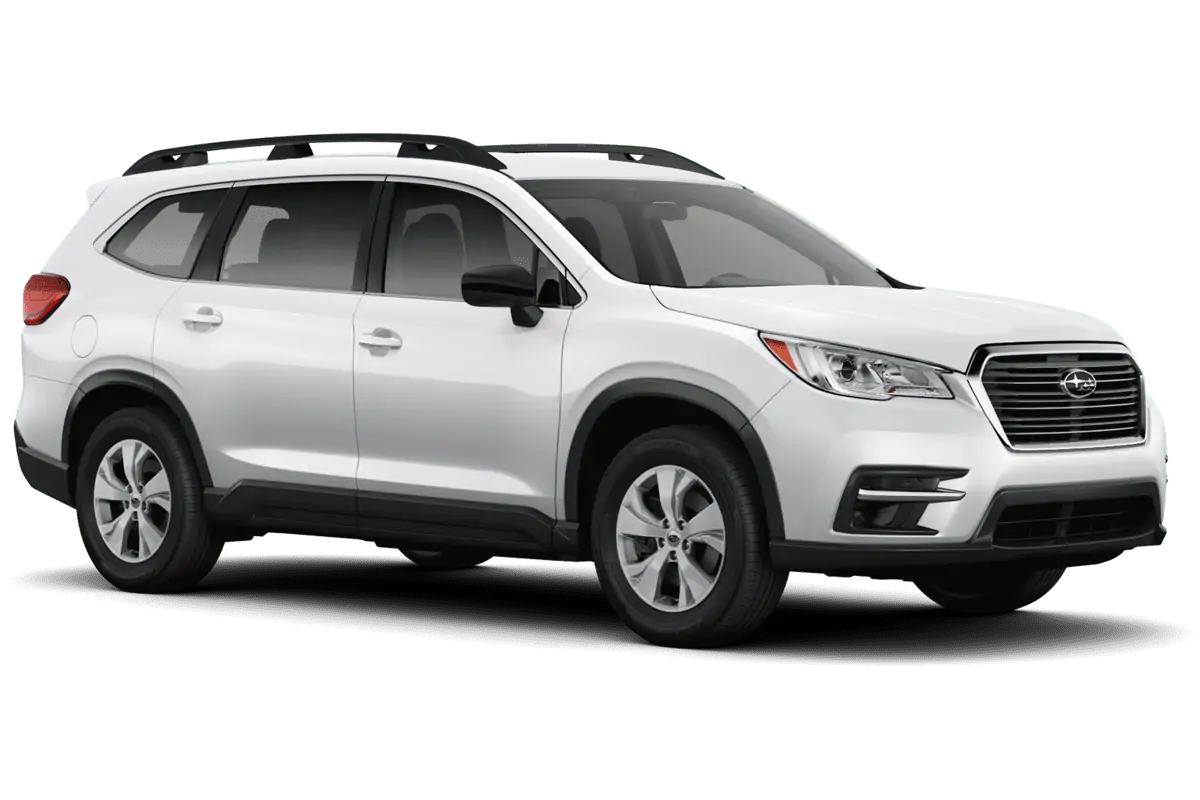
NHTSA ID Number: 10233863
Manufacturer Communication Number: 15-220-18R
Summary
This bulletin provides troubleshooting steps to use when diagnosing concerns of the Apple CarPlay and / or Android Auto feature not connecting or launching properly when a compatible device is connected to the head unit.
NUMBER: 15-220-18R
DATE: 03/08/18
REVISED: 03/03/23
| APPLICABILITY: | All Models Equipped with Harman Audio / Navigation Head Units |
| SUBJECT: | Harman Audio / Infotainment: Troubleshooting Apple CarPlay and Android Auto Connectivity Concerns |
INTRODUCTION:
This bulletin provides troubleshooting steps to use when diagnosing concerns of the Apple CarPlay and / or Android Auto feature not connecting or launching properly when a compatible device is connected to the head unit.
SERVICE PROCEDURE / INFORMATION:
Please complete checklist provided at the end of the document and keep it available for future reference.
- 1) Confirm the condition as reported by the customer. Information located in the Harman Investigation Guide-Questionnaire may be required to understand fully how to duplicate the condition. The customer’s phone will most likely also be required unless a similar phone is available for testing. Confirm the phone is charging, after connected to the USB hub. If charging not confirmed please defer to TSB 15-226-18R.
- 2) Verify the device being used is compatible with the head unit by checking the listings on Subaru.com under Bluetooth Compatibility using the following link: https://www.subaru.com/compatibility/bluetooth.html
- 3) Verify the cable being used to connect the device is a OEM (e.g. Apple, Samsung, Motorola, etc.) -supplied or a certified OEM / Manufacturer-compliant product.
- 4) Verify the software version of the head unit and if it is not the most current, update it using the most recent version available. See TSB 15-211-17R (Gen 3.0 head unit) and TSB 15-236-18 (Gen 3.1 head unit). for the complete Service Procedure to update the head unit software if needed.
- 5) Confirm the device’s operating system; CarPlay (iOS) or Android Auto (OS) versions are up to date.
- 6) Confirm the CarPlay or Android Auto feature is enabled on the device without any Restrictions by following the steps below:
For Apple CarPlay (iOS 11 and prior):
NOTE: In case of iOS 12 and up please follow steps below: a) Confirm CarPlay is enabled by going to: Settings > Screen Time > Content and Privacy Restrictions. b) If “Content and Privacy Restrictions” are enabled, the slider will be green. This means there might be apps like CarPlay disabled. If so… c) Select “Allowed Apps” d) Ensure CarPlay is enabled. If slider is green, CarPlay is allowed. |
| For Android Auto:
Confirm the Android Auto feature on the device is set to accept new car connections. |
- 7) If the N/G condition persists after performing the instructions supplied in steps 1-6 above, try using another known-good certified OEM / Manufacturer-compliant connecting cable in the customer’s vehicle to rule out a faulty connecting cable. If the N/G condition persists, the connecting cable is likely to be OK. Please review the supplemental information beginning on pg. 3 to confirm the phone has been set up properly.
- 8) Try the device and (confirmed OK) connecting cable in a known good vehicle.
- 9) If CarPlay / Android Auto launches and operation is OK, swap the USB hub / cable from the known good vehicle into the customer vehicle and check for proper operation. If OK, replace the USB hub / cable. Please note the part number for the original USB hub and for the donor.
- 10)If the N/G persists, swap the head unit with a known good one and if a faulty head unit is identified, replace it using the Harman exchange unit program.
IMPORTANT CAUTION: Always disconnect the Telematics Data Communication Module (DCM) BEFORE any swapping of head units. DCMs must NEVER be swapped or the customer’s services will not function and DCM replacement may be required to resolve.
- 11) If the above steps do not resolve the customer’s concern with CarPlay/ Android Auto function, complete a fresh Harman Investigation Guide- Questionnaire documenting the customer’s concern and the results of each diagnostic step in this bulletin including the USB hub part number and date code if possible (see TSB 15-226-18R for the details for obtaining date code). If possible, capture a video of the condition then contact the SOA Techline to review for next steps. Techline will request you send the completed questionnaire, step by step bulletin results and any videos of the condition.
NOTE: The following supplemental information provides additional How-To information for CarPlay and Android Auto Setup.
How to Set Up Apple CarPlay:
- Connect the iOS/Apple iPhone to the vehicle’s USB port. ALWAYS use a quality OEM cable.
- Select “Allow” when prompted.
- Select Apple CarPlay on the vehicle infotainment screen.
- The home page of the user’s phone will be displayed in Apple CarPlay.
Best practices and fixes for Apple CarPlay:
- Always use a high-quality OEM USB cable to connect the phone.
- Ensure the iOS/Apple phone software is fully up to date.
- Ensure all other apps that work on Apple CarPlay are also up to date (e.g. Pandora, Apple Maps, Spotify). Apple CarPlay may not function correctly if one of these apps is outdated or having an issue. Apps can be updated by using the “App Store” app.
- Visit the Apple CarPlay website for the latest info, FAQs and device compatibility at:
- If CarPlay does not launch:
- Confirm CarPlay is enabled. In case of iOS 11 and prior go to: Settings > Screen Time > Content and Privacy Restrictions.
- If “Content and Privacy Restrictions” are enabled, the slider will be green. This means apps like CarPlay might be disabled. If so…
- Select “Allowed Apps”.
- Ensure CarPlay is enabled (slider is green).
NOTE: in case of iOS 12 and up please follow steps below:
- Confirm Carplay is enabled by going to: Settings > Screen Time > Content and Privacy Restrictions.
- If “Content and Privacy Restrictions” are enabled, the slider will be green. This means there might be apps like Carplay disabled. If so…
- Select “Allowed Apps”
- Ensure Carplay is enabled. If slider is green, CarPlay is allowed.
- For other CarPlay issues, go to “Settings” and select “General”.
- Select CarPlay.
- From here, you can manage all the vehicles associated with the iOS/Apple device.
- “Allow CarPlay While Locked” can be selected.
- “Forget This Car” can be selected to remove a vehicle and start over from scratch if necessary.
How to Setup Android Auto:
- Connect the Android phone to the vehicle’s USB port. ALWAYS use a quality OEM cable.
- For the first time, the message shown below will appear.
- Select “ACCEPT”
- Select ACCEPT to all other prompts which may follow.
- Android Auto may also need to download before it will operate. Allow it to do so.
- From the infotainment screen, Android Auto should automatically launch for the first time. If it does not, select the Android Auto icon on the vehicle infotainment screen.
- Select “SHOW ME HOW” for a quick guide on using Android Auto or “SKIP” to start using the app right away.
- The next screen will be the home page of Android Auto for the user’s phone.
Best practices for Android Auto:
- Always use a high-quality OEM USB cable to connect the phone.
- Ensure the OS/Apple phone software is fully up to date.
- Ensure the Android Auto App is up to date from the Play Store.
- Ensure all other apps that work on Android Auto are up to date. (e.g. Google Maps, Waze, Spotify). Android Auto may not function correctly if one of these apps is outdated or having an issue. Apps can be updated by using the “Play Store” app.
- If Android Auto will not launch, open the Android Auto app on the phone, select the top left menu button>>Settings>>Connected Cars>>Select the top right menu icon and choose “Forget all cars”.
- If issues persist, uninstall the Android Auto app from the phone and re-install it from the Play Store.
- Visit the Android Auto website for the latest info, FAQs and device compatibility. https://www.android.com/auto/
APPLE CARPLAY AND ANDROID AUTO CONNECTIVITY CONCERN CHECKLIST
Repair Order Date:
Vehicle Identification Number (VIN):
- Condition confirmed as reported by the customer? NO: š YES: š
Concern details:
Is the phone charging? NO: š YES: š
- Is the phone compatible? NO: š YES: š
- Is the cable used to connect the phone OEM? NO: š YES: š
- Head Unit software version:
- CarPlay version (if applicable): Android Auto version (if applicable):
- Is the CarPlay/Android Auto feature enabled? NO: š YES: š
- Have you tested using a different known good OEM cable? NO: š YES: š
- Have you tested using another like vehicle? NO: š YES: š
- Was a USB hub swap performed? NO: š YES: š
If applicable, USB hub Part Number: Date Code:
(see TSB 15-226-18R for the details for obtaining date code)
1 Affected Product
Vehicle
1 Associated Document
Manufacturer Communications
NUMBER: 15-220-18R
DATE: 03/08/18
REVISED: 03/03/23
MC-10233863-0001.pdf 803.664KB
NHTSA ID Number: 10168573
Manufacturer Communication Number: 15-220-18R
Summary
This bulletin provides troubleshooting steps to use when diagnosing concerns of the Apple CarPlay and / or Android Auto feature not connecting or launching properly when a compatible device is connected to the head unit.
1 Associated Document
Manufacturer Communications
NUMBER: 15-220-18R
DATE: 03/08/18
REVISED: 11/15/19
MC-10168573-0001.pdf 772.119KB
NHTSA ID Number: 10150952
Manufacturer Communication Number: 15-220-18R
Summary
This bulletin provides troubleshooting steps to use when diagnosing concerns of the Apple CarPlay and/or Android Auto feature not connecting or launching properly when a compatible device is connected to the head unit.
1 Associated Document
Manufacturer Communications
NUMBER: 15-220-18R
DATE: 03/08/18
REVISED: 10/30/18
MC-10150952-9999.pdf 700.263KB
NHTSA ID Number: 10150927
Manufacturer Communication Number: 15-220-18R
Summary
This bulletin provides troubleshooting steps to use when diagnosing concerns of the Apple CarPlay and/or Android Auto feature not connecting or launching properly when a compatible device is connected to the head unit.
1 Associated Document
Manufacturer Communications
NUMBER: 15-220-18R
DATE: 03/08/18
REVISED: 10/30/18
MC-10150927-9999.pdf 700.263KB
NHTSA ID Number: 10146474
Manufacturer Communication Number: 15-220-18R
Summary
This bulletin provides troubleshooting steps to use when diagnosing concerns of the Apple CarPlay and / or Android Auto feature not connecting or launching properly when a compatible device is connected to the head unit.
1 Associated Document
Manufacturer Communications
NUMBER: 15-220-18R
DATE: 03/08/18
REVISED: 09/05/18
MC-10146474-9999.pdf 414.658KB

- 【Android 13 System Car Radio】Car Radio Compatible with Subaru Forester WRX Impreza 2013 2014 2015. With 2GB RAM and 64GB ROM, ensures smooth operation and multitasking capabilities. Built-in Bluetooth for answering, making phone calls, streaming music by hands-free. The 1280x720 high-resolution display video clear and vivid pictures and videos. You can enjoy your favourite music, movies and short videos from the car stereo.
- 【Car Stereo with Wireless Carplay & Android Auto】This car radio supports wireless Carplay/Android auto /Mirrorlink. Wirelessly connect your phone to the car's stereo infotainment system, providing a seamless experience. You can make phone calls, send messages, listen to music, and get directions using voice control, allowing you to focus on driving without worrying about using your phone, making your driving safely.
- 【Car Radio with GPS Navigation & WIFI】The built-in GPS module and external GPS antenna supports both online and offline map navigation. With Wi-Fi or hotspot connectivity, you can easily download and access to online navigation app and other video or music apps on Play Store. With the split-screen function, you can view two apps on the same screen simultaneously. For example, you can display navigation and music apps side by side, ensuring a more pleasant journey.
- 【FM/Steering Wheel Control】 With built-in FM radio that allows you to listen to radio programs and stay up-to-date with the latest news and weather information during driving. The car head unit also supports steering wheel controls, allowing you to effortlessly switch songs, change channels, and adjust the volume without taking your hands off the wheel, helping you stay focused on the road while enjoying a smooth and convenient driving experience
- 【SWC &AHD Rear Camera】The car head unit supports original car steering wheel control, such as switching songs, adjusting volume, answering calls, etc. The waterproof night vision camera offers 1080P resolution, reversing image is clearer no matter the weather conditions. Automatically switch the reversing image when reversing. Note: Professional installation is required. Incorrect wiring may cause a short circuit.

- Replaces the original part number: Compatible with Subaru Legacy Outback 8-inch touchscreen radio screen. The TsuperU uses upgraded materials, offering superior sensitivity, high definition, high temperature resistance, and is non-bubbling and non-whitening. With this part, you won't need to go to the dealer for a replacement, as they often recommend replacing the entire radio, which could cost thousands of dollars, but is completely unnecessary. Please watch the replacement video on YT's
- EASY PROBLEM SOLVED: If your display touch screen is cracked, delaminating, bubbles, White, fogging, air holes, unresponsive, has garbled, phantom, ghosted, ghosting, dead pixels, unresponsive, or looks bad, simply replace the TsuperU 8-inch screen navigation touchscreen and it will return to its original functionality without the need for a trip to the dealership for costly repairs. One replacement is all it takes to fix the problem
- COMPATIBLE WITH SUBARU MODELS: Navigation screen fits Subaru Outback 2.5i Limited Premium Sport Touring Premier 3.6R Limited Premier Touring radio digitizer screen 2019 2018. please check the OEM number and size carefully before purchasing, There are two versions of MAP & PHONE, compare with your original parts to make sure that this touch screen fits your car. The digitizer screen for the 8-inch touchscreen radio works with both GPS-equipped radios and non-GPS radios
- EASY TO INSTALL: The product comes with adhesive, you only need to tear off the protective film to use it, easy to install. for Subaru radio screen is an exact fit for the original vehicle. For display only 86471-AL65A 86471-AL65B 86471-AL66A 86471-AL68A 86431-AL66A 86431-AL62A 86431-AL65A 86471 AL65A 86471 AL65B 86471 AL66A 86471 AL68A 86431 AL66A 86431 AL62A 86431 AL65A 86471AL65A 86471AL65B 86471AL66A 86471AL68A 86431AL66A 86431AL62A 86431AL65A, 864734-AL66A, 86471AL76A, 86471-AL76A
- TOUCH RESPONSIVE: Touch screen meets OEM navigation system, high light transmission, high visibility, responsive, high touch accuracy. touch screen monitor is made of new upgraded material with high resolution, high clarity, more stable performance, faster response time, and has been rigorously tested to ensure a long service life, touch screen replacement

- 8 Core 64GB Android Radio:Our Android car radio is equipped with the latest version of Android and an 8-core CPU processor, delivering exceptional performance and a perfect user experience. With 4G RAM and 64G ROM, our radio ensures smooth operation and provides ample storage for downloading popular apps like YouTube. It is designed to be compatible with Subaru Forester Impreza WRX 2008-2012 models. If you’re unsure whether it’s a good fit for your vehicle, please ask us first
- Wireless and Wired Carplay Android Auto:The Subaru Forester Impreza WRX car stereo offers seamless connectivity with your smartphone’s apps and features like WhatsApp, Google Maps, and Telegram, whether through Bluetooth or a USB data cable. It also supports voice control through Siri or Google Assistant, allowing you to keep your hands free while operating the stereo
- GPS Navigation and WiFi and Split Screen:With WiFi or hotspot connectivity, you can browse the internet, watch videos, and download apps on the 9 inch Subaru Forester Impreza WRX car radio. It also supports online and offline maps, providing real-time road conditions to help you avoid traffic jams. The split-screen feature enables you to simultaneously enjoy GPS navigation and watch videos on the 9 -inch screen with a resolution of 1280x720
- 32EQ DSP/BLUETOOTH 5.0/ FM/RDS:The car stereo comes pre-installed with DSP tuning software, allowing you to adjust the frequency, audio effects, and 32 EQ equalization settings, resulting in crystal-clear sound. Bluetooth 5.0 ensures a faster transmission speed and enables hands-free calling, phonebook downloads, and music streaming. The FM/RDS radio with 30 preset stations allows you to stay updated with new broadcasts, real-time traffic information, weather forecasts, and more
- Multi Function:The Android car stereo supports mirror link functionality, allowing you to mirror your smartphone’s content onto the large screen. It also supports steering wheel controls, provides 59 UI themes to suit your preferences, and allows you to move frequently used software to the home screen for easy access. As a gift, the car stereo comes with an external microphone and an AHD rearview camera with night vision and a 170 degree viewing angle
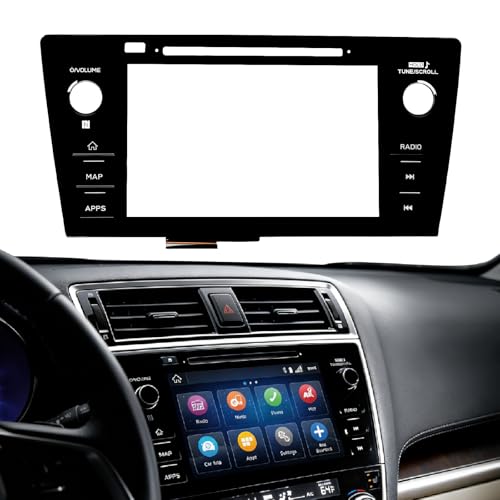
- Fitment:Our Touch Screen Digitizer(MAP) Compatible with 2018 2019 Subaru Outback,2018 2019 Subaru Legacy
- Replace Part Number:86471-AL62A,86471-AL65A,86471-AL65B,86471-AL66A,86471-AL67A,86471-AL68A,86431-AL62A,86431-AL65A,86431-AL66A
- Direct-Fit Replacement:Our 8-inch touchscreen is designed to address common display issues, such as physical cracks, unresponsiveness, or dead pixels, to help return your system to working condition.
- Function:This universal-style LCD touchscreen features integrated MAP functions.
- Support: For any questions or concerns regarding the product, please inform us so we can resolve the issue
SEOCONTENT-START
Bulletin Number: 15-220-18R; Revised 03/03/23 Page 1 of 8 NUMBER: 15-220-18R DATE: 03/08/18 REVISED: 03/03/23 APPLICABILITY: All Models Equipped with Harman Audio / Navigation Head Units SUBJECT: Harman Audio / Infotainment: Troubleshooting Apple CarPlay and Android Auto Connectivity Concerns CAUTION: VEHICLE SERVICING PERFORMED BY UNTRAINED PERSONS COULD RESULT IN SERIOUS INJURY TO THOSE PERSONS OR TO OTHERS. Subaru Service Bulletins are intended for use by professional technicians ONLY. They are written to inform those technicians of conditions that may occur in some vehicles, or to provide information that could assist in the proper servicing of the vehicle. Properly trained technicians have the equipment, tools, safety instructions, and know-how to do the job correctly and safely. If a condition is described, DO NOT assume that this Service Bulletin applies to your vehicle, or that your vehicle will have that condition. Subaru of America, Inc. is ISO 14001 Compliant ISO 14001 is the international standard for excellence in Environmental Management Systems. Please recycle or dispose of automotive products in a manner that is friendly to our environment and in accordance with all local, state and federal laws and regulations. Continued… SERVICE BULLETIN ATTENTION: GENERAL MANAGER q PARTS MANAGER q CLAIMS PERSONNEL q SERVICE MANAGER q IMPORTANT – All Service Personnel Should Read and Initial in the boxes provided, right. ©2018 Subaru of America, Inc. All rights reserved. INTRODUCTION: This bulletin provides troubleshooting steps to use when diagnosing concerns of the Apple CarPlay and / or Android Auto feature not connecting or launching properly when a compatible device is connected to the head unit. SERVICE PROCEDURE / INFORMATION: Please complete checklist provided at the end of the document and keep it available for future reference. 1) Confirm the condition as reported by the customer. Information located in the Harman Investigation Guide-Questionnaire may be required to understand fully how to duplicate the condition. The customer’s phone will most likely also be required unless a similar phone is available for testing. Confirm the phone is charging, after connected to the USB hub. If charging not confirmed please defer to TSB 15-226-18R. 2) Verify the device being used is compatible with the head unit by checking the listings on Subaru.com under Bluetooth Compatibility using the following link: https://www.subaru.com/compatibility/bluetooth.html 3) Verify the cable being used to connect the device is a OEM (e.g. Apple, Samsung, Motorola, etc.) -supplied or a certified OEM / Manufacturer-compliant product. 4) Verify the software version of the head unit and if it is not the most current, update it using the most recent version available. See TSB 15-211-17R (Gen 3.0 head unit) and TSB 15- 236-18 (Gen 3.1 head unit). for the complete Service Procedure to update the head unit software if needed. Bulletin Number: 15-220-18R; Revised 03/03/23 Page 2 of 8 Continued… 5) Confirm the device’s operating system; CarPlay (iOS) or Android Auto (OS) versions are up to date. 6) Confirm the CarPlay or Android Auto feature is enabled on the device without any Restrictions by following the steps below: For Apple CarPlay (iOS 11 and prior): • Confirm Restrictions have been disabled by going to: Settings > General > Restrictions. If the slider is green as shown in the illustration below, CarPlay is NOT restricted (CarPlay is operational). • If the slider is to the left (slider is gray), CarPlay is restricted. Either move the slider to the right (green) or press Enable Restrictions (you may be required to create / use a password to use the Enable Restrictions function). NOTE: In case of iOS 12 and up please follow steps below: a) Confirm CarPlay is enabled by going to: Settings > Screen Time > Content and Privacy Restrictions. b) If “Content and Privacy Restrictions” are enabled, the slider will be green. This means there might be apps like CarPlay disabled. If so… c) Select “Allowed Apps” d) Ensure CarPlay is enabled. If slider is green, CarPlay is allowed. For Android Auto: Confirm the Android Auto feature on the device is set to accept new car connections. • Open Android Auto > Open the Menu on the top left > Settings > Connected Cars • Enable “Add new cars to Android Auto” by moving the slider to the right as shown in the image to the left. 7) If the N/G condition persists after performing the instructions supplied in steps 1-6 above, try using another known-good certified OEM / Manufacturer-compliant connecting cable in the customer’s vehicle to rule out a faulty connecting cable. If the N/G condition persists, the connecting cable is likely to be OK. Please review the supplemental information beginning on pg. 3 to confirm the phone has been set up properly. 8) Try the device and (confirmed OK) connecting cable in a known good vehicle. Bulletin Number: 15-220-18R; Revised 03/03/23 Page 3 of 8 Continued… 9) If CarPlay / Android Auto launches and operation is OK, swap the USB hub / cable from the known good vehicle into the customer vehicle and check for proper operation. If OK, replace the USB hub / cable. Please note the part number for the original USB hub and for the donor. 10) If the N/G persists, swap the head unit with a known good one and if a faulty head unit is identified, replace it using the Harman exchange unit program. IMPORTANT CAUTION: Always disconnect the Telematics Data Communication Module (DCM) BEFORE any swapping of head units. DCMs must NEVER be swapped or the customer’s services will not function and DCM replacement may be required to resolve. 11) If the above steps do not resolve the customer’s concern with CarPlay/ Android Auto function, complete a fresh Harman Investigation Guide- Questionnaire documenting the customer’s concern and the results of each diagnostic step in this bulletin including the USB hub part number and date code if possible (see TSB 15-226-18R for the details for obtaining date code). If possible, capture a video of the condition then contact the SOA Techline to review for next steps. Techline will request you send the completed questionnaire, step by step bulletin results and any videos of the condition. NOTE: The following supplemental information provides additional How-To information for CarPlay and Android Auto Setup. How to Set Up Apple CarPlay: 1. Connect the iOS/Apple iPhone to the vehicle’s USB port. ALWAYS use a quality OEM cable. 2. Select “Allow” when prompted. Bulletin Number: 15-220-18R; Revised 03/03/23 Page 4 of 8 Continued… 3. Select Apple CarPlay on the vehicle infotainment screen. 4. The home page of the user’s phone will be displayed in Apple CarPlay. Best practices and fixes for Apple CarPlay: 1. Always use a high-quality OEM USB cable to connect the phone. 2. Ensure the iOS/Apple phone software is fully up to date. 3. Ensure all other apps that work on Apple CarPlay are also up to date (e.g. Pandora, Apple Maps, Spotify). Apple CarPlay may not function correctly if one of these apps is outdated or having an issue. Apps can be updated by using the “App Store” app. 4. Visit the Apple CarPlay website for the latest info, FAQs and device compatibility at: https://www.apple.com/ios/carplay/ 5. If CarPlay does not launch: a) Confirm CarPlay is enabled. In case of iOS 11 and prior go to: Settings > Screen Time > Content and Privacy Restrictions. b) If “Content and Privacy Restrictions” are enabled, the slider will be green. This means apps like CarPlay might be disabled. If so… c) Select “Allowed Apps”. d) Ensure CarPlay is enabled (slider is green). NOTE: in case of iOS 12 and up please follow steps below: a) Confirm Carplay is enabled by going to: Settings > Screen Time > Content and Privacy Restrictions. b) If “Content and Privacy Restrictions” are enabled, the slider will be green. This means there might be apps like Carplay disabled. If so… c) Select “Allowed Apps” d) Ensure Carplay is enabled. If slider is green, CarPlay is allowed. Bulletin Number: 15-220-18R; Revised 03/03/23 Page 5 of 8 Continued… 6. For other CarPlay issues, go to “Settings” and select “General”. 7. Select CarPlay. 8. From here, you can manage all the vehicles associated with the iOS/Apple device. 9. “Allow CarPlay While Locked” can be selected. 10. “Forget This Car” can be selected to remove a vehicle and start over from scratch if necessary. How to Setup Android Auto: 1. Connect the Android phone to the vehicle’s USB port. ALWAYS use a quality OEM cable. 2. For the first time, the message shown below will appear. 3. Select “ACCEPT” 4. Select ACCEPT to all other prompts which may follow. 5. Android Auto may also need to download before it will operate. Allow it to do so. 6. From the infotainment screen, Android Auto should automatically launch for the first time. If it does not, select the Android Auto icon on the vehicle infotainment screen. Bulletin Number: 15-220-18R; Revised 03/03/23 Page 6 of 8 Continued… 7. Select “SHOW ME HOW” for a quick guide on using Android Auto or “SKIP” to start using the app right away. 8. The next screen will be the home page of Android Auto for the user’s phone. Best practices for Android Auto: 1. Always use a high-quality OEM USB cable to connect the phone. 2. Ensure the OS/Apple phone software is fully up to date. 3. Ensure the Android Auto App is up to date from the Play Store. 4. Ensure all other apps that work on Android Auto are up to date. (e.g. Google Maps, Waze, Spotify). Android Auto may not function correctly if one of these apps is outdated or having an issue. Apps can be updated by using the “Play Store” app. 5. If Android Auto will not launch, open the Android Auto app on the phone, select the top left menu button>>Settings>>Connected Cars>>Select the top right menu icon and choose “Forget all cars”. 6. If issues persist, uninstall the Android Auto app from the phone and re-install it from the Play Store. 7. Visit the Android Auto website for the latest info, FAQs and device compatibility. https://www.android.com/auto/ Bulletin Number: 15-220-18R; Revised 03/03/23 Page 7 of 8 Continued… APPLE CARPLAY AND ANDROID AUTO CONNECTIVITY CONCERN CHECKLIST Repair Order Date: Vehicle Identification Number (VIN): 1. Condition confirmed as reported by the customer? NO: YES: Concern details: Phone details: Make Model OS Carrier Is the phone charging? NO: YES: 2. Is the phone compatible? NO: YES: 3. Is the cable used to connect the phone OEM? NO: YES: 4. Head Unit software version: 5. CarPlay version (if applicable): Android Auto version (if applicable): 6. Is the CarPlay/Android Auto feature enabled? NO: YES: 7. Have you tested using a different known good OEM cable? NO: YES: 8. Have you tested using another like vehicle? NO: YES: 9. Was a USB hub swap performed? NO: YES: If applicable, USB hub Part Number: Date Code: (see TSB 15-226-18R for the details for obtaining date code) Bulletin Number: 15-220-18R; Revised 03/03/23 Page 8 of 8 WARRANTY / CLAIM INFORMATION: For vehicles within the Basic New Car Limited Warranty period or covered by an active Subaru Added Security Classic or Gold plan, this repair may be submitted using the following claim information: Labor Description Labor Operation # Labor Time Fail Code H/U Type HARMAN APPLE CARPLAY & ANDROID AUTO TROUBLESHOOTING A031-161 1.0 ZRM-43 Base ZRN-43 Plus / Mid ZRO-43 High (w/ Navi) IMPORTANT REMINDERS: • SOA strongly discourages the printing and/or local storage of service information as previously released information and electronic publications may be updated at any time. • Always check for any open recalls or campaigns anytime a vehicle is in for servicing. • Always refer to STIS for the latest service information before performing any repairs.
SEOCONTENT-END
This product presentation was made with AAWP plugin.