
NHTSA ID Number: 10233870
Manufacturer Communication Number: 15-230-18R
Summary
Harman Audio / Infotainment: Troubleshooting Bluetooth® Functionality Concerns.
NUMBER: 15-230-18R
DATE: 08/21/18
REVISED: 03/03/23
| APPLICABILITY: | All Models Equipped with Harman Audio / Navigation Head Units |
| SUBJECT: | Harman Audio / Infotainment: Troubleshooting Bluetooth® Functionality Concerns |
INTRODUCTION:
This bulletin provides troubleshooting steps to follow when diagnosing customer concerns involving Bluetooth (BT) functionality. Please start by completing the Harman Investigation Guide Questionnaire as it gathers important details which will help with diagnosis and will be required should the condition not be resolved by this troubleshooting. While completing the questionnaire, follow the question flow based on the customer concern. Answer each related question noting the results to each in detail while performing the diagnostics. Review the entire bulletin before beginning in order to understand the flow for the listed concern. If the concern you have is not listed, check the Service Manual “Infotainment (Diagnostics) – Diagnostics with Phenomena” section as a starting point.
SERVICE PROCEDURE / INFORMATION:
REMINDER: Customer satisfaction and retention starts with performing quality repairs.
1) Always confirm the condition as reported by the customer.
2) Visit the Subaru Owners page on the Subaru.com website to verify smart phone compatibility.
(https://www.subaru.com/engineering/ technology.html)
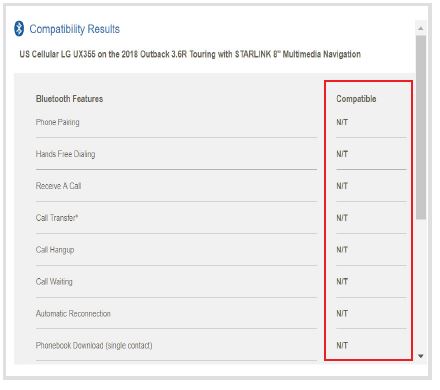
As shown in the image above, the iPhone 8 may have an issue with Phonebook Download (single contact) and SMS send functions (not shown). When the customer reports a condition involving those features, STOP as there is no further Head Unit (HU) troubleshooting required. The issue is linked directly to their smart phone’s compatibility. There are some cases where a particular smart phone’s compatibility has not been fully or at all tested.
For those smart phones, BT functionality operation could be unreliable. These cases are not an indication of a Head Unit (HU) malfunction. See the example shown in the image below.
3) It is also recommended to verify the customer’s phone setup is not causing BT related issues.
a. For any kind of car connection issue, it is important to make sure that the “Do Not Disturb” feature is turned OFF. Some customers have not been able to shut off the “Do Not Disturb” feature while connected to their vehicles. By default, this setting is set to manual and must be activated before enabled.
TIP: It may be easier to disconnect and remove all Bluetooth device settings before upgrading the device then, start over from scratch. This may save significant time in troubleshooting.
b. Can the condition be duplicated? If so, please provide the steps necessary to reproduce and if possible, a video showing the steps and concern. It is important to know if the BT connection is not made at start up or if the connection is lost at some other point during operation.
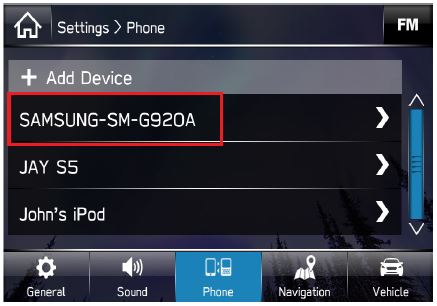
i. If the BT connection drops during operation, confirm the device is in the paired device list located under Settings > Phone. See image below.
ii. Verify the head unit is still listed as a paired device on the phone.
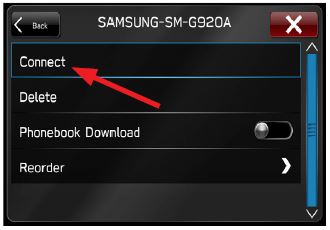
iii. If the device is not listed, try to manually reconnect through the phone settings menu: Settings > Phone > Select the paired phone and select Connect.
iv. If the condition is still present, try confirming it with a similar model phone (capture phone model and OS version).
v. Follow the Service Manual basic diagnostic procedure for “BLUETOOTH CONNECTION CANNOT BE ESTABLISHED”.
4) This section addresses concerns with Bluetooth Phonebook or SMS synchronization as referenced in 2) above.
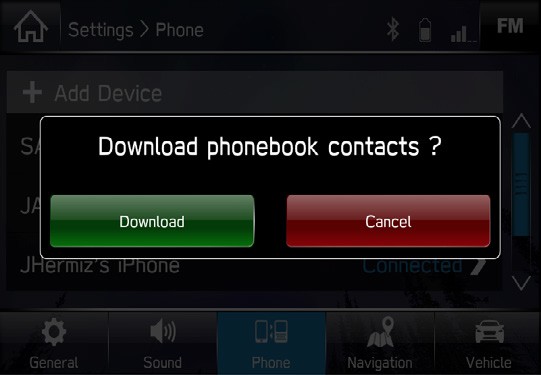
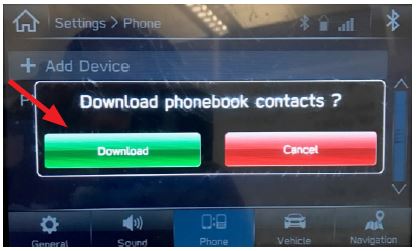
a. Confirm the phonebook / SMS access request was granted when phone was paired to the HU. When the pairing procedure is performed and the device is connected, the phone may prompt the user to accept access for phonebook. The HU will prompt to initiate phonebook download. Accept this pop up by pressing “Download”.
b. Phone behavior may differ between models and OS versions and between Android phones (i) and Apple iPhones (ii):
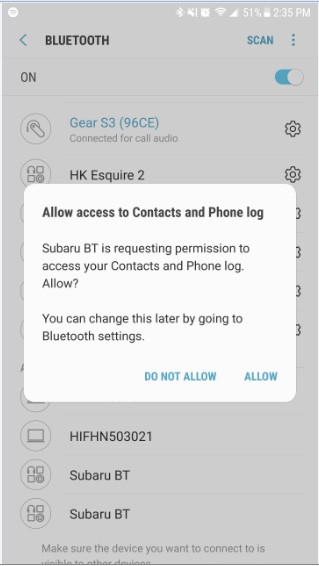
1. Android phone will prompt user on the phone for phonebook access as shown to the right.
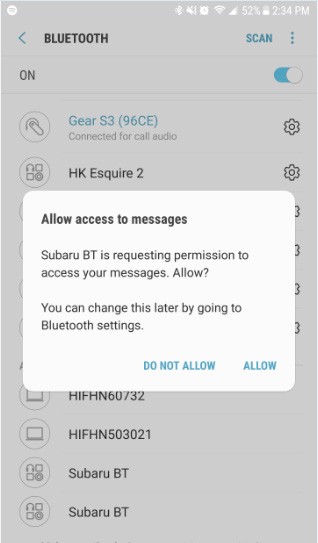
2. Also, in the case of Android phones, a second pop-up will appear requesting access to SMS messages.
ii. Apple iPhone:
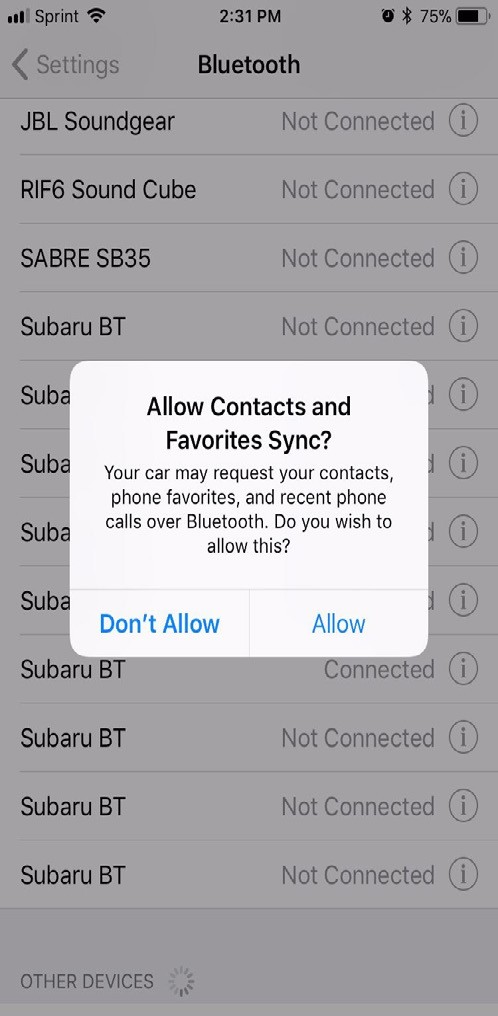
1. The iPhone will download the phonebook after pressing “Download” on HU if the Sync Contacts option is enabled. NOTE: Some versions of iOS will prompt the user for phonebook access as shown to the right.
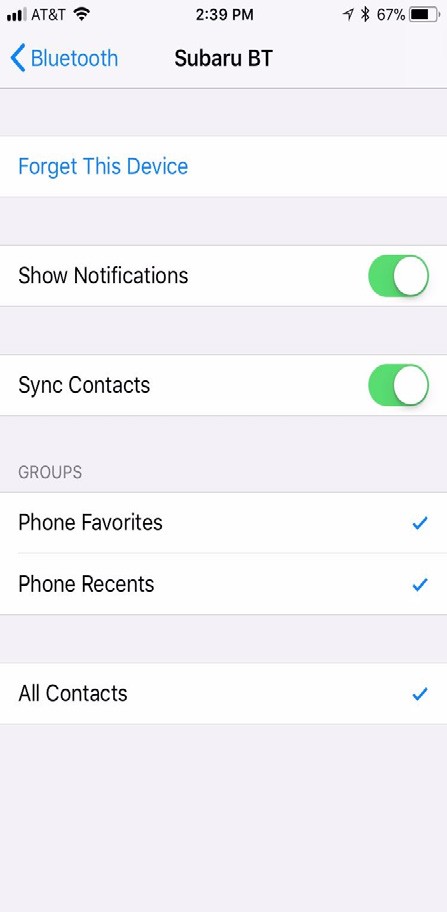
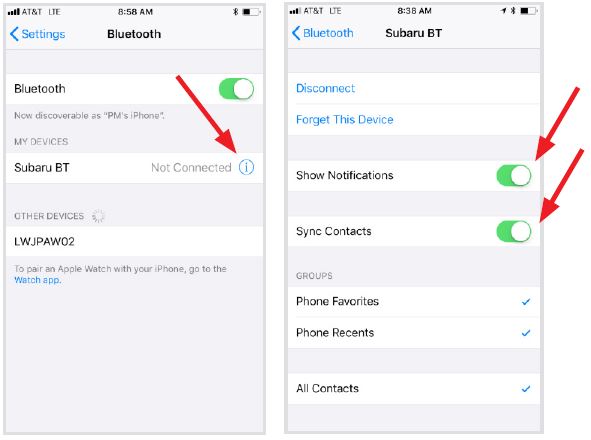
2. For iPhones, after pairing is complete, access must be enabled on the phone for SMS. To do this, go to Settings > Bluetooth > Select the paired HU labeled “Subaru BT” and make sure both Sync Contacts and Show Notifications are enabled.
3. Once enabled, the iPhone must be disconnected then reconnected for the changes to apply for SMS download ONLY. See section 5a “How to Pair an Apple Device”.
c. If the device is already paired and connected, confirm the Phonebook Download option is enabled. To do this go to Settings > Phone, select the paired phone and enable Phonebook Download as shown below.
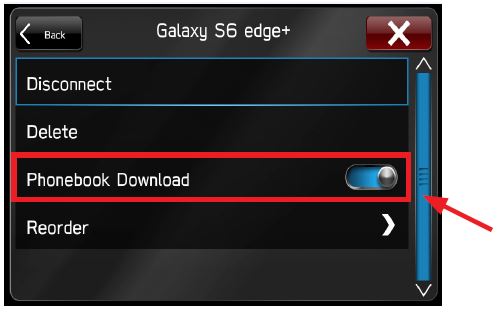
NOTE: The device may still require performing Steps a. and b. above after enabling Phonebook Download on the HU.
If the phonebook or messages can still not be accessed, go back to the phones Bluetooth settings and select the gear (Settings) icon next to your vehicle’s device name. Ensure all settings are enabled.
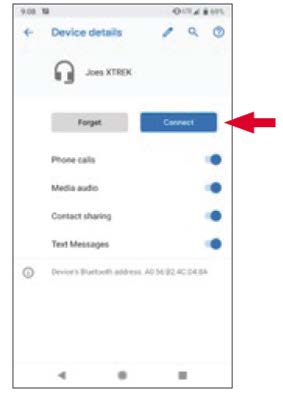
5) This section will help to assure Android and Apple phones are properly paired.
a. How to pair an Apple device:
i. Go to Settings on the vehicle infotainment icon screen.
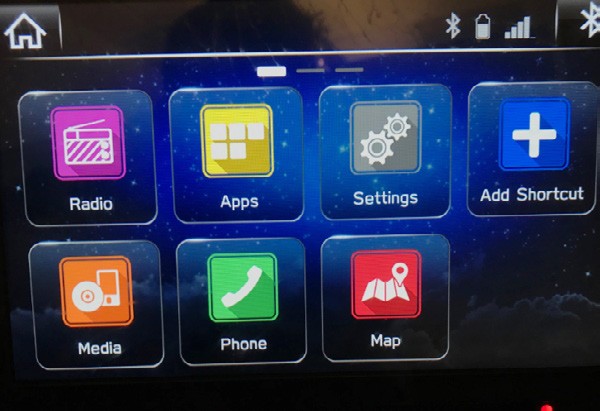
ii. Select “Phone”
iii. Select “Add Device”
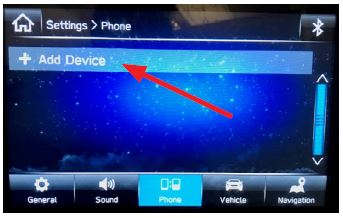
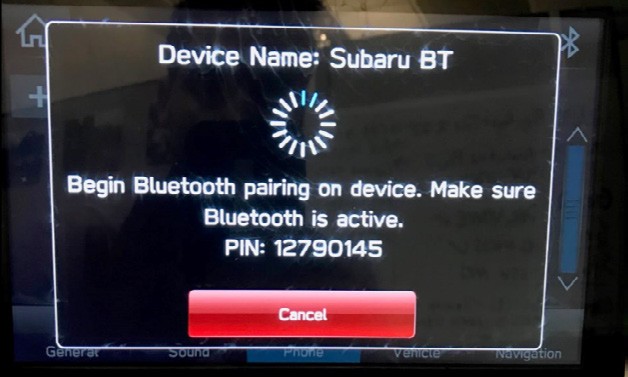
iv. This screen will be displayed when pairing mode is in progress. Make note of the “Device Name:” (Subaru BT).
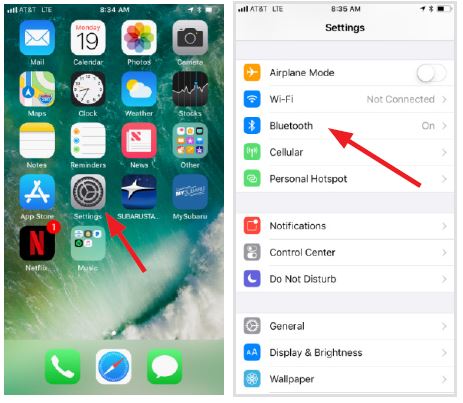
v. On the iOS/Apple device, go to settings. Location on home screen will vary.
vi. Select “Bluetooth”
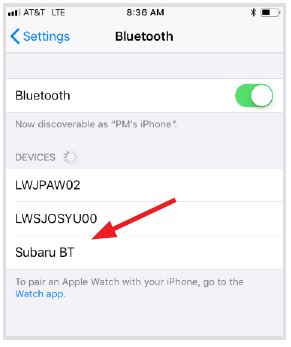
vi. Select “Subaru BT” or whatever the device name is from step iv.
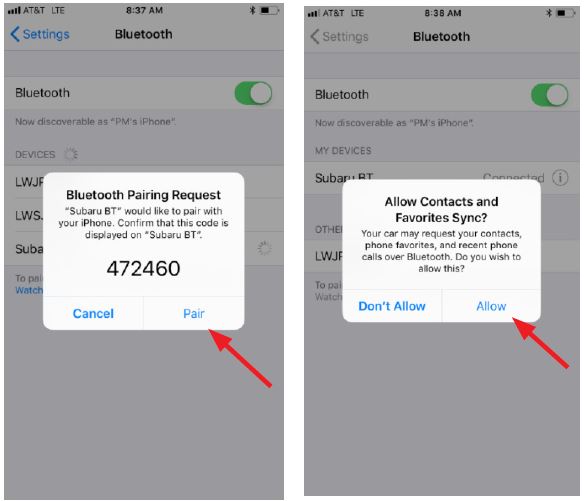
viii. Select “Pair”
ix. Select Allow to “Allow Contacts and Favorites to Sync?”
x. On the vehicle screen, select “Download” phonebook contacts.
xi. On the iOS/Apple device, the vehicle’s Bluetooth should now be listed under Bluetooth settings. Select the blue “i” next to the device name (Subaru BT).
xii. Confirm “Show Notifications” and “Sync Contacts” are enabled.
xiii. At this point, the iOS/Apple device is paired. The vehicle may need to be restarted to fully complete the pairing process so messaging and other features work
xiv. If smartphones are not connecting with the HU via Bluetooth, try it again after removing all the connection history from the phone. This may help the smartphone and HU “find each other” easier when performing the Bluetooth connection process.
b. How to pair Android Device:
i. Go to Settings on the vehicle infotainment icon screen.
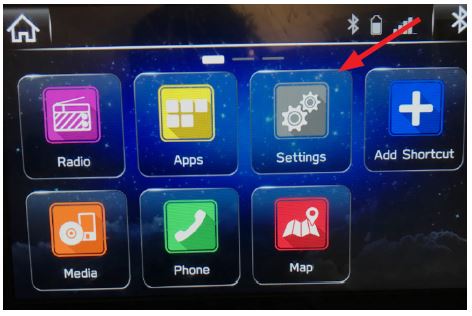
ii. Go to the “Phone” page
iii. Select “Add Device”
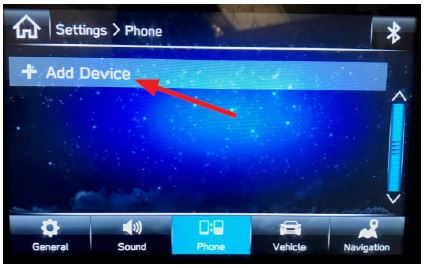
iv. This screen will be displayed when pairing mode is in progress. Make note of the “Device Name:” (Subaru BT).
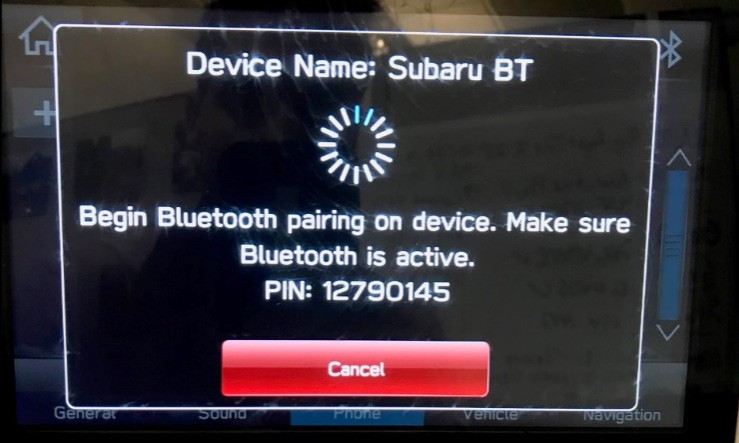
v. On the Android device, go to Settings. This step will vary by Android device. Settings can always be found under Apps. On newer Android devices, Apps is opened by swiping UP from the bottom of the screen.
vi. Select “Connected devices” or “connections”.
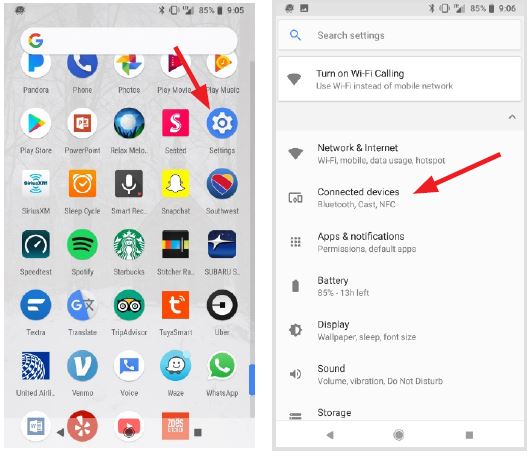
vii. Select “Bluetooth”
viii. At this step, either select “Pair new device” or, the phone will already begin showing nearby devices to add.
ix. Select “Subaru BT” or whatever the device name is from step 4.
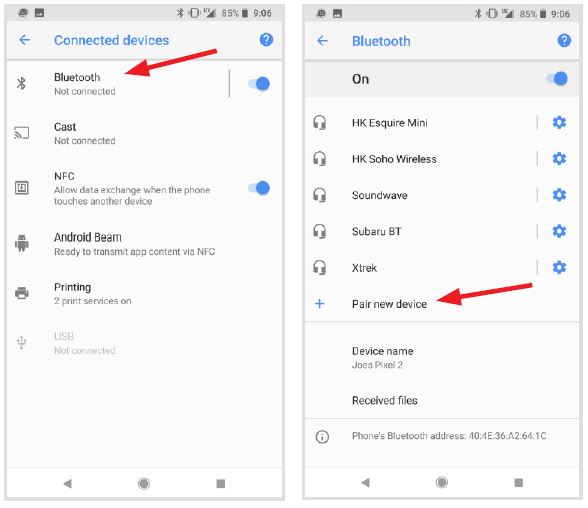
x. Select “PAIR” and ensure “Allow access to your contacts and call history” are enabled (checked).
xi. Select “YES” to the Message access request” pop up.
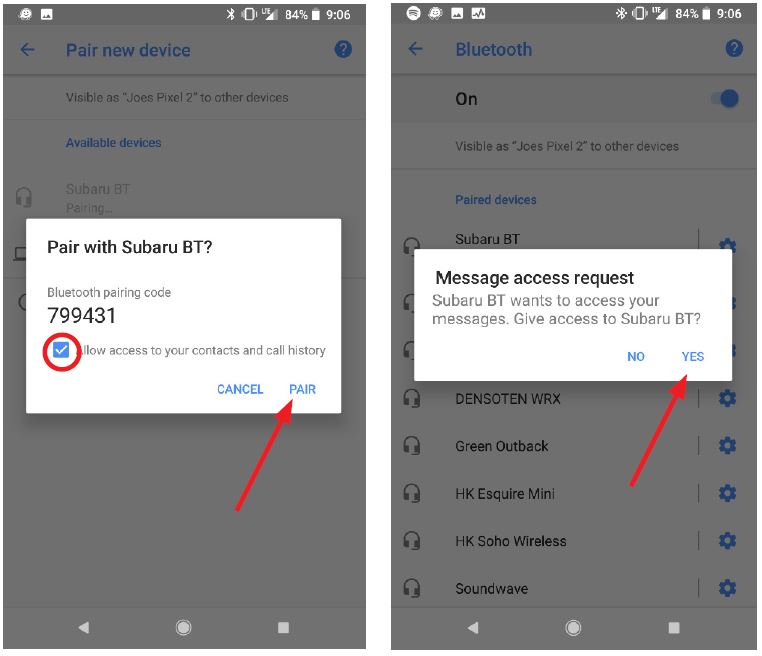
xii. On the vehicle screen, select “Download” phonebook contacts.
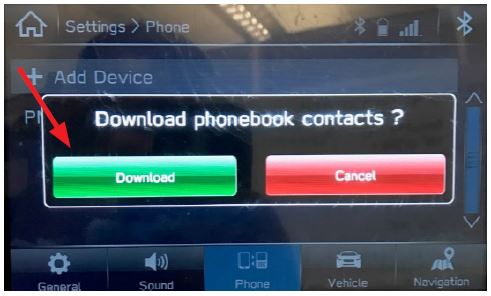
xiii. At this point, the Android phone should be paired and ready to use.
xiv. If smartphones are not connecting with the HU via Bluetooth, try it again after removing all the connection history from the phone. This may help the smartphone and HU to “find each other” easier when performing the Bluetooth connection process.
6) This section addresses concerns with BT call handling.
a. Capture the steps required to reproduce the concern. If possible, record a video showing the steps and the condition. Please note the model, OS version, and service carrier of the customer’s phone.
b. For concerns regarding holding calls and / or swapping calls (call waiting), please note CDMA networks do not support this functionality. Some phones may have the ability to perform these actions internally but in general, CDMA carriers (such as Sprint or Verizon) do not support these features.
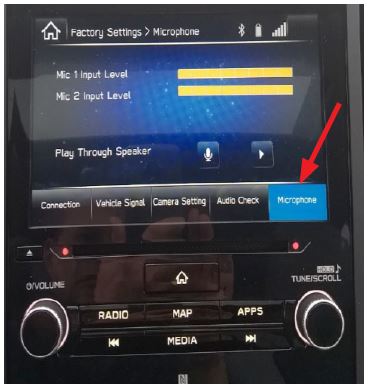
c. For concerns related to the audio quality, verify microphone operation. See figure below for Line Diag display of Microphone check.
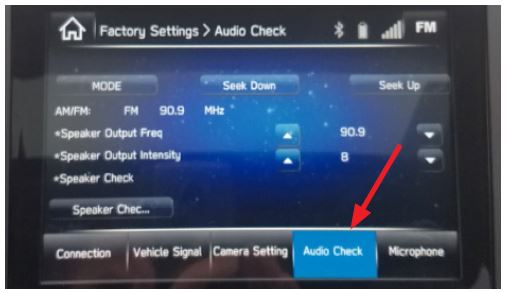
d. Follow the Service Manual basic diagnostic procedure for SOUND DOES NOT COME OUT FROM THE SPEAKER. See image below for Line Diag display of Audio Check.
e. If the concern persists, swap a known good HU into the problem vehicle. If component swap addressed concern, request exchange for the suspect component.
IMPORTANT CAUTION: Always disconnect the Telematics Data Communication Module (DCM) BEFORE any swapping of head units. DCMs must NEVER be swapped or the customer’s services will not function and DCM replacement may be required to resolve.
7) If the above diagnostics and procedures do not resolve the customer’s concern with Bluetooth functionality, complete a fresh Harman Investigation Guide Questionnaire documenting the customer’s concern and the results of each diagnostic step in this bulletin. If possible, capture a video of the condition then contact the SOA Techline to review the next steps. Techline will request you send the completed questionnaire, step-by-step bulletin test results and any videos of the condition.
1 Affected Product
Vehicle
1 Associated Document
Manufacturer Communications
NUMBER: 15-230-18R
DATE: 08/21/18
REVISED: 03/03/23
MC-10233870-0001.pdf 1554.979KB
NHTSA ID Number: 10168569
Manufacturer Communication Number: 15-230-18R
Summary
This bulletin provides troubleshooting steps to follow when diagnosing customer concerns involving Bluetooth (BT) functionality. Please start by completing the Harman Investigation Guide Questionnaire as it gathers important details which will help with diagnosis and will be required should the condition not be resolved by this troubleshooting. While completing the questionnaire, follow the question flow based on the customer concern. Answer each related question noting the results to each in detail while performing the diagnostics. Review the entire bulletin before beginning in order to understand the flow for the listed concern. Please apply the information captured in the checklist to the Harman Investigation Guide Questionnaire. If the concern you have is not listed, check the Service Manual “Infotainment (Diagnostics) – Diagnostics with Phenomena” section as a starting point.
1 Associated Document
Manufacturer Communications
NUMBER: 15-230-18R
DATE: 08/21/18
REVISED: 11/15/19
MC-10168569-0001.pdf 2279.335KB
NHTSA ID Number: 10146472
Manufacturer Communication Number: 15-230-18R
Summary
This bulletin provides troubleshooting steps to follow when diagnosing customer concerns involving Bluetooth (BT) functionality. Please start by completing the Harman Investigation Guide Questionnaire as it gathers important details which will help with diagnosis and will be required should the condition not be resolved by this troubleshooting. While completing the questionnaire, follow the question flow based on the customer concern. Answer each related question noting the results to each in detail while performing the diagnostics. Review the entire bulletin before beginning in order to understand the flow for the listed concern. If the concern you have is not listed, check the Service Manual ?Infotainment (Diagnostics) – Diagnostics with Phenomena? section as a starting point.
1 Associated Document
Manufacturer Communications
NUMBER: 15-230-18R
DATE: 08/21/18
REVISED: 09/05/18
MC-10146472-9999.pdf 2236.594KB
NHTSA ID Number: 10145068
Manufacturer Communication Number: 15-230-18
Summary
This bulletin provides troubleshooting steps to follow when diagnosing customer concerns involving Bluetooth (BT) functionality. Please start by completing the Harman Investigation Guide Questionnaire as it gathers important details which will help with diagnosis and will be required should the condition not be resolved by this troubleshooting. While completing the questionnaire, follow the question flow based on the customer concern. Answer each related question noting the results to each in detail while performing the diagnostics. Review the entire bulletin before beginning in order to understand the flow for the listed concern.
1 Associated Document
Manufacturer Communications
NUMBER: 15-230-18
DATE: 08/21/18
MC-10145068-9999.pdf 2235.703KB

- 6” high-resolution navigator includes map updates of North America
- Hands-free calling when paired with your compatible smartphone with BLUETOOTH technology and convenient Garmin voice assist lets you ask for directions to places you want to go
- Road trip–ready features include the HISTORY database of notable sites, a U.S. national parks directory, Tripadvisor traveler ratings and millions of Foursquare POIs
- Driver alerts for things such as school zones, sharp curves and speed changes help encourage safer driving and increase situational awareness
- Access live traffic, fuel prices, parking, weather and smart notifications when you pair this navigator with your compatible smartphone running the Garmin Drive app


- Bright, high-resolution 5” glass capacitive touchscreen display lets you easily view your route
- Get more situational awareness with alerts for school zones, speed changes, sharp curves and more
- View food, fuel and rest areas along your active route, and see upcoming cities and milestones
- View Tripadvisor traveler ratings for top-rated restaurants, hotels and attractions to help you make the most of road trips
- Directory of U.S. national parks simplifies navigation to entrances, visitor centers and landmarks within the parks

- 【9-inch HD Large Screen】 The 9-inch HD touchscreen delivers a clearer and broader field of view. This car GPS navigation system provides sharper graphics and more convenient menu navigation, reducing driver distraction and enhancing driving safety
- 【Free Lifetime Map Updates】 This GPS navigation for car comes pre-loaded with the latest 2026 North America maps. We offer free lifetime update services, ensuring your navigation system for vehicle always has the most current road information and points of interest data for accurate route planning
- 【Voice Guidance & Safety Alerts】 Clear turn-by-turn voice prompts assist you in navigating confidently. As a reliable truck GPS, it proactively provides speed limit reminders, red-light camera warnings, and school zone alerts to help you drive safely
- 【Customized Vehicle Route Planning】 This device can create customized routes for cars, trucks, and RVs. By entering vehicle dimensions, it can avoid low bridges, weight-restricted roads, and narrow passages, making it an essential car GPS navigation system for various vehicle types
- 【Smart Search & FM Transmission】 Supports quick destination input via address, zip code, or POI. The built-in FM transmitter clearly broadcasts voice guidance through your car's audio system (Note: This function only transmits audio and is not a standalone FM radio)
- 7” high-resolution navigator includes map updates of North America .Special Feature:Easy-To-Read Display; Voice Assist; Hands-Free Calling; Live Traffic and Weather; Traffic Cams and Parking; Smart Notifications,Driver Alerts; Tripadvisor; National Parks Directory; Find Places by Name; Garmin Real Directions Feature.
- Hands-free calling when paired with your compatible smartphone with BLUETOOTH technology and convenient Garmin voice assist lets you ask for directions to places you want to go
- Road trip–ready features include the HISTORY database of notable sites, a U.S. national parks directory, Tripadvisor traveler ratings and millions of Foursquare POIs
- Driver alerts for things such as school zones, sharp curves and speed changes help encourage safer driving and increase situational awareness
- Access live traffic, fuel prices, parking, weather and smart notifications when you pair this navigator with your compatible smartphone running the Garmin Drive app
 CarPlay Screen with Apple Car Play & Android Auto for Car, OTA Updates, Backup Camera, Bluetooth 5.0, Mirror Link, Voice Control, GPS Navigation, FM, AUX" title="Harman Audio / Infotainment: Troubleshooting Bluetooth Functionality Concerns - 2017-2020 Subaru 36">
- 【Wireless Apple Carplay & Android Auto】Enjoy seamless wireless carplay and android auto connectivity for your phone's music, map navigation, messages, hands-free Phone Call etc. This portable CarPlay screen for car ensures smooth voice control and effortless integration, making it a versatile car tablet for daily commutes
- 【OTA Updates】Keep your device up to date with over-the-air firmware updates, so you’re always one step ahead. This wireless CarPlay screen automatically pushes new system updates, ensuring long-term compatibility between your phone and Apple CarPlay, Android Auto, and other in-car electronics
- 【Phone Mirroring Link & Four Audio Outputs】This 9-inch CarPlay screen supports mirroring for both iOS and Android phones. The double-DIN car stereo integrates CarPlay functionality while supporting Bluetooth audio, built-in speakers, FM radio, and an AUX port. Enjoy clear, stable music even in noisy environments. Connecting your phone via Bluetooth to the car's Bluetooth system for audio playback through the car speakers is the optimal choice
- 【Real-time GPS Navigation & Backup Camera】The portable Apple carplay screen provides accurate real-time location and GPS navigation without delay when connected to your phone. Allows you to use popular mapping apps such as Google Maps and Waze to provide real-time navigation ( phone connection required). The backup camera accurately and clearly records your entire driving journey, providing you with comprehensive safety protection
- 【Vivid IPS Touchscreen】With a 1280 x 720 resolution, Featuring 550 cd/m² brightness, 1000:1 contrast ratio, and 16.7 million colors, this car tablet reduces glare and offers 18% brighter visuals. Its vibrant, tablet-like display stands out from standard car screens, enhancing visibility for navigation and multimedia
SEOCONTENT-START
Bulletin Number: 15-230-18R; Revised: 03/03/23 Page 1 of 13 NUMBER: 15-230-18R DATE: 08/21/18 REVISED: 03/03/23 APPLICABILITY: All Models Equipped with Harman Audio / Navigation Head Units SUBJECT: Harman Audio / Infotainment: Troubleshooting Bluetooth® Functionality Concerns CAUTION: VEHICLE SERVICING PERFORMED BY UNTRAINED PERSONS COULD RESULT IN SERIOUS INJURY TO THOSE PERSONS OR TO OTHERS. Subaru Service Bulletins are intended for use by professional technicians ONLY. They are written to inform those technicians of conditions that may occur in some vehicles, or to provide information that could assist in the proper servicing of the vehicle. Properly trained technicians have the equipment, tools, safety instructions, and know-how to do the job correctly and safely. If a condition is described, DO NOT assume that this Service Bulletin applies to your vehicle, or that your vehicle will have that condition. Subaru of America, Inc. is ISO 14001 Compliant ISO 14001 is the international standard for excellence in Environmental Management Systems. Please recycle or dispose of automotive products in a manner that is friendly to our environment and in accordance with all local, state and federal laws and regulations. Continued… SERVICE BULLETIN ATTENTION: GENERAL MANAGER q PARTS MANAGER q CLAIMS PERSONNEL q SERVICE MANAGER q IMPORTANT – All Service Personnel Should Read and Initial in the boxes provided, right. ©2018 Subaru of America, Inc. All rights reserved. INTRODUCTION: This bulletin provides troubleshooting steps to follow when diagnosing customer concerns involving Bluetooth (BT) functionality. Please start by completing the Harman Investigation Guide Questionnaire as it gathers important details which will help with diagnosis and will be required should the condition not be resolved by this troubleshooting. While completing the questionnaire, follow the question flow based on the customer concern. Answer each related question noting the results to each in detail while performing the diagnostics. Review the entire bulletin before beginning in order to understand the flow for the listed concern. Please apply the information captured in the checklist to the Harman Investigation Guide Questionnaire. If the concern you have is not listed, check the Service Manual “Infotainment (Diagnostics) – Diagnostics with Phenomena” section as a starting point. SERVICE PROCEDURE / INFORMATION: REMINDER: Customer satisfaction and retention starts with performing quality repairs. 1) Always confirm the condition as reported by the customer. 2) Visit the Subaru Owners page on the Subaru.com website to verify smart phone compatibility. (https://www.subaru.com/compatibility/bluetooth.html) Bulletin Number: 15-230-18R; Revised: 03/03/23 Page 2 of 13 Continued… As shown in the image above, the iPhone 8 may have an issue with Phonebook Download (single contact) and SMS send functions (not shown). When the customer reports a condition involving those features, STOP as there is no further Head Unit (HU) troubleshooting required. The issue is linked directly to their smart phone’s compatibility. There are some cases where a particular smart phone’s compatibility has not been fully or at all tested. For those smart phones, BT functionality operation could be unreliable. These cases are not an indication of a Head Unit (HU) malfunction. See the example shown in the image below. 3) It is also recommended to verify the customer’s phone setup is not causing BT related issues. a. For any kind of car connection issue, it is important to make sure that the “Do Not Disturb” feature is turned OFF. Some customers have not been able to shut off the “Do Not Disturb” feature while connected to their vehicles. By default, this setting is set to manual and must be activated before enabled. TIP: It may be easier to disconnect and remove all Bluetooth device settings before upgrading the device then, start over from scratch. This may save significant time in troubleshooting. b. Can the condition be duplicated? If so, please provide the steps necessary to reproduce and if possible, a video showing the steps and concern. It is important to know if the BT connection is not made at start up or if the connection is lost at some other point during operation. i. If the BT connection drops during operation, confirm the device is in the paired device list located under Settings > Phone. See image below. ii. Verify the head unit is still listed as a paired device on the phone. Bulletin Number: 15-230-18R; Revised: 03/03/23 Page 3 of 13 Continued… iii. If the device is not listed, try to manually reconnect through the phone settings menu: Settings > Phone > Select the paired phone and select Connect. iv. If the condition is still present, try confirming it with a similar model phone (capture phone model and OS version). v. Follow the Service Manual basic diagnostic procedure for “BLUETOOTH CONNECTION CANNOT BE ESTABLISHED”. 4) This section addresses concerns with Bluetooth Phonebook or SMS synchronization as referenced in 2) above. a. Confirm the phonebook / SMS access request was granted when phone was paired to the HU. When the pairing procedure is performed and the device is connected, the phone may prompt the user to accept access for phonebook. The HU will prompt to initiate phonebook download. Accept this pop up by pressing “Download”. b. Phone behavior may differ between models and OS versions and between Android phones (i) and Apple iPhones (ii): i. Android phone 1. Android phone will prompt user on the phone for phonebook access as shown to the right. Bulletin Number: 15-230-18R; Revised: 03/03/23 Page 4 of 13 Continued… 2. Also, in the case of Android phones, a second pop-up will appear requesting access to SMS messages. ii. Apple iPhone: 1. The iPhone will download the phonebook after pressing “Download” on HU if the Sync Contacts option is enabled. NOTE: Some versions of iOS will prompt the user for phonebook access as shown to the right. 2. For iPhones, after pairing is complete, access must be enabled on the phone for SMS. To do this, go to Settings > Bluetooth > Select the paired HU labeled “Subaru BT” and make sure both Sync Contacts and Show Notifications are enabled. Bulletin Number: 15-230-18R; Revised: 03/03/23 Page 5 of 13 Continued… 3. Once enabled, the iPhone must be disconnected then reconnected for the changes to apply for SMS download ONLY. See section 5a “How to Pair an Apple Device”. c. If the device is already paired and connected, confirm the Phonebook Download option is enabled. To do this go to Settings > Phone, select the paired phone and enable Phonebook Download as shown below. NOTE: The device may still require performing Steps a. and b. above after enabling Phonebook Download on the HU. If the phonebook or messages can still not be accessed, go back to the phones Bluetooth settings and select the gear (Settings) icon next to your vehicle’s device name. Ensure all settings are enabled. 5) This section will help to assure Android and Apple phones are properly paired. a. How to pair an Apple device: i. Go to Settings on the vehicle infotainment icon screen. ii. Select “Phone” Bulletin Number: 15-230-18R; Revised: 03/03/23 Page 6 of 13 Continued… iii. Select “Add Device” iv. This screen will be displayed when pairing mode is in progress. Make note of the “Device Name:” (Subaru BT). v. On the iOS/Apple device, go to settings. Location on home screen will vary. vi. Select “Bluetooth” vii. Select “Subaru BT” or whatever the device name is from step iv. Bulletin Number: 15-230-18R; Revised: 03/03/23 Page 7 of 13 Continued… viii. Select “Pair” ix. Select Allow to “Allow Contacts and Favorites to Sync?” x. On the vehicle screen, select “Download” phonebook contacts. xi. On the iOS/Apple device, the vehicle’s Bluetooth should now be listed under Bluetooth settings. Select the blue “i” next to the device name (Subaru BT). xii. Confirm “Show Notifications” and “Sync Contacts” are enabled. Bulletin Number: 15-230-18R; Revised: 03/03/23 Page 8 of 13 Continued… xiii. At this point, the iOS/Apple device is paired. The vehicle may need to be restarted to fully complete the pairing process so messaging and other features work correctly. xiv. If smartphones are not connecting with the HU via Bluetooth, try it again after removing all the connection history from the phone. This may help the smartphone and HU “find each other” easier when performing the Bluetooth connection process. b. How to pair Android Device: i. Go to Settings on the vehicle infotainment icon screen. ii. Go to the “Phone” page iii. Select “Add Device” iv. This screen will be displayed when pairing mode is in progress. Make note of the “Device Name:” (Subaru BT). v. On the Android device, go to Settings. This step will vary by Android device. Settings can always be found under Apps. On newer Android devices, Apps is opened by swiping UP from the bottom of the screen. Bulletin Number: 15-230-18R; Revised: 03/03/23 Page 9 of 13 Continued… vi. Select “Connected devices” or “connections”. vii. Select “Bluetooth” viii. At this step, either select “Pair new device” or, the phone will already begin showing nearby devices to add. ix. Select “Subaru BT” or whatever the device name is from step 4. Bulletin Number: 15-230-18R; Revised: 03/03/23 Page 10 of 13 Continued… x. Select “PAIR” and ensure “Allow access to your contacts and call history” are enabled (checked). xi. Select “YES” to the Message access request” pop up. xii. On the vehicle screen, select “Download” phonebook contacts. xiii. At this point, the Android phone should be paired and ready to use. xiv. If smartphones are not connecting with the HU via Bluetooth, try it again after removing all the connection history from the phone. This may help the smartphone and HU to “find each other” easier when performing the Bluetooth connection process. Bulletin Number: 15-230-18R; Revised: 03/03/23 Page 11 of 13 Continued… 6) This section addresses concerns with BT call handling. a. Capture the steps required to reproduce the concern. If possible, record a video showing the steps and the condition. Please note the model, OS version, and service carrier of the customer’s phone. b. For concerns regarding holding calls and / or swapping calls (call waiting), please note CDMA networks do not support this functionality. Some phones may have the ability to perform these actions internally but in general, CDMA carriers (such as Sprint or Verizon) do not support these features. c. For concerns related to the audio quality, verify microphone operation. See figure below for Line Diag display of Microphone check. d. Follow the Service Manual basic diagnostic procedure for SOUND DOES NOT COME OUT FROM THE SPEAKER. See image below for Line Diag display of Audio Check. e. If the concern persists, swap a known good HU into the problem vehicle. If component swap addressed concern, request exchange for the suspect component. IMPORTANT CAUTION: Always disconnect the Telematics Data Communication Module (DCM) BEFORE any swapping of head units. DCMs must NEVER be swapped or the customer’s services will not function and DCM replacement may be required to resolve. 7) If the above diagnostics and procedures do not resolve the customer’s concern with Bluetooth functionality, complete a fresh Harman Investigation Guide Questionnaire documenting the customer’s concern and the results of each diagnostic step in this bulletin. If possible, capture a video of the condition then contact the SOA Techline to review the next steps. Techline will request you send the completed questionnaire, step-by-step bulletin test results and any videos of the condition. Bulletin Number: 15-230-18R; Revised: 03/03/23 Page 12 of 13 Continued… BLUETOOTH® FUNCTIONALITY CONCERN CHECKLIST Repair Order Date: Vehicle Identification Number (VIN): 1. Condition confirmed as reported by the customer? NO: YES: Concern details: Phone details: Make Model OS Carrier 2. Is the phone compatible? NO: YES: 3a. Is the phone listed among paired devices on the head unit display? NO: YES: 3b. Is the vehicle listed among paired devices on the phone? NO: YES: 3c. Head Unit software version: 4. If applicable, is Phonebook Download enabled on the head unit? NO: YES: 5a. If applicable, perform Line Diag test: NO: YES: 5b. Microphone test passed? NO: YES: 5c. Speaker test passed? NO: YES: 5d. Tested using a like vehicle? NO: YES: Bulletin Number: 15-230-18R; Revised: 03/03/23 Page 13 of 13 WARRANTY / CLAIM INFORMATION: For vehicles within the Basic New Car Limited Warranty period or covered by an active Subaru Added Security Gold plan, this repair may be submitted using the following claim information: Labor Description Labor Operation # Labor Time Fail Code H/U Type HARMAN BLUETOOTH FUNCTION NOT COMPATIBLE A850-803 0.3 ZRQ-43 Base, Mid & HARMAN BLUETOOTH TROUBLESHOOTING A850-805 0.8 High IMPORTANT REMINDERS: • SOA strongly discourages the printing and/or local storage of service information as previously released information and electronic publications may be updated at any time. • Always check for any open recalls or campaigns anytime a vehicle is in for servicing. • Always refer to STIS for the latest service information before performing any repairs.
SEOCONTENT-END
This product presentation was made with AAWP plugin.