NHTSA ID Number: 10233901
Manufacturer Communication Number: 15-259-20R
Summary
All models equipped with CP1 Denso Audio Navigation head units. Denso Gen 4 Cockpit One (CP1) Infotainment System Operating TIPS.
NUMBER: 15-259-20R
DATE: 02/19/20
REVISED: 01/11/22
| APPLICABILITY: | All Models Equipped with CP1 Denso Audio /Navigation Head Units |
| SUBJECT: | Denso Gen 4 Cockpit One (CP1) Infotainment System Operating TIPS |
SPECIAL NOTE: For the latest updates on Tips for current concerns, perform key word search in “TechTIPS Article Locator Index” (Document code: SUTTIPSLOC), or review all relevant infotainment related TechTips from the “Accessories” (#15) tab found on the table of contents. To locate the “TechTIPS Article Locator Index” from STIS “Subaru Tech Info System”, select “Online Reference”. Select “Other/Miscellaneous” in Publication Type and input Document code in applicable area, OR search KEYWORD for “TechTIPS Article”.
INTRODUCTION:
This bulletin provides helpful tips to use when diagnosing customer concerns which may arise when operating the new-generation Denso CP1 Multimedia Navigation (AVN) & Display Audio (DA) systems. This new Gen 4 head unit containing audio and navigation features, is also referred to as Cockpit One (CP1) Infotainment system. The new system consists of two modules: a Cockpit Control Unit (CCU) and, either a dual 7” display audio unit (“Base”), an 11.6” display audio (“Mid”) or 11.6” display audio / navigation (“High”) system also known as the Center Information Display (CID). Reference photos of each system are supplied below.
| ID | Audio Unit Type |
| (A) | “Base” – Audio only |
| (B) | “Mid” – High-grade Audio only |
| (C) | “High” – High-grade Audio & Navigation |
Audio systems used in previous models produced by Fujitsu- (Denso) TEN and Harman have similar “Operating TIPS” bulletins available on STIS. Both are “live” documents and get updated regularly with new information. This bulletin will continue along those same lines and format, receiving regular updates with the latest information as it is received.
1 Affected Product
Vehicle
1 Associated Document
Manufacturer Communications
NUMBER: 15-259-20R
DATE: 02/19/20
REVISED: 03/15/23
MC-10233901-0001.pdf 3514.943KB
NHTSA ID Number: 10207175
Manufacturer Communication Number: 15-259-20R
Summary
This bulletin provides helpful tips to use when diagnosing customer concerns which may arise when operating the new-generation Denso CP1 Multimedia Navigation (AVN) & Display Audio (DA) systems.
1 Associated Document
Manufacturer Communications
NUMBER: 15-259-20R
DATE: 02/19/20
REVISED: 01/11/22
MC-10207175-0001.pdf 6119.961KB
NHTSA ID Number: 10198681
Manufacturer Communication Number: 15-259-20R
Summary
This bulletin provides helpful tips to use when diagnosing customer concerns which may arise when operating the new-generation Denso CP1 Multimedia Navigation (AVN) & Display Audio (DA) systems.
1 Associated Document
Manufacturer Communications
NUMBER: 15-259-20R
DATE: 02/19/20
REVISED: 06/28/21
MC-10198681-0001.pdf 6104.462KB
NHTSA ID Number: 10189677
Manufacturer Communication Number: 15-259-20R
Summary
This bulletin provides helpful tips to use when diagnosing customer concerns which may arise when operating the new-generation Denso CP1 Multimedia Navigation (AVN) & Display Audio (DA) systems.
1 Associated Document
Manufacturer Communications
NUMBER: 15-259-20R
DATE: 02/19/20
REVISED: 03/24/21
MC-10189677-0001.pdf 5973.997KB
NHTSA ID Number: 10185063
Manufacturer Communication Number: 15-259-20R
Summary
This bulletin provides helpful tips to use when diagnosing customer concerns which may arise when operating the new-generation Denso CP1 Multimedia Navigation (AVN) & Display Audio (DA) systems.
1 Associated Document
Manufacturer Communications
NUMBER: 15-259-20R
DATE: 02/19/20
REVISED: 12/01/20
MC-10185063-0001.pdf 5615.044KB
NHTSA ID Number: 10171933
Manufacturer Communication Number: 15-259-20
Summary
This bulletin provides helpful tips to use when diagnosing customer concerns which may arise when operating the new-generation Denso CP1 Multimedia Navigation (AVN) & Display Audio (DA) systems.
1 Associated Document
Manufacturer Communications
NUMBER: 15-259-20
DATE: 02/19/20

- Compatibility and Installation Requirements: This upgraded radio dash kit is designed for Subaru Outback Legacy 2010 2011 2012 2013 2014. The stereo comes with an in-dash head unit, wiring harness cables and frame panel. Cable does NOT support the original car with power amplifier (Purchase If Needed). Please check if the power cable port on the detail page matches your original car before purchasing
- Advanced Android 15 System with 2GB RAM and 64GB ROM: Powered by Android 15 system and 4 Cores CPU with higher performance, 2GB RAM ensures that the stereo for Subaru Outback Legacy runs smoothly. The 64GB ROM allows you to download and install multiple of your favorite apps like Youtube, Spotify, Pandora, etc. through the store. Support multiple EQ options and 28 desktop themes, allows you to enjoy a superior music listening experience and switch your favorite user interface style
- Wireless CarPlay and Android Auto with Mirror Link: For Subaru Outback Legacy head unit, you can choose wired or wireless CarPlay and Android Auto for superior voice-assisted control and easier access to your phone features, including phone contacts, mails, notifications, map navigation, music and videos, and more. Support iOS/Android mirror link function, you can mirror the mobile phone interface to the radio for Subaru Outback. (iOS-unidirectional control, Android-bidirectional control)
- Built-in GPS Navigation with WiFi Connectivity: Touch screen radio for Subaru Outback Legacy with built-in GPS navigation module, you can download offline navigation directly from the Play Store. With a WiFi/hotspot connection, online maps work seamlessly, and you can download apps like YouTube, TikTok and more from the Play Store to watch videos online when you're taking a break, and the large high-definition screen will provide a visual feast for a colorful driving journey
- Bluetooth 4.2 with FM/RDS Radio Functionality: For Subaru Outback Legacy CarPlay with built-in and external mic (including microphone), support Bluetooth hands-free calling, Bluetooth music playback and auto load phonebook. The stable FM/RDS radio has 18 preset stations, supports manual, semi-automatic, and fully automatic channel search, providing channel broadcasting, weather forecast, and real-time traffic conditions
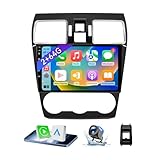
- 【Vehicle Compatibility】 The car stereo is compatible with Subaru Forester WRX Impreza 2016 2017 2018(With Silver Air Vent). Please check the car console and the year before buying. If you are not clear, please provide the following details: 1. Your car's model and year, 2. A picture of your car console
- 【 Android 13 Car Radio】The head unit runs on Android 13 as its main operating system, turning your car radio into a large tablet. Featuring 2GB + 64GB of storage, it ensures smooth performance for navigation, music, and more. The 9-inch touch screen with 1280x720 resolution provides a sharp and clear display. With the Play Store preinstalled, you can install many apps after connecting to Wi-Fi,
- 【Wireless CarPlay & Android Auto】 Wireless CarPlay and Android Auto work seamlessly, allowing for hands-free calls, navigation, music, and app use without cables. Simply connect to your smartphone via Bluetooth/Wi-Fi/USB to access the GPS navigation system, make phone calls, enjoy music while focusing on the road through the car's CarPlay screen, having a more convenient and safer driving experience
- 【GPS Navigation & WIFI &Bluetooth】Built-in GPS module supports both offline and online navigation. When connected to WiFi, you can get real - time traffic information. You can answer/make hands-free Bluetooth phone calls, listen to Bluetooth music without distractions
- 【Bluetooth & FM/RDS Radio】This car radio replacement features built-in Bluetooth, enabling hands-free calls, phone book syncing, and wireless music streaming for a convenient and safe driving experience. The FM/RDS radio offers stable reception and allows you to preset your favorite stations, keeping you informed with real-time news, sports updates, and weather forecasts while you're on the road
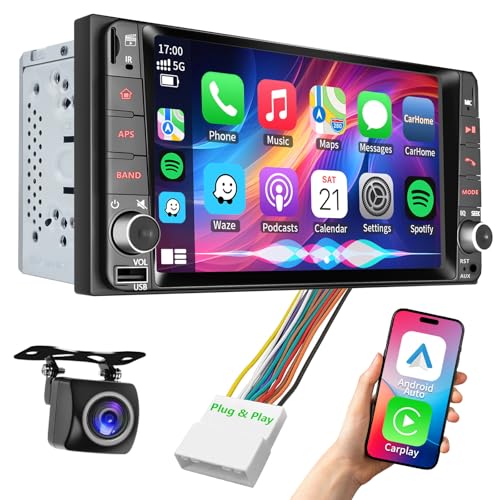
- 【Applicable Car Models】This car stereo radio is suitable for 2009-2015 Subaru Forester/2008-2014 Subaru Impreza/2008-2015 Subaru WRX/2008-2015 Subaru WRX STI/2012-2015 Subaru XV Crosstrek (NOTE: This radio is not compatible with original car radios that have Map navigation or Harman Kardon audio systems). The shape and size of this radio are the same as the original car radio and come with plug and play installation wiring harness.
- 【Wired and Wireless CarPlay & Android Auto】This special for Subaru car stereo supports wireless Apple Carplay and Android auto with Voice Control. Connecting Smartphone wireless automaticly, as soon as you start the car. You can get directions from GPS navigation apps from phone link like Google Maps and Waze, planing the route for you, put on your personal playlist on Spotify (from smartphones), have Siri / Google Assistant (from smartphones) to make a phone call, etc.
- 【High Fidelity Sound Quality W/ Built-in EQ DSP】This stereo support 4 x 50W audio output. Built in DSP with 4 channels fit for Subaru original audio system , FL, FR, RL, RR, adjusting music effect wherever position. With 32 bands EQ Audio Equalizer that allows to adjust the music effect as like. To reduce the effect to music quality of overheating, adds a large heat sink in unit and increase the space for heat disspation.
- 【7 inch QLED Ultra-Clear Touch Screen】 Feast your eyes on a 7" QLED screen display with 1280×720 resolution. It can support 1080P video playback with vivid colors and razor-sharp details. Whether you're watching videos or checking maps, every image pops with stunning clarity. The multi-touch screen makes your operation smoother. When you turn on your car lights in the dark, the screen will also dim.
- 【Bluetooth 5.2 And AM/FM Radio Ready】You can answer/make calls and be hands-free without distractions via bluetooth. This radio for Honda built-in clear mic and equipped with external mic jack in stereo back. Bluetooth music wireless audio stream allows you to enjoy a superior music listening experience. Stable AM/FM radio with unlimited preset stations, great sound, support manual and automatic station search.
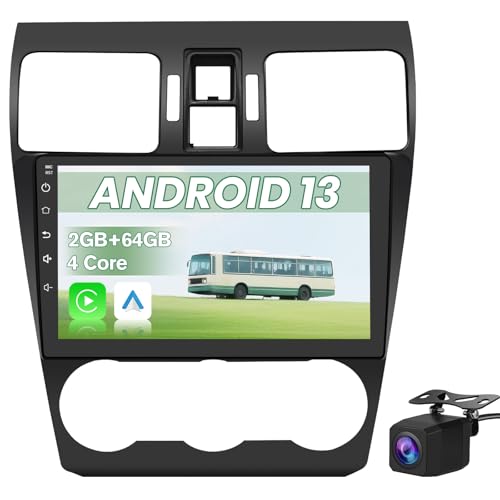
- 【Responsive System Performance】Combining an 4 core processor with 2GB RAM and 64GB ROM typically results in responsive system performance. This setup assists with faster processing for audio, visuals, and voice commands during driving
- 【User-Friendly Interface】The substantial 9inch touchscreen is designed to facilitate user interaction. Larger on-screen buttons and clear layouts may reduce distraction while driving. This interface aims to make accessing features like radio, Bluetooth, and settings more straightforward.
- 【CarPlay and Android Auto】When connected through CarPlay or Android Auto, you might access certain apps you already use on your phone, such as preferred map services or music streaming platforms. This could help maintain your personal preferences and routines in the car
- 【with rearview camera】The system is generally configured to automatically switch to the rear camera video feed when the vehicle is shifted into reverse gear. This hands-free activation is intended to provide timely visual assistance without requiring manual input from the driver during parking sequences
- 【WiFi 】Featuring integrated support for both home and mobile networks, this radio can utilize your existing internet connections. It typically allows for data-intensive tasks like map downloads on home Wi-Fi and lighter streaming via phone hotspots
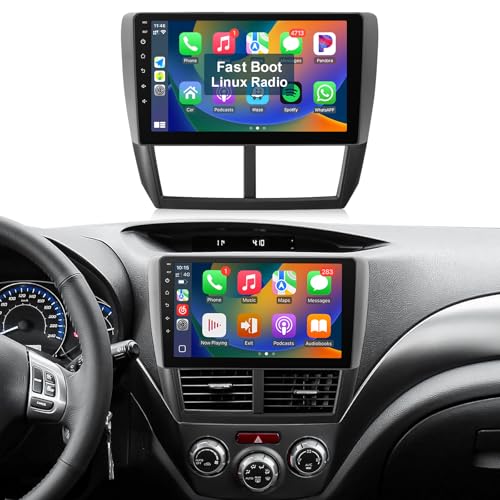
- 【Fast Boot Car Stereo】The double din radio is designed for Subaru Forester Impreza WRX 2008 2009 2010 2011 screen replacement carplay. All wiring harnesses and accessories are included, plug-and-play. Linux-based system powers up in 1 second. (NOTE: This radio is NOT suitable for cars with J.B.L premium audio systems or factory screen. Before purchasing, verify your vehicle's model, year, and dashboard configuration.)
- 【Wireless CarPlay & Android Auto】:For 2008 Subaru Forester Impreza WRX radio supports wireless Apple CarPlay and Android Auto functionality, offering convenient Bluetooth and wifi connectivity. Once connected, for 2012 Subaru Forester stereo grants access to most of your phone's features and enables hands-free voice control.
- 【BT5.1 & Navigation】For 2009 Subaru Forester Impreza WRX radio is equipped with Bluetooth 5.1, allowing you to answer calls, play your favorite music, and more via Bluetooth. It also features both built-in and external microphones for superior voice capture. For 2007 Impreza WRX carplay, Navigation function can be used by connecting the image/caplay/Android Auto.
- 【Backup Camera & SWC】:for 2010 Subaru Forester Impreza WRX radio is equipped with a waterproof camera featuring night vision, allowing you to reverse safely at night and in rainy conditions. Additionally, for 2011 Subaru Forester Impreza WRX screen includes steering wheel controls for enhanced convenience.
- 【Mirror Link】:For 2011 Subaru Forester Impreza WRX radio stereo features mirroring capabilities and supports wired (USB) and wireless (Wi-Fi & Bluetooth) connections for both iOS and Android systems.Because CarPlay and Android Auto only support screen projection for certain software, they cannot project all software onto the radio screen. It is recommended to use the mirror link instead.
SEOCONTENT-START
Bulletin Number: 15-259-20R; Revised: 03/15/23 Page 1 of 26 Continued… NUMBER: 15-259-20R DATE: 02/19/20 REVISED: 03/15/23 APPLICABILITY: All Models Equipped with CP1 Denso Audio / Navigation Head Units SUBJECT: Denso Gen 4 Cockpit One (CP1) Infotainment System Operating TIPS CAUTION: VEHICLE SERVICING PERFORMED BY UNTRAINED PERSONS COULD RESULT IN SERIOUS INJURY TO THOSE PERSONS OR TO OTHERS. Subaru Service Bulletins are intended for use by professional technicians ONLY. They are written to inform those technicians of conditions that may occur in some vehicles, or to provide information that could assist in the proper servicing of the vehicle. Properly trained technicians have the equipment, tools, safety instructions, and know-how to do the job correctly and safely. If a condition is described, DO NOT assume that this Service Bulletin applies to your vehicle, or that your vehicle will have that condition. Subaru of America, Inc. is ISO 14001 Compliant ISO 14001 is the international standard for excellence in Environmental Management Systems. Please recycle or dispose of automotive products in a manner that is friendly to our environment and in accordance with all local, state and federal laws and regulations. SPECIAL NOTE: For the latest updates on Tips for current concerns, perform key word search in “TechTIPS Article Locator Index” (Document code: SUTTIPSLOC), or review all relevant infotainment related TechTips from the “Accessories” (#15) tab found on the table of contents. To locate the “TechTIPS Article Locator Index” from STIS “Subaru Tech Info System”, select “Online Reference”. Select “Other/Miscellaneous” in Publication Type and input Document code in applicable area, OR search KEYWORD for “TechTIPS Article”. INTRODUCTION: This bulletin provides helpful tips to use when diagnosing customer concerns which may arise when operating the new-generation Denso CP1 Multimedia Navigation (AVN) & Display Audio (DA) systems. This new Gen 4 head unit containing audio and navigation features, is also referred to as Cockpit One (CP1) Infotainment system. The new system consists of two modules: a Cockpit Control Unit (CCU) and, either a dual 7” display audio unit (“Base”), an 11.6” display audio (“Mid”) or 11.6” display audio / navigation (“High”) system also known as the Center Information Display (CID). Reference photos of each system are supplied below. NC-03379 ((AA)) “Base” ( B ()B, )(,C (C) ) “Mid” & “High” ID Audio Unit Type (A) “Base” – Audio only (B) “Mid” – High-grade Audio only (C) “High” – High-grade Audio & Navigation SERVICE BULLETIN ATTENTION: GENERAL MANAGER q PARTS MANAGER q CLAIMS PERSONNEL q SERVICE MANAGER q IMPORTANT – All Service Personnel Should Read and Initial in the boxes provided, right. ©2020 Subaru of America, Inc. All rights reserved. Bulletin Number: 15-259-20R; Revised: 03/15/23 Page 2 of 26 Continued… Audio systems used in previous models produced by Fujitsu- (Denso) TEN and Harman have similar “Operating TIPS” bulletins available on STIS. Both are “live” documents and get updated regularly with new information. This bulletin will continue along those same lines and format, receiving regular updates with the latest information as it is received. CONDITION #1a: During Navigation operation, the map orientation can be changed between 2D north-up, 2D heading-up and 3D. 2D north-up 2D heading-up 3D heading-up CAUSE: The map orientation defaults to 2D north-up, 2 mile scale whenever the ignition is cycled off-on. RECOMMENDATIONS: This is a normal operating characteristic. CONDITION #1b: Navigation issues due to street names not shown. CAUSE: Street names are not shown. RECOMMENDATIONS: Just a reminder there are three map orientation modes: 2D north-up, 2D heading-up and 3D heading-up. 2D north-up 2D heading-up 3D north-up Please note street names only appear in 2D north-up and 2D heading-up. Street names are not shown in 3D heading-up map orientation mode. This is TomTom User Interface constraint for CP1.0 system. So this operation is characteristic. Bulletin Number: 15-259-20R; Revised: 03/15/23 Page 3 of 26 Continued… CONDITION #1c: Navigation issues due to no match for the address CAUSE: Unable to find an address using on-board navigation typing or speaking the address. RECOMMENDATIONS: Occasionally we see reports of an address or POI not able to be found in the navigation system. Please keep in mind the TomTom data base used with NAVI feature requires regular updates to stay current due to bug fixes as well as information revisions. When assisting with such cases, first duplicate the issue and document the address in question. Then ensure the system has the latest software update and the latest map version. Bringing system up to date offers operation improvement as well as helps to establish a baseline to perform diagnostic. If even after the map is updated , there is still a concern about inaccurate map data (no match for street name, no match for town/city name, address not found etc.) we appreciate the feedback reported using the link from SOA website https://www.subaru.com/owners/index.html. Select “Navigation” and the vehicle of interest using pulldown menus, click command button “Search for Updates” button and use the link “Report Inaccurate Map Data”. You would get redirected to the map share tool page following the link: https://www.mapsharetool. com/external-iframe/external.jsp?CustomerId=20181921 Note: they need to choose a Facebook, Google or Yahoo account to submit your report, so it has something to tie it to. Bulletin Number: 15-259-20R; Revised: 03/15/23 Page 4 of 26 Continued… See below for an example of reporting a map error. Please keep in mind the TomTom database will always be less up to date vs smart phone navigation applications, since it isn’t connected to the cloud using real time information. CONDITION #2: NAVI screen does not show the correct location. CAUSE: It is possible during Delivery Mode for the NAVI GPS display to show Manhattan, NY location all the time. This is a default setting for GPS in this mode. Other indicators of Delivery Mode are: • The arrow is gray in color • The clock time displayed is inacurate. Following Delivery Mode or Memory Initialization (map arrow is gray). Normal Operation (map icon is blue/green). Bulletin Number: 15-259-20R; Revised: 03/15/23 Page 5 of 26 Continued… RECOMMENDATIONS: If a vehicle presents with this concern, inform the customer that the map icon will change to cyan (blue/green) and the clock will reset to the correct time as soon as the GPS module receives the current vehicle location. In a case where the vehicle location shown on the Navigation screen does not update to show the correct location and the clock remains inaccurate, perform the applicable diagnostics to confirm the GPS antenna integrity and secure harness connection. NOTE: The synching process time varies depending on the available GPS signal strength. Driving the vehicle (while avoiding frequent direction changes) for a few miles will help to expedite the process. CONDITION #3: Artwork appearance on the Center Information Display disappears. CAUSE: It is a normal operating characteristic for the SXM station artwork to disappear from the CP1 / Gen 4 Infotainment system display whenever the vehicle is in motion. Artwork is restored when the vehicle stops. Artwork is displayed when stopped or parked. Artwork is NOT displayed when moving. This behavior occurs when using all audio sources including Bluetooth streaming and Media. RECOMMENDATIONS: Explain to customers questioning this condition that it is a normal operating characteristic intended to reduce distraction. Replacing the head unit will not change this characteristic. CONDITION #4: Engine Auto Start-Stop operation defaults to “ON” following the ignition cycle off-on. CAUSE: The Auto Start-Stop feature operates automatically to save gasoline and reduce emissions when the vehicle is stopped. By design, the Auto Start-Stop feature always defaults to ON whenever the ignition is cycled off-on. Bulletin Number: 15-259-20R; Revised: 03/15/23 Page 6 of 26 Continued… RECOMMENDATIONS: There may be times when this feature needs to be deactivated. Follow the sequence provided below to deactivate Auto Start-Stop: 1. Touch the Vehicle Icon on the Home screen 2. Touch the Others tab on top 3. Move the Auto Start-Stop slider to OFF. 1 2 3 CONDITION #5: Sound Output is delayed following the CP1 / Gen 4 Infotainment system reboot. CAUSE: During the reboot function of the CP1 / Gen 4 Infotainment system (following ignition offon), multiple functions are being configured: Telematics system, Audio system, HVAC system, Combination Meter Display, Center Information Display, mobile application functions and the Navigation system (where applicable). NOTE: Tasks and operations dedicated to safety are given the highest priority. This is the reason why operation of some controls like turning of the volume knob or touch display selections might appear out of sync and be delayed. The same applies to the sound output being delayed following a system reboot. RECOMMENDATIONS: Explain to customers this is a normal operating characteristic. CONDITION #6: Voice Recognition (VR) operation is inconsistent when using Apple CarPlay or Android Auto applications. CAUSE: When using the CarPlay or Android Auto application, it is important to note using a short press (quick press/ release) of the Talk switch on the steering wheel to start the VR system invokes the native (vehicle) on-board VR application and not Siri or Google. This is a different behavior from the previous generation Harman Gen 3 head unit. This change allows the use of VR for HVAC or media control while using CarPlay or Android Auto. Bulletin Number: 15-259-20R; Revised: 03/15/23 Page 7 of 26 Continued… RECOMMENDATIONS: This detail is important to keep in mind when using the VR feature for functions like voice to call or voice to text. For example, due to CarPlay protocols, placing a call using the native on-board VR by speaking a contact name isn’t possible. When CarPlay is active, a long press of the Talk button will activate Siri and allow calls to be made using the phone’s contact list. Alternatively, calls can be made using the native on-board VR when prompted by speaking the desired phone number. To recap, when CarPlay or Android Auto are in use, placing handsfree phone calls by speaking contact names is not possible using the native VR system. In addition, when CarPlay or Android Auto are active, a short press of the Talk button activates only the native VR system which can be used for HVAC and other settings. When using CarPlay or Android Auto, a long press of the Talk button will activate Siri / Google Assistant to allow their use in making handsfree calls using the phone’s contact list. The native VR can only be used to call contacts when CarPlay or Android Auto are NOT in use unless the customer chooses to dial by phone number rather than by contact. REMINDER: To start Siri / Google Assistant, while using CarPlay / Android Auto press and HOLD (long press) the Talk switch on the steering wheel. On-board Voice Recognition Activated Siri Activated The same is true when using the voice to text function. To start Siri/ Google Assistant, press and HOLD the Talk switch on the steering wheel. This will initiate change-over from the native on-board VR system to Siri / Google Assistant. CONDITION #7: Intermittent volume adjustment concerns when using Android Auto application. CAUSE: There are instances when using Android Auto, the audio volume cannot be adjusted intermittently even though notification of the adjustment by turning the volume control knob occurs as shown below on the display as shown here. This condition occurs because Android Auto operation is being prioritized over the CP1 / Gen 4 Infotainment system. Bulletin Number: 15-259-20R; Revised: 03/15/23 Page 8 of 26 Continued… RECOMMENDATIONS: This condition is temporary and will clear eventually. To expedite clearing and regain faster volume control for the audio source, there are some work arounds. One option is to relaunch Android Auto by disconnecting and reconnecting the phone to the CP1 / Gen 4 Infotainment system or, a short press of the Talk button on the steering wheel to start the native VR followed by saying “cancel” after the beep is heard. The procedure shown below copied from the Owner’s Manual regarding sound output can also be used. WHAT TO DO IF TROUBLESHOOTING TROUBLESHOOTING ISSUES COMMON TO THIS SYSTEM Symptom Cause Action The touch screen becomes unresponsive during operation. An error has occurred in the system. Press and hold the “ ” knob for 10 seconds or longer to reset the system. The sound suddenly stops working. Only the background is displayed on the screen and no icons appear. SUBARU STARLINK X Dual 7.0-inch display system only Symptom Likely cause Solution Page SUBARU STARLINK does not start. The time does not match. Connect your smartphone. 79 Set the phonebook download function to on. 82 WHAT TO DO IF 227 Appendix/What To Do If/Index 9 GC7_US.indb 227 2019/05/30 15:32:36 Always confirm the customer has the latest Android Auto and Google application updates installed on their device as regular enhancements are released to ensure the best experience. CONDITION #8: Android Auto does not launch. CAUSE / NOTE: The vehicle must be stopped and the electric parking brake (EPB) must be ON to complete the initial pairing process between the CP1 / Gen 4 Infotainment system and the phone using the Android Auto application. When connecting a phone to the USB port, follow the messages on both the CP1 display and the phone screen. See below an example. CP1 System Android Phone RECOMMENDATIONS: This is a normal operating characteristic. It is a good practice to confirm an undamaged, genuine cable is used to connect the phone as well as the making sure the phone is set to accept connection with a new vehicle. Bulletin Number: 15-259-20R; Revised: 03/15/23 Page 9 of 26 Continued… CONDITION #9: Android Auto connection failure is displayed. CAUSE: Reports have been received regarding a communication error message displayed on the phone screen as shown here. When this message is displayed on the phone after connection to the CP1 / Gen 4 Infotainment system, the Android Auto application fails to launch. Investigation has shown the source of this error is on the phone side and can be resolved by re-synching communication by disconnecting and reconnecting the phone. The communication error number (12 shown in the example) is irrelevant. RECOMMENDATIONS: When reviewing a similar issue, explain to the customer that replacing the head unit will not resolve this condition as it is not the root cause of the error. It is a good practice to confirm an undamaged, genuine cable is used to connect the phone as well as making sure the phone is set to accept connection with a new vehicle. CONDITION #10: User is unable to download Phonebook Contacts. CAUSE: Confusion regarding the phone contact transfer process. RECOMMENDATIONS: When assisting with questions about the phonebook download process, start by verifying the option is enabled in the CP1 / Gen 4 Infotainment system using the following screen shot as a guide. Home > Settings > Phone > Phonebook/Recent Calls Bulletin Number: 15-259-20R; Revised: 03/15/23 Page 10 of 26 Continued… If the customer still cannot access the phonebook or messages, check the phone’s Bluetooth settings to ensure all related sharing settings are enabled. • Android Device Select the gear icon next to your vehicle device name. Ensure all settings are enabled. • Apple Device Select Bluetooth setting, then under “MY DEVICES”, click on the “i” symbol next to connected device to confirm “Sync Contacts” and “Show Notifications” options are enabled as shown below. It is strongly recommended to restart the vehicle to finalize the pairing process and ensure all devices are properly synchronized. NOTE: The system can store up to 2000 phone numbers. The total number of phonebook contacts transferred from the phone would be equal or less, because it depends on the amount of data each contact contains (multiple phone numbers, address, email, etc.). CONDITION #11: Unable to transfer Phone Favorites to CP1 / Gen 4 Infotainment system. CAUSE: Keep in mind, the CP1 / Gen 4 Infotainment system’s Favorites list and that of the paired phone are not synchronized. The Bluetooth phone’s Favorites list will not be downloaded automatically, even after the phonebook data has been downloaded from the Bluetooth phone. The customer is required to manually register the contacts in the Favorite list. The maximum number of Favorite contacts is 15. RECOMMENDATIONS: Explain to customers this is a normal operating characteristic. Bulletin Number: 15-259-20R; Revised: 03/15/23 Page 11 of 26 Continued… CONDITION #12: Playback of audio files using a USB memory device does not work. CAUSE: There are no restrictions for the brand or size of the USB Memory device. All will work with the CP1 / Gen 4 Infotainment system as long as they meet following requirements: • USB communication formats: USB 2.0 LS (1.5 Mbps) / FS (12 Mbps) / HS (480 Mbps) • File format: FAT 32 • Supported file extensions: m4a / aac, mp3, wma, wav, flac, m4a NOTE: It is recommended to remove all files in formats not supported by the CP1 system from the USB memory device. NOTE: Either front USB port can play back audio files. In case two USB memory devices are connected, the one connected first will be used by the system for playback operation. In case an Apple device is connected to one of the USB ports, only the Apple device (Carplay / Subaru STARLINK) can be used. During this time, USB Memory Device playback isn’t available since the USB port operates in “Host mode” during Carplay or Subaru STARLINK operation. RECOMMENDATIONS: The USB audio playback screen can be accessed by pressing the Media icon on the home screen. Always confirm the customer is using a correct port as well as following the guide lines for the media requirements. If the customer still can’t play back their audio files using a USB memory device, confirm the device has not been damaged. Once the USB device is confirmed to be OK, follow the applicable Service Manual procedure to perform further diagnostics. CONDITION #13: Even if a user follows the proper procedure, a “Notification Date” cannot be set and shows “ – – / – – / – – – – / “ as shown below after inputting a notification date and pressing “Set.” CAUSE: Date and Time have not been set. The user must set a date and time prior to setting a “Notification Date.” RECOMMENDATIONS: Two methods to set the date and time for the BASE model are listed below: 1) Synchronize with Phone: Pair a Bluetooth phone to synchronize the date and time from the phone. 2) Manual: Manually set the date and time using the Time Setting menu. NOTE: On Mid and High models, once the system receives GPS data from the DCM (Mid/High model) or CCU (High model), the head unit will set the date and time automatically. BASIC FUNCTION 33 1 Quick Guide (DUAL 7.0-INCH DISPLAY SYSTEM) – Operation Flow: Using Playback Modes – Display the playback mode list. Select the playback mode. Play a track. Depending on the audio source, several items from these categories are displayed in a list. LOADING AND UNLOADING A DISC* CONNECTING A USB MEMORY DEVICE/ PORTABLE DEVICE *: If equipped Loading a disc Unloading a disc Insert the disc with the label side facing the rear of the vehicle. GC7_US.indb 33 2019/05/30 15:30:36 (240,1) 北米Model “A2570BE-A” EDITED: 2019/ 5/ 24 NOTE . The vehicle posture indication may differ from the actual vehicle posture. . For Outback, when X-MODE has been turned on, the screen of the center information display will be changed to the X-MODE screen. . The vehicle posture angle varies not only due to the angle of the road surface, but also due to the vehicle tilt caused by the occupants, cargo, and acceleration or deceleration. ! Maintenance Maintenance reminders can be set. Engine oil setting: 1. Touch (Maintenance). 2. ? (Engine Oil) 3. Select “Notification Date” or “Notification Distance” of the reminder. 4. ? “Set” 5. ? Oil Filter setting: The setting procedure is the same as “Engine Oil” setting, but touch the “Oil Filter” item in step 2. Tires setting: The setting procedure is the same as “Engine Oil” setting, but touch the “Tires” item in step 2. Maintenance Schedule setting: The setting procedure is the same as “Engine Oil” setting, but touch the “Maintenance Schedule” item in step 2. NOTE . Touch “Reset” to reset each setting. . Touch “Update” to revert to the default value. 238 Center Information Display (CID) Vehicle Owner’s Manual for Maintenance (Page 238) Bulletin Number: 15-259-20R; Revised: 03/15/23 Page 12 of 26 Continued… CONDITION #14: Genuine Subaru accessory CD player does not play back “lossless” (listed as ALAC and FLAC in the table below) audio file formats although the Owner’s Manual shows CP1 does support these formats. ● For USA customers, please visit www.subaru.com for details. Outside of the USA customers, contact your local dealer to arrange a demonstration in order to confirm whether or not the phone can be paired with the vehicle. FILE INFORMATION Codec Description Channels Container/ Extension MPEG-4 AAC LC 8-48 kHz sampling rate 8-320 kbps CBR, VBR Mono and stereo .m4a, .aac MPEG-4 HE AAC 16-48 kHz sampling rate 8-320 kbps CBR, VBR Mono and stereo .m4a, .aac MPEG-4 HE AAC v2 16-48 kHz sampling rate 8-320 kbps CBR, VBR Mono and stereo .m4a, .aac MP3 8-48 kHz sampling rate 8-320 kbps CBR, VBR Mono, Stereo, and Joint .mp3 WMA2/7/8/ 9/9.1/9.2 16-48 kHz sampling rate 8-320 kbps CBR, VBR Mono and stereo .wma PCMWAVE 8 bit and 16 bit 8000, 16000, and 44100 Hz sampling frequency Mono and stereo .wav FLAC 44.1 kHz, 48 kHz, 88.2 kHz, 96 kHz, 176.4 kHz, 192 kHz sampling rate 16 bit, 24 bit Mono and stereo .flac Codec Description Channels Container/ Extension ALAC 44.1 kHz, 48 kHz, 88.2 kHz, 96 kHz, 176.4 kHz, 192 kHz sampling rate 16 bit, 24 bit Mono and stereo .m4a ● The player is compatible with VBR (Variable Bit Rate). ● MP3 (MPEG Audio Layer 3), WMA (Windows Media Audio) and AAC (Advanced Audio Coding) are audio compression standards. ● This system can play AAC/AAC+ v2/MP3/WMA files on CD-R*, CD-RW discs*, USB memory device, and Bluetooth device. *: If equipped ● This system can play disc recordings compatible with ISO 9660 level 1 and level 2 and with the Romeo and Joliet file system.* *: If equipped ● When naming an AAC/AAC+ v2/MP3/WMA file, add an appropriate file extension (.mp3/.wma/.m4a). ● This system plays back files with .mp3/.wma/.m4a file extensions as AAC/AAC+ v2/MP3/WMA files respectively. To prevent noise and playback errors, use the appropriate file extension. ● This system can play only the first session when using multi-session compatible CDs.* *: If equipped TIPS FOR OPERATING THE AUDIO SYSTEM 178 GC7_US.indb 178 2019/05/30 15:32:04 CAUSE: The information on page 178 of the Owner’s Manual shows “FILE INFORMATION” for Audio System but, this information is only applicable when using a USB Memory Device. RECOMMENDATION: As a work-around, use WMA/MP3/AAC file formats to play back audio CDs originally created in lossless formats. CONDITION #15: Microphone test anomaly When performing the diagnostic checks for microphone operation using DIAGNOSTICS MODE (Dealership Mode/ Function Check/Microphone), the level gauge reading may appear weaker than expected or what may have been seen during prior testing. In some cases, a time lag or no or just one bar may be displayed when speaking into the microphone. This can occur both input levels and does not necessarily indicate a concern with the microphone. Bulletin Number: 15-259-20R; Revised: 03/15/23 Page 13 of 26 Continued… Lower Display Screen on “Base” Models Display Screen on “Mid” and “High” Models CAUSE: There is a known bug with the RC2003 software update released in June 2020. See Appendix B in TSB 15-261-20R to confirm if the software of the unit being repaired is impacted by this bug. This bug affects only the display of the microphone test and in no way impacts actual microphone operation. RECOMMENDATIONS: With the microphone display being impacted, it is recommended to use other diagnostic methods. Alternatively, troubleshoot the microphone operation using the Voice Recognition feature to confirm the unit receives voice input correctly or, make a voice call. If concerns remain, perform continuity and voltage drop testing to confirm if a poor contact or connection may exist. Reference the applicable Service Manual for related wiring diagrams for the Cockpit Control Module and microphone wiring diagrams, with or without Telematics depending upon the vehicle. CONDITION #16: Weather Alert message CAUSE: The Denso CP1 system is designed to receive severe weather alert information from Sirius XM (SXM) and display a pop-up window with the alert message as shown below. Bulletin Number: 15-259-20R; Revised: 03/15/23 Page 14 of 26 Continued… RECOMMENDATIONS: Denso implemented SXM Weather Alert settings within the Gen 4 CP1 controls. These settings control all alert types as well as the ability to completely turn the alerts off. Unlike Gen 3 Harman, the settings for Weather Alert in Gen 4 Denso are in the SiriusXM Travel Link menu (Applications). See the Gen 4 screenshots below. Bulletin Number: 15-259-20R; Revised: 03/15/23 Page 15 of 26 Continued… CONDITION #17: CarPlay operation hints CAUSE: There have been several reports received related to Apple CarPlay operation resulting in unnecessary head unit replacement while the root cause of the condition was any or all of following: • the iPhone used to control the application • the USB cable (non-Genuine Apple cable) • the USB Hub (Aux port- damaged or other). The iPhone is a “master” supervising the Apple CarPlay application projected on the system. RECOMMENDATIONS: Any time communication is interrupted between these devices, it will impact Apple CarPlay functionality. The hints below are intended to help interpret the data shared by the customer. • Handsfree call in progress (clock with green background) Gen 4 Denso CP1 CID Gen 3 Harman Head Unit Display NOTE: This information may be beneficial if the customer asks about the clock background color changing at random or, how to confirm a handsfree call was in progress when the condition occurred. Diagnostic hint: Check the phone screen when the condition occurs to see what is active on it or if any error messages are displayed. • iPhone MIC is enabled by another application (clock with red background) Gen 4 Denso CP1 CID Gen 3 Harman Head Unit Display Bulletin Number: 15-259-20R; Revised: 03/15/23 Page 16 of 26 Continued… NOTE: A report was received with a customer concern of the audio streaming app stopping at random. It turned out, the Camera application (video) has been accidently started on the iPhone and was interfering with the audio streaming application. It was determined by using clock background attribute showing the MIC was enabled each time the streaming stopped. Replacing the hardware in the vehicle would not have had any effect or resolved this case but, helping the customer to understand how the phone works will likely prevent future concerns. HINT: Always check the phone screen when the condition occurs to see what app is active and if any error messages may be displayed. If any issue duplicates consistently, or if only intermittent, always perform a complete diagnosis to eliminate the iPhone, the cable and / or the USB Hub being the root cause. Intermittent concerns are always more challenging and might require consistently collecting information from the customer over a period of time to understand the steps required to duplicate the concern. NOTE: Observing the iPhone screen is as important as monitoring the head unit display. See the examples below which illustrate this point. • WAZE application has started on iPhone (iPhone clock with blue background to indicate enabled notification mode with the vehicle audio source forced to switch to Apple CarPlay): NOTE This information will be helpful when explaining why the radio or CD stop playing when the Waze app was started. The head unit projects what the iPhone is pushing to it. Hardware replacement will NOT fix the concern of a crashing phone app. In cases like this, frequent iPhone reboots or restarts (especially after recent iOS update) or updating or reinstalling the application on the phone were suggested. Check the comments in iTunes store as this may be a known concern with the app. Hopefully, the information above is helpful. Always check for those types of details as well as utilization of any reference material available on Subarunet (Service Operations & Technical/ Forms and Downloads) including TSGs, TSBs, Operating Tips etc. Bulletin Number: 15-259-20R; Revised: 03/15/23 Page 17 of 26 Continued… CONDITION #18: No Audio during CarPlay CAUSE: A number of reports have been received stating the Audio Output (radio, CD, USB etc.) gets interrupted when the Apple CarPlay app is launched or a Navigation app (e.g. Waze) or audio streaming application is (e.g. TuneIn) is started from the Apple CarPlay environment. Gen 4 Denso CP1 CID RECOMMENDATIONS: This is a normal operating characteristic as the iPhone takes control. This may also occur when the phone is used for other purposes while CarPlay is active such as: texting, replying to e-mails or other phone-side actions. Restore the audio playback by switching the source back to Radio or Media as applicable using the touch display or steering switch. Another work-around is to clear the iPhone’s CarPlay cache. Steps to do this are supplied below. Bulletin Number: 15-259-20R; Revised: 03/15/23 Page 18 of 26 Continued… In case the audio output is not restored, follow the troubleshooting flowchart using the link on Subarunet (Service Operations & Technical/ Forms and Downloads) and document the results in the applicable questionnaire. CONDITION #19: SXM Functions CAUSE: Several reports have been received of normal operation being mistaken as a failed behavior resulting in corrective actions leading to unnecessary hardware replacement. RECOMMENDATIONS: As an example, based on enabled SXM settings, the information displayed on the CID can vary during SXM playback or when changing between SXM channels. Below are some definitions from the Owner’s Manual to help with the terminology: Smart Favorites: The first 10 channels which are registered to a preset button will automatically be registered to Smart Favorites. Channels registered to Smart Favorites can be cached and played back as desired within a certain amount of time. Smart Favorites channels would have a designation symbol appearing in preset button in the upper right corner ( ) Smart Favorites allows the head unit to buffer up to 1 hour of audio content. Bulletin Number: 15-259-20R; Revised: 03/15/23 Page 19 of 26 Continued… Tune Scan: Channels registered to Smart Favorites can be scanned to find a desired channel. If Tune Scan setting is ON, the “Scan” button changes to “Tune Scan”. The screenshots below show how to control SXM functions and what it looks like on the Home screen. OFF ON Tune Start: When this function is on, channels registered as Smart Favorites will be cached and when the channel is changed, the song on that channel can be listened to from the beginning. Reports have been received where the customer is not sure how to bring back the display of the preset buttons once the cache / song replay screen has popped up. Touching the “Replay” soft button will remove the cache / song replay screen. Bulletin Number: 15-259-20R; Revised: 03/15/23 Page 20 of 26 NOTE: This playback option automatically appears for Smart Favorites when the “Tune Start” setting is ON and based on when the smart favorite channel is selected. Tune Start causes the module to start playing from the start of the most recent buffered song with each station selection change. This operation is a normal operating characteristic. Do NOT replace hardware to stop getting the replay screen following Smart Favorite channel selection. If the customer wants to stop the playback option from automatically appearing for Smart Favorites, turn “Tune Start” setting to OFF using SiriusXM Setting options. Below are some screenshots of these conditions: • Playback option appears, when the channel selected playing a new song: Select Ch.019 Preset #5 Ch.019 Preset #5 selected Ch. 019 Preset #5 selected Ch. 019 Preset #5 selected Ch.016 Preset #5 is currently playing Playback option comes up, because the song has changed Press “Replay” to return to Preset buttons Presets displayed again • Playback option does not appear, when the channel selected playing the same song Select Ch.016 Preset #6 Ch.019 Preset #9 is currently playing Ch.016 Preset #6 selected Ch.016 Preset #6 selected No playback option, because the same song was playing during previous selection No playback option, because the same song was playing during previous selection Continued… Bulletin Number: 15-259-20R; Revised: 03/15/23 Page 21 of 26 Continued… Observing the time bar is useful in understanding the replay feature and why it doesn’t start each time Smart Favorite channel is chosen with Tune Start setting enabled. Reply button selected (cache is full) Playing out of cache from the start of backup (up to 60 min) Smart Favorite reply from the beginning of song (1min7sec) REMINDER: Always confirm the concern the customer is reporting is not related to characteristic SXM Features which may be controlled by changing settings prior to any hardware replacement. CONDITION #20: Missing “Camera” setting CAUSE: A report was received describing a missing “Camera” setting in Settings/General menu: missing Camera setting PRESENT Camera setting MISSING Bulletin Number: 15-259-20R; Revised: 03/15/23 Page 22 of 26 Continued… RECOMMENDATIONS: After further investigation, it was determined to be a result of a needed process not being followed during replacement of the combination meter. The new combination meter was installed but not programmed properly by completing the required Variant Work. Always follow the applicable Service Manual instructions on STIS and confirm completion of all the necessary steps before condemning a possibly related system or hardware component. The Service Manual image below is an example of the VARIANT WORK procedure required for Combination Meter System replacement. Always follow the applicable procedure for the vehicle being repaired. CONDITION #21: SXM reception outage CAUSE: This issue could happen due to signal loss or subscription status change. RECOMMENDATIONS: Start diagnostic by confirming no warning messages are displayed to indicate receptions issues: antenna malfunction or signal loss. It is also a good practice to tune to Ch. 001-XM Preview and verify there is audio (sound) present. Also use built-in SERVICE DIAGNOSTICS MODE as described in the service manual to verify SXM antenna status (SXM-> OK). Unless there are issues with receiving the signal due SXM antenna, harness failures or internal system malfunction, most likely a simple signal refresh will restore normal operation. Please use the link www.siriusxm.com/ refresh and follow the steps outlined by SXM. Remember to allow enough time for the system to sync the data by keeping the system powered up after the signal refresh is initiated. During the trial period, an SXM representative might engage with the customer to let them know about their trial and when it is going to expire. If the SXM service provider does not hear from the customer or receive some type of payment, they assume the customer is not interested and deactivate SXM radio after Bulletin Number: 15-259-20R; Revised: 03/15/23 Page 23 of 26 Continued… the trial period is over. SXM service provider offers free listening campaigns, which run several times each year. Whenever there is a concern about SXM service outside the trial period, always confirm the customer’s subscription is active and current before condemning the head unit. Radio ID is displayed when tune to Ch.0. If needed, feel free to contact SXM Advance Technical Support at 1-866-463-5326 (Monday – Friday: 8am – 8pm EST, Saturday – Sunday: Closed to perform. CONDITION #22: Travel Link Application greyed out or Traffic information not available CAUSE: This issue could happen due to signal loss or subscription status change. RECOMMENDATIONS: When you are investigating a case for the Travel Link Application icon remaining grey or for Traffic information not being available, please confirm the Travel Link Application or Traffic information have been operational previously. Next please confirm SXM reception is not compromised and the customer is still subscribed for SXM services. Please also review information in the item SXM reception outage covered in CONDITION #21. CONDITION #23: CP1 software version verification CAUSE: CP1 software update might be performed incorrectly. RECOMMENDATIONS: When you confirm CP1 system software version information, please assure the system has been running long enough to finish boot-up process. We don’t have a spec for how long to wait. Good practice might be to wait around 3 minutes. If you don’t wait long enough some versions would be missing or asterisk symbols (****) as shown below. By the way it is correct to see Deck version as asterisk symbols (****), when CD Player is not installed. With that said please don’t confuse the case with no “RAD_SW” version and “DSP_FW” version displayed or showing asterisk symbols (****), even after waiting long enough for the system to complete boot-up. That would a sign for the failed software update. For more details see Subarunet message “Recall WRH-20 / WRI-20 Denso Gen 4 CP1 software update. Critical points to avoiding unnecessary hardware replacement” posted January 5, 2021. Bulletin Number: 15-259-20R; Revised: 03/15/23 Page 24 of 26 CONDITION #24: CD and Rockford Fosgate amp installation CAUSE: how to combine installation of CD Player accessory and Rockford Fosgate Audio Upgrade accessory. RECOMMENDATIONS: Please note accessory CD player can be installed with the accessory Rockford Fosgate system. In order to do so, you should use the harness from Rockford Fosgate Audio Upgrade kit instead of Power Harness from CD Player Installation Kit Continued… Bulletin Number: 15-259-20R; Revised: 03/15/23 Page 25 of 26 Continued… CONDITION #25: Volume adjustment isn’t available and Audio isn’t playing CAUSE: There have been many reports for audio playback and volume adjustment issue following CP1 reboot. Please keep in mind it might be a normal operation, if you see a message “No Audio Playing” in the status bar area. The message “No Audio Playing” in the status bar area indicates no audio source was selected for CP1 following reboot. Likely resulted from CP1 running projection application or streaming audio prior its shutdown. This is not a failure and the customer should not be alarmed. RECOMMENDATIONS: please select the audio source (SXM, AM, FM, Media etc.) to enable playback (audio output) FROM TO Please keep in mind, Telematics service and VR features are still available regardless “No Audio” source selected. By pressing talk button on steering switch would allow to hear voice prompt for voice command, which verifies the audio playback is operational. Adjusting volume while “No Audio Playing” isn’t advised, because there is no audio source available. Bulletin Number: 15-259-20R; Revised: 03/15/23 Page 26 of 26 It is also advised to wait for CP1 to complete its setup process (configure applicable settings: pair accessory, load SXM lineup, find NAVI satellites etc. ), prior to entering command using CID soft buttons. This action could overload command buffer delaying completion of boot process, which might also get confused with CP1 malfunction. IMPORTANT REMINDERS: • SOA strongly discourages the printing and/or local storage of service information as previously released information and electronic publications may be updated at any time. • Always check for any open recalls or campaigns anytime a vehicle is in for servicing. • Always refer to STIS for the latest service information before performing any repairs.
**************************************************************************************************************
SEOCONTENT-END
This product presentation was made with AAWP plugin.