
NHTSA ID Number: 10185092
Manufacturer Communication Number: 15-205-16R
Summary
This bulletin announces new reprogramming file availability and the software installation procedure to address additional operational concerns received from the field and listed involving “Gen 2″ F10 Navigation and Display Audio units with 7” display.
NUMBER: 15-205-16R
DATE: 11/21/16
REVISED: 12/21/20
| APPLICABILITY: | 2015-2017MY Legacy and Outback 2015-2016 Impreza 2015-2017 Crosstrek 2016-2018MY Forester 2016-2018MY WRX |
| SUBJECT: | Reprogramming File Availability to Address Operational Concerns with “Gen 2.0” and “Gen 2.1” Fujitsu-TEN (F10) / Denso-TEN (D10) Navigation and 7” Display Audio Units |
INTRODUCTION:
This bulletin announces new reprogramming file availability and the software installation procedure to address additional operational concerns received from the field and listed below involving “Gen 2” F10 Navigation and Display Audio units with 7” display. The procedure will involve downloading the applicable software update files then loading them onto two flash drives for audio unit installation. It is important to read through and understand this information completely before proceeding. These latest software updates contain new logic to address the following concerns:
- Incomplete SXM channel list displayed
- SXM Subscription Update
- Thumbnail images included with phone contacts are not displayed (iPhone only)
- Quick Message is grayed out and cannot be selected for a reply message
- Head Unit does not respond to touch panel (soft key) commands
- Clock display shifts by one hour when daylight saving is set to auto (applicable to 2015MY Legacy / Outback, 2015MY Impreza / Crosstrek, 2016MY Forester and 2016MY WRX/ WRX STI models with Gen 2.0 audio units only).
In addition to updates for above conditions, each of the new files listed in the table below contain
ALL of the previous updates for conditions referenced in prior TSBs 15-182-15R, 15-183-15R and 15-198-16R which this TSB replaces. An overview of conditions addressed in the three prior TSBs along with a Version I.D. reference table is provided in Appendix section beginning on page 19.
PRODUCTION CHANGE INFORMATION:
(See Step 1 on page 3). Compare the result to the updated table shown below. If the current version number is PRIOR to the version number listed in the table, continue with the updating procedure.
| Model | Model Year | NAVI /
DA | Faceplate ID Number | Update Software File Name | Subarunet Link Title | |
| Update File #1 Name | Update File #2 Name | |||||
| Legacy & Outback | 2015 | NAVI | FB644US | NU9022_USB_1st.exe | NU9022_USB_2nd.exe | MY15_LEG_OUT NAVI #1 |
| FB664US | MY15_LEG_OUT NAVI #2 | |||||
| DA | FB644UM | OU9021_USB_1st.exe | OU9021_USB_2nd.exe | MY15_LEG_OUT DISPLAY AUDIO #1 | ||
| FB664UM | MY15_LEG_OUT DISPLAY AUDIO #2 | |||||
| 2016 | NAVI | FB685US | NU9314_USB_1st.exe | NU9314_USB_2nd.exe | MY16_LEG_OUT NAVI #1 | |
| FB695US | MY16_LEG_OUT NAVI #2 | |||||
| DA | FB685UM | OU9313_USB_1st.exe | OU9313_USB_2nd.exe | MY16_LEG_OUT DISPLAY AUDIO #1 | ||
| FB695UM | MY16_LEG_OUT DISPLAY AUDIO #2 | |||||
| 2017 | NAVI | FB876US | C_NU9511_USB_1st.exe | C_NU9511_USB_2nd.exe | MY17_LEG_OUT NAVI #1 | |
| FB856US | MY17_LEG_OUT NAVI #2 | |||||
| DA | FB856UM | C_OU9510_USB_1st.exe | C_OU9510_USB_2nd.exe | MY17_LEG_OUT DISPLAY AUDIO #1 | ||
| FB876UM | MY17_LEG_OUT DISPLAY AUDIO #2 | |||||
| Impreza & Crosstrek | 2015 | NAVI | FM634US | NU9116(US)_USB_1st.exe | NU9116(US)_USB_2nd.exe | MY15_IMP_CROS NAVI #1 |
| MY15_IMP_CROS NAVI #2 | ||||||
| DA | FM664UM | OU9115(US)_USB_1st.exe | OU9115(US)_USB_2nd.exe | MY15_IMP_CROS DISPLAY AUDIO #1 | ||
| MY15_IMP_CROS DISPLAY AUDIO #2 | ||||||
| 2016 | NAVI | FM655UH | NU9412_USB_1st.exe | NU9412_USB_2nd.exe | MY16_IMP_CROS NAVI #1 | |
| FM675UH | MY16_IMP_CROS NAVI #2 | |||||
| DA | FM705UM | OU9411_USB_1st.exe | OU9411_USB_2nd.exe | MY16_IMP_CROS DISPLAY AUDIO #1 | ||
| FM685UM | MY16_IMP_CROS DISPLAY AUDIO #2 | |||||
| 2017 | NAVI | FM666US | NU9511_USB_1st.exe | NU9511_USB_2nd.exe | MY17_IMP_CROS NAVI #1 | |
| FM686US | MY17_IMP_CROS NAVI #2 | |||||
| DA | FM685UM | OU9411_USB_1st.exe | OU9411_USB_2nd.exe | MY17_IMP_CROS DISPLAY AUDIO #1 | ||
| FM705UM | MY17_IMP_CROS DISPLAY AUDIO #2 | |||||
| Forester | 2016 | NAVI | FF667US | NU9916_USB_1st.exe | NU9916_USB_2nd.exe | MY16_FOR NAVI #1 |
| FF687US | MY16_FOR NAVI #2 | |||||
| DA | FF667UM | OU9915_USB_1st.exe | OU9915_USB_2nd.exe | MY16_FOR DISPLAY AUDIO #1 | ||
| FF687UM | MY16_FOR DISPLAY AUDIO #2 | |||||
| 2017 | NAVI | FF868US | NU9412_USB_1st.exe | NU9412_USB_2nd.exe | MY17_FOR NAVI #1 | |
| FF878US | MY17_FOR NAVI #2 | |||||
| DA | FF678UM | OU9411_USB_1st.exe | OU9411_USB_2nd.exe | MY17_FOR DISPLAY AUDIO #1 | ||
| FF698UM | MY17_FOR DISPLAY AUDIO #2 | |||||
| 2018 | NAVI | FF629US | NU9611_USB_1st.exe | NU9611_USB_2nd.exe | MY18_FOR NAVI #1 | |
| FF639US | MY18_FOR NAVI #2 | |||||
| DA | FF689UM | OU9610_USB_1st.exe | OU9610_USB_2nd.exe | MY18_FOR DISPLAY AUDIO #1 | ||
| FF679UM | MY18_FOR DISPLAY AUDIO #2 | |||||
| WRX & WRX STI | 2016 | NAVI | FV631US | NU9213_USB_1st.exe | NU9213_USB_2nd.exe | MY16_WRX NAVI #1 |
| MY16_WRX NAVI #2 | ||||||
| DA | FV651UM | OU9212_USB_1st.exe | OU9212_USB_2nd.exe | MY16_WRX DISPLAY AUDIO #1 | ||
| MY16_WRX DISPLAY AUDIO #2 | ||||||
| 2017 | NAVI | FV642US | NU9511_USB_1st.exe | NU9511_USB_2nd.exe | MY17_WRX NAVI #1 | |
| MY17_WRX NAVI #2 | ||||||
| DA | FV662UM | OU9510_USB_1st.exe | OU9510_USB_2nd.exe | MY17_WRX DISPLAY AUDIO #1 | ||
| FV672UM | MY17_WRX DISPLAY AUDIO #2 | |||||
| 2018 | NAVI | FV673US | NU9611_USB_1st.exe | NU9611_USB_2nd.exe | MY18_WRX NAVI #1 | |
| MY18_WRX NAVI #2 | ||||||
| DA | FV843UM | OU9610_USB_1st.exe | OU9610_USB_2nd.exe | MY18_WRX DISPLAY AUDIO #1 | ||
| FV833UM | MY18_WRX DISPLAY AUDIO #2 | |||||
NOTE: Software Version Numbers (as referenced in the Service Procedure below) are included in the Update Software File names. Example: NU9017 and OU9106 are Version Numbers.
MATERIALS REQUIRED:
2 empty 2GB, USB 2.0 storage devices (flash drives) will be needed to perform these updates. The drives should be dedicated to storing and transferring these updating files only. They also need to be no more than 4GB in size and contain a FAT32 file format before downloading update files onto them. Do NOT use any USB drives which contain or require the use of file management, encryption, file backup or other software to function.
SERVICE PROCEDURE / INFORMATION:
IMPORTANT REMINDERS:
- Read through and understand this procedure COMPLETELY before proceeding further.
- When installing an exchange head unit, the Version Check procedure below MUST be performed to confirm the replacement has the latest software version installed. If it does not, proceed with the remainder of this Service Procedure.
Step 1: Version Check Procedure
Before proceeding with any updates, the currently installed software version must be determined.
If the latest software version (or later) is already installed, no updates are necessary. The Version ID numbers for this procedure are found in the Update File Applicability / Information table shown above. If the Version ID numbers identified during the Version Check procedure are prior to (or lower than) those shown on the table, proceed with the remainder of the software update beginning with Step 3.
- Switch the unit into “Diagnosis Mode” by pressing and holding the HOME button while pressing the “AUDIO/TUNE” button 5 (five) times.
- Press “Service Information”
- Press “Version Information”
- Press “Push” next to DA (or AVN for Navigation units)
- Verify the current versions according to the Update File Applicability / Information table shown table shown on page 7. Use the down arrow to scroll to the bottom of the list for complete verification.
- If the software version is current, press and HOLD the HOME button to exit the Diagnostic Mode and complete the procedure as no updates are necessary. If no updates are necessary, continue your diagnosis of the customer concern. If the Version ID numbers are prior to (lower than) those shown in the table above, proceed with Step 2, preparing the USB memory (Flash Drives) then Step 3, the software update procedure.
NOTE: If updates are necessary, the Version Check procedure will need to be performed again after each update installation to confirm the procedure was successful.
After performing the Version Check procedure, if updates are determined to be necessary, the 2 USB flash drives will be needed to download the Update Files onto. All the F10 update files are accessible for downloading from Subarunet under: Service Operations & Technical>>Forms / Downloads>>Gen2/Fujitsu10/Denso10 for Audio/Navi page then clicking on the applicable hyperlink:
Click Here to Access the Downloads for Audio/Navigation Information on Subarunet
In addition, these files have also been sent to Retailer SDS systems by Nuspire and can be found in My Documents listed as: “F10Software Updates Gen 2.0 and 2.1Audio and Navi Head Units”. The Subarunet page shown above will display which contains links to the update files 1 & 2 for each model head unit. Do not download any files at this point. The file download procedures are supplied later in this bulletin. The 2 flash drives must be formatted before the Update Files can be downloaded onto them as outlined in Step 2 below.
Step 2: Prepare the USB Memory (flash drive)
VERY IMPORTANT: Before attempting to download any data files, confirm the PC and flash drives you are using are not infected with any virus. The flash drives will need to be formatted for FAT32 following the steps below.
USB Flash Drive Formatting Procedure:
- Install a flash drive into an available USB port on your PC.
- Click Start (this is located in the lower left corner of the desktop screen) then, in the Search programs and files box, type “explorer”.
NOTE: On SDS Notebook you may also press the My Documents button on the GUI Home Screen.
- As you type the word “explorer”, search results will start to appear. In the results, click on the “Windows Explorer” option under the Programs section.
- In the next window, choose the Computer section on the left. Locate “Removable Disk”
NOTE: Always confirm the device you are formatting is the USB Flash Drive. This drive may have various names assigned to it by the manufacturer of the device and may not reflect the drive name given in this example.
- Right click the picture for “Removable Disk” then select “Format”.
- When the “Format” dialog box appears, make sure that the option labeled “File System” is set to FAT32 and the Quick Format box is checked as well. Then, click the “Start” button.
- Click “OK” when the following window appears.
- The drive will start formatting and display this window when it is finished. Click “OK” to complete the process.
- Repeat the procedure above for the second flash drive
Step 3: File Download Procedures
After formatting the 2 flash drives is complete, the two Update Files must be downloaded from either the Subarnet links or from the My Documents section of the SDS system when using the files sent by Nuspire, one to each flash drive. Label them Drive “1” and Drive “2”. The updates must be installed in order, Drive “1” first followed by Drive “2”.
Follow “A” when using files downloaded from Subarunet.
Follow “B” when using the files sent directly to the SDS notebook from Nuspire (page 12).
“A” When using update files downloaded from Subarunet:
NOTE: Update File #1 contains 1 file. Update File #2 contains 3 files. The Subarunet screenshots below will take you through the steps required to get the selected Update Files onto the flash drives and ready to use. Update File sizes are quite large and depending on the speed capabilities of the computer, it may take some time to complete the downloads.
PLEASE BE PATIENT!
Once the downloads are complete, locate the Update Files (reference the chart on page 7 for the file names) in the Downloads Folder. Once you locate each file, unzip them one at a time to transfer their contents to the appropriate USB flash drive. As an example, update NU9020_USB_1st.zip for a 2015 Legacy would be unzipped to USB #1 and NU9020_USB_2nd.zip would be unzipped to USB #2. NOTE: If not already done, follow the procedure (Step 2) for formatting (removing any existing files) your flash drives. Plug the “clean” flash drive into your computer.
- Go to your Windows Start screen, select “Computer” (or click on My Documents if you are using the SDS notebook) and click on “Downloads”.
- Once your list of downloaded files opens, locate and click on the downloaded Update Files (in this example, “OU9103_USB…” ) you are looking for. TIP: If you click on Date Modified you can sort the downloaded files by the date they were added which will bring the newest file to the top.
- Double clicking the Update File will bring up a dialogue box with a security warning, click on “Run” to continue.
- Click on “Browse”
- As shown below, click on “Removable Disk” which is your USB flash drive where you want the unzipped file(s) to be saved. Click “OK” then click on “Unzip”.
The Update File will unzip and be saved to your flash drive.
- Confirm the Update File (and flash drive) is ready to use by going back to Start > Computer and double clicking on “Removable Disk” to display the drive’s contents as shown in the examples below. All of the files will have a “.kwi” extension at the end of their file name. If OK, proceed with Step 4: Update Software Installation starting on page 18.
REMINDER: There can only be ONE Update File stored on each flash drive or the update procedure will not work. If you see more than one Update File stored, start over by re-formatting the flash drive again and reloading the Update File you are trying to install.
IMPORTANT REMINDERS:
- Do not change the Update File names after downloading them.
- Do not save any other version Update Files onto the flash drives.
“B” When using update files sent directly from Nuspire:
- From the GUI screen, open My Documents to display the list of available files shown below.
- Insert a “clean” USB flash drive (Drive 1) into the computer being used for the download.
- For these F10 updates, after clicking on the file for the vehicle being updated, 2 files will be displayed as shown below. Like the files downloaded from Subarunet, they too are .zip files and need to be “unzipped” before they can be used.
- Click on the first file (file name ends with _1st). A WinZip Self-Extractor dialog box will appear. Click on “Browse” and select the USB flash drive as the destination (“D:\” in this example)
- Click on Unzip.
- When file transfer to the USB flash drive is complete (a “unzipped successfully” box will appear), click on “OK”, remove Drive 1 and replace it with Drive 2.
- Repeat the above steps and transfer the contents from the second file (ending with _2nd) to Drive 2.
- Confirm both USB flash drive and files are ready to use by double clicking on each (“D:\” in this example) to display their contents. Drive 1 will have just 1 file while the Drive 2 will have 3.
- Unplug Drive 2 and proceed to Step 4
Step 4: Update Software Installation
NOTE: Because of the time it takes to perform these updates, Subaru of America, Inc. (SOA) highly recommends connecting the Subaru Midtronics GR8 Diagnostic Battery Charger to the vehicle and utilizing the Power Supply Mode feature anytime a vehicle control module is being reprogrammed. Follow the procedure as outlined in document GR8-1100 on STIS for use of the GR8’s Power Supply Mode:
- Confirm all electrical loads such as lights, audio, HVAC, seat heaters, and rear defroster are all switched OFF before setting up for Power Supply Mode.
- Select the correct battery type (Flooded, AGM or AGM Spiral).
- Select the CCA which matches the vehicle’s battery (NOTE: OE and replacement batteries have different CCA ratings. Always confirm the battery rating before proceeding.)
- If the “Charge Battery” WARNING appears, the battery MUST be charged before attempting reprogramming.
- DO NOT connect the DSTi or SDI until the GR8 Power Supply mode has completed its battery test mode and the Charging Voltage has dropped to a steady 13.5 Volts on the display.
- If the GR8 “beeps” or the Status Light flashes, a diagnostic charge should be performed on the battery before proceeding further.
- Once Power Supply Mode reaches a steady 13.5 volts, connect the DSTi or SDI to the OBD connector and initiate the reprogramming process.
- Amperage will fluctuate based upon the vehicle’s demand for power. NOTE: If the voltage rises beyond 14V while programming is in process, the procedure will abort. This can indicate a need to test or charge the vehicle battery before any further attempt at programming.
IMPORTANT:
This information is applicable to the Midtronics GR8 Diagnostic Battery Charger ONLY. It does not apply to any other brand / type of “generic” battery charger whatsoever. ONLY the GR8 and its Power Supply Mode feature has been tested and approved by SOA.
Once the GR8 is connected to the vehicle, as long as the battery is fully charged, it takes less than 3 minutes to boot-up the charger, select Power Supply Mode, and have the battery voltage stabilized and ready for reprogramming.
REMINDER: If the GR8 indicates the vehicle’s battery must be charged, charge the battery using the GR8 before proceeding to reprogram the vehicle.
Version Update Procedure
- Turn the ignition / key (ACC) “ON”.
- Press the “AUDIO/TUNE” button.
The Select Audio Source screen will appear.
Install Drive “1” (or Drive “2” after successful installation of Drive “1” update is confirmed) into the vehicle’s USB port. After the flash drive is recognized, the USB icon will illuminate.
- Once the USB icon is illuminated, switch the unit into “Diagnosis Mode” by pressing and holding the HOME button while pressing the “AUDIO/TUNE” button 5 (five) times.
1. Press and hold “HOME” button
2. Press “AUDIO/TUNE” button 5 (five) times.
- Press “Service Information”
- Press “Program Update” then follow the sequence shown in the screen shots on the next page
Wait for “OK” to activate (turn black)
Press “OK”
Press “SELECT”
CAUTION: Confirm the intended new version is displayed before clicking Select.
NOTE: The “OK” button will not activate (turn black) if the wrong Update File(s) are on the flash drive. Re-format the flash drive and reload the proper Update Files starting from the beginning of Step 2.
Press “OK”
Once the updating starts, the status bar may need to complete more than once and could take up to about 15 minutes.
Turn off ACC
If “Update Error” screen is displayed as shown below:
Perform the Version Update again from Step 3.
Select “OK”
ACC OFF then back ON again
If the progress bar stops, please wait 15 minutes. If the progress bar does not change even if after 15 minutes, turn ACC OFF and back ON again then, restart the update procedure from Step 4.
IMPORTANT: Do not turn the ACC (ignition / key) off or disconnect the flash drive from the USB port during updating.
- Once the update completes successfully, turn the ACC off.
- CRITICAL: WAIT AT LEAST 60 SECONDS. If the ignition is turned back on before waiting AT LEAST 60 SECONDS, the data may be corrupted and the unit damaged.
- After the unit boots back up, the “Updating software” screen and its status bar will be displayed. This update may take up to 5 minutes to complete.
When the Software Updates complete, the unit will restart automatically. Once the STARLINK opening screen is displayed, remove the flash drive from the USB port and turn the ignition off. CRITICAL STEP: Before proceeding further, perform Step 1 (Version Check Procedure) again to confirm the updated software installation from Drive “1” was successful. When the update is successful, the new software version number will be displayed. If OK, proceed with installation of the Drive “2” update (repeat Step 4, Update Software Installation). If the updated versions are not displayed, Step 4 using Drive “1” must be repeated. Once the software and CAN version updates are confirmed, insert Drive “2” and repeat Step 4.
Step 5: Version Check Procedure
As mentioned earlier, once both update software installations are complete, the Version Check procedure (Step 1) must be performed again to confirm all of the updates have been installed successfully.
Step 6: Memory Clear Procedure
After confirming both software updates have been installed successfully, the Memory Clear procedure must be performed to complete the update procedure.
NOTE: All presets will likely be lost and will need to reset after performing this procedure. After pressing “Back”, the following screen will be displayed:
- Press “Memory Initialization”
- Press and HOLD the “OK” button until the screen shown below is displayed (5 to 10 seconds).
This screen will be displayed for about 1 minute while the unit restarts. After restart, the Loading screen and its status bar will be displayed. After the status bar completes, the Main Menu screen will be displayed. To complete the updating procedure, you must go through the series of Initial Setup screens, reset the radio station presets and re-pair any mobile devices (where applicable).
NOTE: After confirming the updates are complete, remove the labels and re-format both flash drives to clear any remaining files so they are ready for use the next time. This reduces the chances of inadvertently combining files the next time the drives are used. It also ensures that every repair receives the very latest software as these files will be updated from time to time whenever a newer version is released.
APPENDIX
VERY IMPORTANT: In addition to updates for conditions listed on page 1, each of the new files listed in the table on page 2 contain ALL the previous updates for conditions referenced in prior TSBs 15-182-15R, 15-183-15R and 15-198-16R which this TSB replaces. Please read and understand the following BEFORE installing a software update unnecessarily.
- If the vehicle’s audio / navigation head unit already contains the software version listed in the information below (or a later one) and is experiencing a similar condition as described here, installing the most current software will most likely not resolve it. In that case, do not attempt a software update. Instead, refer to the Technical Support Guide, applicable Service Manual, other related Service Bulletin or Tech TIPS to help diagnose this “new” condition. At the same time, always be sure to complete the Fujitsu 10 / Denso 10 Questionnaire located in the Forms/Downloads area of Subarunet > Service Operations & Technical section under Exchange Forms to record all details related to the condition as part of repair documentation and to have available should escalation be necessary. If after following the available diagnostics in the Service Manual and Technical Support Guide the condition cannot be resolved, contact Techline with all troubleshooting results, along with a completed questionnaire and videos and/or photos of the condition.
- If the condition is as described below and the software version is prior to the software version referenced as correcting this condition, then it is appropriate to apply the latest software update as found in this bulletin as it will most likely resolve the condition.
The table below provides a history of all previous version ID numbers along with reference to the corresponding TSB number and it’s release date. Each update section below lists the specific conditions addressed.
| Model | Model Year | “NAVI / DA” | 15-182-15 (6/16/15) | 15-183-15 (6/16/15) | 15-198-15 (5/2/16) | 15-205-16R (11/21/16) | 15-205-16R (3/21/17) | 15-205-16R (1/3/18) | 15-205-16R (8/21/18) | 15-205-16R (2/27/20) |
| Legacy/ Outback | 2015 | NAVI | NU9008 | NU9015 | NU9014 | NU9017 | NU9020 | NU9020 | NU9021 | |
| DA | OU9007 | OU9014 | OU9013 | OU9016 | OU9019 | OU9019 | OU9020 | |||
| 2016 | NAVI | NU9308 | NU9307 | NU9309 | NU9311 | NU9312 | NU9313 | |||
| DA | OU9307 | OU9309 | OU9310 | OU9311 | OU9312 | |||||
| 2017 | NAVI | NU9508 | NU9509 | NU9510 | ||||||
| DA | OU9507 | OU9508 | OU9509 | |||||||
| Impreza/ Crosstrek | 2015 | NAVI | NU9104 | NU9110 | NU9109 | NU9111 | NU9114 | NU9114 | NU9115 | |
| DA | OU9103 | OU9109 | OU9108 | OU9109 | OU9113 | OU9113 | OU9114 | |||
| 2016 | NAVI | NU9406 | NU9405 | NU9407 | NU9409 | NU9410 | NU9411 | |||
| DA | OU9405 | OU9405 | OU9408 | OU9409 | OU9410 | |||||
| 2017 | NAVI | NU9508 | NU9509 | NU9510 | ||||||
| DA | OU9408 | OU9409 | OU9410 | |||||||
| Forester | 2016 | NAVI | NU9910 | NU9909 | NU9911 | NU9914 | NU9914 | NU9915 | ||
| DA | OU9909 | OU9908 | OU9909 | OU9913 | OU9913 | OU9914 | ||||
| 2017 | NAVI | NU9407 | NU9409 | NU9410 | NU9411 | |||||
| DA | OU9408 | OU9409 | OU9410 | |||||||
| 2018 | NAVI | NU9608 | NU9609 | NU9610 | ||||||
| DA | OU9608 | OU9609 | ||||||||
| WRX | 2016 | NAVI | NU9207 | NU9206 | NU9208 | NU9211 | NU9211 | NU9212 | ||
| DA | OU9207 | OU9206 | OU9207 | OU9210 | OU9210 | OU9211 | ||||
| 2017 | NAVI | NU9606 | NU9508 | NU9509 | NU9510 | |||||
| DA | OU9507 | OU9508 | OU9509 | |||||||
| 2018 | NAVI | NU9608 | NU9609 | NU9610 | ||||||
| DA | OU9608 | OU9609 | ||||||||
| Conditions addressed with Update Number | Update
(1) | Update (2) | Update
(3) | Update (4) | Update (5) | Update (6) | Update (7) | Update (8) | ||
Update (1) TSB No. 15-182-15, originally released 6/16/2015 for NAVIGATION (HIGH) Units ONLY
Update ID: NU9008 (2015MY Leg / Obk) or NU9104 (2015MY Imp / Crosstrek). See table provided on page 19 for complete listing by model / model year / head unit type.
Conditions addressed with these update files:
- Audio output is lost after a few minutes when listening to Sirius/XM satellite radio.
- Bluetooth feature becomes inoperative.
- HD Radio “freezes” after a few minutes of play.
- Back-Up Camera “help lines” do not appear.
- Map location is inconsistent between Navigation display and iPhone when using the iPhone’s Google Maps with the phone connected to the USB port in console.
- Roads or interchanges have the same name displayed multiple times.
- Navigation function is slow to start when selected.
- No map display with key or ignition in “ACC” (accessory) position.
- No voice guidance provided from Navigation system after selecting a route unless the ignition is cycled off and back on again.
- Steering wheel switch controls are inoperative with an iPod (MP3) player connected to the USB.
- Incorrect Umlaut characters are shown on StarLink display.
- No response from the soft touch keys on display.
- Back-Up Camera is displayed when shifter is in positions other than Reverse.
- “Line Diag” screen is displayed intermittently while driving.
- “LIST” soft touch key is not displayed on Bluetooth Audio screen while using Bluetooth audio feature with an Apple device utilizing iOS8 software version.
- “Beep” sound heard when touching the bottom of the display screen where no function soft touch keys are displayed.
- SXM caution message screen is displayed in English even when French language operation settings are selected.
- The following symptoms are all related to the inability of the software to properly load. One or all of these 5 conditions may occur at the same time:
- Repeated display of the “Loading” screen at initial unit start-up
- Bluetooth device pairing failure
- Inoperative steering wheel (satellite) switches
- Voice recognition feature inoperative
- SXM radio feature inoperative.
CRITICAL NOTE: If the software version for the head unit being diagnosed is the one listed above or later, the enhancements for the above listed conditions are already incorporated. Application of the latest software will not correct similar condition(s). Follow regular diagnosis as outlined at the start of this appendix.
If the software version for the head unit is earlier the one listed above, and the condition is listed, then application of the latest software should resolve it.
Update (2) TSB No. 15-183-15, originally released 6/16/2015 for DISPLAY AUDIO (BASE and MID) Units ONLY
Update ID: OU9007 (2015MY Leg / Obk) or OU9103 (2015MY Imp / Crosstrek). See table provided on page 19 for complete listing by model / model year / head unit type.
Conditions addressed with these update files:
- Audio output is lost after a few minutes when listening to Sirius/XM satellite radio.
- Bluetooth feature becomes inoperative.
- HD Radio “freezes” after a few minutes of play.
- Back-Up Camera “help lines” do not appear.
- Incorrect Umlaut characters are shown on StarLink display.
- No response from the soft touch keys on display.
CRITICAL NOTE: If the software version for the head unit being diagnosed is the one listed above or later, the enhancements for the above listed conditions are already incorporated. Application of the latest software will not correct similar condition(s). Follow regular diagnosis as outlined at the start of this appendix.
If the software version for the head unit is earlier the one listed above, and the condition is listed, then application of the latest software should resolve it.
Update (3) TSB No. 15-198-15, originally released 5/2/2016 for DISPLAY AUDIO (BASE and MID) and NAVIGATION (High) Head Units
Update IDs: See table provided on page 19 for complete listing by model / model year / head unit type.
Conditions addressed with these update files:
- Logic change to provide a “_” (underscore) character on the keyboard.
- Logic change to match the engine oil maintenance remaining mileage on the maintenance reminder screen to the odometer meter value on the combination meter when mileage unit is set to read in “KM”.
- Logic change to insure the Vehicle Mode indicator on the Vehicle Monitor screen matches the actual vehicle status. Example: The wheel indicators on the vehicle monitor screen no longer stay illuminated indicating VDC is “active” after VDC activation is complete.
- Logic change to address improper calculation used by the head unit to determine Average Lifetime Fuel Consumption displayed on the ECO monitor.
- Logic change to address Voice Recognition error when user says “Radio” or “Music”.
- Logic change to address the radio (audio) not resuming play automatically after a Bluetooth call is ended. Logic change to address FM radio station presets resetting to 87.5MHz intermittently when
- cycling the ignition OFF to ON.
- Logic change to address AM radio station presets resetting to 513KHz intermittently and possible switch from AM to FM if a 513KHz preset is selected.
CRITICAL NOTE: If the software version for the head unit being diagnosed is the one listed above or later, the enhancements for the above listed conditions are already incorporated. Application of the latest software will not correct similar condition(s). Follow regular diagnosis as outlined at the start of this appendix.
If the software version for the head unit is earlier the one listed above, and the condition is listed, then application of the latest software should resolve it.
Update (4) TSB No. 15-205-16R, originally released 11/21/2016 for DISPLAY AUDIO (BASE and MID) and NAVIGATION (High) Head Units
NOTES:
- 15-205-16R is the CURRENT TSB to use when performing D-10 head unit updates.
- IMPORTANT: The table below represents a group of update files not specifically released in its own revision to TSB 15-205-16R but were later combined with the revised version dated 3/31/2017.
Update IDs: See table provided on page 19 for complete listing by model / model year / head unit type.
Conditions addressed with these update files:
- Mirrorlink version 1.1 updates
- Navigation guidance MUTE function enabled.
CRITICAL NOTE: If the software version for the head unit being diagnosed is the one listed above or later, the enhancements for the above listed conditions are already incorporated. Application of the latest software will not correct similar condition(s). Follow regular diagnosis as outlined at the start of this appendix.
If the software version for the head unit is earlier the one listed above, and the condition is listed, then application of the latest software should resolve it.
Update (5) TSB No. 15-205-16R, originally released 3/31/2017 for DISPLAY AUDIO (BASE and MID) and NAVIGATION (High) Head Units
Update IDs: See table provided on page 19 for complete listing by model / model year / head unit type.
Conditions addressed with these update files:
- Intersection names displayed on the Combination Meter may be incomplete
- XM Traffic information may be inaccurate
- On 2015MY Legacy / Outback, there may be an intermittent delay of up to 1 minute before the Map is displayed after starting the Navigation system.
CRITICAL NOTE: If the software version for the head unit being diagnosed is the one listed above or later, the enhancements for the above listed conditions are already incorporated. Application of the latest software will not correct similar condition(s). Follow regular diagnosis as outlined at the start of this appendix.
If the software version for the head unit is earlier the one listed above, and the condition is listed, then application of the latest software should resolve it.
Update (6) TSB No. 15-205-16R, originally released 1/3/2018 for DISPLAY AUDIO (BASE and MID) and NAVIGATION (High) Head Units
Update IDs: See table provided on page 19 for complete listing by model / model year / head unit type.
Conditions addressed with these update files:
- SXM Channel numbers higher than 256 cannot be set using voice recognition.
- Characters may appear garbled to the right of the input characters when entering an e-mail address or password using the software keyboard within the iHeart Radio app.
- The Navigation system freezes when re-routing while using traffic information supplied by SXM.
- The Navigation system re-boots from the Loading screen when utilizing the remote engine starter (RES) feature (if equipped).
CRITICAL NOTE: If the software version for the head unit being diagnosed is the one listed above or later, the enhancements for the above listed conditions are already incorporated. Application of the latest software will not correct similar condition(s). Follow regular diagnosis as outlined at the start of this appendix.
If the software version for the head unit is earlier the one listed above, and the condition is listed, then application of the latest software should resolve it.
Update (7) TSB No. 15-205-16R, originally released 8/21/2018 for DISPLAY AUDIO (BASE and MID) and NAVIGATION (High) Head Units
Update IDs: See table provided on page 19 for complete listing by model / model year / head unit type.
Condition addressed with these update files:
- Unable to access SXM source or switch to SXM channels by using the preset buttons on the display.
Update (8) TSB No. 15-205-16R, originally released 2/27/2020 for DISPLAY AUDIO (BASE and MID) and NAVIGATION (High) Head Units
Update IDs: See table provided on page 19 for complete listing by model / model year / head unit type.
Condition addressed with these update files:
- Incomplete SXM channel list displayed
- Thumbnail images included with phone contacts are not displayed (iPhone only)
- Quick Message is grayed out and cannot be selected for a reply message
- Head Unit does not respond to touch panel (soft key) commands
- Clock display shifts by one hour when daylight saving is set to auto (applicable to 2015MY Legacy / Outback, 2015MY Impreza /Crosstrek, 2016MY Forester and 2016MY WRX/WRX STI models with Gen 2.0 audio units only).
CAUTION: This countermeasure is only applicable to Gen 2.1 and later. (Not applicable to Gen 2.0.)
CRITICAL NOTE: If the software version for the head unit being diagnosed is the one listed above or later, the enhancements for the above listed conditions are already incorporated. Application of the latest software will not correct similar condition(s). Follow regular diagnosis as outlined at the start of this appendix.
If the software version for the head unit is earlier the one listed above, and the condition is listed, then application of the latest software should resolve it.
17 Affected Products
Vehicles
| MAKE | MODEL | YEAR |
| SUBARU | CROSSTREK | 2015-2017 |
| SUBARU | FORESTER | 2016-2018 |
| SUBARU | IMPREZA | 2015-2016 |
| SUBARU | LEGACY | 2015-2017 |
| SUBARU | OUTBACK | 2015-2017 |
| SUBARU | WRX | 2016-2018 |
1 Associated Document
Manufacturer Communications
NUMBER: 15-205-16R
DATE: 11/21/16
REVISED: 12/21/20
MC-10185092-0001.pdf 4949.749KB
NHTSA ID Number: 10182220
Manufacturer Communication Number: 15-205-16R
Summary
This bulletin announces new reprogramming file availability and the software installation procedure to address additional operational concerns received from the field and listed involving â??Gen 2â?? F10 Navigation and Display Audio units with 7″ display.
1 Associated Document
Manufacturer Communications
NUMBER: 15-205-16R
DATE: 11/21/16
REVISED: 10/13/20
MC-10182220-0001.pdf 4946.152KB

- 【Android 13 System Car Radio】Car Radio Compatible with Subaru Forester WRX Impreza 2013 2014 2015. With 2GB RAM and 64GB ROM, ensures smooth operation and multitasking capabilities. Built-in Bluetooth for answering, making phone calls, streaming music by hands-free. The 1280x720 high-resolution display video clear and vivid pictures and videos. You can enjoy your favourite music, movies and short videos from the car stereo.
- 【Car Stereo with Wireless Carplay & Android Auto】This car radio supports wireless Carplay/Android auto /Mirrorlink. Wirelessly connect your phone to the car's stereo infotainment system, providing a seamless experience. You can make phone calls, send messages, listen to music, and get directions using voice control, allowing you to focus on driving without worrying about using your phone, making your driving safely.
- 【Car Radio with GPS Navigation & WIFI】The built-in GPS module and external GPS antenna supports both online and offline map navigation. With Wi-Fi or hotspot connectivity, you can easily download and access to online navigation app and other video or music apps on Play Store. With the split-screen function, you can view two apps on the same screen simultaneously. For example, you can display navigation and music apps side by side, ensuring a more pleasant journey.
- 【FM/Steering Wheel Control】 With built-in FM radio that allows you to listen to radio programs and stay up-to-date with the latest news and weather information during driving. The car head unit also supports steering wheel controls, allowing you to effortlessly switch songs, change channels, and adjust the volume without taking your hands off the wheel, helping you stay focused on the road while enjoying a smooth and convenient driving experience
- 【SWC &AHD Rear Camera】The car head unit supports original car steering wheel control, such as switching songs, adjusting volume, answering calls, etc. The waterproof night vision camera offers 1080P resolution, reversing image is clearer no matter the weather conditions. Automatically switch the reversing image when reversing. Note: Professional installation is required. Incorrect wiring may cause a short circuit.

- Replaces the original part number: Compatible with Subaru Legacy Outback 8-inch touchscreen radio screen. The TsuperU uses upgraded materials, offering superior sensitivity, high definition, high temperature resistance, and is non-bubbling and non-whitening. With this part, you won't need to go to the dealer for a replacement, as they often recommend replacing the entire radio, which could cost thousands of dollars, but is completely unnecessary. Please watch the replacement video on YT's
- EASY PROBLEM SOLVED: If your display touch screen is cracked, delaminating, bubbles, White, fogging, air holes, unresponsive, has garbled, phantom, ghosted, ghosting, dead pixels, unresponsive, or looks bad, simply replace the TsuperU 8-inch screen navigation touchscreen and it will return to its original functionality without the need for a trip to the dealership for costly repairs. One replacement is all it takes to fix the problem
- COMPATIBLE WITH SUBARU MODELS: Navigation screen fits Subaru Outback 2.5i Limited Premium Sport Touring Premier 3.6R Limited Premier Touring radio digitizer screen 2019 2018. please check the OEM number and size carefully before purchasing, There are two versions of MAP & PHONE, compare with your original parts to make sure that this touch screen fits your car. The digitizer screen for the 8-inch touchscreen radio works with both GPS-equipped radios and non-GPS radios
- EASY TO INSTALL: The product comes with adhesive, you only need to tear off the protective film to use it, easy to install. for Subaru radio screen is an exact fit for the original vehicle. For display only 86471-AL65A 86471-AL65B 86471-AL66A 86471-AL68A 86431-AL66A 86431-AL62A 86431-AL65A 86471 AL65A 86471 AL65B 86471 AL66A 86471 AL68A 86431 AL66A 86431 AL62A 86431 AL65A 86471AL65A 86471AL65B 86471AL66A 86471AL68A 86431AL66A 86431AL62A 86431AL65A, 864734-AL66A, 86471AL76A, 86471-AL76A
- TOUCH RESPONSIVE: Touch screen meets OEM navigation system, high light transmission, high visibility, responsive, high touch accuracy. touch screen monitor is made of new upgraded material with high resolution, high clarity, more stable performance, faster response time, and has been rigorously tested to ensure a long service life, touch screen replacement
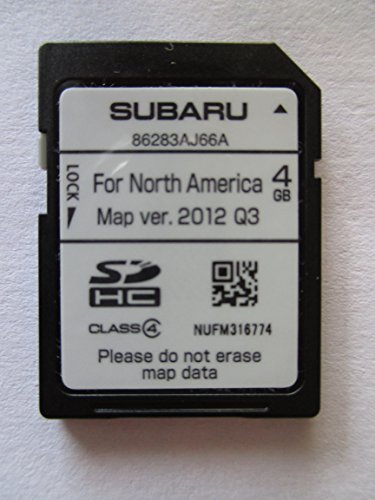 Navigation Card, MAP Update Version 2012 Q3 for North America, USA/Canada Part Number 86283AJ66A" title="Reprogramming File Availability to Address Operational Concerns with “Gen 2.0” and “Gen 2.1” Fujitsu-TEN (F10) / Denso-TEN (D10) Navigation and 7” Display Audio Units - 2015-2018 Subaru 4">

- 8 Core 64GB Android Radio:Our Android car radio is equipped with the latest version of Android and an 8-core CPU processor, delivering exceptional performance and a perfect user experience. With 4G RAM and 64G ROM, our radio ensures smooth operation and provides ample storage for downloading popular apps like YouTube. It is designed to be compatible with Subaru Forester Impreza WRX 2008-2012 models. If you’re unsure whether it’s a good fit for your vehicle, please ask us first
- Wireless and Wired Carplay Android Auto:The Subaru Forester Impreza WRX car stereo offers seamless connectivity with your smartphone’s apps and features like WhatsApp, Google Maps, and Telegram, whether through Bluetooth or a USB data cable. It also supports voice control through Siri or Google Assistant, allowing you to keep your hands free while operating the stereo
- GPS Navigation and WiFi and Split Screen:With WiFi or hotspot connectivity, you can browse the internet, watch videos, and download apps on the 9 inch Subaru Forester Impreza WRX car radio. It also supports online and offline maps, providing real-time road conditions to help you avoid traffic jams. The split-screen feature enables you to simultaneously enjoy GPS navigation and watch videos on the 9 -inch screen with a resolution of 1280x720
- 32EQ DSP/BLUETOOTH 5.0/ FM/RDS:The car stereo comes pre-installed with DSP tuning software, allowing you to adjust the frequency, audio effects, and 32 EQ equalization settings, resulting in crystal-clear sound. Bluetooth 5.0 ensures a faster transmission speed and enables hands-free calling, phonebook downloads, and music streaming. The FM/RDS radio with 30 preset stations allows you to stay updated with new broadcasts, real-time traffic information, weather forecasts, and more
- Multi Function:The Android car stereo supports mirror link functionality, allowing you to mirror your smartphone’s content onto the large screen. It also supports steering wheel controls, provides 59 UI themes to suit your preferences, and allows you to move frequently used software to the home screen for easy access. As a gift, the car stereo comes with an external microphone and an AHD rearview camera with night vision and a 170 degree viewing angle
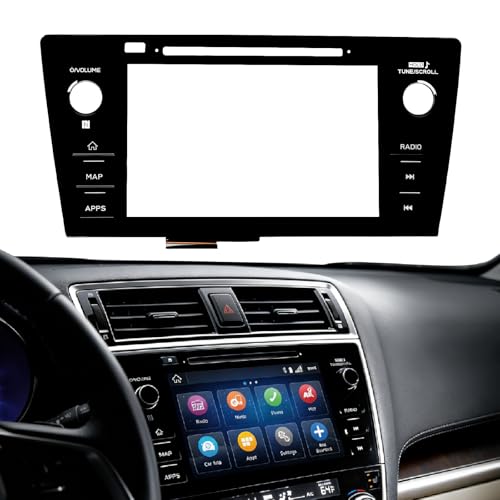
- Fitment:Our Touch Screen Digitizer(MAP) Compatible with 2018 2019 Subaru Outback,2018 2019 Subaru Legacy
- Replace Part Number:86471-AL62A,86471-AL65A,86471-AL65B,86471-AL66A,86471-AL67A,86471-AL68A,86431-AL62A,86431-AL65A,86431-AL66A
- Direct-Fit Replacement:Our 8-inch touchscreen is designed to address common display issues, such as physical cracks, unresponsiveness, or dead pixels, to help return your system to working condition.
- Function:This universal-style LCD touchscreen features integrated MAP functions.
- Support: For any questions or concerns regarding the product, please inform us so we can resolve the issue
SEOCONTENT-START
Bulletin Number: 15-205-16R; Revised 12/21/20 Page 1 NUMBER: 15-205-16R DATE: 11/21/16 REVISED: 12/21/20 APPLICABILITY: 2015-2017MY Legacy and Outback 2015-2016 Impreza 2015-2017 Crosstrek 2016-2018MY Forester 2016-2018MY WRX SUBJECT: Reprogramming File Availability to Address Operational Concerns with “Gen 2.0” and “Gen 2.1” Fujitsu-TEN (F10) / Denso-TEN (D10) Navigation and 7” Display Audio Units CAUTION: VEHICLE SERVICING PERFORMED BY UNTRAINED PERSONS COULD RESULT IN SERIOUS INJURY TO THOSE PERSONS OR TO OTHERS. Subaru Service Bulletins are intended for use by professional technicians ONLY. They are written to inform those technicians of conditions that may occur in some vehicles, or to provide information that could assist in the proper servicing of the vehicle. Properly trained technicians have the equipment, tools, safety instructions, and know-how to do the job correctly and safely. If a condition is described, DO NOT assume that this Service Bulletin applies to your vehicle, or that your vehicle will have that condition. SUBARU OF AMERICA, INC. IS ISO 14001 COMPLIANT ISO 14001 is the international standard for excellence in Environmental Management Systems. Please recycle or dispose of automotive products in a manner that is friendly to our environment and in accordance with all local, state and federal laws and regulations. Continued… INTRODUCTION: This bulletin announces new reprogramming file availability and the software installation procedure to address additional operational concerns received from the field and listed below involving “Gen 2” F10 Navigation and Display Audio units with 7” display. The procedure will involve downloading the applicable software update files then loading them onto two flash drives for audio unit installation. It is important to read through and understand this information completely before proceeding. These latest software updates contain new logic to address the following concerns: • Incomplete SXM channel list displayed • SXM Subscription Update • Thumbnail images included with phone contacts are not displayed (iPhone only) • Quick Message is grayed out and cannot be selected for a reply message • Head Unit does not respond to touch panel (soft key) commands • Clock display shifts by one hour when daylight saving is set to auto (applicable to 2015MY Legacy / Outback, 2015MY Impreza / Crosstrek, 2016MY Forester and 2016MY WRX/ WRX STI models with Gen 2.0 audio units only). In addition to updates for above conditions, each of the new files listed in the table below contain ALL of the previous updates for conditions referenced in prior TSBs 15-182-15R, 15-183-15R and 15-198-16R which this TSB replaces. An overview of conditions addressed in the three prior TSBs along with a Version I.D. reference table is provided in Appendix section beginning on page 19. PRODUCTION CHANGE INFORMATION: (See Step 1 on page 3). Compare the result to the updated table shown below. If the current version SERVICE INFORMATION BULLETIN ATTENTION: GENERAL MANAGER q PARTS MANAGER q CLAIMS PERSONNEL q SERVICE MANAGER q IMPORTANT – All Service Personnel Should Read and Initial in the boxes provided, right. © 2016 Subaru of America, Inc. All rights reserved. Bulletin Number: 15-205-16R; Revised 12/21/20 Page 2 number is PRIOR to the version number listed in the table, continue with the updating procedure. Model Model Year NAVI / DA Faceplate ID Number Update Software File Name Subarunet Link Title Update File #1 Name Update File #2 Name Legacy & Outback 2015 NAVI FB644US NU9022_USB_1st.exe NU9022_USB_2nd.exe MY15_LEG_OUT NAVI #1 FB664US MY15_LEG_OUT NAVI #2 DA FB644UM OU9021_USB_1st.exe OU9021_USB_2nd.exe MY15_LEG_OUT DISPLAY AUDIO #1 FB664UM MY15_LEG_OUT DISPLAY AUDIO #2 2016 NAVI FB685US NU9314_USB_1st.exe NU9314_USB_2nd.exe MY16_LEG_OUT NAVI #1 FB695US MY16_LEG_OUT NAVI #2 DA FB685UM OU9313_USB_1st.exe OU9313_USB_2nd.exe MY16_LEG_OUT DISPLAY AUDIO #1 FB695UM MY16_LEG_OUT DISPLAY AUDIO #2 2017 NAVI FB876US C_NU9511_USB_1st.exe C_NU9511_USB_2nd.exe MY17_LEG_OUT NAVI #1 FB856US MY17_LEG_OUT NAVI #2 DA FB856UM C_OU9510_USB_1st.exe C_OU9510_USB_2nd.exe MY17_LEG_OUT DISPLAY AUDIO #1 FB876UM MY17_LEG_OUT DISPLAY AUDIO #2 Impreza & Crosstrek 2015 NAVI FM634US NU9116(US)_USB_1st.exe NU9116(US)_USB_2nd.exe MY15_IMP_CROS NAVI #1 MY15_IMP_CROS NAVI #2 DA FM664UM OU9115(US)_USB_1st.exe OU9115(US)_USB_2nd.exe MY15_IMP_CROS DISPLAY AUDIO #1 MY15_IMP_CROS DISPLAY AUDIO #2 2016 NAVI FM655UH NU9412_USB_1st.exe NU9412_USB_2nd.exe MY16_IMP_CROS NAVI #1 FM675UH MY16_IMP_CROS NAVI #2 DA FM705UM OU9411_USB_1st.exe OU9411_USB_2nd.exe MY16_IMP_CROS DISPLAY AUDIO #1 FM685UM MY16_IMP_CROS DISPLAY AUDIO #2 2017 NAVI FM666US NU9511_USB_1st.exe NU9511_USB_2nd.exe MY17_IMP_CROS NAVI #1 FM686US MY17_IMP_CROS NAVI #2 DA FM685UM OU9411_USB_1st.exe OU9411_USB_2nd.exe MY17_IMP_CROS DISPLAY AUDIO #1 FM705UM MY17_IMP_CROS DISPLAY AUDIO #2 Forester 2016 NAVI FF667US NU9916_USB_1st.exe NU9916_USB_2nd.exe MY16_FOR NAVI #1 FF687US MY16_FOR NAVI #2 DA FF667UM OU9915_USB_1st.exe OU9915_USB_2nd.exe MY16_FOR DISPLAY AUDIO #1 FF687UM MY16_FOR DISPLAY AUDIO #2 2017 NAVI FF868US NU9412_USB_1st.exe NU9412_USB_2nd.exe MY17_FOR NAVI #1 FF878US MY17_FOR NAVI #2 DA FF678UM OU9411_USB_1st.exe OU9411_USB_2nd.exe MY17_FOR DISPLAY AUDIO #1 FF698UM MY17_FOR DISPLAY AUDIO #2 2018 NAVI FF629US NU9611_USB_1st.exe NU9611_USB_2nd.exe MY18_FOR NAVI #1 FF639US MY18_FOR NAVI #2 DA FF689UM OU9610_USB_1st.exe OU9610_USB_2nd.exe MY18_FOR DISPLAY AUDIO #1 FF679UM MY18_FOR DISPLAY AUDIO #2 WRX & WRX STI 2016 NAVI FV631US NU9213_USB_1st.exe NU9213_USB_2nd.exe MY16_WRX NAVI #1 MY16_WRX NAVI #2 DA FV651UM OU9212_USB_1st.exe OU9212_USB_2nd.exe MY16_WRX DISPLAY AUDIO #1 MY16_WRX DISPLAY AUDIO #2 2017 NAVI FV642US NU9511_USB_1st.exe NU9511_USB_2nd.exe MY17_WRX NAVI #1 MY17_WRX NAVI #2 DA FV662UM OU9510_USB_1st.exe OU9510_USB_2nd.exe MY17_WRX DISPLAY AUDIO #1 FV672UM MY17_WRX DISPLAY AUDIO #2 2018 NAVI FV673US NU9611_USB_1st.exe NU9611_USB_2nd.exe MY18_WRX NAVI #1 MY18_WRX NAVI #2 DA FV843UM OU9610_USB_1st.exe OU9610_USB_2nd.exe MY18_WRX DISPLAY AUDIO #1 FV833UM MY18_WRX DISPLAY AUDIO #2 NOTE: Software Version Numbers (as referenced in the Service Procedure below) are included in the Update Software File names. Example: NU9017 and OU9106 are Version Numbers. Continued… Bulletin Number: 15-205-16R; Revised 12/21/20 Page 3 MATERIALS REQUIRED: 2 empty 2GB, USB 2.0 storage devices (flash drives) will be needed to perform these updates. The drives should be dedicated to storing and transferring these updating files only. They also need to be no more than 4GB in size and contain a FAT32 file format before downloading update files onto them. Do NOT use any USB drives which contain or require the use of file management, encryption, file backup or other software to function. SERVICE PROCEDURE / INFORMATION: IMPORTANT REMINDERS: • Read through and understand this procedure COMPLETELY before proceeding further. • When installing an exchange head unit, the Version Check procedure below MUST be performed to confirm the replacement has the latest software version installed. If it does not, proceed with the remainder of this Service Procedure. Step 1: Version Check Procedure Before proceeding with any updates, the currently installed software version must be determined. If the latest software version (or later) is already installed, no updates are necessary. The Version ID numbers for this procedure are found in the Update File Applicability / Information table shown above. If the Version ID numbers identified during the Version Check procedure are prior to (or lower than) those shown on the table, proceed with the remainder of the software update beginning with Step 3. Press “AUDIO/TUNE” button 5 times • Switch the unit into “Diagnosis Mode” by pressing and holding the HOME button while pressing the “AUDIO/TUNE” button 5 (five) times. Continued… Bulletin Number: 15-205-16R; Revised 12/21/20 Page 4 • Press “Service Information” • Press “Version Information” • Press “Push” next to DA (or AVN for Navigation units) • Verify the current versions according to the Update File Applicability / Information table shown table shown on page 7. Use the down arrow to scroll to the bottom of the list for complete verification. • If the software version is current, press and HOLD the HOME button to exit the Diagnostic Mode and complete the procedure as no updates are necessary. If no updates are necessary, continue your diagnosis of the customer concern. If the Version ID numbers are prior to (lower than) those shown in the table above, proceed with Step 2, preparing the USB memory (Flash Drives) then Step 3, the software update procedure. Continued… Bulletin Number: 15-205-16R; Revised 12/21/20 Page 5 NOTE: If updates are necessary, the Version Check procedure will need to be performed again after each update installation to confirm the procedure was successful. After performing the Version Check procedure, if updates are determined to be necessary, the 2 USB flash drives will be needed to download the Update Files onto. All the F10 update files are accessible for downloading from Subarunet under: Service Operations & Technical>>Forms / Downloads>>Gen2/Fujitsu10/Denso10 for Audio/Navi page then clicking on the applicable hyperlink: Click Here to Access the Downloads for Audio/Navigation Information on Subarunet In addition, these files have also been sent to Retailer SDS systems by Nuspire and can be found in My Documents listed as: “F10Software Updates Gen 2.0 and 2.1Audio and Navi Head Units”. The Subarunet page shown above will display which contains links to the update files 1 & 2 for each model head unit. Do not download any files at this point. The file download procedures are supplied later in this bulletin. The 2 flash drives must be formatted before the Update Files can be downloaded onto them as outlined in Step 2 below. Step 2: Prepare the USB Memory (flash drive) VERY IMPORTANT: Before attempting to download any data files, confirm the PC and flash drives you are using are not infected with any virus. The flash drives will need to be formatted for FAT32 following the steps below. USB Flash Drive Formatting Procedure: • Install a flash drive into an available USB port on your PC. • Click Start (this is located in the lower left corner of the desktop screen) then, in the Search programs and files box, type “explorer”. Start Button Continued… Bulletin Number: 15-205-16R; Revised 12/21/20 Page 6 NOTE: On SDS Notebook you may also press the My Documents button on the GUI Home Screen. • As you type the word “explorer”, search results will start to appear. In the results, click on the “Windows Explorer” option under the Programs section. • In the next window, choose the Computer section on the left. Locate “Removable Disk” NOTE: Always confirm the device you are formatting is the USB Flash Drive. This drive may have various names assigned to it by the manufacturer of the device and may not reflect the drive name given in this example. • Right click the picture for “Removable Disk” then select “Format”. Continued… Bulletin Number: 15-205-16R; Revised 12/21/20 Page 7 • When the “Format” dialog box appears, make sure that the option labeled “File System” is set to FAT32 and the Quick Format box is checked as well. Then, click the “Start” button. • Click “OK” when the following window appears. • The drive will start formatting and display this window when it is finished. Click “OK” to complete the process. • Repeat the procedure above for the second flash drive Continued… Bulletin Number: 15-205-16R; Revised 12/21/20 Page 8 Step 3: File Download Procedures After formatting the 2 flash drives is complete, the two Update Files must be downloaded from either the Subarnet links or from the My Documents section of the SDS system when using the files sent by Nuspire, one to each flash drive. Label them Drive “1” and Drive “2”. The updates must be installed in order, Drive “1” first followed by Drive “2”. Follow “A” when using files downloaded from Subarunet. Follow “B” when using the files sent directly to the SDS notebook from Nuspire (page 12). “A” When using update files downloaded from Subarunet: NOTE: Update File #1 contains 1 file. Update File #2 contains 3 files. The Subarunet screenshots below will take you through the steps required to get the selected Update Files onto the flash drives and ready to use. Update File sizes are quite large and depending on the speed capabilities of the computer, it may take some time to complete the downloads. PLEASE BE PATIENT! Double-click on the file you want to download and it will begin the transfer to your computer automatically. Downloading You may receive the warning below during the file download. Click on the drop down next to Discard and Keep the file. Continued… Bulletin Number: 15-205-16R; Revised 12/21/20 Page 9 Once the downloads are complete, locate the Update Files (reference the chart on page 7 for the file names) in the Downloads Folder. Once you locate each file, unzip them one at a time to transfer their contents to the appropriate USB flash drive. As an example, update NU9020_USB_1st.zip for a 2015 Legacy would be unzipped to USB #1 and NU9020_USB_2nd.zip would be unzipped to USB #2. NOTE: If not already done, follow the procedure (Step 2) for formatting (removing any existing files) your flash drives. Plug the “clean” flash drive into your computer. • Go to your Windows Start screen, select “Computer” (or click on My Documents if you are using the SDS notebook) and click on “Downloads”. Continued… Bulletin Number: 15-205-16R; Revised 12/21/20 Page 10 • Once your list of downloaded files opens, locate and click on the downloaded Update Files (in this example, “OU9103_USB…” ) you are looking for. TIP: If you click on Date Modified you can sort the downloaded files by the date they were added which will bring the newest file to the top. • Double clicking the Update File will bring up a dialogue box with a security warning, click on “Run” to continue. • Click on “Browse” • As shown below, click on “Removable Disk” which is your USB flash drive where you want the unzipped file(s) to be saved. Click “OK” then click on “Unzip”. Continued… Bulletin Number: 15-205-16R; Revised 12/21/20 Page 11 The Update File will unzip and be saved to your flash drive. • Confirm the Update File (and flash drive) is ready to use by going back to Start > Computer and double clicking on “Removable Disk” to display the drive’s contents as shown in the examples below. All of the files will have a “.kwi” extension at the end of their file name. If OK, proceed with Step 4: Update Software Installation starting on page 18. REMINDER: There can only be ONE Update File stored on each flash drive or the update procedure will not work. If you see more than one Update File stored, start over by re-formatting the flash drive again and reloading the Update File you are trying to install. Continued… Bulletin Number: 15-205-16R; Revised 12/21/20 Page 12 IMPORTANT REMINDERS: • Do not change the Update File names after downloading them. • Do not save any other version Update Files onto the flash drives. “B” When using update files sent directly from Nuspire: • From the GUI screen, open My Documents to display the list of available files shown below. • Insert a “clean” USB flash drive (Drive 1) into the computer being used for the download. • For these F10 updates, after clicking on the file for the vehicle being updated, 2 files will be displayed as shown below. Like the files downloaded from Subarunet, they too are .zip files and need to be “unzipped” before they can be used. Continued… Bulletin Number: 15-205-16R; Revised 12/21/20 Page 13 • Click on the first file (file name ends with _1st). A WinZip Self-Extractor dialog box will appear. • Click on “Browse” and select the USB flash drive as the destination (“D:\” in this example) • Click on Unzip. • When file transfer to the USB flash drive is complete (a “unzipped successfully” box will appear), click on “OK”, remove Drive 1 and replace it with Drive 2. • Repeat the above steps and transfer the contents from the second file (ending with _2nd) to Drive 2. • Confirm both USB flash drive and files are ready to use by double clicking on each (“D:\” in this example) to display their contents. Drive 1 will have just 1 file while the Drive 2 will have 3. • Unplug Drive 2 and proceed to Step 4 below. Step 4: Update Software Installation NOTE: Because of the time it takes to perform these updates, Subaru of America, Inc. (SOA) highly recommends connecting the Subaru Midtronics GR8 Diagnostic Battery Charger to the vehicle and utilizing the Power Supply Mode feature anytime a vehicle control module is being reprogrammed. Follow the procedure as outlined in document GR8-1100 on STIS for use of the GR8’s Power Supply Mode: • Confirm all electrical loads such as lights, audio, HVAC, seat heaters, and rear defroster are all switched OFF before setting up for Power Supply Mode. • Select the correct battery type (Flooded, AGM or AGM Spiral). • Select the CCA which matches the vehicle’s battery (NOTE: OE and replacement batteries have different CCA ratings. Always confirm the battery rating before proceeding.) • If the “Charge Battery” WARNING appears, the battery MUST be charged before attempting reprogramming. • DO NOT connect the DSTi or SDI until the GR8 Power Supply mode has completed its battery test mode and the Charging Voltage has dropped to a steady 13.5 Volts on the display. • If the GR8 “beeps” or the Status Light flashes, a diagnostic charge should be performed on the battery before proceeding further. • Once Power Supply Mode reaches a steady 13.5 volts, connect the DSTi or SDI to the OBD connector and initiate the reprogramming process. • Amperage will fluctuate based upon the vehicle’s demand for power. NOTE: If the voltage rises beyond 14V while programming is in process, the procedure will abort. This can indicate a need to test or charge the vehicle battery before any further attempt at programming. Continued… Bulletin Number: 15-205-16R; Revised 12/21/20 Page 14 IMPORTANT: This information is applicable to the Midtronics GR8 Diagnostic Battery Charger ONLY. It does not apply to any other brand / type of “generic” battery charger whatsoever. ONLY the GR8 and its Power Supply Mode feature has been tested and approved by SOA. Once the GR8 is connected to the vehicle, as long as the battery is fully charged, it takes less than 3 minutes to boot-up the charger, select Power Supply Mode, and have the battery voltage stabilized and ready for reprogramming. REMINDER: If the GR8 indicates the vehicle’s battery must be charged, charge the battery using the GR8 before proceeding to reprogram the vehicle. Version Update Procedure • Turn the ignition / key (ACC) “ON”. • Press the “AUDIO/TUNE” button. The Select Audio Source screen will appear. Install Drive “1” (or Drive “2” after successful installation of Drive “1” update is confirmed) into the vehicle’s USB port. After the flash drive is recognized, the USB icon will illuminate. • Once the USB icon is illuminated, switch the unit into “Diagnosis Mode” by pressing and holding the HOME button while pressing the “AUDIO/TUNE” button 5 (five) times. Continued… Bulletin Number: 15-205-16R; Revised 12/21/20 Page 15 • Press “Service Information” • Press “Program Update” then follow the sequence shown in the screen shots on the next page CAUTION: Confirm the intended new version is displayed before clicking Select. NOTE: The “OK” button will not activate (turn black) if the wrong Update File(s) are on the flash drive. Re-format the flash drive and reload the proper Update Files starting from the beginning of Step 2. Wait for “OK” to activate Press “OK” Press “SELECT” (turn black) Continued… Bulletin Number: 15-205-16R; Revised 12/21/20 Page 16 Press “OK” Once the updating starts, the status bar may need to complete more than once and could take up to about 15 minutes. Turn off ACC If the progress bar stops, please wait 15 minutes. If the progress bar does not change even if after 15 minutes, turn ACC OFF and back ON again then, restart the update procedure from Step 4. IMPORTANT: Do not turn the ACC (ignition / key) off or disconnect the flash drive from the USB port during updating. • Once the update completes successfully, turn the ACC off. • CRITICAL: WAIT AT LEAST 60 SECONDS. If the ignition is turned back on before waiting AT LEAST 60 SECONDS, the data may be corrupted and the unit damaged. • After the unit boots back up, the “Updating software” screen and its status bar will be displayed. This update may take up to 5 minutes to complete. When the Software Updates complete, the unit will restart automatically. Once the STARLINK opening screen is displayed, remove the flash drive from the USB port and turn the ignition off. CRITICAL STEP: Before proceeding further, perform Step 1 (Version Check Procedure) again to confirm the updated software installation from Drive “1” was successful. When the update is successful, the new software version number will be displayed. If OK, proceed with installation of the Drive “2” update (repeat Step 4, Update Software Installation). If the updated versions are not displayed, Step 4 using Drive “1” must be repeated. Once the software and CAN version updates are confirmed, insert Drive “2” and repeat Step 4. Step 5: Version Check Procedure Continued… Bulletin Number: 15-205-16R; Revised 12/21/20 Page 17 As mentioned earlier, once both update software installations are complete, the Version Check procedure (Step 1) must be performed again to confirm all of the updates have been installed successfully. Step 6: Memory Clear Procedure After confirming both software updates have been installed successfully, the Memory Clear procedure must be performed to complete the update procedure. NOTE: All presets will likely be lost and will need to reset after performing this procedure. After pressing “Back”, the following screen will be displayed: • Press “Memory Initialization” • Press and HOLD the “OK” button until the screen shown below is displayed (5 to 10 seconds). Continued… Bulletin Number: 15-205-16R; Revised 12/21/20 Page 18 This screen will be displayed for about 1 minute while the unit restarts. After restart, the Loading screen and its status bar will be displayed. After the status bar completes, the Main Menu screen will be displayed. To complete the updating procedure, you must go through the series of Initial Setup screens, reset the radio station presets and re-pair any mobile devices (where applicable). NOTE: After confirming the updates are complete, remove the labels and re-format both flash drives to clear any remaining files so they are ready for use the next time. This reduces the chances of inadvertently combining files the next time the drives are used. It also ensures that every repair receives the very latest software as these files will be updated from time to time whenever a newer version is released. WARRANTY / CLAIM INFORMATION: For vehicles within the Basic New Car Limited Warranty period or covered by a Subaru Added Security Gold plan, this repair may be submitted using the following claim information: CRITICAL Claim Processing Update: When completing this TSB procedure the post-update software version number MUST be entered in the Miscellaneous Detail field when submitting the claim. LABOR DESCRIPTION LABOR OPERATION # FAIL CODE LABOR TIME F10 AUDIO/NAVIGATION HEAD UNIT UPDATE A031-128 ZQL-48 1.0 NOTE: Up to $12.00 may be claimed ONE TIME in sublet to cover the cost for the 2 USB Flash Drives ($6.00 each). IMPORTANT REMINDERS: • SOA strongly discourages the printing and/or local storage of service information as previously released information and electronic publications may be updated at any time. • Always check for any open recalls or campaigns anytime a vehicle is in for servicing. • Always refer to STIS for the latest service information before performing any repairs. Continued… Bulletin Number: 15-205-16R; Revised 12/21/20 Page 19 Continued… APPENDIX VERY IMPORTANT: In addition to updates for conditions listed on page 1, each of the new files listed in the table on page 2 contain ALL the previous updates for conditions referenced in prior TSBs 15-182-15R, 15-183-15R and 15-198-16R which this TSB replaces. Please read and understand the following BEFORE installing a software update unnecessarily. • If the vehicle’s audio / navigation head unit already contains the software version listed in the information below (or a later one) and is experiencing a similar condition as described here, installing the most current software will most likely not resolve it. In that case, do not attempt a software update. Instead, refer to the Technical Support Guide, applicable Service Manual, other related Service Bulletin or Tech TIPS to help diagnose this “new” condition. At the same time, always be sure to complete the Fujitsu 10 / Denso 10 Questionnaire located in the Forms/Downloads area of Subarunet > Service Operations & Technical section under Exchange Forms to record all details related to the condition as part of repair documentation and to have available should escalation be necessary. If after following the available diagnostics in the Service Manual and Technical Support Guide the condition cannot be resolved, contact Techline with all troubleshooting results, along with a completed questionnaire and videos and/or photos of the condition. • If the condition is as described below and the software version is prior to the software version referenced as correcting this condition, then it is appropriate to apply the latest software update as found in this bulletin as it will most likely resolve the condition. The table below provides a history of all previous version ID numbers along with reference to the corresponding TSB number and it’s release date. Each update section below lists the specific conditions addressed. Model Model Year “NAVI / DA” 15-182-15 (6/16/15) 15-183-15 (6/16/15) 15-198-15 (5/2/16) 15-205-16R (11/21/16) 15-205-16R (3/21/17) 15-205-16R (1/3/18) 15-205-16R (8/21/18) 15-205-16R (2/27/20) Legacy/ Outback 2015 NAVI NU9008 NU9015 NU9014 NU9017 NU9020 NU9020 NU9021 DA OU9007 OU9014 OU9013 OU9016 OU9019 OU9019 OU9020 2016 NAVI NU9308 NU9307 NU9309 NU9311 NU9312 NU9313 DA OU9307 OU9309 OU9310 OU9311 OU9312 2017 NAVI NU9508 NU9509 NU9510 DA OU9507 OU9508 OU9509 Impreza/ Crosstrek 2015 NAVI NU9104 NU9110 NU9109 NU9111 NU9114 NU9114 NU9115 DA OU9103 OU9109 OU9108 OU9109 OU9113 OU9113 OU9114 2016 NAVI NU9406 NU9405 NU9407 NU9409 NU9410 NU9411 DA OU9405 OU9405 OU9408 OU9409 OU9410 2017 NAVI NU9508 NU9509 NU9510 DA OU9408 OU9409 OU9410 Forester 2016 NAVI NU9910 NU9909 NU9911 NU9914 NU9914 NU9915 DA OU9909 OU9908 OU9909 OU9913 OU9913 OU9914 2017 NAVI NU9407 NU9409 NU9410 NU9411 DA OU9408 OU9409 OU9410 2018 NAVI NU9608 NU9609 NU9610 DA OU9608 OU9609 WRX 2016 NAVI NU9207 NU9206 NU9208 NU9211 NU9211 NU9212 DA OU9207 OU9206 OU9207 OU9210 OU9210 OU9211 2017 NAVI NU9606 NU9508 NU9509 NU9510 DA OU9507 OU9508 OU9509 2018 NAVI NU9608 NU9609 NU9610 DA OU9608 OU9609 Conditions addressed with Update Number Update (1) Update (2) Update (3) Update (4) Update (5) Update (6) Update (7) Update (8) Bulletin Number: 15-205-16R; Revised 12/21/20 Page 20 Continued… Update (1) TSB No. 15-182-15, originally released 6/16/2015 for NAVIGATION (HIGH) Units ONLY Update ID: NU9008 (2015MY Leg / Obk) or NU9104 (2015MY Imp / Crosstrek). See table provided on page 19 for complete listing by model / model year / head unit type. Conditions addressed with these update files: • Audio output is lost after a few minutes when listening to Sirius/XM satellite radio. • Bluetooth feature becomes inoperative. • HD Radio “freezes” after a few minutes of play. • Back-Up Camera “help lines” do not appear. • Map location is inconsistent between Navigation display and iPhone when using the iPhone’s Google Maps with the phone connected to the USB port in console. • Roads or interchanges have the same name displayed multiple times. • Navigation function is slow to start when selected. • No map display with key or ignition in “ACC” (accessory) position. • No voice guidance provided from Navigation system after selecting a route unless the ignition is cycled off and back on again. • Steering wheel switch controls are inoperative with an iPod (MP3) player connected to the USB. • Incorrect Umlaut characters are shown on StarLink display. • No response from the soft touch keys on display. • Back-Up Camera is displayed when shifter is in positions other than Reverse. • “Line Diag” screen is displayed intermittently while driving. Bulletin Number: 15-205-16R; Revised 12/21/20 Page 21 Continued… • “LIST” soft touch key is not displayed on Bluetooth Audio screen while using Bluetooth audio feature with an Apple device utilizing iOS8 software version. • “Beep” sound heard when touching the bottom of the display screen where no function soft touch keys are displayed. • SXM caution message screen is displayed in English even when French language operation settings are selected. • The following symptoms are all related to the inability of the software to properly load. One or all of these 5 conditions may occur at the same time: o Repeated display of the “Loading” screen at initial unit start-up Bulletin Number: 15-205-16R; Revised 12/21/20 Page 22 Continued… o Bluetooth device pairing failure o Inoperative steering wheel (satellite) switches o Voice recognition feature inoperative o SXM radio feature inoperative. CRITICAL NOTE: If the software version for the head unit being diagnosed is the one listed above or later, the enhancements for the above listed conditions are already incorporated. Application of the latest software will not correct similar condition(s). Follow regular diagnosis as outlined at the start of this appendix. If the software version for the head unit is earlier the one listed above, and the condition is listed, then application of the latest software should resolve it. Update (2) TSB No. 15-183-15, originally released 6/16/2015 for DISPLAY AUDIO (BASE and MID) Units ONLY Update ID: OU9007 (2015MY Leg / Obk) or OU9103 (2015MY Imp / Crosstrek). See table provided on page 19 for complete listing by model / model year / head unit type. Conditions addressed with these update files: • Audio output is lost after a few minutes when listening to Sirius/XM satellite radio. • Bluetooth feature becomes inoperative. • HD Radio “freezes” after a few minutes of play. • Back-Up Camera “help lines” do not appear. • Incorrect Umlaut characters are shown on StarLink display. • No response from the soft touch keys on display. CRITICAL NOTE: If the software version for the head unit being diagnosed is the one listed above or later, the enhancements for the above listed conditions are already incorporated. Application of the latest software will not correct similar condition(s). Follow regular diagnosis as outlined at the start of this appendix. If the software version for the head unit is earlier the one listed above, and the condition is listed, then application of the latest software should resolve it. Bulletin Number: 15-205-16R; Revised 12/21/20 Page 23 Continued… Update (3) TSB No. 15-198-15, originally released 5/2/2016 for DISPLAY AUDIO (BASE and MID) and NAVIGATION (High) Head Units Update IDs: See table provided on page 19 for complete listing by model / model year / head unit type. Conditions addressed with these update files: • Logic change to provide a “_” (underscore) character on the keyboard. • Logic change to match the engine oil maintenance remaining mileage on the maintenance reminder screen to the odometer meter value on the combination meter when mileage unit is set to read in “KM”. • Logic change to insure the Vehicle Mode indicator on the Vehicle Monitor screen matches the actual vehicle status. Example: The wheel indicators on the vehicle monitor screen no longer stay illuminated indicating VDC is “active” after VDC activation is complete. • Logic change to address improper calculation used by the head unit to determine Average Lifetime Fuel Consumption displayed on the ECO monitor. • Logic change to address Voice Recognition error when user says “Radio” or “Music”. • Logic change to address the radio (audio) not resuming play automatically after a Bluetooth call is ended. • Logic change to address FM radio station presets resetting to 87.5MHz intermittently when • cycling the ignition OFF to ON. • Logic change to address AM radio station presets resetting to 513KHz intermittently and possible switch from AM to FM if a 513KHz preset is selected. CRITICAL NOTE: If the software version for the head unit being diagnosed is the one listed above or later, the enhancements for the above listed conditions are already incorporated. Application of the latest software will not correct similar condition(s). Follow regular diagnosis as outlined at the start of this appendix. If the software version for the head unit is earlier the one listed above, and the condition is listed, then application of the latest software should resolve it. Bulletin Number: 15-205-16R; Revised 12/21/20 Page 24 Update (4) TSB No. 15-205-16R, originally released 11/21/2016 for DISPLAY AUDIO (BASE and MID) and NAVIGATION (High) Head Units NOTES: • 15-205-16R is the CURRENT TSB to use when performing D-10 head unit updates. • IMPORTANT: The table below represents a group of update files not specifically released in its own revision to TSB 15-205-16R but were later combined with the revised version dated 3/31/2017. Update IDs: See table provided on page 19 for complete listing by model / model year / head unit type. Conditions addressed with these update files: • Mirrorlink version 1.1 updates • Navigation guidance MUTE function enabled. CRITICAL NOTE: If the software version for the head unit being diagnosed is the one listed above or later, the enhancements for the above listed conditions are already incorporated. Application of the latest software will not correct similar condition(s). Follow regular diagnosis as outlined at the start of this appendix. If the software version for the head unit is earlier the one listed above, and the condition is listed, then application of the latest software should resolve it. Update (5) TSB No. 15-205-16R, originally released 3/31/2017 for DISPLAY AUDIO (BASE and MID) and NAVIGATION (High) Head Units Update IDs: See table provided on page 19 for complete listing by model / model year / head unit type. Conditions addressed with these update files: • Intersection names displayed on the Combination Meter may be incomplete • XM Traffic information may be inaccurate • On 2015MY Legacy / Outback, there may be an intermittent delay of up to 1 minute before the Map is displayed after starting the Navigation system. CRITICAL NOTE: If the software version for the head unit being diagnosed is the one listed above or later, the enhancements for the above listed conditions are already incorporated. Application of the latest software will not correct similar condition(s). Follow regular diagnosis as outlined at the start of this appendix. If the software version for the head unit is earlier the one listed above, and the condition is listed, then application of the latest software should resolve it. Update (6) TSB No. 15-205-16R, originally released 1/3/2018 for DISPLAY AUDIO (BASE and MID) and NAVIGATION (High) Head Units Update IDs: See table provided on page 19 for complete listing by model / model year / head unit type. Conditions addressed with these update files: • SXM Channel numbers higher than 256 cannot be set using voice recognition. • Characters may appear garbled to the right of the input characters when entering an e-mail address or password using the software keyboard within the iHeart Radio app. Continued… Bulletin Number: 15-205-16R; Revised 12/21/20 Page 25 • The Navigation system freezes when re-routing while using traffic information supplied by SXM. • The Navigation system re-boots from the Loading screen when utilizing the remote engine starter (RES) feature (if equipped). CRITICAL NOTE: If the software version for the head unit being diagnosed is the one listed above or later, the enhancements for the above listed conditions are already incorporated. Application of the latest software will not correct similar condition(s). Follow regular diagnosis as outlined at the start of this appendix. If the software version for the head unit is earlier the one listed above, and the condition is listed, then application of the latest software should resolve it. Update (7) TSB No. 15-205-16R, originally released 8/21/2018 for DISPLAY AUDIO (BASE and MID) and NAVIGATION (High) Head Units Update IDs: See table provided on page 19 for complete listing by model / model year / head unit type. Condition addressed with these update files: • Unable to access SXM source or switch to SXM channels by using the preset buttons on the display. Update (8) TSB No. 15-205-16R, originally released 2/27/2020 for DISPLAY AUDIO (BASE and MID) and NAVIGATION (High) Head Units Update IDs: See table provided on page 19 for complete listing by model / model year / head unit type. Condition addressed with these update files: • Incomplete SXM channel list displayed • Thumbnail images included with phone contacts are not displayed (iPhone only) • Quick Message is grayed out and cannot be selected for a reply message • Head Unit does not respond to touch panel (soft key) commands Continued… Bulletin Number: 15-205-16R; Revised 12/21/20 Page 26 • Clock display shifts by one hour when daylight saving is set to auto (applicable to 2015MY Legacy / Outback, 2015MY Impreza /Crosstrek, 2016MY Forester and 2016MY WRX/WRX STI models with Gen 2.0 audio units only). CAUTION: This countermeasure is only applicable to Gen 2.1 and later. (Not applicable to Gen 2.0.) CRITICAL NOTE: If the software version for the head unit being diagnosed is the one listed above or later, the enhancements for the above listed conditions are already incorporated. Application of the latest software will not correct similar condition(s). Follow regular diagnosis as outlined at the start of this appendix. If the software version for the head unit is earlier the one listed above, and the condition is listed, then application of the latest software should resolve it.
**************************************************************************************************************
SEOCONTENT-END
This product presentation was made with AAWP plugin.