
NHTSA ID Number: 10197411
Manufacturer Communication Number: F10 Tehnical Sup
Summary
Tehnical Suppurt Guide Gen 2.0 & 2.1 Micro SD Navigation (AVN) Gen 2.0 & 2.1 Display Audio (DA)
Technical Support Guide
Gen 2.0 & 2.1 Micro SD Navigation (AVN)
Gen 2.0 & 2.1 Display Audio (DA)
Contents
1. Introduction of Gen 2.0 & 2.1 Audio/Navigation System
| 4 |
| 5-7 |
| 8 |
| |
| 11-12 |
| 13 |
| 14 |
| 15-20 |
2. Troubleshooting
| 22-23 |
| 24-27 |
| 28-30 |
| 31-33 |
| 34-35 |
| 36-40 |
| 41-42 |
| 43-44 |
| 45 |
| 46 |
| 47 |
| 48 |
| 49-50 |
| 51-53 |
| 54 |
| 55-72 |
| 73-84 |
| 85-88 |
3. Frequently Asked Questions (FAQ)
| 89-90 | |
| 91-92 | |
| 93-96 |
| 97-101 |
| 102-118 |
4. Glossary
| 119-120 |
| 121 |
1. Introduction of Audio/Navigation System
Part Number Information
(1) AVN (with Navigation)
| Country | Gen | Vehicle | Subaru Part No. | Face ID | Navi Map | Amplifier | DCM Connection |
| USA | 2.0 | 2015 Legacy
2015 Outback | 86271AL66A | FB664US | micro SD | External AMP |
No |
| 86271AL64A | FB644US | micro SD | Built-in AMP | ||||
| 2015 Impreza
2015 Crosstrek XV | 86271FJ630 | FM634US | micro SD | Built-in AMP | No | ||
| 2016 WRX | 86271VA630 | FV631US | micro SD | External AMP | No | ||
| 2016 Forester | 86271SG680 | FF687US | micro SD | External AMP |
Yes | ||
| 86271SG660 | FF667US | micro SD | Built-in AMP | ||||
|
2.1 | 2016 Legacy
2016 Outback | 86271AL69A | FB695US | micro SD | External AMP |
Yes | |
| 86271AL68A | FB685US | micro SD | Built-in AMP | ||||
| 2016 Impreza
2016 Crosstrek XV | 86271FJ650 | FM655UH | micro SD | Built-in AMP | Yes | ||
| 86271FJ670 | FM675UH | micro SD | Built-in AMP | No | |||
| Canada | 2.0 | 2015 Legacy
2015 Outback | 86271AL67A | FB674CS | micro SD | External AMP | No |
| 2015 Impreza
2015 Crosstrek XV | 86271FJ730 | FM734CS | micro SD | Built-in AMP | No | ||
| 2016 WRX | 86271VA730 | FV731CS | micro SD | External AMP | No | ||
| 2016 Forester | 86271SG780 | FF787CS | micro SD | External AMP |
No | ||
| 86271SG760 | FF767CS | micro SD | Built-in AMP | ||||
|
2.1 | 2016 Legacy
2016 Outback | 86271AL65A | FB655CS | micro SD | External AMP | No | |
| 2016 Impreza
2016 Crosstrek XV | 86271FJ750 | FM755CH | micro SD | Built-in AMP | No |
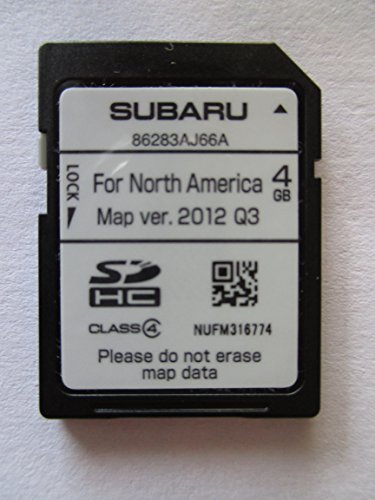
Map Micro SD Card Part Number
| Vehicle | Subaru Part No. | Map Version |
| 2015 Legacy
2015 Outback |
86283AL66A | 2013 Q3 |
| 2015 Impreza | 86283FJ630 | |
| 2015 XV Crosstrek | ||
| 2016 WRX | ||
| 2016 Forester | ||
| 2016 Legacy
2016 Outback | 86283AL68A | 2014 Q3 |
| 2016 Impreza
2016 XV Crosstrek | 86283FJ650
No products found. | 2014 Q3 |
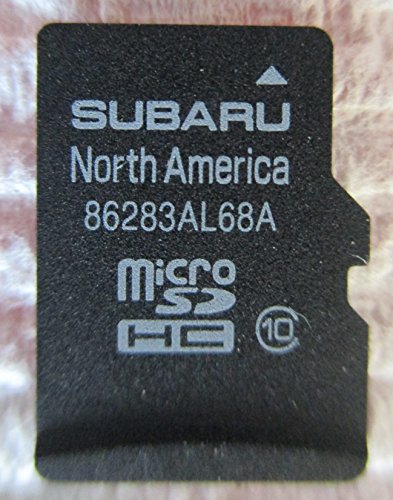
The latest Map Micro SD Card is available at SOP.
(2) Display Audio (without Navigation)
| Country | Gen | Vehicle | Subaru Part No. | Face ID | Amplifier | DCM Connection |
| USA | 2.0 | 2015 Legacy
2015 Outback | 86201AL66A | FB664UM | External AMP |
No |
| 86201AL64A | FB644UM | Built-in AMP | ||||
| 2015 Impreza
2015 Crosstrek XV | 86201FJ660 | FM664UM | Built-in AMP | No | ||
| 2016 WRX | 86201VA650 | FV651UM | External AMP | No | ||
| 2016 Forester | 86201SG680 | FF687UM | External AMP |
Yes | ||
| 86201SG660 | FF667UM | Built-in AMP | ||||
|
2.1 | 2016 Legacy
2016 Outback | 86201AL69A | FB695UM | External AMP |
Yes | |
| 86201AL68A | FB685UM | Built-in AMP | ||||
| 2016 Impreza
2016 Crosstrek XV | 86201FJ680 | FM685UM | Built-in AMP | Yes | ||
| 86201FJ700 | FM705UM | Built-in AMP | No | |||
| Canada |
2.0 | 2015 Legacy
2015 Outback | 86201AL67A | FB674UM | Built-in AMP | No |
| 2015 Impreza
2015 Crosstrek XV | 86201FJ760 | FM764CM | Built-in AMP | No | ||
| 2.1 | 2016 Legacy
2016 Outback | 86201AL65A | FB655CM | External AMP | No |
Summary of Features
| Features | AVN (with Navi) | Display Audio (w/o Navi) | |
| Display | TFT Size (resolution) | 7-inch WVGA (800×480) | 7-inch WVGA (800×480) |
| Touch Panel | Electro-Static Type | Electro-Static Type | |
| HMI | Screen Design | Customized | Customized |
| Vehicle Settings | Customized | Customized | |
| Audio | AM/FM (RBDS) | Yes | Yes |
| HD Radio | *Yes | *Yes | |
| Sirius XM | Yes | Yes | |
| DVD | N/A | N/A | |
| CD | Yes (single CD) | Yes (single CD) | |
| AUX | Yes | Yes | |
| USB/iPod/iPhone | Yes | Yes | |
| BT-Audio | Yes | Yes | |
| SD-Audio | Yes | No | |
| Harman Audio AMP | Yes (if equipped) | Yes (if equipped) | |
| Video | USB/Micro SD/iPod-iPhone | Yes / Yes / No | Yes / No / No |
| Phone | Bluetooth Hands-free | Yes | Yes |
| Navigation | Navigation Supplier | NNG | N/A |
| Navigation Media | Micro SD Card (8GB) | N/A | |
| Traffic Info | ***Sirius XM Traffic | N/A | |
| Map Update | TBD | N/A | |
| Voice Recognition | Yes | Yes | |
| Rear View Camera | Yes | Yes | |
| Rear Seat Entertainment (RSE) | N/A | N/A | |
| Connectivity | STARLINK & Aha | Yes | Yes |
| MirrorLink | Yes | Yes | |
| Pandora | *Yes | *Yes | |
| Stitcher | **Yes | **Yes | |
| Sirius XM Data Service | ***Yes | ***Yes | |
| Communication | CAN/UART | ****Yes | ****Yes |
| DCM (Data Communication Module) | *****Yes | *****Yes | |
*Not available for Canadian model
** Available for 2016 Legacy/Outback
***Not available for Gen 2.0 Canadian model. Available for Gen 2.1 Canadian model except Fuel Service.
****Available for 2015 and 2016 Legacy/Outback
***** Available for 2016 Forester and Legacy/Outback (Except Canadian Model)
APPs, Supported Device, Connection Method
| Features | App for Smartphone | Supported Device | Connection Method to Unit |
| STARLINK | STARLINK | iPhone: iOS 4.3.5 or later Android: Android 4.0 or later | iPhone: USB (Gen 2.0) and Bluetooth (Gen 2.1) Android: Bluetooth |
| MirrorLink | Refer to Mirror Link Website (https://www.mirrorlink.com/apps) | Refer to Owner’s Manual (P141 for Gen 2.0, P151 for Gen 2.1) | USB |
| aha | aha | iPhone: iOS 5.0 or later Android: Android 2.2 or later | iPhone: USB Android: Bluetooth |
| *Pandora | Pandora | iPhone: iOS 5.0 or later Android: Android 2.2 or later | iPhone: USB Android: Bluetooth |
*Not available for Canadian model
Supported Format & Files
| Media Type | Format | Audio Files | Video Files | Image Files |
| USB Memory | USB 2.0 HS FAT 16/32 | MP3/WMA/AAC | WMV/AVI/MPEG4 | JPG, JPEG |
| Micro SD card | micro SD HC Up to 32GB | MP3/WMA/AAC | WMV/AVI/MPEG4 | JPG, JPEG |
Sirius XM Satellite Radio
| Features | Gen 2.0 | Gen 2.1 |
| Tag | Yes | Yes |
| SCAN | Yes | Yes |
| List | Yes | Yes |
| Sound | Yes | Yes |
| Cache | No | Yes |
| Featured Favorites | No | Yes |
| Smart Favorites | No | Yes |
| Tune Scan | No | Yes |
| Tune Start | No | Yes |
- Tag: Tag information in the music broadcasting is preserved in the system and transmits to an iPod
- SCAN: Scan channels
- List: Display a list of category such as Pop, Rock, Hip-Hop, R&B and so on
- Sound: Display sound setting screen
- Cache: A radio program can be cached and played back in a time shifted manner. The program that is currently being listened to, and channel programs registered as Smart Favorites can be (Available for Gen 2.1)
2. Troubleshooting
Connections and Pins
| Connector A | # | Internal AMP | Harman AMP | Description | |
| (POWER INPUT/ SPEAKER OUTPUT) | 1 | FR+ | FR+ | OUT | Audio signal (Front Right) |
| 2 | FL+ | FL+ | OUT | Audio signal (Front Left) | |
| 3 | ACC | ACC | IN | ACC power supply | |
| 4 | BU+B | BU+B | IN | Back-up power supply | |
| 5 | FR- | FR- | OUT | Audio signal (Front Right) | |
| 6 | FL- | FL- | OUT | Audio signal (Front Left) | |
| 7 | GND | GND | GND | Ground | |
| 8 | ANT+ | ANT+ | OUT | Antenna amplifier power supply (12V) | |
| 9 | N.C. | N.C. | Not Connected | ||
| 10 | ILL+ | ILL+ | IN | Illumination signal (12V) | |
| 11 | RR+ | N.C. | OUT | Audio signal (Rear Right) / Not Connected | |
| 12 | RL+ | INT+ | OUT | Audio signal (Rear Left) / Interface Box | |
| 13 | RR- | N.C. | OUT | Audio signal (Rear Right) / Not Connected | |
| 14 | N.C. | SLD2 | GND | Not Connected / Ground | |
| 15 | ILL- | ILL- | IN | Illumination signal | |
| 16 | RL- | INT- | OUT | Audio signal (Rear Left) / Interface Box | |
| Connector B | # | Internal AMP | Harman AMP | Descriptions | |
| (Steering Wheel SW, MIC, etc)
| 1 | IGN * | IGN* | IN | Ignition power supply |
| 2 | REV | REV | IN | Reverse signal (12V) | |
| 3 | BRIGHT | BRIGHT | |||
| 4 | MACC | MACC | OUT | Mic power supply (5V) | |
| 5 | MIC+ | MIC+ | IN | Mic signal | |
| 6 | MIC—DET | MIC—DET | IN | Microphone Detection | |
| 7 | N.C. | TX+ | IN/OUT | Not Connected / Communication+ | |
| 8 | N.C. | TX- | IN/OUT | Not Connected / Communication – | |
| 9 | CANH * | CANH* | IN/OUT | Communication+ | |
| 10 | CANL * | CANL* | IN/OUT | Communication- | |
| 11 | AC-UART+ * | AC-UART+* | IN/OUT | Communication+ | |
| 12 | AC-UART- * | AC-UART-* | IN/OUT | Communication- | |
| 13 | N.C. | N.C. | Not Connected | ||
| 14 | SHIELD-GND(AUX)* | SHIELD-GND(AUX)* | GND | Ground | |
| 15 | PKB | PKB | IN | Parking brake signal | |
| 16 | N.C. | MUTE | GND | Not Connected / Mute | |
| 17 | SPD | SPD | IN | Vehicle speed signal | |
| 18 | SHIELD-GND(MIC)* | SHIELD-GND(MIC)* | GND | Ground | |
| 19 | MIC- | MIC- | GND | Ground | |
| 20 | N.C. | N.C. | Not Connected | ||
| 21 | SW1 | SW1 | IN | Mic sw signal | |
| 22 | SW2 | SW2 | IN | Mic sw signal | |
| 23 | SWG | SWG | GND | Ground | |
| 24 | N.C. | N.C. | Not Connected | ||
| 25 | AUX-DET | AUX-DET | |||
| 26 | AUX-R+ | AUX-R+ | |||
| 27 | AUX-LR- | AUX-LR- | |||
| 28 | AUX-L+ | AUX-L+ | |||
* N.C. for 2015 Impreza, XV Crosstrek, 2016 WRX and Forester
| Connector C (Rear Camera) | # | Pin | Descriptions | |
| 1 | CGND | GND | Camera Ground | |
| 2 | CB+ | OUT | Back-eye camera power supply (6V) | |
| 3 | CV+ | IN | Video | |
| 4 | CV- | GND | Ground | |
| 5 | N.C. | Not Connected | ||
| Connector D (Radio Antenna) | # | Pin | Descriptions | |
| 1 | SUB-ANT* | IN | Radio Signal (Sub) | |
| 2 | SUB-ANT-DET* | IN | Ground | |
| 3 | MAIN-ANT | IN | Radio Signal (Main) | |
| 4 | GND | GMD | Ground | |
| 5 | N.C. | Not Connected | ||
| Connector E (USB) | # | Pin | Descriptions | |
| 1 | N.C. | Not Connected | ||
| 2 | N.C. | Not Connected | ||
| 3 | D+ | IN | Data | |
| 4 | D- | IN | Data | |
| Connector F (DCM)* | # | Pin | Descriptions | |
| 1 | N.C. | Not Connected | ||
| 2 | N.C. | Not Connected | ||
| 3 | N.C. | Not Connected | ||
| 4 | N.C. | Not Connected | ||
| 5 | N.C. | Not Connected | ||
| 6 | N.C. | Not Connected | ||
| 7 | N.C. | Not Connected | ||
| 8 | MUTE | IN | DCM | |
| Connector G (XM Antenna) | # | Pin | Descriptions | |
| 1 | ANT | IN | XM Radio Signal | |
| 2 | GND | GND | Ground | |
3. Frequently Asked Questions (FAQ)
| Q1 | Is it possible to change the Navigation Voice Guidance from male to female? |
| A1 | Yes, this can be changed in Voice Language Setting. (Gen 2.0 – OM P230 / Gen 2.1 – OM P241 ) |
| Q2 | Can I replace the Map SD from another unit and will the Navigation work properly? |
| A2 | Yes. |
| Q3 | How can I register my HOME to the unit? |
| A3 | Select MAP=>Menu=>Destination=>Go Home=>Yes=> Enter your home address=>Go
(Gen 2.0 – OM P27 / Gen 2.1 – OM P29) |
| Q4 | How can I set my HOME as a destination? |
| A4 | Select MAP=>Menu=>Destination=>Go Home=>Next=>Go (Gen 2.0 – OM P30 / Gen 2.1 – OM P32) |
| Q5 | How can I adjust the Navigation Voice Guidance Volume? |
| A5 |
|
| Q6 | Does the Route Guidance consider traffic conditions when driving to a destination? |
| A6 | Yes. The unit will update the driver with traffic conditions and will provide the “Detour” option to avoid the traffic if selected. (Gen 2.0 – OM P231 / Gen 2.1 – OM P242) |
| Q7 | The unit says “traffic ahead”. How can I see a traffic summary of the conditions ahead? |
| A7 | To view the traffic on your route, select the “Menu” button on the map screen and then select the Traffic icon on the lower left of the screen to show a traffic summary.
(Gen 2.0 – OM P192 / Gen 2.1 – OM P203) |
| Q8 | How do I change the Voice Guidance Voice/Language? |
| A8 | Select MAP=>Menu=>More=>Settings=>Sounds and Warning=>Voice Language
Please be aware, to be able to give Navigation Voice Commands to the unit, you must have the TTS (Text To Speech) voice selected. (Gen 2.0 – OM P229 / Gen 2.1 – OM P241) |
| Q9 | Navigation Voice Guidance will not read street names. Why? |
| A9 | TTS (Text To Speech) voice language is not selected in Voice Language setting. |
| Q10 | How can I remove and insert the Map SD card? |
| A10 | Remove:
Turn the ignition to OFF. Open the SD card slot cover, Press in the SD card until you hear it “click”, let go off the card and then pull it straight out.
Insert: Turn the ignition to OFF. Open the SD card slot cover, Insert the SD card, making sure it is fully inserted. (Gen 2.0 – OM P38 / Gen 2.1 – OM P42 )
Caution:
|
| Q11 | Can the unit play music or video if I put audio/video files to the Map SD card? |
| A11 | No. You need to use a different SD card for music/video playback.
(Gen 2.0 – OM P81 / Gen 2.1 – OM P87) |
| Q12 | “Unable to read the map SD data. Check the map SD. If necessary, consult your dealer” is shown on screen. Why? |
| A12 | Map SD card is not inserted, the SD card that is inserted does not contain map data or map data is corrupted. (Gen 2.1 – OM P19 / Gen 2.1 – OM P21) |
| Q1 | Can more than one phone be registered to the unit and be used at the same time? |
| A1 | Up to 5 phones can be registered to unit, but only one phone can be used at the time.
(Gen 2.0 – OM P172 / Gen 2.1 – OM P180) |
| Q2 | How can I register a phone to the unit? |
| A2 | 1. Turn ON the Bluetooth connection setting of your cellular phone
2. Press “Phone” button for Display Audio model (Non Navigation). Press Home => Phone for Navigation model 3. Select “Yes” to register the phone 4. Search for “Subaru BT” in the your phone’s Bluetooth menu and select it 5. Select OK after the connection status changes from “Connection waiting” to “Connected” (Gen 2.0 – OM P166 / Gen 2.1 – OM P174) |
| Q3 | Why does the receiving caller hear wind noise? |
| A3 | This could be caused by the center air vents pointed upward toward the microphone. The microphone is located on the map light area. Lower the air vents to prevent the noise.
(Gen 2.0 – OM P108 / Gen 2.1 – OM P116) |
| Q4 | What does “Transmit Volume Setting” adjust? |
| A4 | Transmit Volume adjusts the out going call volume of the Bluetooth hands free system.
(Gen 2.0 – OM P118 / Gen 2.1 – OM P126) |
| Q5 | How come phone calls drop when the phone is connected to Bluetooth? |
| A5 | If the problem is intermittent, this could be a problem with the phone. Please make a few test phone calls with the cell phone not connected to the Bluetooth system to verify if there are no issues with the phone itself. |
| Q6 | Why is the Bluetooth sound quality poor (Echo)? |
| A6 | If the problem is intermittent, this could be a problem with the phone. Please make a few test phone calls with the cell phone not connected to the Bluetooth system to verify there are no issues with the phone itself. |
| Q7 | How many Bluetooth devices can be registered to the head unit? |
| A7 | Up to 5 devices can be registered to the head unit. (Gen 2.0 – OM P172 / Gen 2.1 – OM P180) |
| Q8 | Where is the incoming voice heard from in the vehicle? |
| A8 | Both front speakers. (Gen 2.0 – OM P107 / Gen 2.1 – OM P115) |
| Q9 | How many “Call History” (missed, incoming and outgoing) can be displayed on the Phone screen of the unit? |
| A9 | Up to 30. (Gen 2.0 – OM P112 / Gen 2.1 – OM P120) |
| Q10 | How many phone contacts can be registered? |
| A10 | Up to 2500 contacts with a maximum of 4 phone numbers and e-mail address per contact.
(Gen 2.0 – OM P113 / Gen 2.1 – OM P121) |
| Q11 | What Bluetooth profiles are required to transfer phone contacts to the unit? |
| A11 | PBAP (Phonebook Access Profile) or OPP (Object Push Profile)
(Gen 2.0 – OM P169 / Gen 2.1 – OM P178) |
| Q12 | How many Speed Dial can be registered to the unit? |
| A12 | Up 15 contacts. (maximum of 4 numbers per contact) (Gen 2.0 – OM P132 / Gen 2.1 – OM P140) |
| Q13 | Where can I find approved phones that work with the unit? |
| A13 | https://www.subaru.com/owners/index.html |
Audio & Visual
| Q1 | Does the unit display cover art image when listening to Sirius XM radio? |
| A1 | No for Gen 2.0. Yes for 2.1, but depending on the channel |
| Q2 | Does the unit display the Sirius XM signal strength? |
| A2 | No. |
| Q3 | Can I watch video/slideshow from USB flash memory or SD card while driving? |
| A3 | No. You will only hear the audio from the video files while driving.
(Gen 2.0 – OM P71 / Gen 2.1 – MO P81) |
| Q4 | How do I mute the audio? |
| A4 |
|
| Q5 | How do I turn the screen off? |
| A5 |
|
| Q6 | Can I view pictures on the unit from USB Flash Memory and the SD card? |
| A6 | Yes. (Gen 2.0 – OM P74, 81 / Gen 2.1 – OM P81, 84) Pictures need to be in JPG or JPEG format. |
| Q7 | How do I change the display from full screen to split screen? |
| A7 | Press and hold the “AUDIO/TUNE” knob. (Gen 2.0 – OM P43 / Gen 2.1 – OM P47) |
| Q8 | Can I set the unit to change to split screen automatically? |
| A8 | Yes. Press Home=> Settings=>General=>Auto Change to Split Screen
(Gen 2.0 – OM P179 / Gen 2.1 – OM P189) |
| Q9 | Why is the cover art not displayed when on Sirius XM mode? |
| A9 | Gen 2.0 – Sirius XM mode does not support displaying the cover art.
Gen 2.1 – SXM does display Album Cover Art (Depending on the station) . Station Logos will also be displayed. |
| Q10 | Can the unit accept more than one disc? |
| A10 | No. The unit is a single disc player. |
| Q12 | Why can I not download my Tagged songs onto my USB/Phone? |
| A12 | Tagged songs can only be downloaded to iPod/ iPhones. (Gen 2.0 – OM P62 / Gen 2.1 – OM P66) |
| Q13 | Can the unit play a picture slideshow from the USB Flash Memory? |
| A13 | Yes. The slideshow can be displayed from the USB memory or the SD Card. Photo files must be JPG or JPEG only. (Gen 2.0 – OM P71 / Gen 2.1 – OM P81) |
| Q14 | Can I replace the opening screen with my own picture? |
| A14 | No. The opening screen cannot be replaced or customized. |
| Q15 | Can I play DVD/Blu-ray movies? |
| A15 | No. The system does not support DVD or Blu-ray playback. |
| Q16 | How can I find the XM Radio ID number? |
| A16 | Tune to channel 000 for the Radio ID number. (Gen 2.0 – OM P68 / Gen 2.1 – OM P73) |
| Q17 | Why will my iPhone not play apps (Pandora/aha)? |
| A17 | When using an iPhone to access aha or Pandora, a USB cable connection is needed from the iPhone to the Unit. (Gen 2.0 – OM P142, 150 / Gen 2.1 – OM P152, 158) |
| Q18 | Can I listen to music or watch videos when I put music and/or movie files to my SD card? |
| A18 | Yes. But you cannot watch a movie while driving. (Gen 2.0 – OM P78 / Gen 2.1 – OM P87 ) |
| Q19 | Can I reorder the audio sources on the Audio Source page? |
| A19 | Yes. (Gen 2.0 – OM P51 / Gen 2.1 – OM P55) |
| Q20 | How many Tags can be stored to the unit? |
| A20 | 50. (Gen 2.0 – OM P62 / Gen 2.1 – OM P66) |
| Q21 | What is Tag function? |
| A21 | The user can “Tag” songs they would be interested in purchasing later on. When an iPod is connected to the unit, the “Tags” are transferred to the iPod and when the iPod is con- nected to a computer with iTunes, the “Tags” suggest songs for the user to purchase.
(Gen 2.0 – OM P62 / Gen 2.1 – OM P67) |
| Q22 | While listening to HD Radio, sometimes I see Album Art, but sometimes I do not, Why? |
| A22 | You can see Album Art only when the HD radio station broadcasts album image data.
(Gen 2.0 – OM P63 / Gen 2.1 – OM P67) |
| Q23 | What is the Cache Function? |
| A23 | Gen 2.0 – The unit can record a FM/AM radio program and play it back in a time shifted manner (20 minutes max recording capacity). (OM P63)
Gen 2.1 – The unit can record a SXM or FM/AM Radio program and play it back in a time shifted manner. Any SXM, AM, or FM Radio program you are currently listening to, will be cached (OM P67,74) |
| Q24 | How long can Cache radio function store audio data? |
| A24 | Gen 2.0 – 20 minutes for FM/AM (OM P63)
Gen 2.1 – 20 minutes for FM/AM and anywhere from 30 to 60 minutes for SXM. Depending on the size of the content the SXM module adjusts the length of the cache accordingly (OM P67,74) |
| Q25 | Can I watch videos from the iPod? |
| A25 | No. |
| Q26 | Can iPod’s be charged when they are connected to the USB port? |
| A26 | Yes. |
| Q27 | Which iPod is supported? |
| A27 | iPod Compatibility Chart can be found on the Owners Manual (Gen 2.0 – OM P97 / Gen 2.1 – OM P106) |
| Q28 | Can I set an image to appear when I turn the screen off? |
| A28 | Yes. Create a folder labeled “image” on a USB Flash Memory Device, and up to 10 Jpg or JPEG images can be added to this folder. You will then be able to copy those images to the unit. (Gen 2.0 – OM P181 / Gen 2.1 – OM P191) |
| Q29 | Can I view picture slideshow on the unit from USB Flash Memory or the SD card? |
| A29 | Yes. (Gen 2.0 – OM P71, 78 / Gen 2.1 – OM P81, 87) Pictures need to be in JPG or JPEG format. |
|
Q30 | Can I listen to music or watch videos when I put music and/or movie files to my USB Flash Memory or SD card? |
| A30 | Yes. But you cannot watch a movie while driving. (Gen 2.0 – OM P71, 78 / Gen 2.1 – OM P81, 87) |
| Q31 | Does the unit support video playback on USB Flash Memory or the SD card? If so what formats? |
| A31 | Yes. Supported file formats are WMV, AVI, and MPEG4 (Gen 2.0 – OM P101 / Gen 2.1 – OM P 110) |
| Q32 | What functions are supported by USB Flash Memory and the SD Card? |
| A32 | Audio/Video/Slideshow playback |
| Q33 | What USB Flash Memory Device is supported? |
| A33 | Communication format: USB2.0 File format: FAT16/32 Class: Mass storage class.
(Gen 2.0 – OM P96 / Gen 2.1 – OM P106) |
| Q34 | What Audio formats are supported for USB flash memory and the SD card? |
| A34 | MP3/WMA/AAC. (Gen 2.0 – OM P98 / Gen 2.1 – OM P107) |
| Q35 | What is the micro SD card’s supported capacity? |
| A35 | 32GB. (Gen 2.0 – OM P97 / Gen 2.1 – OM P107) |
| Q36 | What are Smart Favorites? |
| A36 | Gen 2.1 – Smart Favorites are set up by the user. They can be up to 5 SXM presets that the user can select to cache radio programming. (OM P75) |
| Q37 | What is Tune Start? |
| A37 | Gen 2.1 – With Tune Start turned on, any Smart Favorite channel that is selected, will start playing audio from the beginning of the song or program that is currently playing on that station (OM P75) |
| Q38 | What is Tune Scan? |
| A38 | Gen 2.1 – Tune Scan is when the unit will go through all the Smart Favorite channels and play the first 10 seconds of each song or program that is cached. Not all stations have the ability to be Tune Scanned (OM P76) |
| Q39 | What are “Featured Favorites”? |
| A39 | Gen 2.1 – With Featured Favorites Turned on, the user will be given a Featured Favorite section in the Category list. Featured Favorites are created by SXM several times through- out the year. (OM P76) |
APPS
| Q1 | How do I connect the STARLINK App on my smart phone to the unit? |
| A1 | Gen 2.0 – USB connection for iPhone, Bluetooth connection Android phone.
Gen 2.1 – Bluetooth connection for both iPhone and Android phones (Gen 2.0 – OM P138 / Gen 2.1 – OM P149) |
| Q2 | How do I connect the MirrorLink on my smart phone to the unit? |
| A2 | USB connection for Android phone. (Gen 2.0 – OM P139 / Gen 2.1 – OM P150) |
| Q3 | What are the supported devices for MirrorLink? |
| A3 | MirrorLink compatible device information can be found on the following website: https:// www.mirrorlink.com/. Depending on differences between models and software versions, some model phones might be incompatible with this system. |
| Q4 | What is aha? |
| A4 | aha is a cloud-based application that connects to the system and gives you access to you favorite web content safely and easily. (Gen 2.0 – OM P142 / Gen 2.1 – OM P152) |
| Q5 | What is Pandora? |
| A5 | Pandora is a free personalized radio that offers effortless and endless music enjoyment and discovery. (Gen 2.0 – OM P150 / Gen 2.1 – OM P158) |
| Q6 | What Bluetooth profile is required for APPS function? |
| A6 | SPP (Serial Port Profile) (Gen 2.0 – OM P169 / Gen 2.1 – OM P178) |
| Q7 | Why will my iPhone not play apps (Pandora/aha)? |
| A7 | When using an iPhone to access aha or Pandora, a USB cable connection is needed from the iPhone to the Unit. (Gen 2.0 – OM P142, 150 / Gen 2.1 – OM P152, 158) |
| Q8 | Do I need to install aha/Pandora/Starlink/Mirrorlink applications to my smart phone to use these functions? |
| A8 | Yes. (Gen 2.0 – OM P137 / Gen 2.1 – OM P147) |
| Q9 | How do I connect my smartphone with the unit for the aha/Pandora function? |
| A9 | iPhone for USB connection. Android phone for Bluetooth connection (OM P142, 150 / Gen 2.1 OM – P152, 158) |
| Q10 | I have 55 aha preset stations on my phone. Can the system display all 55 preset stations? |
| A10 | No. The system displays the top 35 stations. (Gen 2.0 – OM P143, 144 / Gen 2.1 – OM P153, 154) |
| Q11 | Where can I find the aha/Pandora app to install on my smartphone? |
| A11 | iPhone: Apple App Store. Android device: Google Play Store.
(Gen 2.0 – OM P145 / Gen 2.1 – OM P147) |
| Q12 | What wireless network is required for aha, Pandora, STARLINK and MirrorLink? |
| A12 | 3G, 4G, Wi-Fi or 4G LTE. (Gen 2.0 – OM P145 / Gen 2.1 – OM P147) |
| Q13 | What are the supported devices for aha/Pandora? |
| A13 | iPhone: iOS 5.0 or later.
Android: Android 2.2 or later. (Gen 2.0 – OM P146, 151 / Gen 2.1 – OM P154, 160) |
INFO
| Q1 | Will the Weather Information update automatically based on my location? |
| A1 | Yes for Navigation model.
No for Display Audio model (Non-Navigation) Select the location manually (Gen 2.0 – OM P155 / Gen 2.1 – OM P163) |
| Q2 | What information is provided by Sirius XM Radio Data Service? |
| A2 | Weather, Stocks, Sports, Fuel and Traffic (Gen 2.0 – OM P154 / Gen 2.1 – OM P162) |
| Q3 | Does Sirius XM Radio Data Service cover Canada? |
| A3 | Gen 2.0 – No
Gen 2.1 – Yes, except for fuel services |
| Q4 | Do I need a paid subscription to receive Sirius XM Satellite Radio Data Service? |
| A4 | Yes (Gen 2.0 – OM P154 / Gen 2.1 – OM P162) |
Voice Recognitions & Others
| Q1 | How do I find a list of voice commands to use with the system? |
| A1 | The information can be found from Owner’s Manual (Gen 2.0 – OM P245 / Gen 2.1 – OM P261) |
| Q2 | How come I cannot give Navigation Voice Commands to the system? |
| A2 | Navigation Voice Commands can only be given to the system when using the TTS (Text To Speech) voice for the Navigation (Gen 2.0 – OM P35 / Gen 2.1 – OM P39) |
| Q3 | What data can be deleted by pressing “Delete Personal Data”? |
| A3 | General settings, Navigation Settings, Audio settings, Sirius XM Radio settings, Sirius XM Radio service contents and Phone settings (Gen 2.0 – OM P183 / Gen 2.1 – OM P193) |
| Q4 | What is the “Maintenance” function in Information screen? |
| A4 | The system reminds users when to replace certain parts or components and shows dealer information on the screen (Gen 2.0 – OM P186 / Gen 2.1 OM P196) |
| Q5 | On Messaging function does the system display photos with text message? |
| A5 | No. The unit can only display Text when the vehicle is stopped. |
| Q6 | Does the system support Bluetooth Message function? |
| A6 | Yes (Gen 2.0 – OM P119 / Gen 2.1 – OM P127) |
| Q7 | Can I view the received text message on the unit while driving? |
| A7 | No. (Gen 2.0 – OM P122 / Gen 2.1 – OM P130) |
| Q8 | Why won’t the system show notifications when using 3rd party messaging apps? |
| A8 | The system can not support 3rd party messaging apps. Please use the original phone messaging app. |
| Q9 | How many “Quick Reply Message ” are stored in the unit? |
| A9 | 15 (Gen 2.0 – OM P122 / Gen 2.1 – OM P130) |
| Q10 | Why will my iPhone not show incoming text messages? |
| A10 | Follow the steps below to receive messages on the iPhone.
1. Pair the Phone to the unit. 2. On the phone screen press the envelope on the top right of the screen 3. Select yes, you want to setup messaging. 4. On the phone select settings 5. On the phone select Bluetooth 6. On the Bluetooth page, select the Information “I” next to the Subaru system 7. On the information page, turn on “Show Notifications”
Now when a text message comes in on the iPhone, and it is connected to the unit, it will display the message on screen. If messages do not show up right away. Turn the ACC off and back on and let the phone automatically reconnect to the system. |
| Q11 | Why will my Voice Recognition not understand any of my commands? |
| A11 | Voice Commands may not be recognized if:
|
| Q12 | How can I use Siri? |
| A12 | Gen 2.1 – Customer must have a Siri supported Apple iPhone product connected via Blue- tooth to the head unit. Press and hold the VR button on the steering wheel until the Siri screen shows on the head unit (OM P252) |
| Q13 | What Commands can I give Siri? |
| A13 | Gen 2.1 – Phone Commands – “Dial, Call…”
Text Commands – “Text John I will be running late.” Call local establishments – “Find the closest Chinese restaurant” Check the weather – “What is the Forecast?” Take Notes – “Make a Note, Sign up for the Gym this week” Create Reminders – “Remind me to pick up flowers for my wife at 4PM” The iPhone will restrict some commands when driving. Not all commands will work when connected to the vehicle. |
| Q14 | Why won’t Siri put directions on the vehicle’s map screen? |
| A14 | Gen 2.1 – Siri is not able to transfer direction to the vehicle’s navigation system |
STARLINK (General)
| A-Q1 | What is STARLINK? |
| A-A1 | The STARLINK system puts news, food, weather, music, podcasts, audiobooks, and other multimedia content into your vehicle and at your fingertips. |
| A-Q2 | How can I use “STARLINK”?
Can I use STARLINK by only connecting Smartphone to the head unit? |
| A-A2 | Install “STARLINK App” to your smartphone from “Apple Store” or “Google Play”. Open “STARLINK App” on your smartphone. Refer to the following procedure.
[Procedure] 1) Connect your smartphone with the head unit (Gen 2.0: USB for iPhone, Bluetooth for An- droid. Gen 2.1: Bluetooth for both iPhone and Android) 2) Press APP button of the head unit. 3) Click STARLINK icon on the display. 4) If App icons are displayed on the display, the connection has been successfully established. *Regarding how to connect with Bluetooth, please refer to the manual for your smartphone. |
| A-Q3 | How long can smartphone run by using STARLINK without charging the phone battery? |
| A-A3 | Battery consumption depends on your smartphone and connection method. |
| A-Q4 | Do I need any subscription to be updated when head unit or smartphone was replaced? |
| A-A4 | No. |
| A-Q5 | Is it possible to use STARLINK without Bluetooth? |
| A-A5 | No for Gen 2.0 with Android phone and Gen 2.1 for both iPhone and Android phone. |
| A-Q6 | Is it possible to connect to STARLINK 7 days a week 24 hours a day? |
| A-A6 | Yes. |
| A-Q7 | Do I need to pay to download STARLINK App? |
| A-A7 | No. It’s free. |
| A-Q8 | Which has better sound quality when listening to music, STARLINK or CD? |
| A-A8 | Sound quality depends on CD or music data on your smartphone.
(STARLINK compress music data when it’s streaming. Music on CD is not compressed.) |
| A-Q9 | Can I link my email or other smartphone apps to STARLINK? |
| A-A9 | No. |
| A-Q10 | Does STARLINK increase data usage? |
| A-A10 | Yes. STARLINK increase data usage on your smartphone. Usage depends on how you use.
1) News: Downloading text – a few kilobytes per article 2) Calendar: Downloading schedule – a few kilobytes per schedule 3) Weather: a few kilobytes per minute 4) Music: a few kilobytes at startup 5) iHeart: 10-15 megabytes per 30 minutes |
| A-Q11 | Do I need smartphone to use STARLINK? |
| A-A11 | Yes. STARLINK connects to internet and cloud service via Smartphone. |
| A-Q12 | Are there any trouble shooting guides available if STARLINK, Mirrorlink, or Aha does not work? |
| A-A12 | Trouble shootings for STARLINK, and Aha are available on the owners manual. |
| A-Q13 | What Apps does STARLINK offer? Will STARLINK offer more Apps in the future? |
| A-A13 | Gen 2.0: News, Music, Weather, iHeart Radio, and Calendar
Gen 2.1: News, Music, Weather, iHeart Radio, Calendar and Stitcher More Apps will be available in future. |
| A-Q14 | How will the customer know when new Apps are available for STARLINK? |
| A-A14 | New Apps will be added to the Home screen as soon as they become available. |
| A-Q15 | What will happen when a phone call is received while listening to music through STARLINK? |
| A-A15 | A phone call has priority. STARLINK Apps will be temporary paused when a phone call is received. |
| A-Q16 | Is it possible to use STARLINK via tablet with 3G/4G connection? |
| A-A16 | Yes. |
| A-Q17 | Are there any instructions available on the STARLINK web site? |
| A-A17 | No. Instructions are currently not available on the web site. |
| A-Q18 | Is there any way to confirm if the communication is successful or not? |
| A-A18 | Communication is successful when the globe icon on the upper right corner is blue. |
| A-Q19 | Is there any way to confirm the version of STARLINK App? |
| A-A19 | Version of STARLINK can be confirmed on your smartphone.
[iPhone] 1) Go to Setting 2) Click General 3) Click Usage 4) Select STARLINK under STORAGE
[Android] 1) Go to Setting 2) Go to Application Manager 3) Select STARLINK |
| A-Q20 | What kind of wireless communications with my smartphone is required to use STARLINK? (ex. Wi-Fi, 3G, 4G, 4G LTE?) |
| A-A20 | Any wireless communications work. |
| A-Q21 | Will Apps on the head unit be updated? |
| A-A21 | No. Apps on the head unit won’t be updated. Only Apps on your smartphone will be updated. |
| A-Q22 | Is it possible to use other smartphone based Apps? |
| A-A22 | No. You can’t use other smartphone based Apps on STARLINK. |
| A-Q23 | Is it possible to play music downloaded through other Apps on my smartphone? |
| A-A23 | Yes. STARLINK can play music on your smartphone if its format is MP3 or ACC. |
| A-Q24 | Is there any way to use STARLINK with any other phone than smartphone? |
| A-A24 | No. STARLINK is available only for smartphones. |
| A-Q25 | Are there any differences in STARLINK between iPhone and Android? |
| A-A25 | No. |
| A-Q26 | Is it possible to investigate STARLINK problem with retailor technician’s smartphone in- stead of customer’s? |
| A-A26 | Yes. |
| A-Q27 | Can I use STARLINK on a smartphone without connecting it to the head unit? |
| A-A27 | No. |
| A-Q28 | What should I do when the head unit is replaced? |
| A-A28 | Your smartphone needs to be paired by Bluetooth again. |
| A-Q29 | Can I move the STARLINK data from one vehicle to another? |
| A-A29 | No. |
| A-Q30 | When I sell my vehicle, can I delete the STARLINK Data? |
| A-A30 | Yes. Go to General setting > Delete personal data |
| A-Q31 | Can I operate STARLINK while I am driving? |
| A-A31 | Operation of STARLINK Apps will be limited over 5 mph. Limitation depends on each App. Some information may be hidden on the display while driving over 5 mph. |
| A-Q32 | What should I do when STARLINK freezes? |
| A-A32 | Press “HOME” button to go back to Home screen. |
| A-Q33 | STRALINK icon is active, but it won’t launch by pressing the icon. |
| A-A33 | STARLINK App must be running on your smartphone before launching STARLINK on the head unit. Make sure that STARLINK App is running on your smartphone before pressing STARLINK icon on the head unit. |
| A-Q34 | Why are my Aha and STARLINK icons grayed out? |
| A-A34 | There are three possible causes.
1) STARLINK App is not installed on your smartphone 2) Head unit and your smartphone are not connected 3) STARLINK App is not running on your smartphone |
| A-Q35 | Can I use STARLINK with the steering wheel control? |
| A-A35 | No. |
| A-Q36 | Can I operate STARLINK with the hard buttons on the head unit? |
| A-A36 | No. |
| A-Q37 | What should I do if I deleted STARLINK App? |
| A-A37 | Download STRALINK App to your smartphone again.
Clear the cache with the following procedures. 1) Touch “STARLINK” on APPS 2) Touch and hold the bottom right of the display for 30 seconds. 3) Initialization is complete when “Select Audio Source” shows 4) Run STARLINK again |
STARLINK (Connection)
| B-Q1 | Can I use multiple smartphones for STARLINK? |
| B-A1 | Yes. Up to 5 smartphones can be registered with STARLINK. However, only one smartphone can be connected at the same time. |
| B-Q2 | Can I use one smartphone for STARLINK on multiple vehicles? |
| B-A2 | Yes. However, only one setting is available per smartphone. It can’t have multiple settings. |
| B-Q3 | What happens if more than one smartphones registered with STARLINK are in the same vehicle? |
| B-A3 | The smartphone connected before ACC was turned off last time will automatically be connected. Automatic connection feature can be turned off on the SETTING. |
| B-Q4 | What is Mirrorlink? |
| B-A4 | Mirrorlink offers seamless connectivity between a smartphone and the head unit. Drivers just connect the phone with a cable and immediately gain access to phone applications via the head unit’s screen. |
| B-Q5 | Can I charge my iPhone with USB port while Aha is being streamed? |
| B-A5 | Yes. However, there is a possibility of not being charged if your iPhone is overheated by using Apps. |
| B-Q6 | What happens if I connect iPhone to USB while Bluetooth connection is established with another phone for STARLINK? |
| B-A6 | Refer to the flowchart attached. |
| B-Q7 | I have an Android Smartphone. Can I use STARLINK by connecting Smartphone with USB cable? |
| B-A7 | STARLINK can be used with only Bluetooth connection. USB can be connected for charging purpose while using STARLINK over Bluetooth connection. |
| B-Q8 | Can I use STARLINK while I am using hands-free phone? |
| B-A8 | Yes. However, only hands-free sound can be listened. |
| B-Q9 | Do I need customer’s smartphone when I troubleshoot SATRLINK? |
| B-A9 | It depends on the symptom. Customer’s smartphone is not always necessary, but it is a good practice to test the system with the customer’s smartphone. |
| B-Q10 | What should I do if I get a new smartphone? |
| B-A10 | Download STRALINK App to your new smartphone. Android phone needs to be paired via Bluetooth again.
If you still have a problem, clear the cache with the following procedures. 1) Touch “STARLINK” on APPS 2) Touch and hold the bottom right of the display for 30 seconds. 3) Initialization is complete when “Select Audio Source” shows 4) Run the STARLINK again. |
| B-Q11 | The launcher screen of STARLINK is not displayed properly. |
| B-A11 | Push right bottom of screen for more than 30 seconds then release. Switch to Audio menu screen after release. |
| B-Q12 | Following error messages are displayed.
“Please disconnect mobile device and install the STARLINK application on your mobile device and try again.” “Bluetooth disconnected, please reconnect and try again.” “Smartphone data connection is poor, please try to connect again.” |
| B-A12 | Download STARLINK App to your smartphone again.
1) Go to “HOME” > “SETTING” > “Bluetooth” 2) Select connected device 3) Select “Disconnect All” 4) After disconnecting your device, select “Connect All” |
| B-Q13 | Do I need to download other Apps than STARLINK App? |
| B-A13 | No. |
| B-Q14 | How can I update STARLINK App? |
| B-A14 | Update of STARLINK can be checked on App Store or Google Play on your smartphone. |
| B-Q15 | Can I use STARLINK if the smartphone screen is locked? |
| B-A15 | Yes. STARLINK can be used as long as STARLINK App is running on the smartphone even if the screen is locked. |
| B-Q16 | Can I use STARLINK if the smartphone is turned off? |
| B-A16 | No. |
| B-Q17 | Region can’t be added on CONFIG of the Weather App. |
| B-A17 | Regions can be saved up to 6 regions. Delete other region before adding a new region. |
| B-Q18 | Source can’t be added on CONFIG of the News App. |
| B-A18 | News sources can be added up to 6 sources. Delete other source before adding a new source. |
| B-Q19 | Error message shows when selecting the SETTING tab. |
| B-A19 | Data communication is failed. Move to better reception area and try again. |
| B-Q20 | Maintenance message shows when selecting the SETTING tab. |
| B-A20 | The server is under maintenance. |
| B-Q21 | How can I go back to the Apps list after selecting Google login on the Calendar App? |
| B-A21 | Select SETTING tab. |
| B-Q22 | Who should I contact if STARLINK App is not working? |
| B-A22 | (USA)
Clarion Corporation of America Mr. Don Starnes <[email protected]> c.c. Mr. Gilbert Carter <[email protected]> Mr. Nobuyuki Yoshizawa <[email protected]> (CANADA) Clarion Canada Inc. Mr. Kee Chang <[email protected]> |
| B-Q23 | “Search failed” shows when registering URL on the News App. |
| B-A23 | Check if the URL is correct. |
STARLINK (Apps – Calendar)
| C-Q1 | How do I sync Google calendar with STARLINK? |
| C-A1 | 1) Run STARLINK App on your smartphone
2) Go to “SETTING” 3) Go to “Calendar” 4) Go to “CONFIG” (upper right corner) 5) Go to “Google Login” and log in to your Google account |
| C-Q2 | “Reconnect after logging in from your smartphone” |
| C-A2 | Go to “SETTING” > “Calendar” > “CONFIG” Log in to your calendar |
| C-Q3 | I can’t enter schedule. |
| C-A3 | Calendar App does not have a function to enter schedule. Enter schedule on your smartphone or PC. |
| C-Q4 | “???” in Calendar. |
| C-A4 | Font is not supported by the head unit. |
| C-Q5 | “Update failed. Update again?” |
| C-A5 | No internet connection. Check your internet connection. |
| C-Q6 | No information on the calendar. |
| C-A6 | No communication with the server. Check if the globe icon is blue. |
| C-Q7 | Calendar information is not updated. |
| C-A7 | Click “Update” to update information. |
| C-Q8 | Is it possible to display the next day’s schedule? |
| C-A8 | Yes. Push the right or left arrow on the side of today’s date to change to future or past date. |
| C-Q9 | Can I turn on/off the national holidays? |
| C-A9 | No. Change setting on your Google calendar with PC or smartphone. |
| C-Q10 | How can I jump to today’s schedule? |
| C-A10 | There is no function to jump to today’s schedule. Select the date from the calendar. |
| C-Q11 | Schedule added by smartphone does not show on the calendar. |
| C-A11 | Click “Update” to update your calendar. |
| C-Q12 | I can’t operate Calendar App. |
| C-A12 | Operation of Calendar App is disabled while driving. Stop the vehicle to operate it. |
STARLINK (Apps – iHeart Radio)
| D-Q1 | Is iHeart Radio included in STARLINK on my vehicle? |
| D-A1 | Yes. |
| D-Q2 | How can I start listening to iHeart Radio? |
| D-A2 | iHeart Radio can be found on STARLINK. Select iHeart Radio icon from STARLINK menu. |
| D-Q3 | How can I play Live radio Station on iHeart Radio? |
| D-A3 | Click “Live Radio” on the home menu. Click one of the followings.
“Stations Near You” will display the closest radio station. “Stations by Location” will display the radio stations by locations. “Music & Entertainment” will display the radio station by music categories. |
| D-Q4 | How can I create Custom Music Station? |
| D-A4 | Click “Create Station” while listening to a live radio station. A new Custom Music Station will be created based on the station you are listening to.
You can also click “Create Station” on the home menu, then search artists. A new Custom Music Station will be created by selecting an artist. |
| D-Q5 | What is “Shows & Personalities”? |
| D-A5 | “Shows & Personalities” are on-demand talk stations with customizable access.
You will be prompted to log in to Facebook or iHeart Radio account when you play talk stations. |
| D-Q6 | How can I save a station to listen later? |
| D-A6 | Click “Add to Favorites” while you are listening to the station. The station will be saved to your Favorites list. To access to your Favorites list, click “Favorites” on the menu.
You will be prompted to log in to Facebook or iHeart Radio account when you save a station to Favorites list. |
| D-Q7 | What do the Thumbs buttons do? |
| D-A7 | When listening to a Customer Music Station, you can personalize the music playing on the station by clicking “Thumbs Up” or “Thumbs Down”.
When listening to a Live Radio Station, clicking “Thumbs Up” or “Thumbs Down” button will indicate if you like the music or not to the DJ.
You will be prompted to log in to Facebook or iHeart Radio when you click “Thumbs” buttons. |
| D-Q8 | What does the Discovery button do? |
| D-A8 | When listening to a Customer Music Station, you can personalize the music playing on the station by clicking “Discovery”. Choose “Familiar”, ” Mixed”, or “Less Familiar”. The station will adjust the music to play depending on your response.
You will be prompted to log in to Facebook or iHeart Radio when you click “Discovery” but- ton. |
STARLINK (Apps – Music)
| E-Q1 | How much music data can be saved on the server? |
| E-A1 | Music App plays music stored in your smartphone. It does not save music on the server. |
| E-Q2 | I can’t listen to music on Music App. |
| E-A2 | Music App plays music stored in your smartphone. Check if your smartphone has any mu- sic files to play. |
| E-Q3 | Music App does not show album art. |
| E-A3 | Check if music file on your smartphone has album art data. |
| E-Q4 | “???” in song title. |
| E-A4 | Font is not supported by the head unit. |
| E-Q5 | The letters on the tab changed to orange when a list was selected on the list screen. What |
| E-A5 | Track information will be displayed when a list is selected. The letters on the tab will change to orange while showing track information. Music will play by selecting a track. |
| E-Q6 | How can I cancel the track information on the list screen? |
| E-A6 | Click one of the tabs (“Playlists”, “Artists”, or ” Tracks”). |
| E-Q7 | Can I search music by steps (“Artist” > “Album” > “Track”)? |
| E-A7 | No. Track can be selected under the following tabs only.
-Playlists -Artists -Albums |
| E-Q8 | Can I use seek function on the progress bar? |
| E-A8 | No. |
| E-Q9 | When I click Rewind, it plays the current track or the previous track from the beginning. |
| E-A9 | If the music played 5 seconds or more when Rewind was clicked, it plays from the current track from the beginning. If it’s less than 5 seconds, it plays the previous track from the be- ginning. If Rewind is clicked while stopping the music, it always plays the previous music from the beginning. |
| E-Q10 | When I change the track on my smartphone, the loading mark displayed and track information was cancelled. Why? |
| E-A10 | If the track was changed on your smartphone, track information will be cancelled on the head unit. Change track on the head unit in order to keep track information displayed. |
| E-Q11 | I can’t find any music Apps on my smartphone that works with the head unit. |
| E-A11 | There is no music Apps to work with the head unit. |
STARLINK (Apps – News)
| F-Q1 | How can I add or change news sources on News App? |
| F-A1 | Go to “SETTING” > “News” > “CONFIG”. Choose news source or directly enter URL. |
| F-Q2 | “Download failed” |
| F-A2 | No internet connection. Check your internet connection. Click Update again. |
| F-Q3 | “Cannot display while driving” |
| F-A3 | High volume articles will be disabled while driving. |
| F-Q4 | “No article is registered” |
| F-A4 | You don’t have any article in Favorites. |
| F-Q5 | No news list displayed. |
| F-A5 | No communication with the server. Check if the globe icon is blue. |
| F-Q6 | How can I change news source? |
| F-A6 | Click left or right button on the news source. |
| F-Q7 | Articles are not listed with the newest on the top. |
| F-A7 | Order of the articles displayed is determined by the news source. |
| F-Q8 | Articles are not updated. |
| F-A8 | articles won’t be updated automatically. Click Update. |
| F-Q9 | Can I change the order of articles displayed? |
| F-A9 | No. |
| F-Q10 | How can I cancel Favorites? |
| F-A10 | Click Favorites again to cancel. |
| F-Q11 | Do favorites always display by news source? |
| F-A11 | Favorites are always displayed by news source. They can’t be mixed. |
| F-Q12 | How can I add the article to Favorites? |
| F-A12 | Click “Star” mark on the left of the news title. Color of Star changes to orange if the articles was added to Favorites. |
| F-Q13 | “Please disconnect mobile device and install the STARLINK app on mobile device and try again. “ |
| F-A13 | Communication with the server is disconnected. Check the connection. |
| F-Q14 | What is “Star” mark on the news title? |
| F-A14 | You can add the article to Favorites by clicking “Star” mark. |
| F-Q15 | Can I swipe on News App? |
| F-A15 | No. There is no swipe function. |
STARLINK (Apps – Weather)
| G-Q1 | It takes a long time to change the initial screen. |
| G-A1 | It may take longer for the first time because it is accessing to Weather Information Server. Once the information is stored in cache, it won’t take long time. |
| G-Q2 | How can I choose a city? |
| G-A2 | In the App, go to “SETTING” > “Weather” > “CONFIG”. Choose city. |
| G-Q3 | How often is weather information updated? |
| G-A3 | STARLINK will update weather every 10 minutes. However, update of the information depends on the Weather Information Server. |
| G-Q4 | What is weather source? |
| G-A4 | https://www.wunderground.com/ |
| G-Q5 | No weather information. |
| G-A5 | No communication with the server. Check if the globe icon is blue. |
| G-Q6 | Error message from the Weather Information Server displays. |
| G-A6 | Click Update. There may be error of the weather information on the server. |
| G-Q7 | How can I change location? |
| G-A7 | Click icon on the right of location name to choose different location only if another city has been registered on the App. |
| G-Q8 | How can I go back to the current location? |
| G-A8 | Choose current location in the location change. You can also go to current location by restarting Weather App. |
| G-Q9 | Is it possible to change temperature unit? |
| G-A9 | No. Temperature displays only in Fahrenheit. |
| G-Q10 | How can I add location? |
| G-A10 | Add location with STARLINK App on your smartphone. |
| G-Q11 | Weather information for the current location won’t be displayed. |
| G-A11 | Check your smartphone if GPS is ON. |
| G-Q12 | Location was changed on the smartphone, but it won’t change on the head unit. |
| G-A12 | Restart Weather App on the head unit. |
4. Glossary
[A] – [M]
[ Alphabetical Order ]
| Term | Definition |
| aha | Aha is a comprehensive “automotive grade” cloud platform, providing automotive manufacturers a single integration point to bring the widest range of current and future Web infotainment content safely into their vehicles. |
| AUX | AUX (Auxiliary Port [Input]) is an analog audio connector, which has a 3.5mm audio jack. |
| Bluetooth (B/T) | Bluetooth is a high-speed wireless data communication system that uses the 2.4 GHz frequency band
prescribed by the Bluetooth SIG (Special Interest Group), with communication at a speed of up to 1 Mbps. Bluetooth is a trademark owned by Bluetooth SIG, Inc. |
| Copy-control CD Label Gate CD | This refers to music data that is encoded to prevent saving, alteration, or storing of music data on a computer or other electronic device.
Copy Control CDs and Label Gate CDs are labeled with the following symbol. Before using, be sure to refer to information that comes with the product. |
| DivX | DivX is a brand name of products created by DivX, Inc., including the DivX Codec which has become popular due to its ability to compress lengthy video segments into small sizes while maintaining relatively high visual quality. |
| Green route | Searches for the route that conserves the most energy, taking into account the merits of “Fast” and “Short”. |
| GPS
(Global Positioning Sys- tem) | GPS is positioning system that utilizes satellites traveling at high speed along a 21,000 km orbit. These satellites emit electromagnetic waves that allow the longitude, latitude and height of a given position to be identified. |
| HD radio | HD Radio, which originally stood for “Hybrid Digital”, is the trademark for iBiquity’s in-band on-channel (IBOC) digital radio technology used by AM and FM radio stations to transmit audio and data via a digital signal in conjunction with their analog signals.
Note: HD Radio service available in USA only (as of December 2014) |
| iPhone | iPhone is a smartphone designed and marketed by Apple. |
| iPod | iPod is a portable media player designed and marketed by Apple. |
| MirrorLink | MirrorLink function allows smartphone contents to be operated with the unit
NOTE: This App is only compatible with certain Nokia and Samsung Phones. See OM (Page 141) for details. |
[M] – [S]
| Term | Definition |
| MP3 | MP3 is short for MPEG Audio Layer 3, and is a standard format for audio compression technology.
MP3 compresses sound data to eliminate sounds that are outside the range of human hearing, allowing the original file to be compressed to 1/10th their size. |
| MP4 | MP4(MPEG-4) is a multimedia container format standard specified as a part of MPEG-4. |
| Navigation System | Navigation system is capable of containing map data, determining a vehicle’s location and providing suggested direction. |
|
NAVTEQ | Navteq is a Chicago, Illinois-based provider of Geographic Information Systems data and is a dominant company in providing the base electronic navigable maps. The company is a wholly owned subsidiary of Nokia but operates independently. |
| Pandora | Pandora is a free personalized radio that offers effortless and endless music enjoyment and discovery. (Not available for Canadian model) |
| PKB-SIGNAL (Parking Brake-Signal) | This is a signal that activates when the parking brake is on. |
| Positioning | Vehicle position can be obtained when information is received from 3 or more GPS satellites. |
| REV-SIGNAL (Reverse- Signal) | This is a signal that activates when the shift lever is put into Reverse. |
|
Satellite radio | Satellite radio is an analogue or digital radio signal that is relayed through one or more satellites and thus can be received in a much wider geographical area than terrestrial FM radio stations. |
| STARLINK | STARLINK is the “in-car connectivity system” that allow the unit to link with smartphone via Bluetooth connection |
| Micro SD | Micro SD (Secure Digital) is a non-volatile memory card format developed by the SD Card Association for use in portable devices. |
|
SMS | SMS (Short Message Service) is a text messaging service component of phone, web, or mobile communication systems, using standardized communications protocols that allow the exchange of short text messages between fixed line or mobile phone devices. |
| SPD-SIGNAL (Speed-
Signal) | This indicates the vehicle speed pulse signal generated by movement of the vehicle. |
|
SACD (Super Audio CD) | A high-quality audio disc standard that utilizes the DSD (Direct Stream Digital) format. This format enables digital recording in a form extremely similar to analog waves of the original. |
[U] – [number]
| USB
(Universal Serial Bus) | USB is a specification to establish communication between devices and a host controller. USB flash drive consists of a flash memory storage device integrated with a USB 1.1 or 2.0 interface. |
| WMA (Windows Media Audio) | WMA is an audio data compression technology developed by Microsoft. |
| WMV (Windows Media Video) | WMV is a video data compression technology developed by Microsoft. |
| XM | XM Satellite Radio is one of two satellite radio services in the United States and Canada, operated by Sirius XM Radio. |
| 2-dimensional and 3- dimensional positioning | GPS calculates position based on a three-point system.
Distance from the first satellite is first calculated, and then current position is calculated using information received from three satellites. Even if signals are received from 3 GPS satellites, only latitude and longitude can be measured, giving 2-dimensional positioning. This results in lower accuracy. When information can be obtained from 4 satellites, latitude, longitude, and height measurements can be obtained for 3-dimensional positioning. This is more accurate than 2D positioning, and results in a decreased occurrence of vehicle positioning errors. |
10 Affected Products
Vehicles
| MAKE | MODEL | YEAR |
| SUBARU | FORESTER | 2016 |
| SUBARU | IMPREZA | 2015-2016 |
| SUBARU | LEGACY | 2015-2016 |
| SUBARU | OUTBACK | 2015-2016 |
| SUBARU | WRX | 2016 |
| SUBARU | XV CROSSTREK | 2015-2016 |
1 Associated Document
Manufacturer Communications
Gen 2.0 & 2.1 Micro SD Navigation (AVN)
Gen 2.0 & 2.1 Display Audio (DA)
MC-10197411-9999.pdf 5630.067KB

- 【Android 13 System Car Radio】Car Radio Compatible with Subaru Forester WRX Impreza 2013 2014 2015. With 2GB RAM and 64GB ROM, ensures smooth operation and multitasking capabilities. Built-in Bluetooth for answering, making phone calls, streaming music by hands-free. The 1280x720 high-resolution display video clear and vivid pictures and videos. You can enjoy your favourite music, movies and short videos from the car stereo.
- 【Car Stereo with Wireless Carplay & Android Auto】This car radio supports wireless Carplay/Android auto /Mirrorlink. Wirelessly connect your phone to the car's stereo infotainment system, providing a seamless experience. You can make phone calls, send messages, listen to music, and get directions using voice control, allowing you to focus on driving without worrying about using your phone, making your driving safely.
- 【Car Radio with GPS Navigation & WIFI】The built-in GPS module and external GPS antenna supports both online and offline map navigation. With Wi-Fi or hotspot connectivity, you can easily download and access to online navigation app and other video or music apps on Play Store. With the split-screen function, you can view two apps on the same screen simultaneously. For example, you can display navigation and music apps side by side, ensuring a more pleasant journey.
- 【FM/Steering Wheel Control】 With built-in FM radio that allows you to listen to radio programs and stay up-to-date with the latest news and weather information during driving. The car head unit also supports steering wheel controls, allowing you to effortlessly switch songs, change channels, and adjust the volume without taking your hands off the wheel, helping you stay focused on the road while enjoying a smooth and convenient driving experience
- 【SWC &AHD Rear Camera】The car head unit supports original car steering wheel control, such as switching songs, adjusting volume, answering calls, etc. The waterproof night vision camera offers 1080P resolution, reversing image is clearer no matter the weather conditions. Automatically switch the reversing image when reversing. Note: Professional installation is required. Incorrect wiring may cause a short circuit.

- Replaces the original part number: Compatible with Subaru Legacy Outback 8-inch touchscreen radio screen. The TsuperU uses upgraded materials, offering superior sensitivity, high definition, high temperature resistance, and is non-bubbling and non-whitening. With this part, you won't need to go to the dealer for a replacement, as they often recommend replacing the entire radio, which could cost thousands of dollars, but is completely unnecessary. Please watch the replacement video on YT's
- EASY PROBLEM SOLVED: If your display touch screen is cracked, delaminating, bubbles, White, fogging, air holes, unresponsive, has garbled, phantom, ghosted, ghosting, dead pixels, unresponsive, or looks bad, simply replace the TsuperU 8-inch screen navigation touchscreen and it will return to its original functionality without the need for a trip to the dealership for costly repairs. One replacement is all it takes to fix the problem
- COMPATIBLE WITH SUBARU MODELS: Navigation screen fits Subaru Outback 2.5i Limited Premium Sport Touring Premier 3.6R Limited Premier Touring radio digitizer screen 2019 2018. please check the OEM number and size carefully before purchasing, There are two versions of MAP & PHONE, compare with your original parts to make sure that this touch screen fits your car. The digitizer screen for the 8-inch touchscreen radio works with both GPS-equipped radios and non-GPS radios
- EASY TO INSTALL: The product comes with adhesive, you only need to tear off the protective film to use it, easy to install. for Subaru radio screen is an exact fit for the original vehicle. For display only 86471-AL65A 86471-AL65B 86471-AL66A 86471-AL68A 86431-AL66A 86431-AL62A 86431-AL65A 86471 AL65A 86471 AL65B 86471 AL66A 86471 AL68A 86431 AL66A 86431 AL62A 86431 AL65A 86471AL65A 86471AL65B 86471AL66A 86471AL68A 86431AL66A 86431AL62A 86431AL65A, 864734-AL66A, 86471AL76A, 86471-AL76A
- TOUCH RESPONSIVE: Touch screen meets OEM navigation system, high light transmission, high visibility, responsive, high touch accuracy. touch screen monitor is made of new upgraded material with high resolution, high clarity, more stable performance, faster response time, and has been rigorously tested to ensure a long service life, touch screen replacement

- 8 Core 64GB Android Radio:Our Android car radio is equipped with the latest version of Android and an 8-core CPU processor, delivering exceptional performance and a perfect user experience. With 4G RAM and 64G ROM, our radio ensures smooth operation and provides ample storage for downloading popular apps like YouTube. It is designed to be compatible with Subaru Forester Impreza WRX 2008-2012 models. If you’re unsure whether it’s a good fit for your vehicle, please ask us first
- Wireless and Wired Carplay Android Auto:The Subaru Forester Impreza WRX car stereo offers seamless connectivity with your smartphone’s apps and features like WhatsApp, Google Maps, and Telegram, whether through Bluetooth or a USB data cable. It also supports voice control through Siri or Google Assistant, allowing you to keep your hands free while operating the stereo
- GPS Navigation and WiFi and Split Screen:With WiFi or hotspot connectivity, you can browse the internet, watch videos, and download apps on the 9 inch Subaru Forester Impreza WRX car radio. It also supports online and offline maps, providing real-time road conditions to help you avoid traffic jams. The split-screen feature enables you to simultaneously enjoy GPS navigation and watch videos on the 9 -inch screen with a resolution of 1280x720
- 32EQ DSP/BLUETOOTH 5.0/ FM/RDS:The car stereo comes pre-installed with DSP tuning software, allowing you to adjust the frequency, audio effects, and 32 EQ equalization settings, resulting in crystal-clear sound. Bluetooth 5.0 ensures a faster transmission speed and enables hands-free calling, phonebook downloads, and music streaming. The FM/RDS radio with 30 preset stations allows you to stay updated with new broadcasts, real-time traffic information, weather forecasts, and more
- Multi Function:The Android car stereo supports mirror link functionality, allowing you to mirror your smartphone’s content onto the large screen. It also supports steering wheel controls, provides 59 UI themes to suit your preferences, and allows you to move frequently used software to the home screen for easy access. As a gift, the car stereo comes with an external microphone and an AHD rearview camera with night vision and a 170 degree viewing angle
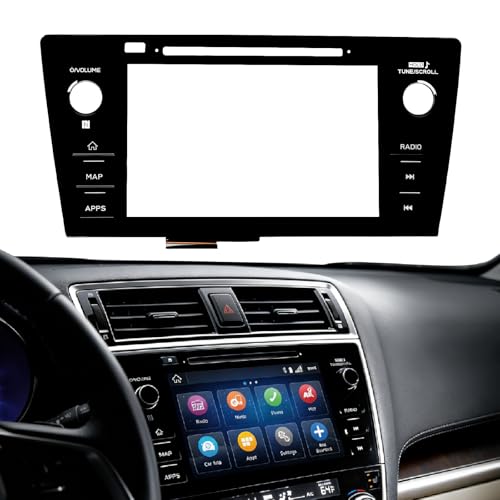
- Fitment:Our Touch Screen Digitizer(MAP) Compatible with 2018 2019 Subaru Outback,2018 2019 Subaru Legacy
- Replace Part Number:86471-AL62A,86471-AL65A,86471-AL65B,86471-AL66A,86471-AL67A,86471-AL68A,86431-AL62A,86431-AL65A,86431-AL66A
- Direct-Fit Replacement:Our 8-inch touchscreen is designed to address common display issues, such as physical cracks, unresponsiveness, or dead pixels, to help return your system to working condition.
- Function:This universal-style LCD touchscreen features integrated MAP functions.
- Support: For any questions or concerns regarding the product, please inform us so we can resolve the issue
SEOCONTENT-START
1 October, 2015 Gen 2.0 & 2.1 Micro SD Navigation (AVN) Display Audio (DA) Technical Support Guide AVN (with Navigation) Display Audio (without Navigation) 2 Technical Support Guide Gen 2.0 & 2.1 Micro SD Navigation (AVN) Gen 2.0 & 2.1 Display Audio (DA) 3 Contents 1. Introduction of Gen 2.0 & 2.1 Audio/Navigation System – System Types ………………………………………………………………… – Part Number Information -.————–… – Summary of Features— ———..—– – Main Screens (AVN/Display Audio) …..———-. – APPS Function .-..—-…————-… – INFO Function -.-…—-…————.. – Navigation Function …————..—– – Audio/Visual Functions -.———.——.. 2. Troubleshooting – System Diagram (AVN/Display Audio) ———-.. – Connections and Pins –.-…————-. – On-Board Diagnostic Mode .———-.—… – No power, No sound (All modes) with Internal & External Amp. – No sound (AM/FM)/Volume fades up and down (AM/FM/HD) . – No sound (SAT), (CD), (USB), (AUX), (iPod) …–.—. – CD skip, CD won’t play correctly ——..—…–. – Sound is poor or noisy, No illumination ——..—. – No Map is displayed (NAV UNIT ONLY) -……–..—-. – Poor or no response from touch screen ..—–.-..–. – Current GPS position does not move —.——.-. – Bluetooth does not work —————-. – Rear View Camera won’t display (NAV/Non NAV) —–. – STARLINK ———————-. – Mirrorlink ———————– – aha Radio —.— —————- – Pandora Radio ——————–.. – DCM / Siri ——————–.. 3. Frequently Asked Questions (FAQ) – Navigation ———————-. – Bluetooth Hands-free ————-.—-. – Audio/Visual –..————–..—-. – APPS, INFO, Voice Recognition and Others .——-. -STARLINK———————-.. 4. Glossary – [A] – [S] ——————-.—-. – [U] – [number] ——————. 4 5-7 8 9-10 11-12 13 14 15-20 22-23 24-27 28-30 31-33 34-35 36-40 41-42 43-44 45 46 47 48 49-50 51-53 54 55-72 73-84 85-88 89-90 91-92 93-96 97-101 102-118 119-120 121 4 System Types 1. Introduction of Audio/Navigation System (1) AVN (with Navigation) (2) Display Audio (without Navigation) Micro SD card (Map data only) 5 Part Number Information (1) AVN (with Navigation) 1. Introduction of Audio/Navigation System Coun try Gen Vehicle Subaru Part No. Face ID Navi Map Amplifier DCM Connec on USA 2.0 2015 Legacy 86271AL66A FB664US micro SD External AMP No 2015 Outback 86271AL64A FB644US micro SD Built-in AMP 2015 Impreza 86271FJ630 FM634US micro SD Built-in AMP No 2015 Crosstrek XV 2016 WRX 86271VA630 FV631US micro SD External AMP No 2016 Forester 86271SG680 FF687US micro SD External AMP Yes 86271SG660 FF667US micro SD Built-in AMP 2.1 2016 Legacy 86271AL69A FB695US micro SD External AMP Yes 2016 Outback 86271AL68A FB685US micro SD Built-in AMP 2016 Impreza 86271FJ650 FM655UH micro SD Built-in AMP Yes 2016 Crosstrek XV 86271FJ670 FM675UH micro SD Built-in AMP No Canada 2.0 2015 Legacy 86271AL67A FB674CS micro SD External AMP No 2015 Outback 2015 Impreza 86271FJ730 FM734CS micro SD Built-in AMP No 2015 Crosstrek XV 2016 WRX 86271VA730 FV731CS micro SD External AMP No 2016 Forester 86271SG780 FF787CS micro SD External AMP No 86271SG760 FF767CS micro SD Built-in AMP 2.1 2016 Legacy 86271AL65A FB655CS micro SD External AMP No 2016 Outback 2016 Impreza 86271FJ750 FM755CH micro SD Built-in AMP No 2016 Crosstrek XV 6 Part Number Information (1) AVN (with Navigation) 1. Introduction of Audio/Navigation System The latest Map Micro SD Card is available at SOP. Map Micro SD Card Part Number Vehicle Subaru Part No. Map Version 2015 Legacy 86283AL66A 2013 Q3 2015 Outback 2015 Impreza 86283FJ630 2015 XV Crosstrek 2016 WRX 2016 Forester 2016 Legacy 86283AL68A 2014 Q3 2016 Outback 2016 Impreza 86283FJ650 2014 Q3 2016 XV Crosstrek 7 Part Number Information (2) Display Audio (without Navigation) 1. Introduction of Gen II Audio/Navigation System Coun try Gen Vehicle Subaru Part No. Face ID Amplifier DCM Connec on USA 2.0 2015 Legacy 86201AL66A FB664UM External AMP No 2015 Outback 86201AL64A FB644UM Built-in AMP 2015 Impreza 86201FJ660 FM664UM Built-in AMP No 2015 Crosstrek XV 2016 WRX 86201VA650 FV651UM External AMP No 2016 Forester 86201SG680 FF687UM External AMP Yes 86201SG660 FF667UM Built-in AMP 2.1 2016 Legacy 86201AL69A FB695UM External AMP Yes 2016 Outback 86201AL68A FB685UM Built-in AMP 2016 Impreza 86201FJ680 FM685UM Built-in AMP Yes 2016 Crosstrek XV 86201FJ700 FM705UM Built-in AMP No Canada 2.0 2015 Legacy 86201AL67A FB674UM Built-in AMP No 2015 Outback 2015 Impreza 86201FJ760 FM764CM Built-in AMP No 2015 Crosstrek XV 2.1 2016 Legacy 86201AL65A FB655CM External AMP No 2016 Outback 8 Summary of Features *Not available for Canadian model ** Available for 2016 Legacy/Outback ***Not available for Gen 2.0 Canadian model. Available for Gen 2.1 Canadian model except Fuel Service. ****Available for 2015 and 2016 Legacy/Outback ***** Available for 2016 Forester and Legacy/Outback (Except Canadian Model) 1. Introduction of Gen II Audio/Navigation System Features AVN (with Navi) Display Audio (w/o Navi) Display TFT Size (resolution) 7-inch WVGA (800×480) 7-inch WVGA (800×480) Touch Panel Electro-Static Type Electro-Static Type HMI Screen Design Customized Customized Vehicle Settings Customized Customized Audio AM/FM (RBDS) Yes Yes HD Radio *Yes *Yes Sirius XM Yes Yes DVD N/A N/A CD Yes (single CD) Yes (single CD) AUX Yes Yes USB/iPod/iPhone Yes Yes BT-Audio Yes Yes SD-Audio Yes No Harman Audio AMP Yes (if equipped) Yes (if equipped) Video USB/Micro SD/iPod-iPhone Yes / Yes / No Yes / No / No Phone Bluetooth Hands-free Yes Yes Navigation Navigation Supplier NNG N/A Navigation Media Micro SD Card (8GB) N/A Traffic Info ***Sirius XM Traffic N/A Map Update TBD N/A Voice Recognition Yes Yes Rear View Camera Yes Yes Rear Seat Entertainment (RSE) N/A N/A Connectivity STARLINK & Aha Yes Yes MirrorLink Yes Yes Pandora *Yes *Yes Stitcher **Yes **Yes Sirius XM Data Service ***Yes ***Yes Communication CAN/UART ****Yes ****Yes DCM (Data Communication Module) *****Yes *****Yes 9 Main Screens HOME Screen MAP Screen APPS Screen INFO Screen (1) AVN (with Navigation) • MAP: Navigation MAP • Audio: List of Audio Sources • Phone: Bluetooth Hands-free call • APPs: STARLINK, MirrorLink, aha, *Pandora • INFO: **Sports, **Weather, **Stocks, **Fuel • SETTINGS: General Settings • APPs (Applications) needs to be installed on user’s smartphone • Smartphone communicates with the unit via USB or Bluetooth connection • Smartphone communicates with internet via wireless network (Wifi, 3G, 4G, 4G LTE) • MAP data is stored in the micro SD card • GPS, Gyro and Speed signal are used to locate the current vehicle position • Traffic information is provided by Sirius XM Radio Data Service** • Subscription is necessary for Sirius XM Radio Data Service** • Information of Sports, Weather, Stocks and Fuels is provided by Sirius XM Radio Data Service** • Subscription is necessary for Sirius XM Radio Data Service* • Information of Vehicle Monitor and Eco Monitor is fed via Vehicle ECU with CAN communication*** (Pandora: Not available for Canadian model) 1. Introduction of Gen II Audio/Navigation System *Not available for Canadian model **Not available for Gen 2.0 Canadian model. Available for Gen 2.1 Canadian model except Fuel Service. ***Available for 2015 and 2016 Legacy/Outback 10 Main Screens (2) Display Audio (without Navigation) HOME Screen Phone Screen APPS Screen INFO Screen • http://www.subaru.com/owners/vehicleresources.html?bluetooth=true for phone compatibility information • Phone needs to have HFP (Hands-free Profile) for Bluetooth Hands-free calls • Phone needs PBAP (Phonebook Access Profile) or OPP (Object Push Profile) for phone contacts transfer • Information of Sports, Weather, Stocks and Fuels is provided by Sirius XM Radio Data Service** • Subscription is necessary for Sirius XM Radio Data Service* • Information of Vehicle Monitor and Eco Monitor is fed via Vehicle ECU with CAN communication*** • Audio: List of Audio Sources • Phone: Bluetooth Hands-free call • APPs: STARLINK, MirrorLink, aha, *Pandora • INFO: **Sports, **Weather, **Stocks, **Fuel • SETTINGS: General Settings • APPs (Applications) needs to be installed on user’s smartphone • Smartphone communicates with the unit via USB or Bluetooth connection • Smartphone communicates with internet via wireless network (Wifi, 3G, 4G, 4G LTE) 1. Introduction of Gen II Audio/Navigation System (Pandora: Not available for Canadian model) *Not available for Canadian model **Not available for Gen 2.0 Canadian model. Available for Gen 2.1 Canadian model except Fuel Service. ***Available for 2015 and 2016 Legacy/Outback 11 APPS Function STARLINK, MirrorLink, aha, Pandora To operate a APPS function • App (application) needs to be installed on user’s smartphone • Smartphone needs to connect with the unit via USB or Bluetooth depending on phone models and application being used • Smartphone requires the mobile data plan • Smartphone needs to connect to the internet via wireless network (3G, 4G, 4GLTE or Wifi) Communication OR 3G/4G/4GLTE/Wi-Fi Head unit Data Servers Smartphone Pandora: Not available for Canadian model 1. Introduction of Gen II Audio/Navigation System 12 APPS Function Aha Screen Pandora Screen* STARLINK Screen MirrorLink Screen Features App for Smartphone Supported Device Connec on Method to Unit STARLINK STARLINK iPhone: iOS 4.3.5 or later Android: Android 4.0 or later iPhone: USB (Gen 2.0) and Bluetooth (Gen 2.1) Android: Bluetooth MirrorLink Refer to Mirror Link Website (h*p://www.mirrorlink.com/apps) Refer to Owner’s Manual (P141 for Gen 2.0, P151 for Gen 2.1) USB aha aha iPhone: iOS 5.0 or later Android: Android 2.2 or later iPhone: USB Android: Bluetooth *Pandora Pandora iPhone: iOS 5.0 or later Android: Android 2.2 or later iPhone: USB Android: Bluetooth APPs, Supported Device, Connection Method *Not available for Canadian model 1. Introduction of Gen II Audio/Navigation System STITCHER is available for Gen 2.1 13 INFO Function Sports, Weather, Stocks, Fuel • Information of Sports, Weather, Stocks and Fuel is provided by Sirius XM Radio Data Service • Subscription is necessary for Sirius XM Radio Data Service • For AVN user’s current location will be determined by GPS signals for the Weather and Fuel information • For Display Audio the desired location for the Weather and Fuel information will be setup on the unit by the user Vehicle Monitor Screen Eco Monitor Screen Information is fed via Vehicle ECU with CAN communication Vehicle Monitor, Eco Monitor INFO Screen 1. Introduction of Gen II Audio/Navigation System Not available for Gen 2.0 Canadian model. Available for Gen 2.1 Canadian model except Fuel Service (Available for 2015 and 2016 Legacy/Outback) STARLINK Safety and Security services Available for 2016 Forester and Legacy/Outback (USA Model only) 14 Navigation Function Navigation Features GPS Signal Indicator Screen • Current position is calculated by GPS, Gyro and Speed signals • Current positioning error is up to 300ft (100m) • Map data is stored in micro SD card (8GB) • Traffic information displayed on the Map is fed via Sirius XM Radio Data Service* • Subscription is necessary for Sirius XM Data Service* CAUTION Screen • “Caution” screen will be disappeared if “I Agree” button is not pressed within 5 seconds Good GPS Reception Poor GPS Reception • Able to control navigation functions by voice commands • To control Navigation by voice commands, TTS Voice must be selected Voice Recognition Screen MAP Screen 1. Introduction of Gen II Audio/Navigation System *Not available for Gen 2.0 Canadian model. Available for Gen 2.1 Canadian model 15 Audio/Visual Functions AM, FM, Sirius XM, aha, *Pandora, CD, Bluetooth Audio, USB, iPod, micro SD Audio Source Screen Mix (AM/FM/XM) Preset Stations Station List (FM Only) Screen • Store up to 36 stations from any of the AM, FM and Sirius XM radios • FM stations are sorted by Genre such as Classic, Jazz, Rock, Country, News, R&B, Sports and Other • Station list cannot be updated automatically by the GPS signal, but update manually from FM radio screen by pressing the “LIST” button Pandora: Not available for Canadian model *Not available for Canadian model 1. Introduction of Gen II Audio/Navigation System 16 Audio/Visual Functions HD Radio (Artist Experience) USB / Micro SD (Audio/Video/Picture) Cache Radio Program (AM/FM/HD) • When the radio broadcast is interrupted by another audio output, such as an incoming phone call or Voice Recognition, the unit will automatically cache the interrupted portion and perform timeshift (20 minutes max) playback when the interruption ends • When available, HD Radio will supply visual information such as Album Art, and Artist Pictures on screen related to the content being played. • No visual information is displayed when the HD radio is not transmitting the visual data • Audio, Video and Image files stored on USB memory and Micro SD card can be played back or viewed • While driving, video/slideshow will not be played back, but the user will hear the audio portion of the video • Audio, Video and images files saved in the Map SD card cannot be played and viewed Media Type Format Audio Files Video Files Image Files USB Memory USB 2.0 HS FAT 16/32 MP3/WMA/AAC WMV/AVI/MPEG4 JPG, JPEG Micro SD card micro SD HC Up to 32GB MP3/WMA/AAC WMV/AVI/MPEG4 JPG, JPEG Supported Format & Files HD Radio: Not available for Canadian model 1. Introduction of Gen II Audio/Navigation System Micro SD functions: Not available for non-Navigation equipped models 17 Audio/Visual Functions Sirius XM Satellite Radio 1. Introduction of Gen II Audio/Navigation System Features Gen 2.0 Gen 2.1 Tag Yes Yes SCAN Yes Yes List Yes Yes Sound Yes Yes Cache No Yes Featured Favorites No Yes Smart Favorites No Yes Tune Scan No Yes Tune Start No Yes • Tag: Tag information in the music broadcasting is preserved in the system and transmits to an iPod • SCAN: Scan channels • List: Display a list of category such as Pop, Rock, Hip-Hop, R&B and so on • Sound: Display sound setting screen • Cache: A radio program can be cached and played back in a time shifted manner. The program that is currently being listened to, and channel programs registered as Smart Favorites can be cached. (Available for Gen 2.1) (Gen 2.0) (Gen 2.1) 18 Audio/Visual Functions 1. Introduction of Gen II Audio/Navigation System • SXM Featured: SXM Featured is a collection of channels that are created by the Sirius XM programming team that are updated several times throughout the year. The SXM Featured channels can be found under the SXM Category screen. To use this function, the “SXM Featured” should be turned on in the option screen. (Available for Gen 2.1) • Smart Favorites: Smart Favorites can be set up by the user. They can select up to 5 SXM channels from the preset bank. The Smart Favorite channels will be cached simultaneously from when the SXM signal is first received. (Available for Gen 2.1) 19 Audio/Visual Functions Sirius XM Satellite Radio 1. Introduction of Gen II Audio/Navigation System • Tune Scan: Tune Scan is a function to play the first 10 seconds of Smart Favorite channels. It is necessary to turn on Tune Scan at the option screen to use this function. Some Channels may not be able to Tune Scan due to station content or the way it is broadcast. (Available for Gen 2.1) • Tune Start: Tune Start begins playing the current program from the beginning when tuning to a channel registered in Smart Favorites, allowing you to enjoy the complete program. It is necessary to turn on Tune Start at the option screen to use this function. (Available for Gen 2.1) 20 Audio/Visual Functions Siri (Siri Eyes Free) • An extension of Apple’s Siri functionality for enabling voice control of an iOS mobile device (iPhone, iPod touch) • Device is connected with the head unit via Bluetooth connection • Device communicates with internet via wireless network (Wifi, 3G, 4G, 4G LTE) • Press and hold the “Talk Switch” on the steering switch to start and then speak when the beep sound is heard 1. Introduction of Gen II Audio/Navigation System (Available for Gen 2.1) Supported Models Supported iOS Version iPhone 4S, 5, iPod Touch (5th genera?on) or later iOS 6 or later 21 MEMO 22 Multimedia Head Unit 7 inch Capacitive Touch Screen AM/FM SXM CD Bluetooth USB AUX HD Radio (*3) Aha Radio Pandora (*3) Starlink Mirrorlink 4ch AMP VR/TTS Navigation Micro SD Card System Diagram – AVN A/C Panel RADIO ANT-AMP UART(*1) A/C ECU PWR GPS-ANT SXM-ANT AUX HARMAN AUDIO AMP (Option) RADIO-ANT MIC PWR PWR 2. Troubleshooting UART CAN (*1) IE-BUS STEERING SW (*1) Applicable for 2015 and 2016 Legacy and Outback (*2) Applicable for 2016 Forester, Legacy and Outback (USA Model Only) (*3) Not applicable for Canadian model (*4) DCM is not equipped (*5) DCM is equipped without external AMP (*6) DCM is not equipped with external AMP (*7) DCM is equipped with external AMP IF-Box USB USB Mini Jack HUB USB 2.0 Rear View Camera Video PWR DCM (*2) Mute (*4) (*4) MIC Analog Analog (*5) (*5) DCM (*2) Front Rear HARMAN AUDIO AMP (Option) PWR IE-BUS DCM (*2) Front/Rear Tweeter (*6) (*7) 23 System Diagram – DA (Display Audio) 2. Troubleshooting Multimedia Head Unit 7 inch Capacitive Touch Screen AM/FM SXM CD Bluetooth USB AUX HD Radio (*3) Aha Radio Pandora (*3) Starlink Mirrorlink 4ch AMP VR/TTS A/C Panel RADIO ANT-AMP UART(*1) A/C ECU PWR SXM-ANT AUX HARMAN AUDIO AMP (Option) RADIO-ANT MIC PWR PWR UART CAN (*1) IE-BUS STEERING SW (*1) Applicable for 2015 and 2016 Legacy and Outback (*2) Applicable for 2016 Forester, Legacy and Outback (USA Model Only) (*3) Not applicable for Canadian model (*4) DCM is not equipped (*5) DCM is equipped without external AMP (*6) DCM is not equipped with external AMP (*7) DCM is equipped with external AMP IF-Box USB USB Mini Jack HUB USB 2.0 Rear View Camera Video PWR DCM (*2) Mute (*4) (*4) MIC Analog Analog (*5) (*5) DCM (*2) Front Rear HARMAN AUDIO AMP (Option) PWR IE-BUS DCM (*2) Front/Rear Tweeter (*6) (*7) 24 Connections and Pins Connector A Connector A (POWER INPUT/ SPEAKER OUTPUT) # Internal AMP Harman AMP 1 FR+ FR+ OUT Audio signal (Front Right) 2 FL+ FL+ OUT Audio signal (Front Left) 3 ACC ACC IN ACC power supply 4 BU+B BU+B IN Back-up power supply 5 FR- FR- OUT Audio signal (Front Right) 6 FL- FL- OUT Audio signal (Front Left) 7 GND GND GND Ground 8 ANT+ ANT+ OUT Antenna amplifier power supply (12V) 9 N.C. N.C. Not Connected 10 ILL+ ILL+ IN Illumination signal (12V) 11 RR+ N.C. OUT Audio signal (Rear Right) / Not Connected 12 RL+ INT+ OUT Audio signal (Rear Left) / Interface Box 13 RR- N.C. OUT Audio signal (Rear Right) / Not Connected 14 N.C. SLD2 GND Not Connected / Ground 15 ILL- ILL- IN Illumination signal 16 RL- INT- OUT Audio signal (Rear Left) / Interface Box Description 2. Troubleshooting 25 Connections and Pins Connector B Connector B (Steering Wheel SW, MIC, etc) # Internal AMP Harman AMP Descriptions 1 IGN * IGN* IN Ignition power supply 2 REV REV IN Reverse signal (12V) 3 BRIGHT BRIGHT 4 MACC MACC OUT Mic power supply (5V) 5 MIC+ MIC+ IN Mic signal 6 MIC—DET MIC—DET IN Microphone Detection 7 N.C. TX+ IN/OUT Not Connected / Communication+ 8 N.C. TX- IN/OUT Not Connected / Communication – 9 CANH * CANH* IN/OUT Communication+ 10 CANL * CANL* IN/OUT Communication11 AC-UART+ * AC-UART+* IN/OUT Communication+ 12 AC-UART- * AC-UART-* IN/OUT Communication13 N.C. N.C. Not Connected 14 SHIELD-GND(AUX)* SHIELD-GND(AUX)* GND Ground 15 PKB PKB IN Parking brake signal 16 N.C. MUTE GND Not Connected / Mute 17 SPD SPD IN Vehicle speed signal 18 SHIELD-GND(MIC)* SHIELD-GND(MIC)* GND Ground 19 MIC- MIC- GND Ground 20 N.C. N.C. Not Connected 21 SW1 SW1 IN Mic sw signal 22 SW2 SW2 IN Mic sw signal 23 SWG SWG GND Ground 24 N.C. N.C. Not Connected 25 AUX-DET AUX-DET 26 AUX-R+ AUX-R+ 27 AUX-LR- AUX-LR28 AUX-L+ AUX-L+ 2. Troubleshooting * N.C. for 2015 Impreza, XV Crosstrek, 2016 WRX and Forester 26 Connections and Pins Connector C Connector E Connector D Connector C (Rear Camera) # Pin 1 CGND GND Camera Ground 2 CB+ OUT Back-eye camera power supply (6V) 3 CV+ IN Video 4 CV- GND Ground 5 N.C. Not Connected Descriptions Connector D (Radio Antenna) # Pin 1 SUB-ANT* IN Radio Signal (Sub) 2 SUB-ANT-DET* IN Ground 3 MAIN-ANT IN Radio Signal (Main) 4 GND GMD Ground 5 N.C. Not Connected Descriptions Connector E (USB) # Pin Descriptions 1 N.C. Not Connected 2 N.C. Not Connected 3 D+ IN Data 4 D- IN Data 2. Troubleshooting * N.C. for 2015 Impreza, XV Crosstrek, 2016 WRX and Forester 27 Connections and Pins Connector F Connector H Connector G Connector F (DCM)* # Pin 1 N.C. Not Connected 2 N.C. Not Connected 3 N.C. Not Connected 4 N.C. Not Connected 5 N.C. Not Connected Descriptions 6 N.C. Not Connected 7 N.C. Not Connected 8 MUTE IN DCM Connector G (XM Antenna) # Pin Descriptions 1 ANT IN XM Radio Signal 2 GND GND Ground Connector H (GPS Antenna) (AVN Only) # Pin Descriptions 1 ANT IN GPS Signal 2 GND GND Ground 2. Troubleshooting *Applicable for 2016 Forester, Legacy and Outback (USA Model Only) 28 On-Board Diagnostic Mode 1. Outline On-Board Diagnostics can check the connectivity of devises, the vehicle signals, the radio reception and rear view camera setting. 2. How to enter On-Board Diagnostic mode 2-1. Enter the Diagnostic mode Procedure: 1) Turn the ignition switch to ACC. 2) Press the button (b) twice with the button (a) pressed. 3) “Line Diag” screen is displayed. 4) Check the connection status with the “Connectivity Check” in the “Line Diag” screen. 2-2. Exit the Diagnostic mode Pressing the button (c) for 3 seconds or more, or turning the ignition switch from the ACC to OFF position can exit the diagnostic mode. 2. Troubleshooting Note: 1. “UART” and “CAN” are not shown for 86271FJ630/730 and 86201FJ660/760 2. “GPS” will indicate “NG” on non-Navigation equipped Infotainment systems 29 3. Display Layout and Explanation 3-1. Top Display Layout On-Board Diagnostic Mode No Explanation ① Main title [White] after check [Black] under check ② Connected Devices ③ Results of Connectivity Check No Explanation ⑤ Vehicle Signal ⑥ Vehicle Signal Check Results ⑦ Enter Audio Check ④ Enter Camera Setting ① ② ④ ③ ⑤ ⑥ ⑦ 3-2. Enter “Camera Setting” If “Camera Setting” button is touched, the screen changes to “Camera Setting” mode. Return Camera Setting Default Set ⑨ ⑪ ⑩ No Explanation ⑧ Return to Previous Screen ⑨ Initialization of Maker Line Adjustment ⑩ Marker Line Adjustment ⑪ Finalization of Marker Line Adjustment ⑧ Note: For a detailed procedure to adjust the camera settings, refer to STIS. Please select the Service Manual and refer to the Navigation System under the Entertainment Section (ET) * * 2. Troubleshooting Note: 1. “UART” and “CAN” are not shown for 86271FJ630/730 and 86201FJ660/760 2. “GPS” will indicate “NG” on non-Navigation equipped Infotainment systems 30 On-Board Diagnostic Mode Line Diag Audio Check Return MODE SEEK DOWN SEEK UP ・AM/FM : FM XXXX kHz ・Speaker Check Speaker Check ON Line Diag Audio Check Return MODE SEEK DOWN SEEK UP ・AM/FM : FM XXXX kHz ・Speaker Check Speaker Check ON 3-3. Enter “Audio Check” ⑬ ⑭ ⑮ ⑰ No Explanation ⑬ Return to Previous Screen ⑭ Selection of Radio Band (AM/FM) ⑮ Change Radio Frequency ⑯ Radio Frequency ⑰ Speaker Check [“OFF”, Black] after check [“ON”, Light Blue] under check ⑯ If the “Audio Check” button is touched, the screen changes to “Audio Check” mode. 2. Troubleshooting 4. How to check STARLINK Connectivity ID Number and Software Version Information 4-1. Enter the Service Menu Procedure: 1) Turn the ignition switch to ACC 2) Press the button (b) 5 times with the button (c) pressed. 3) “Service Menu” is displayed STARLINK Connectivity ID Number: Touch “Product Information” to display the Connectivity ID (16 digits) Software Version Information: 1. Touch “Service Information” 2. Touch “Version Information” 3. Touch “Push” next to AVN or DA 4-2. Exit the Service Menu Pressing the button (c) for 3 seconds or more, or turning the ignition switch from the ACC to OFF position can exit the diagnostic mode. 31 NO POWER Check connector (A) at the rear of the head unit. Is ACC and BU voltage 12 Volts or the same as the vehicle voltage? Does the head unit turn ON when ACC turns ON? Replace the Head Unit. Is connector (A) securely connected? Are all wires connected to the connector? Connect securely. Repair broken wire or replace the wire harness. Check the fuse, the condition of connector pins and ground wiring. Repair or replace if necessary. Re-check for original condition. Re-check for original condition. Yes Yes Yes No No No Condition: No Audio, No Display, No Illumination in all modes. 2. Troubleshooting 32 NO SOUND (All modes) with Internal Amp No sound for all audio sources or modes Check resistance of all speakers for opens or shorts to ground. Are any physical damage, shorted or grounded conditions found? Replace the head unit. Replace or repair it and re-check for original condition. Note: If a speaker or wire harness is shorted or grounded, the head unit will shut off the audio output due to circuit protection. Is the VOLUME set to a audible level? Turn up VOLUME and re-check for original condition. Condition: Absolutely no sound on all modes No No Yes Yes 2. Troubleshooting 33 NO SOUND (All modes) With External Amp Check speaker line at the amp for any shorts to ground. Any shorts to ground? Check for 2.5Volts on the IEBus communication line out of the head unit. Is there 2.5 Volts on the TX+ and TX- lines? Check the Mute Line from the head unit to the amplifier. With Audio playing the voltage at the amp should be above 3.5 Volts. Is the Mute line above 3.5Volts? Condition: Absolutely no sound on all modes. No No Yes Yes Check across the speakers to see if there are any shorted speakers. Any shorted speakers? No No Disconnect the amp and test the mute line again. Is the Mute line above 3.5 volts? No Replace the head unit. Replace the audio amp. Yes Yes Yes Disconnect the head unit and the amp. Test the Audio lines from the head unit to the amp for any opens or shorts to ground. Any opens or shorts found? Yes No Check the B+ and ACC at the amp. Is power present? Yes No Yes No Remove ground short. Inspect the mute line circuit for shorts to ground. Are any shorts to ground found? Repair or replace the speaker. Repair or replace harness. Repair or replace the harness. Repair or replace fuses. Replace the audio amp. Replace the head unit. 2. Troubleshooting 34 NO SOUND (AM/FM) Replace the head unit. Check ANT+B voltage from the head unit. (A – 10P connector, #8 pin voltage is 12V ) Is ANT+B voltage within specification? Check antenna system. Ex) Roof antenna Antenna AMP Antenna wire harness Remove antenna jack from the head unit and connect a known good external test antenna. Is the radio sound restored? Check if Antenna jack is securely connected to the head unit. Radio sound came back? Condition: No sound on Radio mode (AM/FM) No sound for AM/FM. Is the VOLUME set to a audible level? Turn up the VOLUME and recheck for original condition. The problem was solved. Yes Yes Yes Yes No No No No Replace the head unit. 2. Troubleshooting 35 VOLUME FADES UP AND DOWN (FM/AM HD* RADIO) Press the settings icon on the top of the AM/FM screen, and turn off the HD radio. Was the problem solved? Condition: A noticeable drop in audio level is heard when listening to AM/FM radio. Audio level is fading up and down on AM/ FM. Is the orange HD logo being displayed on the AM/FM screen? The radio is in Analog mode and the vehicle is moving out of the radio station coverage area. The problem was solved. The vehicle was traveling out of HD coverage area and the unit was changing from HD to analog. This causes a change in Audio. Yes Yes No Move to a location closer to the broadcasting radio station, and check for original condition. Move to a location closer to the broadcasting radio station, and check for original condition. No *Not available for Canadian model 2. Troubleshooting 36 NO SOUND (SAT RADIO) Condition: No sound on SAT radio No sound for SAT (Satellite) radio. No Yes No Change to other modes (AM/ FM/CD) and then select a XM mode again. Did the SAT radio sound come back? No Yes SAT radio is a paid service. Did the customer’s subscription expire? Or, did the free subscription expire? Yes Check if Antenna jack is securely connected to the head unit. And check the connectivity in diagnostic mode. Is the SAT radio sound restored? Contact Satellite Radio company and check subscription status. Renew as needed. The problem was solved. Check SAT power supply voltage from the head unit. (1P connector G, output 5V ) Is voltage within specification? Check antenna system (Antenna wire harness, Roof antenna, etc.) No No No Yes Disconnect SAT antenna connector from the head unit and connect a known good test external SAT antenna. Is the SAT radio sound restored? Yes Replace the head unit. The problem was solved. Yes Check surroundings: Is the vehicle in an environment where the signal is difficult to receive? Move the vehicle to a location open to the sky and check it again. 2. Troubleshooting Note: 1. “UART” and “CAN” are not shown for 86271FJ630/730 and 86201FJ660/760 2. “GPS” will indicate “NG” on non-Navigation equipped Infotainment systems 37 NO SOUND (USB) Does the USB flash memory have MP3/WMA/AAC files? The head unit will only playback MP3/WMA/ AAC files in USB mode. Check the USB connectivity in diagnostic mode. Does the indicator display “OK”? No Use a known good USB flash memory containing MP3/WMA/ AAC files. Does the head unit play the files? If the USB flash memory has an LED indicator, does this indicator lamp light up when it is connected to the head unit? No sound for USB. Condition: No sound on USB Switch to USB mode and re-check for original problem. Original USB flash memory could be defective. Replace the vehicle USB port with a known-good one and re-check original problem. Does the same issue occur? The vehicle USB port is defective and needs to be replaced. Yes Re-connect the vehicle USB port. Does the diagnostic mode display “OK”? No Yes Yes No No No Yes No Yes Replace the head unit. Yes 2. Troubleshooting Note: 1. “UART” and “CAN” are not shown for 86271FJ630/730 and 86201FJ660/760 2. “GPS” will indicate “NG” on non-Navigation equipped Infotainment systems 38 NO SOUND (CD) Does the head unit accept and eject CD correctly? Is CD-R/RW being used? The head unit cannot playback files other than CDDA/MP3/WMA/ AAC. Re-check for original condition with a CD-R/ RW containing the supported media files. Are CDDA/MP3/WMA/ AAC files recorded to CD -R/RW? Is there any foreign object (ex. label) in the CD slot? Condition: No sound on CD No sound for CD. Insert and playback a known-good, commercially available CD. Does the CD play? Check to make sure that the original CD is not excessively scratched or warped and re-check for original condition. No Yes Yes Yes No Yes No Yes No No Yes Re-install the head unit properly and re-check for original condition. No Remove foreign object. Replace the head unit. Replace the head unit. Is the head unit installed property? 2. Troubleshooting 39 NO SOUND (AUX) 2. Troubleshooting Check connection of the cable (plug) to the head unit. Check the volume on the device connected. Is the volume on the device minimum? Adjust the volume on the device. No Yes Condition: No sound on AUX Check the volume on the head unit. Is the volume on the head unit minimum? Inspect the cable condition. Is the cable shorted or damaged? Adjust the volume on the head unit. Repair or replace the cable. No sound for AUX Yes Yes Yes No No No Yes Check the AUX connectivity in diagnostic mode. Does the indicator display “OK”? Replace the head unit. Note: 1. “UART” and “CAN” are not shown for 86271FJ630/730 and 86201FJ660/760 2. “GPS” will indicate “NG” on non-Navigation equipped Infotainment systems 40 NO SOUND (iPod) Is the iPod compatible? See the owners manual page 97 for a list of compatible Apple products. For the latest updates see Subaru.com. Reconnect the vehicle USB port. Does the diagnostic mode display “OK”? Switch to iPod mode and re-check for original condition. No Replace the vehicle USB port with a known-good one and re-check original condition. Does the same issue occur? Disconnect the iPod device and check to see if iPod works by itself. Does iPod play without being connected to the head unit? Examine customer’s iPod. Use a known good iPod device containing music files and recheck for original condition. Replace the head unit. Original USB Port is defective and needs to be replaced. Non supported iPod may not work. Yes No No Yes Yes No Yes Check the USB connectivity in diagnostic mode since iPod will be connected to USB port. Does the indicator display “OK”? No Yes Condition: No sound on iPod Use a known good cable from the iPod to the USB port Does the same issue occur? Yes iPod cable is defective. No Note: 1. “UART” and “CAN” are not shown for 86271FJ630/730 and 86201FJ660/760 2. “GPS” will indicate “NG” on non-Navigation equipped Infotainment systems 2. Troubleshooting 41 CD SKIP Are the head unit mounting screws tight? Re-install the head unit properly and re-check for original condition. CD being used may be excessively scratched/warped or has paper label on it. Replace disc and re-check for original condition. Does CD skipping only occur when vehicle is in motion? CD skips. Replace CD with knowngood CD. Does the problem still occur? Does CD skipping happen at the same location? Check the location if road condition is good (Ex. dirt road, railroad track, road construction may cause CD skipping). Yes No Yes No No No Yes Yes Replace the head unit. Condition: CD Skips 2. Troubleshooting 42 CD WON’T PLAY CORRECTLY Do not use CDs with a paper label. Paper labels will peel off and get jammed inside of the head unit. Replace the head unit. Is it a factory pressed CD or CD-R/RW? CD won’t play correctly. Is the CD clean and free from scratches and/or finger prints? Please clean the CD and try again. Is a paper label on the CD? Due to different makes of CD-R/RW, and quality of recordings this can cause the CD player not to play correctly. Try a known good commercially available CD. Is the condition fixed? CD being used may be excessively scratched/ warped or data recorded is not supported. Replace disc and re-check for original problem. Condition: Won’t read CD, abnormal playback, makes noise when playing CD Yes No No Yes CD-R/RW No Yes Factory Pressed 2. Troubleshooting 43 SOUND IS POOR OR NOISY Is sound noisy for Radio mode only or ALL modes? Check antenna system. Ex) Roof antenna Antenna AMP Antenna wire harness In case of the condition not fixed Is sound noisy for Radio mode or All Check where it happens. Mountains or tall buildings cause multi -path. Airport or power line causes radio noise. Cell phone or other wireless device is close to the head unit? Condition is caused by bad media player/iPod. Replace or repair speakers. Sound is Poor/Noisy. Is the sound noisy for Radio mode or All modes? Is the noise heard even in area with good radio reception? Is the noise heard only at the specific area? Move the vehicle to an area with good reception and re-check for original condition. Replace the media player/iPod with a known-good one and re-check. Is the condition still present? Check all speakers (shorted, grounded). All speakers are good? Are there any aftermarket product is installed? Remove the product and re-check for original condition. ALL modes No Yes No Yes Radio Yes No No Yes No Yes Yes No Condition: Sound poor, sound too low, sound too loud, and sound is distorted. Replace the head unit. 2. Troubleshooting 44 NO ILLUMINATION Front panel illumination does not light up. Yes Check ILL + signal at the head unit. (10P connector A, #10 pin, input 12V when ILL is ON) Is ILL + within specification? No Check the ILL+ signal in diagnostic mode. Does the diagnostic display shows “ON”? Check if the ILL+ is connected correctly in the wire harness. Does the illumination turn ON? No The problem was solved. Yes Does the illumination turn ON? Yes Yes The problem was solved. No Vehicle wire harnesses could be defective. Condition: No front panel button illumination / When headlights are on, does not change to night mode. Replace the head unit. No Note: 1. “UART” and “CAN” are not shown for 86271FJ630/730 and 86201FJ660/760 2. “GPS” will indicate “NG” on non-Navigation equipped Infotainment systems 2. Troubleshooting 45 NO MAP IS DISPLAYED (NAV UNIT ONLY) Condition: Audio is heard, but no map image is on screen. Press “MAP” button. Is the MAP showing? No Yes Replace the MAP SD card. Check MAP SD card in the unit. Is MAP SD card in the unit? No Insert MAP SD card and try again. Check the part number of MAP SD card. Please see the page 5 to identify the part number of Map SD Card. Is the part number correct? Yes No Insert correct part number of SD card and try again. The problem was solved. Swap the MAP SD card from another unit. Is the MAP showing? Replace the head unit. No Yes Yes 2. Troubleshooting Map SD Card Part Number 46 POOR OR NO RESPONSE FROM TOUCH SCREEN Is there a protective film on the screen? Does the audio/tune knob work? Remove the protective film. No Yes Condition: Poor or no response when touching the screen Remove dirt and/or liquid from the screen. No Yes Replace the head unit. Is there dirt or liquid spilled on the screen? Yes No Is the customer using a stylus or finger nail to touch the screen? Operate with bare finger tip. Yes No Is the steering switch being touched at the same time? Yes No Is there equipment that generates electromagnetic waves by the vicinity of the screen? Operate without touching steering switches. Move the equipment away from the screen. Yes Remove the 10pin harness and check B+ and ACC to verify both are between 11V and 16V. Are voltages present? No No Yes Replace the head unit. Check vehicle power supply to the head unit. 2. Troubleshooting 47 CURRENT GPS POSITION DOES NOT MOVE Try a known good GPS antenna connected to the head unit. Is the condition still present? Current GPS position on map doesn’t move even though vehicle is in motion. Drive vehicle in an open area with no obstructions (buildings, hills, structures). Does the current position icon move in accordance with the vehicle’s movement? Problem could be related to poor GPS reception due to driving in a tunnel/area with obstructive objects. Remove or disconnect it and re-check for the original condition. Is any aftermarket electrical device installed? Check the GPS connectivity in diagnostic mode. Does the indicator display “OK”? Yes No No Yes Yes No Condition: Vehicle position icon is inaccurate / Vehicle position icon doesn’t move Replace Navigation Head Unit. No Replace the GPS antenna. Yes 2. Troubleshooting Note: “UART” and “CAN” are not shown for 86271FJ630/730 and 86201FJ660/760 48 BLUETOOTH DOES NOT WORK Replace the head unit. Gather following Information from customer; Service provider, phone manufacturer and model number. Bluetooth devices that are not listed on Subaru web may not pair to the system. Note: Bluetooth devices that are not listed as incompatible or compatible have not been tested. This does not mean that the unlisted Bluetooth device are incompatible, but that they simply have not been verified. On your device, is the Bluetooth function turned ON? Try another Bluetooth device. Can another Bluetooth device be connected? Turn ON the B/T function on your device first. Check the device user manual for information on this procedure. Did this solve the problem? The problem was solved. The Bluetooth device may be the cause of the concern. Try pairing several time. Can another Bluetooth device be connected? Is Bluetooth device compatible? Refer to: www.subaru.com Condition: Bluetooth device will not pair to the system Note : Because of the nature of Bluetooth, and the differences in implementation across Bluetooth device manufacturers, sometimes it may take a few attempts to complete the initial pairing procedure. No Yes Yes Yes No No No Yes No Yes 2. Troubleshooting 49 REAR VIEW CAMERA WON’T DISPLAY (AVN) 2. Troubleshooting Condition: Rear View video does not show or is distorted onscreen Rear view camera won’t display or shows lines and/or distortion on screen when in reverse. Check the reverse harness or vehicle side condition. No Yes No Yes No Yes Check the rear view camera and re-connect. And check the connectivity in diagnostic mode. If it is not restored, the rear view camera needs to be examined and/or replaced. The rear view camera and harness between the head unit and rear view camera needs to be examined and/or replaced. Check the REV connectivity in diagnostic mode. When reverse gear is selected, does REV show “ON”? Set a tester before ACC is ON and check CB+ at the head unit right after ACC is ON. (5P connector C CB+, #2 pin, output 6V) Is it within specification? When the vehicle is in reverse, does the Map screen change to another screen? Replace the head unit. Note: “UART” and “CAN” are not shown for 86271FJ630/730 and 86201FJ660/760 50 REAR VIEW CAMERA WON’T DISPLAY (DA) Condition: Rear View video does not show or is distorted onscreen Rear view camera won’t display or shows lines and/or distortion on screen when in reverse. Check the reverse harness or vehicle side condition. No Yes No Yes No Yes Check the rear view camera and re-connect. And check the connectivity in diagnostic mode. If it is not restored, the rear view camera needs to be examined and/or replaced. The rear view camera and harness between the head unit and rear view camera needs to be examined and/or replaced. Check the REV connectivity in diagnostic mode. When reverse gear is selected, does REV show “ON”? Set a tester before ACC is ON and check CB+ at the head unit right after ACC is ON. (5P connector C CB+, #2 pin, output 6V) Is it within specification? When the vehicle is in reverse, does the Map screen change to another screen? Replace the head unit. Note: 1. “UART” and “CAN” are not shown for 86271FJ630/730 and 86201FJ660/760 2. “GPS” will indicate “NG” on non-Navigation equipped Infotainment systems 2. Troubleshooting 51 STARLINK APP NOT WORKING Is the power of smartphone ON? Check if smartphone meets the specification below? ・iPhone: iOS 4.3.5 or later ・Android: Android 4.0 or later Turn power on smartphone. No Yes Condition: – Displays error message (see pic 1) – STARLINK App (application) stops – Power of phone turns off while operating STARLINK App – Bluetooth disconnects while operating STARLINK App – Wireless data service is terminated while operating STARLINK App – No or Poor phone reception while operating STARLINK App Install STARLINK application to the smartphone and try it again. No Yes Try it again with smartphone which meets the speciation for STARLINK App. Is STARLINK application installed to the smartphone? Yes No Check to see if STARLINK APP is working properly: 1. Press STARLINK App on the smartphone. 2. Press Settings on the bottom left of the screen (see pic 2) Do you see a Server Busy/Error Message (see pic 3)? Please wait and try accessing the application later. Yes No Check if the smartphone is connected to the unit via Bluetooth. Yes No Check if the smartphone is in good phone reception area? Connect the phone to the unit via Bluetooth. Move to the good phone reception area and try it again. No Yes Perform followings on the unit 1. Select APPS and STARLINK 2. While the error message is displayed on the screen, touch and hold the lower right corner of the screen for 30 seconds. 3. Remove a finger from the screen 4. The screen will switch to “Radio” or “Audio Source” 5. Try the STARLINK application Does the same condition occur? Try followings procedure. 1. Close and re-open STARLINK application on the smartphone 2. Turn power off, and then turn on the smartphone. 3. Delete STARLINK application from the phone and reinstall the STARLINK app. Does the same condition occur? Yes No The problem was solved. The problem was solved. Replace the head unit. Yes No Pic 2 Pic 3 Pic 1 2. Troubleshooting 52 STARLINK APPS SCREEN WILL NOT DISPLAY Does time on the phone differ more than 1 hour from your local time? Yes No Condition: After pressing STARLINK a white screen is displayed Is the smartphone connected to the unit via Bluetooth? Yes No Check if the smartphone is in good phone reception area? No Yes Try followings procedure. 1. Close and re-open STARLINK application on the smartphone 2. Turn power off, and then turn on the smartphone. 3. Delete STARLINK application from the phone and reinstall the STARLINK app. Does the same condition occur? Yes No Is the connectivity ID number written in the unit? Note: Refer to P.24 for the procedure to check the connectivity ID number. Yes No Set time correctly on the smartphone. Connect the phone to the unit via Bluetooth. Move to the good phone reception area and try it again. The problem was solved. Replace the head unit. Replace the head unit. 2. Troubleshooting 53 STARLINK DISPLAYS NO IMAGES Yes No Perform followings on the unit. 1. Select APPS and STARLINK. 2. While the error message is displayed on the screen, touch and hold the lower right corner of the screen for 30 seconds. 3. Remove a finger from the screen. 4. The screen will switch to “Radio” or “Audio Source” 5. Try the STARLINK Application. Does the same condition occur? The problem was solved. Replace the head unit. Does the same condition occur? Condition: After pressing STARLINK, images are not shown. Contact Clarion USA. Yes No The problem was solved. 2. Troubleshooting 54 MIRRORLINK APP DOES NOT WORK Is the smartphone compatible with mirrorlink? (OM p 141) No Yes Is the drivelink or carmode app downloaded on the smartphone? No Yes Replace the head unit. Condition: Mirrorlink App is grayed out Is the smartphone connected to the unit via USB connection? No Yes Test vehicle USB port by inserting a USB drive with Mp3 music. Does the Music play through the USB port? No Yes Replace the USB cable from the smartphone to the vehicle USB port with a known good cable. Does the condition still occur? No Yes Please try mirrorlink with a compatible phone. Please download the correct app and try again. Connect the smartphone to the USB port of the vehicle and try again. Please refer to USB No Sound section. The problem was solved. 2. Troubleshooting 55 • aha application shuts down by itself. • Unable to enter aha Mode. Caution Message: aha RADIO – Caution Message Please make sure the aha app is running on your mobile device. Symptoms: Is the latest aha application properly installed on Smartphone? Yes No / Unknown 1. Power OFF and ON the Smartphone. 2. Close all background apps including aha. 3. Reopen the aha app. 4. iPhone: Disconnect USB cable from the vehicle USB port and reconnect. Android: Disconnect Bluetooth connection with the head unit and reconnect. Is the problem fixed? Yes Reinstall the latest aha application on Smartphone. No No Replace the head unit. The problem was solved. 2. Troubleshooting 56 Unable to enter aha Mode. Caution Message: No Is the latest aha application properly installed on Smartphone? Yes No / Unknown 1. Power OFF and ON the Smartphone 2. Close all background apps including aha. 3. Reopen the aha app. 4. iPhone: Disconnect USB cable from the vehicle USB port and reconnect. Android: Disconnect Bluetooth connection with the head unit and reconnect. Is the problem fixed? Yes Reinstall the latest aha application on Smartphone. Contact SOA. aha RADIO – Caution Message Please update your aha application. Symptom: The problem was solved. 2. Troubleshooting 57 Unable to enter aha Mode on the head unit. Caution Message: No 1. Power OFF and ON the Smartphone. 2. Close all background apps including aha. 3. Reopen the aha app. 4. iPhone: Disconnect USB cable from the vehicle USB port and reconnect. Android: Disconnect Bluetooth connection with the head unit and reconnect. Is the problem fixed? Yes Replace the head unit. aha RADIO – Caution Message Please reconnect mobile device. Symptom: The problem was solved. 2. Troubleshooting 58 • Programs are not played on the head unit. • Images are not shown on the head unit. Caution Message: No Move vehicle to an area where Smartphone has better 3G, 4G, or Wi-Fi data coverage / reception. Is the problem fixed? No Yes Due to aha server congestion/ maintenance, data may not be available. Please try again later. Is the problem fixed? Yes Contact aha for support [email protected] aha RADIO – Caution Message Poor wireless reception. Symptoms: The problem was solved. 2. Troubleshooting 59 All aha Mode functions on the head unit do not work. Caution Message: No 1. Power OFF and ON the Smartphone 2. Close all background apps including aha. 3. Reopen the aha app. 4. iPhone: Disconnect USB cable from the vehicle USB port and reconnect. Android: Disconnect Bluetooth connection with the head unit and reconnect. Is the problem fixed? No Yes Disconnect the smart phone from the unit and try the same function on Smartphone alone. Does the function work on the Smartphone alone? Yes aha RADIO – Caution Message Entry not recognized. Symptom: The problem was solved. Replace the head unit. 2. Troubleshooting Contact aha for support [email protected] 60 Unable to enter aha Mode on the head unit Caution Message: No Login into the aha application on Smartphone. Is the problem fixed? No Yes Due to aha server congestion/ maintenance data may not be available. Please try again later. Is the problem fixed? Yes aha RADIO – Caution Message Please log into the aha app. Symptom: The problem was solved. The problem was solved. Contact SOA. 2. Troubleshooting 61 aha Radio Station List is not shown the head unit. Caution Message: No 1. Power OFF and ON the Smartphone 2. Close all background apps including aha. 3. Reopen the aha app. 4. iPhone: Disconnect USB cable from the vehicle USB port and reconnect. Android: Disconnect Bluetooth connection with the head unit and reconnect. Is the problem fixed? No Yes Disconnect the smart phone from the unit and try the same function on Smartphone alone. Does the function work on the Smartphone alone? Yes aha RADIO – Caution Message The station list cannot be acquired. Symptom: The problem was solved. Replace the head Unit. 2. Troubleshooting Contact aha for support [email protected] 62 aha Radio Content is not shown on the head unit. Caution Message: No 1. Power OFF and ON the Smartphone 2. Close all background apps including aha. 3. Reopen the aha app. 4. iPhone: Disconnect USB cable from the vehicle USB port and reconnect. Android: Disconnect Bluetooth connection with the head unit and reconnect. Is the problem fixed? No Yes Disconnect the smart phone from the unit and try the same function on Smartphone alone. Does the function work on the Smartphone alone? Yes aha RADIO – Caution Message The content cannot be acquired. Symptom: The problem was solved. Replace the head unit. Press (Refresh button) on the head unit. Is the problem fixed? No Yes The problem was solved. Refresh button Contact aha for support [email protected] 2. Troubleshooting 63 aha Radio Icons or Logos are not shown the head unit. Caution Message: No 1. Power OFF and ON the Smartphone 2. Close all background apps including aha. 3. Reopen the aha app. 4. iPhone: Disconnect USB cable from the vehicle USB port and reconnect. Android: Disconnect Bluetooth connection with the head unit and reconnect. Is the problem fixed? No Yes Disconnect the smart phone from the unit and try the same function on Smartphone alone. Does the function work on the Smartphone alone? Yes aha RADIO – Caution Message Information acquisition error. Symptom: The problem was solved. Replace the head unit. Due to aha server congestion/ maintenance, data may not be available. Please try again later. Is the problem fixed? No Yes The problem was solved. Return to Station List and select the same station again. Is the problem fixed? No Yes The problem was solved. 2. Troubleshooting Contact aha for support [email protected] 64 • All aha Mode functions do not work on the head unit. • Forward/Reverse functions do not work on the head unit. Caution Message: No 1. Power OFF and ON the Smartphone 2. Close all background apps including aha. 3. Reopen the aha app. 4. iPhone: Disconnect USB cable from the vehicle USB port and reconnect. Android: Disconnect Bluetooth connection with the head unit and reconnect. Is the problem fixed? No Yes Disconnect the smart phone from the unit and try the same function on Smartphone alone. Does the function work on the Smartphone alone? Yes aha RADIO – Caution Message Action not available. Symptom: The problem was solved. Replace the head unit. Due to aha server congestion/ maintenance, data may not be available. Please try again later. Is the problem fixed? No Yes The problem was solved. Contact aha for support [email protected] 2. Troubleshooting 65 aha Radio content cannot be played on the head unit. Caution Message: No Due to aha server congestion/ maintenance, data may not be available. Please try again later. Is the problem fixed? Yes Contact SOA aha RADIO – Caution Message aha Server Error – Please check connection or reception. Symptom: The problem was solved. Move vehicle to an area where Smartphone has better 3G, 4G, or Wi-Fi data coverage / reception. Is the problem fixed? No Yes The problem was solved. 2. Troubleshooting 66 aha Radio content cannot be played on the head unit. Caution Message: No Move vehicle to an area where Smartphone has better 3G, 4G, or Wi-Fi data coverage / reception. Is the problem fixed? Yes Contact SOA aha RADIO – Caution Message aha Server Down – Please try again later. Symptom: The problem was solved. 2. Troubleshooting 67 Caution Message: 1. Power OFF and ON the Smartphone 2. Close all background apps including aha. 3. Reopen the aha app. 4. iPhone: Disconnect USB cable from the vehicle USB port and reconnect. Android: Disconnect Bluetooth connection with the head unit and reconnect. Is the problem fixed? No Yes aha RADIO – Caution Message aha Station Contents Not Available – Please Try Again Later. Symptom: The problem was solved. Move vehicle to an area where Smartphone has better 3G, 4G, or Wi-Fi data coverage / reception. Is the problem fixed? No Yes The problem was solved. Disconnect the smart phone from the unit and try the same function on Smartphone alone. Does the function work on the Smartphone alone? Yes The problem was solved. No aha Radio content cannot be played on the head unit 2. Troubleshooting Contact aha for support [email protected] 68 aha Radio content cannot be played on vehicle Navigation Head Unit. Caution Message: Due to aha server congestion/ maintenance, data may not be available. Please try again later. Is the problem fixed? No Yes 1. Power OFF and ON the Smartphone 2. Close all background apps including aha. 3. Reopen the aha app. 4. iPhone: Disconnect USB cable from the vehicle USB port and reconnect. Android: Disconnect Bluetooth connection with the head unit and reconnect. Is the problem fixed? Yes aha RADIO – Caution Message aha Communication Error – Please Check Owner’s Manual. Symptom: The problem was solved. The problem was solved. Move vehicle to an area where Smartphone has better 3G, 4G, or Wi-Fi data coverage / reception. Is the problem fixed? No Yes The problem was solved. No Contact SOA. 2. Troubleshooting 69 Map is not updated when pressing “Map Update” button of aha Radio on the head unit. Caution Message: No Due to aha server congestion/ maintenance, data may not be available. Please try again later. Is the problem fixed? No Yes Disconnect the smart phone from the unit and try the same function on Smartphone alone. Does the function work on the Smartphone alone? Yes aha RADIO – Caution Message Failed. Symptom: The problem was solved. Replace the head unit. Move vehicle to an area where Smartphone has better 3G, 4G, or Wi-Fi data coverage / reception. Is the problem fixed? No Yes The problem was solved. No 1. Power OFF and ON the Smartphone 2. Close all background apps including aha. 3. Reopen the aha app. 4. iPhone: Disconnect USB cable from the vehicle USB port and reconnect. Android: Disconnect Bluetooth connection with the head unit and reconnect. Is the problem fixed? Yes The problem was solved. Map Update Button 2. Troubleshooting Contact aha for support [email protected] 70 Android device is connected via Bluetooth and iPhone is connected via USB. Caution Message: aha RADIO – Caution Message Please select the type of connection in ‘aha Settings’. Condition: Replace the head unit. Select the appropriate Aha Radio setting, between USB and Bluetooth, in the aha Setting menu. Is the problem fixed? No Yes The problem was solved. 1. Press “HOME” and select “Settings” 4. Select “USB” or “Bluetooth” How to change “aha Radio Setting”: 2. Select “General” 3. Select “aha Settings” 2. Troubleshooting 71 aha Radio Setting on the head unit cannot be changed. Caution Message: aha RADIO – Caution Message ‘aha Settings’ change failed. Please try again later. Symptom: Due to aha server congestion/ maintenance, data may not be available. Please try again later. Is the problem fixed? No Yes The problem was solved. Replace the head unit. No 1. Power OFF and ON the Smartphone 2. Close all background apps including aha. 3. Reopen the aha app. 4. iPhone: Disconnect USB cable from the vehicle USB port and reconnect. Android: Disconnect Bluetooth connection with the head unit and reconnect. Is the problem fixed? Yes The problem was solved. 2. Troubleshooting 72 Voice Recognition Mode does not work for Aha Radio. Caution Message: aha RADIO – Caution Message Connection with aha app is not completed. Please try again later. Symptom: Replace the head unit. Due to aha server congestion/ maintenance, data may not be available. Please try again later. Is the problem fixed? No Yes The problem was solved. No 1. Power OFF and ON the Smartphone 2. Close all background apps including aha. 3. Reopen the aha app. 4. iPhone: Disconnect USB cable from the vehicle USB port and reconnect. Android: Disconnect Bluetooth connection with the head unit and reconnect. 5. Press “Voice Recognition” button on Steering Wheel. Is the problem fixed? Yes The problem was solved. 2. Troubleshooting 73 *Pandora RADIO – Pandora Button is Inactive/Grayed Out Is Pandora application installed into the smartphone? Yes No Install Pandora application into the smartphone and try it again. No Replace the head unit. The problem was solved. Is Pandora application operating normally on the smartphone? (Without connecting to the unit) No Close and re-open Pandora application on the smartphone. Is Pandora application operating normally on the smartphone (Without connecting to the unit)? iPhone: Connect smartphone with the unit via USB cable and try it again Android: Connect smartphone with the unit via Bluetooth connection and try it again Is the problem fixed? Yes Yes Yes No Try followings. iPhone: 1. Disconnect the USB cable from the phone and the vehicle USB port and reconnect it. 2. Connect the phone with the unit with a knowgood USB cable. Android: Disconnect the Bluetooth connection with the unit and reconnect. Is the problem fixed? No Yes The problem was solved. 2. Troubleshooting Contact Pandora for support [email protected] *Not available for Canadian model 74 Caution Message: *Pandora RADIO – Caution Message Please make sure that the Pandora app is installed correctly on your mobile device. Is Pandora application installed into the smartphone? Yes No Install Pandora application into the smartphone and try it again. No Replace the head unit. The problem was solved. Is Pandora application operating normally on the smartphone? (Without connecting to the unit) No iPhone: Connect smartphone with the unit via USB cable and try it again. Android: Connect smartphone with the unit via Bluetooth connection and try it again. Is the problem fixed? Close and re-open Pandora application on the smartphone. Is Pandora application operating normally on the smartphone (Without Yes connecting to the unit)? Yes Yes No Try the following: iPhone: 1. Disconnect the USB cable from the phone and the vehicle USB port and reconnect it. 2. Connect the phone with the unit with a knowgood USB cable. Android: Disconnect the Bluetooth connection with the unit and reconnect. Is the problem fixed? No Yes The problem was solved. Contact Pandora for support [email protected] *Not available for Canadian model 2. Troubleshooting 75 Caution Message: *Pandora RADIO – Caution Message Please update the Pandora application on your mobile device. Is the latest Pandora application installed on Smartphone? Yes No/Unknown Reinstall the latest Pandora application on smartphone and try it again. No Replace the head unit. The problem was solved. Is Pandora application operating normally on the smartphone ? (Without connecting to the unit) No Close and re-open Pandora application on the smartphone. Is Pandora application operating normally on the smartphone (Without connecting to the unit)? iPhone: Connect smartphone with the unit via USB cable and try it again Android: Connect smartphone with the unit via Bluetooth connection and try it again Is the problem fixed? Yes Yes Yes No Try the following: iPhone: 1. Disconnect the USB cable from the phone and the vehicle USB port and reconnect it 2. Connect the phone with the unit with a knowgood USB cable Android: Disconnect the Bluetooth connection with the unit and reconnect Is the problem fixed? No Yes The problem was solved. 2. Troubleshooting Contact Pandora for support [email protected] *Not available for Canadian model 76 Caution Message: *Pandora RADIO – Caution Message No stations have been added to your list Check if a station (s) has been created on Pandora application. Yes No/Unknown On the smart phone, create a station in the Pandora application and try again. No Replace the head unit. The problem was solved. Is Pandora application operating normally on the smartphone ? (Without connecting to the unit) No Close and re-open Pandora application on the smartphone. Is Pandora application operating normally on the smartphone (Without connecting to the unit)? iPhone: Connect smartphone with the unit via USB cable and try it again Android: Connect smartphone with the unit via Bluetooth connection and try it again Is the problem fixed? Yes Yes Yes No Try the following: iPhone: 1. Disconnect the USB cable from the phone and the vehicle USB port and reconnect it 2. Connect the phone with the unit with a knowgood USB cable Android: Disconnect the Bluetooth connection with the unit and reconnect Is the problem fixed? No Yes The problem was solved. Contact Pandora for support [email protected] *Not available for Canadian model 2. Troubleshooting 77 Caution Message: *Pandora RADIO – Caution Message You have reached the maximum number of skipped songs. Were songs skipped for 6 times in one hour or 12 times in one day? No Yes User has reached the skip limit. Wait until skip limit has been disabled. No Replace the head unit. The problem was solved. Is Pandora application operating normally on the smartphone ? (Without connecting to the unit) No Close and re-open Pandora application on the smartphone. Is Pandora application operating normally on the smartphone (Without connecting to the unit)? iPhone: Connect smartphone with the unit via USB cable and try it again Android: Connect smartphone with the unit via Bluetooth connection and try it again Is the problem fixed? Yes Yes Yes No Try the following: iPhone: 1. Disconnect the USB able from the phone and the vehicle USB port and reconnect it 2. Connect the phone with the unit with a knowgood USB cable Android: Disconnect the Bluetooth connection with the unit and reconnect Is the problem fixed? No Yes The problem was solved. 2. Troubleshooting Contact Pandora for support [email protected] *Not available for Canadian model 78 Caution Message: *Pandora RADIO – Caution Message Your ratings information was not able to be saved. Rating information (Thumb Up/ Down) may not be saved to the Pandora Server. No Replace the head unit. The problem was solved. Is Pandora application operating normally on the smartphone ? (Without connecting to the unit) No Close and re-open Pandora application on the smartphone. Is Pandora application operating normally on the smartphone (Without connecting to the unit)? iPhone: Connect smartphone with the unit via USB cable and try it again. Android: Connect smartphone with the unit via Bluetooth connection and try it again. Is the problem fixed? Yes Yes Yes No Try the following: iPhone: 1. Disconnect the USB cable from the phone and the vehicle USB port and reconnect it 2. Connect the phone with the unit with a knowgood USB cable Android: Disconnect the Bluetooth connection with the unit and reconnect Is the problem fixed? No Yes The problem was solved. Contact Pandora for support [email protected] *Not available for Canadian model 2. Troubleshooting 79 Caution Message: *Pandora RADIO – Caution Message Bookmark not saved. Bookmark information may not be saved to the Pandora Server. No Replace the head unit. The problem was solved. Is Pandora application operating normally on the smartphone ? (Without connecting to the unit) No Close and re-open Pandora application on the smartphone. Is Pandora application operating normally on the smartphone (Without connecting to the unit)? iPhone: Connect smartphone with the unit via USB cable and try it again. Android: Connect smartphone with the unit via Bluetooth connection and try it again. Is the problem fixed? Yes Yes Yes No Try the following: iPhone: 1. Disconnect the USB cable from the phone and the vehicle USB port and reconnect it 2. Connect the phone with the unit with a knowgood USB cable. Android: Disconnect the Bluetooth connection with the unit and reconnect. Is the problem fixed? No Yes The problem was solved. 2. Troubleshooting Contact Pandora for support [email protected] *Not available for Canadian model 80 Caution Message: *Pandora RADIO – Caution Message Waiting for service… Sometimes data from the Pandora server is not available. Try Pandora again later. Is the problem fixed? No Replace the head unit. The problem was solved. Is Pandora application operating normally on the smartphone ? (Without connecting to the unit) No Close and re-open Pandora application on the smartphone. Is Pandora application operating normally on the smartphone (Without connecting to the unit)? iPhone: Connect smartphone with the unit via USB cable and try it again. Android: Connect smartphone with the unit via Bluetooth connection and try it again. Is the problem fixed? Yes Yes Yes No Try the following: iPhone: 1. Disconnect the USB cable from the phone and the vehicle USB port and reconnect it. 2. Connect the phone with the unit with a knowgood USB cable. Android: Disconnect the Bluetooth connection with the unit and reconnect Is the problem fixed? No Yes The problem was solved. No Yes The problem was solved. Contact Pandora for support [email protected] *Not available for Canadian model 2. Troubleshooting 81 Caution Message: *Pandora RADIO – Caution Message Pandora is not available at your current location. Is Pandora application being used in the United States? No Replace the head unit. The problem was solved. Is Pandora application operating normally on the smartphone? (Without connecting to the unit) No Close and re-open Pandora application on the smartphone. Is Pandora application operating normally on the smartphone (Without connecting to the unit)? iPhone: Connect smartphone with the unit via USB cable and try it again Android: Connect smartphone with the unit via Bluetooth connection and try it again Is the problem fixed? Yes Yes Yes No Try the following: iPhone: 1. Disconnect the USB cable from the phone and the vehicle USB port and reconnect it 2. Connect the phone with the unit with a knowgood USB cable Android: Disconnect the Bluetooth connection with the unit and reconnect Is the problem fixed? No Yes The problem was solved. Yes No The Pandora license does not meet with region of user’s location 2. Troubleshooting Contact Pandora for support [email protected] *Not available for Canadian model 82 Caution Message: *Pandora RADIO – Caution Message Failed to log into user’s account. Please check your login username and password on your mobile device. Was the Pandora login info correctly input? No Replace the head unit. The problem was solved. Is Pandora application operating normally on the smartphone? (Without connecting to the unit) No Close and re-open Pandora application on the smartphone. Is Pandora application operating normally on the smartphone (Without connecting to the unit)? iPhone: Connect smartphone with the unit via USB cable and try it again Android: Connect smartphone with the unit via Bluetooth connection and try it again Is the problem fixed? Yes Yes Yes No Try the following:. iPhone: 1. Disconnect the USB cable from the phone and the vehicle USB port and reconnect it 2. Connect the phone with the unit with a knowgood USB cable Android: Disconnect the Bluetooth connection with the unit and reconnect Is the problem fixed? No Yes The problem was solved. Yes No Log into the Pandora account correctly. Contact Pandora for support [email protected] *Not available for Canadian model 2. Troubleshooting 83 Caution Message: *Pandora RADIO – Caution Message The selected Pandora station is no longer available. Selected Pandora station is expired. Choose another station and try it again. Is the problem fixed? No Replace the head unit. The problem was solved. Is Pandora application operating normally on the smartphone? (Without connecting to the unit) No Close and re-open Pandora application on the smartphone. Is Pandora application operating normally on the smartphone (Without connecting to the unit)? iPhone: Connect smartphone with the unit via USB cable and try it again Android: Connect smartphone with the unit via Bluetooth connection and try it again Is the problem fixed? Yes Yes Yes No Try the following: iPhone: 1. Disconnect the USB cable from the phone and the vehicle USB port and reconnect it 2. Connect the phone with the unit with a knowgood USB cable Android: Disconnect the Bluetooth connection with the unit and reconnect Is the problem fixed? No Yes The problem was solved. No Yes The problem was solved 2. Troubleshooting Contact Pandora for support [email protected] *Not available for Canadian model 84 Caution Message: *Pandora RADIO – Caution Message Pandora Error. Pandora server is under maintenance. Try it again later. Is the problem fixed? No Replace the head unit. The problem was solved. Is Pandora application operating normally on the smartphone? (Without connecting to the unit) No Close and re-open Pandora application on the smartphone. Is Pandora application operating normally on the smartphone (Without connecting to the unit)? iPhone: Connect smartphone with the unit via USB cable and try it again Android: Connect smartphone with the unit via Bluetooth connection and try it again Is the problem fixed? Yes Yes Yes No Try the following: iPhone: 1. Disconnect the USB cable from the phone and the vehicle USB port and reconnect it 2. Connect the phone with the unit with a knowgood USB cable Android: Disconnect the Bluetooth connection with the unit and reconnect Is the problem fixed? No Yes The problem was solved. No Yes The problem was solved Contact Pandora for support [email protected] *Not available for Canadian model 2. Troubleshooting 85 DCM 2. Troubleshooting Is operator’s voice heard normally? Does the display change to “Telematics Service in Progress” screen? STARLINK Telematics does not work Is DTC for DCM detected by using Subaru Select Monitor? Troubleshoot using Subaru Service Manual Yes Yes Yes Yes No No No No The head unit is good Is an operator able to hear driver’s voice? Replace the head unit Yes Disconnect the “F” connector from the unit and touch Pin 8 on the unit to GND. Does the display change to “Telematics Service in Progress” screen and sound is muted?” Troubleshoot DCM system using Subaru Service Manual No Conditions: “SOS” or “I” button does not respond Operator’s voice is not heard Operator cannot hear driver’s voice “SOS” (red) and “I” (blue) buttons “Telematics Service in Progress” Screen Check speakers and AMP (if equipped) and connection between the head unit and speakers Check microphone and connection between the head unit and microphone Refer to Subaru Service Manual for details Refer to Subaru Service Manual for details 86 Siri is not enabled Siri is not enabled Is Siri turned ON? Replace the head unit. Does the device have Siri function? Use iPhone or iPod touch (iOS device) with Siri function Note: Android phone or device does not work Condition: Siri does not start Siri is not enabled No Yes Yes Yes • Available operations will differ based on iPhone and iPod touch. • Functionality offered by Siri is dependent on the iOS version. Turn ON Siri on the device Is Bluetooth connected? No Yes Turn ON Bluetooth on the device and connect with the head unit Is hands-free phone in use such as Calling or Receiving text messages? No Yes Try Siri after the call ends Does the steering switch work properly? Yes Disconnect the device from the unit (no Bluetooth connection). Does Siri work on the device alone? No Check the device Suggestion: Turn OFF and ON the device and try again No or Do not know No or Do not know iPhone5 Sample Talk switch Check the steering switch Note: To enable Siri, the talk switch must be pressed and held (if pressed and not hold, Voice Recognition System is enabled) Refer to Subaru Service Manual for details 2. Troubleshooting 87 Siri does not recognize voice commands 2. Troubleshooting Siri does not recognize voice commands Do you use the same language on the Siri language setting? Replace the head unit. Does the microphone work properly? Condition: Siri is enabled but does not recognize voice commands No Yes Yes Yes • Available operations will differ based on iPhone and iPod touch. • Functionality offered by Siri is dependent on the iOS version. No or Do not know Check the microphone Is Siri ready to use? Yes Press the Siri icon on the display of the head unit and try again Disconnect the device from the unit (no Bluetooth connection). Does Siri work on the device alone? No Check the device Suggestion: Turn OFF and ON the device and try again Change Siri language setting on the device iPhone5 Sample Siri Screen Refer to Subaru Service Manual for details No or Do not know 88 Unable to hear Siri’s voice Siri voice is not heard Reconnect the device (Bluetooth connection). Is the volume on the head unit set too low? Replace the head unit. Disconnect the device from the head unit (no Bluetooth connection). Is Siri voice heard from the device? Condition: Siri is enabled but Siri voice is not heard Yes No Yes No • Available operations will differ based on iPhone and iPod touch. • Functionality offered by Siri is dependent on the iOS version. No Check volume of the device Are speakers good? Yes Disconnect the device from the head unit, turn OFF and ON the device and reconnect (Bluetooth connection). Does Siri work? Yes Problem was solved Change volume setting of the head unit No or Do not know Check speakers and AMP (if equipped) and connection between the head unit and speakers Refer to Subaru Service Manual for details 2. Troubleshooting 89 Q1 Is it possible to change the Navigation Voice Guidance from male to female? A1 Yes, this can be changed in Voice Language Setting. (Gen 2.0 – OM P230 / Gen 2.1 – OM P241 ) Navigation Q2 Can I replace the Map SD from another unit and will the Navigation work properly? A2 Yes. Q3 How can I register my HOME to the unit? A3 Select MAP=>Menu=>Destination=>Go Home=>Yes=> Enter your home address=>Go (Gen 2.0 – OM P27 / Gen 2.1 – OM P29) Q4 How can I set my HOME as a destination? A4 Select MAP=>Menu=>Destination=>Go Home=>Next=>Go (Gen 2.0 – OM P30 / Gen 2.1 – OM P32) Q5 How can I adjust the Navigation Voice Guidance Volume? A5 • When the Navigation Voice Guidance is giving a voice prompt, you can adjust the volume by turning the POWER/VOLUME knob on the unit. • Select MAP=>Menu. There are Guidance Volume setting buttons on the lower right of the Menu screen. (Gen 2.0 – OM P192 / Gen 2.1 – OM P203) • Select HOME=>SETTINGS=>Voice => Set the desired volume. • (Gen 2.0 – OM P184 / Gen 2.1 – OM P194) Q6 Does the Route Guidance consider traffic conditions when driving to a destination? A6 Yes. The unit will update the driver with traffic conditions and will provide the “Detour” option to avoid the traffic if selected. (Gen 2.0 – OM P231 / Gen 2.1 – OM P242) Q7 The unit says “traffic ahead”. How can I see a traffic summary of the conditions ahead? A7 To view the traffic on your route, select the “Menu” button on the map screen and then select the Traffic icon on the lower left of the screen to show a traffic summary. (Gen 2.0 – OM P192 / Gen 2.1 – OM P203) Q8 How do I change the Voice Guidance Voice/Language? A8 Select MAP=>Menu=>More=>Settings=>Sounds and Warning=>Voice Language Please be aware, to be able to give Navigation Voice Commands to the unit, you must have the TTS (Text To Speech) voice selected. (Gen 2.0 – OM P229 / Gen 2.1 – OM P241) OM – Owners Manual 3. Frequently Asked Questions (FAQ) 90 Q10 How can I remove and insert the Map SD card? A10 Remove: Turn the ignition to OFF. Open the SD card slot cover, Press in the SD card until you hear it “click”, let go off the card and then pull it straight out. Insert: Turn the ignition to OFF. Open the SD card slot cover, Insert the SD card, making sure it is fully inserted. (Gen 2.0 – OM P38 / Gen 2.1 – OM P42 ) Caution: • Do not touch terminals of the SD card to avoid contaminating them. It may cause readout failure of the SD card • Do not insert something other than the SD card. It may damage the SD card slot. • Face up the side with ▲ of the SD card when inserting it into the SD card slot • Don’t forcefully push the SD card once it hits the stopper in the SD card slot Navigation Q11 Can the unit play music or video if I put audio/video files to the Map SD card? A11 No. You need to use a different SD card for music/video playback. (Gen 2.0 – OM P81 / Gen 2.1 – OM P87) Q12 “Unable to read the map SD data. Check the map SD. If necessary, consult your dealer” is shown on screen. Why? A12 Map SD card is not inserted, the SD card that is inserted does not contain map data or map data is corrupted. (Gen 2.1 – OM P19 / Gen 2.1 – OM P21) Q9 Navigation Voice Guidance will not read street names. Why? A9 TTS (Text To Speech) voice language is not selected in Voice Language setting. OM – Owners Manual 3. Frequently Asked Questions (FAQ) 91 Q1 Can more than one phone be registered to the unit and be used at the same time? A1 Up to 5 phones can be registered to unit, but only one phone can be used at the time. (Gen 2.0 – OM P172 / Gen 2.1 – OM P180) Bluetooth Hands-Free Q2 How can I register a phone to the unit? A2 1. Turn ON the Bluetooth connection setting of your cellular phone 2. Press “Phone” button for Display Audio model (Non Navigation). Press Home => Phone for Navigation model 3. Select “Yes” to register the phone 4. Search for “Subaru BT” in the your phone’s Bluetooth menu and select it 5. Select OK after the connection status changes from “Connection waiting” to “Connected” (Gen 2.0 – OM P166 / Gen 2.1 – OM P174) Q3 Why does the receiving caller hear wind noise? A3 This could be caused by the center air vents pointed upward toward the microphone. The microphone is located on the map light area. Lower the air vents to prevent the noise. (Gen 2.0 – OM P108 / Gen 2.1 – OM P116) Q4 What does “Transmit Volume Setting” adjust? A4 Transmit Volume adjusts the out going call volume of the Bluetooth hands free system. (Gen 2.0 – OM P118 / Gen 2.1 – OM P126) Q5 How come phone calls drop when the phone is connected to Bluetooth? A5 If the problem is intermittent, this could be a problem with the phone. Please make a few test phone calls with the cell phone not connected to the Bluetooth system to verify if there are no issues with the phone itself. Q6 Why is the Bluetooth sound quality poor (Echo)? A6 If the problem is intermittent, this could be a problem with the phone. Please make a few test phone calls with the cell phone not connected to the Bluetooth system to verify there are no issues with the phone itself. Q7 How many Bluetooth devices can be registered to the head unit? A7 Up to 5 devices can be registered to the head unit. (Gen 2.0 – OM P172 / Gen 2.1 – OM P180) Q8 Where is the incoming voice heard from in the vehicle? A8 Both front speakers. (Gen 2.0 – OM P107 / Gen 2.1 – OM P115) OM – Owners Manual 3. Frequently Asked Questions (FAQ) 92 Q11 What Bluetooth profiles are required to transfer phone contacts to the unit? A11 PBAP (Phonebook Access Profile) or OPP (Object Push Profile) (Gen 2.0 – OM P169 / Gen 2.1 – OM P178) Bluetooth Hands-Free Q12 How many Speed Dial can be registered to the unit? A12 Up 15 contacts. (maximum of 4 numbers per contact) (Gen 2.0 – OM P132 / Gen 2.1 – OM P140) Q13 Where can I find approved phones that work with the unit? A13 http://www.subaru.com/owners/index.html OM – Owners Manual Q9 How many “Call History” (missed, incoming and outgoing) can be displayed on the Phone screen of the unit? A9 Up to 30. (Gen 2.0 – OM P112 / Gen 2.1 – OM P120) Q10 How many phone contacts can be registered? A10 Up to 2500 contacts with a maximum of 4 phone numbers and e-mail address per contact. (Gen 2.0 – OM P113 / Gen 2.1 – OM P121) 3. Frequently Asked Questions (FAQ) 93 Q1 Does the unit display cover art image when listening to Sirius XM radio? A1 No for Gen 2.0. Yes for 2.1, but depending on the channel Audio & Visual Q2 Does the unit display the Sirius XM signal strength? A2 No. Q3 Can I watch video/slideshow from USB flash memory or SD card while driving? A3 No. You will only hear the audio from the video files while driving. (Gen 2.0 – OM P71 / Gen 2.1 – MO P81) Q4 How do I mute the audio? A4 • Press the “POWER/VOLUME” button to turn audio off (Gen 2.0 – OM P19 / Gen 2.1 – OM P21) • Press the “Mute” on steering switches. (Gen 2.0 – OM P87 / Gen 2.1 – OM P96) Q5 How do I turn the screen off? A5 • Press and hold the “POWER/VOLUME” button. • Press Home=>Settings=>Screen Off (Gen 2.0 – OM P26 / Gen 2.1 – OM P28) Q6 Can I view pictures on the unit from USB Flash Memory and the SD card? A6 Yes. (Gen 2.0 – OM P74, 81 / Gen 2.1 – OM P81, 84) Pictures need to be in JPG or JPEG format. Q7 How do I change the display from full screen to split screen? A7 Press and hold the “AUDIO/TUNE” knob. (Gen 2.0 – OM P43 / Gen 2.1 – OM P47) Q8 Can I set the unit to change to split screen automatically? A8 Yes. Press Home=> Settings=>General=>Auto Change to Split Screen (Gen 2.0 – OM P179 / Gen 2.1 – OM P189) Q9 Why is the cover art not displayed when on Sirius XM mode? A9 Gen 2.0 – Sirius XM mode does not support displaying the cover art. Gen 2.1 – SXM does display Album Cover Art (Depending on the station) . Station Logos will also be displayed. Q10 Can the unit accept more than one disc? A10 No. The unit is a single disc player. Q11 Which audio mode supports a “Tag” function? A11 HD Radio and Sirius XM Radio modes OM – Owners Manual 3. Frequently Asked Questions (FAQ) 94 Q12 Why can I not download my Tagged songs onto my USB/Phone? A12 Tagged songs can only be downloaded to iPod/ iPhones. (Gen 2.0 – OM P62 / Gen 2.1 – OM P66) Audio & Visual Q13 Can the unit play a picture slideshow from the USB Flash Memory? A13 Yes. The slideshow can be displayed from the USB memory or the SD Card. Photo files must be JPG or JPEG only. (Gen 2.0 – OM P71 / Gen 2.1 – OM P81) Q14 Can I replace the opening screen with my own picture? A14 No. The opening screen cannot be replaced or customized. Q15 Can I play DVD/Blu-ray movies? A15 No. The system does not support DVD or Blu-ray playback. Q16 How can I find the XM Radio ID number? A16 Tune to channel 000 for the Radio ID number. (Gen 2.0 – OM P68 / Gen 2.1 – OM P73) Q17 Why will my iPhone not play apps (Pandora/aha)? A17 When using an iPhone to access aha or Pandora, a USB cable connection is needed from the iPhone to the Unit. (Gen 2.0 – OM P142, 150 / Gen 2.1 – OM P152, 158) Q18 Can I listen to music or watch videos when I put music and/or movie files to my SD card? A18 Yes. But you cannot watch a movie while driving. (Gen 2.0 – OM P78 / Gen 2.1 – OM P87 ) Q19 Can I reorder the audio sources on the Audio Source page? A19 Yes. (Gen 2.0 – OM P51 / Gen 2.1 – OM P55) Q20 How many Tags can be stored to the unit? A20 50. (Gen 2.0 – OM P62 / Gen 2.1 – OM P66) OM – Owners Manual Q21 What is Tag function? A21 The user can “Tag” songs they would be interested in purchasing later on. When an iPod is connected to the unit, the “Tags” are transferred to the iPod and when the iPod is connected to a computer with iTunes, the “Tags” suggest songs for the user to purchase. (Gen 2.0 – OM P62 / Gen 2.1 – OM P67) 3. Frequently Asked Questions (FAQ) 95 Audio & Visual Q22 While listening to HD Radio, sometimes I see Album Art, but sometimes I do not, Why? A22 You can see Album Art only when the HD radio station broadcasts album image data. (Gen 2.0 – OM P63 / Gen 2.1 – OM P67) Q23 What is the Cache Function? A23 Gen 2.0 – The unit can record a FM/AM radio program and play it back in a time shifted manner (20 minutes max recording capacity). (OM P63) Gen 2.1 – The unit can record a SXM or FM/AM Radio program and play it back in a time shifted manner. Any SXM, AM, or FM Radio program you are currently listening to, will be cached (OM P67,74) Q24 How long can Cache radio function store audio data? A24 Gen 2.0 – 20 minutes for FM/AM (OM P63) Gen 2.1 – 20 minutes for FM/AM and anywhere from 30 to 60 minutes for SXM. Depending on the size of the content the SXM module adjusts the length of the cache accordingly (OM P67,74) Q25 Can I watch videos from the iPod? A25 No. Q26 Can iPod’s be charged when they are connected to the USB port? A26 Yes. Q27 Which iPod is supported? A27 iPod Compatibility Chart can be found on the Owners Manual (Gen 2.0 – OM P97 / Gen 2.1 – OM P106) OM – Owners Manual Q28 Can I set an image to appear when I turn the screen off? A28 Yes. Create a folder labeled “image” on a USB Flash Memory Device, and up to 10 Jpg or JPEG images can be added to this folder. You will then be able to copy those images to the unit. (Gen 2.0 – OM P181 / Gen 2.1 – OM P191) Q29 Can I view picture slideshow on the unit from USB Flash Memory or the SD card? A29 Yes. (Gen 2.0 – OM P71, 78 / Gen 2.1 – OM P81, 87) Pictures need to be in JPG or JPEG format. Q30 Can I listen to music or watch videos when I put music and/or movie files to my USB Flash Memory or SD card? A30 Yes. But you cannot watch a movie while driving. (Gen 2.0 – OM P71, 78 / Gen 2.1 – OM P81, 87) Q31 Does the unit support video playback on USB Flash Memory or the SD card? If so what formats? A31 Yes. Supported file formats are WMV, AVI, and MPEG4 (Gen 2.0 – OM P101 / Gen 2.1 – OM P 110) 3. Frequently Asked Questions (FAQ) 96 Audio & Visual OM – Owners Manual Q32 What functions are supported by USB Flash Memory and the SD Card? A32 Audio/Video/Slideshow playback Q33 What USB Flash Memory Device is supported? A33 Communication format: USB2.0 File format: FAT16/32 Class: Mass storage class. (Gen 2.0 – OM P96 / Gen 2.1 – OM P106) Q34 What Audio formats are supported for USB flash memory and the SD card? A34 MP3/WMA/AAC. (Gen 2.0 – OM P98 / Gen 2.1 – OM P107) Q35 What is the micro SD card’s supported capacity? A35 32GB. (Gen 2.0 – OM P97 / Gen 2.1 – OM P107) Q36 What are Smart Favorites? A36 Gen 2.1 – Smart Favorites are set up by the user. They can be up to 5 SXM presets that the user can select to cache radio programming. (OM P75) Q37 What is Tune Start? A37 Gen 2.1 – With Tune Start turned on, any Smart Favorite channel that is selected, will start playing audio from the beginning of the song or program that is currently playing on that station (OM P75) Q38 What is Tune Scan? A38 Gen 2.1 – Tune Scan is when the unit will go through all the Smart Favorite channels and play the first 10 seconds of each song or program that is cached. Not all stations have the ability to be Tune Scanned (OM P76) Q39 What are “Featured Favorites”? A39 Gen 2.1 – With Featured Favorites Turned on, the user will be given a Featured Favorite section in the Category list. Featured Favorites are created by SXM several times throughout the year. (OM P76) 3. Frequently Asked Questions (FAQ) 97 Q1 How do I connect the STARLINK App on my smart phone to the unit? A1 Gen 2.0 – USB connection for iPhone, Bluetooth connection Android phone. Gen 2.1 – Bluetooth connection for both iPhone and Android phones (Gen 2.0 – OM P138 / Gen 2.1 – OM P149) APPS Q2 How do I connect the MirrorLink on my smart phone to the unit? A2 USB connection for Android phone. (Gen 2.0 – OM P139 / Gen 2.1 – OM P150) Q3 What are the supported devices for MirrorLink? A3 MirrorLink compatible device information can be found on the following website: http:// www.mirrorlink.com/. Depending on differences between models and software versions, some model phones might be incompatible with this system. Q4 What is aha? A4 aha is a cloud-based application that connects to the system and gives you access to you favorite web content safely and easily. (Gen 2.0 – OM P142 / Gen 2.1 – OM P152) Q5 What is Pandora? A5 Pandora is a free personalized radio that offers effortless and endless music enjoyment and discovery. (Gen 2.0 – OM P150 / Gen 2.1 – OM P158) Q6 What Bluetooth profile is required for APPS function? A6 SPP (Serial Port Profile) (Gen 2.0 – OM P169 / Gen 2.1 – OM P178) Q7 Why will my iPhone not play apps (Pandora/aha)? A7 When using an iPhone to access aha or Pandora, a USB cable connection is needed from the iPhone to the Unit. (Gen 2.0 – OM P142, 150 / Gen 2.1 – OM P152, 158) Q8 Do I need to install aha/Pandora/Starlink/Mirrorlink applications to my smart phone to use these functions? A8 Yes. (Gen 2.0 – OM P137 / Gen 2.1 – OM P147) Q9 How do I connect my smartphone with the unit for the aha/Pandora function? A9 iPhone for USB connection. Android phone for Bluetooth connection (OM P142, 150 / Gen 2.1 OM – P152, 158) Q10 I have 55 aha preset stations on my phone. Can the system display all 55 preset stations? A10 No. The system displays the top 35 stations. (Gen 2.0 – OM P143, 144 / Gen 2.1 – OM P153, 154) OM – Owners Manual 3. Frequently Asked Questions (FAQ) 98 Q11 Where can I find the aha/Pandora app to install on my smartphone? A11 iPhone: Apple App Store. Android device: Google Play Store. (Gen 2.0 – OM P145 / Gen 2.1 – OM P147) APPS Q12 What wireless network is required for aha, Pandora, STARLINK and MirrorLink? A12 3G, 4G, Wi-Fi or 4G LTE. (Gen 2.0 – OM P145 / Gen 2.1 – OM P147) Q13 What are the supported devices for aha/Pandora? A13 iPhone: iOS 5.0 or later. Android: Android 2.2 or later. (Gen 2.0 – OM P146, 151 / Gen 2.1 – OM P154, 160) OM – Owners Manual 3. Frequently Asked Questions (FAQ) 99 Q1 Will the Weather Information update automatically based on my location? A1 Yes for Navigation model. No for Display Audio model (Non-Navigation) Select the location manually (Gen 2.0 – OM P155 / Gen 2.1 – OM P163) INFO Q2 What information is provided by Sirius XM Radio Data Service? A2 Weather, Stocks, Sports, Fuel and Traffic (Gen 2.0 – OM P154 / Gen 2.1 – OM P162) Q3 Does Sirius XM Radio Data Service cover Canada? A3 Gen 2.0 – No Gen 2.1 – Yes, except for fuel services Q4 Do I need a paid subscription to receive Sirius XM Satellite Radio Data Service? A4 Yes (Gen 2.0 – OM P154 / Gen 2.1 – OM P162) OM – Owners Manual 3. Frequently Asked Questions (FAQ) 100 Q1 How do I find a list of voice commands to use with the system? A1 The information can be found from Owner’s Manual (Gen 2.0 – OM P245 / Gen 2.1 – OM P261) Voice Recognitions & Others Q2 How come I cannot give Navigation Voice Commands to the system? A2 Navigation Voice Commands can only be given to the system when using the TTS (Text To Speech) voice for the Navigation (Gen 2.0 – OM P35 / Gen 2.1 – OM P39) Q3 What data can be deleted by pressing “Delete Personal Data”? A3 General settings, Navigation Settings, Audio settings, Sirius XM Radio settings, Sirius XM Radio service contents and Phone settings (Gen 2.0 – OM P183 / Gen 2.1 – OM P193) Q4 What is the “Maintenance” function in Information screen? A4 The system reminds users when to replace certain parts or components and shows dealer information on the screen (Gen 2.0 – OM P186 / Gen 2.1 OM P196) Q5 On Messaging function does the system display photos with text message? A5 No. The unit can only display Text when the vehicle is stopped. Q6 Does the system support Bluetooth Message function? A6 Yes (Gen 2.0 – OM P119 / Gen 2.1 – OM P127) Q7 Can I view the received text message on the unit while driving? A7 No. (Gen 2.0 – OM P122 / Gen 2.1 – OM P130) Q8 Why won’t the system show notifications when using 3rd party messaging apps? A8 The system can not support 3rd party messaging apps. Please use the original phone messaging app. Q9 How many “Quick Reply Message ” are stored in the unit? A9 15 (Gen 2.0 – OM P122 / Gen 2.1 – OM P130) OM – Owners Manual 3. Frequently Asked Questions (FAQ) 101 Q10 Why will my iPhone not show incoming text messages? A10 Follow the steps below to receive messages on the iPhone. 1. Pair the Phone to the unit. 2. On the phone screen press the envelope on the top right of the screen 3. Select yes, you want to setup messaging. 4. On the phone select settings 5. On the phone select Bluetooth 6. On the Bluetooth page, select the Information “I” next to the Subaru system 7. On the information page, turn on “Show Notifications” Now when a text message comes in on the iPhone, and it is connected to the unit, it will display the message on screen. If messages do not show up right away. Turn the ACC off and back on and let the phone automatically reconnect to the system. Voice Recognitions & Others Q11 Why will my Voice Recognition not understand any of my commands? A11 Voice Commands may not be recognized if: • Spoken too quickly. • Spoken at a low or high volume. • Driving with the window open. • Passengers are talking while voice commands are spoken. • The air conditioning speed is set to high. • Air vents are pointed upward and blowing air over the microphone. OM – Owners Manual Q12 How can I use Siri? A12 Gen 2.1 – Customer must have a Siri supported Apple iPhone product connected via Bluetooth to the head unit. Press and hold the VR button on the steering wheel until the Siri screen shows on the head unit (OM P252) Q13 What Commands can I give Siri? A13 Gen 2.1 – Phone Commands – “Dial, CallP..” Text Commands – “Text John I will be running lateP” Call local establishments – “Find the closest Chinese restaurant” Check the weather – “What is the Forecast?” Take Notes – “Make a Note, Sign up for the Gym this week” Create Reminders – “Remind me to pick up flowers for my wife at 4PM” The iPhone will restrict some commands when driving. Not all commands will work when connected to the vehicle. Q14 Why won’t Siri put directions on the vehicle’s map screen? A14 Gen 2.1 – Siri is not able to transfer direction to the vehicle’s navigation system 3. Frequently Asked Questions (FAQ) 102 A-Q1 What is STARLINK? A-A1 The STARLINK system puts news, food, weather, music, podcasts, audiobooks, and other multimedia content into your vehicle and at your fingertips. STARLINK (General) A-Q2 How can I use “STARLINK”? Can I use STARLINK by only connecting Smartphone to the head unit? A-A2 Install “STARLINK App” to your smartphone from “Apple Store” or “Google Play”. Open “STARLINK App” on your smartphone. Refer to the following procedure. [Procedure] 1) Connect your smartphone with the head unit (Gen 2.0: USB for iPhone, Bluetooth for Android. Gen 2.1: Bluetooth for both iPhone and Android) 2) Press APP button of the head unit. 3) Click STARLINK icon on the display. 4) If App icons are displayed on the display, the connection has been successfully established. *Regarding how to connect with Bluetooth, please refer to the manual for your smartphone. 3. Frequently Asked Questions (FAQ) A-Q3 How long can smartphone run by using STARLINK without charging the phone battery? A-A3 Battery consumption depends on your smartphone and connection method. A-Q4 Do I need any subscription to be updated when head unit or smartphone was replaced? A-A4 No. A-Q5 Is it possible to use STARLINK without Bluetooth? A-A5 No for Gen 2.0 with Android phone and Gen 2.1 for both iPhone and Android phone. A-Q6 Is it possible to connect to STARLINK 7 days a week 24 hours a day? A-A6 Yes. A-Q7 Do I need to pay to download STARLINK App? A-A7 No. It’s free. A-Q8 Which has better sound quality when listening to music, STARLINK or CD? A-A8 Sound quality depends on CD or music data on your smartphone. (STARLINK compress music data when it’s streaming. Music on CD is not compressed.) A-Q9 Can I link my email or other smartphone apps to STARLINK? A-A9 No. 103 A-Q10 Does STARLINK increase data usage? A-A10 Yes. STARLINK increase data usage on your smartphone. Usage depends on how you use. 1) News: Downloading text – a few kilobytes per article 2) Calendar: Downloading schedule – a few kilobytes per schedule 3) Weather: a few kilobytes per minute 4) Music: a few kilobytes at startup 5) iHeart: 10-15 megabytes per 30 minutes STARLINK (General) A-Q11 Do I need smartphone to use STARLINK? A-A11 Yes. STARLINK connects to internet and cloud service via Smartphone. A-Q12 Are there any trouble shooting guides available if STARLINK, Mirrorlink, or Aha does not work? A-A12 Trouble shootings for STARLINK, and Aha are available on the owners manual. A-Q13 What Apps does STARLINK offer? Will STARLINK offer more Apps in the future? A-A13 Gen 2.0: News, Music, Weather, iHeart Radio, and Calendar Gen 2.1: News, Music, Weather, iHeart Radio, Calendar and Stitcher More Apps will be available in future. A-Q14 How will the customer know when new Apps are available for STARLINK? A-A14 New Apps will be added to the Home screen as soon as they become available. A-Q15 What will happen when a phone call is received while listening to music through STARLINK? A-A15 A phone call has priority. STARLINK Apps will be temporary paused when a phone call is received. A-Q16 Is it possible to use STARLINK via tablet with 3G/4G connection? A-A16 Yes. A-Q17 Are there any instructions available on the STARLINK web site? A-A17 No. Instructions are currently not available on the web site. A-Q18 Is there any way to confirm if the communication is successful or not? A-A18 Communication is successful when the globe icon on the upper right corner is blue. 3. Frequently Asked Questions (FAQ) 104 STARLINK (General) A-Q19 Is there any way to confirm the version of STARLINK App? A-A19 Version of STARLINK can be confirmed on your smartphone. [iPhone] 1) Go to Setting 2) Click General 3) Click Usage 4) Select STARLINK under STORAGE [Android] 1) Go to Setting 2) Go to Application Manager 3) Select STARLINK A-Q20 What kind of wireless communications with my smartphone is required to use STARLINK? (ex. Wi-Fi, 3G, 4G, 4G LTE?) A-A20 Any wireless communications work. A-Q21 Will Apps on the head unit be updated? A-A21 No. Apps on the head unit won’t be updated. Only Apps on your smartphone will be updated. A-Q22 Is it possible to use other smartphone based Apps? A-A22 No. You can’t use other smartphone based Apps on STARLINK. A-Q23 Is it possible to play music downloaded through other Apps on my smartphone? A-A23 Yes. STARLINK can play music on your smartphone if its format is MP3 or ACC. 3. Frequently Asked Questions (FAQ) A-Q24 Is there any way to use STARLINK with any other phone than smartphone? A-A24 No. STARLINK is available only for smartphones. A-Q25 Are there any differences in STARLINK between iPhone and Android? A-A25 No. A-Q26 Is it possible to investigate STARLINK problem with retailor technician’s smartphone instead of customer’s? A-A26 Yes. A-Q27 Can I use STARLINK on a smartphone without connecting it to the head unit? A-A27 No. 105 STARLINK (General) A-Q28 What should I do when the head unit is replaced? A-A28 Your smartphone needs to be paired by Bluetooth again. A-Q29 Can I move the STARLINK data from one vehicle to another? A-A29 No. A-Q30 When I sell my vehicle, can I delete the STARLINK Data? A-A30 Yes. Go to General setting > Delete personal data A-Q31 Can I operate STARLINK while I am driving? A-A31 Operation of STARLINK Apps will be limited over 5 mph. Limitation depends on each App. Some information may be hidden on the display while driving over 5 mph. A-Q32 What should I do when STARLINK freezes? A-A32 Press “HOME” button to go back to Home screen. A-Q33 STRALINK icon is active, but it won’t launch by pressing the icon. A-A33 STARLINK App must be running on your smartphone before launching STARLINK on the head unit. Make sure that STARLINK App is running on your smartphone before pressing STARLINK icon on the head unit. 3. Frequently Asked Questions (FAQ) A-Q34 Why are my Aha and STARLINK icons grayed out? A-A34 There are three possible causes. 1) STARLINK App is not installed on your smartphone 2) Head unit and your smartphone are not connected 3) STARLINK App is not running on your smartphone A-Q35 Can I use STARLINK with the steering wheel control? A-A35 No. A-Q36 Can I operate STARLINK with the hard buttons on the head unit? A-A36 No. 106 STARLINK (General) A-Q37 What should I do if I deleted STARLINK App? A-A37 Download STRALINK App to your smartphone again. Clear the cache with the following procedures. 1) Touch “STARLINK” on APPS 2) Touch and hold the bottom right of the display for 30 seconds. 3) Initialization is complete when “Select Audio Source” shows 4) Run STARLINK again 3. Frequently Asked Questions (FAQ) 107 B-Q4 What is Mirrorlink? B-A4 Mirrorlink offers seamless connectivity between a smartphone and the head unit. Drivers just connect the phone with a cable and immediately gain access to phone applications via the head unit’s screen. STARLINK (Connection) B-Q5 Can I charge my iPhone with USB port while Aha is being streamed? B-A5 Yes. However, there is a possibility of not being charged if your iPhone is overheated by using Apps. B-Q6 What happens if I connect iPhone to USB while Bluetooth connection is established with another phone for STARLINK? B-A6 Refer to the flowchart attached. B-Q7 I have an Android Smartphone. Can I use STARLINK by connecting Smartphone with USB cable? B-A7 STARLINK can be used with only Bluetooth connection. USB can be connected for charging purpose while using STARLINK over Bluetooth connection. B-Q1 Can I use multiple smartphones for STARLINK? B-A1 Yes. Up to 5 smartphones can be registered with STARLINK. However, only one smartphone can be connected at the same time. B-Q2 Can I use one smartphone for STARLINK on multiple vehicles? B-A2 Yes. However, only one setting is available per smartphone. It can’t have multiple settings. B-Q3 What happens if more than one smartphones registered with STARLINK are in the same vehicle? B-A3 The smartphone connected before ACC was turned off last time will automatically be connected. Automatic connection feature can be turned off on the SETTING. B-Q8 Can I use STARLINK while I am using hands-free phone? B-A8 Yes. However, only hands-free sound can be listened. B-Q9 Do I need customer’s smartphone when I troubleshoot SATRLINK? B-A9 It depends on the symptom. Customer’s smartphone is not always necessary, but it is a good practice to test the system with the customer’s smartphone. 3. Frequently Asked Questions (FAQ) 108 B-Q11 The launcher screen of STARLINK is not displayed properly. B-A11 Push right bottom of screen for more than 30 seconds then release. Switch to Audio menu screen after release. STARLINK (Connection) B-Q12 Following error messages are displayed. “Please disconnect mobile device and install the STARLINK application on your mobile device and try again.” “Bluetooth disconnected, please reconnect and try again.” “Smartphone data connection is poor, please try to connect again.” B-A12 Download STARLINK App to your smartphone again. 1) Go to “HOME” > “SETTING” > “Bluetooth” 2) Select connected device 3) Select “Disconnect All” 4) After disconnecting your device, select “Connect All” B-Q13 Do I need to download other Apps than STARLINK App? B-A13 No. B-Q10 What should I do if I get a new smartphone? B-A10 Download STRALINK App to your new smartphone. Android phone needs to be paired via Bluetooth again. If you still have a problem, clear the cache with the following procedures. 1) Touch “STARLINK” on APPS 2) Touch and hold the bottom right of the display for 30 seconds. 3) Initialization is complete when “Select Audio Source” shows 4) Run the STARLINK again. B-Q14 How can I update STARLINK App? B-A14 Update of STARLINK can be checked on App Store or Google Play on your smartphone. B-Q15 Can I use STARLINK if the smartphone screen is locked? B-A15 Yes. STARLINK can be used as long as STARLINK App is running on the smartphone even if the screen is locked. B-Q16 Can I use STARLINK if the smartphone is turned off? B-A16 No. B-Q17 Region can’t be added on CONFIG of the Weather App. B-A17 Regions can be saved up to 6 regions. Delete other region before adding a new region. 3. Frequently Asked Questions (FAQ) 109 STARLINK (Connection) B-Q18 Source can’t be added on CONFIG of the News App. B-A18 News sources can be added up to 6 sources. Delete other source before adding a new source. B-Q19 Error message shows when selecting the SETTING tab. B-A19 Data communication is failed. Move to better reception area and try again. B-Q20 Maintenance message shows when selecting the SETTING tab. B-A20 The server is under maintenance. B-Q21 How can I go back to the Apps list after selecting Google login on the Calendar App? B-A21 Select SETTING tab. B-Q22 Who should I contact if STARLINK App is not working? B-A22 (USA) Clarion Corporation of America Mr. Don Starnes <[email protected]> c.c. Mr. Gilbert Carter <[email protected]> Mr. Nobuyuki Yoshizawa <[email protected]> (CANADA) Clarion Canada Inc. Mr. Kee Chang <[email protected]> B-Q23 “Search failed” shows when registering URL on the News App. B-A23 Check if the URL is correct. 3. Frequently Asked Questions (FAQ) 110 STARLINK (Apps – Calendar) C-Q1 How do I sync Google calendar with STARLINK? C-A1 1) Run STARLINK App on your smartphone 2) Go to “SETTING” 3) Go to “Calendar” 4) Go to “CONFIG” (upper right corner) 5) Go to “Google Login” and log in to your Google account C-Q2 “Reconnect after logging in from your smartphone” C-A2 Go to “SETTING” > “Calendar” > “CONFIG” Log in to your calendar C-Q3 I can’t enter schedule. C-A3 Calendar App does not have a function to enter schedule. Enter schedule on your smartphone or PC. C-Q4 “???” in Calendar. C-A4 Font is not supported by the head unit. C-Q5 “Update failed. Update again?” C-A5 No internet connection. Check your internet connection. C-Q6 No information on the calendar. C-A6 No communication with the server. Check if the globe icon is blue. C-Q7 Calendar information is not updated. C-A7 Click “Update” to update information. C-Q8 Is it possible to display the next day’s schedule? C-A8 Yes. Push the right or left arrow on the side of today’s date to change to future or past date. C-Q9 Can I turn on/off the national holidays? C-A9 No. Change setting on your Google calendar with PC or smartphone. C-Q10 How can I jump to today’s schedule? C-A10 There is no function to jump to today’s schedule. Select the date from the calendar. C-Q11 Schedule added by smartphone does not show on the calendar. C-A11 Click “Update” to update your calendar. 3. Frequently Asked Questions (FAQ) 111 STARLINK (Apps – Calendar) C-Q12 I can’t operate Calendar App. C-A12 Operation of Calendar App is disabled while driving. Stop the vehicle to operate it. 3. Frequently Asked Questions (FAQ) 112 STARLINK (Apps – iHeart Radio) D-Q1 Is iHeart Radio included in STARLINK on my vehicle? D-A1 Yes. D-Q2 How can I start listening to iHeart Radio? D-A2 iHeart Radio can be found on STARLINK. Select iHeart Radio icon from STARLINK menu. D-Q3 How can I play Live radio Station on iHeart Radio? D-A3 Click “Live Radio” on the home menu. Click one of the followings. “Stations Near You” will display the closest radio station. “Stations by Location” will display the radio stations by locations. “Music & Entertainment” will display the radio station by music categories. D-Q4 How can I create Custom Music Station? D-A4 Click “Create Station” while listening to a live radio station. A new Custom Music Station will be created based on the station you are listening to. You can also click “Create Station” on the home menu, then search artists. A new Custom Music Station will be created by selecting an artist. D-Q5 What is “Shows & Personalities”? D-A5 “Shows & Personalities” are on-demand talk stations with customizable access. You will be prompted to log in to Facebook or iHeart Radio account when you play talk stations. D-Q6 How can I save a station to listen later? D-A6 Click “Add to Favorites” while you are listening to the station. The station will be saved to your Favorites list. To access to your Favorites list, click “Favorites” on the menu. You will be prompted to log in to Facebook or iHeart Radio account when you save a station to Favorites list. D-Q7 What do the Thumbs buttons do? D-A7 When listening to a Customer Music Station, you can personalize the music playing on the station by clicking “Thumbs Up” or “Thumbs Down”. When listening to a Live Radio Station, clicking “Thumbs Up” or “Thumbs Down” button will indicate if you like the music or not to the DJ. You will be prompted to log in to Facebook or iHeart Radio when you click “Thumbs” buttons. 3. Frequently Asked Questions (FAQ) 113 STARLINK (Apps – iHeart Radio) D-Q8 What does the Discovery button do? D-A8 When listening to a Customer Music Station, you can personalize the music playing on the station by clicking “Discovery”. Choose “Familiar”, ” Mixed”, or “Less Familiar”. The station will adjust the music to play depending on your response. You will be prompted to log in to Facebook or iHeart Radio when you click “Discovery” button. 3. Frequently Asked Questions (FAQ) 114 STARLINK (Apps – Music) E-Q1 How much music data can be saved on the server? E-A1 Music App plays music stored in your smartphone. It does not save music on the server. E-Q2 I can’t listen to music on Music App. E-A2 Music App plays music stored in your smartphone. Check if your smartphone has any music files to play. E-Q3 Music App does not show album art. E-A3 Check if music file on your smartphone has album art data. E-Q4 “???” in song title. E-A4 Font is not supported by the head unit. E-Q5 The letters on the tab changed to orange when a list was selected on the list screen. What does it mean? E-A5 Track information will be displayed when a list is selected. The letters on the tab will change to orange while showing track information. Music will play by selecting a track. E-Q6 How can I cancel the track information on the list screen? E-A6 Click one of the tabs (“Playlists”, “Artists”, or ” Tracks”). E-Q7 Can I search music by steps (“Artist” > “Album” > “Track”)? E-A7 No. Track can be selected under the following tabs only. -Playlists -Artists -Albums E-Q8 Can I use seek function on the progress bar? E-A8 No. E-Q9 When I click Rewind, it plays the current track or the previous track from the beginning. What is the difference? E-A9 If the music played 5 seconds or more when Rewind was clicked, it plays from the current track from the beginning. If it’s less than 5 seconds, it plays the previous track from the beginning. If Rewind is clicked while stopping the music, it always plays the previous music from the beginning. E-Q10 When I change the track on my smartphone, the loading mark displayed and track information was cancelled. Why? E-A10 If the track was changed on your smartphone, track information will be cancelled on the head unit. Change track on the head unit in order to keep track information displayed. 3. Frequently Asked Questions (FAQ) 115 STARLINK (Apps – Music) E-Q11 I can’t find any music Apps on my smartphone that works with the head unit. E-A11 There is no music Apps to work with the head unit. 3. Frequently Asked Questions (FAQ) 116 STARLINK (Apps – News) F-Q1 How can I add or change news sources on News App? F-A1 Go to “SETTING” > “News” > “CONFIG”. Choose news source or directly enter URL. F-Q2 “Download failed” F-A2 No internet connection. Check your internet connection. Click Update again. F-Q3 “Cannot display while driving” F-A3 High volume articles will be disabled while driving. F-Q4 “No article is registered” F-A4 You don’t have any article in Favorites. F-Q5 No news list displayed. F-A5 No communication with the server. Check if the globe icon is blue. F-Q6 How can I change news source? F-A6 Click left or right button on the news source. F-Q7 Articles are not listed with the newest on the top. F-A7 Order of the articles displayed is determined by the news source. F-Q8 Articles are not updated. F-A8 articles won’t be updated automatically. Click Update. F-Q9 Can I change the order of articles displayed? F-A9 No. F-Q10 How can I cancel Favorites? F-A10 Click Favorites again to cancel. F-Q11 Do favorites always display by news source? F-A11 Favorites are always displayed by news source. They can’t be mixed. F-Q12 How can I add the article to Favorites? F-A12 Click “Star” mark on the left of the news title. Color of Star changes to orange if the articles was added to Favorites. 3. Frequently Asked Questions (FAQ) 117 STARLINK (Apps – News) F-Q13 “Please disconnect mobile device and install the STARLINK app on mobile device and try again. ” F-A13 Communication with the server is disconnected. Check the connection. F-Q14 What is “Star” mark on the news title? F-A14 You can add the article to Favorites by clicking “Star” mark. F-Q15 Can I swipe on News App? F-A15 No. There is no swipe function. 3. Frequently Asked Questions (FAQ) 118 STARLINK (Apps – Weather) G-Q1 It takes a long time to change the initial screen. G-A1 It may take longer for the first time because it is accessing to Weather Information Server. Once the information is stored in cache, it won’t take long time. G-Q2 How can I choose a city? G-A2 In the App, go to “SETTING” > “Weather” > “CONFIG”. Choose city. G-Q3 How often is weather information updated? G-A3 STARLINK will update weather every 10 minutes. However, update of the information depends on the Weather Information Server. G-Q4 What is weather source? G-A4 http://www.wunderground.com/ G-Q5 No weather information. G-A5 No communication with the server. Check if the globe icon is blue. G-Q6 Error message from the Weather Information Server displays. G-A6 Click Update. There may be error of the weather information on the server. G-Q7 How can I change location? G-A7 Click icon on the right of location name to choose different location only if another city has been registered on the App. G-Q8 How can I go back to the current location? G-A8 Choose current location in the location change. You can also go to current location by restarting Weather App. G-Q9 Is it possible to change temperature unit? G-A9 No. Temperature displays only in Fahrenheit. G-Q10 How can I add location? G-A10 Add location with STARLINK App on your smartphone. G-Q11 Weather information for the current location won’t be displayed. G-A11 Check your smartphone if GPS is ON. G-Q12 Location was changed on the smartphone, but it won’t change on the head unit. G-A12 Restart Weather App on the head unit. 3. Frequently Asked Questions (FAQ) 119 [A] – [M] 4. Glossary Term Definition AUX AUX (Auxiliary Port [Input]) is an analog audio connector, which has a 3.5mm audio jack. Bluetooth (B/T) Bluetooth is a high-speed wireless data communication system that uses the 2.4 GHz frequency band prescribed by the Bluetooth SIG (Special Interest Group), with communication at a speed of up to 1 Mbps. Bluetooth is a trademark owned by Bluetooth SIG, Inc. Copy-control CD Label Gate CD This refers to music data that is encoded to prevent saving, alteration, or storing of music data on a computer or other electronic device. Copy Control CDs and Label Gate CDs are labeled with the following symbol. Before using, be sure to refer to information that comes with the product. DivX DivX is a brand name of products created by DivX, Inc., including the DivX Codec which has become popular due to its ability to compress lengthy video segments into small sizes while maintaining relatively high visual quality. Green route Searches for the route that conserves the most energy, taking into account the merits of “Fast” and “Short”. GPS (Global Positioning System) GPS is positioning system that utilizes satellites traveling at high speed along a 21,000 km orbit. These satellites emit electromagnetic waves that allow the longitude, latitude and height of a given position to be identified. HD radio HD Radio, which originally stood for “Hybrid Digital”, is the trademark for iBiquity’s in-band on-channel (IBOC) digital radio technology used by AM and FM radio stations to transmit audio and data via a digital signal in conjunction with their analog signals. Note: HD Radio service available in USA only (as of December 2014) iPhone iPhone is a smartphone designed and marketed by Apple. iPod iPod is a portable media player designed and marketed by Apple. MirrorLink MirrorLink function allows smartphone contents to be operated with the unit NOTE: This App is only compatible with certain Nokia and Samsung Phones. See OM (Page 141) for details. aha Aha is a comprehensive “automotive grade” cloud platform, providing automotive manufacturers a single integration point to bring the widest range of current and future Web infotainment content safely into their vehicles. [ Alphabetical Order ] 120 [M] – [S] Term Definition MP3 MP3 is short for MPEG Audio Layer 3, and is a standard format for audio compression technology. MP3 compresses sound data to eliminate sounds that are outside the range of human hearing, allowing the original file to be compressed to 1/10th their size. MP4 MP4(MPEG-4) is a multimedia container format standard specified as a part of MPEG-4. Navigation System Navigation system is capable of containing map data, determining a vehicle’s location and providing suggested direction. NAVTEQ Navteq is a Chicago, Illinois-based provider of Geographic Information Systems data and is a dominant company in providing the base electronic navigable maps. The company is a wholly owned subsidiary of Nokia but operates independently. Pandora Pandora is a free personalized radio that offers effortless and endless music enjoyment and discovery. (Not available for Canadian model) PKB-SIGNAL (Parking Brake-Signal) This is a signal that activates when the parking brake is on. Positioning Vehicle position can be obtained when information is received from 3 or more GPS satellites. REV-SIGNAL (ReverseSignal) This is a signal that activates when the shift lever is put into Reverse. Satellite radio Satellite radio is an analogue or digital radio signal that is relayed through one or more satellites and thus can be received in a much wider geographical area than terrestrial FM radio stations. STARLINK STARLINK is the “in-car connectivity system” that allow the unit to link with smartphone via Bluetooth connection Micro SD Micro SD (Secure Digital) is a non-volatile memory card format developed by the SD Card Association for use in portable devices. SMS SMS (Short Message Service) is a text messaging service component of phone, web, or mobile communication systems, using standardized communications protocols that allow the exchange of short text messages between fixed line or mobile phone devices. SPD-SIGNAL (SpeedSignal) This indicates the vehicle speed pulse signal generated by movement of the vehicle. SACD (Super Audio CD) A high-quality audio disc standard that utilizes the DSD (Direct Stream Digital) format. This format enables digital recording in a form extremely similar to analog waves of the original. 4. Glossary 121 [U] – [number] Term Definition USB (Universal Serial Bus) USB is a specification to establish communication between devices and a host controller. USB flash drive consists of a flash memory storage device integrated with a USB 1.1 or 2.0 interface. WMA (Windows Media Audio) WMA is an audio data compression technology developed by Microsoft. WMV (Windows Media Video) WMV is a video data compression technology developed by Microsoft. XM XM Satellite Radio is one of two satellite radio services in the United States and Canada, operated by Sirius XM Radio. 2-dimensional and 3- dimensional positioning GPS calculates position based on a three-point system. Distance from the first satellite is first calculated, and then current position is calculated using information received from three satellites. Even if signals are received from 3 GPS satellites, only latitude and longitude can be measured, giving 2-dimensional positioning. This results in lower accuracy. When information can be obtained from 4 satellites, latitude, longitude, and height measurements can be obtained for 3-dimensional positioning. This is more accurate than 2D positioning, and results in a decreased occurrence of vehicle positioning errors. 4. Glossary 122
**************************************************************************************************************
SEOCONTENT-END
This product presentation was made with AAWP plugin.