
NHTSA ID Number: 10198772
Manufacturer Communication Number: 15-280-21R
Summary
Gen1 Telematics Reprogramming for 3G Sunset.
NUMBER: 15-280-21R
DATE: 03/18/21
REVISED: 06/17/21
| Applicable Vehicle | Specification | MY |
| LEGACY / OUTBACK | Telematics equipped with active subscription | 2016 – 18 |
| IMPREZA | Telematics equipped with active subscription, except MT with Push-Button Start* | 2016 – 18 |
| CROSSTREK | Telematics equipped with active subscription | 2016 – 18 |
| FORESTER | Telematics equipped with active subscription | 2016 – 18 |
| WRX/STI | Telematics equipped with active subscription, except MT with Push-Button Start* | 2017 – 18 |
*See Notes on Model Applicability below for important information.
Notes on Model Applicability:
- Vehicles equipped with manual transmission and push-button start will follow DCM replacement procedure as outlined in TSB 15-279-21: Gen1 Telematics DCM Replacement for 3G Sunset which is applicable to manual transmission vehicles with push-button start ONLY.
- A vehicle which is part of the affected Gen1 Telematics population and currently subscribed to any STARLINK Telematics Services level is eligible for this no-charge DCM software update. Unsubscribed vehicles are not included in this no-charge DCM reprogramming update. NEVER attempt this update on any unsubscribed vehicle.
- In the event a DCM replacement is required on a vehicle with a MANUAL transmission and Key start OR a CVT with push-button start, refer to TSB 15-279-21R for the related Service Procedures.
IMPORTANT: Vehicle Coverage and an active subscription for all affected cars must be confirmed using the Vehicle Coverage Inquiry function on subarunet.com.
OVERVIEW OF CUSTOMER CONSIDERATION:
NOTE: A copy of the Customer Letter is supplied for reference at the end of this bulletin.
IMPORTANT WARNINGS:
- NEVER release the vehicle back to the customer until the GREEN Telematics LED is illuminated and the Telematics System passes all functional and operational checks. The only exception to this requirement would be an external concern affecting DCM operation which the customer has been informed of but elects not to correct prior to receiving this update.
- Any Technician or other retailer personnel who, despite service documentation and training to the contrary performs a DCM swap on a subscribed vehicle must NEVER release the vehicle back to the customer until proper operation of the Telematics system has been confirmed.
Before Beginning the No-Charge DCM Reprograming Service:
Vehicles affected by this reprogramming service may also have an open Service Campaign WQZ-61R. If the Vehicle Inquiry indicates WQZ-61R is open, proceed as follows:
1. The vehicle is currently subscribed to Telematics: WQZ-61R and 3G Sunset reprogramming service are indicated as open, perform this 3G Sunset update procedure ONLY, and both the WQZ-61R campaign and the 3G Sunset service programs will close.
2. The vehicle is not currently subscribed to Telematics: WQZ-61R campaign and 3G Sunset update procedure are indicated as open, perform WQZ-61R ONLY. Refer to the WQZ-61R campaign bulletin for full details.
IMPORTANT Subscription and Update Procedure Applicability Information:
Vehicles eligible to receive this DCM update procedure MUST HAVE A CURRENTLY ACTIVE SUBSCRIPTION to any level of Telematics services. Coverage and confirmation of an active subscription must be confirmed using the Vehicle Coverage Inquiry function on subarunet.com.
The screenshot example below shows the Telematics Subscription portion of the Vehicle Coverage Inquiry page. Here, the subscription can be confirmed as “Active” and also confirm the need to complete the DCM update procedure. The red outlined box highlights additional STARLINK information now included in this section of Vehicle Coverage Inquiry.
If the subscription status is not “Active”, the vehicle is NOT ELIGIBLE for the DCM update procedure.
Reprogramming File Information:
| Filename | Keyword | Starting DCM software version |
| 86229DCM01-1.pak | 4F3D5B8E | DCM_05.00.10 or 05.00.17 |
| 86229DCM01-2.pk2 | 3B7ED9D2 | DCM_05.00.22 or 05.00.30 |
| 86229DCM02.pk2 | D0F868F1 | DCM_06.03.17_20191029 |
SERVICE PROCEDURE FOR 3G SUNSET REFLASH:
NOTE: Flow Charts to support the procedures below are provided starting on page 36.
CRITICAL:
- REFER TO APPENDIX A: 12V BATTERY / POWER SUPPLY PREPARATIONS ON PAGE 31 BEFORE PROCEEDING FURTHER!
- Due to the duration of each reprogramming procedure and consecutive reprogramming file transfers required to complete this 3G Sunset reprogramming update successfully, the use of a Subaru- approved Denso SSM4 cable is STRONGLY recommended. Cables sourced from other manufacturers may not meet data transfer rate and / or interference shielding requirements to ensure error-free data transmission during reprogramming.
Vehicle Preparation:
1. Enter the vehicle and observe the Telematics LED status. (See chart above as reference).
a) Is the STARLINK Telematics GREEN LED on?
-
- NO, proceed to APPENDIX B: TROUBLESHOOTING CONCERNS FOUND PRIOR TO UPGRADE on page 33.
- YES, continue to Step 2
2. Caution: Perform a functional check of the Telematics system by pushing the red SOS button. When the STARLINK operator answers, request the VIN and LOCATION of the vehicle.
CHECK: Was the red SOS button call Successful?
- YES: Proceed to Step 3.
- NO: STOP THE UPGRADE PROCESS. The customer must be notified as this condition must be diagnosed and corrected before proceeding further.
NOTE: This step may need to be performed outside with a clear view of the sky. It also may require multiple attempts to connect to an operator depending on available cellular coverage.
NOTE: If the functional check of the Telematics system fails and the customer declines repairs, STOP THE UPGRADE PROCESS. Document the Technician’s findings on the repair order before returning the vehicle to the customer.
3. Connect the SSM4 and continue to Step 4.
4. Procedure to Verify DCM Software Version ID:
a. Click “Each System” on the left-hand menu.
b. Select “Telematics” from the Systems List.
c. Click “Work Support” on the left-hand menu.
d. Select “Software Information” from the Work Support Items list.
e. Record the current version of software on RO for reference.
The DCM version verification procedure is now complete. Proceed to Step 5.
5. If the current DCM software version is 00.17_20190816, the vehicle already has the most recent software version installed. STOP, proceed to the Claim Reimbursement, and Entry Procedures section and process a Version Check Only claim.
6. If the current DCM software version is other than 00.17_20190816, disconnect the DSTi and continue to APPENDIX A: 12V BATTERY / POWER SUPPLY PREPARATIONS on page 31 to ensure the vehicle battery is connected to the required Midtronics charger set to Power Supply Mode.
7. With the vehicle connected to Midtronics charger in Power Supply mode and the battery voltage stabilized:
a) If the current software version is DCM_05-00-22 or 05-00-30 proceed to Step 8.
b) If the current software version is DCM_05-00-10 or 05-00-17, proceed to Step 9.
c) If the current software version is 03.17_20191029 proceed to Step 10.
8. If the current version of DCM software from Step 6 above is 05.00.22 or 05.00.30, proceed to Step 1, Phase 1: Flashing intermediate 86229DCM01-2.pk2 on Page 8.
a) WARNING: USING THE WRONG FILE FOR REFLASHING WILL IRREPARABLY DAMAGE THE DCM. NOTE: DCMs damaged as a result of using the wrong update files are not covered under warranty and resulting claims may be subject to debit. Always confirm the starting DCM software version and follow the corresponding update path.
b) If the update procedure fails at any time during the initial reprogramming attempt, refer to the DCM REPROGRAMMING RETRY- APPENDIX C on page 38 and follow the applicable retry procedure.
c) If the procedure fails at any time during the reprogramming and DCM communication cannot be reestablished, proceed immediately to DCM replacement. Reference TSB 15-279-21: “Gen1 Telematics DCM Replacement for 3G Sunset” beginning with Step 4 for the DCM replacement procedure.
9. If the current version of DCM software from Step 6 above is 00.10 or 05.00.17, proceed to Step 1 Phase 1: Flashing intermediate 86229DCM01-1.pak on page 15.
a) WARNING: USING THE WRONG FILE FOR REFLASHING WILL IRREPARABLY DAMAGE THE DCM. NOTE: DCMs damaged as a result of using the wrong update files are not covered under warranty and resulting claims may be subject to debit. Always confirm the starting DCM software version and follow the corresponding update path.
b) If the update procedure fails at any time during the initial reprogramming attempt, refer to the DCM REPROGRAMMING RETRY- APPENDIX C on page 38 and follow the applicable retry procedure.
c) If the procedure fails at any time during the reprogramming and DCM communication cannot be reestablished, proceed immediately to DCM replacement. Reference TSB 15-279-21: “Gen1 Telematics DCM Replacement for 3G Sunset” beginning with Step 4 for the DCM replacement procedure.
10. If the current DCM software version from Step 6 above is 03.17_20191029, Phase 1 flashing is complete. Proceed to Phase2: Flashing Gen1 VoLTE 86229DCM02.pk2 on page 23. (NOTE: It is unlikely a vehicle will present on arrival at the retailer with this software version. This version should be present after the Phase1 reflashing procedure only.)
a) If the update procedure fails at any time during the initial reprogramming attempt, refer to the DCM REPROGRAMMING RETRY- APPENDIX C on page 38 and follow the applicable retry procedure.
b) If the procedure fails at any time during the reprogramming and DCM communication cannot be reestablished, proceed immediately to DCM replacement. Reference TSB 15-279-21: “Gen1 Telematics DCM Replacement for 3G Sunset” beginning with Step 4 for the DCM replacement procedure.
Phase 1: Flashing intermediate 86229DCM01-2.pk2 (current software version of DCM is 05.00.22 or 05.00.30):
REMINDER: Due to the duration of each reprogramming procedure and consecutive reprogramming file transfers required to complete this 3G Sunset reprogramming update successfully, the use of a Subaru- approved Denso SSM4 cable is STRONGLY recommended. Cables sourced from other manufacturers may not meet data transfer rate and / or interference shielding requirements to ensure error-free data transmission during reprogramming.
WARNING: Ensure the Midtronics GR8 / Midtronics DCA-8000 set to Power Supply Mode is connected to the vehicle, the parking brake is engaged, ignition is in the “ON” position, the engine is OFF, the shift selector in NEUTRAL and the wheels are blocked. The reason this must be done is to ensure the power supplied to the DCM is not turned off. If this step is not performed, the CAN will power down the DCM during the reflash and the reflashing will fail resulting in irreparable damage to the DCM.
For Key Start vehicles:
1. Turn the ignition key ON (engine OFF).
2. Depress the brake pedal and move the Shift Lever into NEUTRAL.
3. Leave the ignition ON.
For vehicles equipped with Keyless Access and Push-Button Start:
1. Without touching the brake pedal, press the Push Button Ignition Switch twice to put the ignition system into IG ON mode (Engine OFF).
2. Depress the brake pedal and move the Shift Lever into NEUTRAL.
3. Leave the ignition ON.
CRITICAL: ATTEMPTING THIS REPROGRAMMING WITH THE VEHICLE IN PARK WILL DAMAGE THE DCM REQUIRING REPLACEMENT.
1. Connect the SDS Notebook and DSTi. Select FlashWrite2 from the SDS Notebook GUI screen.
2. Once FlashWrite 2 opens, select DCM from the VehicleSpec drop down.
a) Complete entering the Vehicle Spec information.
b) Click and select the PK2 file 86229DCM01-2.pk2 intermediate image in FlashWrite.
NOTE: Currently, there is not a specific file listed in FlashWrite for Crosstrek Hybrid models. Use the existing Crosstrek file to update the DCM in a Crosstrek Hybrid.
3. Enter the Decryption Keyword from the table above (3B7ED9D2) and click “OK.”
4. Turn the ignition ON and Click on ‘OK’ to start the reprogram.
a) Part number before and after reflash will be displayed. Click ‘OK’.
(NOTE: This screen image is an EXAMPLE and may not represent the installed part number.
These values will be the same before and after any reflashing. The Screen will always indicate “Forester” no matter what model or model year is being reflashed.)
b) A CAN flashing progression bar will appear and start incrementing toward 100%. The update may take up to 60 minutes to complete.
c) CRITICAL STEP: After the reprogramming is finished, always put a CVT equipped vehicle in PARK and ensure the ignition is turned OFF. A prompt to switch the ignition OFF will be displayed. DO NOT CLICK OK UNTIL THE VEHICLE IS IN PARK AND IGNITION IS SWITCHED OFF.
NOTE: for CVT -equipped vehicles with push-button start:
- WITHOUT TOUCHING THE BRAKE PEDAL, push the start button (once).
- Move the selector into Park.
- Push the start button again to switch the vehicle OFF.
- WAIT 30 SECONDS and click OK.
d) CRITICAL STEP: FlashWrite will display the banner message “Please wait about 30 seconds until Unit turns off”. This banner page has a timer built in and will NOT continue until 30 seconds have passed and the DCM has safely shutdown. There is no way to verify the DCM has shutdown except waiting to ensure the full 30 seconds has passed. The next screen, e) shown below will display automatically.
e) A prompt for toggling ignition to ON will be displayed. Click on ‘OK’
f) FlashWrite will display the banner message “Please wait a moment.”
CRITICAL: WAIT AT LEAST A FULL 5 MINUTES BEFORE PROCEEDING FROM THIS POINT. DURING THIS WAITING PERIOD, “REPARTITIONING” IS TAKING PLACE IN THE DCM AND CANNOT BE INTERRUPTED. DO NOT ATTEMPT ANY OTHER FUNCTIONS DURING THIS TIME (E.G. SWITCHING THE IGNITION OFF, STARTING ANOTHER UPDATE, USING THE SSM TO CHECK DCM STATUS, OPENING THE DOOR(S), ETC.).
g) FlashWrite will display the banner message “Re-program was completed. Turn OFF the Ignition Switch.”
5. Verify the new DCM software version:
a) Confirm SSM4 and DCM communication by retrieving the current software version.
b) Click “Each System” on the left-hand menu.
c) Select “Telematics” from the Systems List.
d) Click “Work Support” on the left-hand menu.
e) Select “Software Information” from the Work Support Items List.
f) Record the current version of software on the RO for reference.
i. Successful retrieval of DCM software version? Proceed to Step 6 below.
ii. If SSM4 cannot communicate with DCM, DCM has current DTC(s), or the DCM software version cannot be retrieved, contact Techline for assistance before proceeding.
6. END OF PHASE 1 REFLASHING. Proceed to Step 1: Phase 2: Flashing Gen1 VoLTE pk2 on page 23.
Phase 1: Flashing intermediate 86229DCM01-1.pak (If the OE Software Version is 05.00.10 or 05.00.17):
REMINDER: Due to the duration of each reprogramming procedure and consecutive reprogramming file transfers required to complete this 3G Sunset reprogramming update successfully, the use of a Subaru- approved Denso SSM4 cable is STRONGLY recommended. Cables sourced from other manufacturers may not meet data transfer rate and / or interference shielding requirements to ensure error-free data transmission during reprogramming.
WARNING: Ensure the Midtronics GR8 / Midtronics DCA-8000 in Power Supply Mode is connected to the vehicle, the parking brake is engaged, ignition is in the “ON” position, the engine OFF, the shift selector in NEUTRAL and the wheels blocked. The reason this must be done is to ensure the power supplied to the DCM is not turned off. If this step is not performed, the CAN will power down the DCM during the reflash and the reflashing will fail resulting in irreparable damage to the DCM.
For Key Start vehicles:
1. Turn the ignition key ON (engine OFF).
2. Depress the brake pedal and move the Shift Lever into NEUTRAL.
3. Leave the ignition ON.
For vehicles equipped with Keyless Access and Push-Button Start:
1. Without touching the brake pedal, press the Push Button Ignition Switch twice to put the ignition system into IG ON mode (Engine OFF).
2. Depress the brake pedal and move the Shift Lever into NEUTRAL.
3. Leave the ignition ON.
CRITICAL: ATTEMPTING THIS REPROGRAMMING WITH THE VEHICLE IN PARK WILL DAMAGE THE DCM REQUIRING REPLACEMENT.
1. Connect the SDS Notebook and DSTi. Select FlashWrite2 from the SDS Notebook GUI screen.
2. Once FlashWrite 2 opens, select DCM from the VehicleSpec drop down.
a) Complete entering the Vehicle Spec information.
b) Click and select the Pak file 86229DCM01-1.pak intermediate image in FlashWrite.
NOTE: Currently, there is not a specific file listed in FlashWrite for Crosstrek Hybrid models. Use the existing Crosstrek file to update the DCM in a Crosstrek Hybrid.
3. CAUTIONS will be displayed. Check the notices and click on “NEXT.”
WARNING: In the screenshot above, the on-screen directions indicate to leave the vehicle in PARK, doing this will cause the reflash procedure to FAIL. The vehicle MUST BE LEFT IN NEUTRAL for the entire reflash procedure. Reference Step 1 above for all the vehicle conditions required for reprogramming.
4. Select the reprogramming device and click “OK”.
5. Click on “Pass Thru.”
6. Confirm the ignition is “ON” and the shift selector is in NEUTRAL.
a) Turn on the ignition switch and click on ‘Next’.
b) Pass-Thru preparation completed, click on Next to continue.
7. Enter the Decryption Keyword from the table above (4F3D5B8E) and click on “Next”.
8. Click on “Execute.”
9. Reprogramming will begin. Please wait.
NOTE: Pay close attention to the start of the status bar progression. Failures may occur at the beginning of the procedure. Once progress is at 5%, reprogramming should continue trouble-free until 100% complete. The update may take up to 60 minutes to complete.
10. CRITICAL STEP: After the reprogramming is finished, always put a CVT equipped vehicle in PARK and ensure the ignition is turned OFF. A prompt to switch the ignition OFF will be displayed. DO NOT CLICK OK UNTIL THE VEHICLE IS IN PARK AND IGNITION IS SWITCHED OFF.
NOTE: for CVT -equipped vehicles with push-button start:
- WITHOUT TOUCHING THE BRAKE PEDAL, push the start button (once).
- Move the selector into Park.
- Push the start button again to switch the vehicle OFF.
- WAIT 30 SECONDS and click OK.
11. CRITICAL STEP: WAIT 30 seconds, cycle the ignition key or push-button start from OFF to ON then click “Next.”
CRITICAL: WAIT AT LEAST A FULL 5 MINUTES BEFORE PROCEEDING FROM THIS POINT. DURING THIS WAITING PERIOD, “REPARTITIONING” IS TAKING PLACE IN THE DCM AND CANNOT BE INTERRUPTED. DO NOT ATTEMPT ANY OTHER FUNCTIONS DURING THIS TIME (E.G. SWITCHING THE IGNITION OFF, STARTING ANOTHER UPDATE, USING THE SSM TO CHECK DCM STATUS, OPENING THE DOOR(S), ETC.).
12. “Reprogramming is now complete” is displayed. Click on “Finish”.
13. With the vehicle in Park and the ignition on:
a) Confirm SSM4 and DCM communication by retrieving the current software version.
b) Click “Each System” on the left-hand menu.
c) Select “Telematics” from the Systems List.
d) Click “Work Support” on the left-hand menu.
e) Select “Software Information” from the Work Support Items List.
f) Record the current version of software on RO for reference.
i. After successful retrieval of the software version, proceed to Step 14.
NOTE: If SSM4 cannot communicate with DCM, DCM DTCs are current, or the DCM software version cannot be retrieved, contact Techline for assistance before proceeding.
14. END OF PHASE 1 REFLASHING. Proceed to Step 1: Phase 2: Flashing Gen1 VoLTE pk2 on page 23.
Phase 2: Flashing Gen1VoLTE 86229DCM02.pk2 (if intermediate flash DCM version is DCM_06.03.17_20191029):
REMINDER: Due to the duration of each reprogramming procedure and consecutive reprogramming file transfers required to complete this 3G Sunset reprogramming update successfully, the use of a Subaru- approved Denso SSM4 cable is STRONGLY recommended. Cables sourced from other manufacturers may not meet data transfer rate and / or interference shielding requirements to ensure error-free data transmission during reprogramming.
WARNING: Ensure the Midtronics GR8 / Midtronics DCA-8000 in Power Supply Mode is connected to the vehicle, the parking brake is engaged, ignition is in the “ON” position, the engine OFF, the shift selector in NEUTRAL and the wheels blocked. The reason this must be done is to ensure the power supplied to the DCM is not turned off. If this step is not performed, the CAN will power down the DCM during the reflash, the update will fail and result in irreparable damage to the DCM.
For Key Start vehicles:
1. Turn the ignition key ON (engine OFF).
2. Depress the brake pedal and move the Shift Lever into NEUTRAL.
3. Leave the ignition ON.
For vehicles equipped with Keyless Access and Push-Button Start:
1. Without touching the brake pedal, press the Push Button Ignition Switch twice to put the ignition system into IG ON mode (Engine OFF).
2. Depress the brake pedal and move the Shift Lever into NEUTRAL.
3. Leave the ignition ON.
CRITICAL: ATTEMPTING THIS REPROGRAMMING WITH THE VEHICLE IN PARK WILL DAMAGE THE DCM REQUIRING REPLACEMENT.
1. Connect SDS Notebook and DSTi. Select FlashWrite2 from the SDS Notebook GUI screen.
2. Once FlashWrite 2 opens, select DCM from the VehicleSpec drop down.
a) Complete entering the Vehicle Spec information.
b) Click and select the PK2 file pk2 intermediate image in FlashWrite.
NOTE: Currently, there is not a specific file listed in FlashWrite for Crosstrek Hybrid models. Use the existing Crosstrek file to update the DCM in a Crosstrek Hybrid.
3. Enter the Decryption Keyword from the table above (D0F868F1) and click “OK”.
a) Turn the ignition switch ON and Click on ‘OK’ to start the reprogram.
b) Part numbers before and after reflash will be displayed. Click ‘OK’.
(NOTE: This screen image is an EXAMPLE and may not represent the installed part number.
These values will be the same before and after any reflashing. The Screen will always indicate “Forester” no matter what model or model year is being reflashed.)
A CAN flashing progression bar will appear and start incrementing toward 100%. The update may take up to 60 minutes to complete.
c) CRITICAL STEP: After the reprogramming is finished, always put a CVT equipped vehicle in PARK and ensure the ignition is turned OFF. A prompt to switch the ignition OFF will be displayed. DO NOT CLICK OK UNTIL THE VEHICLE IS IN PARK AND IGNITION IS SWITCHED OFF.
NOTE: for CVT -equipped vehicles with push-button start:
- WITHOUT TOUCHING THE BRAKE PEDAL, push the start button (once).
- Move the selector into Park.
- Push the start button again to switch the vehicle OFF.
- WAIT 30 SECONDS and click OK.
d) CRITICAL STEP: FlashWrite will display the banner message “Please wait about 30 seconds until Unit turns off”. This banner page has a timer built in and will NOT continue until 30 seconds have passed and the DCM has safely shutdown. There is no way to verify the DCM has shutdown except waiting to ensure the full 30 seconds has passed. The next screen, e) shown below will display automatically.
e) The prompt for switching the ignition to ON will be displayed. Click on ‘OK.’
f) FlashWrite will display the banner message “Please wait a moment.”
CRITICAL: WAIT at least a FULL 5 MINUTES before proceeding from this point. During this waiting period, “Repartitioning” is taking place in the DCM and CANNOT be interrupted. DO NOT attempt any other functions during this time (e.g. switching the ignition off, starting another update, using the SSM to check DCM status, opening the door(s), etc.).
g) FlashWrite will display the banner message “Re-program was completed. Turn OFF the Ignition Switch.”
4. Verify the new DCM software version.
a) Click “Each System” on the left-hand menu.
b) Select “Telematics” from the Systems List.
c) Click “Work Support” on the left-hand menu.
d) Select “Software Information” from the Work Support Items List.
e) Record the current version of software on the RO for reference.
i. The final version of DCM software should be DCM_06.00.17_20190816.
1. If the final version is correct, proceed to Step 5.
2. If the final version is not correct, record the DCM software version and contact Techline.
END OF PHASE 2 REFLASHING.
5. Start the vehicle. Observe and confirm if the overhead console or stereo camera cover assembly’s Telematics GREEN LED is illuminated. If the GREEN LED is illuminated, proceed to Step 6.
a) The presence of a RED LED indicates a problem. STOP and do not proceed until the presence of current DTCs has been verified. Follow appropriate STIS, TSB, or TechTIPs information to resolve the RED Telematics LED. Contact Techline for further assistance.
b) The presence of RED and GREEN LEDs indicates a problem. STOP and do not proceed. Follow appropriate STIS, TSB, or TechTIPs information to resolve RED Telematics LED. Contact Techline for further assistance.
6. CAUTION: For all vehicles perform a functional check of the Telematics system:
a) Push the red SOS button and connect to the STARLINK call center. Have the operator confirm the VIN and location of the vehicle.
NOTE: For Vehicles subscribed to STARLINK Safety Plus, there are no remote services to test with this level of service.
i. SOS button call Successful: Perform Step 7 if the vehicle is subscribed to STARLINK Safety Plus and Security Plus as the function of remote services must be confirmed. Otherwise, the update process is complete.
iI. SOS button call Unsuccessful: Move the car to a new location and try again. If still unsuccessful in completing the SOS button call and reaching an operator, collect at least 30 seconds of Telematics DCM data then contact Techline for additional support. Provide details of all steps followed to this point and the collected Telematics data. After diagnosis and repair, perform Step 5 (and where applicable Step 6) as final confirmation of functionality.
NOTE: If the Telematics LED changes to RED after pushing the red SOS button, but the Technician was still able to reach an operator and confirm the vehicle’s VIN and location, collect at least 30 seconds of Telematics DCM data and contact Techline for additional support. Provide details of all steps followed to this point and the collected Telematics data.
7. If the vehicle is equipped with a STARLINK Safety Plus and Security Plus subscription, have the customer verify remote services operation by performing a remote service request for a door unlock, or horn and light flash.
a) Remote service request is Successful: Update is complete, and the vehicle can be released to the customer.
b) Remote Service request is NOT Successful: Move the vehicle to a new location and try again. If still unsuccessful, contact Techline for additional support. Collect at least 30 seconds of Telematics DCM data and contact Techline for additional support. Provide details of all steps followed to this point and the collected Telematics data.
APPENDIX A: 12V BATTERY / POWER SUPPLY PREPARATIONS:
CRITICAL: USE of a DCA-8000 or GR8 -1100 charger in Power Supply Mode is required to maintain a stable battery float voltage during the reflash procedure. A battery in a condition where POWER SUPPLY MODE is insufficient to maintain the necessary level of battery voltage due to battery maintenance needs and / or charging is outside the scope of the reprogramming service. Customers must be informed immediately of the inability to perform the reprogramming service due to needed battery maintenance which is outside this reprogramming service’s coverage scope and have repairs completed prior to attempting the update.
- This information applies to the Subaru Midtronics DCA-8000 Dynamic Diagnostic Charging System and GR8-1100 Diagnostic Battery Charger ONLY. It does not apply to any other brand/type of “generic” battery charger whatsoever. ONLY the DCA-8000 and GR8-1100 and their Power Supply Mode features have been tested and approved by SOA.
- Once the DCA-8000 or GR8-1100 is connected to the vehicle, it takes less than 3 minutes to boot-up the charger, select Power Supply Mode, and have the battery voltage stabilized and ready for reprogramming.
- A battery in a condition where POWER SUPPLY MODE is insufficient to maintain the necessary level of battery voltage due to battery maintenance needs (Examples: presence of terminal corrosion, low electrolyte level, age, or any other factors preventing steady power supply) and / or extensive charging needed due to state of charge is outside the scope of the reprogramming service.
- If the battery cannot be recovered enough to proceed using power supply mode within a reasonable time, the customer must be informed immediately of the inability to perform the reprogramming service due to needed battery maintenance or charging which is outside this service program’s coverage scope in order to have the condition resolved prior to attempting this update.
- Amperage will fluctuate based upon the vehicle’s demand for power.
- Confirm all electrical loads such as lights, audio, HVAC, seat heaters, and rear defroster are all switched to OFF before setting up the charger for Power Supply Mode.
- If using a DCA-8000 Dynamic Diagnostic Charging System, set the power supply voltage to 13.5 volts.
- Input the Cold Cranking Amperage (CCA), which matches the vehicle’s battery.
- NOTE: OE and replacement batteries have different CCA ratings. Always confirm the battery’s CCA rating before proceeding.
- Select the correct battery type (Flooded, EFB, Gel, AGM, or AGM Spiral).
- For more instructions on using the Power Supply Mode, reference the applicable User Manual for the Midtronics DCA-8000 Dynamic Diagnostic Charging System and / or the Midtronics GR8-1100 Diagnostic Battery Charger on STIS.
IMPORTANT NOTES:
- NEVER connect the DST-i until the Power Supply Mode function has completed its battery test mode and the Charging Voltage has dropped to a steady 13.5 Volts on the display.
- Once Power Supply Mode reaches a steady 13.5 volts, connect the DST-i to the OBD connector.
- If the battery voltage rises above 14V while the reprogramming is in process, the procedure will abort. Charging voltage above 14V can indicate a need to test or charge the vehicle battery before any further reprogramming attempt is made.
CRITICAL: Power Supply Mode voltage must be stabilized at 13.5 Volts before proceeding.
Return to page 6 Step 7 only after the Midtronics equipment is connected in Power Supply Mode and the voltage has stabilized.
APPENDIX B: TROUBLESHOOTING CONCERNS FOUND PRIOR TO UPGRADE:
1. If the Telematics LED is RED, STOP THE UPGRADE PROCESS. The customer must be notified of this condition before any work begins. DTC repair is not included in the scope of work for this no-charge upgrade. The reprogramming service cannot be attempted until the Telematics system is DTC free and the Telematics LED is GREEN.
2. If the Telematics LED is RED and Telematics a DTC(s) (other than B2A0E) is current: STOP THE UPGRADE PROCESS. The customer must be notified of this condition before any work begins. DTC repair is not included in the scope of work for this no-charge upgrade. The reprogramming service cannot be attempted until the Telematics system is DTC free and the Telematics LED is GREEN.
3. Telematics LED is NOT GREEN and no DTC(s) is current (other than B2A0E or B2A0C- See NOTES: above): STOP THE UPGRADE PROCESS. The customer must be notified of this condition before any work begins. DTC repair is not included in the scope of work for this nocharge upgrade. The reprogramming service cannot be attempted until the Telematics system is DTC free and the Telematics LED is GREEN.
NOTE: DTC EXCEPTION CASES:
DTC B2A0E: MUTE LINE CIRCUIT may be found in many older DCMs without a current hard fault. Clear the DTC B2A0E and see if it resets after an ignition cycle.
1. If DTC B2A0E resets as current, it should be considered a “hard” DTC. Follow Step 2
2. If B2A0E does not reset as current after an ignition cycle, it is not considered a hard fault. Proceed with Step 2 on page 3.
3. If the customer approves needed repairs, the Telematics system now displays a GREEN LED and no other DTCs are present, proceed to Step 2 on page 3.
4. If the customer declines needed repairs, STOP THE UPGRADE PROCESS. Document the Technician’s findings on the repair order before returning the vehicle to the customer. END OF PROCEDURE, RETURN CAR TO CUSTOMER.
PARTS INFORMATION (SUPPLIED FOR REFERENCE ONLY):
| New TELEMATICS UNIT Part # (VOLTE) | Old TELEMATICS UNIT Part # (NON-VOLTE) |
| 86229AL10B | 86229AL00A 86229AL00B 86229AL00C |
| 86229AL10B | 86229AL10A |
| 86229AL11B | 86229AL01A 86229AL01B 86229AL01C |
| 86229AL11B | 86229AL11A |
| 86229FL002 | 86229FL000 86229FL001 |
| 86229FL012 | 86229FL010 86229FL011 |
| 86229FL00C | 86229FL00A 86229FL00B |
| 86229FL01C | 86229FL01A 86229FL01B |
| 86229VA100 | 86229SG000 86229SG001 86229SG002 |
| 86229VA110 | 86229SG010 86229SG011 86229SG012 |
NOTE: The OLD part numbers listed above may not be an exact match to those installed in the vehicle as production part numbers are different from service/ repair part numbers. Always refer to the Electronic Parts Catalog (EPC) using the vehicle VIN to ensure the correct DCM replacement part is selected. Use the EPC part number and the chart above or RPM supersession to determine the correct NEW DCM part number to install only if DCM arrives failed or fails during update procedure. If DCM replacement is required, refer to the applicable Service Manual for procedures and bulletin 15-266-20R for provisioning confirmation. Never install any of the OLD part numbers listed.
Reflash Precheck Flow
Reflash Flashing Flow
APPENDIX C: DCM Reprogramming Retry Strategies
DCM Reprogramming Retry Strategy for Reprogramming Failures Occurring During Update Completion:
REMINDER: Due to the duration of each reprogramming procedure and consecutive reprogramming file transfers required to complete this 3G Sunset reprogramming update successfully, the use of a Subaru- approved Denso SSM4 cable is STRONGLY recommended. Cables sourced from other manufacturers may not meet data transfer rate and / or interference shielding requirements to ensure error-free data transmission during reprogramming.
If either of the reprogramming updates fail (update completion is less than 100%), make another attempt to reprogram using the last file attempted from the beginning of that file’s procedure after confirming the correct file was being used. It does not matter if the reprogramming failure occurs on the first or second update file installation attempt. If it was the second update file installation that failed and installation of it fails again, an attempt should be made to start over from the beginning of the entire procedure and try to install the first update pak file again. The following three retry procedures are intended to prevent unnecessary DCM replacement. Each retry procedure should be attempted up to three times with a five minute pause between each.
Retry Procedure 1 is to be used when either the first or second file installation failed- Try up to one additional time after the initial failed attempt on either file. For example: 86229DCM01-1.pak fails in the middle of reprogramming. The Technician would perform Appendix C Retry Procedure 1 (Attempt 2).
Retry Procedure 2 is to be used following Retry Procedure 1 (Attempt 2) in a case where the file installation of Appendix C Retry Procedure 1 (Attempt 2) failed. The Technician should now perform Appendix C Retry Procedure 2 (Attempt 3) to make one final effort to complete reprogramming with that file. If reprogramming is successful, continue the procedure as outlined in the TSB. If the second reprogramming file is the next step, understand that it may be necessary to perform this same process again with the second file should an initial reprogramming attempt fail. If, after a total of three (3) attempts, DCM recovery is still unsuccessful, proceed with DCM replacement. Refer to TSB 15-279-21R “Gen1 Telematics DCM Replacement for 3G Sunset,” starting with Step 4 of the DCM replacement procedure.
Retry Procedure 3 is to be used in a case when both files appear to have successfully completed, but the DCM version does not match the intended final version as listed in the bulletin. In this case, the Technician should attempt another reprogramming of the DCM, starting over again with the first file. Follow the TSB as if it was the first time the procedure is being performed on the vehicle. If, after a total of two (2) complete reprogramming attempts, DCM recovery is still unsuccessful, proceed with DCM replacement. Refer to TSB 15-279-21R “Gen1 Telematics DCM Replacement for 3G Sunset,” starting with Step 4 of the DCM replacement procedure.
IMPORTANT STEPS:
- Ensure the vehicle is connected to the Midtronics DCA8000 in power supply mode and voltage has stabilized.
- Ensure the reprogramming is being performed with the CVT selector in Neutral with the parking brake set.
- As each update file is completed, ALWAYS:
1. Move the CVT selector into Park.
2. Turn the ignition to OFF and remove the ignition key or, confirm the START button LED is OFF.
3. WAIT A FULL 30 SECONDS before turning the ignition ON again.
Retry Procedure 1 (attempt #2):
1. Ensure the vehicle has been powered OFF with the selector in Park and the ignition key has been removed for 5 minutes before starting the next reprogramming attempt.
2. Confirm the correct file was applied based on Repair Order notes. Re-attempt to install the file which failed again from the beginning of that file’s procedure.
a) If the retry attempt is successful, continue to follow the TSB and proceed to the next steps as instructed.
b) If the first retry attempt is unsuccessful, move the selector to Park and the ignition to OFF in preparation of continuing with Retry Procedure 2 (attempt #3) below.
Retry Procedure 2 (attempt #3):
1. Ensure the vehicle has been powered off for at least 5 minutes before the next reprogramming attempt.
2. Perform the reprogramming from the beginning of the TSB procedure. If that file installation is successful, continue to follow the TSB procedure and move ahead to the next steps as instructed.
a) IF the file installation is not successful, move the selector to Park and switch the ignition to OFF. DCM replacement is now necessary.
b) Refer to TSB 15-279-21: “Gen1 Telematics DCM Replacement for 3G Sunset” starting with Step 4 of the DCM replacement procedure.
DCM Reprogramming Retry Strategy for Reprogramming Failures Resulting in DCM Software Failing to Update to Version DCM_06.00.17_20190816:
In a case where both the first and second reprogramming file updates complete successfully BUT, the DCM Software Version fails to update to DCM_06.00.17_20190816, another reprogramming attempt must be made beginning with the first reprogramming file and application procedure.
IMPORTANT STEPS:
- Ensure the vehicle is connected to the Midtronics DCA8000 in power supply mode and voltage has stabilized.
- Ensure the reprogramming is being performed with the vehicle in Neutral with the parking brake set.
- Ensure once reprogramming has completed the selector is moved to Park and the vehicle is turned OFF for at least A FULL 30 SECONDS before switching the ignition back on for any reason.
Retry Procedure 3 (attempt #2):
1. Ensure the vehicle has been switched OFF for 5 MINUTES before beginning the next reprogramming attempt.
2. The original DCM software version was recorded on the Repair Order in Step “e” on page 5 of the TSB. Reference this version and proceed with Step 7a or 7b as applicable to the recorded ORIGINAL DCM software version.
3. Continue following the TSB in its entirety from this point as if it is the first time the procedure is being attempted.
NOTES:
Following a single file’s reprogramming failure, it may be necessary to refer to Retry Procedure 1 and Retry Procedure 2 above to continue attempting successful reprogramming.
Should the reprogramming complete a second time without the DCM Software Version updating to DCM_06.00.17_20190816, DCM replacement is necessary. Reference TSB 15-279-21: “Gen1 Telematics DCM Replacement for 3G Sunset” starting with Step 4 of the DCM replacement procedure.
17 Affected Products
Vehicles
| MAKE | MODEL | YEAR |
| SUBARU | CROSSTREK | 2016-2018 |
| SUBARU | FORESTER | 2016-2018 |
| SUBARU | IMPREZA | 2016-2018 |
| SUBARU | LEGACY | 2016-2018 |
| SUBARU | OUTBACK | 2016-2018 |
| SUBARU | WRX | 2017-2018 |
1 Associated Document
Manufacturer Communications
NUMBER: 15-280-21R
DATE: 03/18/21
REVISED: 06/17/21
MC-10198772-0001.pdf 6319.364KB
NHTSA ID Number: 10194861
Manufacturer Communication Number: 15-279-21R
Summary
Subaru of America, Inc. (SOA) will be offering all active Gen1 STARLINK subscribers a complimentary Data Communication Module (DCM) update at any Subaru retailer for a predetermined period ending in February 2022. (Manual Transmission Vehicles with Push Button Start ONLY).
1 Associated Document
Manufacturer Communications
NUMBER: 15-279-21R
DATE: 03/18/21
REVISED: 05/27/21
MC-10194861-0001.pdf 2166.652KB
NHTSA ID Number: 10191573
Manufacturer Communication Number: 15-280-21R
Summary
Vehicles equipped with manual transmission and push-button start will follow DCM replacement procedure as outlined in TSB 15-279-21: Gen1 Telematics DCM Replacement for 3G Sunset which is applicable to manual transmission vehicles with push-button start ONLY.
1 Associated Document
Manufacturer Communications
NUMBER: 15-280-21R
DATE: 03/18/21
REVISED: 04/13/21
MC-10191573-0001.pdf 6317.799KB
NHTSA ID Number: 10189676
Manufacturer Communication Number: 15-279-21
Summary
Subaru of America, Inc. (SOA) will be offering all active Gen1 STARLINK subscribers a complimentary Data Communication Module (DCM) update at any Subaru retailer for a predetermined period ending in February 2022. (Manual Transmission Vehicles with Push Button Start ONLY)
1 Associated Document
Manufacturer Communications
NUMBER: 15-279-21R
DATE: 03/18/21
REVISED: 03/31/21
MC-10189676-0001.pdf 2164.456KB
NHTSA ID Number: 10189606
Manufacturer Communication Number: 15-280-21R
Summary
Gen1 Telematics Reprogramming for 3G Sunset.
1 Associated Document
Manufacturer Communications
NUMBER: 15-280-21R
DATE: 03/18/21
REVISED: 03/25/21
MC-10189606-0001.pdf 6193.706KB
Reprogramming
What J2534 reprogramming capabilities are available?
(4a) J2534 Reprogramming
Subaru reprogramming files using a generic (non-OEM) SAEJ2534 pass-thru vehicle programming device are available by contacting Service Technical Information Company toll free at 1-866-428-2278. The cost for the CD-ROM with all reprogramming files is $75.00 plus S/H and applicable state tax. Files will be updated four (4) times per year, in CD-ROM format, with all available reprogramming service information at the same above offered cost. Authorized Subaru Dealers are provided the same reprogramming information.
Before purchasing, the reprogramming details can be found in the following Reprogramming J-2534 Files chart. Click the link to view the PDF chart.
Subaru J2534 Reprogramming software meets the latest available J2534-1 specification. Our Reprogramming J2534 Files chart does not specify the Calibration Identification Number (CID); however, this information is included in our offered CD-Rom.
Note: The ECM or TCM being reprogrammed may already contain some or all of the reprogramming files listed in the Reprogramming J2534 Files chart shown by release date. It is possible to damage the vehicles ECM/TCMduring the reprogramming event. Once the reprogramming process has started, it is recommended not to interrupt the process until the event is completed. If you experience any problems, please contact your scan tool maker for further instructions.
(4b) Are all pre-2004MY Subaru vehicles compatible with J2534?
No. Subaru has no reprogramming capability for model years 1996-1998. Starting with our 1999 model year, please see our Reprogramming Pre-J2534 Files chart for affected model reprogramming information.
Both pre-J2534 reprogramming and J2534 pass thru reprogramming files are included in the offered HDS kit software for aftermarket service provider application.

- J2534 Pass-Thru Programmer: TOPDON RLink J2534 is an advanced diagnostic and reprogramming tool that support all J2534 protocols, as well as D-PDU, CAN-FD and DoIP, ensuring compatibility with a wide range of modern vehicles. It offers extensive versatility with support for over 18 major automotive brands, including Chrysler, Ford, GM, Nissan, Toyota, Honda, Subaru, Land Rover/Jaguar, Volvo, Wuling, Volkswagen/Audi, Mercedes-Benz, and BMW. NOTE: Not compatible with Ford IDS diagnostic software
- All-in-One OEM Diagnostics: This J2534 ECU programming tool elevates your automotive repair capabilities to new heights by delivering complete OEM diagnosis. Boasting comprehensive full-system diagnostics, intuitive repair guides, advanced ECU programming and coding, common reset services, a vast library of repair information and more, this all-in-one solution empowers technicians to effortlessly tackle complex vehicle issues with ease. *Not compatible with 24V vehicles
- Proven Performance You Can Trust: Backed by over 10000 real vehicle tests and benefit from a wealth of practical experience, this OEM reprogramming tool guarantees stable and exceptional performance. Supported by TOPDON's dedicated technical experts with in-depth knowledge of both auto repair and J2534 Pass-Thru programming, the RLink J2534 provides prompt and professional assistance, ensuring a smooth setup and reliable compatibility
- Integrated Excellence, Always Up-to-Date: Featuring the exclusive RLink Platform to provide a streamlined experience with one-click driver installation and management, ensuring flawless integration with your OE software, maintaining the original performance quality. The built-in operation guide makes mastering OE software quick and easy, so you can get started right away. Plus, with lifetime free updates, your diagnostics will stay current with the latest drivers and innovations
- Efficiency Meets Versatility: Engineered to support three CAN channels simultaneously - CAN FD and CAN-CC included, giving you the edge in fast troubleshooting. To perfectly synchronized with the OE software, please diagnose with active subscriptions and make sure your computer system is running a compatible 64-bit Windows version (7, 8, 10 or later) to fully leverage the power of RLink J2534. *We don't provide extra OE software

- Advanced VCI Box, Industry-leading J2534 Pass-Thru Technology: This J2534 Pass-Thru Programmer is designed espically for technicians, independent shop owners, and DIY enthusiasts, enables fast, reliable computer-based programming. It supports all J2534 protocols—including the latest DoIP and CAN FD—ensuring full compatibility with both legacy and next-generation vehicles.
- High-Speed OEM-Level Diagnostics & Programming: Unlock true OEM functionality with comprehensive system diagnostics, guided troubleshooting, coding, adaptations, resets, and programming—all designed to slash repair time. This all-in-one tool eliminates the need for multiple OEM devices, boosting efficiency and cutting costs. Equipped with High-Speed USB, it delivers 10x more data per second than competing solutions
- Coverage for 17 Car Brands & Ultra Reliability: Works seamlessly for Chrysler, for Ford(Forscan), for GM, for Nissan, for Toyota, for Honda, for Subaru(SSM4), for Land Rover/Jaguar, for Volvo, for Wuling, for Volkswagen, for Mercedes-Benz, and for BMW. Backed by over 10000 real vehicle tests and benefit from a wealth of practical experience, this OEM reprogramming tool guarantees stable and exceptional performance
- User-Friendly RLink Platform & Expert Support: TOPDON’s proprietary driver management platform offers a clean interface and lifetime free updates. Access a rich library of real-world case studies to stay ahead of the curve. Backed by a support team with 10+ years of J2534 and automotive repair experience, we provide one-on-one assistance to resolve any technical issue.
- 6.6 ft USB-C Cable & Portable Storage Case: The RLink J2534 diagnostic tool features a 6.6ft USB 2.0 Cable and a 1.2 ft OBDII Extension Cable, allows to connection your computer easily outside the vehicle. The included handled carry case offers easy portability, storage, and hanging options—keeping your gear clean and ready to go, anywhere.

- Dual WiFi & 10.1" Touchscreen: Provides a stable, high-speed wireless link 3x faster than bluetooth, and a responsive, professional interface. Topdon ONE obd2 scanner diagnostic tool ensures smooth, non-lagging diagnostic scan, boosting mechanic efficiency
- J2534 Pass-Thru Support: The included ONE VCI supports the J2534 standard, allowing it to function as a pass-thru device when paired with OEM diagnostic software.Through TOPDON’s RLink platform, technicians can perform dealer-level coding, expanding in-house capabilities without investing in multiple factory automotive scan tools
- OE Topology Mapping: Visualize the vehicle’s ECU network exactly as it’s built.Zoom, pan, and highlight specific modules to pinpoint component issues with precision.Topology mapping displays real-time communication between modules
- 50+ Service Functions: Covers high-demand services like ADAS calibration, DPF regen, TPMS reset, ABS bleed, and throttle adaptation.Expands your service menu, allows you to charge premium rates, and turns away zero jobs due to lack of tooling. Vehicle-specific functionality may vary
- Advaned ECU Coding: 10 of the most serviced brands in North America, including full ECU coding and flash hidden support for BMW, VW, Au-di, Benz, Porsche, Toyota, Ni ssan and more. Enables module replacement, feature customization, and personal settings with automatic backup or restore.Lets your shop safely offer high-margin customization services, attracting more customers and boosting profit

- [J2534 Pass-Thru Programmer] - TOPDON RLink J2534 is engineered for professional technicians, delivering OEM diagnostic and reprogramming capabilities. It supports all J2534 protocols, CAN-FD, DoIP, D-PDU. Compatible with 17 vehicle brands—such as Chrysler, Ford, GM, KIA, Hyundai, Nissan, Toyota, Honda, Subaru, Mitsubishi, MAZDA, Land Rover/Jaguar, Volvo, Volkswagen/Audi, Mercedes-Benz, and BMW. RLink J2534 can help reduce the cost of purchasing equipment from different brands.
- [All-in-One OEM Reprogramming and Diagnostics] - When seamlessly integrated with OEM diagnostic software, this dongle enables you to perform a wide range of functions, including ECU programming and coding, DTC reading and clearing, active tests, component matching, adaptations, rewriting, guided troubleshooting, and more. This all-in-one tool eliminates the need for multiple OEM devices, significantly boosting work efficiency.
- [Tested, Trusted, and Proven for Accuracy] - TOPDON RLink J2534 is renowned for its reliability, having successfully completed over 10,000 real-vehicle tests. The wealth of data and hands-on experience behind it ensures consistent performance and accurate results. You can trust this tool to deliver optimal performance.
- [One-Click Installation, Continuous Updates] - The exclusive TOPDON RLink platform streamlines installation with a one-click driver setup, allowing you to quickly access OEM software for diagnostic and reprogramming tasks. With lifetime free updates, your RLink J2534 stays current without any additional cost, ensuring reliable performance for the long term. *We don't provide extra OE software.
- [Works with Windows Compatibility and OEM Software Subscription] - The RLink J2534 supports three CAN channels - including CAN FD and CAN-CC, providing advantages in the process of rapid troubleshooting. Compatible with Windows 7, 8 and 10 (64-bit) and higher versions of the system. For full functionality, an active OEM software subscription is required for each supported vehicle brand. Please note that the dongle does not include OEM software, which must be purchased separately to access brand-specific diagnostic and reprogramming features.
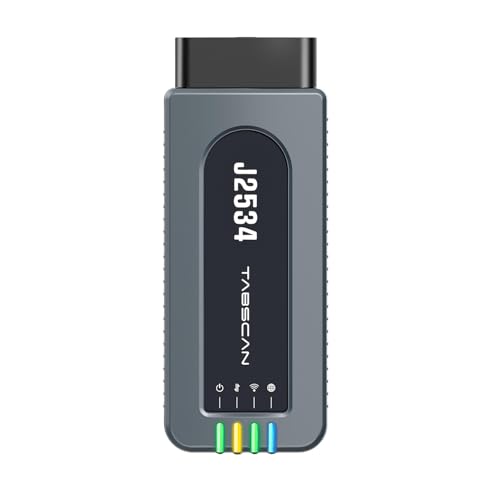
- 【J2534 Pass-Thru Device】 This budget-friendly J2534 pass-thru device delivers OEM diagnostics and reprogramming capabilities for dealerships, repair shops and automotive DIY enthuisasts, enables you diagnose, program and repair the vehicles more efficiently and precisely. Supporting J2534, D-PDU, CAN-FD and DoIP, this J2534 passthru tool ensures wide vehicle coverage. It's compatible with OE software application, ensuring seamless integration and original performance quality
- 【All-in-One Diagnostic Tool】 Simplify your workflow and tackle the complex diagnostics and repairs with confidence! This J2534 passthrough tool provides full system diagnosis, bi-directional control, maintenance reset services, ECU programming and ECU coding to run advanced diagnostics and programming. Equipped with the specialized platform, this J2534 pass-thru tool is fully compatible with OE software that helps technicians confidently handle complicated vehicle repair issues
- 【J2534 Diagnostic Tool】 The Tabscan J2534 pass-thru device is built with a dedicated platform, making it ideal for both professional and personal use. Simply download the driver for your ford vehicle within the platform—ensuring only one driver is installed at a time. Then connect the device to your vehicle’s OBD2 port and link it to your computer using the included USB A to USB C cable. Finally launch your OE software, select Tabscan J2534 VCI as interface, and begin diagnose and program
- 【Universal Compatibility】 Tabscan J2534 reprogramming tool is designed to be compatible with Ford vehicles for advanced diagnostics and programming. It supports J2534 protocols, along with D-PDU, CAN-FD and DoIP, ensuring seamless connectivity with older or modern vehicles. This J2534 diagnostic tool only works with computer running on windows 7/10/11. Vehicle compatibility varies by model or year, please confirm with us before purchase. Note: It's not compatible with 24V vehicles
- 【Professional Technical Support】 Tabscan J2534 pass-thru device provides a stable and seamless connection between your vehicle and computer for diagnostics, programming, and coding. But that's not all—we go beyond hardware. Our dedicated technical support team brings deep expertise in automotive diagnostics and programming. Whether you need help with setup, troubleshooting or latest diagnostic resources and upgrades, we provide fast, professional and reliable support every step of the way
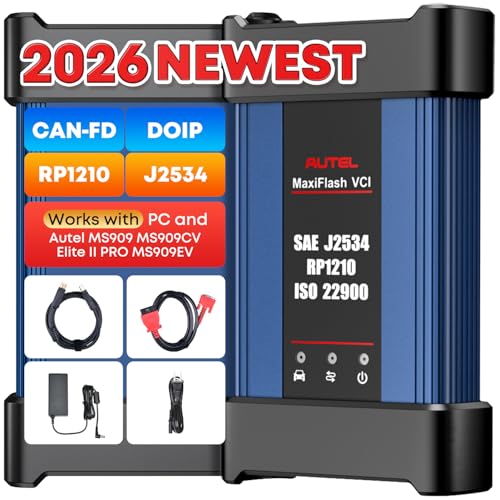
- 💯【Conta.ct us for Support Directly】For any issues experienced after purchase, please reach out to: 📞autelsupply@ outlook. com🛣️. Our team will provide perfect solution for you. For tech support or [explore additional accessory], please cont.act our team: 📞autelsupply@ outlook. com🛣️.
- 🌎【Autel J2534 Pass-Thru Progra.mmer】As an OEM Pass-Thru Progra.mmer Vehicle interface for multiple makes, Autel MaxiFlash J2534 support all J2534 protocols, D-PDU, CAN-FD and DoIP protocols. 2026 newer Autel MaxiFlash J2534 VCI can works with P-C and download OEM vehicle software, seamlessly conduct OE-level diagnostic-progra.mming-c0ding. Also, Work with Elite II Pro/ Ultra Lite/ MS909/ MS909CV/ MS909EV to directly pro.gram on Merce.des-Be.nz & BM.W. Autel J2534 Progr.ammer is a multi-functional device and supports 10+ major brands, including for Hond.a, G.M, LandRo.ver, BM.W, Chrysl.er, For.d, Hyun.dai, Ki.a, Merc.edes B.enz, Toyot.a, Volksw.agen etc.
- 🌎【Enhanced Protocol: J2534/D-PDU/RP1210/CAN FD/DoIP】Autel MaxiFlash JVCI is a blueto.oth communicate device, it supports latest CAN FD DoIP CAN protocols, compliant with automotive D-PDU/ J2534/ RP1210 standards. It can perform standard PassThru J2534 functions: compatible with Toyota Techstream, Volvo VIDA, Honda HDS, Jaguar Land Rover IDS and BM.W 3G for OEM diagnostics. CAN FD protocol is mainly for GM 2019+, DoIP protocol is mainly for Volvo 2018+, for L-and Rover/for Jaguar 2017+, for BM.W F chassis and G chassis.
- 🌎【Compatible with P-C/ WIND.OWS 】The Autel J2534 VCI can be connected to a compu.ter via a data cable; once the corresponding OEM software is installed, it enables do advanced progr.amming and c0ding on your vehicles. Easy Steps: 1) Connect to P-C via a USB cable 2) download OEM vehicle software 3) Start Diagnose. Take For.d for example, you can download OEM software on mot.orcraft.erservi.ce website, such as: For.d Diagnostic Software downloads, As B.uilt Data, Updated Cali.bration information, then use different software do relevant features.
- 🌎【Work with Autel Elite II Pro/ Ultra Lite/ MS909/ MS909CV/ MS909EV】This 2026 latest Autel J2534 Pass-Thru VCI is 100% compatible with Autel Elite II Pro Ultra Lite MS909 MS909CV MS909EV to perform advanced functions from diagnose to progra.mming.
SEOCONTENT-START
Bulletin Number: 15-280-21R; Revised: 06/17/21 Page 1 of 41 SERVICE BULLETIN Continued… CAUTION: VEHICLE SERVICING PERFORMED BY UNTRAINED PERSONS COULD RESULT IN SERIOUS INJURY TO THOSE PERSONS OR TO OTHERS. Subaru Service Bulletins are intended for use by professional technicians ONLY. They are written to inform those technicians of conditions that may occur in some vehicles, or to provide information that could assist in the proper servicing of the vehicle. Properly trained technicians have the equipment, tools, safety instructions, and know-how to do the job correctly and safely. If a condition is described, DO NOT assume that this Service Bulletin applies to your vehicle, or that your vehicle will have that condition. Subaru of America, Inc. is ISO 14001 Compliant ISO 14001 is the international standard for excellence in Environmental Management Systems. Please recycle or dispose of automotive products in a manner that is friendly to our environment and in accordance with all local, state and federal laws and regulations. NUMBER: 15-280-21R DATE: 03/18/21 REVISED: 06/17/21 APPLICABILITY: 2016-18MY Legacy/Outback 2016-18MY Impreza 2016-18MY Crosstrek 2016-18MY Forester 2017-18MY WRX SUBJECT: Gen1 Telematics Reprogramming for 3G Sunset APPLICABILITY: Applicable Vehicle Specification MY LEGACY / OUTBACK Telematics equipped with active subscription 2016 – 18 IMPREZA Telematics equipped with active subscription, except MT with Push-Button Start* 2016 – 18 CROSSTREK Telematics equipped with active subscription 2016 – 18 FORESTER Telematics equipped with active subscription 2016 – 18 WRX/STI Telematics equipped with active subscription, except MT with Push-Button Start* 2017 – 18 *See Notes on Model Applicability below for important information. Notes on Model Applicability: • Vehicles equipped with manual transmission and push-button start will follow DCM replacement procedure as outlined in TSB 15-279-21: Gen1 Telematics DCM Replacement for 3G Sunset which is applicable to manual transmission vehicles with push-button start ONLY. • A vehicle which is part of the affected Gen1 Telematics population and currently subscribed to any STARLINK Telematics Services level is eligible for this no-charge DCM software update. Unsubscribed vehicles are not included in this no-charge DCM reprogramming update. NEVER attempt this update on any unsubscribed vehicle. • In the event a DCM replacement is required on a vehicle with a MANUAL transmission and Key start OR a CVT with push-button start, refer to TSB 15-279-21R for the related Service Procedures. IMPORTANT: Vehicle Coverage and an active subscription for all affected cars must be confirmed using the Vehicle Coverage Inquiry function on subarunet.com. ATTENTION: GENERAL MANAGER PARTS MANAGER CLAIMS PERSONNEL SERVICE MANAGER IMPORTANT – All Service Personnel Should Read and Initial in the boxes provided, right. © 2021 Subaru of America, Inc. All rights reserved. Bulletin Number: 15-280-21R; Revised: 06/17/21 Page 2 of 41 Continued… OVERVIEW OF CUSTOMER CONSIDERATION: NOTE: A copy of the Customer Letter is supplied for reference at the end of this bulletin. IMPORTANT WARNINGS: • NEVER release the vehicle back to the customer until the GREEN Telematics LED is illuminated and the Telematics System passes all functional and operational checks. The only exception to this requirement would be an external concern affecting DCM operation which the customer has been informed of but elects not to correct prior to receiving this update. • Any Technician or other retailer personnel who, despite service documentation and training to the contrary performs a DCM swap on a subscribed vehicle must NEVER release the vehicle back to the customer until proper operation of the Telematics system has been confirmed. Before Beginning the No-Charge DCM Reprograming Service: Vehicles affected by this reprogramming service may also have an open Service Campaign WQZ-61R. If the Vehicle Inquiry indicates WQZ-61R is open, proceed as follows: 1. The vehicle is currently subscribed to Telematics: WQZ-61R and 3G Sunset reprogramming service are indicated as open, perform this 3G Sunset update procedure ONLY, and both the WQZ-61R campaign and the 3G Sunset service programs will close. 2. The vehicle is not currently subscribed to Telematics: WQZ-61R campaign and 3G Sunset update procedure are indicated as open, perform WQZ-61R ONLY. Refer to the WQZ-61R campaign bulletin for full details. IMPORTANT Subscription and Update Procedure Applicability Information: Vehicles eligible to receive this DCM update procedure MUST HAVE A CURRENTLY ACTIVE SUBSCRIPTION to any level of Telematics services. Coverage and confirmation of an active subscription must be confirmed using the Vehicle Coverage Inquiry function on subarunet.com. The screenshot example below shows the Telematics Subscription portion of the Vehicle Coverage Inquiry page. Here, the subscription can be confirmed as “Active” and also confirm the need to complete the DCM update procedure. The red outlined box highlights additional STARLINK information now included in this section of Vehicle Coverage Inquiry. If the subscription status is not “Active”, the vehicle is NOT ELIGIBLE for the DCM update procedure. Bulletin Number: 15-280-21R; Revised: 06/17/21 Page 3 of 41 Continued… Reprogramming File Information: Filename Keyword Starting DCM software version 86229DCM01-1.pak 4F3D5B8E DCM_05.00.10 or 05.00.17 86229DCM01-2.pk2 3B7ED9D2 DCM_05.00.22 or 05.00.30 86229DCM02.pk2 D0F868F1 DCM_06.03.17_20191029 SERVICE PROCEDURE FOR 3G SUNSET REFLASH: NOTE: Flow Charts to support the procedures below are provided starting on page 36. CRITICAL: • REFER TO APPENDIX A: 12V BATTERY / POWER SUPPLY PREPARATIONS ON PAGE 31 BEFORE PROCEEDING FURTHER! • Due to the duration of each reprogramming procedure and consecutive reprogramming file transfers required to complete this 3G Sunset reprogramming update successfully, the use of a Subaru- approved Denso SSM4 cable is STRONGLY recommended. Cables sourced from other manufacturers may not meet data transfer rate and / or interference shielding requirements to ensure error-free data transmission during reprogramming. Vehicle Preparation: 1. Enter the vehicle and observe the Telematics LED status. (See chart above as reference). a) Is the STARLINK Telematics GREEN LED on? • NO, proceed to APPENDIX B: TROUBLESHOOTING CONCERNS FOUND PRIOR TO UPGRADE on page 33. • YES, continue to Step 2 below. 2. Caution: Perform a functional check of the Telematics system by pushing the red SOS button. When the STARLINK operator answers, request the VIN and LOCATION of the vehicle. CHECK: Was the red SOS button call Successful? Bulletin Number: 15-280-21R; Revised: 06/17/21 Page 4 of 41 Continued… • YES: Proceed to Step 3. • NO: STOP THE UPGRADE PROCESS. The customer must be notified as this condition must be diagnosed and corrected before proceeding further. NOTE: This step may need to be performed outside with a clear view of the sky. It also may require multiple attempts to connect to an operator depending on available cellular coverage. NOTE: If the functional check of the Telematics system fails and the customer declines repairs, STOP THE UPGRADE PROCESS. Document the Technician’s findings on the repair order before returning the vehicle to the customer. 3. Connect the SSM4 and continue to Step 4. 4. Procedure to Verify DCM Software Version ID: a. Click “Each System” on the left-hand menu. b. Select “Telematics” from the Systems List. Bulletin Number: 15-280-21R; Revised: 06/17/21 Page 5 of 41 Continued… c. Click “Work Support” on the left-hand menu. d. Select “Software Information” from the Work Support Items list. e. Record the current version of software on RO for reference. The DCM version verification procedure is now complete. Proceed to Step 5. 5. If the current DCM software version is DCM_06.00.17_20190816, the vehicle already has the most recent software version installed. STOP, proceed to the Claim Reimbursement, and Entry Procedures section and process a Version Check Only claim. Bulletin Number: 15-280-21R; Revised: 06/17/21 Page 6 of 41 Continued… 6. If the current DCM software version is other than DCM_06.00.17_20190816, disconnect the DSTi and continue to APPENDIX A: 12V BATTERY / POWER SUPPLY PREPARATIONS on page 31 to ensure the vehicle battery is connected to the required Midtronics charger set to Power Supply Mode. 7. With the vehicle connected to Midtronics charger in Power Supply mode and the battery voltage stabilized: a) If the current software version is DCM_05-00-22 or 05-00-30 proceed to Step 8. b) If the current software version is DCM_05-00-10 or 05-00-17, proceed to Step 9. c) If the current software version is DCM_06.03.17_20191029 proceed to Step 10. 8. If the current version of DCM software from Step 6 above is 05.00.22 or 05.00.30, proceed to Step 1, Phase 1: Flashing intermediate 86229DCM01-2.pk2 on Page 8. a) WARNING: USING THE WRONG FILE FOR REFLASHING WILL IRREPARABLY DAMAGE THE DCM. NOTE: DCMs damaged as a result of using the wrong update files are not covered under warranty and resulting claims may be subject to debit. Always confirm the starting DCM software version and follow the corresponding update path. b) If the update procedure fails at any time during the initial reprogramming attempt, refer to the DCM REPROGRAMMING RETRY- APPENDIX C on page 38 and follow the applicable retry procedure. c) If the procedure fails at any time during the reprogramming and DCM communication cannot be reestablished, proceed immediately to DCM replacement. Reference TSB 15-279-21: “Gen1 Telematics DCM Replacement for 3G Sunset” beginning with Step 4 for the DCM replacement procedure. 9. If the current version of DCM software from Step 6 above is 05.00.10 or 05.00.17, proceed to Step 1 Phase 1: Flashing intermediate 86229DCM01-1.pak on page 15. a) WARNING: USING THE WRONG FILE FOR REFLASHING WILL IRREPARABLY DAMAGE THE DCM. NOTE: DCMs damaged as a result of using the wrong update files are not covered under warranty and resulting claims may be subject to debit. Always confirm the starting DCM software version and follow the corresponding update path. b) If the update procedure fails at any time during the initial reprogramming attempt, refer to the DCM REPROGRAMMING RETRY- APPENDIX C on page 38 and follow the applicable retry procedure. c) If the procedure fails at any time during the reprogramming and DCM communication cannot be reestablished, proceed immediately to DCM replacement. Reference TSB 15-279-21: “Gen1 Telematics DCM Replacement for 3G Sunset” beginning with Step 4 for the DCM replacement procedure. Bulletin Number: 15-280-21R; Revised: 06/17/21 Page 7 of 41 Continued… 10. If the current DCM software version from Step 6 above is DCM_06.03.17_20191029, Phase 1 flashing is complete. Proceed to Phase2: Flashing Gen1 VoLTE 86229DCM02.pk2 on page 23. (NOTE: It is unlikely a vehicle will present on arrival at the retailer with this software version. This version should be present after the Phase1 reflashing procedure only.) a) If the update procedure fails at any time during the initial reprogramming attempt, refer to the DCM REPROGRAMMING RETRY- APPENDIX C on page 38 and follow the applicable retry procedure. b) If the procedure fails at any time during the reprogramming and DCM communication cannot be reestablished, proceed immediately to DCM replacement. Reference TSB 15-279-21: “Gen1 Telematics DCM Replacement for 3G Sunset” beginning with Step 4 for the DCM replacement procedure. Bulletin Number: 15-280-21R; Revised: 06/17/21 Page 8 of 41 Continued… Phase 1: Flashing intermediate 86229DCM01-2.pk2 (current software version of DCM is 05.00.22 or 05.00.30): REMINDER: Due to the duration of each reprogramming procedure and consecutive reprogramming file transfers required to complete this 3G Sunset reprogramming update successfully, the use of a Subaru- approved Denso SSM4 cable is STRONGLY recommended. Cables sourced from other manufacturers may not meet data transfer rate and / or interference shielding requirements to ensure error-free data transmission during reprogramming. WARNING: Ensure the Midtronics GR8 / Midtronics DCA-8000 set to Power Supply Mode is connected to the vehicle, the parking brake is engaged, ignition is in the “ON” position, the engine is OFF, the shift selector in NEUTRAL and the wheels are blocked. The reason this must be done is to ensure the power supplied to the DCM is not turned off. If this step is not performed, the CAN will power down the DCM during the reflash and the reflashing will fail resulting in irreparable damage to the DCM. For Key Start vehicles: 1. Turn the ignition key ON (engine OFF). 2. Depress the brake pedal and move the Shift Lever into NEUTRAL. 3. Leave the ignition ON. For vehicles equipped with Keyless Access and Push-Button Start: 1. Without touching the brake pedal, press the Push Button Ignition Switch twice to put the ignition system into IG ON mode (Engine OFF). 2. Depress the brake pedal and move the Shift Lever into NEUTRAL. 3. Leave the ignition ON. CRITICAL: ATTEMPTING THIS REPROGRAMMING WITH THE VEHICLE IN PARK WILL DAMAGE THE DCM REQUIRING REPLACEMENT. Bulletin Number: 15-280-21R; Revised: 06/17/21 Page 9 of 41 Continued… 1. Connect the SDS Notebook and DSTi. Select FlashWrite2 from the SDS Notebook GUI screen. 2. Once FlashWrite 2 opens, select DCM from the VehicleSpec drop down. a) Complete entering the Vehicle Spec information. b) Click and select the PK2 file 86229DCM01-2.pk2 intermediate image in FlashWrite. NOTE: Currently, there is not a specific file listed in FlashWrite for Crosstrek Hybrid models. Use the existing Crosstrek file to update the DCM in a Crosstrek Hybrid. Bulletin Number: 15-280-21R; Revised: 06/17/21 Page 10 of 41 Continued… 3. Enter the Decryption Keyword from the table above (3B7ED9D2) and click “OK.” 4. Turn the ignition ON and Click on ‘OK’ to start the reprogram. Bulletin Number: 15-280-21R; Revised: 06/17/21 Page 11 of 41 Continued… a) Part number before and after reflash will be displayed. Click ‘OK’. (NOTE: This screen image is an EXAMPLE and may not represent the installed part number. These values will be the same before and after any reflashing. The Screen will always indicate “Forester” no matter what model or model year is being reflashed.) b) A CAN flashing progression bar will appear and start incrementing toward 100%. The update may take up to 60 minutes to complete. Bulletin Number: 15-280-21R; Revised: 06/17/21 Page 12 of 41 Continued… c) CRITICAL STEP: After the reprogramming is finished, always put a CVT equipped vehicle in PARK and ensure the ignition is turned OFF. A prompt to switch the ignition OFF will be displayed. DO NOT CLICK OK UNTIL THE VEHICLE IS IN PARK AND IGNITION IS SWITCHED OFF. NOTE: for CVT -equipped vehicles with push-button start: • WITHOUT TOUCHING THE BRAKE PEDAL, push the start button (once). • Move the selector into Park. • Push the start button again to switch the vehicle OFF. • WAIT 30 SECONDS and click OK. d) CRITICAL STEP: FlashWrite will display the banner message “Please wait about 30 seconds until Unit turns off”. This banner page has a timer built in and will NOT continue until 30 seconds have passed and the DCM has safely shutdown. There is no way to verify the DCM has shutdown except waiting to ensure the full 30 seconds has passed. The next screen, e) shown below will display automatically. Bulletin Number: 15-280-21R; Revised: 06/17/21 Page 13 of 41 Continued… e) A prompt for toggling ignition to ON will be displayed. Click on ‘OK’ f) FlashWrite will display the banner message “Please wait a moment.” CRITICAL: WAIT AT LEAST A FULL 5 MINUTES BEFORE PROCEEDING FROM THIS POINT. DURING THIS WAITING PERIOD, “REPARTITIONING” IS TAKING PLACE IN THE DCM AND CANNOT BE INTERRUPTED. DO NOT ATTEMPT ANY OTHER FUNCTIONS DURING THIS TIME (E.G. SWITCHING THE IGNITION OFF, STARTING ANOTHER UPDATE, USING THE SSM TO CHECK DCM STATUS, OPENING THE DOOR(S), ETC.). Bulletin Number: 15-280-21R; Revised: 06/17/21 Page 14 of 41 Continued… g) FlashWrite will display the banner message “Re-program was completed. Turn OFF the Ignition Switch.” 5. Verify the new DCM software version: a) Confirm SSM4 and DCM communication by retrieving the current software version. b) Click “Each System” on the left-hand menu. c) Select “Telematics” from the Systems List. d) Click “Work Support” on the left-hand menu. e) Select “Software Information” from the Work Support Items List. f) Record the current version of software on the RO for reference. i. Successful retrieval of DCM software version? Proceed to Step 6 below. ii. If SSM4 cannot communicate with DCM, DCM has current DTC(s), or the DCM software version cannot be retrieved, contact Techline for assistance before proceeding. 6. END OF PHASE 1 REFLASHING. Proceed to Step 1: Phase 2: Flashing Gen1 VoLTE 86229DCM02.pk2 on page 23. Bulletin Number: 15-280-21R; Revised: 06/17/21 Page 15 of 41 Continued… Phase 1: Flashing intermediate 86229DCM01-1.pak (If the OE Software Version is 05.00.10 or 05.00.17): REMINDER: Due to the duration of each reprogramming procedure and consecutive reprogramming file transfers required to complete this 3G Sunset reprogramming update successfully, the use of a Subaru- approved Denso SSM4 cable is STRONGLY recommended. Cables sourced from other manufacturers may not meet data transfer rate and / or interference shielding requirements to ensure error-free data transmission during reprogramming. WARNING: Ensure the Midtronics GR8 / Midtronics DCA-8000 in Power Supply Mode is connected to the vehicle, the parking brake is engaged, ignition is in the “ON” position, the engine OFF, the shift selector in NEUTRAL and the wheels blocked. The reason this must be done is to ensure the power supplied to the DCM is not turned off. If this step is not performed, the CAN will power down the DCM during the reflash and the reflashing will fail resulting in irreparable damage to the DCM. For Key Start vehicles: 1. Turn the ignition key ON (engine OFF). 2. Depress the brake pedal and move the Shift Lever into NEUTRAL. 3. Leave the ignition ON. For vehicles equipped with Keyless Access and Push-Button Start: 1. Without touching the brake pedal, press the Push Button Ignition Switch twice to put the ignition system into IG ON mode (Engine OFF). 2. Depress the brake pedal and move the Shift Lever into NEUTRAL. 3. Leave the ignition ON. CRITICAL: ATTEMPTING THIS REPROGRAMMING WITH THE VEHICLE IN PARK WILL DAMAGE THE DCM REQUIRING REPLACEMENT. Bulletin Number: 15-280-21R; Revised: 06/17/21 Page 16 of 41 Continued… 1. Connect the SDS Notebook and DSTi. Select FlashWrite2 from the SDS Notebook GUI screen. 2. Once FlashWrite 2 opens, select DCM from the VehicleSpec drop down. a) Complete entering the Vehicle Spec information. b) Click and select the Pak file 86229DCM01-1.pak intermediate image in FlashWrite. NOTE: Currently, there is not a specific file listed in FlashWrite for Crosstrek Hybrid models. Use the existing Crosstrek file to update the DCM in a Crosstrek Hybrid. Bulletin Number: 15-280-21R; Revised: 06/17/21 Page 17 of 41 Continued… 3. CAUTIONS will be displayed. Check the notices and click on “NEXT.” WARNING: In the screenshot above, the on-screen directions indicate to leave the vehicle in PARK, doing this will cause the reflash procedure to FAIL. The vehicle MUST BE LEFT IN NEUTRAL for the entire reflash procedure. Reference Step 1 above for all the vehicle conditions required for reprogramming. 4. Select the reprogramming device and click “OK”. 5. Click on “Pass Thru.” Bulletin Number: 15-280-21R; Revised: 06/17/21 Page 18 of 41 Continued… 6. Confirm the ignition is “ON” and the shift selector is in NEUTRAL. a) Turn on the ignition switch and click on ‘Next’. b) Pass-Thru preparation completed, click on Next to continue. Bulletin Number: 15-280-21R; Revised: 06/17/21 Page 19 of 41 Continued… 7. Enter the Decryption Keyword from the table above (4F3D5B8E) and click on “Next”. 8. Click on “Execute.” Bulletin Number: 15-280-21R; Revised: 06/17/21 Page 20 of 41 Continued… 9. Reprogramming will begin. Please wait. NOTE: Pay close attention to the start of the status bar progression. Failures may occur at the beginning of the procedure. Once progress is at 5%, reprogramming should continue trouble-free until 100% complete. The update may take up to 60 minutes to complete. 10. CRITICAL STEP: After the reprogramming is finished, always put a CVT equipped vehicle in PARK and ensure the ignition is turned OFF. A prompt to switch the ignition OFF will be displayed. DO NOT CLICK OK UNTIL THE VEHICLE IS IN PARK AND IGNITION IS SWITCHED OFF. Bulletin Number: 15-280-21R; Revised: 06/17/21 Page 21 of 41 Continued… NOTE: for CVT -equipped vehicles with push-button start: • WITHOUT TOUCHING THE BRAKE PEDAL, push the start button (once). • Move the selector into Park. • Push the start button again to switch the vehicle OFF. • WAIT 30 SECONDS and click OK. 11. CRITICAL STEP: WAIT 30 seconds, cycle the ignition key or push-button start from OFF to ON then click “Next.” CRITICAL: WAIT AT LEAST A FULL 5 MINUTES BEFORE PROCEEDING FROM THIS POINT. DURING THIS WAITING PERIOD, “REPARTITIONING” IS TAKING PLACE IN THE DCM AND CANNOT BE INTERRUPTED. DO NOT ATTEMPT ANY OTHER FUNCTIONS DURING THIS TIME (E.G. SWITCHING THE IGNITION OFF, STARTING ANOTHER UPDATE, USING THE SSM TO CHECK DCM STATUS, OPENING THE DOOR(S), ETC.). Bulletin Number: 15-280-21R; Revised: 06/17/21 Page 22 of 41 Continued… 12. “Reprogramming is now complete” is displayed. Click on “Finish”. 13. With the vehicle in Park and the ignition on: a) Confirm SSM4 and DCM communication by retrieving the current software version. b) Click “Each System” on the left-hand menu. c) Select “Telematics” from the Systems List. d) Click “Work Support” on the left-hand menu. e) Select “Software Information” from the Work Support Items List. f) Record the current version of software on RO for reference. i. After successful retrieval of the software version, proceed to Step 14. NOTE: If SSM4 cannot communicate with DCM, DCM DTCs are current, or the DCM software version cannot be retrieved, contact Techline for assistance before proceeding. 14. END OF PHASE 1 REFLASHING. Proceed to Step 1: Phase 2: Flashing Gen1 VoLTE 86229DCM02.pk2 on page 23. Bulletin Number: 15-280-21R; Revised: 06/17/21 Page 23 of 41 Continued… Phase 2: Flashing Gen1VoLTE 86229DCM02.pk2 (if intermediate flash DCM version is DCM_06.03.17_20191029): REMINDER: Due to the duration of each reprogramming procedure and consecutive reprogramming file transfers required to complete this 3G Sunset reprogramming update successfully, the use of a Subaru- approved Denso SSM4 cable is STRONGLY recommended. Cables sourced from other manufacturers may not meet data transfer rate and / or interference shielding requirements to ensure error-free data transmission during reprogramming. WARNING: Ensure the Midtronics GR8 / Midtronics DCA-8000 in Power Supply Mode is connected to the vehicle, the parking brake is engaged, ignition is in the “ON” position, the engine OFF, the shift selector in NEUTRAL and the wheels blocked. The reason this must be done is to ensure the power supplied to the DCM is not turned off. If this step is not performed, the CAN will power down the DCM during the reflash, the update will fail and result in irreparable damage to the DCM. For Key Start vehicles: 1. Turn the ignition key ON (engine OFF). 2. Depress the brake pedal and move the Shift Lever into NEUTRAL. 3. Leave the ignition ON. For vehicles equipped with Keyless Access and Push-Button Start: 1. Without touching the brake pedal, press the Push Button Ignition Switch twice to put the ignition system into IG ON mode (Engine OFF). 2. Depress the brake pedal and move the Shift Lever into NEUTRAL. 3. Leave the ignition ON. CRITICAL: ATTEMPTING THIS REPROGRAMMING WITH THE VEHICLE IN PARK WILL DAMAGE THE DCM REQUIRING REPLACEMENT. Bulletin Number: 15-280-21R; Revised: 06/17/21 Page 24 of 41 Continued… 1. Connect SDS Notebook and DSTi. Select FlashWrite2 from the SDS Notebook GUI screen. 2. Once FlashWrite 2 opens, select DCM from the VehicleSpec drop down. a) Complete entering the Vehicle Spec information. b) Click and select the PK2 file 86229DCM02.pk2 intermediate image in FlashWrite. NOTE: Currently, there is not a specific file listed in FlashWrite for Crosstrek Hybrid models. Use the existing Crosstrek file to update the DCM in a Crosstrek Hybrid. 3. Enter the Decryption Keyword from the table above (D0F868F1) and click “OK”. Bulletin Number: 15-280-21R; Revised: 06/17/21 Page 25 of 41 Continued… a) Turn the ignition switch ON and Click on ‘OK’ to start the reprogram. b) Part numbers before and after reflash will be displayed. Click ‘OK’. (NOTE: This screen image is an EXAMPLE and may not represent the installed part number. These values will be the same before and after any reflashing. The Screen will always indicate “Forester” no matter what model or model year is being reflashed.) Bulletin Number: 15-280-21R; Revised: 06/17/21 Page 26 of 41 Continued… A CAN flashing progression bar will appear and start incrementing toward 100%. The update may take up to 60 minutes to complete. c) CRITICAL STEP: After the reprogramming is finished, always put a CVT equipped vehicle in PARK and ensure the ignition is turned OFF. A prompt to switch the ignition OFF will be displayed. DO NOT CLICK OK UNTIL THE VEHICLE IS IN PARK AND IGNITION IS SWITCHED OFF. NOTE: for CVT -equipped vehicles with push-button start: • WITHOUT TOUCHING THE BRAKE PEDAL, push the start button (once). • Move the selector into Park. • Push the start button again to switch the vehicle OFF. • WAIT 30 SECONDS and click OK. Bulletin Number: 15-280-21R; Revised: 06/17/21 Page 27 of 41 Continued… d) CRITICAL STEP: FlashWrite will display the banner message “Please wait about 30 seconds until Unit turns off”. This banner page has a timer built in and will NOT continue until 30 seconds have passed and the DCM has safely shutdown. There is no way to verify the DCM has shutdown except waiting to ensure the full 30 seconds has passed. The next screen, e) shown below will display automatically. e) The prompt for switching the ignition to ON will be displayed. Click on ‘OK.’ Bulletin Number: 15-280-21R; Revised: 06/17/21 Page 28 of 41 Continued… f) FlashWrite will display the banner message “Please wait a moment.” CRITICAL: WAIT at least a FULL 5 MINUTES before proceeding from this point. During this waiting period, “Repartitioning” is taking place in the DCM and CANNOT be interrupted. DO NOT attempt any other functions during this time (e.g. switching the ignition off, starting another update, using the SSM to check DCM status, opening the door(s), etc.). g) FlashWrite will display the banner message “Re-program was completed. Turn OFF the Ignition Switch.” 4. Verify the new DCM software version. a) Click “Each System” on the left-hand menu. Bulletin Number: 15-280-21R; Revised: 06/17/21 Page 29 of 41 Continued… b) Select “Telematics” from the Systems List. c) Click “Work Support” on the left-hand menu. d) Select “Software Information” from the Work Support Items List. e) Record the current version of software on the RO for reference. i. The final version of DCM software should be DCM_06.00.17_20190816. 1. If the final version is correct, proceed to Step 5. 2. If the final version is not correct, record the DCM software version and contact Techline. END OF PHASE 2 REFLASHING. 5. Start the vehicle. Observe and confirm if the overhead console or stereo camera cover assembly’s Telematics GREEN LED is illuminated. If the GREEN LED is illuminated, proceed to Step 6. a) The presence of a RED LED indicates a problem. STOP and do not proceed until the presence of current DTCs has been verified. Follow appropriate STIS, TSB, or TechTIPs information to resolve the RED Telematics LED. Contact Techline for further assistance. b) The presence of RED and GREEN LEDs indicates a problem. STOP and do not proceed. Follow appropriate STIS, TSB, or TechTIPs information to resolve RED Telematics LED. Contact Techline for further assistance. 6. CAUTION: For all vehicles perform a functional check of the Telematics system: a) Push the red SOS button and connect to the STARLINK call center. Have the operator confirm the VIN and location of the vehicle. NOTE: For Vehicles subscribed to STARLINK Safety Plus, there are no remote services to test with this level of service. i. SOS button call Successful: Perform Step 7 if the vehicle is subscribed to STARLINK Safety Plus and Security Plus as the function of remote services must be confirmed. Otherwise, the update process is complete. Bulletin Number: 15-280-21R; Revised: 06/17/21 Page 30 of 41 Continued… ii. SOS button call Unsuccessful: Move the car to a new location and try again. If still unsuccessful in completing the SOS button call and reaching an operator, collect at least 30 seconds of Telematics DCM data then contact Techline for additional support. Provide details of all steps followed to this point and the collected Telematics data. After diagnosis and repair, perform Step 5 (and where applicable Step 6) as final confirmation of functionality. NOTE: If the Telematics LED changes to RED after pushing the red SOS button, but the Technician was still able to reach an operator and confirm the vehicle’s VIN and location, collect at least 30 seconds of Telematics DCM data and contact Techline for additional support. Provide details of all steps followed to this point and the collected Telematics data. 7. If the vehicle is equipped with a STARLINK Safety Plus and Security Plus subscription, have the customer verify remote services operation by performing a remote service request for a door unlock, or horn and light flash. a) Remote service request is Successful: Update is complete, and the vehicle can be released to the customer. b) Remote Service request is NOT Successful: Move the vehicle to a new location and try again. If still unsuccessful, contact Techline for additional support. Collect at least 30 seconds of Telematics DCM data and contact Techline for additional support. Provide details of all steps followed to this point and the collected Telematics data. Bulletin Number: 15-280-21R; Revised: 06/17/21 Page 31 of 41 Continued… APPENDIX A: 12V BATTERY / POWER SUPPLY PREPARATIONS: CRITICAL: USE of a DCA-8000 or GR8 -1100 charger in Power Supply Mode is required to maintain a stable battery float voltage during the reflash procedure. A battery in a condition where POWER SUPPLY MODE is insufficient to maintain the necessary level of battery voltage due to battery maintenance needs and / or charging is outside the scope of the reprogramming service. Customers must be informed immediately of the inability to perform the reprogramming service due to needed battery maintenance which is outside this reprogramming service’s coverage scope and have repairs completed prior to attempting the update. • This information applies to the Subaru Midtronics DCA-8000 Dynamic Diagnostic Charging System and GR8-1100 Diagnostic Battery Charger ONLY. It does not apply to any other brand/type of “generic” battery charger whatsoever. ONLY the DCA-8000 and GR8-1100 and their Power Supply Mode features have been tested and approved by SOA. • Once the DCA-8000 or GR8-1100 is connected to the vehicle, it takes less than 3 minutes to boot-up the charger, select Power Supply Mode, and have the battery voltage stabilized and ready for reprogramming. • A battery in a condition where POWER SUPPLY MODE is insufficient to maintain the necessary level of battery voltage due to battery maintenance needs (Examples: presence of terminal corrosion, low electrolyte level, age, or any other factors preventing steady power supply) and / or extensive charging needed due to state of charge is outside the scope of the reprogramming service. • If the battery cannot be recovered enough to proceed using power supply mode within a reasonable time, the customer must be informed immediately of the inability to perform the reprogramming service due to needed battery maintenance or charging which is outside this service program’s coverage scope in order to have the condition resolved prior to attempting this update. • Amperage will fluctuate based upon the vehicle’s demand for power. • Confirm all electrical loads such as lights, audio, HVAC, seat heaters, and rear defroster are all switched to OFF before setting up the charger for Power Supply Mode. • If using a DCA-8000 Dynamic Diagnostic Charging System, set the power supply voltage to 13.5 volts. • Input the Cold Cranking Amperage (CCA), which matches the vehicle’s battery. • NOTE: OE and replacement batteries have different CCA ratings. Always confirm the battery’s CCA rating before proceeding. • Select the correct battery type (Flooded, EFB, Gel, AGM, or AGM Spiral). • For more instructions on using the Power Supply Mode, reference the applicable User Manual for the Midtronics DCA-8000 Dynamic Diagnostic Charging System and / or the Midtronics GR8-1100 Diagnostic Battery Charger on STIS. Bulletin Number: 15-280-21R; Revised: 06/17/21 Page 32 of 41 Continued… IMPORTANT NOTES: • NEVER connect the DST-i until the Power Supply Mode function has completed its battery test mode and the Charging Voltage has dropped to a steady 13.5 Volts on the display. • Once Power Supply Mode reaches a steady 13.5 volts, connect the DST-i to the OBD connector. • If the battery voltage rises above 14V while the reprogramming is in process, the procedure will abort. Charging voltage above 14V can indicate a need to test or charge the vehicle battery before any further reprogramming attempt is made. CRITICAL: Power Supply Mode voltage must be stabilized at 13.5 Volts before proceeding. Return to page 6 Step 7 only after the Midtronics equipment is connected in Power Supply Mode and the voltage has stabilized. Bulletin Number: 15-280-21R; Revised: 06/17/21 Page 33 of 41 Continued… APPENDIX B: TROUBLESHOOTING CONCERNS FOUND PRIOR TO UPGRADE: 1. If the Telematics LED is RED, STOP THE UPGRADE PROCESS. The customer must be notified of this condition before any work begins. DTC repair is not included in the scope of work for this no-charge upgrade. The reprogramming service cannot be attempted until the Telematics system is DTC free and the Telematics LED is GREEN. 2. If the Telematics LED is RED and Telematics a DTC(s) (other than B2A0E) is current: STOP THE UPGRADE PROCESS. The customer must be notified of this condition before any work begins. DTC repair is not included in the scope of work for this no-charge upgrade. The reprogramming service cannot be attempted until the Telematics system is DTC free and the Telematics LED is GREEN. 3. Telematics LED is NOT GREEN and no DTC(s) is current (other than B2A0E or B2A0C- See NOTES: above): STOP THE UPGRADE PROCESS. The customer must be notified of this condition before any work begins. DTC repair is not included in the scope of work for this nocharge upgrade. The reprogramming service cannot be attempted until the Telematics system is DTC free and the Telematics LED is GREEN. NOTE: DTC EXCEPTION CASES: DTC B2A0E: MUTE LINE CIRCUIT may be found in many older DCMs without a current hard fault. Clear the DTC B2A0E and see if it resets after an ignition cycle. a. If DTC B2A0E resets as current, it should be considered a “hard” DTC. Follow Step 2 above. b. If B2A0E does not reset as current after an ignition cycle, it is not considered a hard fault. Proceed with Step 2 on page 3. 4. If the customer approves needed repairs, the Telematics system now displays a GREEN LED and no other DTCs are present, proceed to Step 2 on page 3. 5. If the customer declines needed repairs, STOP THE UPGRADE PROCESS. Document the Technician’s findings on the repair order before returning the vehicle to the customer. END OF PROCEDURE, RETURN CAR TO CUSTOMER. Bulletin Number: 15-280-21R; Revised: 06/17/21 Page 34 of 41 Continued… Continued… PARTS INFORMATION (SUPPLIED FOR REFERENCE ONLY): New TELEMATICS UNIT Part # (VOLTE) Old TELEMATICS UNIT Part # (NON-VOLTE) 86229AL10B 86229AL00A 86229AL00B 86229AL00C 86229AL10B 86229AL10A 86229AL11B 86229AL01A 86229AL01B 86229AL01C 86229AL11B 86229AL11A 86229FL002 86229FL000 86229FL001 86229FL012 86229FL010 86229FL011 86229FL00C 86229FL00A 86229FL00B 86229FL01C 86229FL01A 86229FL01B 86229VA100 86229SG000 86229SG001 86229SG002 86229VA110 86229SG010 86229SG011 86229SG012 NOTE: The OLD part numbers listed above may not be an exact match to those installed in the vehicle as production part numbers are different from service/ repair part numbers. Always refer to the Electronic Parts Catalog (EPC) using the vehicle VIN to ensure the correct DCM replacement part is selected. Use the EPC part number and the chart above or RPM supersession to determine the correct NEW DCM part number to install only if DCM arrives failed or fails during update procedure. If DCM replacement is required, refer to the applicable Service Manual for procedures and bulletin 15-266-20R for provisioning confirmation. Never install any of the OLD part numbers listed. CLAIM REIMBURSEMENT AND ENTRY PROCEDURES: Credit to perform this reprogramming service will be based on the submission of adequately completed repair order information. IMPORTANT NOTE: IMPORTANT NOTES: • All claims must be submitted using Policy Adjustment (PA) Claim Type ONLY. Submissions using any other Claim Type will be rejected. Bulletin Number: 15-280-21R; Revised: 06/17/21 Page 35 of 41 Continued… • ONLY these Labor Operation numbers and Fail Code are to be used when submitting the claim for this reprogramming service. • NEVER use the Labor Operation numbers and Fail Code from the Labor Time Guide. • Alternate transportation reimbursement (rental / loaner) or towing expenses may not be claimed for this reprogramming service. Labor Description Labor Operation # Labor Time Fail Code Claim Type 3G SUNSET VOLTE SOFTWARE VERSION CHECK ONLY A067-938 0.2 ZTX-43 PA 3G SUNSET VOLTE SOFTWARE DCM SOFTWARE UPDATE A067-928* 1.9 RETRY, 3G SUNSET VOLTE DCM SOFTWARE UPDATE C067-919** S.T. 3G SUNSET VOLTE SOFTWARE DCM SOFTWARE UPDATE FAILURE / DCM REPLACEMENT B067-904* 2.3 RETRY, 3G SUNSET VOLTE DCM SOFTWARE UPDATE C067-919** S.T. *Please note in the claim comments if the vehicle had an open WQZ-61R campaign and it will be closed with either of these submissions. ** This operation number can only be claimed when a software update retry is performed / attempted. For all software update retry work, an accurate punch count must be recorded. The Straight Time (S.T.) Labor Time for operation number C067-919 is not to exceed 2.0 hours. IMPORTANT REMINDERS: • SOA strongly discourages the printing and/or local storage of service information as previously released news and electronic publications may be updated at any time. • Always check for any open recalls or campaigns anytime a vehicle is in for servicing. • Always refer to STIS for the latest service information before performing any repairs. Bulletin Number: 15-280-21R; Revised: 06/17/21 Page 36 of 41 Continued… Reflash Precheck Flow Precheck Step 1: Customer declines diagnosis of repair condition. STOP. End of Procedure until required diagnosis and repairs have been completed. Document Technician findings on Repair Order. Precheck Step 1: 1. STOP the upgrade. 2. Inform customer repairs outside the scope of upgrade reprogramming service may be needed. Customer authorization for diagnosis is required prior to continuing. Precheck Step 1: Telematics LED is displaying solid RED, RED and GREEN Flashing or RED and GREEN LEDs are dark (no color visible). Precheck Step 1: Telematics LED is displaying solid GREEN. Precheck Step 1: Make note of the Telematics LED status. Precheck Step 1: Customer authorizes additional diagnosis and repair. Telematics system is DTC free and Telematics LED is GREEN. Precheck Step 1: Refer to TELEMATICS LED NOT GREEN in APPENDIX B on page 33. Use SSM4 to check for the presence of any Telematics DTCs. If B2A0C or B2A0E are in memory, this does not prevent completion of the reprogramming service. Precheck Step 3 (continued): Customer declines required maintenance work. END of Procedure until required maintenance has been completed. Document Technician findings on Repair Order. Precheck Step 4: Connect the SSM4 to the vehicle. Precheck Step 3: Red SOS button push SUCCESSFULLY connects to an operator. VIN and Location ARE confirmed. Precheck Step 3: Red SOS button push FAILS to make connection to an operator. VIN and Location ARE NOT confirmed. Precheck Step 3 (continued): Customer approves / completes maintenance work. Telematics system is now DTC free, GREEN LED and connecting to an operator. Continue with reprogramming service. Precheck Step 2: Press the red SOS button to perform a functional check of Telematics confirming VIN and location once connected to a call center operator. Precheck Step 3 (continued): 1. STOP the upgrade. 2. Inform customer repairs needed are outside scope of upgrade reprogramming service. Customer authorization decision on needed maintenance activity is required prior to continuation of reprogramming service. Precheck Step 5: If the current version of DCM software is: DCM_06.00.17_20190816, the vehicle has the most recent version of software. STOP, take no further action and release the car back to the customer. Proceed to the Claim Reimbursement, and Entry Procedures section and process a Version Check Only claim. If the current version of DCM software is not one of the listed versions, STOP. Take no further action and verify the car is part of the target population before proceeding. Precheck Step 7: With the vehicle connected to the Midtronics equipment in Power Supply mode and battery voltage stabilized, continue procedure on Reflash Flashing Flowchart. Precheck Step 6: Verify Current DCM Software Version. Follow Procedure to verify DCM Software Version ID in the TSB for help on performing this task. Is DCM Software Version 05.00.10 05.00.17 05.00.22 05.00.30 YES – Proceed to connect the Midtronics to the vehicle in Power Supply Mode. Precheck Step 6: Open the hood and connect Midtronics GR8 / Midtronics DCA-8000 in Power Supply Mode. Refer to 12V Battery / Power Supply Preparations APPENDIX A on page 31 for more information. Bulletin Number: 15-280-21R; Revised: 06/17/21 Page 37 of 41 Continued… Reflash Flashing Flow Precheck Step 5: If the current version of DCM software is DCM_06.00.17_20190816, the vehicle has already received the reflash or the DCM was replaced and is equipped with the most recent version of software. Take no further action. Proceed to the Claim Reimbursement, and Entry Procedures section and process a Version Check Only claim. Precheck Step 7: With Midtronics equipment connected, confirm DCM software is one of the following: SW 05.00.10, 05.00.17, 05.00.22 or 05.00.30. If DCM version has not been confirmed in Step 4, perform Procedure to verify DCM Software Version ID in the TSB before proceeding. Precheck Step 8: Confirm DCM software version. If current version of DCM software is 05.00.22 or 05.00.30, proceed to Step 1: Phase 1: Flashing intermediate 86229DCM01-2.pk2. Precheck Step 9: Confirm DCM software version. If current version of DCM software is 05.00.10 or 05.00.17, proceed to Step 1: Phase 1: Flashing intermediate 86229DCM01-1.pak. Follow Procedure on page 15: Phase1: Flashing intermediate 86229DCM01-1.pak (If the OE SW Version is 05.00.10 or 05.00.17.) Follow Procedure on page 8: Phase 1: Flashing intermediate 86229DCM01-2.pk2 (Current version of DCM software is 05.00.22 or 05.00.30.) Precheck Step 8b (continued): Reflash FAILS in mid-progress. Refer to APPENDIX C: DCM REPROGRAMMING RETRY. Follow applicable retry strategy as directed by APPENDIX C. Precheck Step 9b (continued): Reflash FAILS in mid-progress. Refer to APPENDIX C: DCM REPROGRAMMING RETRY. Follow applicable retry strategy as directed by APPENDIX C. Reflash Fails or DCM Version fails to update Reflash FAILS at any time in Phase 2. Phase 2 reflash complete successfully but DCM software version fails to update to correct version. Precheck Step 8b: Reflash FAILS at any time in Phase 1: If DCM reflash procedure fails while in progress of Phase 1, DCM replacement will be necessary to complete service campaign on eligible vehicle. Precheck Step 9: Confirm DCM software version. If current version of DCM software is 05.00.10 or 05.00.17, proceed to Step 1: Phase 1: Flashing intermediate 86229DCM01-1.pak. Precheck Step 7c: If the current version of DCM software is DCM_06.03.17_20191029, Phase 1 reflashing is complete proceed to Phase 2: Flashing Gen1VoLTE 86229DCM02.pk2 (NOTE: It is unlikely a vehicle will enter the repair facility with this version. This version should only be present after Phase1 reflashing procedure has been completed.) Precheck Step 10: If the current version of DCM software is DCM_06.03.17_20191029, Phase 1 flashing is complete proceed to Phase 2: Flashing Gen1VoLTE 86229DCM02.pk2. (NOTE: It is unlikely a vehicle will enter the repair facility with this version. This version should only be present after Phase1 reflashing procedure has been completed.) Follow Procedure on page 23: Phase2: Flashing Gen1 VoLTE 86229DCM02.pk2 DCM software version is DCM_06.03.17_20191029 Reflash Complete: Step 6 of Reflash procedure: Phase2: Flashing Gen1 VoLTE 86229DCM02.pk2. on page 23. 1. Perform functional test of the Telematics system with red SOS button push requesting VIN and location from an operator. 2. If vehicle equipped with remote services, it is highly recommended to confirm operation by having customer perform remote horn honk. Reflash is SUCCESSFUL: Verify DCM is communicating by retrieving DCM software version number. Proceed to Functional Check of Telematics System. Functional Check of Telematics System FAILED: VEHICLE CANNOT BE RELEASED TO CUSTOMER! DIAGNOSIS AND REPAIR MUST BE PERFORMED TO RETURN VEHICLE TO OPERATIONAL STATE IT ARRIVED IN. Refer to TSBs: 15-267-20 and 15-195-16R for assistance in testing and operational compliance. Functional Check to Telematics System SUCCESSFUL: Release vehicle back to customer. Precheck Step 10a: Cycle ignition off for 3 to 5 minutes, then back to on. Refer to APPENDIX C: DCM REPROGRAMMING RETRY. Follow applicable retry strategy as directed by APPENDIX C. Bulletin Number: 15-280-21R; Revised: 06/17/21 Page 38 of 41 Continued… APPENDIX C: DCM Reprogramming Retry Strategies DCM Reprogramming Retry Strategy for Reprogramming Failures Occurring During Update Completion: REMINDER: Due to the duration of each reprogramming procedure and consecutive reprogramming file transfers required to complete this 3G Sunset reprogramming update successfully, the use of a Subaru- approved Denso SSM4 cable is STRONGLY recommended. Cables sourced from other manufacturers may not meet data transfer rate and / or interference shielding requirements to ensure error-free data transmission during reprogramming. If either of the reprogramming updates fail (update completion is less than 100%), make another attempt to reprogram using the last file attempted from the beginning of that file’s procedure after confirming the correct file was being used. It does not matter if the reprogramming failure occurs on the first or second update file installation attempt. If it was the second update file installation that failed and installation of it fails again, an attempt should be made to start over from the beginning of the entire procedure and try to install the first update pak file again. The following three retry procedures are intended to prevent unnecessary DCM replacement. Each retry procedure should be attempted up to three times with a five minute pause between each. Retry Procedure 1 is to be used when either the first or second file installation failed- Try up to one additional time after the initial failed attempt on either file. For example: 86229DCM01-1.pak fails in the middle of reprogramming. The Technician would perform Appendix C Retry Procedure 1 (Attempt 2). Retry Procedure 2 is to be used following Retry Procedure 1 (Attempt 2) in a case where the file installation of Appendix C Retry Procedure 1 (Attempt 2) failed. The Technician should now perform Appendix C Retry Procedure 2 (Attempt 3) to make one final effort to complete reprogramming with that file. If reprogramming is successful, continue the procedure as outlined in the TSB. If the second reprogramming file is the next step, understand that it may be necessary to perform this same process again with the second file should an initial reprogramming attempt fail. If, after a total of three (3) attempts, DCM recovery is still unsuccessful, proceed with DCM replacement. Refer to TSB 15-279-21R “Gen1 Telematics DCM Replacement for 3G Sunset,” starting with Step 4 of the DCM replacement procedure. Retry Procedure 3 is to be used in a case when both files appear to have successfully completed, but the DCM version does not match the intended final version as listed in the bulletin. In this case, the Technician should attempt another reprogramming of the DCM, starting over again with the first file. Follow the TSB as if it was the first time the procedure is being performed on the vehicle. If, after a total of two (2) complete reprogramming attempts, DCM recovery is still unsuccessful, proceed with DCM replacement. Refer to TSB 15-279-21R “Gen1 Telematics DCM Replacement for 3G Sunset,” starting with Step 4 of the DCM replacement procedure. IMPORTANT STEPS: • Ensure the vehicle is connected to the Midtronics DCA8000 in power supply mode and voltage has stabilized. • Ensure the reprogramming is being performed with the CVT selector in Neutral with the parking brake set. • As each update file is completed, ALWAYS: Bulletin Number: 15-280-21R; Revised: 06/17/21 Page 39 of 41 Continued… 1. Move the CVT selector into Park. 2. Turn the ignition to OFF and remove the ignition key or, confirm the START button LED is OFF. 3. WAIT A FULL 30 SECONDS before turning the ignition ON again. Retry Procedure 1 (attempt #2): 1. Ensure the vehicle has been powered OFF with the selector in Park and the ignition key has been removed for 5 minutes before starting the next reprogramming attempt. 2. Confirm the correct file was applied based on Repair Order notes. Re-attempt to install the file which failed again from the beginning of that file’s procedure. a. If the retry attempt is successful, continue to follow the TSB and proceed to the next steps as instructed. b. If the first retry attempt is unsuccessful, move the selector to Park and the ignition to OFF in preparation of continuing with Retry Procedure 2 (attempt #3) below. Retry Procedure 2 (attempt #3): 1. Ensure the vehicle has been powered off for at least 5 minutes before the next reprogramming attempt. 2. Perform the reprogramming from the beginning of the TSB procedure. If that file installation is successful, continue to follow the TSB procedure and move ahead to the next steps as instructed. a. IF the file installation is not successful, move the selector to Park and switch the ignition to OFF. DCM replacement is now necessary. b. Refer to TSB 15-279-21: “Gen1 Telematics DCM Replacement for 3G Sunset” starting with Step 4 of the DCM replacement procedure. DCM Reprogramming Retry Strategy for Reprogramming Failures Resulting in DCM Software Failing to Update to Version DCM_06.00.17_20190816: In a case where both the first and second reprogramming file updates complete successfully BUT, the DCM Software Version fails to update to DCM_06.00.17_20190816, another reprogramming attempt must be made beginning with the first reprogramming file and application procedure. IMPORTANT STEPS: • Ensure the vehicle is connected to the Midtronics DCA8000 in power supply mode and voltage has stabilized. • Ensure the reprogramming is being performed with the vehicle in Neutral with the parking brake set. • Ensure once reprogramming has completed the selector is moved to Park and the vehicle is turned OFF for at least A FULL 30 SECONDS before switching the ignition back on for any reason. Bulletin Number: 15-280-21R; Revised: 06/17/21 Page 40 of 41 Continued… Retry Procedure 3 (attempt #2): 1. Ensure the vehicle has been switched OFF for 5 MINUTES before beginning the next reprogramming attempt. 2. The original DCM software version was recorded on the Repair Order in Step “e” on page 5 of the TSB. Reference this version and proceed with Step 7a or 7b as applicable to the recorded ORIGINAL DCM software version. 3. Continue following the TSB in its entirety from this point as if it is the first time the procedure is being attempted. NOTES: Following a single file’s reprogramming failure, it may be necessary to refer to Retry Procedure 1 and Retry Procedure 2 above to continue attempting successful reprogramming. Should the reprogramming complete a second time without the DCM Software Version updating to DCM_06.00.17_20190816, DCM replacement is necessary. Reference TSB 15-279-21: “Gen1 Telematics DCM Replacement for 3G Sunset” starting with Step 4 of the DCM replacement procedure. Bulletin Number: 15-280-21R; Revised: 06/17/21 Page 41 of 41
**************************************************************************************************************
SEOCONTENT-END
This product presentation was made with AAWP plugin.