NHTSA ID Number: 10241811
Manufacturer Communication Number: Subaru TechTips
Summary
Subaru Service and Technical Support Line Newsletter. (QMR of the month).
Articles Contained in this Issue
Click on a title below to jump to the article.
Click the date located in the footer to return to page 1.
CODE ARTICLE – PAGE
(00) STIS New Releases – 21
(01) QMR of the Month – 1-2
(01) QMR of the Month Award Presentations – 2
Tech Tips Greatest Tips
(01) UNDERSTANDING POWER SUPPLY – 3-5
(07) Door Lock Backup Unit Revisited – Door locks inop. after the vehicle is shut off – 6-10
(10) Air Conditioning Refrigerant Types – 11
(15) All Vehicles Equipped With CP 1.5, Auxiliary Port Noise – 12
(15) Microphone Troubleshooting – 13-16
(15) Repairing Starlink Telematics DTCs – 16-18
(20) Solterra Power Windows inop, Accessory Illuminated Sill Plates – 19-20
1 Affected Product
Vehicle
1 Associated Document
Manufacturer Communications
TIPS0723 – 2023 July TechTIPS Newsletter
MC-10241811-0001.pdf 3976.622KB
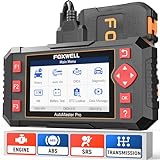
- [Easy to Use—Work Out of the Box] + [FOXWELL 2026 New Version] FOXWELL NT604 Elite scan tool is the 2026 new version from FOXWELL, designed for car owners who want to figure out the cause of issues before fixing car problems by scanning common systems like ABS, SRS, engine, and transmission. The NT604 Elite obd2 scanner diagnostic tool comes with the latest software—no need to waste time downloading software first. Plug the scanner into the OBDII port with OBDII cable to start the diagnosis.
- [Affordable] + [Reliable Car Health Monitor] Will you be confused what happens when the warning light of ABS/SRS/transmission/check engine flashes? Instead of taking your cars to dealership, this FOXWELL scanner will help you do a thorough scanning and detection for your cars and pinpoint the root cause. Note:The device is a diagnostic tool, not a repair tool. To turn off a warning light, you must first physically repair the issue causing it. Only then can the scanner be used to clear the corresponding fault code.
- [5 in 1 Car Diagnostic Scanner] Compared with obd scanners (50-100), NT604 Elite code scanner not only includes their OBDII diagnosis but also serves as ABS/SRS scanner, transmission and check engine code reader. When it’s an odb2 scanner, you can use it to check if your car is ready for annual test through I/M readiness menu. In addition, live data stream, built-in DTC library, data play back and print, all these features are a big plus for it. Note: doesn't support maintenance functions like reset or relearn. For the SRS system, NT604 Elite can read and clear common fault codes not caused by a crash, but crash/collision data cannot be cleared.
- [Fantastic AUTOVIN] + [No extra software fee] Through the AUTOVIN menu, this NT604 Elite car scanner allows you to get your V-IN and vehicle info rapidly, no need to take time to find your V-IN and input one by one. What's more, the NT604 Elite ABS SRS scanner supports 60+ car brands from worldwide (America/Asia/Europe). You don’t need to pay extra software fee. AUTOVIN may not work on some older vehicles or certain vehicle brands. If AUTOVIN fails, please input the vin code manually or go to the Diagnostic Menu to select your vehicle model.
- [Solid protective case KO plastic carrying bag] + [Lifetime update] Almost all same price-level car scanner diagnostic tool only offers plastic bag to hold the scanner.However, NT604 Elite automotive scanner is equipped with solid protective case, preventing your obd2 scanner from damage. Then you don’t need to pay extra money to buy a solid toolbox.

- 【Reset ABS/SRS/Transmission/Engine Lights】 More than an check engine code reader, OBDMATE OM901 obd2 scanner performs comprehensive diagnostics for the 4 most-used systems (ABS/SRS/Engine/Transmission). It quickly clears fault codes, turns off warning lights, read data stream and auto VIN.
- 【3.5" Handheld Scanner with 4 System Diagnose】 3.5" Super large TFT screen equipped displays an intuitive menu and clear readings of various sensors from ABS, SRS, ECM and TCM
 systems. It arrived with a silicone protective case and hard-shell carrying case, ensuring long-lived durability and drop resistance. The car diagnostic tool is plug-to-play designed, plug it and get diagnosis started without any batteries or updates required.
 - 【One-Click I/M Readines&Full OBD2 Functions】 Press F1 to get an intuitive corloured form about whether various emissions-related systems on the vehicle are operating properly. Help you get smog-check ready quickly. OM901 car scanner supports all essential OBD2 functions you need: read & clear codes, view freeze frame, read I/M readiness, retrieve VIN, live data stream (with graphing display), O2 sensor test, onboard monitoring mode, and EVAP leak test.
- 【Battery Voltage Check&DLC Pin Test】 It allows you to monitor battery health by testing current battery voltage. Plus, this obd2 diagnostic tool features DLC 16-PIN test to check current voltage of every pin.
- 【Automotive Scanner Diagnostic Kit】 The package comes with 1 car scanner, 1 USB-type c cable, 1 hard storage bag and 1 user manual(en). Free to update without any hidden fees. 5 languanges available in setting including English, French, Italian, German and Espanish. Valuable and Portable, making it a great tool kit for car owners, DIY enthusiasts, and professional mechanics.
 systems. It arrived with a silicone protective case and hard-shell carrying case, ensuring long-lived durability and drop resistance. The car diagnostic tool is plug-to-play designed, plug it and get diagnosis started without any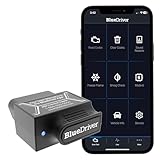
- [Diagnose Like a Pro] BlueDriver Pro is a professional OBD2 scanner and diagnostic tool that helps you scan, understand, and clear vehicle trouble codes with confidence. Turn your phone into a powerful car diagnostic scanner—no guesswork, no unnecessary repairs.
- [Read and Clear More Codes Than Ever] Read and clear more codes than basic car code readers. Access enhanced diagnostics for Check Engine, ABS, SRS, Airbag, TPMS, Transmission.
- [Verified Fixes and Real-Time Data] Get unlimited, technician-verified repair reports matched to your VIN, with definitions, causes, and confirmed fixes. Monitor live vehicle data as you drive, view freeze frames, check smog readiness, and analyze Mode 6 test results.
- [Wireless & Bluetooth Enabled] - Say goodbye to wires. BlueDriver connects with Bluetooth via your phone/tablet to a sensor that plugs into your car's OBDII port. Get all of the capabilities of an expensive code reader & scan tool without any annoying wires.
- [Broad Make & Model Coverage] Strong support for GM, Ford, Stellantis (RAM, Jeep, Chrysler), Toyota, Honda, Nissan, Mazda, Subaru, Hyundai, Mercedes-Benz, BMW, and VW.
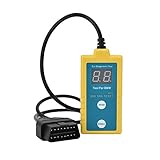
- ✔️【Professional SRS Reset for 1994-2003 BMW】 Designed specifically for classic BMW models (1994-2003). This B800 scanner reads & clears SRS airbag fault codes, turns off the warning light, and saves you a costly dealer visit. Confirmed compatible with: E36, E46 (EXCEPT 2001 330i), E34, E38, E39, Z3, and X5 (E53). NOT compatible with any BMW built before 1994 or after 2003.
- ✔️【Important: Two Different Connection Ports – Read Before Use】 To avoid “not working” issues, please note: For 1994–2000 BMWs (most E36, E34, Z3, early E39), the SRS diagnostic port is a round 20-pin connector under the hood. You MUST use the included 16-pin to 20-pin adapter cable. For 2000–2003 models (late E46, E39, X5), use the standard OBD-II port inside the cabin. Incorrect connection is the #1 reason for “incompatibility” reports.
- ✔️【Read & Clear Fault Codes in Minutes】 Quickly diagnose why your SRS light is on. The scanner accurately reads fault codes from airbag and seatbelt pretensioner systems. With one button press, clear the codes and reset the SRS warning light in seconds. No expensive dealer tools needed.
- ✔️【User-Friendly for DIYers – No Mechanic Required】 Easy operation with an intuitive button layout: ‘Enter’ to confirm, ‘Scroll’ to navigate. The clear LCD screen shows results instantly. Includes a step-by-step manual (revised for clarity) to guide you through the entire reset process.
- ✔️【Reliable Support with 1-Year Warranty】 We stand behind the quality of our B800 scanner. It comes with a 1-Year Hassle-Free Warranty. If you have any questions or need support, please contact us with your Order ID, and our dedicated team will assist you promptly.
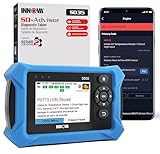
- OBD2 SCANNER FOR ALL SYSTEMS – The INNOVA SD35 is a tablet-based OBD2 scanner designed for advanced diagnostics. Read and clear check engine light, ABS, SRS, and TPMS codes, plus test your car battery and alternator to prevent unexpected failures. Vehicle coverage may vary. Please use Innova’s Coverage Checker to verify compatibility.
- ALL-SYSTEM DIAGNOSTICS & LIVE DATA – Unlike basic code readers, this OBD2 scanner for all vehicles scans engine, transmission, ABS, SRS, and more. Get real-time live data, including RPM, fuel trims, temperature readings, and oxygen sensor performance.
- OBD2 TABLET WITH USER-FRIENDLY INTERFACE – This automotive scan tool features a high-resolution display, making vehicle diagnostics faster and easier.
- ADVANCED TPMS, OIL RESET & SERVICE FUNCTIONS – Perform TPMS sensor checks, oil light reset, and other service resets with ease This professional diagnostic tool provides comprehensive vehicle maintenance capabilities in one device.
- WIDE VEHICLE COVERAGE (1996 & NEWER CARS & TRUCKS) – This OBD2 scanner Bluetooth tablet is compatible with Toyota, Ford, Honda, Chevrolet, Nissan, Dodge, and more. However, feature coverage may vary. Please use Innova's Coverage Checker to verify coverage.
SEOCONTENT-START
July 2023 TechTIPS Page 1 of 22 Subaru Service and Technical Support Line Newsletter ©2023 Subaru of America, Inc. All rights reserved. 01 TechShare QMR of the Month We are pleased to announce this month’s TechShare QMR of the Month Winner: Alejandro Guerrero from Subaru of Englewood in Englewood, NJ Alejandro created a high quality QMR using TechShare reporting on a customer’s concern of Check Engine Light on- DTC: P0560 stored. Alejandro’s report included detailed diagnostic steps, high-quality photos, and video. Please refer to the following link to review the TechShare QMR in detail. https://subarutechshare.com/qmrs/TS-240092 In appreciation for going the extra mile and sharing his experience with us, Alejandro will be receiving the following from his District Service Quality Manager: $500.00 Snap-On gift card SUBARU TECHLINE HOLIDAYS & HOURS OF OPERATION Mon. – Thurs. 8:30AM – 7:30PM EST Friday 10:30AM – 5:00PM EST Saturday 9:00AM – 3:00PM EST Articles Contained in this Issue Click on a title below to jump to the article. Click the date located in the footer to return to page 1. CODE ARTICLE.PAGE (00) STIS New Releases. 21 (01) QMR of the Month1-2 (01) QMR of the Month Award Presentations 2 Tech Tips Greatest Tips (01) UNDERSTANDING POWER SUPPLY.3-5 (07) Door Lock Backup Unit Revisited – Door locks inop. after the vehicle is shut off.6-10 (10) Air Conditioning Refrigerant Types 11 (15) All Vehicles Equipped With CP 1.5, Auxiliary Port Noise 12 (15) Microphone Troubleshooting.13-16 (15) Repairing Starlink Telematics DTCs16-18 (20) Solterra Power Windows inop, Accessory Illuminated Sill Plates19-20 ISO 14001 is the international standard for excellence in Environmental Management Systems. Please recycle or dispose of automotive products in a manner that is friendly to our environment and in accordance with all local, state and federal laws and regulations. CAUTION: VEHICLE SERVICING PERFORMED BY UNTRAINED PERSONS COULD RESULT IN SERIOUS INJURY TO THOSE PERSONS OR TO OTHERS. SUBARU OF AMERICA, INC. IS ISO 14001 COMPLIANT Continued on the next page July 2023 The Subaru TechTIPS newsletter is intended for use by professional Technicians ONLY. Articles are written to inform those Technicians of conditions that may occur in some vehicles, or to provide information that could assist in the proper servicing of the vehicle. Properly trained Technicians have the equipment, tools, safety instructions, and know-how to do the job correctly and safely. If a condition is described, DO NOT assume that your vehicle has or will have that condition. Impreza, Legacy, Justy, Loyale, Outback, Forester, Subaru SVX, WRX, WRX STI, Baja, Tribeca, BRZ, XV Crosstrek, Ascent, Crosstrek Hybrid, Solterra and “Quality Driven” are Registered Trademarks. Continued on the next page July 2023 TechTIPS Page 2 of 22 01 QMR of the Month (CONTINUED) The other Regional winners selected from QMRs submitted during July 2022 were: • Perpetuo Silan from Farrish Subaru • Michael Baier from Ramsey Subaru of Des Moines • Yih Horng Lee from Puente Hills Subaru • Darin Richey from Colonial Subaru Any Subaru Technician can participate in the TechShare QMR of the Month program. See the November 2022 issues of TechTIPS for full details. You just might see your name and photo in a future issue of TechTIPS! 01 QMR of the Month Award Presentations As part of our “enhanced” QMR of the Month recognition program, we will include a photo (whenever available) of the recipient’s award presentation in TIPS. The winner selected from QMR of the Month submissions received during July 2023 was Alejandro Guerrero, Technician at Subaru of Englewood, Englewood, NJ. Alejandro is shown above (2nd from the left) after being presented with his $500.00 Snap-On Gift Card, Neiko inspection light, and Neiko hood lamp. To Alejandro’s right is Subaru of Englewood Dealer Principal Ted Sieboled. To Alejandro’s left is Subaru Distributors Corporation’s District Service and Quality Manager Greg Beach, Subaru of Englewood Service Manager John Simoes, and Subaru of Englewood General Manager John Lopes. Congratulations and THANK YOU to our July 2023 QMR of the Month Award recipient! Continued on the next page July 2023 TechTIPS Page 3 of 22 This series features TechTIPS articles frequently referred to by Techline. This month’s feature is from February 2018. 01 UNDERSTANDING POWER SUPPLY The Techline continues to receive calls from Technicians not understanding power supply. The power supply is found under Body & Electrical/WIRING SYSTEM. It is supplied to assist with identifying and tracing power flow. If unable to communicate with a specific module or, a vehicle comes in with multiple issues, check the power supply. MB= Main Box (under hood fuse box) FB= Fuse Box (in car fuse box). EXAMPLE 1: 2015 Legacy-No start-No communication to ECM After scanning all systems and finding no communication to the ECM, the Technician should be checking the power supply next. A quick review of the power supply shows MB-38, MB-42 and MB-45 all supply power to ECM. Find the circuits (MB-38, MB-42, MB-45) then follow up the page to see where they get powered. MB-38 is powered by fuse #25. MB-42 is power for the main relay coil side. MB-45 is powered by fuse # 16. The next step is check the fuses. In this example fuse #25 was blown. July 2023 TechTIPS Page 4 of 22 Continued on the next page 01 UNDERSTANDING POWER SUPPLY (CONTINUED) July 2023 TechTIPS Page 5 of 22 Continued on the next page 01 UNDERSTANDING POWER SUPPLY (CONTINUED) EXAMPLE 2: 2010 Forester-RES Inoperative-Horn inoperative-No communication to BIU A quick review of the Power supply reveals all three affected circuits are on MB-21. MB-21 is supplied power by the horn relay. A continuity check on the coil side of the horn relay yielded a faulty horn relay. Continued on the next page July 2023 TechTIPS Page 6 of 22 07 Door Lock Backup Unit Revisited – Door locks inop. after the vehicle is shut off Techline has been receiving an increase of calls with a concern of the power door locks being inoperative. Some Technicians have noticed with the vehicle running, the door locks will work normally. Once the vehicle is shut off, the door locks may work a few times and then become inoperative again. This will affect both the master door lock switch and the key fob buttons. The August 2021 TechTIPS explains the operation of the battery Backup Unit and its location. That TechTIP is shown below: Techline has received calls about identifying a newly implemented device for the door lock system. The battery Backup Unit was implemented into vehicles outlined in the chart below. The Backup Unit provides power to the door locks in the event of a collision that disables the standard 12v power source. When the vehicle receives a strong impact, all the doors and the rear gate are automatically unlocked, to prevent passengers from being trapped. The device is mounted above or near the Audio Unit in most cases. Please refer to STIS for specific model removal/installation, and inspection. NOTE: When the ignition is turned on, the capacitor in the device is charged for 90 seconds. When Diagnosing the door locks and the Backup Unit, check the fuses! When a vehicle is presented with a concern of inoperative door locks, the first step is to determine if the door locks work when the vehicle is running. If they work normally with the vehicle running but stop working once the vehicle is shut off, or only a few times and then operate slowly, the fuses for the Backup Unit should be inspected. If the door locks are inoperative all the time from any input (switch or key fob), use STIS to diagnose the concern. Below is a wiring diagram from a ’19 Outback. Always use STIS to verify the wiring diagram for the vehicle being repaired. Continued on the next page July 2023 TechTIPS Page 7 of 22 Door Lock Backup Unit Revisited – Door locks inop. after the vehicle is shut off (CONTINUED) 07 On this ’19 Outback, the 3 fuses powering the Backup Unit are the same for Push Button (Keyless Access) or turn-key (Keyless Entry) vehicles. Techline has found in almost all cases one of these 3 fuses is missing or blown causing the door locks to become inoperative after the engine is shut off and the Backup Unit capacitor is depleted. Below is an example of a ’23 Ascent wiring diagram showing the fuses that need to be inspected. Continued on the next page July 2023 TechTIPS Page 8 of 22 Door Lock Backup Unit Revisited – Door locks inop. after the vehicle is shut off (CONTINUED) 07 Below is an example of a ’20 Outback. On this vehicle, determining which fuses power the Backup Unit using the wiring diagram is more difficult. The Backup Unit can only be found in the Power Supply wiring diagram. The Backup Unit is shown in other wiring diagrams, but those diagrams do not show the fuses that need to be inspected. Continued on the next page July 2023 TechTIPS Page 9 of 22 Door Lock Backup Unit Revisited – Door locks inop. after the vehicle is shut off (CONTINUED) 07 Following the wires highlighted above will lead to the 3 fuses needing to be inspected. Please see the wiring diagram shown below showing those 3 fuses. Continued on the next page July 2023 TechTIPS Page 10 of 22 Door Lock Backup Unit Revisited – Door locks inop. after the vehicle is shut off (CONTINUED) 07 Techline has found that in almost all cases one of these 3 fuses is missing or blown causing the door locks to become inoperative after the engine is shut off and the Backup Unit capacitor is depleted. After verifying the 3 fuses to the Backup Unit are not missing or blown, the next step would be to verify power is received at the Backup Unit on the 3 pins listed in the vehicles wiring diagram. Continued on the next page July 2023 TechTIPS Page 11 of 22 10 Air Conditioning Refrigerant Types When servicing an A/C system, it is IMPERATIVE to know the type of refrigerant you are dealing with and what vehicles each type is found in. The chart below can be used to identify this. This information is also on the A/C label found on the underside of the hood, along with the compressor oil type and system capacity. The picture below shows how to find this information when using the Service Manual. This is also where the compressor oil type can be found. This is especially important when servicing BEV and Hybrid vehicles as the oil used in these systems is specifically designed to be non-conductive. NOTE: When servicing a BEV or Hybrid vehicle, see click path Subarunet > Service Operations& Technical > Service Tools and Equipment > Subaru Minimum Retailer Equipment List for a list of required tools. NOTE: Always follow the Service Manual directions for handling of refrigerant. For handling of refrigerant see: Heater & Air Conditioner/Ventilator > HVAC System > General Description > Caution For A/C specifications see: Heater & Air Conditioner/Ventilator > HVAC System > General Description > Specification Continued on the next page July 2023 TechTIPS Page 12 of 22 15 All Vehicles Equipped With CP 1.5, Auxiliary Port Noise This applies to all CP 1.5 equipped vehicles, currently that includes: MY23+ Legacy/Outback MY23+ Ascent MY24+ Crosstrek/Impreza The auxiliary USB port has changed for CP 1.5 equipped vehicles. If “AUX” is selected as the source while nothing is plugged into the port, there may be an abnormal noise heard through the speakers. This condition is normal, and no parts should be replaced for this concern. To prevent this noise, do not select “AUX” as the source without a device plugged into that port. Starting with 23MY Legacy/Outback and Ascent, a new UNIT-AUX TERMINAL with illuminated USBtype C port is incorporated as part of the CP1.5 infotainment system. On this type of AUX port, when AUX is selected as audio source without any device connected to UNIT-AUX TERMINAL, a buzzer type noise may be heard from the audio system while the illumination light is turned on. If the customer reports a noise coming from the audio system while the headlights are turned on, the above-mentioned characteristics may be the cause. Continued on the next page July 2023 TechTIPS Page 13 of 22 15 Microphone Troubleshooting This diagnostic flow chart has been created to help Technicians understand the power flow of the overhead console microphone used for Bluetooth, projection applications (Apple CarPlay/Android Auto), Telematics calls and the Voice Recognition System. The microphone is supplied power (5 volts) by the DCM and is used by both the DCM and the Infotainment system in most vehicles. If the vehicle does not have Telematics, the Audio unit will be the 5V power supply. For older vehicles equipped with a Denso F10 or Clarion audio unit, Technicians will need to reference STIS closely for similar wiring. These diagnostics incorporate points of failure Techline has previously experienced. The customer does not need a Telematics subscription for the DCM to provide power to the microphone, but the Technician will not be able to make an outbound Telematics call for testing. The Telematics, Bluetooth, and Voice Recognition System only use the front tweeter speakers to broadcast sound inside the vehicle. The speakers can be tested using the SSM4 Active Test in the “Telematics”, Audio”, “Navigation” or “Infotainment” (depending on vehicle equipment). The front tweeters also have individual DTCs that may set. Always perform an all-DTC scan before beginning these diagnostics. These diagnostics do not apply to Solterra. Caution: The DCM should NEVER be swapped between vehicles. *Note: If the vehicle being diagnosed is not equipped with Telematics or does not have a current STARLINK subscription, when the testing below directs a Technician to perform an outbound Telematics call, an outbound Bluetooth or projection app call should be made instead. 1. Make an outbound call via Bluetooth or projection app (CarPlay or Android Auto). Can the called individual hear you clearly? Yes, the called person can hear you clearly, proceed to Step 3. No, proceed to Step 2. 2. What is the value selected for “Microphone Volume” or “Call Volume”? Refer to page 7 of the March 2022 TechTIPS to checking these settings. a. Adjust the setting to zero and make another outbound Bluetooth or projection app call, does the system operate as designed? Can the called person hear you clearly? Yes, review March 2022 TechTIPS and educate the customer on the microphone volume settings, proceed to Step 8. No, proceed to Step 3 (Microphone operational test). Techline recommendation, this would be the ideal time to test both the customer’s phone and the Technician’s phone. 3. Perform the microphone operational test. Does the Infotainment system register sound? a. On Harman equipped vehicles, enter Factory mode by pressing and holding the “Home” button while pressing the “Tune” knob twice. Speak sternly from a seated position as this audio unit also has the ability to play back what was spoken into the microphone. Continued on the next page July 2023 TechTIPS Page 14 of 22 15 Microphone Troubleshooting (CONTINUED) b. On CP 1 and CP 1.5 equipped vehicles, enter Factory mode by holding the passenger side temperature up and down buttons and pressing the “Tune” knob twice. Navigate to the microphone check. Speak sternly. This should generate 1 bar, clapping will generate 2-3 bars. Yes, the microphone functions as designed, proceed to Step 8 (complete a Telematics call*). No, proceed to Step 4 (checking the voltage at the microphone). Techline recommends using the wiring diagram for Telematics to locate the three fuses that provide power. Reference “Fuse and Relay” and make sure that the fuses listed are in the correct locations. Verify there is voltage on both sides of all three fuses. BLOWN OR MISSING FUSES ARE THE MOST COMMON POINT OF FAILURE. 4. Using STIS, follow directions for CAREFULLY removing the overhead console. Using STIS, locate the appropriate wiring diagram. If the vehicle is equipped with Telematics, use the “Telematics” wiring diagram, if the vehicle is not equipped with Telematics, use the “Overhead”, “Stereo Camera” or “Antenna” page in the “Audio”, “Navigation” or “Infotainment” wiring diagram (depending on vehicle equipment). a. Open the I/O chart for Telematics, Cockpit Control, or Infotainment (depending on vehicle equipment). Determine which pin is the 5V reference from the DCM or Audio unit (typically the red wire at the overhead console). Continued on the next page July 2023 TechTIPS Page 15 of 22 15 Microphone Troubleshooting (CONTINUED) b. With the appropriate tools, back probe the microphone power supply at the red wire and prepare to measure the available voltage. With the ignition on, what is the available voltage at the red wire? If the microphone has 4.5 – 5V, proceed to Step 5. If the microphone has 1.1 – 3.4V, proceed to Step 6. If the microphone has 0 – .6V, proceed to Step 7 (check power at the DCM). 5. With the red wire still back probed and the DVOM displaying the voltage, make an outbound Telematics call*. a. Is the available voltage 4.5V or higher consistently AND the Starlink operator can hear you clearly? Yes, complete the call and prepare to make an outbound Bluetooth or projection app call. At this point the system is working correctly, the Technician will need to determine if the vehicle is repaired or if it is a customer phone concern. 6. If the static microphone voltage measured was 1.1 – 3.4V, monitor the voltage while making an outbound Telematics call*. Push the i-button once and speak with the STARLINK operator. Does the voltage at the red wire jump to approximately 5V while on the call? Yes, this may indicate a more advanced problem. Perform an all-DTC scan and collect 15 seconds of Telematics data from the SSM then contact Techline. All test results up to this step should be documented for review. No, the voltage does not change from 1.1 – 3.4V when making an outbound call. Using STIS, find the I/O chart for Telematics (or the Audio unit if not equipped with Telematics) in STIS. Measure the output voltage at the back of the DCM (or from the Audio unit if not equipped with Telematics). Inspect the wiring and connectors between the DCM (or from the Audio unit if not equipped with Telematics) and overhead console. The 5V power from the DCM or Audio unit needs to be restored to the overhead console. Voltage drop and split half techniques should be used here. 7. The microphone has 0 – .6V. Inspect for power at the DCM (or from the Audio unit if not equipped with Telematics), typically pins A8, A10, and A20. Connector number and color may vary. Use the “Telematics”, “Audio”, “Navigation” or “Infotainment” wiring diagram (depending on vehicle equipment) to find the correct connector and pins. a. Before removing the interior trim, use the wiring diagram for “Telematics”, “Audio”, “Navigation” or “Infotainment” wiring diagram (depending on vehicle equipment) to locate the fuses that supply power. Reference the “Fuse and Relay” diagram to confirm the fuses listed are in fact in the correct locations. Using a DVOM, verify there is battery voltage on both sides of the fuses before moving to Step 7b. Continued on the next page July 2023 TechTIPS Page 16 of 22 15 Microphone Troubleshooting (CONTINUED) b. CAREFULLY remove the interior trim following STIS then reference the “Telematics” wiring diagram for pins A8, A10, and A20 or the correct pins supplying power to the Audio unit using the “Audio”, “Navigation” or “Infotainment” wiring diagram (depending on vehicle equipment). Pay close attention to which pin is ignition (IG), accessory (ACC), and battery power (B) at all times. What is the available voltage at the DCM or the Audio unit? A8 – A10 – A20 – If you are missing a power supply at one of these wires, correct the condition and retest starting at STEP 3. 8. If any of the DCM connectors or overhead microphone connectors have been serviced, please complete a Telematics call*. Reference TSB 15-266-20 page 6/7 for the proper i-Button operational test to confirm the system is working normally. If the Technician can confirm the system is working as designed, no repair should be made to the vehicle. The Technician should attempt to duplicate the concern with the customer’s phone and consider duplicating the concern in a like vehicle with the same Infotainment system. Optional method for microphone testing – Another option for testing the microphone operation is to use the vehicle’s “Voice Recognition System”, this does not need a phone paired/connected or a Telematics subscription. Make sure to say a command the vehicle can understand, for example “Turn music on”, “FM radio”, “Increase the fan speed” or “Go to preset 3”. *Note: If the vehicle being diagnosed is not equipped with Telematics or does not have a current STARLINK subscription, when the testing directs a Technician to perform an outbound Telematics call, an outbound Bluetooth or projection app call should be made instead. If all testing has been performed and there is still no resolution to the concern, call Techline and be prepared to review all the electrical and outbound call testing performed. 15 Repairing STARLINK Telematics DTCs What does it take to repair Starlink Telematics? It is reasonable to think automotive systems utilizing a lot of technology require high-tech tools to repair these systems. Let’s take a minute to look at the categories of DTCs and problems, to demonstrate Telematics repairs require nothing more than knowing how to test electrical circuits, a DVOM, the SSM4 scan tool and possibly a phone call to Techline. Continued on the next page July 2023 TechTIPS Page 17 of 22 15 Repairing Starlink Telematics DTCs (CONTINUED) Classification of DTCs or Customer Concerns Circuit: These codes or concerns are electrical. These issues include power, ground, wiring, and components. Performance: These DTCs indicate a difference between what Subaru wants and what happens. Component: These DTCs are rare and indicate only one potential problem that requires component replacement. System: These DTCs indicate an observed condition outside the acceptable range but rely on the technician to find the root cause. Categories of Telematics DTCs Circuit: B2A01, B2A02, B2A03, B2A04, B2A05, B2A06, B2A08, B2A09, B2A0A, B2A0B, B2A0E Performance: B2A07, B2A0D, B2A0F, B2A10 Component: B2A0C, B2A14 System: B2A00, B2A15, B2A16, Customer concerns regarding remote services operation failure when no DTC or error messages on the MySubaru application are present. Now that I know the categories of DTCs, what’s next? Circuit These problems likely indicate an open, short, no power, or poor ground. The Technician must test the circuit as described in the STIS trouble tree. Most often, these problems do not result in component replacement but a connection or harness repair. Technicians should make an extra effort to be sure of any test results before replacing components. Performance These problems indicate a circuit or component is not performing as expected. The root cause of the performance degradation can only be determined by circuit and component testing as directed in STIS. A Technician who immediately jumps to component replacement may find themselves in a situation where parts replacement fails to repair the root cause of the performance DTC. Component These DTCs are indicating a faulted component. If the DTC is current, they suggest component replacement. What may not be addressed in the trouble trees is, there is an assumption that the following conditions exist with the vehicle. Continued on the next page July 2023 TechTIPS Page 18 of 22 15 Repairing STARLINKTelematics DTCs (CONTINUED) • The battery and charging system are performing within the manufacturer’s specifications. • There are no aftermarket devices in use in the vehicle. • Power and Ground directly feeding the component have been verified by the Technician. • The DCM has been registered with the Immobilizer successfully when applicable. • The LAN registration procedure has been completed successfully when applicable. • The VIN is written to the DCM. • Signal Strength has been verified. • Subscription Status has been verified. System These DTCs are indicating unexpected behavior. Often the trouble tree will point to a component failure. Technicians can be misled if they fail to satisfy the following assumptions about the system problems. • The battery and charging system are performing within the manufacturer’s specifications. • There are no aftermarket devices in use in the vehicle. • Power and Ground directly feeding the component have been verified by the technician. • The DCM has been registered with the Immobilizer successfully. • The LAN registration procedure has been completed successfully when applicable. • The VIN is written to the DCM. • Signal Strength has been verified. • Subscription Status has been verified. Customer concerns about error messages on the MySubaru application or the failure of remote service requests to complete successfully also fall under the System. A call to Techline is usually required to resolve these concerns. Component replacement is only a reliable repair with an understanding of what the back-end Telematics systems indicate about the failed behavior. The most current Telematics repair information is always contained in TSBs and TechTIPS. Technicians should always start a Telematics system repair by searching these documents on STIS. All Telematics repairs require the Technician to confirm the customer complaint, correct the customer concern, which may only be possible with the help of Techline, and confirm the repair through testing the Telematics system. The best was for Technicians to ensure they get the information needed to diagnose all generations of Telematics concerns efficiently is to complete QMRs with a high level of detail to ensure a steady flow of information to the field. Continued on the next page July 2023 TechTIPS Page 19 of 22 20 Solterra Power Windows Inop, Accessory Illuminated Sill Plates When diagnosing an inoperative power window master switch on a Solterra, first check to see if the vehicle is equipped with the accessory Illuminated Side Sill Plates. If the vehicle is NOT equipped with the accessory Illuminated Sill Plates, use STIS to continue normal diagnostics. If the vehicle is equipped with the OE Subaru accessory Sill Plates, begin by inspecting the LH connector housing behind the LH kick panel to verify proper Bridge Connector orientation. The port accessory installation directions found here have directions for the removal of the kick panel. It has been found if the Left and Right Bridge Connectors are installed in the wrong locations, power window/lock functions will not operate properly from the driver side master window switch and other issues may occur as well. Correct Bridge Connector orientation shown below: The left-side accessory Bridge Connector should be White with a Blue OE body harness connector. Continued on the next page July 2023 TechTIPS Page 20 of 22 20 Solterra Power Windows Inop, Accessory Illuminated Sill Plates (CONTINUED) The right-side Bridge Connector should be Blue with a White OE body harness connector. If the Bridge connectors are found to be in the wrong locations, refer to the Solterra Illuminated Side Sill accessory installation instructions to correct the condition (see page 10 – 14 for the correct installation process). Once corrected, re-check power window and lock functions on the master window switch. In some cases, it was found the inoperative power window symptoms remain after the Bridge Connector error has been corrected. In this case, and after the Bridge Connectors have been properly installed, you must clear any DTC’s that may have been set and perform the window initialization procedure below on the sub switches of each door to restore proper operation. If the Bridge connectors are found to be in the correct locations, refer to the applicable Service Manual for further diagnosis. Continued on the next page July 2023 TechTIPS Page 21 of 22 00 STIS New Releases ITEM CODE ITEM TYPE TITLE CREATED DATE 13-106-23 Technical Service Bulletin 2024 MY Paint Coding Informati. 9-Aug-23 C1010VC001 Accessory Installation Guide 2022MY WRX – STI Leather Shift. 3-Aug-23 C1010FN001 Accessory Installation Guide 2024MY Impreza RS & Crosstrek . 3-Aug-23 SOA567X090 Accessory Installation Guide 2023MY Solterra – Crossbars 3-Aug-23 01-168-09R Technical Service Bulletin Replacement Key and Immobilize. 1-Aug-23 WRB-23R Subaru Product/Campaign Bulletin Telematics Data Communications. 1-Aug-23 07-222-23R Technical Service Bulletin Climate Control Settings / Und. 1-Aug-23 07-207-22R Technical Service Bulletin Subaru Battery Drain Product L. 31-Jul-23 15-304-22R Technical Service Bulletin Procedure for Techline Infotai. 31-Jul-23 15-313-23 Technical Service Bulletin 2024 Audio/Navigation & Power . 27-Jul-23 J101SSJ900 Accessory Installation Guide 2022MY+ Forester Door Cladding. 25-Jul-23 F501SFN000 Accessory Installation Guide 2024MY Impreza/Crosstrek 2nd . 25-Jul-23 09-109-23 Technical Service Bulletin DTC P2404 / Reprogramming File. 25-Jul-23 J201SXC100 Accessory Installation Guide 2024MY Ascent Exterior Auto Di. 25-Jul-23 09-108-23 Technical Service Bulletin DTC P2404 / Reprogramming File. 18-Jul-23 09-107-23 Technical Service Bulletin DTC P2404 / Reprogramming File. 18-Jul-23 L101SFN000 Accessory Installation Guide PORT INSTALLATION: XXXX-XXMY (. 17-Jul-23 15-285-21R Technical Service Bulletin Gen 2-4 Head Unit Identificati. 13-Jul-23 07-223-23R Technical Service Bulletin New Genuine Subaru Replacement. 13-Jul-23 12-249-23R Technical Service Bulletin Cleaning of Painted Surfaces A. 11-Jul-23 09-106-23 Technical Service Bulletin Exhaust Pipe Front (EPF) Desig. 11-Jul-23 16-141-23R Technical Service Bulletin DTC P0711 / TCM Reprograming F. 11-Jul-23 TIPS1222 TechTIPS NewsLetter 2022 December TechTIPS Newslet. 10-Jul-23 12-250-23 Technical Service Bulletin Rushing Wind Sounds from Front. 10-Jul-23 09-103-23 Technical Service Bulletin DTC P2404 / Reprogramming File. 10-Jul-23 15-246-19R Technical Service Bulletin New Immobilizer Registration P. 30-Jun-23 15-297-22R Technical Service Bulletin Reprogramming File Availabilit. 30-Jun-23 06-87-22R Technical Service Bulletin Electric Parking Brake Connect. 29-Jun-23 15-240-19R Technical Service Bulletin New Harman Audio Amplifiers 29-Jun-23 WRH-23R Subaru Product/Campaign Bulletin Safety Recall/STOP SALE – Tire. 29-Jun-23 02-190-22R Technical Service Bulletin Proper Diagnosis of Oil Level . 29-Jun-23 02-131-12R Technical Service Bulletin Oil Seepage Diagnosis and Repa. 29-Jun-23 02-136-12R Technical Service Bulletin Oil Seepage Diagnosis and Repa. 29-Jun-23 16-132-20R Technical Service Bulletin Diagnostic Information for All. 28-Jun-23 09-102-23 Technical Service Bulletin Diagnosis Procedures for DTCs . 28-Jun-23 15-312-23R Technical Service Bulletin Data Control Module (DCM) Dark. 28-Jun-23 15-311-23 Technical Service Bulletin FOTA (Firmware Over-The-Air) R. 23-Jun-23 All revised publications are highlighted in yellow. Continued on the next page July 2023 TechTIPS Page 22 of 22 *** Now you can e-mail your TechTIPS input and suggestions to: tech@subaru.com *** SUBARU TECHLINE Monday – Thursday 8:30 am to 7:30 pm Hours of Operation Friday 10:30 am to 5 pm and Saturday 9 am to 3 pm This is your chance to offer suggestions for use in future issues of TechTIPS! Make sure that if you e-mail us, you place in the subject line of your e-mail “For TechTIPS Newsletter”. Thank you! Model: Year: VIN: Description of situation encountered: Your suggestion for repair procedure, product improvements, etc.: Please attach separate sheets, if necessary. You may also want to include Service Manual diagrams or references, or your own drawings to assist in describing your suggestion. All information submitted becomes the property of Subaru of America, Inc. Permission is granted to Subaru of America, Inc. to print your name and suggestions in TechTIPS and other Subaru of America, Inc. publications. Mail items to: PO Box 9103; Camden, NJ 08101-9877. Your Name: Signature: Dealer’s Name: City: Date: Dealer Code:
**************************************************************************************************************
**************************************************************************************************************
SEOCONTENT-END
This product presentation was made with AAWP plugin.