NHTSA ID Number: 10238460
Manufacturer Communication Number: 15-312-23R
Summary
This bulletin announces repair procedures to be used when diagnosing dark current draw (parasitic draw) on vehicles equipped with Gen 1 Data Control Modules.
NUMBER: 15-312-23R
DATE: 06/26/23
REVISED: 06/28/23
| APPLICABILITY: | 2016-18MY Crosstrek 2016-18MY Forester 2016-18MY Impreza 2016-18MY Legacy & Outback 2017-18MY WRX |
| SUBJECT: | Data Control Module (DCM) Dark Current Diagnosis |
INTRODUCTION:
This bulletin announces repair procedures to be used when diagnosing dark current draw (parasitic draw) on vehicles equipped with Gen 1 Data Control Modules. A software-based DCM Factory Mode Tool has been developed to assist in the diagnosis. Refer to the work procedures outlined in this bulletin when performing dark current diagnosis on vehicles equipped with Gen 1 DCMs.
DCM Factory Mode Tool:
This tool runs as a separate application outside the standard suite of SSM4 applications. It will be loaded to the Technician’s notebook desktop and accessed from that location for all future use. The DST-i or DST-010 works in conjunction with the Factory Mode Tool to put the DCM subscription status back into “Factory” status. If the DCM is determined to be the root cause of an excessive dark current (parasitic draw), the total dark current draw will be reduced below Subaru STIS diagnostic limits by disabling the DCM functions.
NOTE: This tool is not to be used if there are current DTCs stored in the DCM or if there is no communication with the DCM.
SERVICE PROCEDURE / INFORMATION:
The following requirements MUST be met prior to performing the diagnostic procedures.
1. The customer is NOT SUBSCRIBED to Starlink Telematics
2. The vehicle is listed in the applicability section of this bulletin.
3. There are no current telematics DTCs.
4. The SSM4 can communicate with the DCM, and the subscription status is
CAUTIONS:
1. Performing the following procedures on vehicles with a subscribed DCM will cause functions of the telematics services to not operate. If this occurs, the telematics operation can only be restored by contacting Subaru Techline (VIN and subscription status will be required). This will cause excessive downtime and repair expense.
2. DCMs with software version DCM_06.00.17_20190816 should not be subject to the conditions this service procedure attempts to repair. If a dark current is detected on a DCM with this software version, this service procedure may not fix the concern. Additional parasitic draw testing is necessary post-repair to ensure that the total battery dark current is within Subaru specification before releasing the car back to the customer.
3. Any current Telematics DTC can keep the DCM awake more prolonged than expected, contributing to the parasitic draw. All telematics DTCs should be resolved before deciding that the DCM is the root cause of the parasitic draw.
TOOL SETUP:
1. From the Toughbook, go to the the button on the desktop for: MyDocuments, then from the file window, go to > Subaru > DCM Setting Tool, and click on the shortcut marked
2. Upon the initial opening of the factory mode tool or when the configuration file is not specified, an error message will appear on the screen. Click on OK and ignore this error. A window will pop up to then specify the key file. Confirm the appearance matches the example image below and click Open. If the pop up does not appear or match the example, proceed to Step 6 below.
3. ONLY use the menu and button on the left side of the window with the “subscription mode setting” at the top of the window.
4. Before using the tool, ensure that under the Device menu that, DENSO CORPORATION – DST-i or DST-010 is selected.
5. Before using the tool, ensure that under the Options menu sub-menu Settings, the Production mode change wait time setting is set to 60 second.
6. Before using the tool, ensure that the key.enc is confirmed under the Options menu sub-menu ChangeKeyFile selection.
A. If not already presented, navigate to MyDocuments > Subaru > DCM Setting Tool > Data Files to specify the Key.enc file.
B. If you cannot navigate to this location or the Key.enc file is not there you will need to work with Nuspire (877-435-1640) to ensure that the file is loaded locally and specified as outlined in Step 5 above.
USING THE FACTORY MODE TOOL:
1. Click the Mode Check button.
A. If any mode is displayed other than Factory, continue with the mode change procedure.
B. If Factory mode is already indicated, there is no need to continue this procedure. The Technician must reevaluate his parasitic draw test results to determine how to resolve that concern best.
2. Ensure that the Factory Mode button is clicked.
3. Click the Submit button. The message box under the Submit button should indicate that the “Mode setting was executed.”
4. Click the Mode Check button to ensure the Current Mode is Factory Mode.
A. If any mode is displayed other than Factory, attempt the Mode Setting again to see if it is successful on a second attempt.
B. If, after multiple Mode Setting attempts, the Current Mode is not Factory Mode or the error message below is displayed, then the DCM must be replaced to correct the excessive parasitic draw.
C. A DCM successfully moved to Factory Mode will have the Green Telematics LED illuminated whenever the key is on. This Green indicator LED does not indicate a valid subscription, it indicates a non-comm checked DCM in Factory Mode. DO NOT perform a comm check to a DCM in Factory Mode.
5. Once the Current Mode is confirmed as Factory Mode, remove the overhead trim panel and disconnect the SOS / i-Button switch so it is not accidentally depressed.
6. Wrap the switch assembly connector using a tape that can be written on, leaving a pigtail piece accessible to write the TSB number on. Use a permanent marker like a “Sharpie” to indicate this TSB number for future reference. This tape will prevent any unwanted electrical connections and identify the TSB that indicates why it should remain disconnected. See the example image below.
7. Once the Current Mode is confirmed as Factory Mode, recheck for the presence of parasitic draw and act accordingly. DO NOT RELEASE THE VEHICLE BACK TO THE CUSTOMER WITHOUT VERIFYING THAT THE PARASITIC DRAW IS WITHIN SUBARU SPECIFICATIONS.
NOTE: This Factory Mode Setting is not permanent because pushing the iButton will be interpreted as a comm check attempt and will change the subscription status. If this occurs, the DCM may again exhibit excessive dark current draw. It is important to disconnect the telematics switch assembly, so this does not happen.
REACTIVATION PROCEDURE:
1. Inspect the vehicle for the presence of a taped electrical connection at the telematics switch assembly. Remove the tape and reconnect.
2. If the switch is not disconnected and taped, the Technician can also confirm by using the SSM4 and verifying that the Telematics Subscription Status PID is set to “Factory.”
3. To restore Telematics operation to the vehicle, the Technician will
A. Reconnect the Telematics LED/Button assembly.
B. Replace the DCM.
C. Complete the Comm Check.
D. Confirm telematics operation by placing an iButton call and, if necessary remote services operation by asking the customer to request telematics services using the MySubaru App.
17 Affected Products
Vehicles
| MAKE | MODEL | YEAR |
| SUBARU | CROSSTREK | 2016-2018 |
| SUBARU | FORESTER | 2016-2018 |
| SUBARU | IMPREZA | 2016-2018 |
| SUBARU | LEGACY | 2016-2018 |
| SUBARU | OUTBACK | 2016-2018 |
| SUBARU | WRX | 2017-2018 |
1 Associated Document
Manufacturer Communications
NUMBER: 15-312-23R
DATE: 06/26/23
REVISED: 06/28/23
MC-10238460-0001.pdf 791.906KB

- OE-Level diagnostics on your smart device
- FREE Software updates - No subscriptions, no fees – EVER
- Full bi-directional control, live actuation test
- Supports 23 vehicle reset/relearn functions, including throttle matching, ABS bleeding, TPMS reset, etc.
- Live data mapping and freeze frame capturing


- CEL Doctor: The ANCEL AD310 is one of the best-selling OBD II scanners on the market and is recommended by Scotty Kilmer, a YouTuber and auto mechanic. It can easily determine the cause of the check engine light coming on. After repairing the vehicle's problems, it can quickly read and clear diagnostic trouble codes of emission system, read live data & hard memory data, view freeze frame, I/M monitor readiness and collect vehicle information
- Sturdy and Compact: Equipped with a 2.5 foot cable made of very thick, flexible insulation. It is important to have a sturdy scanner as it can easily fall to the ground when working in a car. The AD310 OBD2 scanner is a well-constructed mechanic tool with a sleek design. It weighs 12 ounces and measures 8.9 x 6.9 x 1.4 inches. Thanks to its compact design and light weight, transporting the device is not a problem. The buttons are clearly labelled and the screen is large and displays results clearly
- Accurate Fast and Easy to Use: The AD310 scanner can help you or your mechanic understand if your car is in good condition, provides exceptionally accurate and fast results, reads and clears engine trouble emission codes in seconds after you fixed the problem. This device will let you know immediately and fix the problem right away without any car knowledge. No need for batteries or a charger, get power directly from the OBDII Data Link Connector in your vehicle
- OBDII Protocols and Car Compatibility: Many cheap scan tools do not really support all OBD2 protocols. AD310 scanner as it can support all OBDII protocols such as KWP2000, J1850 VPW, ISO9141, J1850 PWM and CAN. This device also has extensive vehicle compatibility with 1996 US-based, 2000 EU-based and Asian cars, light trucks, SUVs, as well as newer OBD2 and CAN vehicles both domestic and foreign. Pls confirm with our customer service whether it is compatible with your vehicle before purchasing
- Home Necessity and Worthy to Own: This is an excellent code reader to travel or home with as it weighs less and it is compact in design. You can easily slide it in your backpack as you head to the garage, or put it on the dashboard, this will be a great fit for you. The AD310 is not only portable, but also accurate and fast in performance. Moreover, it covers various car brands and is suitable for people who just need a code reader to check their car

- MAINTAIN PEAK PERFORMANCE AND SAFETY ON THE ROAD - Easily find and fix the problem with your vehicle using the INNOVA 5610 bidirectional scan tool. This OBD2 scanner diagnostic tool provides real-time solutions to troubleshoot issues. Access OBD2 and OEM live data with ease, making it an essential car scanner diagnostic tool. Perfect for those seeking reliable car diagnostic scanner and code readers & scan tools for vehicles.
- PRO-LEVEL FUNCTIONALITIES - Use the INNOVA 5610’s Enhanced Data Stream to view live data for advanced systems like ABS, SRS, transmission, and engine. The Special Reset Function lets you use dealership-level re-learn procedures. This car diagnostic scanner is ideal for those needing a bidirectional scan tool or mechanic tools automotive for professional repairs. Compatible with select vehicle makes and models; not universal.
- COMMAND WITH BIDIRECTIONAL CONTROLS - The INNOVA 5610 bidirectional scan tool sends commands to test functions such as fuel pump on/off or retracting the electronic parking brake. With this car scanner diagnostic for all cars, you can operate like a pro. Ideal for those seeking a car code reader and reset tool or advanced fixd car diagnostic tool capabilities. Compatible with select vehicle makes and models; not universal.
- EASY TO USE - The INNOVA 5610 OBD2 scanner diagnostic tool supports English, Spanish, and French. Easily use this scanner for car on most 1996 - 2023 (2024 coming soon) OBD2 vehicles to verify repairs. Designed for ease of operation, it’s a dependable code reader for cars and trucks and check engine code reader. To confirm vehicle coverage, please utilize Innova's Coverage Checker.
- BUY AND DRIVE WITH CONFIDENCE - Backed by ASE-Certified support, this car scanner pairs with the RepairSolutions2 app, trusted by 4M users, for wireless OBD scanner functionality. With free updates and no subscription fees, this durable car computer diagnostic reader ensures you’re prepared for any repair. A must-have diagnostic scanner for vehicles.

- 2026 Advanced ECU Coding Scan Tool: Maximize the capabilities of your vehicles with the ArtiDiag Pro. This scan tool, seamlessly compatible with renowned models such as VW, A-U-D-I, SKODA, SEAT, BENZ, and more, empowers you to uncover hidden features, deactivate annoying functions, and code retrofitted components for peak performance. Ensure a backup before coding and steer clear of problems on low battery levels.
- Efficient Diagnostics with Bidirectional Control: Say goodbye to uncertainty, streamline diagnostics, and reclaim valuable time with ArtiDiag Pro scan tool. This bidirectional scan tool exceeds expectations, enabling targeted tests on individual actuators to swiftly identify and resolve issues. Covering lights, door locks, fuel and coolant systems, windows, wipers, EVAP, and more in vehicle components.
- 35+ Services Resolve 90% of Repair Challenges: Unleash maximum productivity with the ArtiDiag Pro, a scan tool that tackles 90% of maintenance issues through its 35 special functions. Effortlessly clear oil maintenance indicators with oil reset. Engage the EPB Reset for brake system management and establish precise alignment with the Steering Angle Reset to define the straight-line reference position for your vehicle.
- FCA Autoauth : This diagnostic tool supports Autoauth for FCA SGW/Renault, Chrysler, Jeep, Dodge, Fiat etc. 2017 and later. NOTE: Due to Product Upgrade, there is no Chrysler 12+8 adapter, the BMW-20 Adapter in the package any more. We are sincerely sorry for the inconvenience. NOTE: Please confirm compatibility before purchase.(Topdon Website>Support>Vehicle Coverage)
- Professional Customer Support: At TOPDON, your satisfaction is our unwavering commitment. Experience hassle-free support and a lifetime of expert assistance. Should you encounter any challenges, reach out to us at 833-629-4832. For returns, please damage the packaging to prevent Amazon from reselling it. Please be advised that after two years, a subscription fee of 249 Bucks will apply.
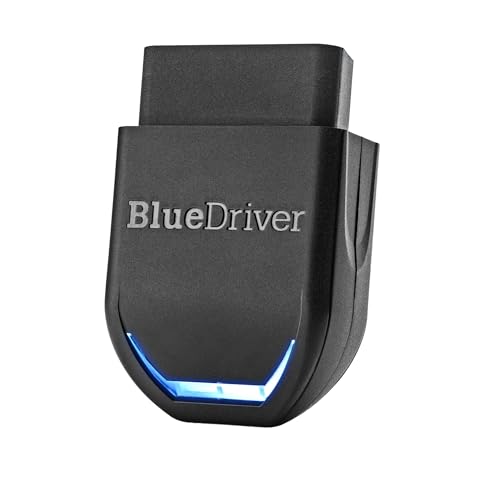
- [Diagnose Like a Pro] BlueDriver Pro Next-Gen is a professional OBD2 scanner and diagnostic tool that helps you scan, understand, and clear vehicle trouble codes with confidence. Turn your phone into a powerful car diagnostic scanner—no guesswork, no unnecessary repairs.
- [Read and Clear More Codes Than Ever] Read and clear more codes than basic car code readers. Access enhanced diagnostics for Check Engine, ABS, SRS, Airbag, TPMS, Transmission, and more on supported vehicles, including expanded coverage on newer model years.
- [Verified Fixes and Real-Time Data] Get unlimited, technician-verified repair reports matched to your VIN, with definitions, causes, and confirmed fixes. Monitor live vehicle data as you drive, view freeze frames, check smog readiness, and analyze Mode 6 test results.
- [Expanded Make & Model Coverage] Optimized for today’s vehicles with strong support for GM, Ford, Stellantis (RAM, Jeep, Chrysler), Toyota, Honda, Nissan, Mazda, Subaru, Hyundai, Mercedes-Benz, BMW, and VW. Enhanced communication on select 2024+ Nissan and Mazda models (see compatibility chart).
- [Gas Vehicles 1996+ & Select Light-Duty Trucks] Works with all gas-powered vehicles made in 1996 or newer, plus select light-duty trucks and diesels, including F-250, RAM 2500, Silverado, and Sierra. Built for daily drivers, family vehicles, and real-world truck use.
SEOCONTENT-START
Bulletin Number: 15-312-23R; Revised: 06/28/23 Page 1 of 5 SERVICE BULLETIN Continued… CAUTION: VEHICLE SERVICING PERFORMED BY UNTRAINED PERSONS COULD RESULT IN SERIOUS INJURY TO THOSE PERSONS OR TO OTHERS. Subaru Service Bulletins are intended for use by professional technicians ONLY. They are written to inform those technicians of conditions that may occur in some vehicles, or to provide information that could assist in the proper servicing of the vehicle. Properly trained technicians have the equipment, tools, safety instructions, and know-how to do the job correctly and safely. If a condition is described, DO NOT assume that this Service Bulletin applies to your vehicle, or that your vehicle will have that condition. Subaru of America, Inc. is ISO 14001 Compliant ISO 14001 is the international standard for excellence in Environmental Management Systems. Please recycle or dispose of automotive products in a manner that is friendly to our environment and in accordance with all local, state and federal laws and regulations. NUMBER: 15-312-23R DATE: 06/26/23 REVISED: 06/28/23 APPLICABILITY: 2016-18MY Crosstrek 2016-18MY Forester 2016-18MY Impreza 2016-18MY Legacy & Outback 2017-18MY WRX SUBJECT: Data Control Module (DCM) Dark Current Diagnosis INTRODUCTION: This bulletin announces repair procedures to be used when diagnosing dark current draw (parasitic draw) on vehicles equipped with Gen 1 Data Control Modules. A software-based DCM Factory Mode Tool has been developed to assist in the diagnosis. Refer to the work procedures outlined in this bulletin when performing dark current diagnosis on vehicles equipped with Gen 1 DCMs. DCM Factory Mode Tool: This tool runs as a separate application outside the standard suite of SSM4 applications. It will be loaded to the Technician’s notebook desktop and accessed from that location for all future use. The DST-i or DST-010 works in conjunction with the Factory Mode Tool to put the DCM subscription status back into “Factory” status. If the DCM is determined to be the root cause of an excessive dark current (parasitic draw), the total dark current draw will be reduced below Subaru STIS diagnostic limits by disabling the DCM functions. NOTE: This tool is not to be used if there are current DTCs stored in the DCM or if there is no communication with the DCM. SERVICE PROCEDURE / INFORMATION: The following requirements MUST be met prior to performing the diagnostic procedures. 1. The customer is NOT SUBSCRIBED to Starlink Telematics 2. The vehicle is listed in the applicability section of this bulletin. 3. There are no current telematics DTCs. 4. The SSM4 can communicate with the DCM, and the subscription status is UNSUBSCRIBED. ATTENTION: GENERAL MANAGER q PARTS MANAGER q CLAIMS PERSONNEL q SERVICE MANAGER q IMPORTANT – All Service Personnel Should Read and Initial in the boxes provided, right. ©2023 Subaru of America, Inc. All rights reserved. Bulletin Number: 15-312-23R; Revised: 06/28/23 Page 2 of 5 Continued… CAUTIONS: 1. Performing the following procedures on vehicles with a subscribed DCM will cause functions of the telematics services to not operate. If this occurs, the telematics operation can only be restored by contacting Subaru Techline (VIN and subscription status will be required). This will cause excessive downtime and repair expense. 2. DCMs with software version DCM_06.00.17_20190816 should not be subject to the conditions this service procedure attempts to repair. If a dark current is detected on a DCM with this software version, this service procedure may not fix the concern. Additional parasitic draw testing is necessary post-repair to ensure that the total battery dark current is within Subaru specification before releasing the car back to the customer. 3. Any current Telematics DTC can keep the DCM awake more prolonged than expected, contributing to the parasitic draw. All telematics DTCs should be resolved before deciding that the DCM is the root cause of the parasitic draw. TOOL SETUP: 1. From the Toughbook, go to the the button on the desktop for: MyDocuments, then from the file window, go to > Subaru > DCM Setting Tool, and click on the shortcut marked DcmSettingTool. 2. Upon the initial opening of the factory mode tool or when the configuration file is not specified, an error message will appear on the screen. Click on OK and ignore this error. A window will pop up to then specify the key file. Confirm the appearance matches the example image below and click Open. If the pop up does not appear or match the example, proceed to Step 6 below. 3. ONLY use the menu and button on the left side of the window with the “subscription mode setting” at the top of the window. 4. Before using the tool, ensure that under the Device menu that, DENSO CORPORATION – DST-i or DST-010 is selected. 5. Before using the tool, ensure that under the Options menu sub-menu Settings, the Production mode change wait time setting is set to 60 second. Bulletin Number: 15-312-23R; Revised: 06/28/23 Page 3 of 5 Continued… 6. Before using the tool, ensure that the key.enc is confirmed under the Options menu sub-menu ChangeKeyFile selection. A. If not already presented, navigate to MyDocuments > Subaru > DCM Setting Tool > Data Files to specify the Key.enc file. B. If you cannot navigate to this location or the Key.enc file is not there you will need to work with Nuspire (877-435-1640) to ensure that the file is loaded locally and specified as outlined in Step 5 above. USING THE FACTORY MODE TOOL: 1. Click the Mode Check button. A. If any mode is displayed other than Factory, continue with the mode change procedure. B. If Factory mode is already indicated, there is no need to continue this procedure. The Technician must reevaluate his parasitic draw test results to determine how to resolve that concern best. 2. Ensure that the Factory Mode button is clicked. 3. Click the Submit button. The message box under the Submit button should indicate that the “Mode setting was executed.” 4. Click the Mode Check button to ensure the Current Mode is Factory Mode. A. If any mode is displayed other than Factory, attempt the Mode Setting again to see if it is successful on a second attempt. B. If, after multiple Mode Setting attempts, the Current Mode is not Factory Mode or the error message below is displayed, then the DCM must be replaced to correct the excessive parasitic draw. Bulletin Number: 15-312-23R; Revised: 06/28/23 Page 4 of 5 Continued… C. A DCM successfully moved to Factory Mode will have the Green Telematics LED illuminated whenever the key is on. This Green indicator LED does not indicate a valid subscription, it indicates a non-comm checked DCM in Factory Mode. DO NOT perform a comm check to a DCM in Factory Mode. 5. Once the Current Mode is confirmed as Factory Mode, remove the overhead trim panel and disconnect the SOS / i-Button switch so it is not accidentally depressed. 6. Wrap the switch assembly connector using a tape that can be written on, leaving a pigtail piece accessible to write the TSB number on. Use a permanent marker like a “Sharpie” to indicate this TSB number for future reference. This tape will prevent any unwanted electrical connections and identify the TSB that indicates why it should remain disconnected. See the example image below. 7. Once the Current Mode is confirmed as Factory Mode, recheck for the presence of parasitic draw and act accordingly. DO NOT RELEASE THE VEHICLE BACK TO THE CUSTOMER WITHOUT VERIFYING THAT THE PARASITIC DRAW IS WITHIN SUBARU SPECIFICATIONS. NOTE: This Factory Mode Setting is not permanent because pushing the iButton will be interpreted as a comm check attempt and will change the subscription status. If this occurs, the DCM may again exhibit excessive dark current draw. It is important to disconnect the telematics switch assembly, so this does not happen. REACTIVATION PROCEDURE: 1. Inspect the vehicle for the presence of a taped electrical connection at the telematics switch assembly. Remove the tape and reconnect. 2. If the switch is not disconnected and taped, the Technician can also confirm by using the SSM4 and verifying that the Telematics Subscription Status PID is set to “Factory.” Bulletin Number: 15-312-23R; Revised: 06/28/23 Page 5 of 5 3. To restore Telematics operation to the vehicle, the Technician will A. Reconnect the Telematics LED/Button assembly. B. Replace the DCM. C. Complete the Comm Check. D. Confirm telematics operation by placing an iButton call and, if necessary remote services operation by asking the customer to request telematics services using the MySubaru App. WARRANTY / CLAIM INFORMATION: For vehicles outside a Warranty period, this repair may be submitted using a Policy Adjustment claim type. For vehicles within the Basic New Car Limited Warranty period or covered by an active Subaru Added Security Gold plan, this repair may be submitted using the following claim information: Labor Description Labor Operation # Labor Time Fail Code FACTORY MODE INSTALL & DARK CURRENT DIAGNOSIS A067-905 1.0 ZQQ-42 IMPORTANT REMINDERS: • SOA strongly discourages the printing and/or local storage of service information as previously released information and electronic publications may be updated at any time. • Always check for any open recalls or campaigns anytime a vehicle is in for servicing. • Always refer to STIS for the latest service information before performing any repairs.
**************************************************************************************************************
**************************************************************************************************************
SEOCONTENT-END
This product presentation was made with AAWP plugin.