NHTSA ID Number: 10249612
Manufacturer Communication Number: Subaru TechTips
Summary
Subaru Service and Technical Support Line Newsletter (QMR of the Month).
1 Affected Product
Vehicle
1 Associated Document
Manufacturer Communications
TIPS1123 – 2023 November TechTIPS Newsletter (update)
MC-10249612-0001.pdf 3692.686KB
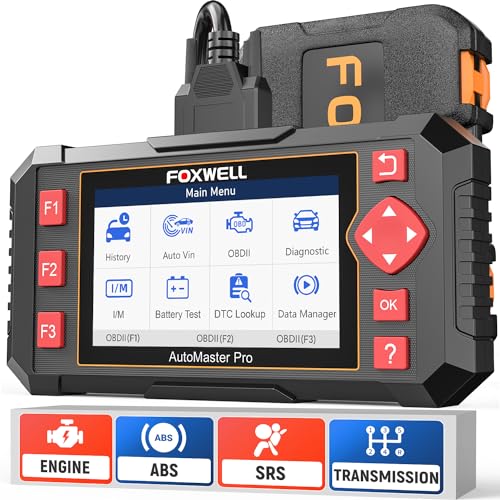
- [Easy to Use—Work Out of the Box] + [FOXWELL 2026 New Version] FOXWELL NT604 Elite scan tool is the 2026 new version from FOXWELL, designed for car owners who want to figure out the cause of issues before fixing car problems by scanning common systems like ABS, SRS, engine, and transmission. The NT604 Elite obd2 scanner diagnostic tool comes with the latest software—no need to waste time downloading software first. Plug the scanner into the OBDII port with OBDII cable to start the diagnosis.
- [Affordable] + [Reliable Car Health Monitor] Will you be confused what happens when the warning light of ABS/SRS/transmission/check engine flashes? Instead of taking your cars to dealership, this FOXWELL scanner will help you do a thorough scanning and detection for your cars and pinpoint the root cause. Note:The device is a diagnostic tool, not a repair tool. To turn off a warning light, you must first physically repair the issue causing it. Only then can the scanner be used to clear the corresponding fault code.
- [5 in 1 Car Diagnostic Scanner] Compared with obd scanners (50-100), NT604 Elite code scanner not only includes their OBDII diagnosis but also serves as ABS/SRS scanner, transmission and check engine code reader. When it’s an odb2 scanner, you can use it to check if your car is ready for annual test through I/M readiness menu. In addition, live data stream, built-in DTC library, data play back and print, all these features are a big plus for it. Note: doesn't support maintenance functions like reset or relearn. For the SRS system, NT604 Elite can read and clear common fault codes not caused by a crash, but crash/collision data cannot be cleared.
- [Fantastic AUTOVIN] + [No extra software fee] Through the AUTOVIN menu, this NT604 Elite car scanner allows you to get your V-IN and vehicle info rapidly, no need to take time to find your V-IN and input one by one. What's more, the NT604 Elite ABS SRS scanner supports 60+ car brands from worldwide (America/Asia/Europe). You don’t need to pay extra software fee. AUTOVIN may not work on some older vehicles or certain vehicle brands. If AUTOVIN fails, please input the vin code manually or go to the Diagnostic Menu to select your vehicle model.
- [Solid protective case KO plastic carrying bag] + [Lifetime update] Almost all same price-level car scanner diagnostic tool only offers plastic bag to hold the scanner.However, NT604 Elite automotive scanner is equipped with solid protective case, preventing your obd2 scanner from damage. Then you don’t need to pay extra money to buy a solid toolbox.
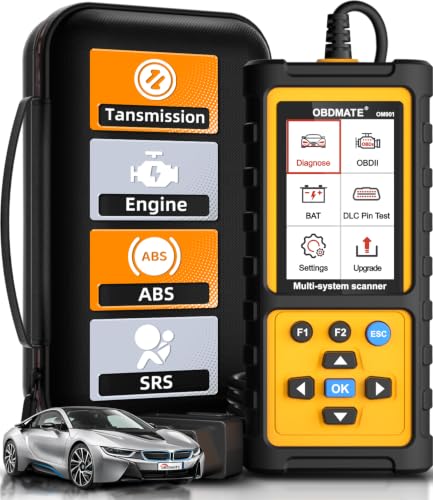
- 【Reset ABS/SRS/Transmission/Engine Lights】 More than an check engine code reader, OBDMATE OM901 obd2 scanner performs comprehensive diagnostics for the 4 most-used systems (ABS/SRS/Engine/Transmission). It quickly clears fault codes, turns off warning lights, read data stream and auto VIN.
- 【3.5" Handheld Scanner with 4 System Diagnose】 3.5" Super large TFT screen equipped displays an intuitive menu and clear readings of various sensors from ABS, SRS, ECM and TCM systems. It arrived with a silicone protective case and hard-shell carrying case, ensuring long-lived durability and drop resistance. The car diagnostic tool is plug-to-play designed, plug it and get diagnosis started without any batteries or updates required.
- 【One-Click I/M Readines&Full OBD2 Functions】 Press F1 to get an intuitive corloured form about whether various emissions-related systems on the vehicle are operating properly. Help you get smog-check ready quickly. OM901 car scanner supports all essential OBD2 functions you need: read & clear codes, view freeze frame, read I/M readiness, retrieve VIN, live data stream (with graphing display), O2 sensor test, onboard monitoring mode, and EVAP leak test.
- 【Battery Voltage Check&DLC Pin Test】 It allows you to monitor battery health by testing current battery voltage. Plus, this obd2 diagnostic tool features DLC 16-PIN test to check current voltage of every pin.
- 【Automotive Scanner Diagnostic Kit】 The package comes with 1 car scanner, 1 USB-type c cable, 1 hard storage bag and 1 user manual(en). Free to update without any hidden fees. 5 languanges available in setting including English, French, Italian, German and Espanish. Valuable and Portable, making it a great tool kit for car owners, DIY enthusiasts, and professional mechanics.

- [All System Diagnostics, Professional-Level Scanner] - BLCKTEC 460T is the ultimate OBD2 diagnostic tool for home mechanics and professionals. It supports all 10 OBD2 modes, reads and clears Engine/Transmission/ABS/SRS codes, performs All-System Diagnostics, offers workshop reset tools, and provides real-time live data. It helps you pinpoint issues, assess your car's condition, and prepare for SMOG checks with ease. NOTE: Function availability depends on your vehicle. Before you buy, be sure to use the Compatibility Checker on BLCKTEC website or contact our customer support to verify that the features you need are supported for your vehicle’s specific year, make, and model.
- [12+ Most Popular Reset Functions] - BLCKTEC 460T OBD2 scanner offers 12+ dealer-level service functions, including Oil Maintenance Reset, ABS Bleeding, EPB Reset, SAS(Steering Angle Sensor) Recalibration, DPF(Diesel Particulate Filter) Reset, Throttle Body Relearn, Battery Reset/Initialization, TPMS Relearn, Transmission Reset, Fluid Change Reset, Maintenance Reset and more, enabling you to perform workshop services like a pro. NOTE: Function availability depends on your vehicle. Be sure to use the Compatibility Checker on BLCKTEC website to verify that the features you need are supported for your vehicle.
- [Real-Time OBD2 and OEM Live Data, Freeze Frame Data] - BLCKTEC 460T helps diagnose vehicle issues when warning lights like Check Engine Light or ABS/SRS Light appear. It offers detailed DTC info, ECU Freeze Frame Data, and real-time OBD2 and advanced OEM live data, including Engine, Transmission, ABS, SRS, and more, making it easy to diagnose and resolve vehicle problems. You can view, graph, record, replay, and overlay up to four live data streams in a single graph for better analysis.
- [AutoVIN, AutoReLink, AutoScan, 3X Faster] - Equipped with AutoVIN technology, 460T automatically retrieves the VIN to save you time. Its AutoScan and AutoReLink features scan all of the vehicle's ECUs and detect any fault codes immediately after you plug the scanner into the vehicle's OBD2 port - no button presses required. Additionally, it regathers DTC and I/M readiness information every 30 seconds, simplifying monitor tests. 460T's advanced technology makes it 3X faster than other products.
- [Get RepairSolutions2, the #1 Auto Repair App for Free] - When paired with RepairSolutions2(RS2) App, 460T becomes even more powerful. RS2's Verified Fix Database built by master technicians, provides the parts needed for the repair. Additionally, RS2 gives you access to OEM warranty info, maintenance schedules, TSB, and dealership recall info, making car care easier than ever. RS2 is free with no subscription fees and it stores your car scan reports in the cloud, allowing you to access, share, or print them anytime and anywhere.
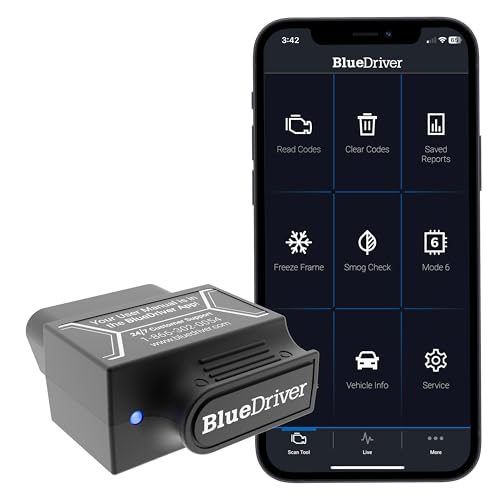
- [Diagnose Like a Pro] BlueDriver Pro is a professional OBD2 scanner and diagnostic tool that helps you scan, understand, and clear vehicle trouble codes with confidence. Turn your phone into a powerful car diagnostic scanner—no guesswork, no unnecessary repairs.
- [Read and Clear More Codes Than Ever] Read and clear more codes than basic car code readers. Access enhanced diagnostics for Check Engine, ABS, SRS, Airbag, TPMS, Transmission.
- [Verified Fixes and Real-Time Data] Get unlimited, technician-verified repair reports matched to your VIN, with definitions, causes, and confirmed fixes. Monitor live vehicle data as you drive, view freeze frames, check smog readiness, and analyze Mode 6 test results.
- [Wireless & Bluetooth Enabled] - Say goodbye to wires. BlueDriver connects with Bluetooth via your phone/tablet to a sensor that plugs into your car's OBDII port. Get all of the capabilities of an expensive code reader & scan tool without any annoying wires.
- [Broad Make & Model Coverage] Strong support for GM, Ford, Stellantis (RAM, Jeep, Chrysler), Toyota, Honda, Nissan, Mazda, Subaru, Hyundai, Mercedes-Benz, BMW, and VW.
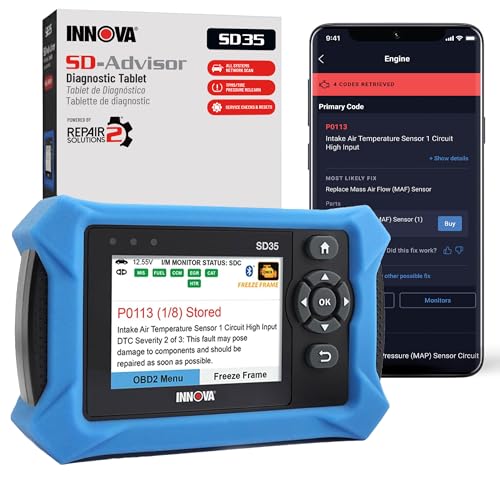
- OBD2 SCANNER FOR ALL SYSTEMS – The INNOVA SD35 is a tablet-based OBD2 scanner designed for advanced diagnostics. Read and clear check engine light, ABS, SRS, and TPMS codes, plus test your car battery and alternator to prevent unexpected failures. Vehicle coverage may vary. Please use Innova’s Coverage Checker to verify compatibility.
- ALL-SYSTEM DIAGNOSTICS & LIVE DATA – Unlike basic code readers, this OBD2 scanner for all vehicles scans engine, transmission, ABS, SRS, and more. Get real-time live data, including RPM, fuel trims, temperature readings, and oxygen sensor performance.
- OBD2 TABLET WITH USER-FRIENDLY INTERFACE – This automotive scan tool features a high-resolution display, making vehicle diagnostics faster and easier.
- ADVANCED TPMS, OIL RESET & SERVICE FUNCTIONS – Perform TPMS sensor checks, oil light reset, and other service resets with ease This professional diagnostic tool provides comprehensive vehicle maintenance capabilities in one device.
- WIDE VEHICLE COVERAGE (1996 & NEWER CARS & TRUCKS) – This OBD2 scanner Bluetooth tablet is compatible with Toyota, Ford, Honda, Chevrolet, Nissan, Dodge, and more. However, feature coverage may vary. Please use Innova's Coverage Checker to verify coverage.
SEOCONTENT-START
November 2023 TechTIPS Page 1 of 19
Subaru Service and Technical Support Line Newsletter ©2023 Subaru of America, Inc. All rights reserved.
01 QMR of the Month
We are pleased to announce this month’s TechShare QMR of the Month
Winner:
Elijah Aubuchon from
Huffines Subaru Corinth in Corinth, TX
Elijah created a high quality QMR using TechShare reporting on customer’s
concern of the vehicle not being able to come out of park. Elijah’s report
included detailed diagnostic steps and high-quality photos.
Please refer to the following link to review the TechShare QMR in detail.
https://subarutechshare.com/qmrs/TS-252218
In appreciation for going the extra mile and sharing his experience with
us, Elijah will be receiving the following from his District Service Quality
Manager:
$500.00 Snap-On gift card
SUBARU TECHLINE HOLIDAYS
& HOURS OF OPERATION
Mon. – Thurs. 8:30AM – 7:30PM EST
Friday 10:30AM – 5:00PM EST
Saturday 9:00AM – 3:00PM EST
Articles Contained
in this Issue
Click on a title below to jump to the article.
Click the date located in the footer to return to page 1.
CODE ARTICLE………………………………………………………….PAGE
(00) STIS New Releases…………………………..17-18
(01) QMR of the Month………………………………..1-2
(01) QMR of the Month Award
Presentations………………………………………… 2
Tech Tips Greatest Tips
(15) STARLINK TELEMATICS – COMM CHECK,
TEST CALLS, REMOTE SERVICES REQUESTS,
FAILED CALLS………………………………………3-6
(01) Techline Staffing Changes
Where are they now?……………………………6-7
(15) Microphone Inoperative, Telematics DCM .
Comm Check Failure and RES inop………..8-9
(15) EyeSight HALT Codes 41, A0 and CC…..10-11
(15) Unit Registration, Codes/DTCs After
Replacing a Module, U1C00, U0146,
B28A2, B28A1, U1P07, U1P08,
U1C07, U1C08C…………………………………11-12
(20) Solterra Reverse Buzzer
Setting Change………………………………..13-16
ISO 14001 is the international standard for excellence
in Environmental Management Systems.
Please recycle or dispose of automotive products
in a manner that is friendly to our environment
and in accordance with all local, state and federal
laws and regulations.
CAUTION: VEHICLE SERVICING PERFORMED BY UNTRAINED PERSONS
COULD RESULT IN SERIOUS INJURY TO THOSE PERSONS OR TO OTHERS.
SUBARU OF AMERICA, INC. IS
ISO 14001 COMPLIANT
Continued on the next page
November 2023
The Subaru TechTIPS newsletter is intended for use by professional Technicians ONLY. Articles are written
to inform those Technicians of conditions that may occur in some vehicles, or to provide information
that could assist in the proper servicing of the vehicle. Properly trained Technicians have the equipment,
tools, safety instructions, and know-how to do the job correctly and safely. If a condition is described,
DO NOT assume that your vehicle has or will have that condition. Impreza, Legacy, Justy, Loyale,
Outback, Forester, Subaru SVX, WRX, WRX STI, Baja, Tribeca, BRZ, XV Crosstrek, Ascent, Crosstrek
Hybrid, Solterra and “Quality Driven” are Registered Trademarks.
Holiday Break: (Closed)
Friday, December 22, 2023
Saturday, December 23, 2023
Monday, December 25, 2023
Monday, January 1, 2024
Continued on the next page
November 2023 TechTIPS Page 2 of 19
01 QMR of the Month (CONTINUED)
The other Regional winners selected from QMRs submitted during September 2023 were:
• Sherrod Young from Stiver Decatur Subaru
• Jeremy De Groodt from Capitol Subaru
• David Rizzo from Northtown Subaru
• Tyler Miranda from Patrick Subaru
Any Subaru Technician can participate in the TechShare QMR of the Month program. See the November
2022 issues of TechTIPS for full details. You just might see your name and photo in a future issue of
TechTIPS!
01 QMR of the Month Award Presentations
As part of our “enhanced” QMR of the Month recognition program, we will include a photo (whenever
available) of the recipient’s award presentation in TIPS. The winner selected from QMR of the Month
submissions received during September 2023 was Elijah Aubuchon, Senior Master Technician at
Huffines Subaru Corinth, Corinth, TX.
Elijah is shown above (second from the left) after being presented with his $500.00 Snap-On Gift Card. To
Elijah’s right is Service Manager Andrea Delossantos. To Elijah’s left is DSQM William Davis and Service
Director Anthony Sdao.
Congratulations and THANK YOU to our August 2023 QMR of the Month Award recipient!
Continued on the next page
November 2023 TechTIPS Page 3 of 19
This series features TechTIPS articles frequently referred to by Techline. This month’s feature is from
December 2022.
STARLINK TELEMATICS – COMM CHECK, TEST CALLS, REMOTE SERVICES
REQUESTS, FAILED CALLS 15
The purpose of this TechTIP is to share some best practices for Gen 2 and Gen 3 Telematics service
procedures. It is also to stress the importance of contacting Techline when encountering uncertainty or
difficulty with any generation of Starlink Telematics. As a reminder to Technicians the best way to ensure
they get the information needed to diagnose Telematics concerns efficiently is to complete QMRs with a
high level of detail to ensure a steady flow of information to the field.
Critical: The SSM4 should only be connected to the vehicle when reviewing data or using
Work Support. The SSM4 should not be connected to the vehicle during the Comm Check,
Provisioning after a Comm Check, during a VOLTE call and Remote Service testing.
Please perform the procedures below before contacting Techline for one of the concerns listed.
The Comm Check Procedure
Press the “i” button for 2 seconds to perform the Comm Check and then connect the SSM4.
Navigate to the Telematics data monitor and confirm the “Subscription Status” PID changes to
“Unsubscribed” and the Telematics LEDs are off (if the vehicle does not have a subscription), or
changes to “Subscribed” and the GREEN telematics LED is illuminated (if the vehicle has a current
subscription).
Note: The SSM4 should not be connected while trying to perform the Comm Check, test calls, or
Provisioning. Starlink Telematics is very sensitive to the SSM4 connection. The SSM4 may be
probing for data and can cause interference which may cause a race condition and Comm Check
failure.
The Test Call Procedure
A Technician can press the “i” button on any Gen 2 or Gen 3 vehicle and connect to the Starlink
call center. Once connected to an operator, the Technician can request a remote door unlock or
remote engine start (RES) to verify telematics operation further. More information about Remote
Service testing can be found in TSB 15-266-20.
Note: Services available for testing can vary and are based on the customer’s subscription plan.
November 2023 TechTIPS Page 4 of 19
Continued on the next page
STARLINK TELEMATICS – COMM CHECK, TEST CALLS, REMOTE SERVICES
REQUESTS, FAILED CALLS (CONTINUED) 15
Test Call Procedure after DCM Replacement
After a Technician has replaced the DCM, verifying the operation of the “i” button and Remote
Services is necessary. If the procedure below is not followed, “i” button calls may not connect to
a Starlink operator.
1. DCM has been replaced, and the Comm Check has been completed.
2. Turn the ignition off and wait ten minutes.
3. Turn the ignition on, press the “i” button to connect to the Starlink call center, and complete
Telematics repair verification testing.
CRITICAL: Failure to cycle ignition power and wait ten minutes after DCM replacement
could result in “i” button calls failing. This behavior may lead Technicians to determine that
the DCM replacement did not repair the customer’s concern or introduce a new concern
to the vehicle.
Note: The SSM4 should not be connected to the vehicle when trying to use the “i” button to
connect with a Starlink Operator. Having the SSM4 connected may cause the “i” button call or
Remote Service request to fail.
The Comm Check fails
In almost all cases, the Comm Check will complete on the first attempt. The Comm Check may fail
in rare circumstances, and the “Subscription Status” PID returns to “Factory” mode.
After a Comm Check failure please check for the following conditions that can prevent the Comm
Check from completing.
1. There are current Telematics DTCs.
2. The Telematics antenna may have a fault in the circuit. (When in “Factory mode” the Signal
strength PID will always read 0%)
3. All Telematics fuses have been visually and electrically inspected for faults.
4. The SSM4 (or any aftermarket dongle) was plugged into the OBDII connector while the
Comm Check was performed.
5. Inspect for any aftermarket devices in the vehicle.
If none of the above conditions are found with the car, please perform the workaround below
before contacting Techline for further assistance.
November 2023 TechTIPS Page 5 of 19
Continued on the next page
WORKAROUND: The Technician must use the SSM4 to confirm the “Subscription Status” is
“Unsubscribed” or “Subscribed” in the Telematics data monitor before releasing the vehicle. The
Comm Check has failed if the subscription status is “FACTORY” or “COMM”. If the Comm Check
is confirmed to have failed, follow the procedure below.
• Disconnect the SSM4 from the vehicle.
• Turn the ignition off and wait 5 minutes.
• Turn the ignition on and wait 3 minutes, doing nothing to the car during this time.
• Press the “i” button for 2 seconds to perform the Comm Check.
• Wait 2 minutes, then connect the SSM4 and verify the “Subscription Status” in live data.
• If the Comm Check has not been completed after performing this procedure twice, contact
Techline for more assistance.SOS or “i” button calls fail to connect to an operator.
If a customer reports a concern of the “i” button or “SOS” button not connecting to a Starlink
Operator or the Technician experiences this condition during testing, perform the workaround
below before contacting Techline.
WORKAROUND: If a test call exhibits no connection to an operator or an error message when
performing the “SOS” or “i” button push, the technician should first:
• Disconnect the 12V under-hood battery for 15 minutes.
• Ensure the SSM4 is not connected to the car.
• Reconnect the 12V under-hood battery.
• Turn the ignition on and wait 3 minutes, doing nothing to the vehicle during this time.
• Perform another test of the “i” button.
• If this procedure fails to rectify the “no VOLTE” call concern, contact Techline for support.
A test call using the SOS/”i” button fails, Remote Service request fails post enrollment or
after DCM replacement.
Upon customer enrollment or DCM replacement, if remote service requests fail to complete,
perform the workaround below before contacting Techline.
This workaround is a suitable general procedure to clear transient conditions with the DCM or
its connection to the network. Technicians may want to incorporate this workaround into their
Telematics diagnostic method.
STARLINK TELEMATICS – COMM CHECK, TEST CALLS, REMOTE SERVICES
REQUESTS, FAILED CALLS (CONTINUED) 15
November 2023 TechTIPS Page 6 of 19
Continued on the next page
WORKAROUND: If the technician experiences a provisioning failure, they should:
• Disconnect the 12V under-hood battery for 15 minutes.
• Ensure the SSM4 is not connected to the car.
• Reconnect the 12V under-the-hood battery.
• Turn the ignition on and wait 3 minutes, doing nothing to the vehicle.
• Connect the SSM4, using live data to verify the “Subscription Status” now shows “Subscribed”
to confirm the provisioning failure is no longer present.
• Verify operation by placing an “i” button call to connect to an operator.
• Ask the operator to send a remote door to unlock the vehicle to verify the operation of the
remote services.
• If this procedure fails to rectify the provisioning failure concern, contact Techline for support.
01 Techline Staffing Changes Where are they now?
We are proud to announce a few of the most recent staff changes
related to the Techline Team!
Meet Michael Winters, a Master Subaru
Technician, who joined Techline in the winter of
2019.
Michael recently moved into the Quality Data
Specialist position. Congratulations Michael!
Meet Robert Bradley, a Master Subaru
Technician, who joined Techline in the spring of
2021.
Robert recently moved into the Quality Data
Specialist position. Congratulation Robert!
STARLINK TELEMATICS – COMM CHECK, TEST CALLS, REMOTE SERVICES
REQUESTS, FAILED CALLS (CONTINUED) 15
Continued on the next page
November 2023 TechTIPS Page 7 of 19
01 Techline Staffing Changes Where are they now? (CONTINUED)
Meet John Rowlett, a Master Subaru Technician,
who joined Techline in the spring of 2021.
John recently moved into the Technical
Training Development Specialist position.
Congratulations John!
Meet Sean Brown, a Master Subaru Technician,
who joined Techline in the fall of 2017.
Sean recently moved into the Quality Data
Specialist position. Congratulations Sean!
Meet Gene Hixson. After 34 years with Subaru of
America Inc. Gene retired on September 15th.
We wish him well in his life after Subaru.
Congratulations Gene!
CONGRATULATIONS!
CONGRATULATIONS!
CONGRATULATIONS!
CONGRATULATIONS!
Continued on the next page
November 2023 TechTIPS Page 8 of 19
15 Microphone Inoperative, Telematics DCM Comm Check Failure and RES inop
Techline has received an increased number of cases where the Remote Engine Start is inoperable,
Comm Check after a DCM replacement is not possible, as well as inoperable or intermittent microphone
operation. Below is an overview of what has been found and the best process for repair.
Concern: A significant number of DCM (Data Communication Module) replacements have been
performed due to misdiagnosed DCM failures. The actual root cause of the issue is a blown ACC
(Accessory) fuse, often this can be triggered by a faulty USB-connected device.
Symptoms:
• Microphone inoperable
• Telematics Comm Check failure
• RES inoperable
Affected Components:
• ACC power for the DCM
• Rear USB hub
• Wireless charger (if equipped)
Troubleshooting Steps:
1. Verify the ACC fuse for the DCM is intact and has B+ on both sides of fuse. An open fuse
indicates a circuit fault. If an open fuse is found continue to step 2.
If the fuse is intact, see: July 2023 TechTIPS for continued microphone troubleshooting. If
the concern is Comm Check failure, contact Techline for assistance. If the Concern is RES
operation, see 15-282-21R.
2. Inspect the center console and rear USB hubs for any signs of damage or contamination (the
front USB hub is not powered by this fuse).
3. Disconnect all USB devices from the rear USB hub, and/or the rear USB hub itself. Make any
necessary repairs to the circuit.
4. Replace the blown ACC fuse. Perform the Telematics test call using the “i” button and ensure
the Starlink operator can hear you. If the concern is Comm Check failure, verify at this point that
the Comm Check completes. Verify the RES now operates.
Preventive Measures:
1. Avoid connecting incompatible or damaged USB devices to the vehicle.
2. Regularly inspect the USB hub for signs of damage or contamination.
3. Ensure USB devices are properly connected and secured.
Continued on the next page
November 2023 TechTIPS Page 9 of 19
Microphone Inoperative, Telematics DCM Comm Check Failure and RES inop
(CONTINUED) 15
Emphasis on Misdiagnosis: The high frequency of misdiagnosed DCM failures highlights the
importance of thorough troubleshooting. A blown ACC fuse can easily mimic the symptoms of a faulty
DCM, leading to unnecessary component replacements.
By prioritizing the ACC fuse check in these situations, technicians can efficiently identify the root
cause and implement an appropriate solution, preventing unnecessary expenses and downtime.
Note: The fuse numbers below are for the Telematics system. It is always recommended to
verify the other circuits that are powered by any fuse for the model vehicle being serviced.
Impreza
Impreza
Impreza
Impreza
Continued on the next page
November 2023 TechTIPS Page 10 of 19
15 EyeSight HALT Codes 41, A0 and CC
When diagnosing Eyesight concerns, it is helpful to understand the setting criteria of the HALT codes
to determine if there is a system fault or normal characteristics of how the system operates. HALT
codes do not always indicate a system failure. They are there to label why the system temporarily
stopped. Some of the more common HALT codes to see are 41, A0, and CC.
HALT Code 41 is on systems with both EBB (Electric Brake Booster) and EyeSight Ver4. It has been
found that the VDC initial diagnosis may not be completed if the brake is continuously depressed
after the engine has been started. Normal operation to complete this check is to start the engine and
release the brake pedal. This allows the initial VDC diagnosis to complete and the system to operate
normally.
HALT Code A0 does not necessarily indicate a fault with the CAN system. In most scenarios, this
will populate due to cycling the ignition to the on position, waiting and then starting the vehicle. Note
the description below found in the Service Manual that this can be a normal condition. However,
depending on the concern, a battery inspection may be necessary.
HALT Code CC This code may be the most common to see. This code, in most cases is due to the
camera lenses not having a clear image ahead. This can be due to several everyday scenarios such as
bad weather (heavy rain, fog, frost, snow, etc.) direct sunlight or oncoming traffic high-beam lights. In
some cases, aftermarket windshields or improperly mounted windshield devices that block the view
of the camera can cause the system to stay off and will populate this as a result.
Continued on the next page
November 2023 TechTIPS Page 11 of 19
15 EyeSight HALT Codes 41, A0 and CC (CONTINUED)
For descriptions and information on other HALT codes found in the Service Manual, follow the click
path below:
Diagnostics > EyeSight (Diagnostics) > EyeSight HALT Code > List
Unit Registration, Codes/DTCs After Replacing a Module, U1C00, U0146, B28A2,
B28A1, U1P07, U1P08, U1C07, U1C08C 15
Techline has been receiving an increase of calls about numerous codes being present after a module
replacement. It is always critical to read and follow all steps listed in the “Removal” and “Installation”
directions in STIS when replacing any module in the vehicle. There are steps that have been added to
the “Installation” directions on STIS when replacing modules, when these steps are not followed there
will be multiple DTCs set after a new module is installed. There are two previous TechTIPS covering
this subject with relation to replacing Stereo EyeSight cameras, July 2022 and April 2023.
There are now many modules that will need a programming procedure to be performed after
replacement, a few examples are the Stereo EyeSight Camera, the Data Communication Module
(DCM), the Transmission Control Module (TCM), the Vehicle Dynamics Control Module (VDC). There
may be other modules that will also need the “Unit Registration” or “Immobilizer Registration” to be
completed.
Some modules may have their own listing in the Immobilizer Registration section, again it is critical to
read and follow all steps of the “Installation” directions in STIS.
Continued on the next page
November 2023 TechTIPS Page 12 of 19
Unit Registration, Codes/DTCs After Replacing a Module, U1C00, U0146, B28A2,
B28A1, U1P07, U1P08, U1C07, U1C08C (CONTINUED) 15
To determine if “Unit Registration” needs to be performed, navigate to STIS for the vehicle being
serviced, find the “Installation” directions for that module. This step will be listed. Below are a few
examples from STIS instructing a Technician to perform the “Unit Registration”.
IT IS CRITICAL TO READ AND FOLLOW ALL STEPS OF MODULE
INSTALLATION LISTED IN THE SERVICE MANUAL
Continued on the next page
November 2023 TechTIPS Page 13 of 19
20 Solterra Reverse Buzzer Setting Change
There is a buzzer noise inside the passenger compartment that will sound when in Reverse, this is
normal. This buzzer noise while in Reverse is a separate noise from the Subaru Parking Assist buzzer.
The Owner’s Manual states the Reverse buzzer can be turned off by a Subaru retailer. From the
Solterra Owner’s Manual:
If a customer requests to have the Reverse buzzer turned off, follow the directions below.
Before starting this procedure verify the “Vehicle Area Selection” is set to North America. To change
this setting, select “GTS+ Settings”
Continued on the next page
November 2023 TechTIPS Page 14 of 19
20 Solterra Reverse Buzzer Setting Change (CONTINUED)
If needed change the “Vehicle Area Selection” to North America and press the arrow on the bottom
right to save this setting.
To verify the setting change, look at the top right of the GTS+ home screen, it should show “Vehicle:
NA” for North America.
Continued on the next page
November 2023 TechTIPS Page 15 of 19
20 Solterra Reverse Buzzer Setting Change (CONTINUED)
The buzzer noise when in Reverse is unrelated to the Subaru Parking Assist buzzer, that feature can
be adjusted by the customer. Directions for this can be found in the Owner’s Manual on page 314.
Continued on the next page
November 2023 TechTIPS Page 16 of 19
20 Solterra Reverse Buzzer Setting Change (CONTINUED)
Continued on the next page
November 2023 TechTIPS Page 17 of 19
00 STIS New Releases
ITEM CODE ITEM TYPE TITLE
CREATED
DATE
E7210SL310 Accessory Installation Guide 2025MY Forester – STI Roof Spo… 12-Dec-23
F5410SL000 Accessory Installation Guide 2025MY Forester – Moonroof Air… 12-Dec-23
F0010SL000 Accessory Installation Guide 2025MY Forester – Side Window … 12-Dec-23
J101SSL000 Accessory Installation Guide 2025MY Forester – Splash Guard… 12-Dec-23
J2010SL100 Accessory Installation Guide 2025MY Forester – Center Conso… 12-Dec-23
F501SSL000 Accessory Installation Guide 2025MY Forester – 2nd Row Suns… 12-Dec-23
SOA9031100 Accessory Installation Guide 2025MY Forester – Windshield S… 12-Dec-23
SOA9031000 Accessory Installation Guide 2023MY Solterra – Windshield S… 12-Dec-23
J131SFNXXX Accessory Installation Guide 2023MY Crosstrek and Impreza -… 12-Dec-23
F5510SL110 Accessory Installation Guide 2025MY Forester – Cargo Shelf … 12-Dec-23
F5510SL060 Accessory Installation Guide 2025MY Forester Utility Hook M… 12-Dec-23
F5510SL050 Accessory Installation Guide 2025MY Forester – Utility Hook… 12-Dec-23
F5510SL010 Accessory Installation Guide 2025MY Forester Utility Hook 12-Dec-23
WRQ-23 Subaru Product/Campaign Bulletin Safety Recall – Transmission I… 12-Dec-23
MSA5M2430A Owner Manual 2024MY Solterra Owner’s Manual 12-Dec-23
MSA5M2431A Owner Manual 2024MY SolterraCONNECT Subaru … 12-Dec-23
MSA5B2410A Owner Manual 2024MY Solterra Quick Start Gu… 12-Dec-23
MSA5B2409A Owner Manual 2024MY Solterra Getting Starte… 12-Dec-23
MSA5M2422A Owner Manual 2024MY SUBARU STARLINK Safety … 11-Dec-23
MSA5M2432A Owner Manual 2024MY SUBARU STARLINK Safety … 11-Dec-23
15-236-18R Technical Service Bulletin Reprogramming File Availabilit… 8-Dec-23
Service Diagnostics 2024 BRZ Service Manual VH 5-Dec-23
16-145-23 Technical Service Bulletin DTC P2797 / Reprogramming File… 4-Dec-23
Service Diagnostics 2024MY Solterra Service Manual… 1-Dec-23
J201SXC001 Accessory Installation Guide 2021-24MY Ascent – Console Lid… 30-Nov-23
J201SSJ001 Accessory Installation Guide 2021-24MY Forester – Console L… 30-Nov-23
J201SFL601 Accessory Installation Guide 2021-23MY Impreza & Crosstrek … 30-Nov-23
J201SAN601 Accessory Installation Guide Console Lid Protector 30-Nov-23
H671SXC203 Accessory Installation Guide 2024MY Ascent Wireless Charger… 30-Nov-23
H0010VC785 Accessory Installation Guide 2022+ MY WRX – CD PLAYER INSTA… 30-Nov-23
H4610SL100 Accessory Installation Guide 2025MY Forester – LED Door Pro… 30-Nov-23
All revised publications are highlighted in yellow.
Continued on the next page
November 2023 TechTIPS Page 18 of 19
ITEM CODE ITEM TYPE TITLE
CREATED
DATE
J1210SL110 Accessory Installation Guide 2025MY Forester Rear Gate Inse… 30-Nov-23
J1210SL100 Accessory Installation Guide 2025MY Forester Rear Gate Inse… 30-Nov-23
07-207-22R Technical Service Bulletin Subaru Battery Drain Product L… 27-Nov-23
09-106-23R Technical Service Bulletin Exhaust Pipe Front (EPF) Desig… 27-Nov-23
09-94-22R Technical Service Bulletin Engine in Fail-Safe Mode / DTC… 27-Nov-23
09-114-23 Technical Service Bulletin Reprogramming Files / DTC P04A… 27-Nov-23
SOA567B042 Accessory Installation Guide Thule Bike Carrier – Hitch Mou… 26-Nov-23
All revised publications are highlighted in yellow.
Continued on the next page
November 2023 TechTIPS Page 19 of 19
*** Now you can e-mail your TechTIPS input and suggestions to: tech@subaru.com ***
SUBARU TECHLINE Monday – Thursday 8:30 am to 7:30 pm
Hours of Operation Friday 10:30 am to 5 pm and Saturday 9 am to 3 pm
This is your chance to offer suggestions for use in future issues of TechTIPS! Make
sure that if you e-mail us, you place in the subject line of your e-mail “For TechTIPS
Newsletter”. Thank you!
Model:
Year:
VIN:
Description of situation encountered:
Your suggestion for repair procedure, product improvements, etc.:
Please attach separate sheets, if necessary. You may also want to include Service Manual
diagrams or references, or your own drawings to assist in describing your suggestion. All
information submitted becomes the property of Subaru of America, Inc. Permission is granted
to Subaru of America, Inc. to print your name and suggestions in TechTIPS and other Subaru of
America, Inc. publications. Mail items to: PO Box 9103; Camden, NJ 08101-9877.
Your Name:
Signature:
Dealer’s Name:
City:
Date:
Dealer Code:
**************************************************************************************************************
**************************************************************************************************************
SEOCONTENT-END
This product presentation was made with AAWP plugin.