
NHTSA ID Number: 10198770
Manufacturer Communication Number: 15-177-14R
Summary
This bulletin provides information to help diagnose and address different conditions relating to customer concerns which may arise when operating the new-generation “Gen 2” and “Gen 2.1” F10 Navigation and Display Audio systems.
NUMBER: 15-177-14R
DATE: 10/16/14
REVISED: 06/25/21
INTRODUCTION:
This bulletin provides information to help diagnose and address different conditions relating to customer concerns which may arise when operating the new-generation “Gen 2” and “Gen 2.1” F10 Navigation and Display Audio systems. We will continue to add more helpful tips to this TSB as they become available.
CONDITION #1: Cannot receive incoming text messages on the head unit when using an iPhone.
CAUSE:
“Show Notifications” is not activated in the iPhone’s Bluetooth Settings menu.
RECOMMENDATIONS:
1. From the iPhone Home Screen, select “SETTINGS”.
2. From the Settings menu, select “Bluetooth”.
3. Press the “i” or > button next to the vehicle audio unit’s name (SUBARU BT).
4. Slide “Show Notifications“ button to “ON”.
New incoming text messages will now be displayed on the head unit as they are received.
NOTES:
- Only text messages which are received when the iPhone is connected to the head unit will be displayed.
- Any archived text messages will not be transferred and therefore, cannot be displayed.
- The screen shot examples shown are from an iPhone 5. Other iPhone screen shots may vary based on model and iOS (operating system).
CONDITION #2: Unable to reply to received text messages from the head unit when using an iPhone.
CAUSE:
The MAP (Mail Access Profile) does not always allow the user to read and reply (both) to text message content from the smartphone connected to the head unit. Function of MAP profile varies by phone manufacturer. The iPhone provides the MAP (Text Message) feature via Bluetooth. As per Apple specifications, the iPhone’s MAP does not support the reply function, only read is supported.
RECOMMENDATION:
Inform the customer when their iPhone is paired to the head unit, the head unit will be able to display and read aloud the incoming text messages. However, the “Reply” message function will not be available.
CONDITION #3: Unable to set up the “Destination Address” using voice command.
NOTE: First, confirm the address appears when typed into the head unit. If it does not appear, it will not appear when voice command is used.
CAUSE:
Voice commands are not spoken with the correct pause, timing or cadence between “House Number”, “Street Name”, “City Name” and “State” which the head unit can understand.
RECOMMENDATION:
Say the Destination Address with the correct pause, timing or cadence as shown in the example.
Below are examples of incorrect and correct commands:
Incorrect command: 121[pause] Jackson [pause] Street [pause] Trenton [pause] NJ
Correct command: 121JacksonStreetTrentonNJ
THIS SCREEN IS DISPLAYED WHEN THE SYSTEM IS READY TO ACCEPT THE DESTINATION ADDRESS.
CONDITION #4: Sirius XM radio always cuts out or mutes at specific areas or locations.
CAUSE:
The vehicle is being driven in an area where no Sirius XM signal is able to reach the SiriusXM antenna from either the satellites or terrestrial (ground-based) signal repeaters. The SiriusXM feature of the head unit requires a clear line of sight (LOS) path from the satellites or terrestrial signal repeater to the Sirius XM antenna. Obstacles such as trees, tall buildings and tunnels can block the Sirius XM signal and cause Sirius XM radio reception to cut in and out.
RECOMMENDATION:
Explain to the customer, the vehicle’s Sirius XM Antenna must receive the Sirius XM signal continuously. Any objects that block the signal will cause reception to cut in and out. Vehicle location and traveling direction can also affect the quality of the reception (or signal strength).
CONDITION: #5: A “Phone” button is not displayed on the HOME screen.
POSSIBLE CAUSE:
- Microphone is not properly connected to the head unit
- Microphone detection wiring (MIC DET) is open
- Microphone unit is defective
RECOMMENDATIONS:
- Confirm the microphone wiring is securely connected to the head unit.
- Confirm there is not an open circuit or short in the Microphone detection (MIC DET) wiring.
- After the wiring has been confirmed to be OK, replace the microphone if necessary.
CONDITION #6: MirrorLink screen does not look the same when using “Drive Link” and “Car” mode.
CAUSE:
Drive Link and Car mode display screen information on the head unit differently.
RECOMMENDATION:
Explain to the customer, Drive Link and Car modes will display information differently when accessing the MirrorLink feature of the head unit. Examples of each are shown in the screen shot photos below.
CONDITION #7: Individual contacts will transfer to the head unit from the smartphone, but group folders will not.
CAUSE:
Although the head unit can retrieve individual contacts, it does not have the capability to retrieve group folders from the smartphone.
RECOMMENDATION:
Explain to the customer, the head unit does not support the transfer of group folders from their smartphone.
CONDITION #8: When selecting the STARLINK function on the head unit, an error message appears on the screen as shown below.
CAUSE:
- STARLINK application on the Smartphone was not loaded and/or launched on the Smartphone prior to selecting the STARLINK function on the head unit. Therefore, Smartphone cannot communicate with STARLINK Server.
- Smartphone has not been paired with the head unit for Bluetooth connection
RECOMMENDATIONS:
- Check if Bluetooth connection indicator appears as shown below on the screen of the head unit. If not, the Smartphone needs to be paired to the head unit via Bluetooth connection.
- After confirming the Smartphone has been successfully paired to the head unit, launch STARLINK application on the Smartphone then select STARLINK on the head unit.
- Verify Smartphone to STARLINK server communication by following these steps:
1. Touch the SETTING button on the Smartphone (Figure 1).
2. Touch the “Press to check network status” button (Figure 2). When the Smartphone communicates with the STARLINK server a message (Figure 3) will be displayed.
CONDITION #9: MirrorLink does not work with my Samsung or Nokia Smartphone.
POSSIBLE CAUSES:
- The Smartphone is not compatible with MirrorLink.
- The Drive Link application is not installed on the approved Samsung Smartphone.
- The Car mode application is not installed on the approved Nokia Smartphone.
- The application is not launched or open on the Smartphone.
- The Smartphone is not connected to the head unit with a USB interconnect cable.
RECOMMENDATIONS:
- Make sure the Smartphone is compatible with MirrorLink (see Owner Manual Pg. 141.)
- Make sure the “Drive Link” application is installed on the approved Samsung Smartphone (See Owner Manual Pg. 141).
- Make sure the “Car mode” application is installed on the approved Nokia Smartphone (See Owner Manual Pg. 141).
- Once applicability has been confirmed and the application properly installed on the Smartphone, follow the steps below:
1. Open/Launch the application on the Smartphone.
2. Connect the Smartphone to the vehicle with a USB interconnect cable.
3. Press the “APPS” button on the head unit.
4. Select MirrorLink on the head unit.
CONDITION #10: When selecting aha or Pandora on the head unit with a Smartphone (iPhone or Android) connected, the head unit displays a message informing the user to check the app on their Smartphone (see below).
aha Message
Pandora Message
CAUSES:
- Pandora or aha App is not installed on the Smartphone.
- Pandora or aha App is not launched on the Smartphone.
- The iPhone is not connected to the system to the head unit with a USB Cable or in the case of an Android Smartphone, the Smartphone is not paired to the head unit using Bluetooth or launched.
RECOMMENDATIONS:
- Download the Pandora or aha app to the Smartphone.
- Launch the Pandora or aha app on the Smartphone.
- Connect the iPhone to the head unit using a USB cable.
- Pair the Android phone to head unit using Bluetooth.
- Select Pandora or aha on the head unit from Audio Source
CONDITION #11: Weather information from the “STARLINK” and “INFO” function appears to be different even when the time of day and location are exactly the same.
In the examples shown below, the temperature displayed is different even though the time of day and location are the same.
Weather information via STARLINK
Weather information via the INFO button
CAUSE:
The source of the weather information is different between STARLINK and INFO. STARLINK utilizes weather information provided by Weather Underground while INFO utilizes Sirius XM.
RECOMMENDATION:
Explain to the customer that the STARLINK and INFO functions utilize different sources to provide the displayed weather information as shown in the illustrations below.
- Weather via STARLINK: Current location is determined by GPS signals received by the Smartphone paired to the head unit. The actual weather information is sent from the STARLINK server.
- Weather via INFO: Current location is determined by GPS signals received by the head unit. The actual weather information is received by the head unit from Sirius XM satellite.
CONDITION #12: When using the voice command to operate navigation system functions, the following message is displayed: “This feature cannot be used with the selected guidance voice profile”.
CAUSE:
“Natural Voice” (Figure 1) is selected from the Voice Language menu when “Text To Speech” (TTS) is required (Figure 2) for proper voice command operation.
RECOMMENDATION:
- Follow the steps below to change from Natural Voice to TTS:
1. Select “Home”.
2. Select “Settings”.
3. Select “General”.
4. Select “Language”.
5. Select “English (US) TTS Voice”.
CONDITION #13: The Sirius XM channel reverts back to channel 1 (Preview channel) when the vehicle is started (or restarted).
CAUSE:
It is likely the customer was listening to an “Explicit” channel prior to turning the vehicle off.
RECOMMENDATION:
Find out if the customer was listening to an “Explicit” channel prior to turning the vehicle off. If they were, explain that the head unit software is designed to revert back to channel 1 (preview channel) when restarting to avoid offending new occupants who may have not been in the vehicle previously (e.g. children). A copy of the Sirius XM channel line-up is shown below. “Explicit” channels are identified in the line-up with a “XL” designation.
CONDITION #14: A chime is heard while driving.
CAUSE:
“Alert Point Warnings” or “Warning Sign Alerts” features are enabled under Sound and Warnings menu.
RECOMMENDATION:
- If the chime is unnecessary when approaching alert points, disable (uncheck) “Alert Point Warnings” or “Warning Sign Alerts” settings by following the steps below:
1. Select “Menu” on Map screen.
2. Select “More”.
3. Select “Settings”.
4. Select “Sound and Warnings”.
5. Select “Alert Point Settings” or “Warning Sign Alerts” (see picture below).
6. Disable (uncheck) the settings (press the check mark to “toggle” on / off).
CONDITION #15: The message “Voice recognition is currently initializing and is not available at this time” appears on the screen.
CAUSE:
When the head unit is turned on, the system scans XM stations along with every song (digital file) on the currently loaded CD, connected USB device and / or Bluetooth Audio player. It also scans the phone contacts stored on all Bluetooth-connected Smartphones. The system then creates voice tags for all the XM station names, artists, songs, albums, playlists, podcasts, genres, and contacts. During this process, the head unit will also display “Voice Recognition is currently initializing and is not available at this time” (see picture below).
RECOMMENDATION:
Wait a few minutes then try using the Voice Recognition System again. Once the system has had enough time to complete the procedures described above, normal operation should resume.
CONDITION #16: After 30 seconds of not pressing any buttons, the screen automatically displays a split screen view
CAUSE:
The setting to automatically change to split screen has been turned on.
RECOMMENDATION:
- Follow the procedure below to turn off the “Auto Change to Split Screen” setting:
1. Select “Home”
2. Select “Settings”
3. Select “General”
4. Scroll down to “Auto Change to Split Screen” and uncheck the setting.
CONDITION #17: Back-up camera image remains displayed after shifting out of Reverse
CAUSE:
“Back Camera Delay Control” setting is set to “ON”
When set to “ON”, the back-up camera image will remain displayed for about 7 seconds after moving the shifter out of Reverse. The image will turn off when shifting into Park or when vehicle speed exceeds 5 mph.
RECOMMENDATION:
Disable “Back Camera Delay Control” setting by following the steps below:
1. Touch “HOME” button.
2. Touch “SETTINGS” button.
3. Touch “General”.
CONDITION #18: When in Diagnostic Mode, AUX, USB1 and USB2 all show as being NG
CAUSE:
There is no device connected to either the AUX port or either of the USB ports.
RECOMMENDATION:
To access Diagnostic Mode, follow the steps below:
- Turn the ignition switch to ACC (or press the Engine Start Stop button).
- While pressing and holding the “a” button, press the button “b” twice.
The “Line Diag” screen will be displayed where the connection status of each device is verified.
To exit Diagnostic Mode, press the “c” button for 3 seconds or cycle the ignition switch / button to OFF.
To change the display for AUX from “NG” to “OK” insert an AUX cable connected to a compatible device (e.g. MP3 player) into the AUX port.
To change the display for USB1 and/or USB2 from “NG” to “OK” insert a compatible USB device into the USB port. NOTE: you will need to insert 2 USB devices to test both USB ports at the same time.
AUX cable & device connected
AUX cable, device & USB device connected
AUX cable, device & 2 USB devices connected CONDITION #19: Unable to Locate the GPS Information Screen
CAUSE:
The detailed GPS Information screen is only available if the GPS signal becomes weak.
RECOMMENDATION:
On the “Navigation Menu” screen, the GPS signal strength indicator is always available at the top right of the screen as shown below. In addition, if the GPS signal strength becomes weak, a Satellite icon will show when the MAP screen is displayed. If this Satellite icon (also a soft key) is pressed, the GPS information screen will be displayed which indicates how many satellites are currently being received along with the accuracy of the GPS signal.
CONDITION #20: The Navigation system often routes the user off the highway, and onto rough surface (dirt / gravel) roads.
CAUSE:
In the Route Settings menu, the “Highways” selection box is unchecked.
RECOMMENDATION:
Check the Highways selection box by following these steps:
- Select “Menu” on the Map Screen
- Select “More”
- Select “Settings”
- Select “Route Settings”
- When “Highways” is checked the navigation system will always consider using highways first when planning routes.
CONDITION #21: When the Speed Limit is displayed, “Alert Signs” are not displayed, even when “Warning Sign Alerts” and Alert Point Settings” are enabled.
CAUSE:
Display of the Speed Limit takes priority over Warning Sign Alerts and Alert Point Warnings. If the Speed Limit is being displayed as shown in Pic 1 below, the other warnings will not be displayed.
Speed Limit Displayed
Warning Sign Alerts and Alert Point Warnings are enabled
RECOMMENDATION:
1. If the Speed Limit is not being displayed on screen, other warning and alert signs will be displayed as shown below in Pic 4 provided those settings are enabled.
2. If the Speed Limit Warning is disabled, only the warning and alert signs will be displayed (provided those settings are enabled).
CONDITION #22: A Clock icon is displayed next to the Sirius / XM (SXM) presets.
(2016 MY vehicles equipped with Gen 2.1 Navigation / Display Audio system)
CAUSE:
This is a feature called Smart Favorites which allows the user to cache (store in the unit’s internal memory) broadcast content on up to 5 separate SXM stations at one time.
RECOMMENDATION:
To set up Smart Favorites on the SXM presets:
1. Setup your SXM Presets
2. Press the Settings button.
3. On the SXM Options screen, press the “Smart Favs Setup” button
4. Select 5 of the SXM presets to be the Smart Favorites and press “OK”
5. The Smart Favorites will now be displayed with the clock icon as shown below.
NOTE: Stations selected as “Smart Favorites” will have the ability to open the cache screen and listen to previously stored broadcast content using the “Tune Start™” feature.
CONDITION #23: The clock display on HVAC panel is incorrect even when “Auto Adjust by GPS” is selected on the Clock settings menu.
The correct time is 4:59 pm but HVAC display shows 8:59 pm.
CAUSE:
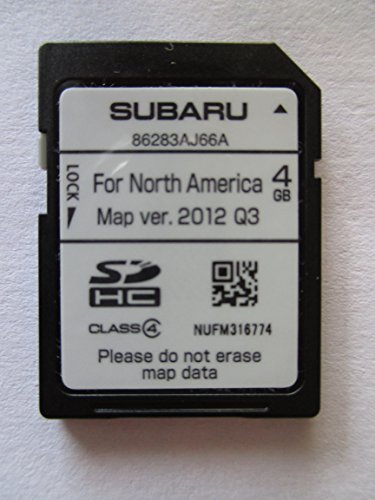
When a map SD card is removed from the AVN unit or the map SD card cannot be read properly by the AVN unit, the time displayed on the HVAC panel will automatically default to Greenwich Mean Time (GMT). In this case, the GMT is 4 hours “ahead” of local time.
RECOMMENDATION:
1. If the user wants to operate the AVN unit without the map SD card installed and still have the correct time shown on the HVAC panel, access the Clock settings menu, uncheck “Auto Adjust GPS” then manually reset the correct time using “+” and “-” buttons to the left of the clock display as shown below.
2. If the map SD card is installed in the AVN unit, but the maps and / or time is not being displayed correctly, it may be due to a defective map SD card or possibly a faulty AVN unit.
REMINDER: SOA strongly discourages the printing and/or local storage of service information as previously released information and electronic publications may be updated at any time.
Always refer to STIS for the latest service information before performing any repairs.
CONDITION #24: Messages are displayed on the screen after pressing / holding the Talk switch on the steering wheel to activate Siri (2016 MY vehicles equipped with Gen 2.1 Navigation / Display Audio system).
CAUSE:
1. The message shown in (Pic 1) will display when there is no phone paired with the unit.
2. The message shown in (Pic 2) will display when an “Android” Device is paired to the unit.
3. The message shown in (Pic 3) will display when a Siri-compatible phone is paired but “Siri” has not been enabled on the phone.
4. The message shown in (Pic 4) will display when Siri is initiated during a call. Siri will not operate while a call is in progress.
(Please see Owner’s Manual Page 252 for more details)
RECOMMENDATION:
Pair a Siri-compatible phone with the unit via Bluetooth and enable the “Siri” function on the phone.
How to enable the Siri function on an iPhone:
1. Go to “Settings”
2. Select “General”
3. Select “Siri”
4. Enable “Siri” (Pic 5)
CONDITION #25: The “Tune Scan” feature is unavailable (2016 MY vehicles equipped with Gen 2.1 Navigation / Display Audio system).
CAUSE:
1. Tune Scan is only available for use with SXM (Sirius XM) Channels.
2. There are no SXM presets stored as “Smart Favorites”.
3. Tune Scan relies on cached content (songs) from SXM channels which have been saved as “Smart Favorites”. Once the start of at least one song from a SXM “Smart Favorite” channel has been cached, the Tune Scan button will become available to press on the display. “Tune Scan” will only scan through songs which have not been listened to for more than 30 seconds. It will play the first 10 seconds of every song that has been cached.
RECOMMENDATION:
1. Make sure the user has set some of the SXM preset channels as “Smart Favorites”. See CONDITION #22 of this TSB for more information on setting up Smart Favorites
2. Wait for content to be cached to the unit (this may several minutes).
3. After the unit has been able to cache the start of a song from one channel, the “Tune Scan” button will activate on the display.
NOTES:
- Due to content limitations, some content will not be eligible for Tune Scan even though the smart favorite channel has cached content (songs). If content is ineligible, the Tune Scan will skip over that content.
- Once the ignition is turned off, the cached content will be erased. Caching content will resume once the SXM signal is received by the head unit.
Is the “Tune Scan” button available? (See Red Box below)
YES: Pressing the button will activate “Tune Scan”
NO: Check to see if the user has any SXM presets setup as “Smart Favorites”
(See Owner’s Manual pg. 75 for more about “Smart Favorites”)
Are SXM preset channels stored as “Smart Favorites”?
YES: Wait for several minutes after the unit has received SXM signal for the “Tune Scan” button to become available.
NO: Store SXM preset channels as “Smart Favorites” then wait for several minutes after the unit has received SXM signal for the “Tune Scan” button to become available.
NOTE:
If the “SCAN” is in place of the “Tune Scan” button, press the button to turn on the “Tune Scan” option.
The “SCAN” button will change to “Tune Scan”
(See Owner’s Manual page 76 for more details about “Tune Scan”)
CONDITION #26: Bluetooth hands-free outgoing voice quality is poor. Call recipient cannot understand the caller in the car clearly.
CAUSE:
The “Mic Volume” may be set too high (the default setting is “0”).
RECOMMENDATION:
1. Access “Mic Volume” function by touching the soft key during a hands-free call (Pic1).
2. Adjust the Mic Volume down / lower (Pic 2) then confirm the change’s effectiveness. Repeat as necessary (adjust up / down) until the desired voice quality is achieved.
CONDITION #27: Navigation voice guidance cannot be heard from the vehicle speakers when the destination was requested by Siri (iPhone App) (2016 MY vehicles equipped with Gen 2.1 Navigation / Display Audio system)
CAUSE:
Bluetooth Audio is not selected as an Audio Source.
RECOMMENDATION:
From the Select Audio Source screen, select Bluetooth Audio then confirm the navigation voice guidance can be heard from the vehicle speakers normally.
CONDITION #28: When connecting an iPhone to the USB port to charge it, the Audio Source automatically switches to iPhone.
CAUSE:
If the unit automatically “defaults” to iPhone mode, the “iPod/USB/SD AutoPlay” setting is selected (activated / checked) on the Audio Settings screen.
RECOMMENDATION:
If the user does not want the unit to switch to an “iPhone” mode automatically when an iPhone is connected to the USB, disable the “iPod/USB/SD Auto Play” setting by following the steps below:
- Touch the “HOME” button
- Touch the “SETTINGS” button
- Touch the “AUDIO” button
- Touch the “iPod/USB/SD Auto Play” box to “toggle” the selection OFF or ON.
CONDITION #29: The “MirrorLink” button in the APPS screen is not active (grayed out).
CAUSE:
A MirrorLink compatible phone which has MirrorLink-enabled applications installed is not connected to the USB port.
RECOMMENDATION:
NOTE: Information regarding MirrorLink compatible telephones and MirrorLink-enabled applications is available on the MirrorLink website at: www.mirrorlink.com .
- Once MirrorLink compatibility with the phone has been confirmed, install MirrorLinkenabled app.
- After installation is complete, connect the phone to the USB port.
- Wait until the MirrorLink button becomes active on the APPS screen.
CONDITION #30: Video files stored on flash drives will not play through the USB
CAUSE:
The video files stored on the USB flash drive being used may not be in a format or resolution supported by the head unit.
RECOMMENDATION:
The information below lists the supported video formats and resolutions.
Supported resolutions: 128 x 96, 160 x 120, 176 x 144, 320 x 240, 352 x 240, 352 x 288, 640 x 480, 720 x 480 or 720 x 576
REMINDER: The parking brake must be engaged in order to watch videos. If not, the unit will display the blue screen as shown below but audio will be heard normally.
CONDITION #31: The “Tag” button cannot be selected on the Sirius XM Screen
CAUSE:
The vehicle may be a Canadian specification (market) vehicle.
The iTunes “Tagging” feature was not available with the Sirius/XM (SXM) feature on Canadian market vehicles. On U.S. market vehicles, if SXM does not have the tagging information for the particular song, the Tag button will be grayed out on the display.
RECOMMENDATION:
Determine if the vehicle is Canadian or U.S. specification.
Canadian specification: NO Tag button
U.S specification: Tag button is outlined and either selectable or grayed out (as shown).
CONDITION #32: Cannot scan or seek through all SXM channels using the Seek, Scan and / or Steering Wheel buttons (2016 MY vehicles equipped with Gen 2.1 Navigation / Display Audio system)
CAUSE:
The unit will only scan or seek through the category being listened to when it is in the SXM mode. EXAMPLE: If you are listening to CH2, which is under a “Pop” category, and press the scan button, it will only scan channels (CH3, 4, 5, 6, 7, 8, 9, 10, 13, 14, 15, 16, 17, 18, 158, 300, 301, 302 and 2) which are under the Pop category, not all channels or categories.
Scanning by category “Pop”
NOTE: When scan or seek in AM/FM mode, it will scan or seek through all available radio stations.
RECOMMENDATION:
Use the “AUDIO/TUNE” knob to scan through all the SXM channels available.
CONDITION #33: When an iPhone is connected to the USB port to charge the phone, the Audio Source automatically switches to Pandora or aha.
CAUSE:
If the unit automatically changes to the “Pandora” or “aha” mode, these apps on the phone may be open in the background.
RECOMMENDATION:
If the user does not want the unit to switch to a “Pandora” or “aha” mode automatically when the iPhone is connected to the USB, make sure these applications are closed before connecting the iPhone to the USB port.
CONDITION #34: While searching for a place (in this example, a restaurant) after a destination has been input, the user reports seeing straight and curved arrows in different colors pointing to the compass icon on the “Places Found” screen. What do these arrows mean?
RECOMMENDATION:
Explain the following to the customer:
The arrows as shown above appear when the user is searching for places along a previously set route. The color and shape of the arrows indicate the level of detour (how far out of the way) the place is from the current route.
- If the arrow is straight and GREEN (Fig. 1), the detour is minimal and basically on the current route.
- If the arrow is slightly curved and YELLOW (Fig. 2), the detour will be moderate.
- If the arrow is curved and RED (Fig. 3), the detour will be significantly off the current route.
CONDITION #35: After using the Siri feature (2016 MY vehicles equipped with Gen 2.1 Navigation / Display Audio system), the head unit will automatically change from whatever audio source the user was listening to, over to the Bluetooth Audio Source. Why does that condition occur?
CAUSE:
It is caused by iOS software versions 9.2 and 9.21.
RECOMMENDATION:
Suggest the customer update their iPhone’s software to iOS version 9.3.
NOTE: The user may need to delete their iPhone’s Bluetooth connection then re-pair the phone after the software update is complete to verify the condition has been addressed.
CONDITION #36: Replacement procedure for lost or damaged Micro SD Card covers
CAUSE:
If the Micro SD card slot cover is lost or damaged, a replacement is available directly from F10
RECOMMENDATION:
Use the existing exchange unit (web order) form. Enter “SD card cover missing” and Retailer Purchase Order number (PO#) in Section 3: Customer Complaint / Technician Findings box as shown below. The charge for a replacement card slot cover is $30.00.
CONDITION #37: Grid pattern visible on the entire display area, all the time.
Grid Pattern
CAUSE:
Defective Display unit.
RECOMMENDATION:
Order an exchange head unit following the normal procedure.
CONDITION #38: ASL (Automatic Sound Levelizer) function does not appear in Audio Settings as indicated in the Owner’s Manual.
(Applicable to 2015-2017MY Legacy / Outback and 2016-2018MY WRX and Forester Models with AVN Navigation or Display Audio system.)
ASL function not displayed in vehicle.
ASL function as described in Owner’s Manual.
CAUSE:
ASL function is supported by an internal amplifier audio system but not on audio systems which use an external amplifier.
RECOMMENDATION:
Explain to a customer that the ASL function is available for internal amplifier audio systems only. If the vehicle has an audio unit which utilizes a separate, external amplifier, the ASL function is not available.
CONDITION #39: Unit freezes or locks up with no response to touch screen inputs.
(Applicable to 2015-2017MY Legacy / Outback, 2015-16MY Impreza / Crosstrek, 2016-17MY Forester and 2016-17MY WRX with AVN Navigation or Display Audio system.)
CAUSE:
A power cord from an auxiliary device (e.g. GPS or cell phone cord) placed on the dash or attached to the windshield may be coming in contact with the display screen and inadvertently be causing a touch button to be continually “pressed”. When this condition occurs, the result is that none of the other buttons will respond to any user touch inputs.
RECOMMENDATION:
Check for any external device(s) which may have been mounted to the windshield or placed on top of the dash. Reposition the external device(s) so the power cable does not come in contact with the screen of the audio system display.
CONDITION #40: Display background color uneven, a “smile” -type image appears.
(Applicable to 2015-16MY Impreza, 2015-17MY Crosstrek, 2016-18MY Forester and 2015-17MY Legacy / Outback)
CAUSE:
This condition is NOT a defect. It is actually a background image of Subaru STARLINK which becomes visible when the contract is set to the highest setting as shown in the screen shot below.
RECOMMENDATION:
Readjust the contrast to a lower setting.
CONDITION #41: SXM operation freeze: not able to select SXM source or preset SXM channel. (Applicable to 2015-16MY Impreza, 2016-2018 WRX/STI, 2015-17MY Crosstrek, 2016-18MY Forester and 2015-17MY Legacy / Outback)
CAUSE:
Over time, SXM channel lineup is revised resulting in some channels to no longer be active. If an inactive channel is stored in the head unit Mixed Preset, it could result in the SXM source being unavailable. It is a good practice to obtain the list of all active SXM channels from the SXM website, whenever addressing a SXM operation concern (https://www.siriusxm.com/channels).
RECOMMENDATION:
In order to prevent an issue with SXM service operation, remove any invalid presets for SXM which are no longer available in the SXM Channel Lineup.
An example of how to restore SXM operation by replacing invalid presets with active channels or AM/FM channels is shown below.
31 Affected Products
Vehicles
| MAKE | MODEL | YEAR |
| SUBARU | BRZ | 2015-2017 |
| SUBARU | CROSSTREK | 2015-2017 |
| SUBARU | FORESTER | 2015-2017 |
| SUBARU | IMPREZA | 2015-2017 |
| SUBARU | IMPREZA WRX | 2015 |
| SUBARU | LEGACY | 2015-2017 |
| SUBARU | OUTBACK | 2015-2017 |
| SUBARU | WRX | 2015-2017 |
| SUBARU | WRX STI | 2015-2017 |
| SUBARU | XV CROSSTREK | 2015-2017 |
| SUBARU | XV CROSSTREK HYBRID | 2015-2017 |
1 Associated Document
Manufacturer Communications
NUMBER: 15-177-14R
DATE: 10/16/14
REVISED: 06/25/21
MC-10198770-0001.pdf 6672.889KB
NHTSA ID Number: 10163558
Manufacturer Communication Number: 15-177-14R
Summary
All 2015-2017 MY vehicles with Fujitsu TEN (F10) 7in. Multimedia Navigation (AVN) & Display Audio Units. This bulletin provides information to help diagnose and address different conditions relating to customer concerns which may arise when operating the new-generation “Gen 2” and “Gen 2.1” F10 Navigation and Display Audio systems. We will continue to add more helpful tips to this TSB as they become available.
1 Associated Document
Manufacturer Communications
NUMBER: 15-177-14R
DATE: 10/16/14
REVISED: 07/26/17
MC-10163558-0001.pdf 6446.156KB
NHTSA ID Number: 10094367
Manufacturer Communication Number: 15-177-14R
Summary
THIS BULLETIN PROVIDES INFORMATION TO HELP DIAGNOSE AND ADDRESS DIFFERENT CONDITIONS RELATING TO CUSTOMER CONCERNS WHICH MAY ARISE WHEN OPERATING THE NEW-GENERATION “GEN 2” F10 AUDIO / NAVIGATION SYSTEM. WE WILL CONTINUE TO ADD MORE HELPFUL TIPS TO THIS TSB AS THEY BECOME AVAILABLE.
1 Associated Document
Service Bulletin Document
NUMBER: 15-177-14R
DATE: 10/16/14
REVISED: 12/18/15
SB-10094367-2280.pdf 4874.788KB
NHTSA ID Number: 10235935
Manufacturer Communication Number: 1517714
Summary
New ?Gen 2? Fujitsu Ten (F10) SD Card Audio
1 Associated Document
Manufacturer Communications
NUMBER: 15-177-14
DATE: 10/16/14
MC-10235935-9999.pdf 1474.695KB

- 【Android 13 System Car Radio】Car Radio Compatible with Subaru Forester WRX Impreza 2013 2014 2015. With 2GB RAM and 64GB ROM, ensures smooth operation and multitasking capabilities. Built-in Bluetooth for answering, making phone calls, streaming music by hands-free. The 1280x720 high-resolution display video clear and vivid pictures and videos. You can enjoy your favourite music, movies and short videos from the car stereo.
- 【Car Stereo with Wireless Carplay & Android Auto】This car radio supports wireless Carplay/Android auto /Mirrorlink. Wirelessly connect your phone to the car's stereo infotainment system, providing a seamless experience. You can make phone calls, send messages, listen to music, and get directions using voice control, allowing you to focus on driving without worrying about using your phone, making your driving safely.
- 【Car Radio with GPS Navigation & WIFI】The built-in GPS module and external GPS antenna supports both online and offline map navigation. With Wi-Fi or hotspot connectivity, you can easily download and access to online navigation app and other video or music apps on Play Store. With the split-screen function, you can view two apps on the same screen simultaneously. For example, you can display navigation and music apps side by side, ensuring a more pleasant journey.
- 【FM/Steering Wheel Control】 With built-in FM radio that allows you to listen to radio programs and stay up-to-date with the latest news and weather information during driving. The car head unit also supports steering wheel controls, allowing you to effortlessly switch songs, change channels, and adjust the volume without taking your hands off the wheel, helping you stay focused on the road while enjoying a smooth and convenient driving experience
- 【SWC &AHD Rear Camera】The car head unit supports original car steering wheel control, such as switching songs, adjusting volume, answering calls, etc. The waterproof night vision camera offers 1080P resolution, reversing image is clearer no matter the weather conditions. Automatically switch the reversing image when reversing. Note: Professional installation is required. Incorrect wiring may cause a short circuit.

- Replaces the original part number: Compatible with Subaru Legacy Outback 8-inch touchscreen radio screen. The TsuperU uses upgraded materials, offering superior sensitivity, high definition, high temperature resistance, and is non-bubbling and non-whitening. With this part, you won't need to go to the dealer for a replacement, as they often recommend replacing the entire radio, which could cost thousands of dollars, but is completely unnecessary. Please watch the replacement video on YT's
- EASY PROBLEM SOLVED: If your display touch screen is cracked, delaminating, bubbles, White, fogging, air holes, unresponsive, has garbled, phantom, ghosted, ghosting, dead pixels, unresponsive, or looks bad, simply replace the TsuperU 8-inch screen navigation touchscreen and it will return to its original functionality without the need for a trip to the dealership for costly repairs. One replacement is all it takes to fix the problem
- COMPATIBLE WITH SUBARU MODELS: Navigation screen fits Subaru Outback 2.5i Limited Premium Sport Touring Premier 3.6R Limited Premier Touring radio digitizer screen 2019 2018. please check the OEM number and size carefully before purchasing, There are two versions of MAP & PHONE, compare with your original parts to make sure that this touch screen fits your car. The digitizer screen for the 8-inch touchscreen radio works with both GPS-equipped radios and non-GPS radios
- EASY TO INSTALL: The product comes with adhesive, you only need to tear off the protective film to use it, easy to install. for Subaru radio screen is an exact fit for the original vehicle. For display only 86471-AL65A 86471-AL65B 86471-AL66A 86471-AL68A 86431-AL66A 86431-AL62A 86431-AL65A 86471 AL65A 86471 AL65B 86471 AL66A 86471 AL68A 86431 AL66A 86431 AL62A 86431 AL65A 86471AL65A 86471AL65B 86471AL66A 86471AL68A 86431AL66A 86431AL62A 86431AL65A, 864734-AL66A, 86471AL76A, 86471-AL76A
- TOUCH RESPONSIVE: Touch screen meets OEM navigation system, high light transmission, high visibility, responsive, high touch accuracy. touch screen monitor is made of new upgraded material with high resolution, high clarity, more stable performance, faster response time, and has been rigorously tested to ensure a long service life, touch screen replacement

- 8 Core 64GB Android Radio:Our Android car radio is equipped with the latest version of Android and an 8-core CPU processor, delivering exceptional performance and a perfect user experience. With 4G RAM and 64G ROM, our radio ensures smooth operation and provides ample storage for downloading popular apps like YouTube. It is designed to be compatible with Subaru Forester Impreza WRX 2008-2012 models. If you’re unsure whether it’s a good fit for your vehicle, please ask us first
- Wireless and Wired Carplay Android Auto:The Subaru Forester Impreza WRX car stereo offers seamless connectivity with your smartphone’s apps and features like WhatsApp, Google Maps, and Telegram, whether through Bluetooth or a USB data cable. It also supports voice control through Siri or Google Assistant, allowing you to keep your hands free while operating the stereo
- GPS Navigation and WiFi and Split Screen:With WiFi or hotspot connectivity, you can browse the internet, watch videos, and download apps on the 9 inch Subaru Forester Impreza WRX car radio. It also supports online and offline maps, providing real-time road conditions to help you avoid traffic jams. The split-screen feature enables you to simultaneously enjoy GPS navigation and watch videos on the 9 -inch screen with a resolution of 1280x720
- 32EQ DSP/BLUETOOTH 5.0/ FM/RDS:The car stereo comes pre-installed with DSP tuning software, allowing you to adjust the frequency, audio effects, and 32 EQ equalization settings, resulting in crystal-clear sound. Bluetooth 5.0 ensures a faster transmission speed and enables hands-free calling, phonebook downloads, and music streaming. The FM/RDS radio with 30 preset stations allows you to stay updated with new broadcasts, real-time traffic information, weather forecasts, and more
- Multi Function:The Android car stereo supports mirror link functionality, allowing you to mirror your smartphone’s content onto the large screen. It also supports steering wheel controls, provides 59 UI themes to suit your preferences, and allows you to move frequently used software to the home screen for easy access. As a gift, the car stereo comes with an external microphone and an AHD rearview camera with night vision and a 170 degree viewing angle
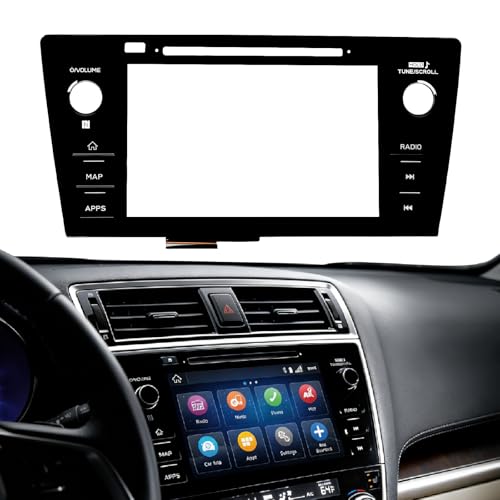
- Fitment:Our Touch Screen Digitizer(MAP) Compatible with 2018 2019 Subaru Outback,2018 2019 Subaru Legacy
- Replace Part Number:86471-AL62A,86471-AL65A,86471-AL65B,86471-AL66A,86471-AL67A,86471-AL68A,86431-AL62A,86431-AL65A,86431-AL66A
- Direct-Fit Replacement:Our 8-inch touchscreen is designed to address common display issues, such as physical cracks, unresponsiveness, or dead pixels, to help return your system to working condition.
- Function:This universal-style LCD touchscreen features integrated MAP functions.
- Support: For any questions or concerns regarding the product, please inform us so we can resolve the issue
SEOCONTENT-START
Bulletin Number: 15-177-14R; Revised: 06/25/21 Page 1 CAUSE: “Show Notifications” is not activated in the iPhone’s Bluetooth Settings menu. RECOMMENDATIONS: 1. From the iPhone Home Screen, select “SETTINGS”. 2. From the Settings menu, select “Bluetooth”. 3. Press the “i” or > button next to the vehicle audio unit’s name (SUBARU BT). NUMBER: 15-177-14R DATE: 10/16/14 REVISED: 06/25/21 APPLICABILITY: All 2015-17MY Vehicles with Fujitsu TEN (F10) 7in. Multimedia Navigation (AVN) & Display Audio Units SUBJECT: “Gen 2” & “Gen 2.1” Operating Tips SERVICE BULLETIN Continued… CAUTION: VEHICLE SERVICING PERFORMED BY UNTRAINED PERSONS COULD RESULT IN SERIOUS INJURY TO THOSE PERSONS OR TO OTHERS. Subaru Service Bulletins are intended for use by professional technicians ONLY. They are written to inform those technicians of conditions that may occur in some vehicles, or to provide information that could assist in the proper servicing of the vehicle. Properly trained technicians have the equipment, tools, safety instructions, and know-how to do the job correctly and safely. If a condition is described, DO NOT assume that this Service Bulletin applies to your vehicle, or that your vehicle will have that condition. SUBARU OF AMERICA, INC. IS “ISO 14001 COMPLIANT” The international standard for excellence in Environmental Management Systems. Please recycle or dispose of automotive products in a manner that is friendly to our environment and in accordance with all local, state and federal laws and regulations. INTRODUCTION: This bulletin provides information to help diagnose and address different conditions relating to customer concerns which may arise when operating the new-generation “Gen 2” and “Gen 2.1” F10 Navigation and Display Audio systems. We will continue to add more helpful tips to this TSB as they become available. CONDITION #1: Cannot receive incoming text messages on the head unit when using an iPhone. ATTENTION: GENERAL MANAGER q PARTS MANAGER q CLAIMS PERSONNEL q SERVICE MANAGER q IMPORTANT – All Service Personnel Should Read and Initial in the boxes provided, right. © 2016 Subaru of America, Inc. All rights reserved. Bulletin Number: 15-177-14R; Revised: 06/25/21 Page 2 CAUSE: The MAP (Mail Access Profile) does not always allow the user to read and reply (both) to text message content from the smartphone connected to the head unit. Function of MAP profile varies by phone manufacturer. The iPhone provides the MAP (Text Message) feature via Bluetooth. As per Apple specifications, the iPhone’s MAP does not support the reply function, only read is supported. RECOMMENDATION: Inform the customer when their iPhone is paired to the head unit, the head unit will be able to display and read aloud the incoming text messages. However, the “Reply” message function will not be available. CONDITION #2: Unable to reply to received text messages from the head unit when using an iPhone. 4. Slide “Show Notifications“ button to “ON”. New incoming text messages will now be displayed on the head unit as they are received. NOTES: • Only text messages which are received when the iPhone is connected to the head unit will be displayed. • Any archived text messages will not be transferred and therefore, cannot be displayed. • The screen shot examples shown are from an iPhone 5. Other iPhone screen shots may vary based on model and iOS (operating system). Continued… Bulletin Number: 15-177-14R; Revised: 06/25/21 Page 3 NOTE: First, confirm the address appears when typed into the head unit. If it does not appear, it will not appear when voice command is used. CAUSE: Voice commands are not spoken with the correct pause, timing or cadence between “House Number”, “Street Name”, “City Name” and “State” which the head unit can understand. RECOMMENDATION: Say the Destination Address with the correct pause, timing or cadence as shown in the example. Below are examples of incorrect and correct commands: Incorrect command: 121[pause] Jackson [pause] Street [pause] Trenton [pause] NJ Correct command: 121JacksonStreetTrentonNJ Continued… CONDITION #3: Unable to set up the “Destination Address” using voice command. CONDITION #4: Sirius XM radio always cuts out or mutes at specific areas or locations. CAUSE: The vehicle is being driven in an area where no Sirius XM signal is able to reach the SiriusXM antenna from either the satellites or terrestrial (ground-based) signal repeaters. The SiriusXM feature of the head unit requires a clear line of sight (LOS) path from the satellites or terrestrial signal repeater to the Sirius XM antenna. Obstacles such as trees, tall buildings and tunnels can block the Sirius XM signal and cause Sirius XM radio reception to cut in and out. RECOMMENDATION: Explain to the customer, the vehicle’s Sirius XM Antenna must receive the Sirius XM signal continuously. Any objects that block the signal will cause reception to cut in and out. Vehicle location and traveling direction can also affect the quality of the reception (or signal strength). THIS SCREEN IS DISPLAYED WHEN THE SYSTEM IS READY TO ACCEPT THE DESTINATION ADDRESS. Bulletin Number: 15-177-14R; Revised: 06/25/21 Page 4 POSSIBLE CAUSE: • Microphone is not properly connected to the head unit • Microphone detection wiring (MIC DET) is open • Microphone unit is defective RECOMMENDATIONS: • Confirm the microphone wiring is securely connected to the head unit. • Confirm there is not an open circuit or short in the Microphone detection (MIC DET) wiring. • After the wiring has been confirmed to be OK, replace the microphone if necessary. CONDITION: #5: A “Phone” button is not displayed on the HOME screen. Continued… Bulletin Number: 15-177-14R; Revised: 06/25/21 Page 5 DRIVE LINK CAR MODE CAUSE: Drive Link and Car mode display screen information on the head unit differently. RECOMMENDATION: Explain to the customer, Drive Link and Car modes will display information differently when accessing the MirrorLink feature of the head unit. Examples of each are shown in the screen shot photos below. CONDITION #6: MirrorLink screen does not look the same when using “Drive Link” and “Car” mode. Continued… Bulletin Number: 15-177-14R; Revised: 06/25/21 Page 6 CAUSE: Although the head unit can retrieve individual contacts, it does not have the capability to retrieve group folders from the smartphone. RECOMMENDATION: Explain to the customer, the head unit does not support the transfer of group folders from their smartphone. CONDITION #7: Individual contacts will transfer to the head unit from the smartphone, but group folders will not. NG OK Continued… Bulletin Number: 15-177-14R; Revised: 06/25/21 Page 7 CAUSE: • STARLINK application on the Smartphone was not loaded and/or launched on the Smartphone prior to selecting the STARLINK function on the head unit. Therefore, Smartphone cannot communicate with STARLINK Server. • Smartphone has not been paired with the head unit for Bluetooth connection CONDITION #8: When selecting the STARLINK function on the head unit, an error message appears on the screen as shown below. Continued… Bulletin Number: 15-177-14R; Revised: 06/25/21 Page 8 RECOMMENDATIONS: • Check if Bluetooth connection indicator appears as shown below on the screen of the head unit. If not, the Smartphone needs to be paired to the head unit via Bluetooth connection. • After confirming the Smartphone has been successfully paired to the head unit, launch STARLINK application on the Smartphone then select STARLINK on the head unit. • Verify Smartphone to STARLINK server communication by following these steps: 1. Touch the SETTING button on the Smartphone (Figure 1). 2. Touch the “Press to check network status” button (Figure 2). When the Smartphone communicates with the STARLINK server a message (Figure 3) will be displayed. Continued… Bulletin Number: 15-177-14R; Revised: 06/25/21 Page 9 POSSIBLE CAUSES: • The Smartphone is not compatible with MirrorLink. • The Drive Link application is not installed on the approved Samsung Smartphone. • The Car mode application is not installed on the approved Nokia Smartphone. • The application is not launched or open on the Smartphone. • The Smartphone is not connected to the head unit with a USB interconnect cable. RECOMMENDATIONS: • Make sure the Smartphone is compatible with MirrorLink (see Owner Manual Pg. 141.) • Make sure the “Drive Link” application is installed on the approved Samsung Smartphone (See Owner Manual Pg. 141). • Make sure the “Car mode” application is installed on the approved Nokia Smartphone (See Owner Manual Pg. 141). • Once applicability has been confirmed and the application properly installed on the Smartphone, follow the steps below: 1. Open/Launch the application on the Smartphone. 2. Connect the Smartphone to the vehicle with a USB interconnect cable. 3. Press the “APPS” button on the head unit. 4. Select MirrorLink on the head unit. CONDITION #9: MirrorLink does not work with my Samsung or Nokia Smartphone. Continued… Bulletin Number: 15-177-14R; Revised: 06/25/21 Page 10 Continued… CAUSES: • Pandora or aha App is not installed on the Smartphone. • Pandora or aha App is not launched on the Smartphone. • The iPhone is not connected to the system to the head unit with a USB Cable or in the case of an Android Smartphone, the Smartphone is not paired to the head unit using Bluetooth or launched. RECOMMENDATIONS: • Download the Pandora or aha app to the Smartphone. • Launch the Pandora or aha app on the Smartphone. • Connect the iPhone to the head unit using a USB cable. • Pair the Android phone to head unit using Bluetooth. • Select Pandora or aha on the head unit from Audio Source CONDITION #10: When selecting aha or Pandora on the head unit with a Smartphone (iPhone or Android) connected, the head unit displays a message informing the user to check the app on their Smartphone (see below). aha Message Pandora Message Bulletin Number: 15-177-14R; Revised: 06/25/21 Page 11 Continued… In the examples shown below, the temperature displayed is different even though the time of day and location are the same. CAUSE: The source of the weather information is different between STARLINK and INFO. STARLINK utilizes weather information provided by Weather Underground while INFO utilizes Sirius XM. RECOMMENDATION: Explain to the customer that the STARLINK and INFO functions utilize different sources to provide the displayed weather information as shown in the illustrations below. • Weather via STARLINK: Current location is determined by GPS signals received by the Smartphone paired to the head unit. The actual weather information is sent from the STARLINK server. • Weather via INFO: Current location is determined by GPS signals received by the head unit. The actual weather information is received by the head unit from Sirius XM satellite. CONDITION #11: Weather information from the “STARLINK” and “INFO” function appears to be different even when the time of day and location are exactly the same. Weather information via STARLINK Weather information via the INFO button Bulletin Number: 15-177-14R; Revised: 06/25/21 Page 12 Continued… CAUSE: “Natural Voice” (Figure 1) is selected from the Voice Language menu when “Text To Speech” (TTS) is required (Figure 2) for proper voice command operation. RECOMMENDATION: • Follow the steps below to change from Natural Voice to TTS: 1. Select “Home”. 2. Select “Settings”. 3. Select “General”. 4. Select “Language”. 5. Select “English (US) TTS Voice”. CONDITION #12: When using the voice command to operate navigation system functions, the following message is displayed: “This feature cannot be used with the selected guidance voice profile”. Bulletin Number: 15-177-14R; Revised: 06/25/21 Page 13 Continued… CAUSE: It is likely the customer was listening to an “Explicit” channel prior to turning the vehicle off. RECOMMENDATION: Find out if the customer was listening to an “Explicit” channel prior to turning the vehicle off. If they were, explain that the head unit software is designed to revert back to channel 1 (preview channel) when restarting to avoid offending new occupants who may have not been in the vehicle previously (e.g. children). A copy of the Sirius XM channel line-up is shown below. “Explicit” channels are identified in the line-up with a “XL” designation. CONDITION #13: The Sirius XM channel reverts back to channel 1 (Preview channel) when the vehicle is started (or restarted). Bulletin Number: 15-177-14R; Revised: 06/25/21 Page 14 Continued… CAUSE: “Alert Point Warnings” or “Warning Sign Alerts” features are enabled under Sound and Warnings menu. RECOMMENDATION: • If the chime is unnecessary when approaching alert points, disable (uncheck) “Alert Point Warnings” or “Warning Sign Alerts” settings by following the steps below: 1. Select “Menu” on Map screen. 2. Select “More”. 3. Select “Settings”. 4. Select “Sound and Warnings”. 5. Select “Alert Point Settings” or “Warning Sign Alerts” (see picture below). 6. Disable (uncheck) the settings (press the check mark to “toggle” on / off). CONDITION #14: A chime is heard while driving. Bulletin Number: 15-177-14R; Revised: 06/25/21 Page 15 Continued… CAUSE: When the head unit is turned on, the system scans XM stations along with every song (digital file) on the currently loaded CD, connected USB device and / or Bluetooth Audio player. It also scans the phone contacts stored on all Bluetooth-connected Smartphones. The system then creates voice tags for all the XM station names, artists, songs, albums, playlists, podcasts, genres, and contacts. During this process, the head unit will also display “Voice Recognition is currently initializing and is not available at this time” (see picture below). RECOMMENDATION: Wait a few minutes then try using the Voice Recognition System again. Once the system has had enough time to complete the procedures described above, normal operation should resume. CONDITION #15: The message “Voice recognition is currently initializing and is not available at this time” appears on the screen. Bulletin Number: 15-177-14R; Revised: 06/25/21 Page 16 CAUSE: The setting to automatically change to split screen has been turned on. RECOMMENDATION: • Follow the procedure below to turn off the “Auto Change to Split Screen” setting: 1. Select “Home” 2. Select “Settings” 3. Select “General” 4. Scroll down to “Auto Change to Split Screen” and uncheck the setting. CONDITION #16: After 30 seconds of not pressing any buttons, the screen automatically displays a split screen view Continued… Bulletin Number: 15-177-14R; Revised: 06/25/21 Page 17 Continued… CAUSE: “Back Camera Delay Control” setting is set to “ON” When set to “ON”, the back-up camera image will remain displayed for about 7 seconds after moving the shifter out of Reverse. The image will turn off when shifting into Park or when vehicle speed exceeds 5 mph. RECOMMENDATION: Disable “Back Camera Delay Control” setting by following the steps below: 1. Touch “HOME” button. 2. Touch “SETTINGS” button. 3. Touch “General”. 4. Unselect the “Back Camera Delay Control”. CONDITION #17: Back-up camera image remains displayed after shifting out of Reverse Bulletin Number: 15-177-14R; Revised: 06/25/21 Page 18 CAUSE: There is no device connected to either the AUX port or either of the USB ports. RECOMMENDATION: To access Diagnostic Mode, follow the steps below: • Turn the ignition switch to ACC (or press the Engine Start Stop button). • While pressing and holding the “a” button, press the button “b” twice. The “Line Diag” screen will be displayed where the connection status of each device is verified. To exit Diagnostic Mode, press the “c” button for 3 seconds or cycle the ignition switch / button to OFF. To change the display for AUX from “NG” to “OK” insert an AUX cable connected to a compatible device (e.g. MP3 player) into the AUX port. To change the display for USB1 and/or USB2 from “NG” to “OK” insert a compatible USB device into the USB port. NOTE: you will need to insert 2 USB devices to test both USB ports at the same time. CONDITION #18: When in Diagnostic Mode, AUX, USB1 and USB2 all show as being NG Continued… Bulletin Number: 15-177-14R; Revised: 06/25/21 Page 19 AUX cable & device connected AUX cable, device & USB device connected AUX cable, device & 2 USB devices connected Continued… Bulletin Number: 15-177-14R; Revised: 06/25/21 Page 20 Continued… CAUSE: The detailed GPS Information screen is only available if the GPS signal becomes weak. RECOMMENDATION: On the “Navigation Menu” screen, the GPS signal strength indicator is always available at the top right of the screen as shown below. In addition, if the GPS signal strength becomes weak, a Satellite icon will show when the MAP screen is displayed. If this Satellite icon (also a soft key) is pressed, the GPS information screen will be displayed which indicates how many satellites are currently being received along with the accuracy of the GPS signal. CONDITION #19: Unable to Locate the GPS Information Screen The GPS Signal strength indicator is always available for reference in the upper right of the “Navigation Menu” screen. If the GPS signal becomes weak, a Satellite icon will appear in the upper right corner of the MAP screen. Touch the icon to show the GPS information. Bulletin Number: 15-177-14R; Revised: 06/25/21 Page 21 CAUSE: In the Route Settings menu, the “Highways” selection box is unchecked. RECOMMENDATION: Check the Highways selection box by following these steps: • Select “Menu” on the Map Screen • Select “More” • Select “Settings” • Select “Route Settings” • When “Highways” is checked the navigation system will always consider using highways first when planning routes. CONDITION #20: The Navigation system often routes the user off the highway, and onto rough surface (dirt / gravel) roads. Continued… Bulletin Number: 15-177-14R; Revised: 06/25/21 Page 22 CAUSE: Display of the Speed Limit takes priority over Warning Sign Alerts and Alert Point Warnings. If the Speed Limit is being displayed as shown in Pic 1 below, the other warnings will not be displayed. RECOMMENDATION: 1. If the Speed Limit is not being displayed on screen, other warning and alert signs will be displayed as shown below in Pic 4 provided those settings are enabled. 2. If the Speed Limit Warning is disabled, only the warning and alert signs will be displayed (provided those settings are enabled). CONDITION #21: When the Speed Limit is displayed, “Alert Signs” are not displayed, even when “Warning Sign Alerts” and Alert Point Settings” are enabled. Continued… Warning Sign Speed Limit Displayed Warning Sign Alerts and Alert Point Warnings are enabled Bulletin Number: 15-177-14R; Revised: 06/25/21 Page 23 CAUSE: This is a feature called Smart Favorites which allows the user to cache (store in the unit’s internal memory) broadcast content on up to 5 separate SXM stations at one time. RECOMMENDATION: To set up Smart Favorites on the SXM presets: 1. Setup your SXM Presets 2. Press the Settings button. 3. On the SXM Options screen, press the “Smart Favs Setup” button 4. Select 5 of the SXM presets to be the Smart Favorites and press “OK” 5. The Smart Favorites will now be displayed with the clock icon as shown below. NOTE: Stations selected as “Smart Favorites” will have the ability to open the cache screen and listen to previously stored broadcast content using the “Tune Start™” feature. CONDITION #22: A Clock icon is displayed next to the Sirius / XM (SXM) presets. (2016 MY vehicles equipped with Gen 2.1 Navigation / Display Audio system) Continued… Bulletin Number: 15-177-14R; Revised: 06/25/21 Page 24 CAUSE: When a map SD card is removed from the AVN unit or the map SD card cannot be read properly by the AVN unit, the time displayed on the HVAC panel will automatically default to Greenwich Mean Time (GMT). In this case, the GMT is 4 hours “ahead” of local time. RECOMMENDATION: 1. If the user wants to operate the AVN unit without the map SD card installed and still have the correct time shown on the HVAC panel, access the Clock settings menu, uncheck “Auto Adjust GPS” then manually reset the correct time using “+” and “-” buttons to the left of the clock display as shown below. 2. If the map SD card is installed in the AVN unit, but the maps and / or time is not being displayed correctly, it may be due to a defective map SD card or possibly a faulty AVN unit. REMINDER: SOA strongly discourages the printing and/or local storage of service information as previously released information and electronic publications may be updated at any time. Always refer to STIS for the latest service information before performing any repairs. CONDITION #23: The clock display on HVAC panel is incorrect even when “Auto Adjust by GPS” is selected on the Clock settings menu. Continued… The correct time is 4:59 pm but HVAC display shows 8:59 pm. Bulletin Number: 15-177-14R; Revised: 06/25/21 Page 25 CAUSE: 1. The message shown in (Pic 1) will display when there is no phone paired with the unit. 2. The message shown in (Pic 2) will display when an “Android” Device is paired to the unit. 3. The message shown in (Pic 3) will display when a Siri-compatible phone is paired but “Siri” has not been enabled on the phone. 4. The message shown in (Pic 4) will display when Siri is initiated during a call. Siri will not operate while a call is in progress. (Please see Owner’s Manual Page 252 for more details) RECOMMENDATION: Pair a Siri-compatible phone with the unit via Bluetooth and enable the “Siri” function on the phone. How to enable the Siri function on an iPhone: 1. Go to “Settings” 2. Select “General” 3. Select “Siri” 4. Enable “Siri” (Pic 5) CONDITION #24: Messages are displayed on the screen after pressing / holding the Talk switch on the steering wheel to activate Siri (2016 MY vehicles equipped with Gen 2.1 Navigation / Display Audio system). Continued… Pic 1 Pic 2 Pic 3 Pic 4 Pic 5 Bulletin Number: 15-177-14R; Revised: 06/25/21 Page 26 Continued… CAUSE: 1. Tune Scan is only available for use with SXM (Sirius XM) Channels. 2. There are no SXM presets stored as “Smart Favorites”. 3. Tune Scan relies on cached content (songs) from SXM channels which have been saved as “Smart Favorites”. Once the start of at least one song from a SXM “Smart Favorite” channel has been cached, the Tune Scan button will become available to press on the display. “Tune Scan” will only scan through songs which have not been listened to for more than 30 seconds. It will play the first 10 seconds of every song that has been cached. RECOMMENDATION: 1. Make sure the user has set some of the SXM preset channels as “Smart Favorites”. See CONDITION #22 of this TSB for more information on setting up Smart Favorites 2. Wait for content to be cached to the unit (this may several minutes). 3. After the unit has been able to cache the start of a song from one channel, the “Tune Scan” button will activate on the display. NOTES: • Due to content limitations, some content will not be eligible for Tune Scan even though the smart favorite channel has cached content (songs). If content is ineligible, the Tune Scan will skip over that content. • Once the ignition is turned off, the cached content will be erased. Caching content will resume once the SXM signal is received by the head unit. Is the “Tune Scan” button available? (See Red Box below) YES: Pressing the button will activate “Tune Scan” NO: Check to see if the user has any SXM presets setup as “Smart Favorites” (See Owner’s Manual pg. 75 for more about “Smart Favorites”) CONDITION #25: The “Tune Scan” feature is unavailable (2016 MY vehicles equipped with Gen 2.1 Navigation / Display Audio system). Bulletin Number: 15-177-14R; Revised: 06/25/21 Page 27 Continued… Are SXM preset channels stored as “Smart Favorites”? YES: Wait for several minutes after the unit has received SXM signal for the “Tune Scan” button to become available. NO: Store SXM preset channels as “Smart Favorites” then wait for several minutes after the unit has received SXM signal for the “Tune Scan” button to become available. NOTE: If the “SCAN” is in place of the “Tune Scan” button, press the button to turn on the “Tune Scan” option. The “SCAN” button will change to “Tune Scan” (See Owner’s Manual page 76 for more details about “Tune Scan”) Bulletin Number: 15-177-14R; Revised: 06/25/21 Page 28 CAUSE: The “Mic Volume” may be set too high (the default setting is “0”). RECOMMENDATION: 1. Access “Mic Volume” function by touching the soft key during a hands-free call (Pic1). 2. Adjust the Mic Volume down / lower (Pic 2) then confirm the change’s effectiveness. Repeat as necessary (adjust up / down) until the desired voice quality is achieved. CONDITION #26: Bluetooth hands-free outgoing voice quality is poor. Call recipient cannot understand the caller in the car clearly. Continued… Bulletin Number: 15-177-14R; Revised: 06/25/21 Page 29 CAUSE: Bluetooth Audio is not selected as an Audio Source. RECOMMENDATION: From the Select Audio Source screen, select Bluetooth Audio then confirm the navigation voice guidance can be heard from the vehicle speakers normally. CONDITION #27: Navigation voice guidance cannot be heard from the vehicle speakers when the destination was requested by Siri (iPhone App) (2016 MY vehicles equipped with Gen 2.1 Navigation / Display Audio system) Selected Not Selected Selected Continued… Bulletin Number: 15-177-14R; Revised: 06/25/21 Page 30 CAUSE: If the unit automatically “defaults” to iPhone mode, the “iPod/USB/SD AutoPlay” setting is selected (activated / checked) on the Audio Settings screen. RECOMMENDATION: If the user does not want the unit to switch to an “iPhone” mode automatically when an iPhone is connected to the USB, disable the “iPod/USB/SD Auto Play” setting by following the steps below: (1) Touch the “HOME” button (2) Touch the “SETTINGS” button (3) Touch the “AUDIO” button (4) Touch the “iPod/USB/SD Auto Play” box to “toggle” the selection OFF or ON. CONDITION #28: When connecting an iPhone to the USB port to charge it, the Audio Source automatically switches to iPhone. Continued… Bulletin Number: 15-177-14R; Revised: 06/25/21 Page 31 CAUSE: A MirrorLink compatible phone which has MirrorLink-enabled applications installed is not connected to the USB port. RECOMMENDATION: NOTE: Information regarding MirrorLink compatible telephones and MirrorLink-enabled applications is available on the MirrorLink website at: www.mirrorlink.com . (1) Once MirrorLink compatibility with the phone has been confirmed, install MirrorLinkenabled app. (2) After installation is complete, connect the phone to the USB port. (3) Wait until the MirrorLink button becomes active on the APPS screen. CONDITION #29: The “MirrorLink” button in the APPS screen is not active (grayed out). Continued… Bulletin Number: 15-177-14R; Revised: 06/25/21 Page 32 CAUSE: The video files stored on the USB flash drive being used may not be in a format or resolution supported by the head unit. RECOMMENDATION: The information below lists the supported video formats and resolutions. Supported resolutions: 128 x 96, 160 x 120, 176 x 144, 320 x 240, 352 x 240, 352 x 288, 640 x 480, 720 x 480 or 720 x 576 REMINDER: The parking brake must be engaged in order to watch videos. If not, the unit will display the blue screen as shown below but audio will be heard normally. CONDITION #30: Video files stored on flash drives will not play through the USB Continued… Blue Screen Bulletin Number: 15-177-14R; Revised: 06/25/21 Page 33 CAUSE: The vehicle may be a Canadian specification (market) vehicle. The iTunes “Tagging” feature was not available with the Sirius/XM (SXM) feature on Canadian market vehicles. On U.S. market vehicles, if SXM does not have the tagging information for the particular song, the Tag button will be grayed out on the display. RECOMMENDATION: Determine if the vehicle is Canadian or U.S. specification. CONDITION #31: The “Tag” button cannot be selected on the Sirius XM Screen Continued… Canadian specification: NO Tag button U.S specification: Tag button is outlined and either selectable or grayed out (as shown). Bulletin Number: 15-177-14R; Revised: 06/25/21 Page 34 CAUSE: The unit will only scan or seek through the category being listened to when it is in the SXM mode. EXAMPLE: If you are listening to CH2, which is under a “Pop” category, and press the scan button, it will only scan channels (CH3, 4, 5, 6, 7, 8, 9, 10, 13, 14, 15, 16, 17, 18, 158, 300, 301, 302 and 2) which are under the Pop category, not all channels or categories. NOTE: When scan or seek in AM/FM mode, it will scan or seek through all available radio stations. RECOMMENDATION: Use the “AUDIO/TUNE” knob to scan through all the SXM channels available. CONDITION #32: Cannot scan or seek through all SXM channels using the Seek, Scan and / or Steering Wheel buttons (2016 MY vehicles equipped with Gen 2.1 Navigation / Display Audio system) Scanning by category “Pop” Continued… Bulletin Number: 15-177-14R; Revised: 06/25/21 Page 35 CONDITION #33: When an iPhone is connected to the USB port to charge the phone, the Audio Source automatically switches to Pandora or aha. CAUSE: If the unit automatically changes to the “Pandora” or “aha” mode, these apps on the phone may be open in the background. RECOMMENDATION: If the user does not want the unit to switch to a “Pandora” or “aha” mode automatically when the iPhone is connected to the USB, make sure these applications are closed before connecting the iPhone to the USB port. CONDITION #34: While searching for a place (in this example, a restaurant) after a destination has been input, the user reports seeing straight and curved arrows in different colors pointing to the compass icon on the “Places Found” screen. What do these arrows mean? Fig. 1 Fig. 2 Fig. 3 RECOMMENDATION: Explain the following to the customer: The arrows as shown above appear when the user is searching for places along a previously set route. The color and shape of the arrows indicate the level of detour (how far out of the way) the place is from the current route. • If the arrow is straight and GREEN (Fig. 1), the detour is minimal and basically on the current route. • If the arrow is slightly curved and YELLOW (Fig. 2), the detour will be moderate. • If the arrow is curved and RED (Fig. 3), the detour will be significantly off the current route. CONDITION #35: After using the Siri feature (2016 MY vehicles equipped with Gen 2.1 Navigation / Display Audio system), the head unit will automatically change from whatever audio source the user was listening to, over to the Bluetooth Audio Source. Why does that condition occur? CAUSE: It is caused by iOS software versions 9.2 and 9.21. RECOMMENDATION: Suggest the customer update their iPhone’s software to iOS version 9.3. NOTE: The user may need to delete their iPhone’s Bluetooth connection then re-pair the phone after the software update is complete to verify the condition has been addressed. Continued… Bulletin Number: 15-177-14R; Revised: 06/25/21 Page 36 CONDITION #36: Replacement procedure for lost or damaged Micro SD Card covers CAUSE: If the Micro SD card slot cover is lost or damaged, a replacement is available directly from F10 RECOMMENDATION: Use the existing exchange unit (web order) form. Enter “SD card cover missing” and Retailer Purchase Order number (PO#) in Section 3: Customer Complaint / Technician Findings box as shown below. The charge for a replacement card slot cover is $30.00. CONDITION #37: Grid pattern visible on the entire display area, all the time. CAUSE: Defective Display unit. RECOMMENDATION: Order an exchange head unit following the normal procedure. Grid Pattern Continued… Bulletin Number: 15-177-14R; Revised: 06/25/21 Page 37 CONDITION #38: ASL (Automatic Sound Levelizer) function does not appear in Audio Settings as indicated in the Owner’s Manual. (Applicable to 2015-2017MY Legacy / Outback and 2016-2018MY WRX and Forester Models with AVN Navigation or Display Audio system.) ASL function not displayed in vehicle. ASL function as described in Owner’s Manual. CAUSE: ASL function is supported by an internal amplifier audio system but not on audio systems which use an external amplifier. RECOMMENDATION: Explain to a customer that the ASL function is available for internal amplifier audio systems only. If the vehicle has an audio unit which utilizes a separate, external amplifier, the ASL function is not available. CONDITION #39: Unit freezes or locks up with no response to touch screen inputs. (Applicable to 2015-2017MY Legacy / Outback, 2015-16MY Impreza / Crosstrek, 2016-17MY Forester and 2016-17MY WRX with AVN Navigation or Display Audio system.) CAUSE: A power cord from an auxiliary device (e.g. GPS or cell phone cord) placed on the dash or attached to the windshield may be coming in contact with the display screen and inadvertently be causing a touch button to be continually “pressed”. When this condition occurs, the result is that none of the other buttons will respond to any user touch inputs. Continued… Bulletin Number: 15-177-14R; Revised: 06/25/21 Page 38 RECOMMENDATION: Check for any external device(s) which may have been mounted to the windshield or placed on top of the dash. Reposition the external device(s) so the power cable does not come in contact with the screen of the audio system display. CONDITION #40: Display background color uneven, a “smile” -type image appears. (Applicable to 2015-16MY Impreza, 2015-17MY Crosstrek, 2016-18MY Forester and 2015-17MY Legacy / Outback) CAUSE: This condition is NOT a defect. It is actually a background image of Subaru STARLINK which becomes visible when the contract is set to the highest setting as shown in the screen shot below. RECOMMENDATION: Readjust the contrast to a lower setting. Bulletin Number: 15-177-14R; Revised: 06/25/21 Page 39 CONDITION #41: SXM operation freeze: not able to select SXM source or preset SXM channel. (Applicable to 2015-16MY Impreza, 2016-2018 WRX/STI, 2015-17MY Crosstrek, 2016-18MY Forester and 2015-17MY Legacy / Outback) CAUSE: Over time, SXM channel lineup is revised resulting in some channels to no longer be active. If an inactive channel is stored in the head unit Mixed Preset, it could result in the SXM source being unavailable. It is a good practice to obtain the list of all active SXM channels from the SXM website, whenever addressing a SXM operation concern (https://www.siriusxm.com/channels). RECOMMENDATION: In order to prevent an issue with SXM service operation, remove any invalid presets for SXM which are no longer available in the SXM Channel Lineup. An example of how to restore SXM operation by replacing invalid presets with active channels or AM/FM channels is shown below.
**************************************************************************************************************
SEOCONTENT-END
This product presentation was made with AAWP plugin.
This long delay in initializing is just not acceptable it can take 5 minutes before I can use my phone or the navigation. How can I get this fixed.
Check with your dealer, There may be an update.