NUMBER: 15-174-14
DATE: 08/07/14
| APPLICABILITY: | 2015MY Legacy and Outback Models with Fujitsu Ten (F10) Navigation / Audio System |
| SUBJECT: | Clock Time Will Not Adjust or Displays Dashes |
INTRODUCTION
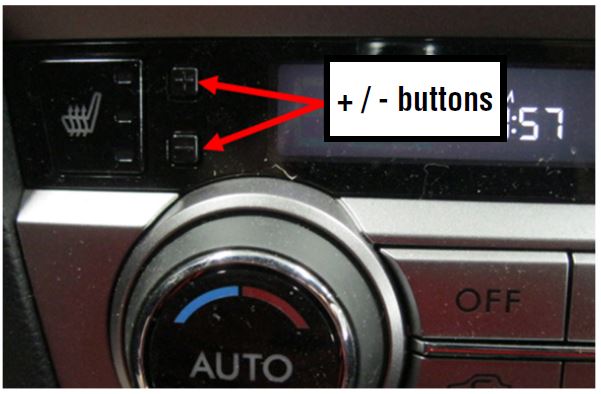
This Service Information outlines a procedure to address a customer concern of either the clock display time adjustment buttons do not work or 3 “dashes” appear when they are pressed. The concern may also be that the displayed time cannot be adjusted when using the “+” or “-“ buttons. These concerns can be addressed with a customizable setting function of the Navigation / Audio system.
COUNTERMEASURE IN PRODUCTION
A production change was made to the clock display during July, 2014 on Legacy after VIN F*010077 and on Outback after VIN F*209668.
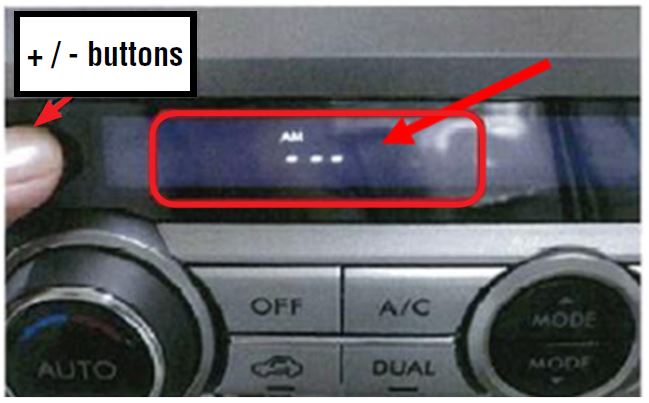
The + / – buttons are inoperative when the automatic adjustment of the clock by the GPS function is selected. Using them will result in either no change to the display (on vehicles prior to VIN breakpoint shown above) or a change in the display to “- – -“ (after the VIN breakpoint).
SERVICE PROCEDURE / INFORMATION
The time displayed on the clock is adjustable in 2 ways:
- Time displayed is automatically set by the GPS function of the Navigation system.
- Time displayed is manually set by the operator by using the + / – buttons.
To change from GPS function to operator (manual) adjustment, follow the 7 steps below:
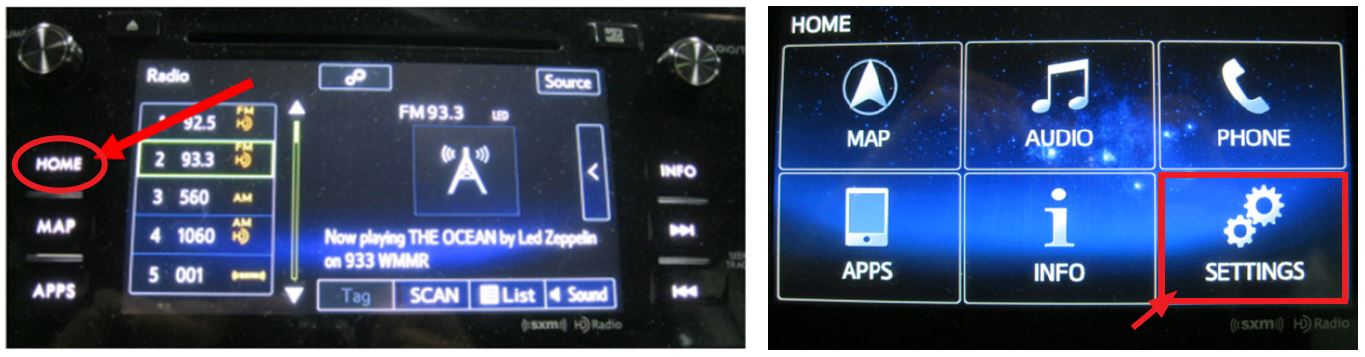
STEP 1– Press the “HOME” button on the face of the unit to display the HOME screen then press “SETTINGS”.
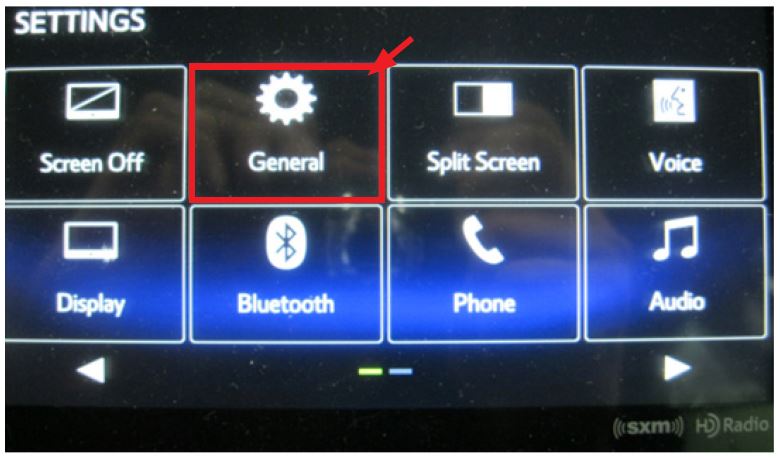
STEP 2– From the SETTINGS screen, press “General”.
STEP 3– From the General Settings screen, press “Clock”.
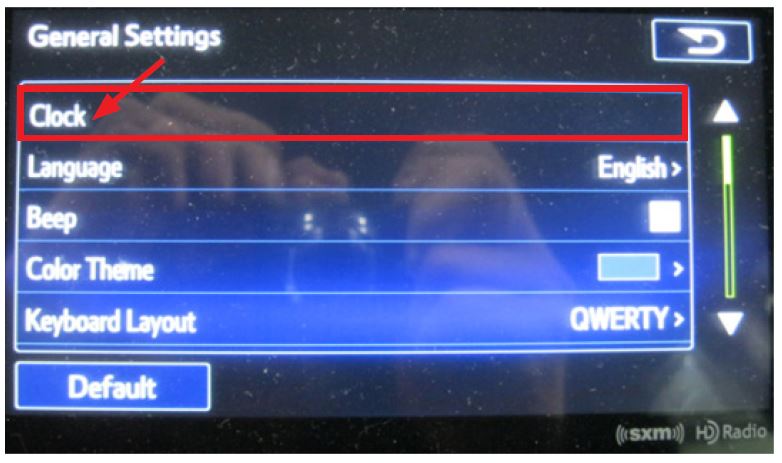
STEP 4– From the Clock screen, press “Auto Adjust by GPS” to turn the function on or off. In the white box, there is a check mark which turns from blue to gray when switching the function from on to off. NOTE: The color change from blue to gray may be somewhat hard to distinguish.
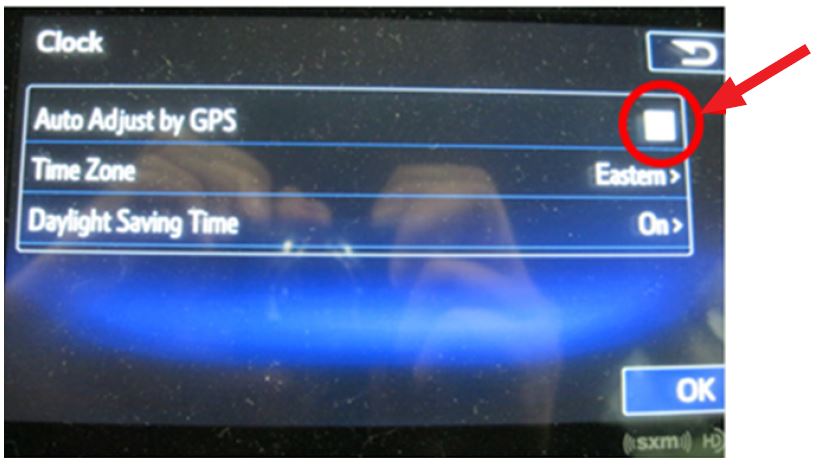
- When the check mark is gray (OFF), the time can be adjusted by the operator using the + / – buttons.
- When the check mark is blue (ON), the time is adjusted automatically by the GPS function of the Navigation system.
STEP 5– Once your selection is made, a pop-up reminder screen will appear as a reminder to confirm the Time Zone and Daylight Saving Time selections are correct before proceeding.
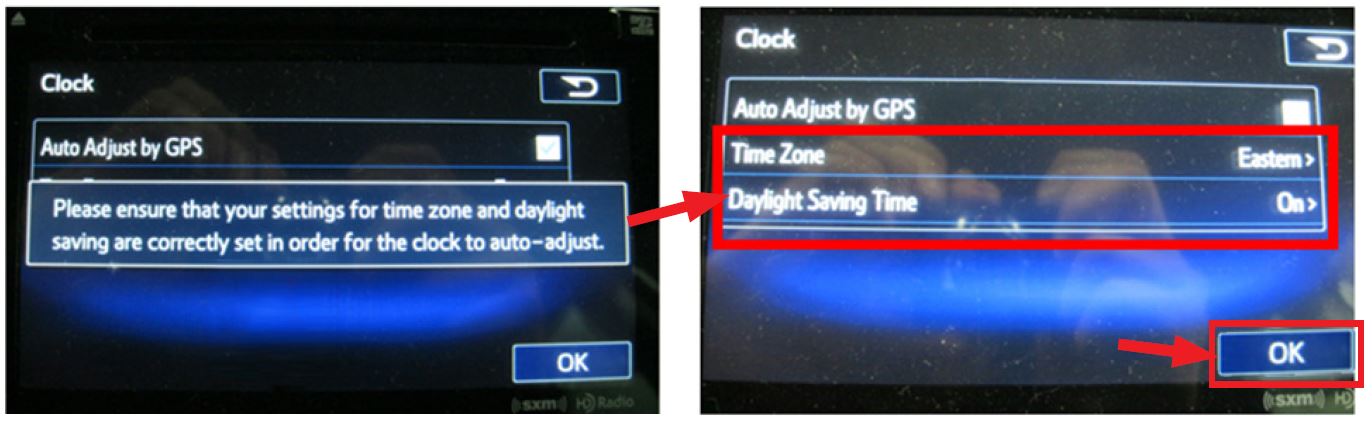
STEP 6– After confirming the Time Zone and Daylight Saving Time selections are correct, press “OK” then press the HOME button again on the face of the unit.
STEP 7– If a change from GPS to manual adjustment was made, confirm pressing the + / – buttons makes the desired change to the displayed time to complete the procedure.
No products found.

- Foursquare - Search millions of additional new and popular restaurants, shops and more with Foursquare
- Garmin Real Directions - Garmin Real Directions guides like a friend using landmarks and traffic lights
- Direct Access - Simplifies navigating to select complex destinations, like malls and airports
- Backup Camera Compatible - Take the worry out of reversing with the BC 30 Wireless Backup Camera (purchased separately)3
- Free lifetime Map updates

- Vehicle dash mount for use on any stable surface
- Securely holds your GPS in vehicle.Keep your device in easy sight with this portable friction mount, and then remove it from your vehicle when you arrive at your destination
- Does not slide or detach while vehicle is in motion
- Adjustable to position GPS in a variety of angles
- Ships in Certified Frustration-Free Packaging

This product presentation was made with AAWP plugin.